Pax Autocratica Steam Deck Best Settings: How to Get Stable 60 FPS
Pax Autocratica is exactly the kind of strategy game I love playing on Steam Deck. It has that dangerous “just one more turn” quality, except the turns are filled with logistics, expanding territory, increasingly complicated battles, and a ridiculous number of things happening somewhere in the background.
There is just one problem.
The Steam Deck can struggle when Pax Autocratica gets busy.
The game doesn’t simply render a pretty map and wait for you to click something. It is constantly calculating unit behavior, movement, resource production, faction activity, environmental effects and everything else happening across the campaign. Once your settlement grows and the map fills with active units, performance can become noticeably less stable.
After spending time tweaking the graphics options, I found that you don’t need to make Pax Autocratica look like a game from ten years ago to get a much smoother experience. The trick is knowing which settings actually matter on the Steam Deck and which ones can safely stay high.
So, if you’re looking for the best Pax Autocratica Steam Deck settings for 60 FPS in 2026, this is the setup I’d start with.
Can Pax Autocratica Really Hold 60 FPS on Steam Deck?
The short answer is: yes, but don’t expect a perfect 60 FPS in every possible situation.
That’s an important distinction.
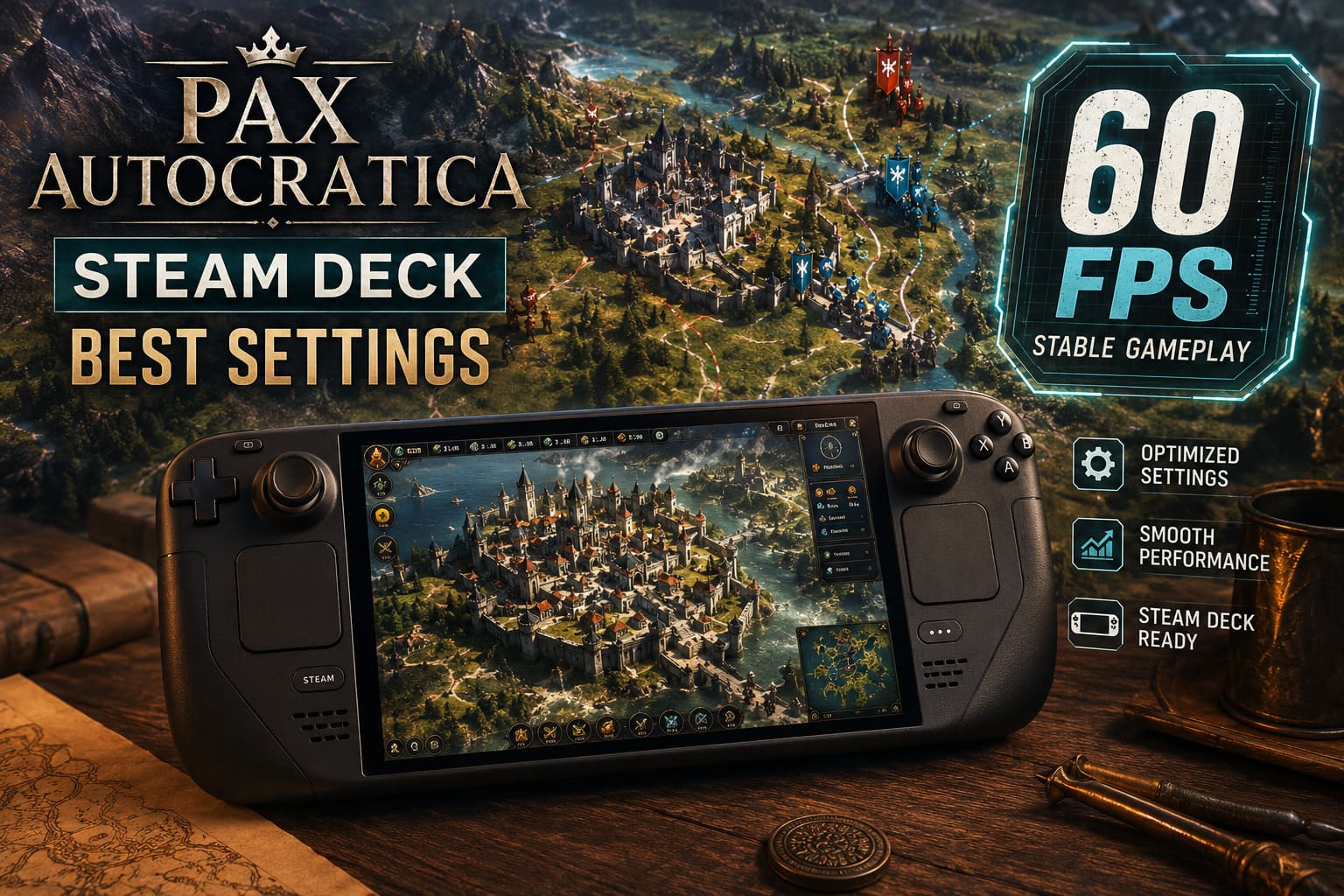
Early campaign gameplay and smaller battles are much easier for the Steam Deck to handle. The real test comes later, when your faction has expanded, the number of units has increased and the game has to simulate a much larger part of the world.
In those moments, the CPU can become just as important as the GPU.
That’s why simply dropping every graphical setting to Low isn’t necessarily the magic solution. You can reduce the visual workload considerably and still experience dips if the simulation itself becomes the bottleneck.
For me, the goal isn’t an artificial “60 FPS” number that collapses whenever the camera moves over a crowded region. Consistent frame delivery is far more important. A stable 55–60 FPS experience feels considerably better than a game jumping between 45 and 70 FPS every few seconds.
My Recommended Steam Deck Graphics Settings
Here’s the configuration I’d use first.
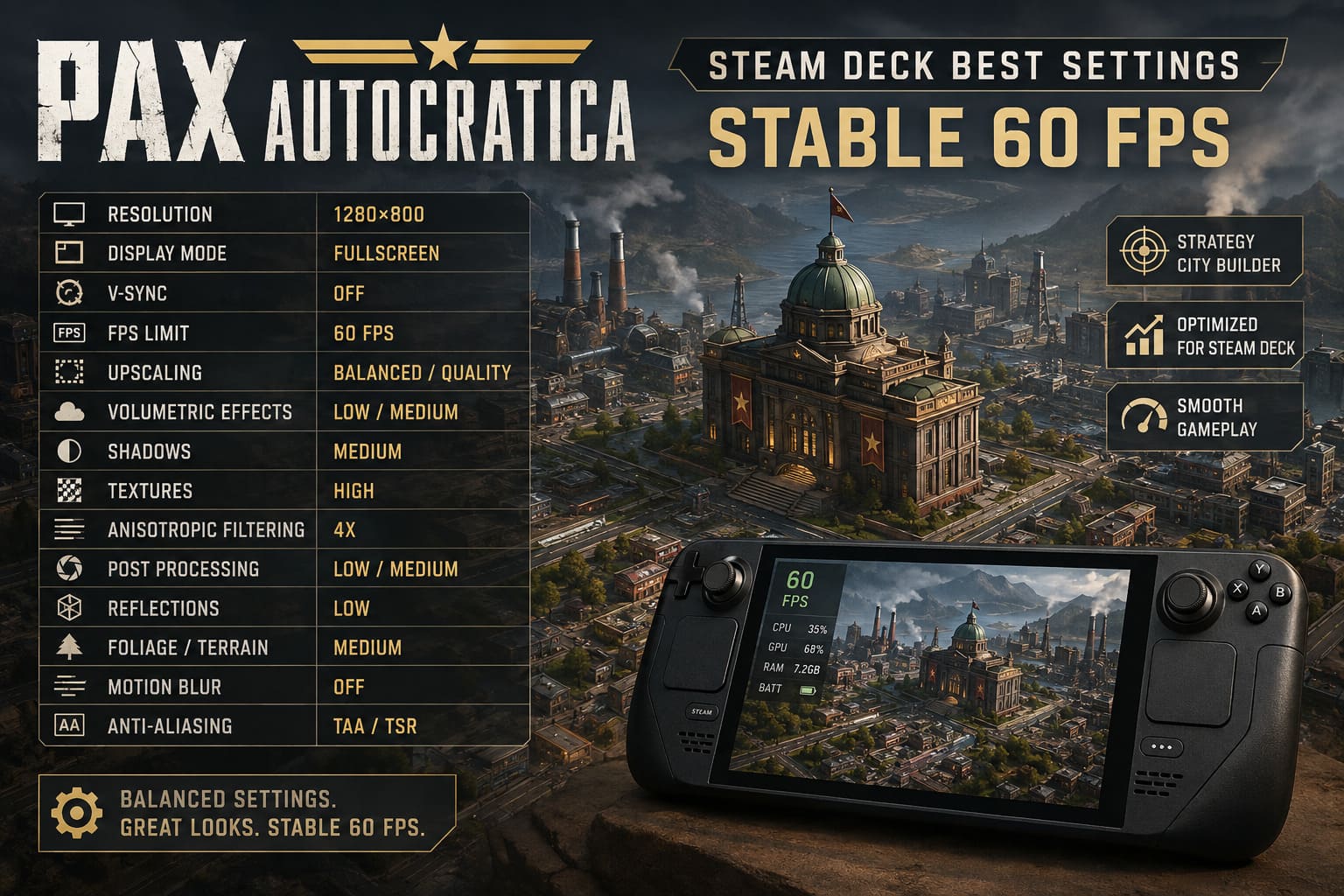
| Setting | Recommended Value | Why |
|---|---|---|
| Resolution | 1280×800 | Native Steam Deck resolution |
| Display Mode | Fullscreen | Reliable frame pacing |
| V-Sync | Off | Avoid unnecessary latency |
| FPS Limit | 60 FPS | Stable system-level target |
| Upscaling | Balanced / Quality | Excellent performance-to-quality ratio |
| Volumetric Effects | Low / Medium | One of the heavier GPU settings |
| Shadows | Medium | Keeps the world looking good |
| Textures | High | Small performance cost |
| Anisotropic Filtering | 4x | Keeps terrain readable |
| Post Processing | Low / Medium | Reduces unnecessary effects |
| Reflections | Low | Easy performance win |
| Foliage / Terrain | Medium | Good balance for large maps |
| Motion Blur | Off | Cleaner image |
| Anti-Aliasing | TAA / TSR | Smooth edges without excessive cost |
The important thing here is that I wouldn’t automatically put everything on Low.
Textures are a good example. On Steam Deck, dropping texture quality can make the game look significantly worse while doing very little for performance in many situations. I’d rather keep textures at High and sacrifice reflections or volumetric effects first.
The same philosophy applies to anisotropic filtering. A strategy game spends a lot of time showing terrain, roads, buildings and other surfaces at awkward angles. Keeping filtering at 4x helps those surfaces remain readable without creating a huge performance penalty.
The Settings That Actually Hurt Performance
If you’re trying to squeeze more frames out of Pax Autocratica, don’t waste your time lowering every option equally.
Start with the expensive stuff.
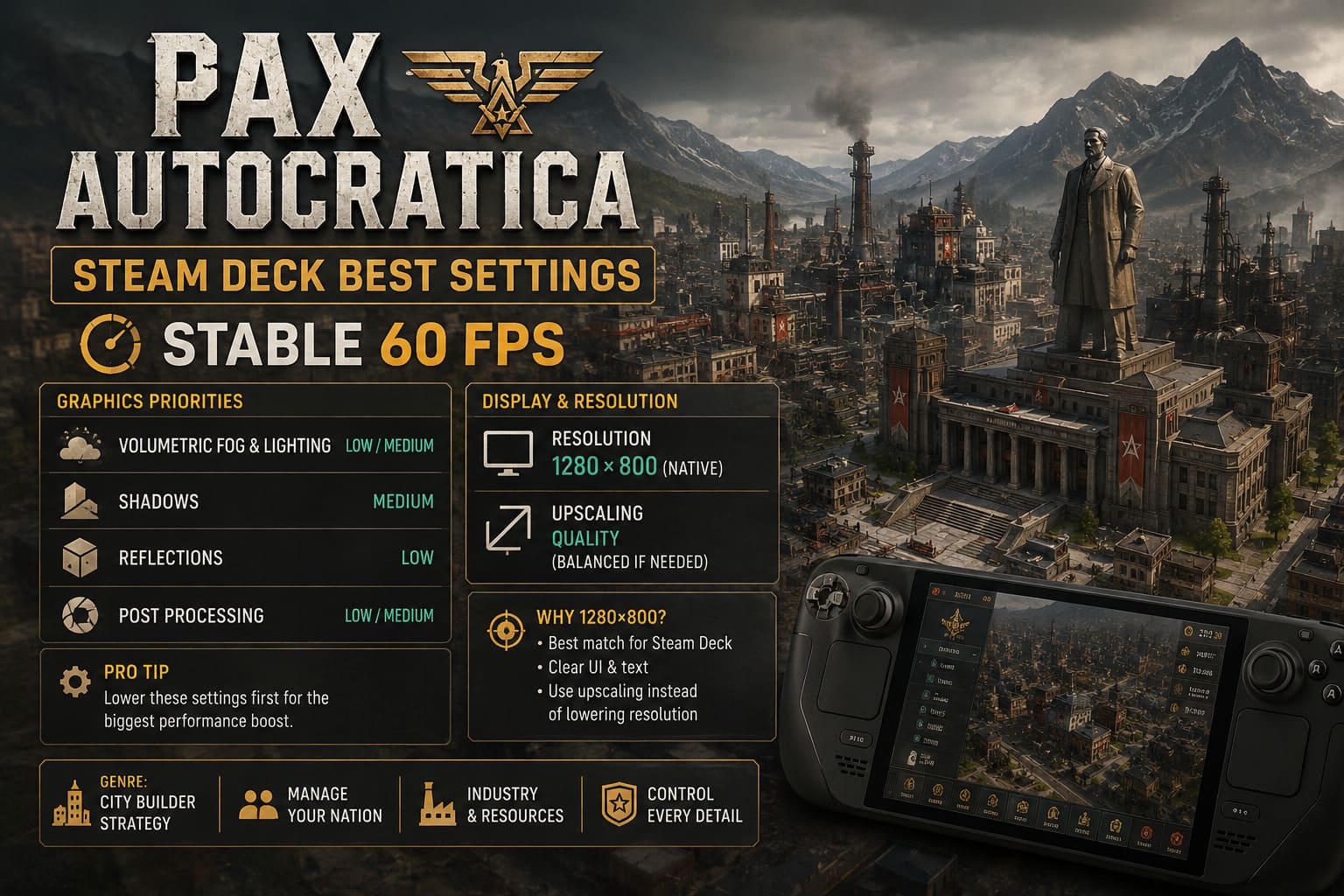
1. Volumetric Fog and Lighting
This is one of the first settings I’d reduce.
Volumetric effects can look great when you’re zoomed in, but they aren’t something I want to sacrifice half my performance for on a portable device. Set them to Low or Medium.
The difference is usually much less noticeable while actually playing than the performance difference suggests.
2. Shadows
High-quality shadows can become surprisingly expensive when the camera is covering a large strategic area.
Medium is the sweet spot.
You still get depth and definition around structures and units, but you avoid some of the heavier rendering costs associated with higher-quality shadow maps.
3. Reflections
This one is an easy cut.
Real-time reflections aren’t particularly important to the strategy experience, and they can consume GPU resources that are better spent elsewhere.
I use Low.
If you’re desperate for extra performance, this is one of the first settings I’d sacrifice.
4. Post Processing
Pax Autocratica has plenty of atmospheric effects designed to make the world feel more cinematic. That’s great on a desktop PC with plenty of GPU headroom.
On Steam Deck, I’d rather have responsive controls.
Set post-processing to Low or Medium, and disable things like excessive bloom and depth-of-field effects where possible.
The game will still look good. More importantly, the image stays much clearer when you’re constantly moving the camera around the map.
Why 1280×800 Is Still the Right Choice
There is a temptation with the Steam Deck to experiment with different resolutions in an attempt to gain performance.
I wouldn’t start there.
The native 1280×800 resolution is already a very good match for the hardware. More importantly, strategy games benefit enormously from a clean interface.
You spend a lot of time reading unit information, resource numbers, menus and small pieces of UI. Lowering the resolution too aggressively can turn that information into a blurry mess.
I’d rather use a sensible upscaling mode than destroy the game’s native presentation.
If Pax Autocratica offers a temporal or spatial upscaler, start with Quality. If performance still isn’t where you want it, move down to Balanced.
That’s usually a much better compromise than immediately dropping the entire game to a lower internal resolution.
My SteamOS Performance Profile
The in-game settings are only half of the equation.
Once you’ve configured the graphics menu, open the Steam Deck’s Quick Access Menu and create a per-game performance profile for Pax Autocratica.
My basic setup looks like this:
- Refresh Rate: 60Hz
- Frame Limit: 60 FPS
- Allow Tearing: Enabled
- TDP Limit: Off
- Manual GPU Clock: Off
- Half-Rate Shading: Off
The biggest thing here is avoiding unnecessary manual power restrictions.
Pax Autocratica can move between GPU-heavy scenes and CPU-heavy simulation periods. You don’t want to artificially lock the hardware into a configuration that works well for one situation and then struggles in another.
Let SteamOS manage the power balance.
The Performance Overlay is also worth enabling while you’re testing. Level 2 or 3 gives you enough information to see whether a particular slowdown is caused by GPU usage, CPU load, temperatures or something else.
That’s incredibly useful.
If your GPU is sitting comfortably below full utilization while the frame rate tanks during a huge battle, lowering another graphics setting isn’t going to magically solve the problem. At that point, you’re probably looking at a CPU or simulation bottleneck.
What About the Steam Deck OLED?
The OLED model doesn’t magically turn Pax Autocratica into a 60 FPS machine, but the display does give you some additional flexibility.
If you’re playing on the OLED Deck, you can experiment with a 90Hz display refresh rate while maintaining a 60 FPS cap.
Personally, I’d still begin with 60Hz/60 FPS.
The goal here is consistency, not chasing numbers.
The OLED screen makes the game look fantastic, and its improved display characteristics can make motion feel smoother even when you’re not running at extremely high frame rates. But no display setting can compensate for a CPU-bound simulation.
Late-Game Performance Is a Different Beast
This is where I think many Steam Deck optimization guides get things slightly wrong.
A configuration that gives you a beautiful 60 FPS during the opening hours doesn’t necessarily mean the same settings will hold up after your faction becomes enormous.
Pax Autocratica becomes significantly more demanding as the campaign develops.
More units mean more calculations.
More territory means more systems running simultaneously.
More factions mean more AI behavior and activity.
Eventually, you may encounter performance dips that have almost nothing to do with graphical quality.
If that happens, don’t immediately assume your Steam Deck is overheating or that your graphics settings are wrong.
Watch the performance overlay.
If GPU usage isn’t particularly high while the frame rate drops, you’re probably hitting a simulation bottleneck. In that situation, lowering texture quality from High to Medium isn’t going to help much.
That distinction can save you a lot of pointless tweaking.
Proton and Stutter Troubleshooting
If you’re getting crashes, freezes or unusual behavior, Proton is another area worth testing.
I wouldn’t change compatibility settings just because you’re experiencing a normal FPS dip. But if the game is crashing repeatedly, freezing during longer sessions or behaving strangely after an update, try forcing Proton Experimental.
A current GE-Proton release can also be worth testing when standard Proton isn’t behaving correctly.
Just remember that compatibility layers aren’t universal performance boosters. Sometimes one version works beautifully while another introduces a new problem.
Change one thing at a time.
That’s boring advice, but it’s the best way to troubleshoot a Steam Deck game.
Fixing Micro-Stutters and Asset Streaming
Another issue you may encounter is occasional hitching when moving into previously unseen areas.
This can feel like an FPS problem even when your average frame rate looks perfectly healthy.
Shader compilation and asset streaming can both create these little pauses.
Before changing ten graphics settings at once, make sure Steam has finished downloading any available shader cache data. Also check where the game is installed.
If you have enough internal storage available, I’d personally install Pax Autocratica on the Steam Deck’s internal SSD rather than a slower microSD card.
The difference won’t necessarily turn every stutter into a perfect frame-time graph, but faster storage can help with asset streaming and loading behavior.
Advanced Configuration Files: Should You Touch Them?
This is where I’d exercise some caution.
If Pax Autocratica is repeatedly forgetting your resolution or graphical configuration, checking its configuration files can be useful. On Steam Deck, those files may live inside the game’s Proton prefix rather than behaving like a traditional Linux-native configuration.
However, I wouldn’t start manually editing engine variables unless you’ve already exhausted the normal settings.
There are two reasons.
First, configuration paths can change between builds.
Second, manually forcing settings can create new problems after an update.
If you do edit a configuration file, make a backup first.
That’s especially important if you’re changing resolution values, scalability parameters, foliage density or shadow distances. A tiny configuration mistake can create a much bigger headache than a 5 FPS performance drop.
The 60 FPS Reality Check
After all the tweaking, here’s my honest recommendation.
If you can hold 60 FPS through normal gameplay, fantastic. Keep the cap.
If the game drops into the 50s during enormous late-game battles, I wouldn’t obsess over it.
A strategy game like Pax Autocratica benefits enormously from stable frame pacing, and a consistent 50–60 FPS range can feel much better than forcing a 60 FPS target that the hardware simply cannot maintain during the most demanding simulation moments.
If you absolutely need a more stable target, experimenting with a lower frame cap can actually produce a smoother experience.
That’s the part nobody likes hearing when they’re searching for a “60 FPS” guide.
Sometimes the best Steam Deck optimization isn’t getting the biggest number.
It’s making the game feel good.
Final Verdict: My Pax Autocratica Steam Deck Setup
For me, the ideal configuration is pretty straightforward: 1280×800, upscaling on Quality or Balanced, Medium shadows, Low/Medium volumetrics, Low reflections, High textures and a locked 60 FPS target.
Then let SteamOS manage the hardware instead of aggressively forcing manual clocks or power limits.
The biggest mistake would be treating every setting as equally important. They aren’t.
Lower the expensive effects first. Keep the settings that preserve readability and image quality. Monitor CPU and GPU behavior before assuming every slowdown is a graphics problem.
And when the campaign eventually becomes a giant simulation nightmare with hundreds of units doing their own thing, accept that the Steam Deck’s CPU may become the limiting factor.
That’s not failure.
That’s simply the reality of running a complicated strategy simulation on a handheld.
For everything else, these settings should give Pax Autocratica a much cleaner, smoother and more responsive feel on Steam Deck, without turning its atmospheric sci-fi world into a collection of blurry shapes.
And honestly, that’s the balance I’d take every time.