How to Disable Motion Blur in Echoes of Aincrad (PC Settings Guide)
When I first launched Echoes of Aincrad, I was genuinely impressed. The environments looked fantastic, the anime-inspired art direction captured the atmosphere of Aincrad beautifully, and combat immediately felt fast and satisfying. But after only twenty minutes of playing, one thing kept pulling me out of the experience.
The motion blur.
I’m usually not someone who disables every visual effect the moment I install a game. If motion blur is subtle, I can live with it. But in Echoes of Aincrad, it feels far too aggressive, especially on PC where you’re sitting close to a monitor instead of several feet away from a television.
Every quick camera turn made the scenery look smeared, fast sword fights became harder to read, and after a longer session my eyes actually started feeling tired. Looking through Steam discussions and Reddit, I quickly realized I wasn’t the only player feeling this way.
Since the game currently doesn’t include a proper in-game option to disable motion blur, the best solution is editing one of Unreal Engine 5’s configuration files. Fortunately, it’s a simple process and only takes a couple of minutes.
Why Motion Blur Feels Worse on PC
Motion blur has been part of modern games for years. Developers often use it to make movement appear smoother, hide frame pacing inconsistencies, or create a more cinematic presentation.
The problem is that what looks acceptable on consoles doesn’t always translate well to a PC setup.
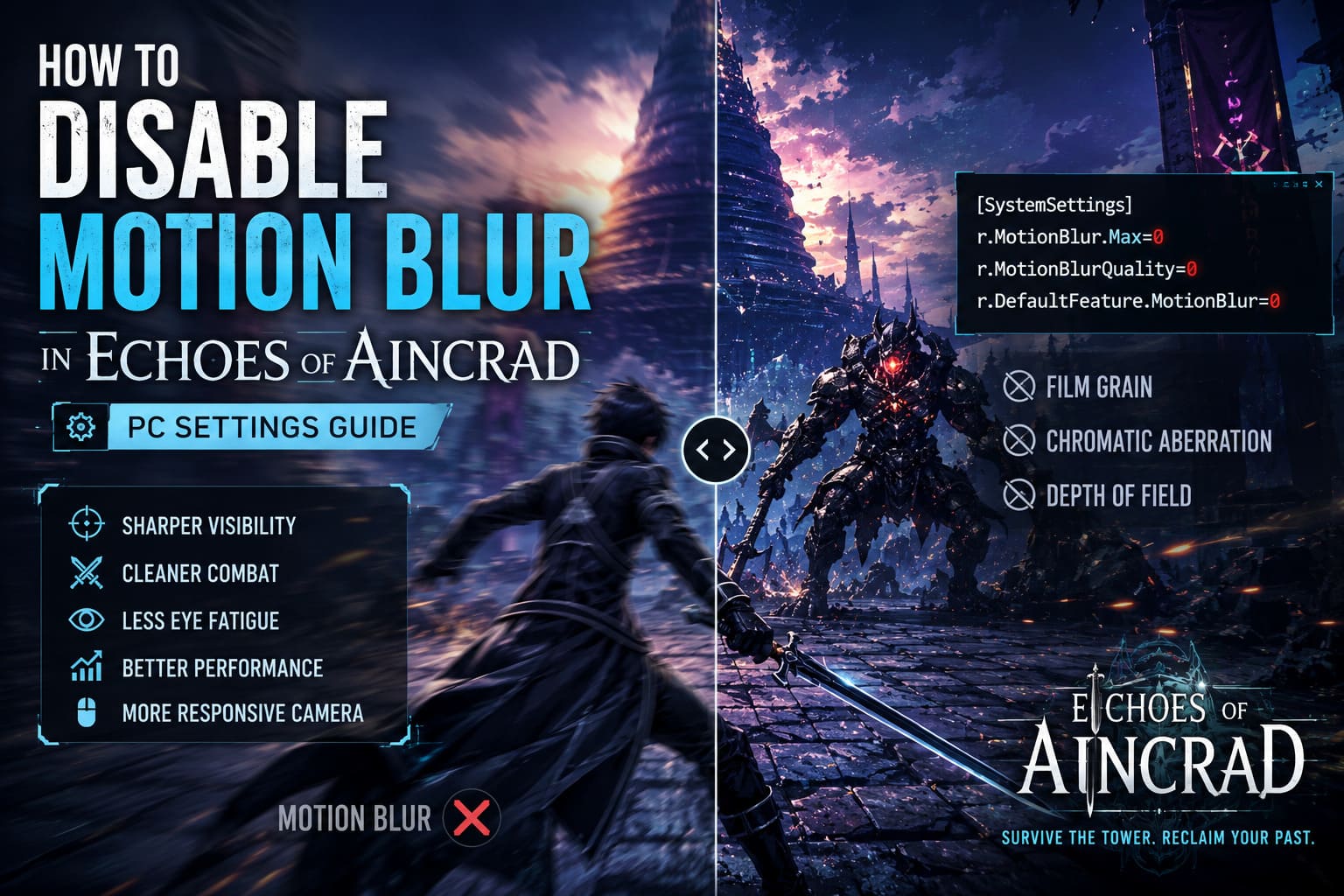
When you’re playing on a monitor at close range:
- Every camera movement is much more noticeable.
- Image sharpness becomes significantly more important.
- Fast mouse movement exaggerates blur compared to controller movement.
Echoes of Aincrad combines quick melee combat with rapid camera movement, so the effect ends up making everything feel softer than it should.
Instead of enjoying the detailed environments, I kept noticing how much visual information disappeared whenever I rotated the camera.
What Improved After Disabling Motion Blur
Turning the effect off made a surprisingly large difference.
Here are the biggest improvements I noticed almost immediately:
- Sharper environments while exploring every floor of Aincrad.
- Cleaner combat visibility during boss encounters.
- Less eye fatigue after long sessions.
- Slightly smoother overall performance during heavy fights.
- More responsive camera movement that felt natural instead of cinematic.
It doesn’t magically increase FPS by 30 or transform the graphics, but it absolutely makes the game look cleaner.
How to Disable Motion Blur in Echoes of Aincrad
Because Echoes of Aincrad uses Unreal Engine 5, many graphics options can be overridden through configuration files.
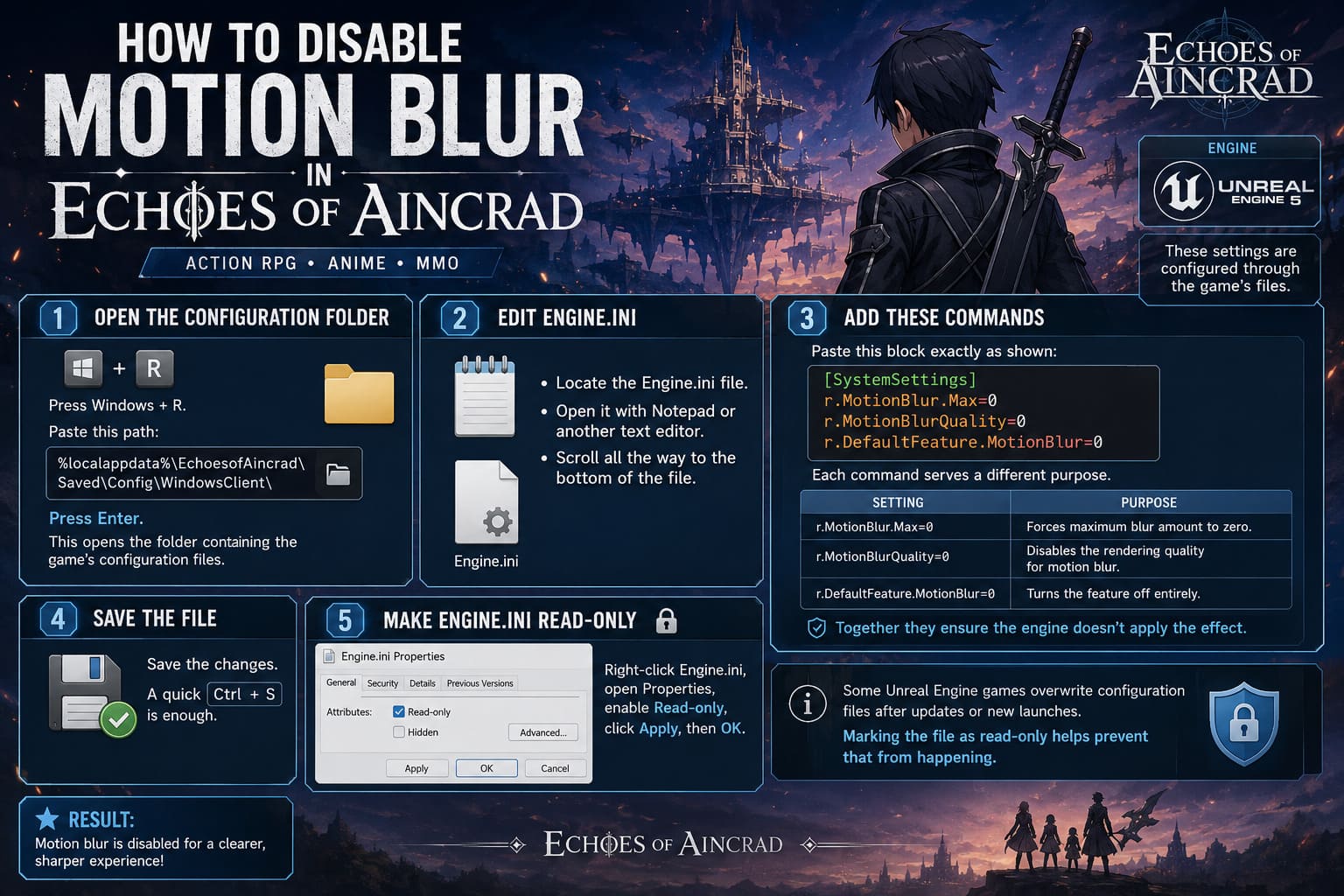
Step 1 — Open the Configuration Folder
Press Windows + R.
Paste the following path:
%localappdata%\EchoesofAincrad\Saved\Config\WindowsClient\Press Enter.
This opens the folder containing the game’s configuration files.
Step 2 — Edit Engine.ini
Locate the Engine.ini file.
Open it with Notepad or another text editor.
Scroll all the way to the bottom of the file.
Step 3 — Add These Commands
Paste this block exactly as shown:
[SystemSettings]
r.MotionBlur.Max=0
r.MotionBlurQuality=0
r.DefaultFeature.MotionBlur=0
Each command serves a different purpose.
| Setting | Purpose |
|---|---|
| r.MotionBlur.Max=0 | Forces maximum blur amount to zero. |
| r.MotionBlurQuality=0 | Disables the rendering quality for motion blur. |
| r.DefaultFeature.MotionBlur=0 | Turns the feature off entirely. |
Together they ensure the engine doesn’t apply the effect.
Step 4 — Save the File
Save the changes.
A quick Ctrl + S is enough.
Step 5 — Make Engine.ini Read-Only
This step isn’t always required, but I recommend it.
Right-click Engine.ini, open Properties, enable Read-only, click Apply, then OK.
Some Unreal Engine games overwrite configuration files after updates or new launches. Marking the file as read-only helps prevent that from happening.
Other Graphics Tweaks Worth Trying
Once you’re already editing Engine.ini, it’s worth removing a few other post-processing effects that many PC players dislike.
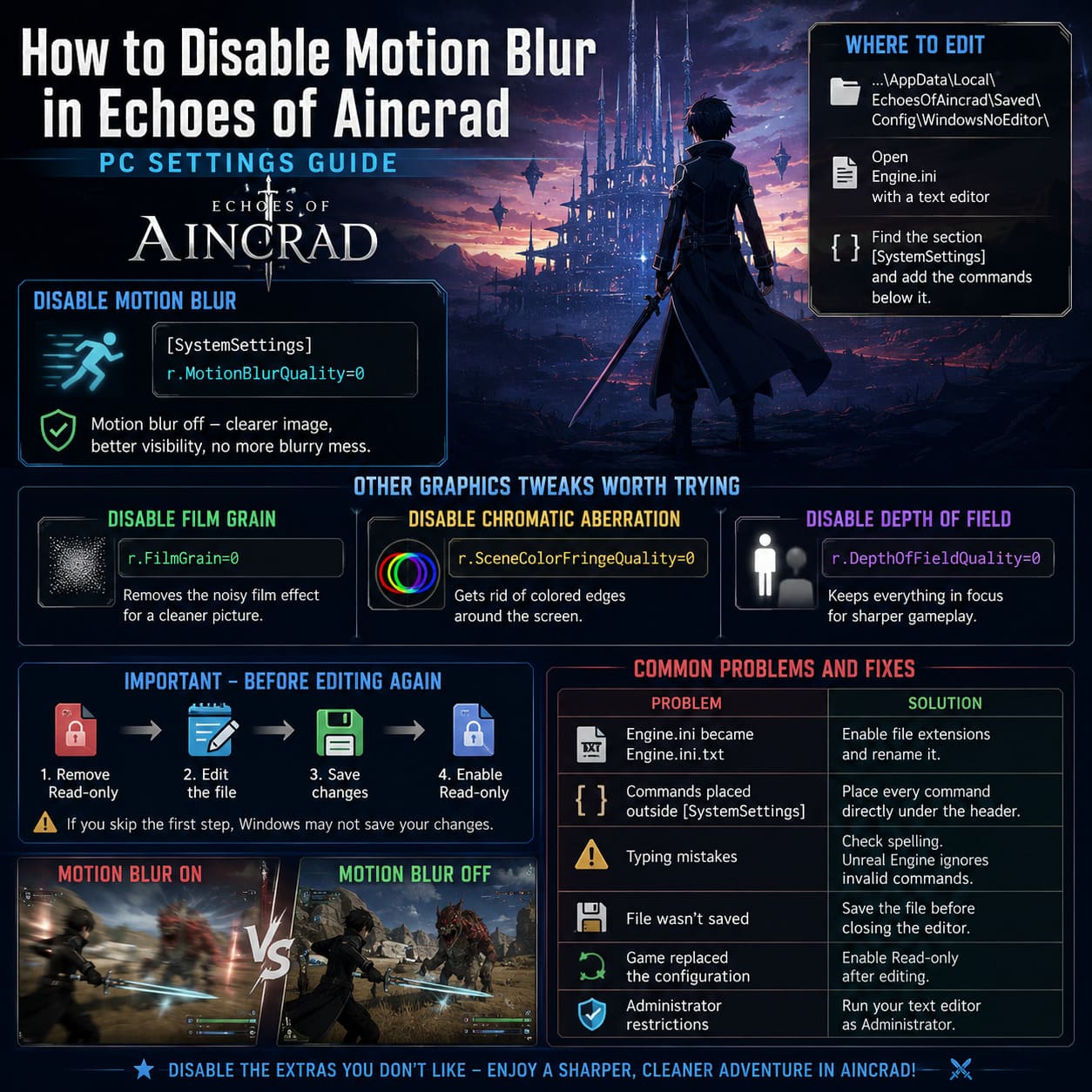
Disable Film Grain
r.FilmGrain=0Film grain tries to imitate movie cameras, but personally I think it just makes modern games look noisier.
Disable Chromatic Aberration
r.SceneColorFringeQuality=0This removes the colored outlines that appear around the edges of the screen.
I’ve never been a fan of this effect in games. It often makes the image look less sharp for no practical reason.
Disable Depth of Field
r.DepthOfFieldQuality=0Depth of field intentionally blurs parts of the scene depending on camera focus.
For screenshots it can look nice.
For actual gameplay, I’d rather have everything perfectly sharp.
Remember This Before Editing Again
If you decide to add more commands later, don’t forget the following:
- Remove the Read-only attribute.
- Edit the file.
- Save it.
- Enable Read-only once again.
Skipping the first step will prevent Windows from saving your new changes.
Common Problems and How to Fix Them
Sometimes players report that motion blur remains active even after editing Engine.ini.
Usually one of these issues is responsible.
| Problem | Solution |
|---|---|
| Engine.ini became Engine.ini.txt | Enable file extensions in Windows and rename it correctly. |
| Commands placed outside [SystemSettings] | Make sure every line is directly below the header. |
| Typing mistakes | Unreal Engine ignores invalid commands. |
| File wasn’t saved | Save before closing the editor. |
| Game replaced the configuration | Enable Read-only after editing. |
| Administrator restrictions | Run your text editor as Administrator. |
Most issues are surprisingly simple once you know where to look.
Does Disabling Motion Blur Improve FPS?
The answer is sometimes, but don’t expect miracles.
Motion blur is a post-processing effect, so disabling it reduces a small amount of GPU work.
If your graphics card is already running close to its limits, you might gain a couple of frames or experience fewer dips during intense combat.
However, the biggest improvement is visual rather than performance-related.
The game simply becomes easier to read.
Echoes of Aincrad Stamina Management Guide: Combat Tips to Survive Aincrad
My Personal Thoughts After Playing
I’ve played plenty of Unreal Engine titles over the years, and one trend keeps showing up.
Developers often prioritize cinematic presentation over gameplay clarity.
For console players this isn’t always a problem.
For PC players using a mouse, however, heavy motion blur usually becomes distracting almost immediately.
Echoes of Aincrad unfortunately follows that pattern.
The strange part is that the game’s artwork is genuinely beautiful. The environments are detailed, enemy designs are excellent, and the lighting does a great job of bringing the world to life.
Adding such an intense layer of blur almost feels like hiding the work the artists put into creating those visuals.
After disabling motion blur, I spent another few hours exploring the game and honestly enjoyed it much more. Boss attacks became easier to track, city areas looked noticeably sharper, and the overall presentation felt cleaner.
If Bandai Namco eventually adds proper graphics controls through an update, hopefully we’ll get simple toggles for motion blur, film grain, chromatic aberration, and depth of field directly inside the graphics menu.
Until then, editing Engine.ini is easily the best workaround.
Sword Art Online Echoes of Aincrad Floor 2 Dungeon Walkthrough & Boss Guide
Final Verdict
If you’re playing Echoes of Aincrad on PC, disabling motion blur is one of the first tweaks I would recommend.
The process only takes a few minutes, doesn’t require third-party software, and can dramatically improve visual clarity during exploration and combat. Combined with disabling film grain and chromatic aberration, the game feels noticeably cleaner and more responsive.
For me, this wasn’t about squeezing out a few extra FPS—it was about making the game’s gorgeous world easier to appreciate. Once the blur was gone, the detailed environments, fluid combat animations, and vibrant art style finally looked the way I expected them to from the start. Until an official graphics update arrives, this simple Unreal Engine configuration tweak is the easiest way to get a sharper and more enjoyable Echoes of Aincrad experience on PC.