How to Fix Echoes of Aincrad Camera Glitch: Mouse Lag and Jitter Fixes
If you’ve been exploring the massive floating world of Sword Art Online: Echoes of Aincrad on PC with a keyboard and mouse, you’ve probably noticed something feels… off. The combat is enjoyable, the environments look fantastic, and the atmosphere captures the SAO universe surprisingly well, but then the camera reminds you that something isn’t quite right.
After spending several hours testing different settings and reading through community discussions, I came to one conclusion: the camera isn’t “bad” because of your mouse—it feels bad because of how the game currently handles mouse input.
This isn’t one of those situations where buying a new gaming mouse or increasing your FPS magically fixes everything. The problem seems to be rooted in the game’s input behavior, and until the developers improve it with an official update, players have to rely on a handful of practical workarounds.
The good news? Several of them genuinely improve the experience.
Why the Camera Feels Strange
The first thing I noticed wasn’t low FPS or stuttering.
Instead, the camera almost felt like it had a mind of its own.
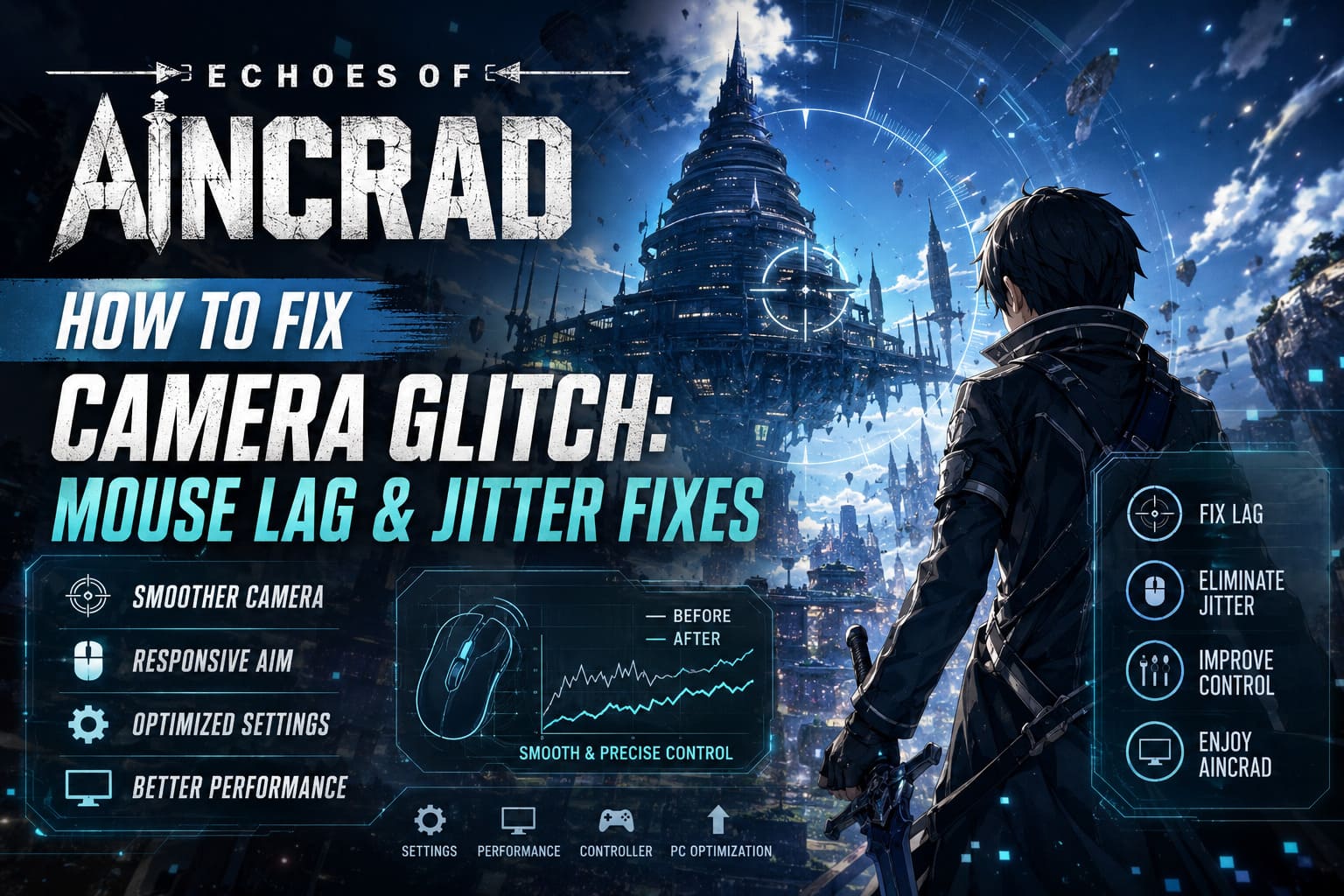
Small mouse movements sometimes didn’t register at all, while quick flicks never rotated as far as they should. During boss fights, especially when trying to reposition quickly, it often felt like I was fighting the camera more than the enemies.
After comparing experiences with other players, a common pattern emerged.
The game appears to process mouse movement similarly to controller stick input rather than treating it as raw mouse movement. Whether that’s intentional or simply an issue with the PC version, the result is the same.
Some of the most noticeable symptoms include:
- Tiny mouse movements being ignored
- Inconsistent turning speed
- Camera feeling heavy or delayed
- Random micro-jitters while looking around
- Difficulty making precise adjustments
For an action RPG where positioning matters, those issues become noticeable very quickly.
First Settings I Changed
Before touching any external software, I started with the in-game options.
This alone made the biggest difference.
Many games ship with camera assistance enabled by default because they’re designed primarily around controllers. Unfortunately, those same features can make mouse controls feel sluggish.
I disabled every automatic camera feature I could find.
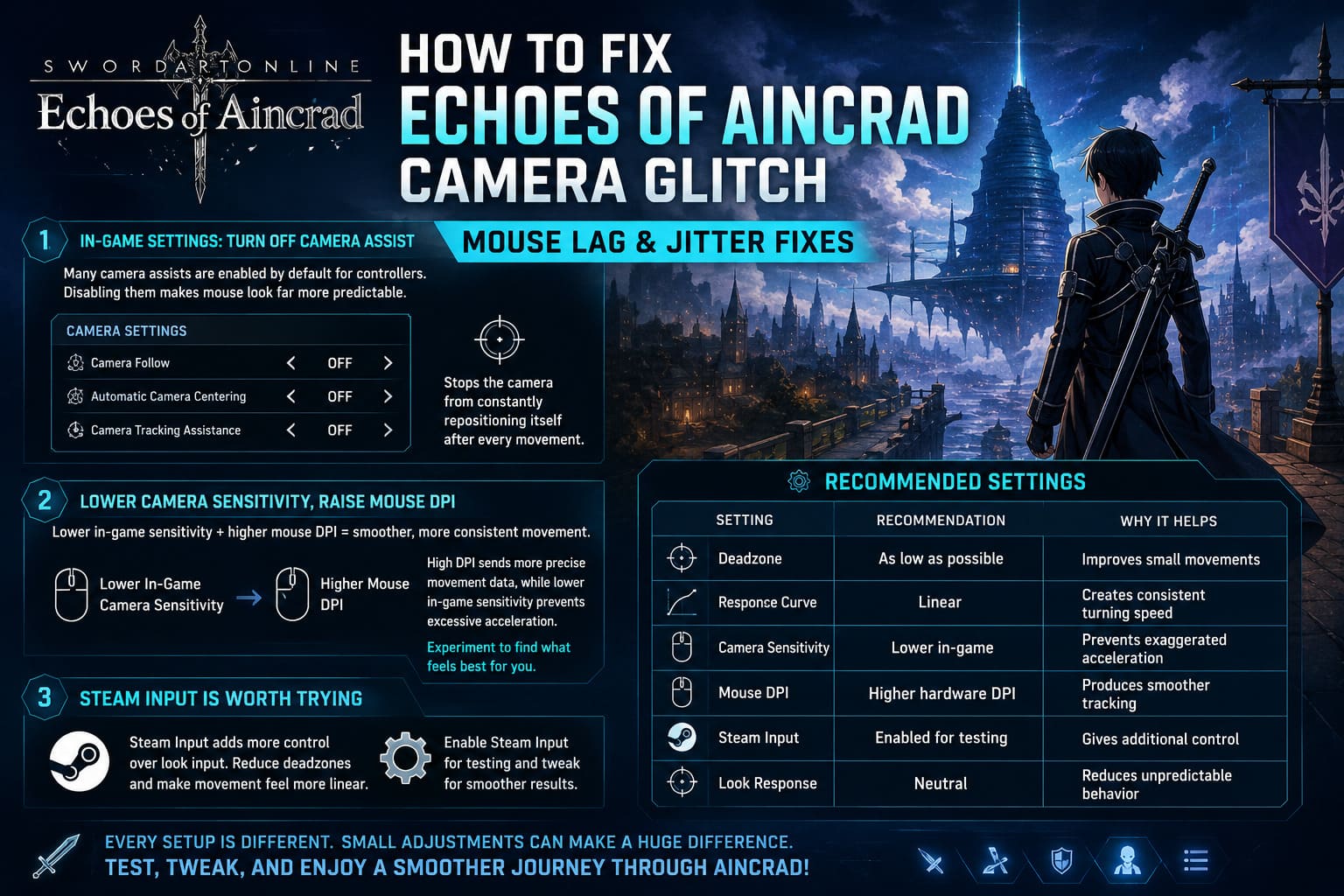
That included:
- Camera Follow
- Automatic Camera Centering
- Camera Tracking Assistance
Once those were turned off, the camera stopped constantly trying to reposition itself after every movement.
It wasn’t perfect, but it immediately felt much more predictable.
Lower Camera Sensitivity, Raise Mouse DPI
This combination surprised me.
Initially, I assumed increasing in-game sensitivity would make everything more responsive.
Instead, lowering the game’s camera sensitivity while increasing my actual mouse DPI produced smoother movement.
Why?
Higher DPI sends more movement information to the game while the lower in-game sensitivity prevents excessive acceleration.
Everyone’s setup is different, but this approach helped eliminate much of the inconsistent feeling during slower camera movements.
It’s worth experimenting for a few minutes until it feels comfortable.
Steam Input Is Worth Trying
Normally I leave Steam Input alone for keyboard and mouse games.
For Echoes of Aincrad, though, it actually helped.
Steam’s input configuration offers more control over how look input behaves, allowing players to reduce artificial deadzones and make movement feel more linear.
You don’t necessarily need to spend an hour tweaking every setting.
Instead, focus on:
| Setting | Recommendation | Why It Helps |
|---|---|---|
| Deadzone | As low as possible | Improves small movements |
| Response Curve | Linear | Creates consistent turning speed |
| Camera Sensitivity | Lower in-game | Prevents exaggerated acceleration |
| Mouse DPI | Higher hardware DPI | Produces smoother tracking |
| Steam Input | Enabled for testing | Gives additional control |
| Look Response | Neutral | Reduces unpredictable behavior |
Your results may vary depending on your mouse and monitor, but it’s one of the easier things to experiment with.
Fullscreen Actually Felt Better
Normally I don’t notice much difference between Borderless Windowed and Exclusive Fullscreen.
Here I absolutely did.
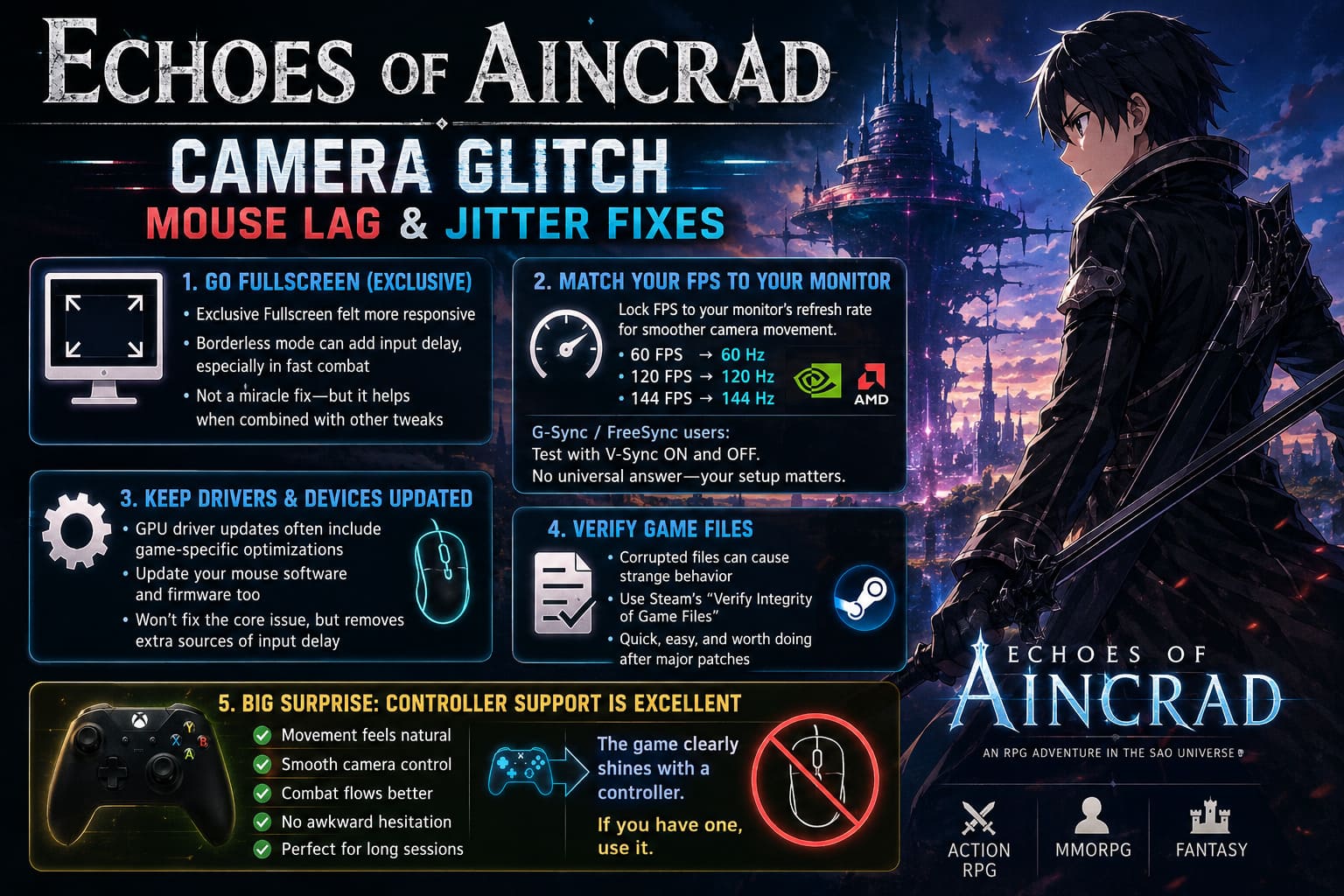
Borderless mode occasionally introduced extra input delay, particularly during fast combat.
Switching to Exclusive Fullscreen made camera movement feel slightly more immediate.
It’s not a miracle fix, but when combined with the other tweaks, the improvements start adding up.
Match Your FPS to Your Monitor
Another thing I tested was frame pacing.
Running the game with an unlocked frame rate looked fine on paper, yet the camera sometimes felt inconsistent.
Locking the frame rate to match my monitor refresh rate created much smoother camera movement.
For example:
- 60 FPS on a 60 Hz display
- 120 FPS on a 120 Hz display
- 144 FPS on a 144 Hz display
Players using G-Sync or FreeSync should also experiment with V-Sync enabled and disabled.
There’s no universal answer because every hardware setup behaves differently.
Don’t Ignore Driver Updates
I know.
Every troubleshooting guide says to update your drivers.
Usually that’s boring advice.
In this case, however, it’s still worth doing.
Graphics driver updates occasionally include game-specific optimizations, especially for newly released titles.
If your gaming mouse also has dedicated software, updating its firmware and software package can remove additional sources of input delay.
It won’t fix the underlying camera implementation, but eliminating outside variables makes it easier to determine whether the game itself is responsible.
Verify the Installation
This sounds obvious, but corrupted files occasionally create strange behavior after launch-day patches.
Running Steam’s file verification only takes a few minutes and is one of those maintenance steps that’s easy to overlook.
Even if it doesn’t solve the camera issue, at least you’ll know your installation isn’t contributing to the problem.
My Biggest Surprise: Controller Support Is Excellent
Here’s something I didn’t expect to admit.
I generally prefer keyboard and mouse for almost every PC game.
But after plugging in an Xbox controller, the difference was immediately noticeable.
Movement felt natural.
Camera rotation was smooth.
Combat animations flowed together much better.
The awkward hesitation I experienced with the mouse simply wasn’t there.
That doesn’t excuse the PC mouse implementation, but it does suggest the game was heavily designed around controller input.
If you’re planning long sessions and don’t mind using a gamepad, it’s currently the easiest way to avoid the issue entirely.
What I Hope Gets Patched
I don’t think this is an impossible problem to fix.
In fact, several Japanese action RPGs have launched with similar mouse behavior before receiving patches that dramatically improved input responsiveness.
Personally, I’d love to see developers add:
- True raw mouse input
- Optional mouse acceleration toggle
- Separate deadzone controls
- Independent horizontal and vertical sensitivity sliders
- Improved camera smoothing options
- More advanced PC graphics settings
These aren’t unusual features anymore.
Modern PC players expect this level of customization, especially in fast-paced action games.
How to Disable Motion Blur in Echoes of Aincrad (PC Settings Guide)
Is This a Dealbreaker?
For me?
Not really.
It’s definitely frustrating during the first few hours, especially if you’re coming from games with exceptionally responsive mouse controls.
However, once I disabled the automatic camera assistance, adjusted sensitivity, switched to fullscreen, and spent some time fine-tuning my setup, the experience became much more enjoyable.
Would I still like an official patch?
Absolutely.
The current implementation still doesn’t feel as polished as it should.
But I also don’t think the camera problems ruin an otherwise entertaining game.
If you’re willing to spend ten or fifteen minutes adjusting settings, there’s a good chance you’ll end up with something that’s perfectly playable while waiting for future updates.
For now, that’s probably the best approach.
Echoes of Aincrad Stamina Management Guide: Combat Tips to Survive Aincrad
Final Thoughts
Sword Art Online: Echoes of Aincrad has plenty of strengths. The world design captures the feeling of Aincrad beautifully, combat becomes increasingly satisfying once you understand its systems, and exploring each floor remains genuinely fun.
The mouse camera issue is simply the roughest edge of the current PC version.
Thankfully, it’s also one of those problems that can be reduced significantly through a combination of smarter settings, Steam Input adjustments, proper frame pacing, and a little experimentation.
Hopefully, an upcoming patch introduces proper raw mouse support and removes the controller-like behavior entirely.
Until then, these tweaks made the adventure through Aincrad far smoother than my first few hours suggested.