How to Fix Monopoly Star Wars Heroes vs Villains Connection Error and Black Screen
The launch of Monopoly Star Wars Heroes vs Villains should have been one of those relaxing gaming nights where you grab your favorite character, roll the dice, and ruin friendships in the most entertaining way possible. Instead, launch week has turned into an unexpected boss fight against black screens, frozen loading loops, and connection errors that refuse to disappear.
I’ve spent enough years covering game launches to recognize a familiar pattern. It doesn’t matter whether it’s a giant open-world RPG or a digital board game—release week almost always comes with technical headaches. After digging through community discussions, testing different fixes, and comparing reports from players across multiple platforms, one thing became obvious: most of these issues aren’t caused by weak hardware. They’re usually software conflicts, authentication problems, or display bugs.
If you’re stuck staring at a black monitor while the Star Wars soundtrack happily plays in the background, don’t uninstall the game just yet. There are several fixes that have already helped plenty of players get back into the galaxy.
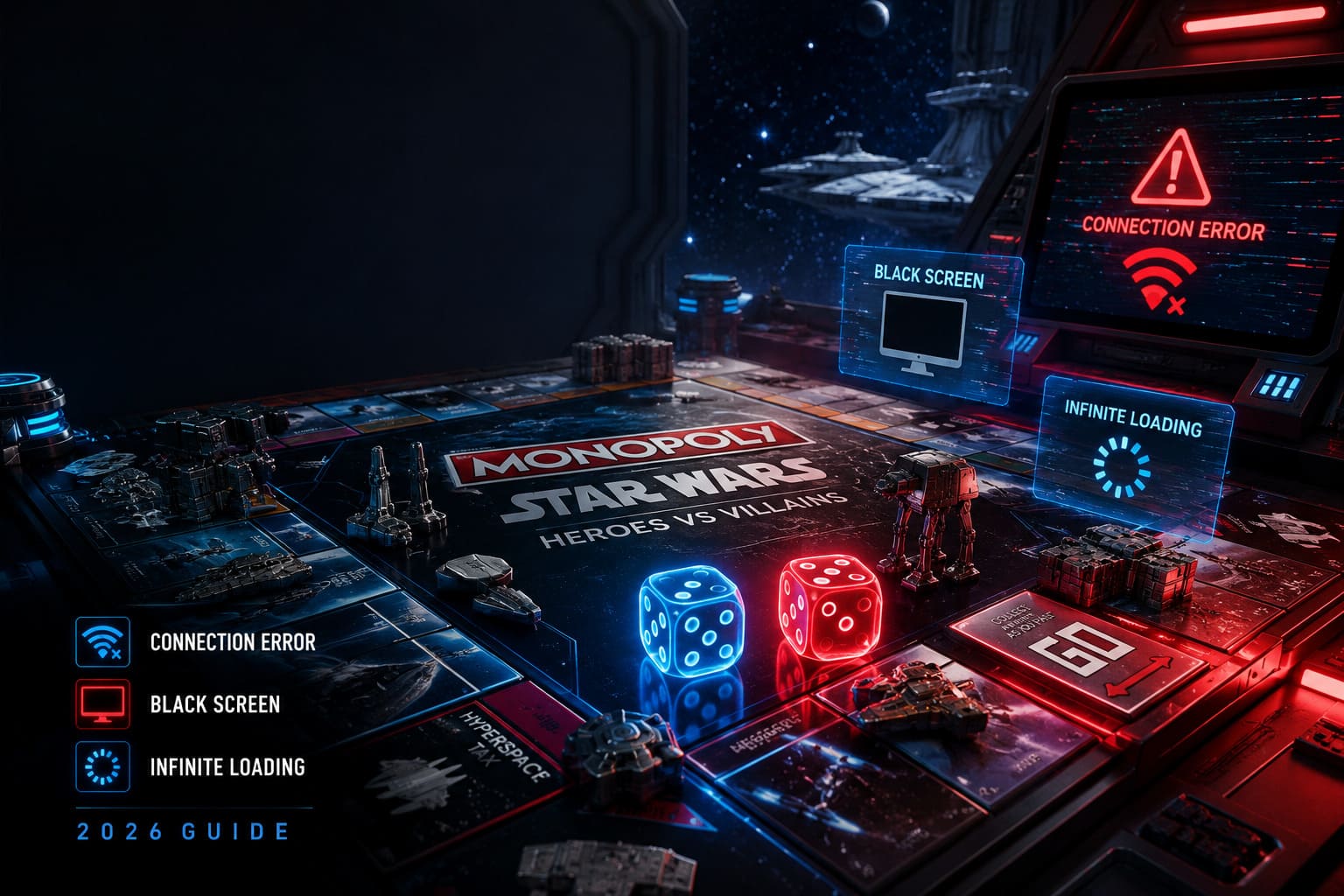
Why Monopoly Star Wars Heroes vs Villains Gets Stuck on a Black Screen
A completely black display doesn’t always mean the game has crashed.
Most of the time, the game is actually running behind the scenes but gets trapped during its startup routine. That can happen for several different reasons.
| Problem | What Happens | Difficulty to Fix |
|---|---|---|
| Online authentication timeout | Game freezes before reaching the main menu | Easy |
| Display resolution conflict | Audio plays but nothing appears on screen | Easy |
| Corrupted local configuration | Endless loading or frozen menu | Medium |
| Cloud synchronization issues | Startup loop after splash screen | Medium |
| Damaged game files | Missing assets prevent loading | Easy |
| Network cache problems | Random connection errors every launch | Easy |
The good news is that almost all of these problems can be fixed without reinstalling Windows or replacing any hardware.
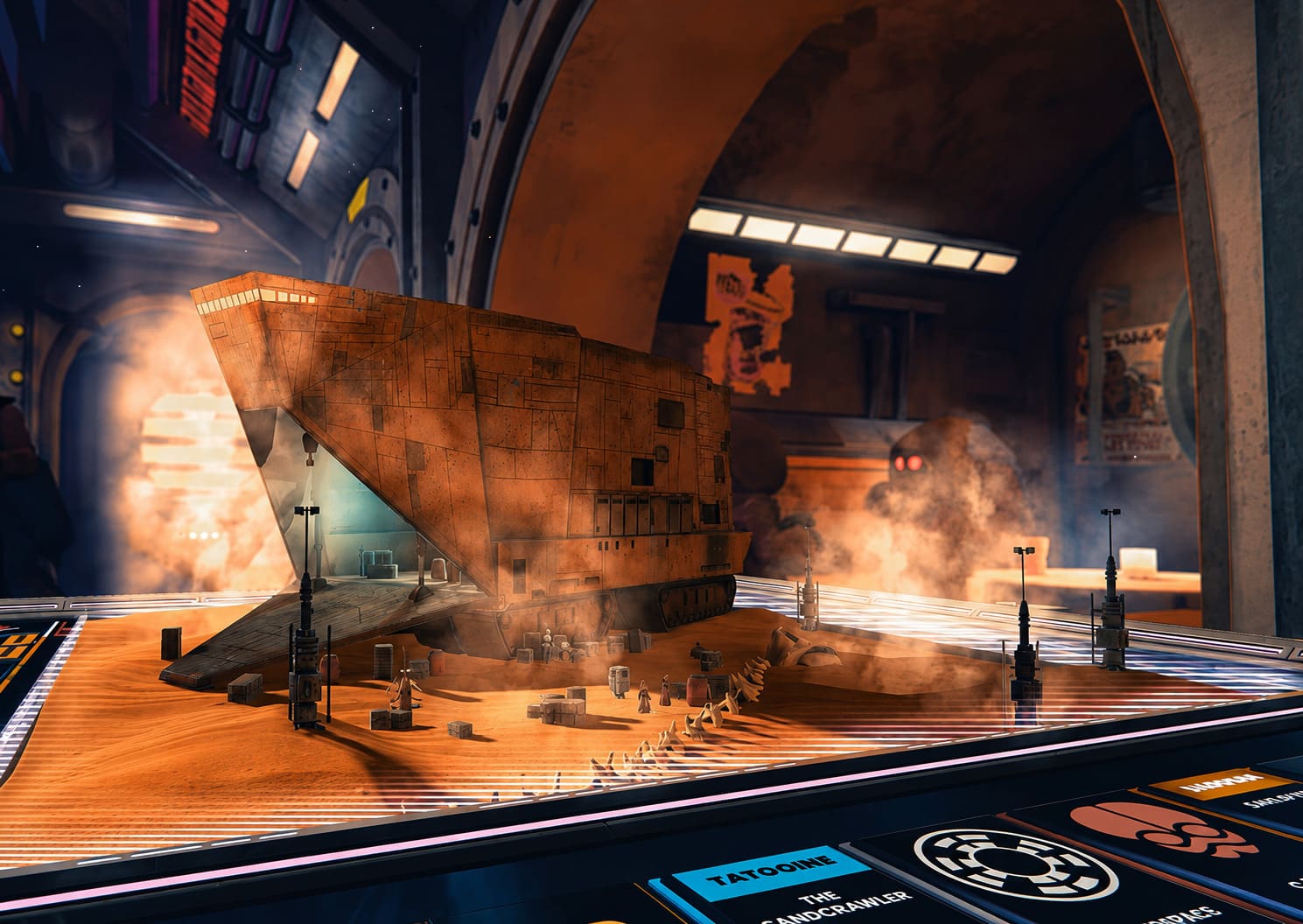
My Favorite Fix: Start the Game Offline
This sounds ridiculous until you try it.
For some reason, the game loves checking online services before it even finishes loading its own interface. If Ubisoft’s authentication takes too long—or simply doesn’t respond—the entire startup process can freeze.
Disconnecting your system forces the game to ignore that first online handshake.
On Xbox and PlayStation
The process only takes a minute.
- Close the game completely.
- Disconnect your console from the internet.
- Launch the game again.
- Wait until the main menu finally appears.
- Reconnect your internet.
- Return to the game.
It feels backwards, but countless players report this immediately bypasses the launch freeze.
On PC
The same idea works surprisingly well.
Instead of disconnecting your PC entirely:
- Put Steam or Ubisoft Connect into Offline Mode.
- Launch the game.
- Wait for the menu.
- Switch your launcher back online.
- Continue playing normally.
I’ve seen this trick rescue games far more complicated than Monopoly, so it’s always one of the first things I test.
Hearing Music but Seeing Nothing? That’s Probably Fullscreen Mode
This is one of the oldest PC gaming problems in existence.
Your graphics card renders the game perfectly, but Windows and your monitor completely disagree on how fullscreen should work.
If you hear menus or cinematic music but only see a black screen, try this immediately:
Press Alt + Enter.
That’s it.
The shortcut forces Windows to switch the game into Windowed Mode.
If the image suddenly appears, head straight into the graphics settings.
I strongly recommend changing:
- Display Mode → Borderless Window
- Resolution → Native monitor resolution
- Refresh Rate → Match your monitor
Borderless mode has become far more stable than exclusive fullscreen in modern PC games.
Reset Your Configuration Files
Sometimes the game saves broken settings after a failed launch.
I’ve seen this happen after changing monitors, updating GPU drivers, or switching between televisions and desktop displays.
Instead of fighting the game every launch, simply reset its configuration.
Navigate to the game’s local configuration folder inside AppData.
Typical files include:
- config.ini
- settings.ini
- profile.xml
Open whichever file stores your display settings and manually correct your resolution.
ScreenWidth=1920
ScreenHeight=1080
Save the file before launching again.
If everything works, the game will rebuild the remaining settings automatically.
Windows Can Actually Cause the Black Screen
This one catches many players off guard.
Windows 10 and Windows 11 include several “gaming optimizations” that occasionally create the exact opposite effect.
I’ve personally disabled Fullscreen Optimizations on dozens of games over the years, and it still solves weird startup problems.
Find the main executable.
Open Properties → Compatibility.
Enable the following options:
- Disable Fullscreen Optimizations
- Run as Administrator
If you’re still stuck, try Compatibility Mode for Windows 8.
It’s an old trick, but old tricks stay around because they continue working.
Verify Your Installation Before Reinstalling Everything
One missing file can break an entire launch sequence.
I’ve lost count of how many players immediately uninstall a game when Steam could have fixed everything in five minutes.
Running file verification compares every installed file against the official version.
If anything is damaged or incomplete, the launcher downloads only the missing data.
It’s much faster than deleting dozens of gigabytes and starting over.
Network Problems Can Look Like Graphics Problems
This surprised me while testing.
Some players believed they had GPU issues when the actual culprit was a corrupted DNS cache.
The authentication request simply never completed.
Before spending hours tweaking graphics settings, restart your networking equipment.
A quick routine usually helps:
- Turn off your PC or console.
- Unplug both modem and router.
- Wait around 30 seconds.
- Power on the modem first.
- Start the router afterward.
- Restart your system.
Windows users should also flush DNS.
Open Command Prompt as Administrator and run:
ipconfig /flushdnsIt only takes a few seconds and removes outdated network records.
Don’t Ignore Graphics Driver Updates
I know.
Everyone jokes about driver updates being the universal answer.
Sometimes the joke is deserved.
Sometimes it actually fixes everything.
Launch-week releases often expose bugs that GPU manufacturers haven’t optimized yet.
NVIDIA, AMD, and Intel regularly release Game Ready drivers shortly after major launches.
If your current driver is several months old, updating it is absolutely worth trying.
Cloud Saves Can Become a Nightmare
Cloud synchronization is fantastic…
Until it isn’t.
If the local save and cloud save become mismatched, the game can freeze before reaching the main menu.
Try temporarily disabling cloud synchronization inside your launcher.
If the game launches normally afterward, you’ve found the culprit.
Once everything works again, re-enable cloud saves.
A Quick Troubleshooting Order That Actually Makes Sense
Instead of randomly trying twenty different fixes, I recommend following this order.
- Restart your system.
- Launch the game offline.
- Press Alt + Enter.
- Verify game files.
- Reset display configuration.
- Disable Fullscreen Optimizations.
- Flush DNS and restart your router.
- Update GPU drivers.
- Disable cloud synchronization.
- Reinstall only if every previous step fails.
This progression starts with the easiest fixes and gradually moves toward the more time-consuming ones.
Monopoly Star Wars Stuck on Loading Screen PC? How to Fix the Infinite Loading Glitch
Is Ubisoft Already Working on a Patch?
History says yes.
Launch-week issues like these are extremely common, especially when online authentication is involved.
As more players flood the servers, developers collect crash reports, identify hardware combinations causing problems, and begin rolling out hotfixes.
If your issue suddenly disappears after a small update, don’t be surprised.
That’s exactly how most launch-week technical problems eventually get resolved.
Monopoly Star Wars Heroes vs Villains Character Abilities: Roster and Strategy Guide
Final Thoughts
As frustrating as these startup bugs are, they’re nowhere near the worst launch issues I’ve experienced over the years. The encouraging part is that Monopoly Star Wars Heroes vs Villains usually isn’t crashing because your PC or console can’t handle it. In most cases, the game gets stuck during authentication, display initialization, or while loading corrupted local settings.
The offline launch workaround remains the standout solution, especially when paired with switching to Borderless Window mode and verifying your installation files. Those three steps alone have helped a huge number of players get past the dreaded black screen without waiting for an official patch.
If none of the fixes above solve the problem, don’t panic just yet. Keep an eye on upcoming updates, since launch-week hotfixes often arrive quickly and address the exact issues players are reporting. Until then, a little troubleshooting can save you hours of frustration—and get you back to choosing whether the Force belongs to the Heroes or the Villains.