Copa City Crash on Launch: Comprehensive Fix Guide and Demo Save Transfer Tutorial
When I fired up Copa City for the first time, I expected to spend my evening optimizing transport routes, managing fan traffic, and building the perfect matchday economy. Instead, I got the same thing thousands of players have been reporting since launch: a grey screen, a frozen cursor, and a desktop crash before the opening menu even appeared.
Welcome to modern PC gaming launch week.
Developed by Triple Espresso, Copa City mixes football culture with deep economic strategy in a way that feels refreshingly different from traditional management sims. The problem? The game’s ambitious systems come with a rough launch experience for some players.
After digging through community discussions, testing fixes across different hardware setups, and comparing reports from demo veterans and new players alike, I’ve compiled the methods that consistently solve startup crashes and loading issues.
If you’re stuck staring at a black screen instead of managing your dream football city, this guide has you covered.
Why Does Copa City Crash on Startup?
From what players are reporting, startup problems usually fall into three categories.

| Issue | Symptoms | Most Likely Cause |
|---|---|---|
| Long Initial Loading | Grey screen, frozen cursor, “Not Responding” message | First-time shader compilation and cache generation |
| Corrupted Local Data | Instant crash after launch | Leftover demo or beta files conflicting with release version |
| System Dependency Errors | Crash without warning, graphics API errors | Outdated drivers, Visual C++ packages, or DirectX components |
The biggest mistake players make is assuming the game has frozen during its first launch.
Copa City generates a substantial amount of local data when it boots for the first time. Stadium assets, city infrastructure systems, crowd simulations, and transport calculations all require cache generation.
That process can take several minutes depending on your hardware.
Fix #1: Don’t Touch Anything During the First Launch
Seriously.
This sounds ridiculous, but it has solved more issues than any technical workaround.
Here’s what you need to do:
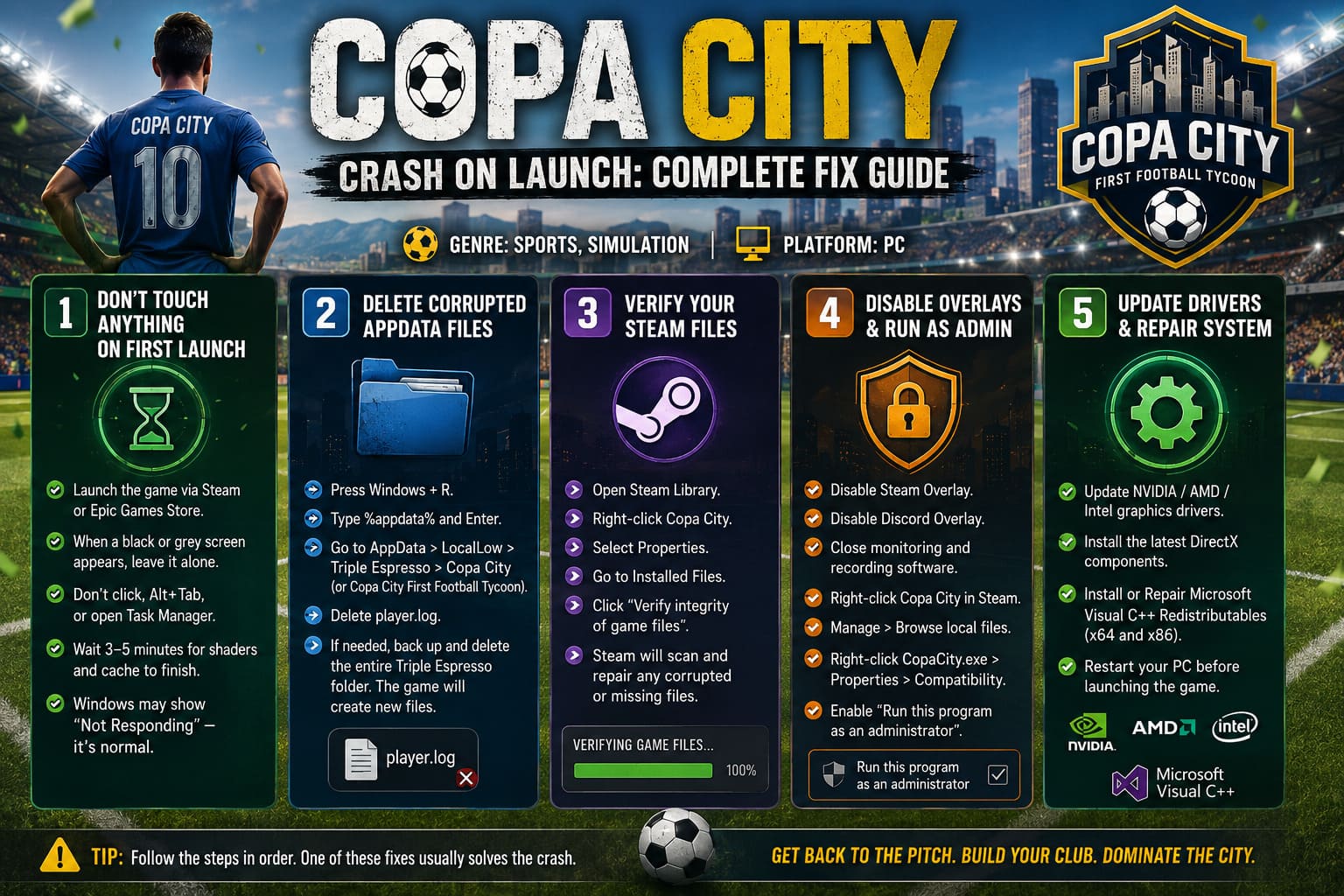
- Launch the game through Steam or the Epic Games Store.
- When the grey or black screen appears, leave it alone.
- Do not click repeatedly.
- Do not press Alt + Tab.
- Do not open Task Manager.
Give the game at least three to five minutes to finish compiling shaders and generating local cache files.
Windows often labels the application as “Not Responding” during this process, even though it’s still working in the background.
If you’re used to instantly tabbing out when a game seems stuck, resist the urge this time.
Fix #2: Delete Corrupted AppData Files
Players who previously installed the demo version appear to be the most affected by launch crashes.
Old configuration files don’t always play nicely with the full release.
Here’s how to clear them safely:
- Press Windows + R.
- Type
%appdata%and hit Enter. - In the File Explorer window, go back to the main AppData folder.
- Open LocalLow.
- Navigate to
Triple Espresso > Copa City.
You may also see:
Triple Espresso > Copa City First Football Tycoon
Find the file named:
player.log
Delete it.
If the issue continues, back up the entire Triple Espresso folder and remove it completely.
The game will generate fresh configuration files the next time it launches.
Fix #3: Verify Your Steam Installation
Launch day downloads have a nasty habit of corrupting files.
Steam’s built-in verification tool can repair damaged installations in just a few minutes.
Follow these steps:
- Open your Steam Library.
- Right-click Copa City.
- Select Properties.
- Open the Installed Files tab.
- Click Verify integrity of game files.
Steam will scan your installation and automatically replace missing or corrupted files.
It’s one of those simple fixes people often skip because it feels too obvious.
Don’t skip it.
Fix #4: Disable Overlays and Run as Administrator
Overlay software loves causing problems with new PC releases.
Steam, Discord, GeForce Experience, MSI Afterburner, and even RGB software can interfere with game launches.
Try this combination:
- Disable the Steam overlay.
- Disable the Discord overlay.
- Temporarily close hardware monitoring tools.
- Exit third-party recording software.
Then:
- Open your Steam Library.
- Right-click Copa City.
- Select Manage > Browse local files.
- Find
CopaCity.exe. - Right-click and choose Properties.
- Open the Compatibility tab.
- Enable Run this program as an administrator.
Apply the changes and relaunch the game.
Fix #5: Update Drivers and Repair System Components
If the game crashes instantly without showing a menu, outdated system software is often the culprit.
Make sure you have:
- The latest NVIDIA, AMD, or Intel graphics drivers.
- Updated DirectX components.
- The newest Microsoft Visual C++ Redistributables installed.
Install both the x64 and x86 versions of Visual C++ packages, even if you’re running a 64-bit operating system.
If installers offer a Repair option, use it.
After updating everything, restart your PC before testing the game again.
How to Transfer Copa City Demo Saves to the Full Game
If you spent dozens of hours perfecting your city layout during the demo, starting over isn’t exactly appealing.
The good news is that save transfers work manually, even if automatic import fails.
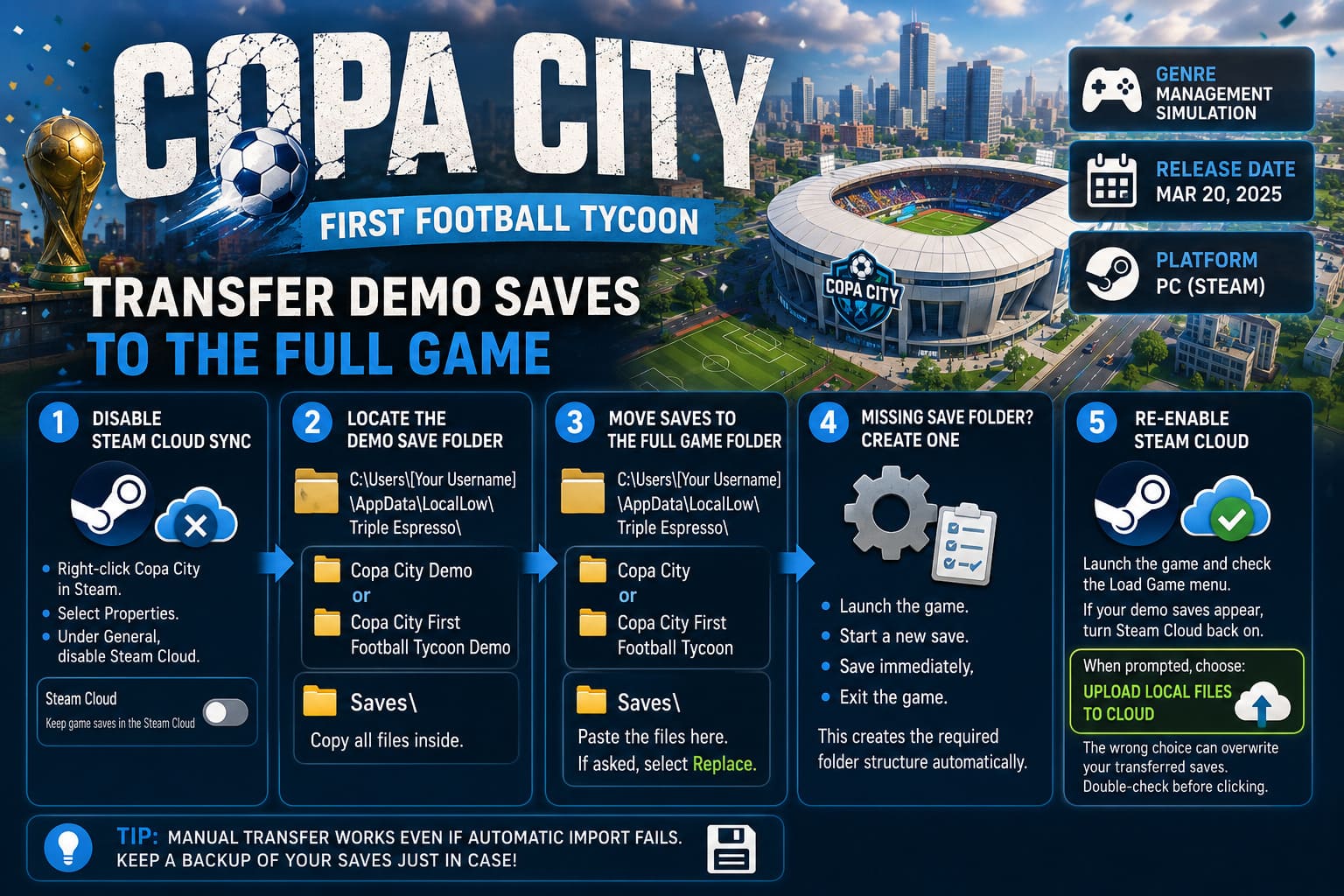
Step 1: Disable Steam Cloud Sync
Before moving files around, turn off Steam Cloud for the full game.
This prevents Steam from replacing your transferred saves with an empty cloud backup.
To disable it:
- Right-click Copa City in Steam.
- Select Properties.
- Under General, disable Steam Cloud.
Step 2: Locate the Demo Save Folder
Navigate to:
C:\Users\[Your Username]\AppData\LocalLow\Triple Espresso\
Inside, you’ll typically find one of these folders:
Copa City DemoCopa City First Football Tycoon Demo
Open the Saves directory.
Copy every file inside.
Step 3: Move Saves to the Full Game Folder
Return to the main Triple Espresso directory.
Open:
Copa CityCopa City First Football Tycoon
Then open the Saves folder.
Paste the files you copied from the demo.
If Windows asks whether you want to replace existing files, select Replace.
Step 4: Missing Save Folder? Create One
If the full version doesn’t have a save directory yet:
- Launch the game.
- Start a new save.
- Save immediately.
- Exit the game.
This creates the required folder structure automatically.
After that, repeat the transfer process.
Step 5: Re-Enable Steam Cloud
Launch the game and check the Load Game menu.
If your demo saves appear correctly, turn Steam Cloud back on.
When prompted, choose:
Upload local files to cloud
Selecting the wrong option can overwrite your transferred saves.
Double-check before clicking.
Copa City vs EA FC 26: Which Game Deserves Your Time and Money in 2026?
Still Crashing? Send Developers Your Player Log
If you’ve tried every fix and the game still refuses to cooperate, it’s time to contact support.
The most useful file you can provide is:
player.log
You’ll find it here:
C:\Users\[Your Username]\AppData\LocalLow\Triple Espresso\Copa City
Attach the file to your support request alongside your PC specifications:
- CPU model
- GPU model
- RAM amount
- Windows version
Detailed reports help developers identify hardware-specific issues much faster.
Copa City Match Readiness Guide 2026: Tips, Tactics, and City Management Strategy
Final Thoughts
Launch week chaos is practically a genre of its own in PC gaming, but Copa City feels worth the troubleshooting effort.
Underneath the crashes and endless loading screens lies one of the most interesting football management concepts we’ve seen in years. The blend of city-building, crowd control, logistics, and economic strategy has real staying power.
Most players experiencing startup issues have resolved them by simply waiting through the initial cache generation or removing leftover demo files.
If you’re upgrading from the demo, transferring your save manually takes less than five minutes and can save you dozens of hours of rebuilding.
Be patient with that first boot, keep your drivers updated, and don’t let a stubborn launch screen stop you from building the ultimate matchday experience.