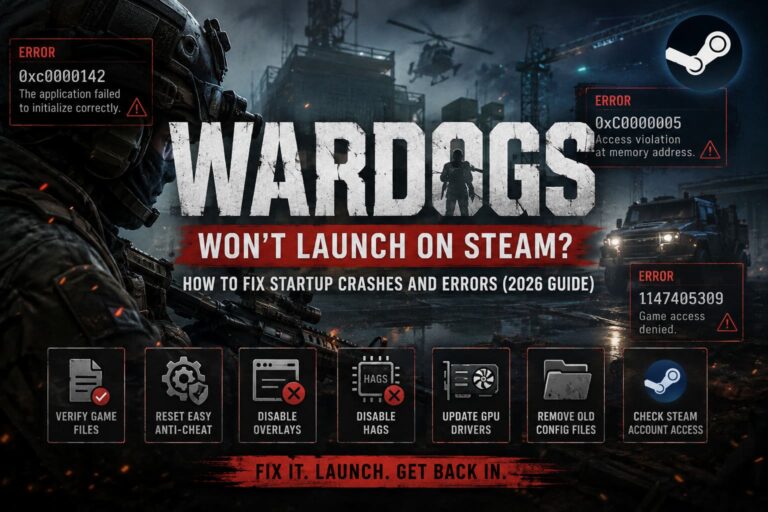
Fatekeeper PC Performance Fix: How to Fix Low FPS, Stuttering, and Unreal Engine 5 Crashes
When I first jumped into Fatekeeper, I was immediately hooked by its dark fantasy atmosphere. The game feels like a love letter to classic first-person RPGs, mixing brutal melee combat, magic, and exploration in a world that actually feels handcrafted rather than procedurally assembled. Unfortunately, my excitement lasted about fifteen minutes before Unreal Engine 5 reminded me who’s really in charge.
Like many players across Steam discussions and gaming forums, I quickly discovered that Fatekeeper’s Early Access launch comes with a handful of serious technical problems. We’re not talking about a few missing frames here and there. Some players with RTX 3080s, RTX 4080s, and high-end Ryzen processors are seeing frame rates collapse into the teens. Others are fighting constant stuttering, random crashes, or black screens before reaching the main menu.
After spending several hours testing settings, reading community reports, and comparing experiences with other players, I found a handful of fixes that genuinely make a difference. If Fatekeeper is running poorly on your system, these are the tweaks I would personally try first.
The Biggest Performance Killer Right Now
The strangest issue in Fatekeeper is related to Global Illumination.
Normally, lowering graphics settings should improve performance. In Fatekeeper, that’s not always true. For some reason, the Low Global Illumination preset appears to cause severe performance degradation on certain hardware configurations.
I personally witnessed a massive FPS drop after experimenting with lower settings. Other players report the exact same thing. Instead of boosting performance, the game suddenly becomes a stuttering mess.
Recommended setting:
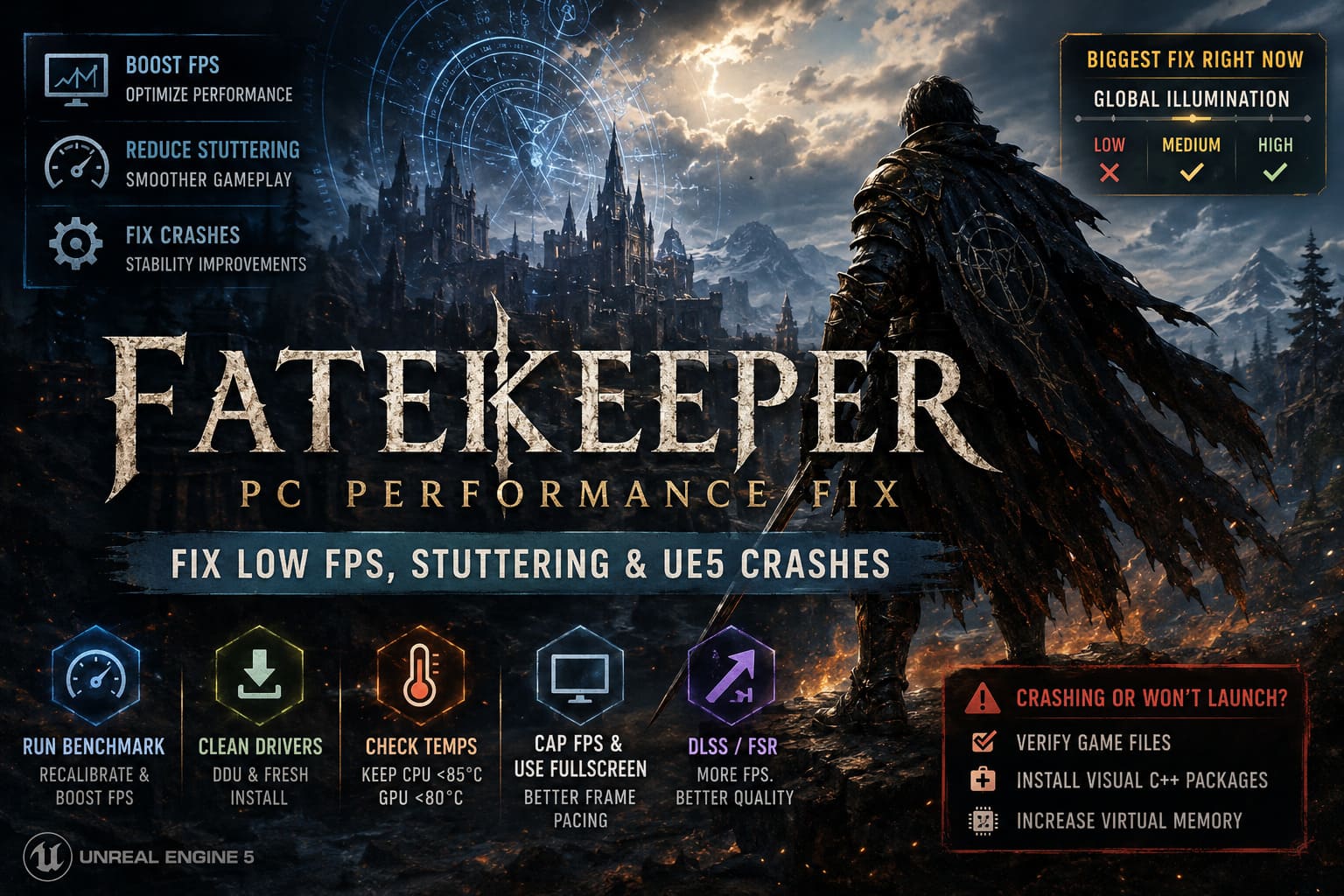
- Set Global Illumination to Medium
- If performance remains stable, try High
- Avoid the Low preset for now
Several players have also reported that changing this setting completely eliminated startup crashes after character creation.
If the game crashes before you can access the graphics menu, deleting the local configuration files and forcing a fresh settings reset may solve the problem.
Always Run the Built-In Benchmark
Normally, I ignore built-in benchmarks. Most games use them as little more than marketing tools.
In Fatekeeper, however, the benchmark actually serves a practical purpose.
There seems to be an issue where manually changing settings doesn’t always apply correctly. Running the benchmark forces the engine to recalibrate and rebuild some internal performance parameters.
After launching the benchmark, let it complete fully without interruption.
Many players have reported:
- FPS increasing dramatically
- More stable frame times
- Reduced hitching while exploring
- Better overall GPU utilization
It’s one of the easiest fixes available and only takes a few minutes.
Update Drivers the Right Way
One thing I’ve learned over years of PC gaming is that “updated drivers” don’t always mean clean drivers.
If Fatekeeper refuses to perform properly regardless of settings, a complete graphics driver reinstall may help.
For NVIDIA and AMD Users
Instead of simply clicking “Update” inside your driver software:
- Download the latest driver package directly from the manufacturer’s website.
- Use Display Driver Uninstaller (DDU) in Safe Mode.
- Remove all previous driver remnants.
- Install the new driver from scratch.
This process often fixes strange Unreal Engine 5 issues that survive regular updates.
Check Temperatures Before Blaming the Game
Fatekeeper can put serious stress on modern hardware.
I’ve seen multiple reports of CPUs pushing into the upper 80s and even touching 90°C during extended sessions.
When temperatures climb too high, systems automatically reduce clock speeds to protect components. This process, known as thermal throttling, can look almost identical to a game optimization problem.
Before spending hours tweaking graphics settings, monitor:
| Component | Recommended Range |
|---|---|
| CPU | Below 85°C |
| GPU | Below 80°C |
| SSD | Below 70°C |
| Motherboard | Below 75°C |
If temperatures are excessive:
- Increase fan curves
- Clean dust filters
- Improve airflow
- Check thermal paste condition
Fix Stuttering and Improve Frame Pacing
Average FPS numbers can be misleading.
A game running at 80 FPS can feel worse than one running at 60 FPS if frame delivery isn’t consistent.
Fatekeeper currently struggles with frame pacing in some outdoor environments, especially areas packed with vegetation and large visual effects.
My preferred solution is surprisingly simple.
Use a Frame Rate Cap
Instead of allowing the GPU to run at 100% constantly:
- Cap FPS to 60
- Or match your monitor refresh rate
- Leave some performance headroom
This often produces significantly smoother gameplay.
Fullscreen Mode Matters
I strongly recommend:
Fullscreen Exclusive Mode
instead of
Borderless Windowed Mode
Borderless is convenient, but it can introduce additional overhead through Windows’ Desktop Window Manager.
VSync Configuration
One setup that works well:
| Setting | Recommendation |
|---|---|
| In-Game VSync | Off |
| Driver-Level VSync | On |
| FPS Cap | Enabled |
| Low Latency Mode | Test Both |
Every system behaves differently, but this configuration has produced the smoothest experience for many players.
DLSS and FSR Are Practically Mandatory
Let’s be honest.
Unreal Engine 5 games are increasingly designed around upscaling technologies.
Running Fatekeeper at native 1440p or 4K without DLSS or FSR is asking a lot from even powerful hardware.
NVIDIA Users
Best options:
- DLSS Quality
- DLSS Balanced
AMD Users
Recommended:
- FSR Quality
- FSR Balanced
Personally, I found DLSS Balanced to offer the best combination of image quality and frame rate.
The visual difference is minimal during gameplay, while the performance improvement can be substantial.
Also, if you’re struggling for performance, disable ray tracing features entirely until further optimization patches arrive.
Fixing Startup Crashes and Black Screens
Nothing is more frustrating than a game that won’t launch.
Fortunately, most startup problems seem connected to common Unreal Engine issues.
Verify Game Files
Steam file corruption happens more often than people think.
Run a full file verification through Steam before trying anything complicated.
Install Visual C++ Packages
Many crashes stem from missing runtime dependencies.
Install both:
- Visual C++ x64
- Visual C++ x86
Then restart your system.
Increase Virtual Memory
Modern Unreal Engine 5 games can consume huge amounts of memory.
A manually configured paging file can help prevent sudden crashes.
A commonly recommended configuration:
| Setting | Value |
|---|---|
| Initial Size | 12288 MB |
| Maximum Size | 24576 MB |
This isn’t a magical FPS fix, but it can improve stability on systems with limited available memory.
Fatekeeper Weapon Guide: Best One-Handed vs Two-Handed Weapons for Speedruns and High-DPS Builds
Disable Every Overlay You Can
This remains one of the most underrated troubleshooting steps in PC gaming.
Overlays that can potentially conflict with Fatekeeper include:
- Steam Overlay
- Discord Overlay
- GeForce Experience Overlay
- RivaTuner Statistics Server
- Third-party recording tools
Even if overlays aren’t causing crashes, they can contribute to stuttering and frame time spikes.
For testing purposes, disable everything and launch the game with the cleanest possible environment.
Fatekeeper Melee Combat Stamina Guide: Advanced Stamina Management Tips to Win Every Encounter
My Final Verdict on Fatekeeper’s Current PC State
Despite the technical issues, I genuinely think Fatekeeper has enormous potential.
The world design is fantastic, combat feels satisfying, and the atmosphere nails that classic dark fantasy RPG vibe many of us have been craving for years.
That said, the current Early Access build clearly needs optimization work. The good news is that most of the major performance problems don’t appear to be tied to weak hardware. Instead, they seem related to engine bugs, problematic graphics settings, and launch-version instability.
If you’re currently stuck with low FPS, constant stuttering, or Unreal Engine 5 crashes, start with the Global Illumination fix, run the benchmark tool, update your drivers properly, and configure DLSS or FSR correctly. Those four steps alone appear to solve the majority of issues reported by the community.
For now, Fatekeeper feels like a great RPG trapped inside a rough technical shell. Once the developers begin rolling out optimization patches, there’s a very good chance it could become one of the standout fantasy RPG releases on PC.