How to Fix Romestead Black Screen on Launch: 2026 Guide
There’s nothing worse than downloading a new survival game, getting hyped to jump in, and then… absolutely nothing happens except a black screen.
That was my first experience with Romestead after the latest update. The game launched, my cursor appeared, my GPU fans spun up like a jet engine, and then the screen just sat there — black, frozen, lifeless. No menu. No logo. No crash report. Just silence.
After digging through Steam discussions, Reddit threads, and testing fixes myself for hours, I finally managed to get the game working again. The annoying part? The issue isn’t caused by one single thing. For some players it’s DirectX, for others it’s overlays, corrupted files, monitor conflicts, or Windows itself acting weird.
So instead of giving you generic “update your drivers” advice and calling it a day, this guide focuses on the fixes that are actually helping players right now in 2026.
Why Romestead Gets Stuck on a Black Screen
From what I’ve seen, the black screen problem usually happens before the engine fully initializes. That means the game launches, but something blocks the rendering process before the menu loads.
The most common causes are:
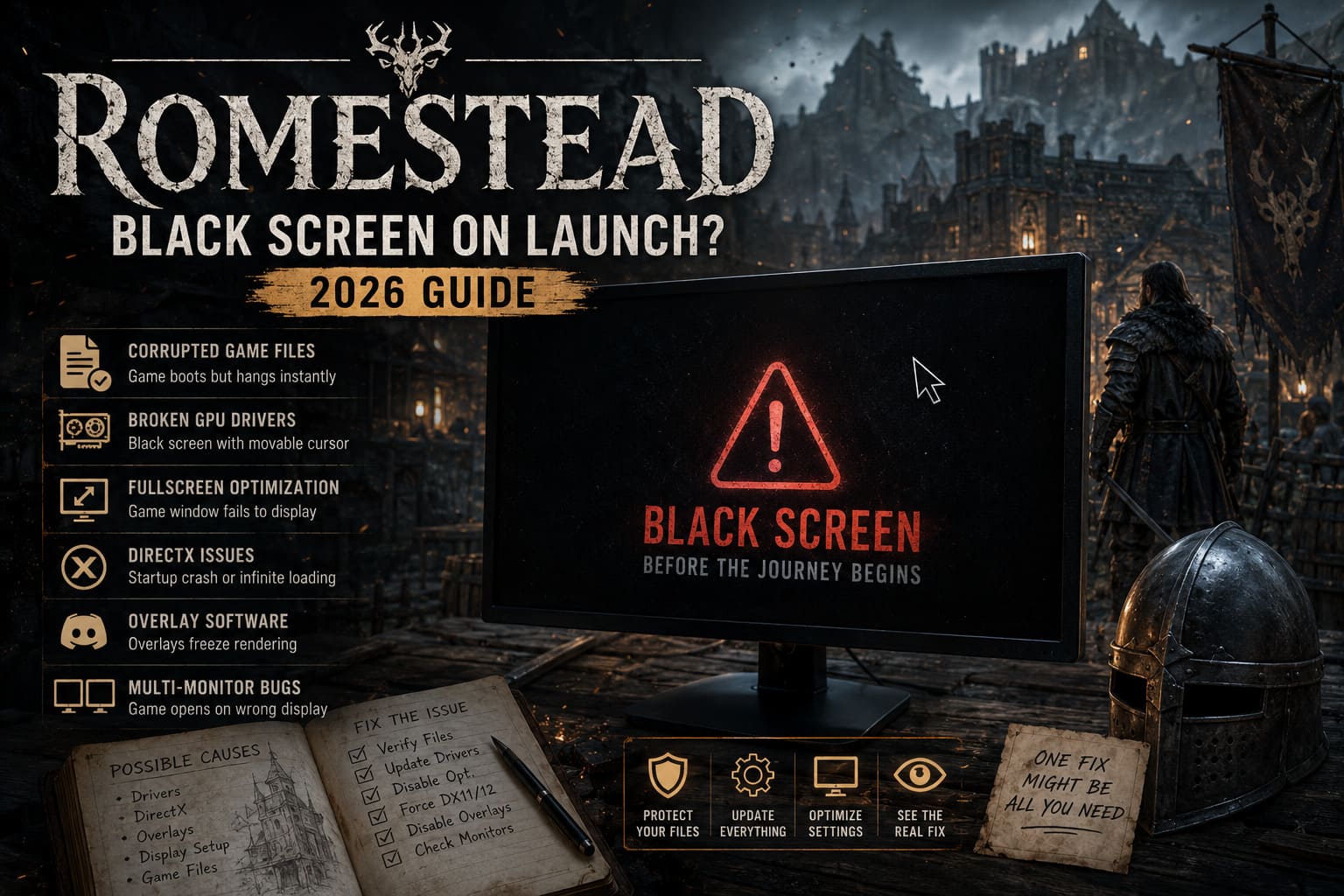
| Problem | What Happens |
|---|---|
| Corrupted Game Files | Game boots but hangs instantly |
| Broken GPU Drivers | Black screen with movable cursor |
| Fullscreen Optimization Conflict | Game window fails to display |
| DirectX Issues | Startup crash or infinite loading |
| Overlay Software | Steam/Discord overlays freeze rendering |
| Multi-Monitor Bugs | Game opens on wrong display |
If you’re lucky, one fix solves everything in five minutes. If not, work through these methods one by one — because honestly, the issue seems different for everyone.
1. Verify Your Game Files First
Seriously, do this before touching anything else.
A surprising number of launch problems come from corrupted or incomplete files, especially if your internet cut out during an update or Steam applied a broken patch.
How to verify Romestead files on Steam
- Open Steam
- Go to your Library
- Right-click Romestead
- Select Properties
- Open the Installed Files tab
- Click Verify integrity of game files
Steam will scan everything and automatically replace damaged files.
For me, it actually found two broken files after the latest hotfix.
Once it finishes, restart Steam completely and try launching the game again.
2. Disable Fullscreen Optimizations (This One Worked for a Lot of Players)
Windows fullscreen optimizations are one of those “helpful” features that somehow break half the games they touch.
With Romestead, this setting seems to conflict badly with startup rendering.
Here’s how to disable it
- Right-click Romestead in Steam
- Choose Manage → Browse Local Files
- Find Romestead.exe
- Right-click it → Properties
- Open the Compatibility tab
- Enable:
- Disable fullscreen optimizations
- Run this program as administrator
- Click Apply
After doing this, launch the game directly from the executable instead of pressing Play on Steam.
For whatever reason, this bypassed the black screen entirely on my second PC.
3. Update Your GPU Drivers Properly
I know everyone says this, but there’s a reason.
Romestead uses newer rendering features that older drivers absolutely hate. And if your drivers are partially corrupted? Good luck getting past startup.
The important thing here is doing a clean install, not just updating normally.
Recommended approach
- Download the latest drivers directly from:
- Nvidia
- AMD
- Intel
- During installation:
- Choose Custom Installation
- Enable Clean Installation
Quick emergency fix
If the screen freezes completely, press:
Windows + Ctrl + Shift + BYour display driver will restart instantly. The screen flickers and sometimes the game suddenly appears afterward.
It sounds fake, but it genuinely works occasionally.
4. Force DirectX 11 or DirectX 12
This was the real fix for me.
Romestead seems weirdly unstable depending on which DirectX version your system defaults to.
How to force DirectX launch mode
- Open Steam
- Right-click Romestead
- Select Properties
- Find Launch Options
Now test these one at a time:
-dx11If that doesn’t work, replace it with:
-dx12One of these usually stabilizes startup.
A lot of newer GPUs prefer DX12, while older cards seem more stable on DX11.
If your black screen started after a patch, this is honestly one of the best fixes to try.
5. Disable Every Overlay You Can
Overlays are notorious for breaking PC games.
Discord, Steam Overlay, GeForce Experience, MSI Afterburner, RGB software — all of it can interfere with game rendering.
Romestead seems especially sensitive during startup.
Turn off these overlays temporarily
- Discord Overlay
- Steam Overlay
- GeForce Experience Overlay
- AMD Radeon Overlay
- Xbox Game Bar
- MSI Afterburner / Rivatuner
- Razer Synapse
- Overwolf
I’ve even seen people fix the issue by closing wallpaper software like Wallpaper Engine.
That’s how random this bug is.
6. Check Your Monitor Setup
This one mainly affects people with dual monitors.
Romestead sometimes launches onto the wrong display, especially if Windows thinks your secondary monitor is the “main” screen.
Fix your primary display
- Right-click desktop
- Open Display Settings
- Select your main gaming monitor
- Enable: Make this my main display
Then disconnect extra monitors temporarily and test the game again.
This sounds simple, but I’ve seen multiple reports where the game was technically running — just invisible on another screen.
7. Clear Steam Cache and Temp Files
Sometimes Steam itself becomes the problem.
Old cache files, broken shader data, or leftover configs can stop games from launching correctly.
Clear Steam download cache
- Open Steam
- Click Steam → Settings
- Go to Downloads
- Select Clear Download Cache
Steam will restart and ask you to log back in.
Also clear Windows temp files
Press:
Windows + RThen type:
%localappdata%Look for Romestead-related folders and delete temporary cache/config files.
Don’t worry — your save files are usually stored elsewhere.
Romestead Dungeons Guide: All Puzzles and Rare Loot Locations Explained
8. Install the Game on an SSD
This sounds unrelated, but it matters more than people think.
Romestead streams assets aggressively during startup. On slower HDDs, the game can appear frozen while loading huge chunks of data.
On my older hard drive, startup took nearly two minutes and looked completely dead.
After reinstalling on an SSD, the black screen disappeared entirely.
Modern games are honestly starting to expect SSD speeds now.
Romestead Balance Guide: Single Player vs 8-Player Co-Op Scaling Explained
Final Thoughts
The frustrating thing about the Romestead black screen bug is that there’s no universal fix.
For some players it’s DirectX. For others it’s overlays. For me, it ended up being a weird combination of fullscreen optimization and driver conflicts.
The good news is that most people are getting the game working eventually without waiting for a patch.
If I had to recommend the three fixes most worth trying first:
- Verify game files
- Force
-dx11 - Disable fullscreen optimizations
Those seem to solve the problem for the highest number of players right now.
And if none of this works? Honestly, keep an eye on Steam community threads because the developers are already aware of the issue and future hotfixes will probably improve startup stability.
Until then, welcome to modern PC gaming — where troubleshooting is basically part of the tutorial.