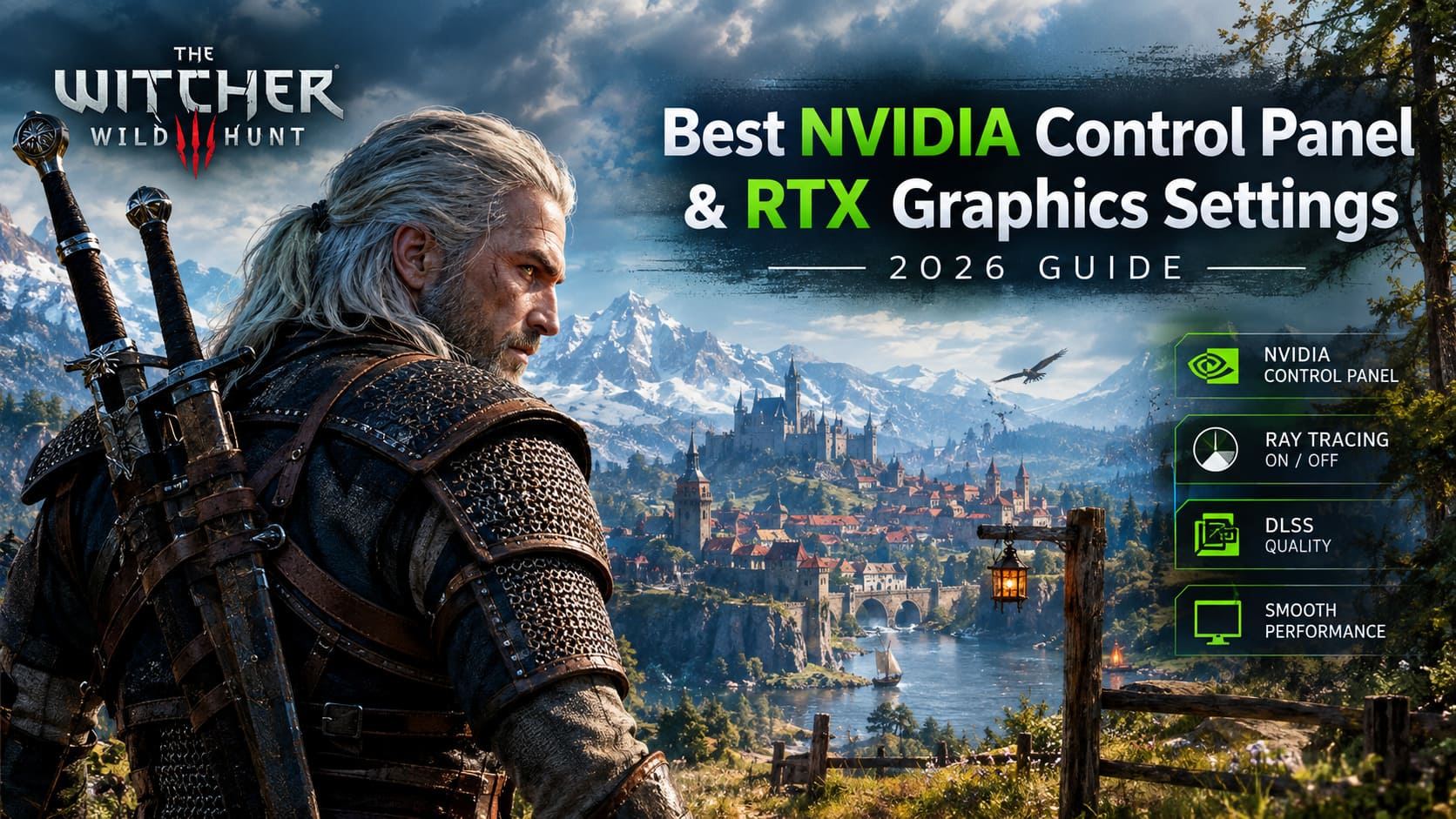
The Witcher 3 Next-Gen Remastered: Best NVIDIA Control Panel & RTX Graphics Settings (2026 Guide)
The Witcher 3 is one of those games where I can forgive a few technical problems simply because stopping to look at the world is almost impossible. The forests, muddy roads, glowing taverns, old stone villages, and rainy streets of Novigrad still look fantastic years after the original release.
The Next-Gen update makes that world even more impressive. It also makes your GPU work a lot harder.
Once DirectX 12, Ray Tracing, DLSS, and the other visual upgrades are involved, The Witcher 3 can go from perfectly smooth to a stuttering mess surprisingly quickly. I’ve seen this happen even on hardware that handles most modern games without much trouble. The problem is not always raw GPU power, either. CPU-heavy locations, background characters, VRAM pressure, frame pacing, and poorly matched driver settings can all contribute.
So instead of simply turning everything to Ultra and hoping for the best, I prefer a more balanced setup.
The goal of this The Witcher 3 Next-Gen graphics settings guide for 2026 is simple: keep the game looking like the beautiful next-gen RPG it is while removing the settings that cost a ridiculous amount of performance for very little visual benefit.
My Recommended NVIDIA Control Panel Settings
Before changing anything inside the game, I recommend creating a dedicated NVIDIA profile for witcher3.exe.
Open NVIDIA Control Panel → Manage 3D Settings → Program Settings and add the DX12 executable from:
bin\x64_dx12\witcher3.exe
I wouldn’t randomly change every NVIDIA option just because a YouTube video tells you to. Most of the important gains come from a handful of settings.
| NVIDIA Setting | Recommended Value |
|---|---|
| Anisotropic Filtering | 16x |
| Low Latency Mode | Ultra / On |
| Power Management Mode | Prefer Maximum Performance |
| Texture Filtering – Quality | Quality |
| Texture Filtering – Trilinear Optimization | On |
| Threaded Optimization | On |
| Vertical Sync | Use 3D Application Setting |
Anisotropic Filtering at 16x is an easy recommendation. Textures viewed at an angle stay noticeably cleaner, especially roads, stone surfaces, and ground textures. On modern RTX cards, the performance cost is tiny.
For Power Management Mode, I prefer Prefer Maximum Performance. The difference isn’t always dramatic, but I would rather keep the GPU from constantly changing its behavior when moving between lighter scenes and demanding open-world areas.
Low Latency Mode is another setting worth testing. Ultra is a good starting point, although things change when you use DLSS Frame Generation because NVIDIA Reflex becomes the important latency feature.
One thing I would not do is force aggressive driver overrides everywhere. The Witcher 3 already has a complicated DX12 rendering pipeline, and unnecessary driver manipulation can sometimes create more problems than it solves.
The Best Display Settings for a Smooth Experience
Inside the game, go to Options → Video → Display.
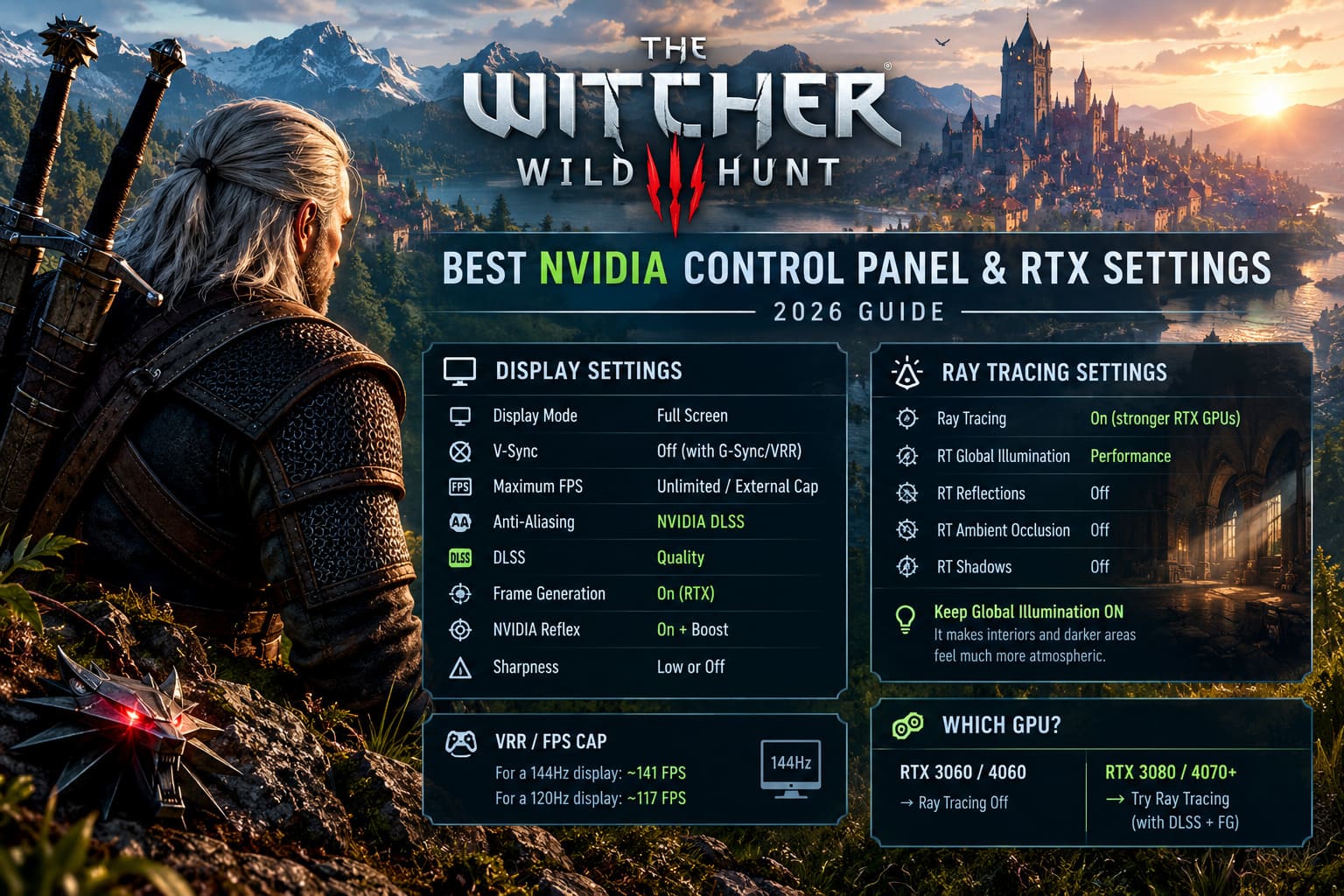
My basic setup looks like this:
- Display Mode: Full Screen
- V-Sync: Off when using G-Sync/VRR
- Maximum FPS: Unlimited or externally capped
- Anti-Aliasing: NVIDIA DLSS
- DLSS: Quality
- Frame Generation: On for supported RTX hardware
- NVIDIA Reflex: On + Boost
- Sharpness: Low or Off
If you’re using a VRR monitor, I strongly prefer leaving in-game V-Sync off and controlling the frame rate with a proper external limiter or driver-level cap.
For example, on a 144Hz display, a cap around 141 FPS is a sensible starting point. On a 120Hz screen, around 117 FPS makes sense.
The exact number isn’t sacred. The important part is avoiding a situation where the game constantly hits the refresh-rate ceiling.
DLSS Quality Is My Default
For most RTX users, DLSS Quality is where I’d start.
At 1080p and 1440p, Quality generally provides a much better balance between sharpness and performance than dropping straight to Performance mode. I especially dislike aggressive upscaling at 1080p because foliage and fine vegetation can become noticeably soft or unstable.
At 4K, DLSS Balanced becomes more attractive because the higher output resolution gives the reconstruction algorithm more information to work with.
I wouldn’t automatically recommend Performance mode unless you’re already struggling badly with frame rate.
Ray Tracing: The Setting That Changes Everything
This is where The Witcher 3 Next-Gen gets expensive.
Ray Tracing looks fantastic, especially in interiors, forests, and areas with complicated lighting. But activating every RT option is one of the easiest ways to turn a smooth game into a technical demonstration.
And personally, I don’t think every RT option is worth paying for.
My preferred compromise is:
| Ray Tracing Option | Recommended Setting |
|---|---|
| Ray Tracing | On for stronger RTX GPUs |
| RT Global Illumination | Performance |
| RT Reflections | Off |
| RT Ambient Occlusion | Off |
| RT Shadows | Off |
Ray-Traced Global Illumination is the RT feature I would keep if your GPU has enough headroom. It changes the atmosphere of interiors and darker environments in a way that is actually noticeable while playing.
The other RT effects are easier to sacrifice.
RT reflections can look spectacular on water and wet surfaces, but they can also consume a huge amount of GPU performance. For everyday gameplay, I’d rather have a stable frame rate and use Screen Space Reflections on High.
The same goes for RT Ambient Occlusion and RT Shadows. They are nice additions, but they’re not settings I’d sacrifice a large amount of performance for.
Who Should Actually Use Ray Tracing?
For an RTX 3060 or RTX 4060-class card, I would generally start with Ray Tracing disabled.
A stronger card such as an RTX 3080, RTX 4070, or better gives you considerably more room to experiment, especially when DLSS and Frame Generation are available.
That doesn’t mean a particular GPU suddenly guarantees a specific frame rate. CPU, resolution, RAM, VRAM, drivers, and your other settings still matter.
Frame Generation Is Extremely Useful — With One Catch
If your hardware supports DLSS Frame Generation, turn it on when you’re already getting a reasonable base frame rate.
Frame Generation is particularly interesting in Novigrad, where the CPU can become a serious limitation. It can make the game feel dramatically smoother by generating additional frames between traditionally rendered ones.
But there’s an important distinction: generated frames don’t magically make the underlying game simulation faster.
That’s why I always pair Frame Generation with NVIDIA Reflex On + Boost.
If Frame Generation is enabled, Reflex becomes especially important for keeping the overall experience responsive.
You should also have Hardware-Accelerated GPU Scheduling (HAGS) enabled in Windows for supported Frame Generation configurations.
The Graphics Settings I Actually Use
Once Ray Tracing is under control, the standard graphics options become much easier to tune.
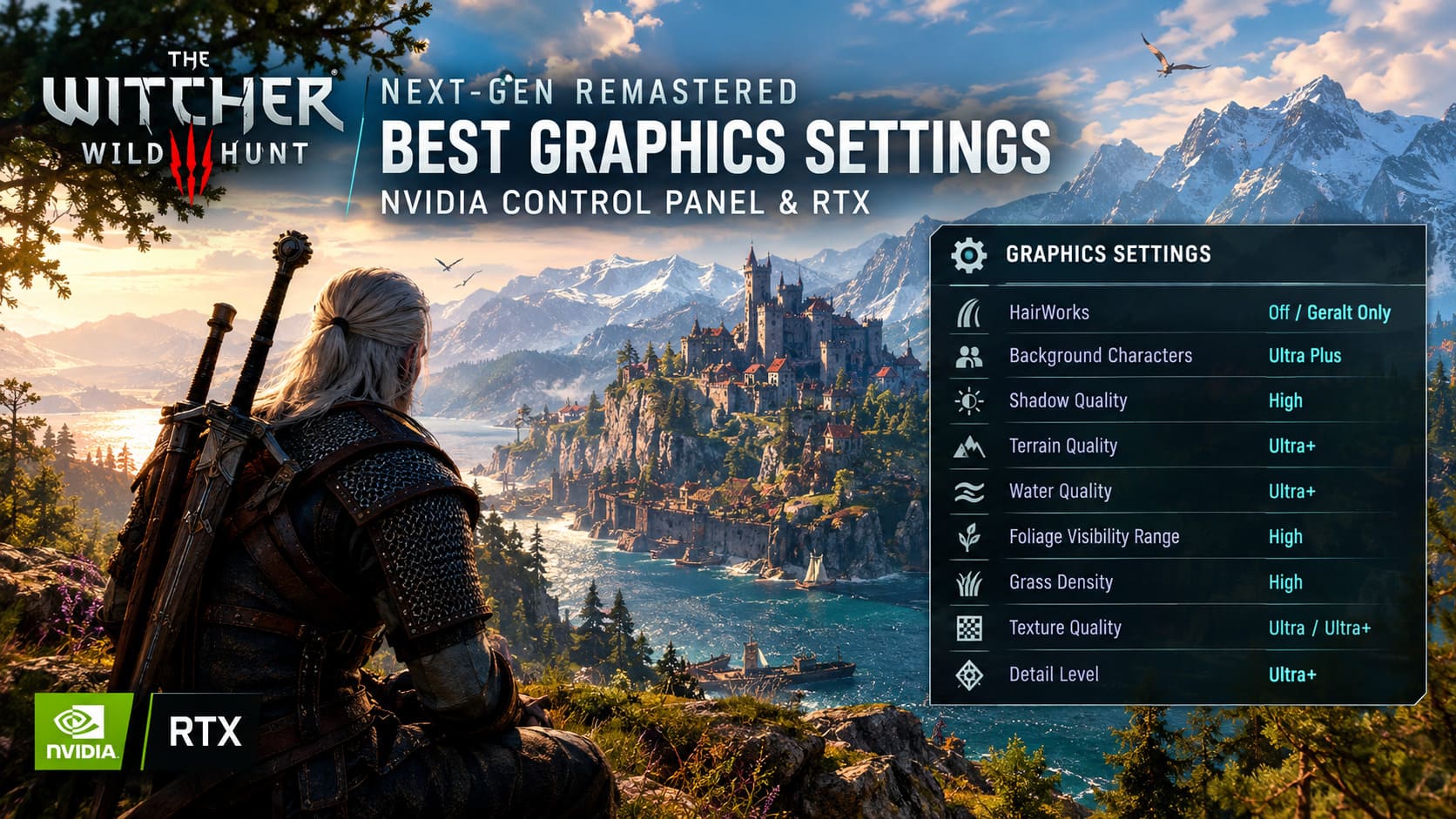
Here is the setup I’d use as a starting point:
| Graphics Setting | Recommended Value |
|---|---|
| HairWorks | Off / Geralt Only |
| Background Characters | Ultra Plus |
| Shadow Quality | High |
| Terrain Quality | Ultra+ |
| Water Quality | Ultra+ |
| Foliage Visibility Range | High |
| Grass Density | High |
| Texture Quality | Ultra / Ultra+ depending on VRAM |
| Detail Level | Ultra+ |
There are a couple of interesting choices here.
Don’t Be Afraid to Turn Down Shadows
Ultra+ shadows look great in screenshots, but during normal gameplay I don’t think they’re worth the performance hit.
High-quality shadows still look excellent while giving the GPU more breathing room.
The difference becomes even harder to notice when you’re riding through the world at speed rather than standing still and comparing screenshots.
Foliage Visibility Is a Bigger Deal
This is one of the settings I’d watch closely.
Ultra+ foliage visibility forces the game to keep enormous amounts of vegetation and environmental detail visible at long distances. It can punish performance during open-world traversal, especially in dense areas.
I prefer High.
If your system is still struggling, Medium is worth testing. You’ll see more distant objects appear as you move around, but I’d rather accept a little pop-in than have the frame rate constantly collapse.
Keep Terrain and Water High
These are settings where I don’t like making unnecessary compromises.
Ultra/Ultra+ Terrain keeps the landscape looking detailed, while Ultra+ Water is particularly worthwhile when exploring Skellige.
Modern RTX GPUs can generally handle these settings far more comfortably than some of the expensive RT effects.
Texture Quality Depends on Your VRAM
This is where you need to pay attention to your specific graphics card.
If you have 10GB or more of VRAM, Ultra+ textures are a reasonable choice.
With an 8GB card, I’d stay at Ultra, particularly if you’re using Ray Tracing, higher resolutions, or Frame Generation.
The problem isn’t just average FPS. Running into a VRAM limit can create ugly stutters and inconsistent frame delivery, which is much more annoying than losing a few visual details.
I’d rather play at stable Ultra textures than constantly push the VRAM budget into the red.
HairWorks: Geralt Only Is a Nice Compromise
HairWorks is another setting where I usually don’t bother going all-in.
Monster fights can become surprisingly expensive when HairWorks is doing its thing across multiple creatures.
If you really like the effect, Geralt Only is the compromise I’d choose.
Otherwise, turn it off.
The Witcher 3 doesn’t suddenly become ugly without HairWorks. There are much more important visual features to preserve.
Post-Processing: Clean Up the Image
My preferred post-processing setup is fairly simple:
- Motion Blur: Off
- Blur: Off
- Bloom: On
- Depth of Field: On
- Chromatic Aberration: Off
- Vignetting: Off
- Light Shafts: On
Motion blur is one of the first things I disable in almost every game. The Witcher 3 has enough visual atmosphere without smearing the screen every time Geralt turns quickly.
Bloom and Light Shafts are different. They contribute to the game’s atmosphere, particularly around candles, torches, sunsets, and forest lighting.
I also keep Depth of Field enabled because it works nicely during conversations and cinematic moments. If you’re chasing every possible frame, you can disable it, but this is one of the few small performance costs I’m willing to accept.
My 2026 RTX Presets
If you don’t want to spend an hour testing individual options, these are the starting points I’d use.
| GPU Class | Ray Tracing | DLSS | Frame Generation | Main Graphics |
|---|---|---|---|---|
| RTX 3060 / RTX 4060 | Off | Quality | Supported hardware only | High/Ultra |
| RTX 4060 Ti / Similar | Optional | Quality | On if supported | Ultra |
| RTX 3080 / RTX 4070+ | RTGI Performance | Quality | On if supported | Ultra/Ultra+ |
These are starting points rather than guarantees. The actual result depends heavily on resolution and the rest of your system.
The Witcher 3 Remastered Best Signs Ranking: Combat Control Tier List (2026)
The Settings I’d Change First When FPS Drops
If The Witcher 3 is stuttering, don’t immediately turn everything from Ultra to Low.
Change the expensive settings in a sensible order.
- Disable Ray-Traced Reflections.
- Disable RT Shadows and RT Ambient Occlusion.
- Lower Foliage Visibility Range.
- Reduce Shadow Quality.
- Check your VRAM usage and lower textures if you’re close to the limit.
- Move DLSS from Quality to Balanced if you still need more performance.
- Disable HairWorks.
This approach usually preserves much more of the game’s visual character than simply lowering every setting.
The Witcher 3 Remastered Best Decoctions and Potions Tier List: Alchemy Guide
Final Thoughts
The Witcher 3 Next-Gen doesn’t need every setting pushed to maximum to look fantastic. In fact, some of the most expensive options are the easiest ones to sacrifice.
For me, the ideal setup is DLSS Quality, sensible shadows, High foliage visibility, Ultra textures where VRAM allows it, and selective Ray Tracing rather than the full RT package.
If you’re using a mainstream RTX card, I would happily disable Ray Tracing and enjoy a smoother game. The world still looks excellent without it.
With a faster GPU, RT Global Illumination in Performance mode is the feature I’d experiment with first. Keep the other RT effects disabled unless you have plenty of performance headroom.
And that’s really the trick with The Witcher 3: don’t chase the highest possible settings. Chase the point where Novigrad stays smooth, Roach doesn’t hitch while crossing the countryside, and the game still looks like the gorgeous next-gen RPG it was meant to be.