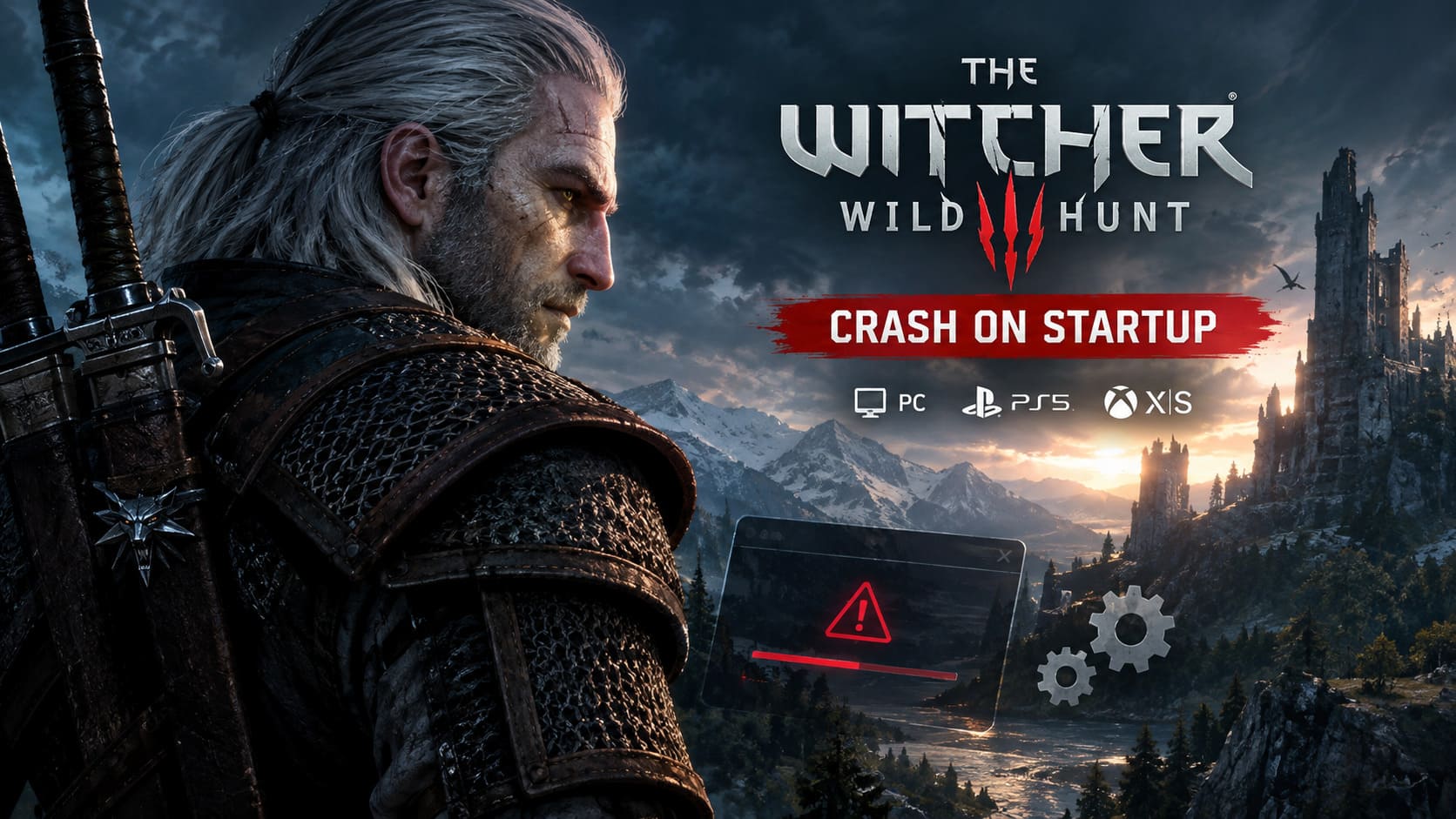
How to Fix The Witcher 3: Wild Hunt Next-Gen Remastered Crash on Startup on PC, PS5, and Xbox Series X/S (2026 Guide)
There are few things more annoying than launching The Witcher 3: Wild Hunt, watching the familiar CD Projekt Red logo appear, and then… nothing. Maybe the game disappears straight back to the desktop. Maybe you get an EXCEPTION_ACCESS_VIOLATION error. On PS5 or Xbox Series X/S, you might instead be staring at a black screen while wondering whether the game has actually crashed or is simply taking its sweet time.
I have spent enough time troubleshooting PC games to know that startup crashes are usually the worst kind of problem. You can’t change graphics settings if you can’t reach the graphics menu. You can’t load another save if the game dies before the main menu. And reinstalling a 100+ GB game is nobody’s idea of a good evening.
The good news is that The Witcher 3 Next-Gen startup crashes can often be traced to a relatively small number of problems. On PC, DirectX 12, damaged configuration files, GPU drivers, overlays, and Windows runtime components are the main suspects. Console players have a different set of potential problems involving cached data, network connections, system software, and corrupted saves.
So rather than throwing random fixes at the wall, here’s the order I would actually try them.
The Witcher 3 Startup Crash Fixes at a Glance
| Platform | Common Problem | Fix To Try First |
|---|---|---|
| PC | DirectX 12 instability | Switch to DirectX 11 |
| PC | Corrupted configuration | Remove .settings files |
| PC | GPU driver conflict | Clean reinstall drivers |
| PC | Overlay conflict | Disable third-party overlays |
| PS5 / Xbox | Network initialization | Try launching offline |
| PS5 / Xbox | Corrupted cache | Perform a complete power cycle |
| PS5 / Xbox | System database issue | Rebuild database / reset while keeping games |
1. Switch The Witcher 3 From DirectX 12 to DirectX 11
If you’re on PC and the game crashes before you even reach the main menu, this is the first thing I’d test.
The Next-Gen update brought DirectX 12, ray tracing, DLSS, FSR and several other rendering features to The Witcher 3. They look great when everything behaves. But when something doesn’t behave, DX12 is one of the first places I’d investigate.
Open the REDlauncher through Steam or GOG and look for the graphics API selection before starting the game. Switch from DX12 to DX11 and launch again.
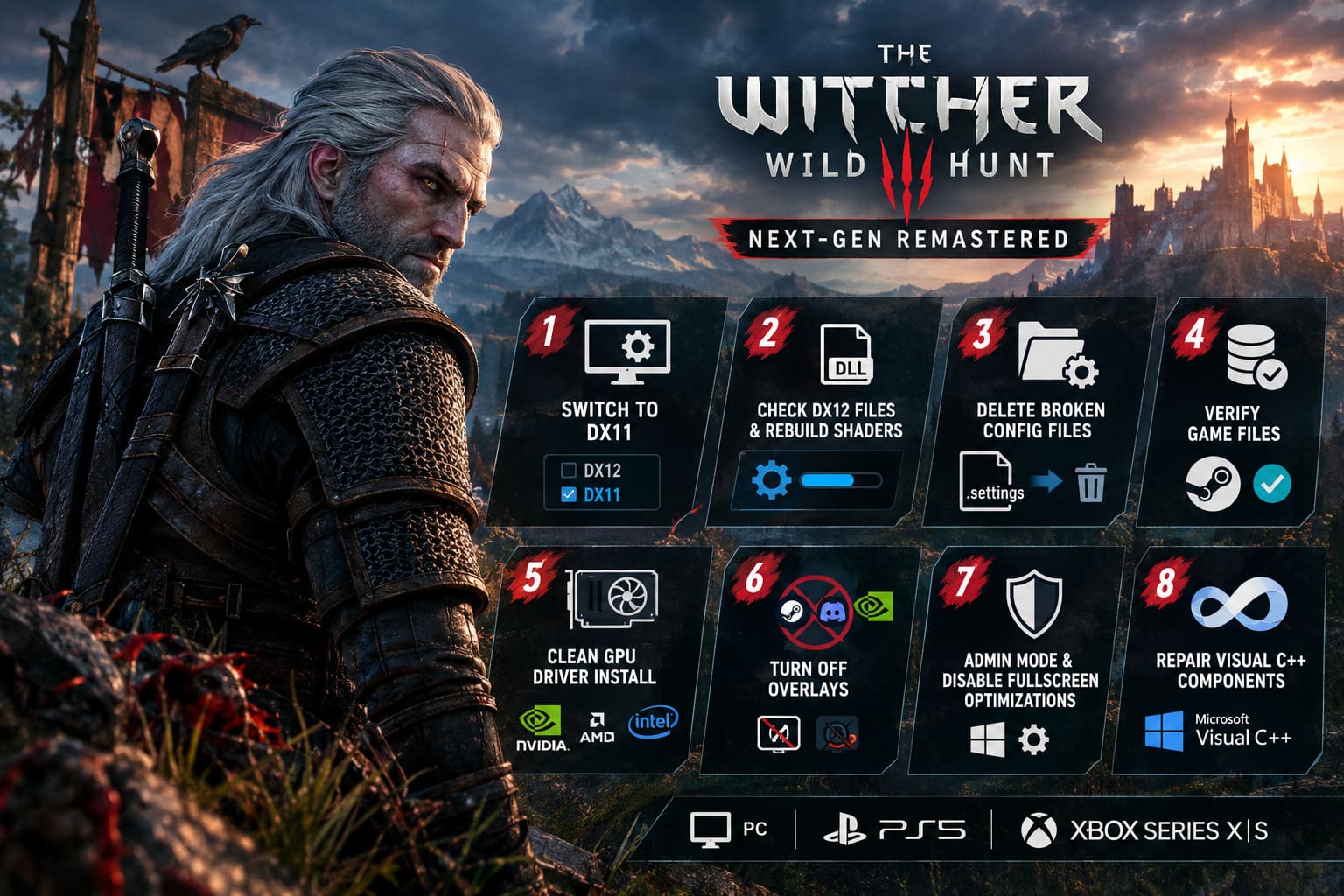
If the game suddenly works, you’ve already learned something important: your installation itself may be fine, while the DX12 rendering path is causing the crash.
The downside is obvious. DX11 doesn’t provide the complete modern rendering feature set, particularly ray tracing features. Still, I’d rather play Geralt at a stable frame rate than spend an hour looking at a crash dialog.
If DX11 works, don’t immediately assume you need to reinstall everything. Test your drivers, overlays and DX12 configuration before switching back.
2. Check The DX12 Files and Rebuild the Shader Cache
One of the more specific PC fixes involves the dxil.dll file used by the DX12 rendering environment.
If you’re experiencing an EXCEPTION_ACCESS_VIOLATION crash specifically when starting the DX12 version, check the game’s bin\x64_dx12 directory.
A commonly suggested troubleshooting method is to compare the game’s dxil.dll with the corresponding Windows system file and replace the game-directory copy if it is damaged or outdated.
The relevant locations are typically:
C:\Windows\System32\
and your Witcher 3 installation’s:
The Witcher 3\bin\x64_dx12\
I’d strongly recommend backing up the original file before replacing anything. Randomly downloading DLL files from third-party websites is not a shortcut I’d recommend. That’s how a simple game crash can turn into a much bigger Windows security problem.
While you’re doing this, clearing the game’s shader cache can also help. A damaged shader cache can cause problems when the engine attempts to initialize a particular rendering configuration.
Look under the CD Projekt Red user-data directory and remove the shader cache so the game can generate fresh data during the next launch.
3. Delete Broken Witcher 3 Configuration Files
This is one of my favorite fixes because it’s simple and doesn’t require messing around with Windows internals.
Old configuration files can survive updates, graphics changes and even major version transitions. Sometimes the game tries to load a setting that worked perfectly before an update but now causes the engine to crash.
Go to your Documents folder and locate:
Documents\The Witcher 3
Look for configuration files ending in .settings, including files such as:
user.settingsuser.settings.bak
Move them somewhere safe rather than permanently deleting them immediately.
Then launch the game.
The Witcher 3 should recreate fresh configuration files using default settings. If the crash disappears, you have a pretty strong indication that your previous configuration was the problem.
Personally, I’d try this before reinstalling the entire game. It’s considerably less painful.
4. Verify the Game Files
If something inside the installation has become corrupted, verifying the files is an obvious step that is surprisingly easy to forget.
On Steam, open the game’s properties and use the option to verify the integrity of the installed files. GOG Galaxy provides its own repair/verification functionality.
This can restore damaged or missing game files without forcing you to download the entire installation again.
It’s especially worth trying after:
- a failed update;
- an interrupted download;
- a crash during installation;
- manually replacing game files;
- or moving the game between drives.
If you have already modified DLLs or configuration files manually, I’d verify the installation afterward as well.
5. Perform a Clean GPU Driver Installation
Sometimes The Witcher 3 isn’t really the thing that broke. The graphics driver environment around it did.
A normal GPU driver update doesn’t always remove every old component and configuration. If you’ve changed drivers multiple times, upgraded GPUs, or experienced several unrelated games crashing, a clean driver installation becomes much more interesting.
A typical troubleshooting process involves using Display Driver Uninstaller (DDU) in Windows Safe Mode to remove the existing display driver completely.
After restarting Windows, install the latest driver directly from your GPU manufacturer’s official website.
For NVIDIA, AMD or Intel hardware, use the driver package appropriate for your exact GPU.
I wouldn’t jump to DDU after a single crash. But if The Witcher 3 crashes immediately and other demanding games are also behaving strangely, this becomes a much more reasonable suspect.
6. Turn Off Every Overlay You Don’t Need
Overlays are convenient until two pieces of software decide they both want to hook into the same game process.
For troubleshooting, temporarily disable:
- Steam Overlay
- Discord Overlay
- NVIDIA / AMD gaming overlays
- MSI Afterburner
- RivaTuner Statistics Server
- EVGA Precision
- other FPS counters and monitoring tools
Then launch The Witcher 3 again.
Don’t underestimate this one. I’ve seen games that were completely stable suddenly start crashing after an overlay or monitoring application received an update.
If you’re using the GOG version, additional client-related components can also be worth investigating. Make a backup before changing or renaming any game DLL, though. The goal here is troubleshooting, not permanently dismantling your installation.
7. Try Administrator Mode and Disable Fullscreen Optimizations
Windows permissions and fullscreen behavior can occasionally complicate older or heavily modified PC games.
Find witcher3.exe inside either:
bin\x64
or
bin\x64_dx12
depending on the renderer you’re using.
Right-click the executable and open Properties > Compatibility.
For testing, you can try:
- Run this program as an administrator
- Disable fullscreen optimizations
Then launch the game again.
I wouldn’t keep changing compatibility options indefinitely. If they don’t make a difference, turn them back off and move to the next troubleshooting step.
8. Repair Microsoft Visual C++ Components
The Witcher 3 depends on Windows runtime components, and a damaged or missing Visual C++ Redistributable can prevent games from initializing correctly.
Make sure the appropriate Microsoft Visual C++ Redistributable packages are installed and repaired. If you suspect the runtime itself is corrupted, reinstall the current supported Microsoft Visual C++ package from Microsoft’s official distribution rather than downloading a random installer from a third-party site.
After installation, restart Windows and test the game again.
This is a boring fix. That’s exactly why it’s easy to overlook.
The Witcher 3 Next-Gen Crash on PS5 and Xbox Series X/S
Console troubleshooting is different because you don’t have access to Windows DLLs, GPU drivers or configuration folders.
The upside is that there are fewer variables.
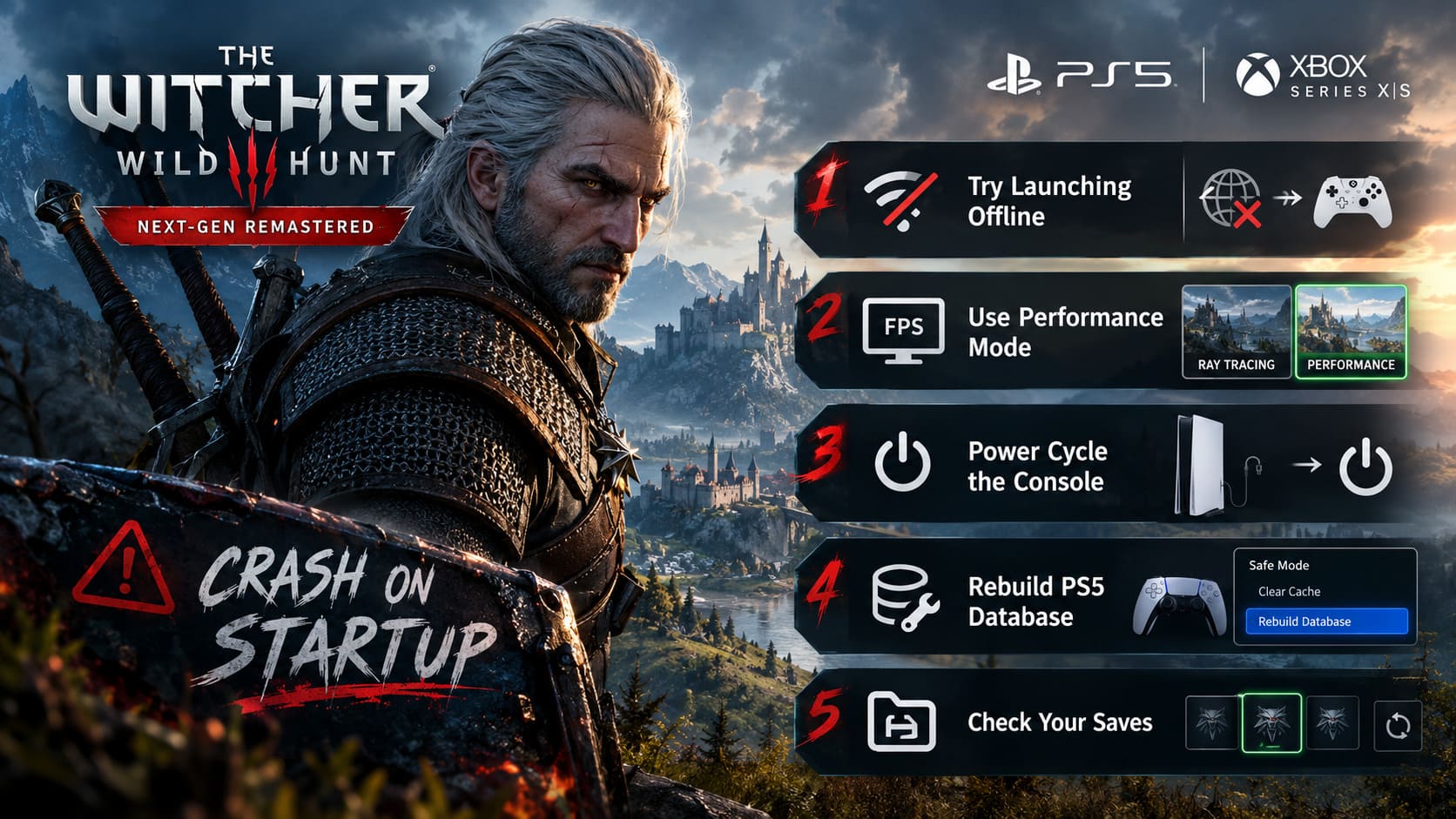
1. Try Launching The Game Offline
If The Witcher 3 crashes during startup on PS5 or Xbox Series X/S, one useful diagnostic test is to temporarily disconnect the console from the internet.
Completely disable the network connection and launch the game.
If it suddenly reaches the main menu, that gives you an important clue that the problem may involve online services, account synchronization or another network-dependent initialization process.
Once you’re inside the game, you can reconnect to the internet and test again.
I would treat this as a diagnostic workaround rather than a guaranteed permanent fix. If the game only works offline, investigate your account synchronization and online connection instead of assuming the console itself is failing.
2. Use Performance Mode Instead of Ray Tracing
If you can reach the menu long enough to change settings, try switching from Ray Tracing mode to Performance mode.
The difference is substantial. Ray tracing increases the rendering workload considerably, while Performance mode prioritizes a higher and more consistent frame rate.
On PS5, you can also set the system’s preferred game preset toward performance-focused behavior.
If the crash happens before you can reach the settings menu, this obviously won’t help immediately. In that situation, try the cache and power-cycle steps first.
3. Completely Power Cycle the Console
Don’t just put the PS5 or Xbox into Rest Mode or Standby.
Shut it down completely.
Then disconnect the power cable and leave the system powered off for a couple of minutes before reconnecting it.
Start the console again and launch The Witcher 3.
This is a basic step, but it can clear temporary system data and eliminate weird behavior caused by a bad cached state.
And yes, sometimes the most sophisticated fix is still “turn it off properly.”
4. Rebuild the PS5 Database
If the game continues crashing and other applications are also acting strangely, the PS5’s Safe Mode tools are worth considering.
Turn the console completely off, then hold the physical power button until you hear the second beep. Connect the controller using USB and enter Safe Mode.
From there, use the available Clear Cache and Rebuild Database options, selecting the database rebuild function as appropriate.
This does not mean you should immediately start deleting saved games. Database maintenance is a different process from wiping the console.
For Xbox Series X/S, Microsoft’s recovery options are different. A Reset Console > Reset and Keep My Games & Apps operation can be considered when normal troubleshooting has failed, but this is much more drastic than simply restarting the console.
5. Check Your Saves If The Game Crashes During Loading
There’s another possibility that doesn’t get enough attention: the game itself may be launching correctly while a particular save is causing the crash.
If you can reach the menu, try starting a different save or a fresh game.
On consoles, cleaning out a large collection of old autosaves and redundant manual saves may also help simplify your save environment.
I would never delete your important saves without making sure you have a backup. The goal is to reduce potential corruption, not accidentally erase hundreds of hours of Geralt’s life.
The Witcher 3 Next-Gen: Most Broken Mutations Tier List (2026 Meta Guide)
Which Witcher 3 Startup Fix Should You Try First?
If you’re on PC, I’d start with DX11, then configuration files, file verification and overlays. Those tests are relatively quick and can tell you a lot without making major system changes.
For PS5 and Xbox Series X/S, I’d start with a complete power cycle, then test the game offline and investigate Performance mode if you can reach the graphics settings.
The important thing is to change one thing at a time. If you simultaneously delete configuration files, reinstall drivers, disable every overlay and change graphics APIs, you might fix the game — but you won’t know what actually caused the problem.
And that matters if the crash returns after the next Witcher 3 update.
The Witcher 3 Next-Gen Death March Skills Tier List (2026 Guide)
Final Troubleshooting Checklist
Before doing anything drastic, work through this list:
- PC: Test DX11 instead of DX12.
- PC: Rebuild the shader cache.
- PC: Move old
.settingsfiles out of the Witcher 3 Documents folder. - PC: Verify Steam/GOG game files.
- PC: Disable overlays and monitoring software.
- PC: Consider a clean GPU driver installation.
- PS5/Xbox: Fully power-cycle the console.
- PS5/Xbox: Test the game while offline.
- PS5/Xbox: Use Performance mode if accessible.
- All platforms: Check whether a particular save is responsible for the crash.
The Witcher 3 is old enough now that its PC version has accumulated years of updates, drivers, mods, settings files and platform-specific quirks. That’s part of the charm of playing a game this long after release — and also part of the headache.
Still, a startup crash doesn’t automatically mean your installation is doomed. Start with the least destructive fix, change one variable at a time, and keep backups of anything you remove. In most cases, that’s a much better approach than immediately nuking the installation and downloading the whole game again.