The Witcher 3 Remastered PC Performance Issues: Complete Optimization Guide and Fixes (2026)
There are few things more annoying than booting up The Witcher 3 Remastered, cranking the graphics to the ceiling, and then watching a ridiculously powerful gaming PC struggle like it just crawled out of White Orchard with 12% battery left.
On paper, modern hardware should absolutely tear through Geralt’s journey. In practice, the 2026 Remastered release can throw some nasty performance problems at PC players. Micro-stutters, inconsistent frame pacing, sudden GPU utilization drops, massive FPS dips in busy cities, shader-related hitching, and crashes tied to demanding graphics features can turn an otherwise incredible RPG into a technical headache.
And yes, this can happen even on expensive hardware.
Systems built around cards such as the RTX 4090 and CPUs like the Ryzen 7 7800X3D aren’t automatically immune. The problem isn’t always raw horsepower. Sometimes the game simply isn’t feeding that hardware efficiently.
After spending an unhealthy amount of time tweaking PC games, testing graphics settings, fighting shader compilation, and staring at GPU utilization graphs when I should probably have been playing, I’ve found that The Witcher 3 is one of those games where a few boring settings changes can make a surprisingly big difference.
So if your The Witcher 3 Remastered PC performance is a mess right now, don’t immediately start replacing hardware.
Start here.
Why The Witcher 3 Remastered Can Stutter on PC
The first mistake is assuming that a high average FPS means the game is running well. It doesn’t.
You can have 80 FPS on the counter and still experience ugly frame-time spikes every few seconds. That’s the kind of problem that makes a game feel strangely sluggish despite the benchmark numbers looking respectable.
Several systems can contribute to this.
| Problem | Typical Symptom | What Usually Helps |
|---|---|---|
| DX12 overhead | Micro-stutters and inconsistent frame pacing | DX11 fallback |
| Ray Tracing | FPS drops, VRAM pressure | Disable or reduce RT |
| Old mods | Low GPU usage, instability | Remove outdated files |
| Overlays | Hitching and crashes | Disable overlays |
| Dense areas | CPU-heavy FPS drops | Lower foliage and NPC settings |
| Poor sync behavior | Uneven motion despite high FPS | Driver-level V-Sync |
The updated DirectX 12 renderer is particularly important. It gives the Remastered edition access to modern rendering features, but it can also place significantly more pressure on the CPU and shader pipeline.
Then there’s Ray Tracing.
It looks fantastic. When everything is working properly, RT lighting and reflections can make the Continent feel dramatically more atmospheric. But the performance bill is brutal, especially when VRAM starts getting tight.
And then we have mods.
If you’ve been carrying an old Witcher 3 mod setup through multiple versions, don’t assume everything is still compatible. A single outdated DLL or utility can wreck performance in ways that aren’t immediately obvious.
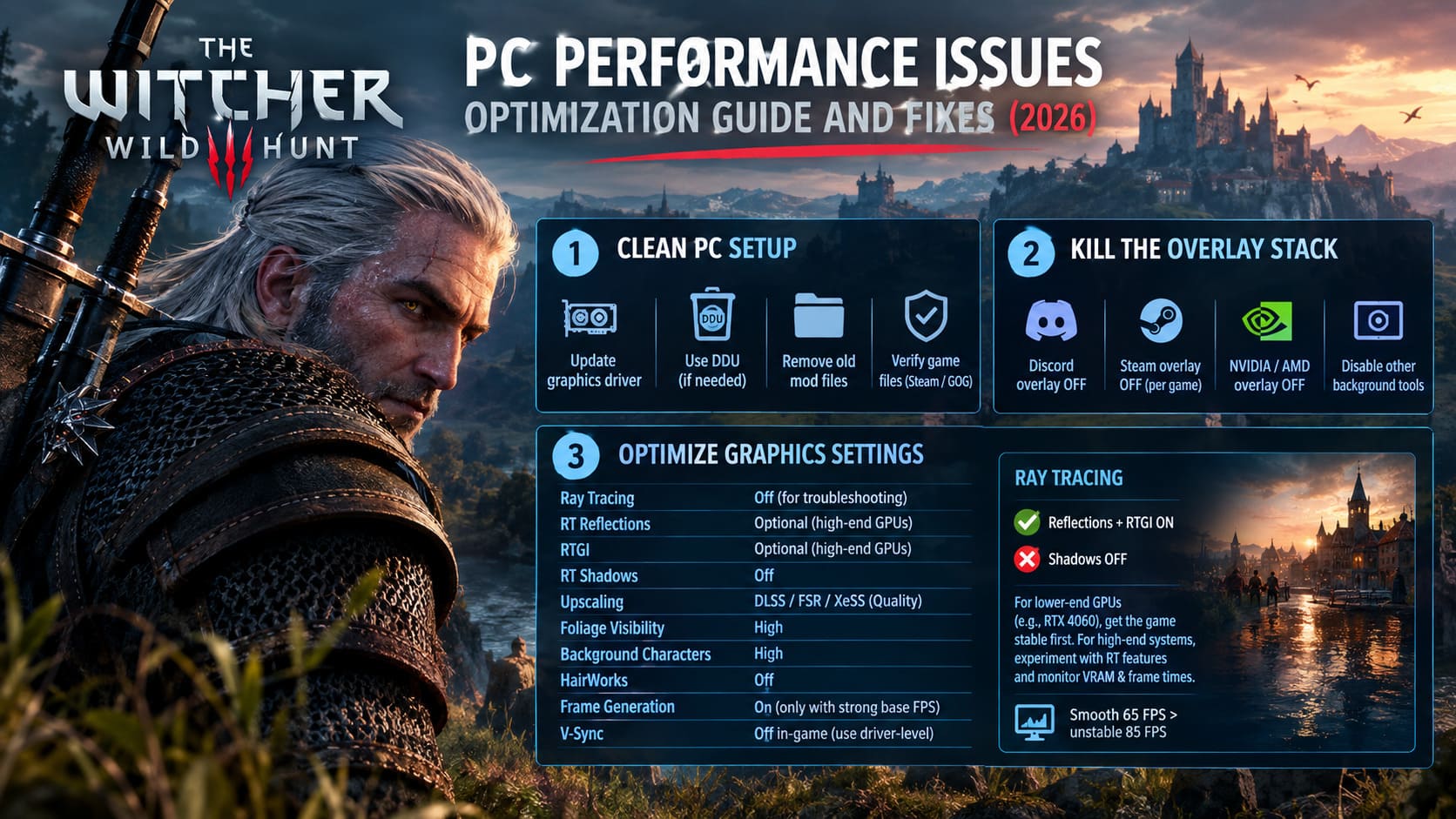
Step 1: Start With a Clean PC Setup
Before touching advanced graphics settings, clean up the obvious problems.
First, install the latest graphics driver for your GPU. If you’ve repeatedly upgraded drivers without removing older components, a clean driver installation is worth doing.
For particularly stubborn cases, use Display Driver Uninstaller (DDU) from Windows Safe Mode before installing the new driver.
You don’t need to run DDU every time you update a driver. That’s overkill. But when a game suddenly starts behaving completely differently after years of driver updates, a clean installation can eliminate a lot of weirdness.
The same rule applies to mods.
Check your Witcher 3 installation and remove old utilities that were designed for previous builds. Files such as dinput8.dll and old menu-related .asi utilities deserve special attention if you’re experiencing unusually low GPU utilization.
If the game suddenly sits at 40–50% GPU usage while your FPS collapses, don’t automatically blame the graphics card.
The game could simply be choking on a software conflict.
After removing questionable files, use Steam or GOG’s verify game files function.
That’s the boring fix.
It also works surprisingly often.
Step 2: Kill the Overlay Stack
Overlays are convenient until they aren’t.
Discord, Steam, GPU software, recording utilities, performance monitors and other background tools can all insert themselves into the rendering pipeline. Most of the time, you won’t notice them.
When a game is already struggling with DX12 frame pacing, though, I don’t want five different applications fighting for hooks.
Disable them temporarily.
For Discord:
- Open User Settings.
- Find Game Overlay.
- Turn off Enable in-game overlay.
Do the same for NVIDIA or AMD overlay features.
Then disable the Steam overlay specifically for The Witcher 3 rather than leaving it running while you’re troubleshooting.
You can always turn everything back on later.
The important part is identifying whether the overlay stack is contributing to the problem.
Step 3: Stop Maxing Out the Settings That Actually Hurt
This is where a lot of PC players make the wrong move.
They see a new Remastered edition, enable Ultra everything, turn on every Ray Tracing option, increase foliage visibility, activate Frame Generation and then wonder why the frame-time graph looks like a mountain range.
You don’t need every setting at maximum.
| Setting | Recommended |
|---|---|
| Ray Tracing | Off for troubleshooting |
| RT Reflections | Optional on high-end GPUs |
| RTGI | Optional on high-end GPUs |
| RT Shadows | Off |
| Upscaling | DLSS / FSR / XeSS Quality |
| Foliage Visibility | High |
| Background Characters | High |
| HairWorks | Off |
| Frame Generation | On only with a strong base FPS |
| V-Sync | Off in-game when using driver-level V-Sync |
Foliage Visibility Range is one of the first settings I’d lower.
Going from Ultra+ to High can reduce the amount of work the game has to perform without turning the Continent into a cardboard set. You’re still getting forests, grass and distant scenery. You’re just not asking the engine to render an absurd amount of it at maximum complexity.
The same applies to Background Characters.
Novigrad can absolutely bully a CPU when the streets are packed. If your FPS suddenly falls apart whenever Geralt enters a busy settlement, lowering NPC density-related settings can help more than dropping your texture quality.
And HairWorks?
Turn it off.
I love the idea. I also love having frames.
Ray Tracing: Beautiful, Expensive and Sometimes Not Worth It
Let’s be honest: Ray Tracing is one of the coolest additions to the modern Witcher experience.
It’s also one of the easiest ways to destroy performance.
If you’re using something around an RTX 4060-class GPU or another card with limited VRAM, I wouldn’t start troubleshooting with RT enabled. Get the game stable first.
For a high-end system, you can experiment with individual RT features rather than turning everything on.
A reasonable starting point is:
RT Reflections + RTGI ON
RT Shadows OFF
Then monitor GPU memory usage and frame times.
Don’t judge performance only by the FPS counter. If the game feels smooth at 65 FPS, that’s more useful than seeing 85 FPS with constant hitching.
Step 4: Use Upscaling Properly
DLSS, FSR and XeSS can be extremely useful here, but don’t immediately jump to Performance mode.
For 1440p, Quality is generally the first setting I’d test.
At 1080p especially, aggressive upscaling can become visually ugly very quickly. Fine foliage, distant objects and textures can start looking smeared, and you’re giving up image quality for frames you might not even need.
If your base performance is already decent, Quality mode gives you a much better balance.
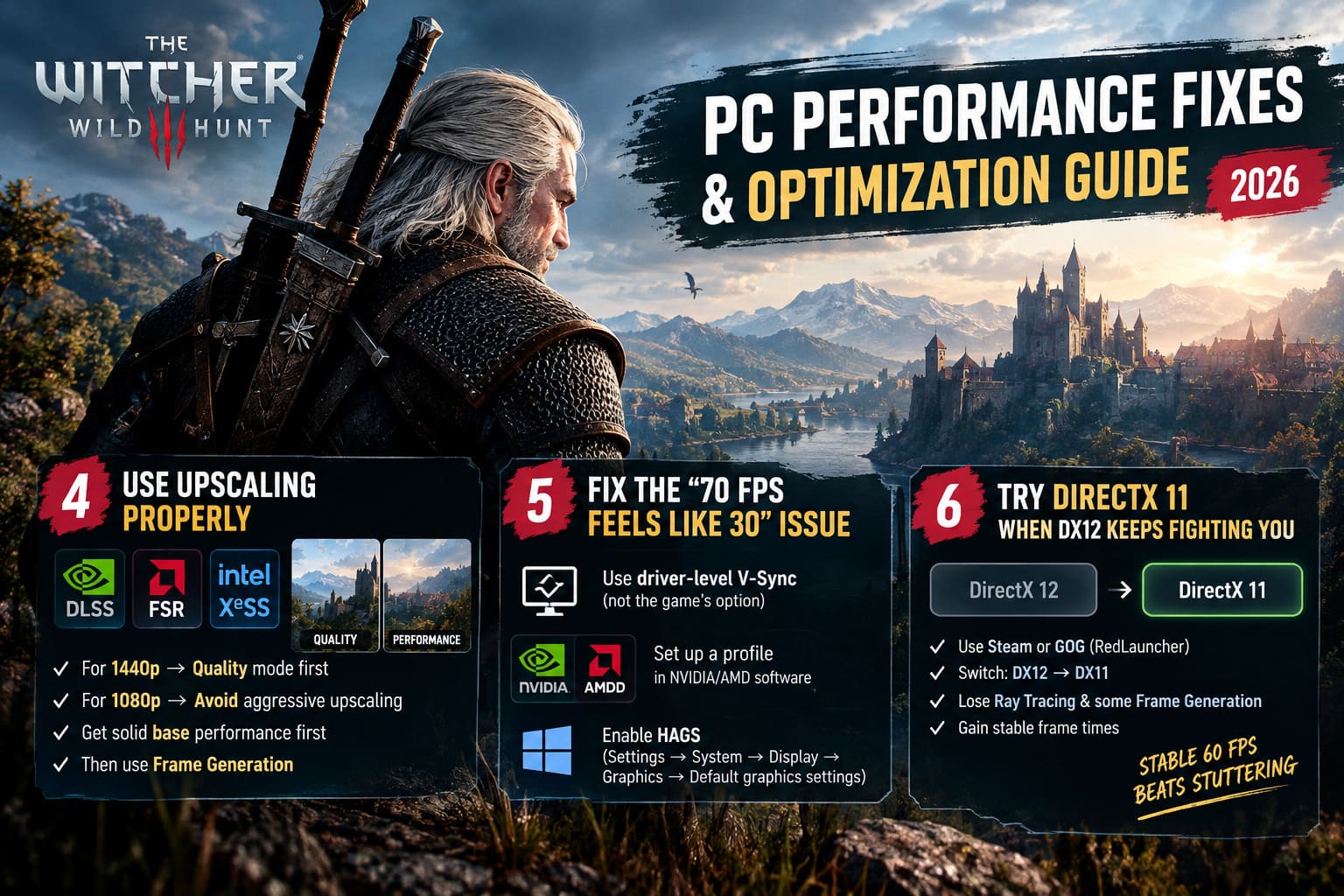
The important word here is base.
Frame Generation is not magic.
If the game is struggling to maintain 35–40 FPS before Frame Generation, adding generated frames can make the counter look wonderful while the underlying input response still feels sluggish.
Get the actual rendering performance under control first.
Then use Frame Generation to push the experience further.
Step 5: Fix the Weird “70 FPS Feels Like 30” Problem
This is one of the most frustrating issues because the FPS counter can completely lie about how the game feels.
If your frame pacing is inconsistent, try using driver-level V-Sync instead of the game’s own synchronization option.
Start by turning V-Sync OFF inside The Witcher 3.
Close the game.
Then open your NVIDIA or AMD graphics software and create a specific profile for The Witcher 3.
Enable V-Sync through the driver.
The idea is simple: let the GPU driver handle synchronization rather than relying entirely on the game’s internal implementation.
Also check Hardware-Accelerated GPU Scheduling (HAGS) in Windows:
Settings → System → Display → Graphics → Default graphics settings
If HAGS is available on your system, enabling it is worth testing.
I wouldn’t blindly assume one Windows configuration works for every PC, though. PC gaming doesn’t work that neatly. If a change makes things worse, revert it. You’re troubleshooting, not collecting settings for a museum.
Step 6: Try DirectX 11 When DX12 Keeps Fighting You
Here’s the nuclear option for stubborn performance problems:
Use DirectX 11.
If your hardware is older, you’re playing on a lower-end desktop, or you’re trying to squeeze stable performance out of a Steam Deck-class device, DX12 may simply be more trouble than it’s worth.
Launch the game through Steam or GOG and look for the API selection in the RedLauncher.
Switch:
DirectX 12 → DirectX 11
Then launch the game again.
The trade-off is obvious. You lose access to some modern rendering features, including Ray Tracing and certain Frame Generation functionality.
But that’s not necessarily a bad deal.
If DX12 gives you gorgeous screenshots and inconsistent gameplay while DX11 gives you stable frame times, I’ll take the latter every single time.
A stable 60 FPS beats a theoretical 100 FPS that constantly stutters.
Steam Deck: Don’t Be Afraid to Go Lower
The Steam Deck is a different beast.
Trying to force a heavily modified Remastered build into an ultra-quality configuration is a fast route to frustration. If DX12 isn’t behaving, experiment with DX11 first and prioritize consistent frame pacing over visual settings.
And if you absolutely need the lightest possible Witcher 3 experience, the classic 1.32 branch remains an option where available through Steam’s beta/version selection.
That older version gives up the modern visual upgrades, but its lower hardware requirements make it dramatically easier to run on handheld hardware.
Sometimes the best optimization is accepting that you don’t need the newest renderer.
A Practical Troubleshooting Order
Don’t change fifteen settings at once.
That’s how you end up with no idea what actually fixed the problem.
I’d go through the process in this order:
- Update or clean-install the GPU driver.
- Disable Discord, Steam and GPU overlays.
- Remove outdated mods and DLL-based utilities.
- Verify the game files.
- Disable Ray Tracing.
- Set DLSS/FSR/XeSS to Quality.
- Lower Foliage Visibility and Background Characters.
- Turn HairWorks off.
- Test driver-level V-Sync.
- Switch to DX11 if DX12 remains unstable.
Test the game after every major change.
If Novigrad suddenly stops turning your frame-time graph into a horror story, you’ve found your culprit.
The Witcher 3 Next-Gen: Most Broken Mutations Tier List (2026 Meta Guide)
The Bottom Line for Witcher 3 Remastered PC Performance
The 2026 Witcher 3 Remastered PC performance problems aren’t necessarily a sign that your gaming PC is too weak.
That’s the biggest thing to understand.
Even extremely powerful hardware can run into CPU-side bottlenecks, shader compilation problems, VRAM pressure, overlay conflicts and poor frame pacing. Throw old mods into the mix and the whole thing can become a mess.
The good news is that you don’t need to sacrifice the entire visual upgrade to get a smooth game.
Start with a clean installation. Remove old mods. Kill the overlays. Keep Ray Tracing under control. Use Quality upscaling rather than destroying image quality for a handful of extra frames. Lower foliage and NPC settings before touching textures. And if DX12 simply refuses to cooperate, DX11 is still sitting there as the reliable fallback.
I’ve spent enough hours tweaking PC games to know that the perfect configuration usually isn’t the one with every slider pushed to the right.
It’s the one you stop thinking about.
When Geralt can sprint through Novigrad without the image hitching every few seconds, combat stays responsive, and the frame-time graph finally looks sane, that’s when the optimization work is actually finished.
The Continent is dangerous enough.
Your graphics settings don’t need to be another monster contract.