Far Cry 6 Lag and Stuttering on PC: 10 Proven Fixes for 2026
There is a lot to love about Far Cry 6. Yara is one of those open worlds that can still look surprisingly good years after launch, especially when you turn the settings up and let the jungle, beaches, cities, and weather effects do their thing. But on PC, there is one problem that can completely ruin the experience: stuttering.
And I am not talking about simply having low FPS.
Far Cry 6 can report a perfectly respectable 80, 100, or even 140 FPS and still feel terrible. You drive through the jungle, the frame suddenly freezes for a split second, then everything catches up. Open the map and the game hitches. Enter a new area and the frame time graph suddenly looks like a mountain range. Sometimes even looting an enemy can produce a tiny pause.
What makes this particularly frustrating is that it can happen on hardware that should have absolutely no trouble running the game. A powerful RTX GPU, a modern Ryzen processor, plenty of RAM, and an SSD do not automatically guarantee smooth performance.
After dealing with these problems myself, I found that the best approach is not simply dropping every graphics option to Low. Far Cry 6 has several specific settings and background features that are much more interesting suspects when you are fighting micro-stutters.
So, instead of destroying the visual quality of Yara, here are the changes I would try first.
What Actually Causes Far Cry 6 Stuttering on PC?
The problem is usually a combination of several things rather than one magical setting.
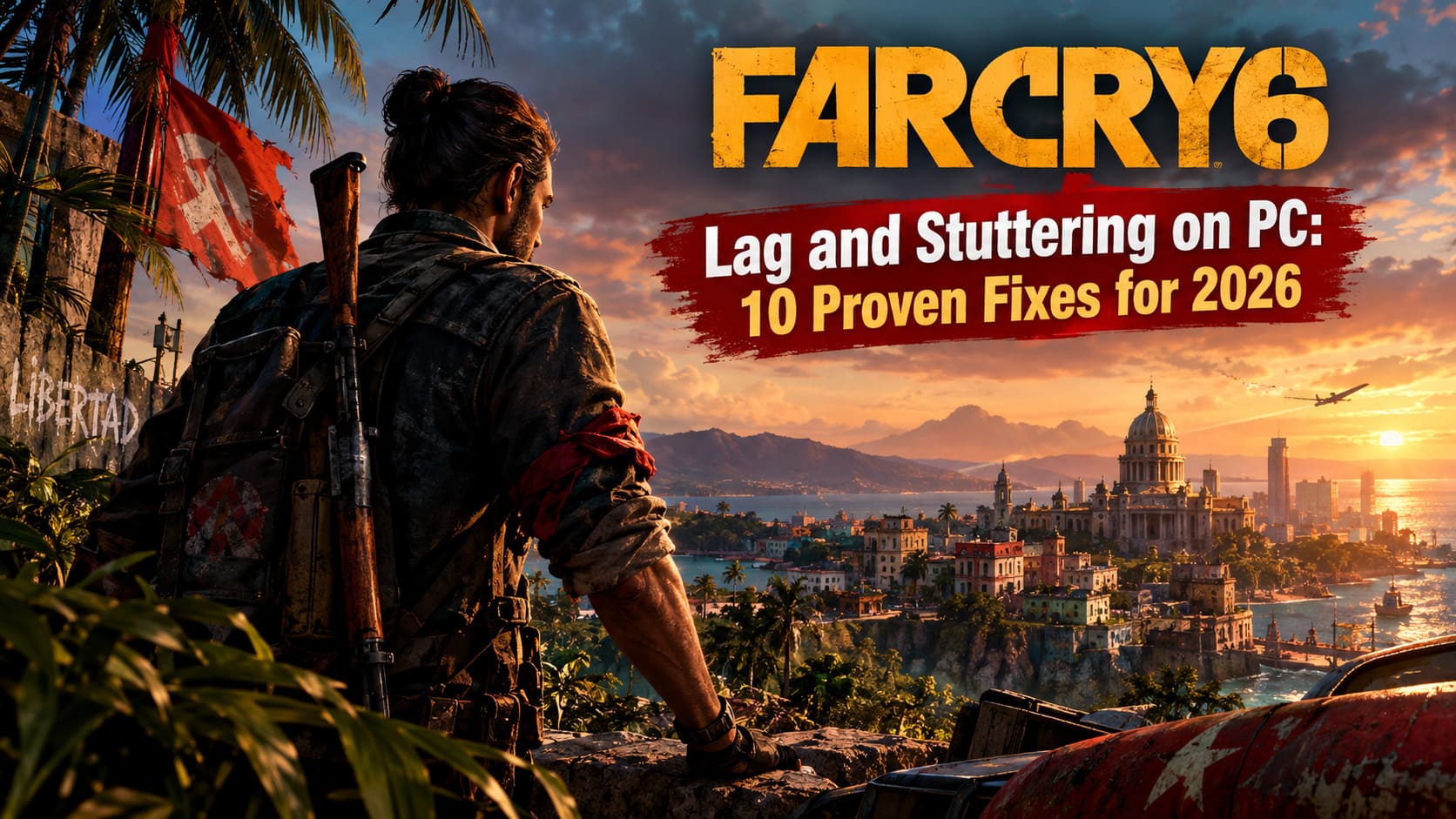
Depending on your system, stuttering can be connected to Ubisoft Connect’s overlay, VRAM pressure, shader compilation, ray tracing, background Windows features, CPU thread scheduling, or damaged game files.
The good news is that you don’t have to apply every possible tweak immediately.
I recommend changing one thing at a time and testing the same location in the game. That makes it much easier to figure out which adjustment actually helped your system.
| Problem | First Thing I Would Try |
|---|---|
| Random micro-stutters | Disable Ubisoft Connect Overlay |
| Huge VRAM spikes | Remove HD Texture Pack |
| Hitching during saves | Check SSD and launcher locations |
| Uneven CPU frame times | Test CPU affinity |
| Strange fullscreen behavior | Disable Fullscreen Optimizations |
| Heavy GPU load | Reduce clouds and disable DXR |
| Stutters after updates | Clear shader cache |
| Persistent problems | Verify game files |
1. Disable the Ubisoft Connect Overlay
If I had to pick one setting to test first, this would be it.
The Ubisoft Connect in-game overlay runs additional background functionality while you are playing, including notifications, social features, challenges, and store-related elements. In some PC configurations, that extra layer can contribute to hitching.
Open Ubisoft Connect, go into Settings > General, and disable:
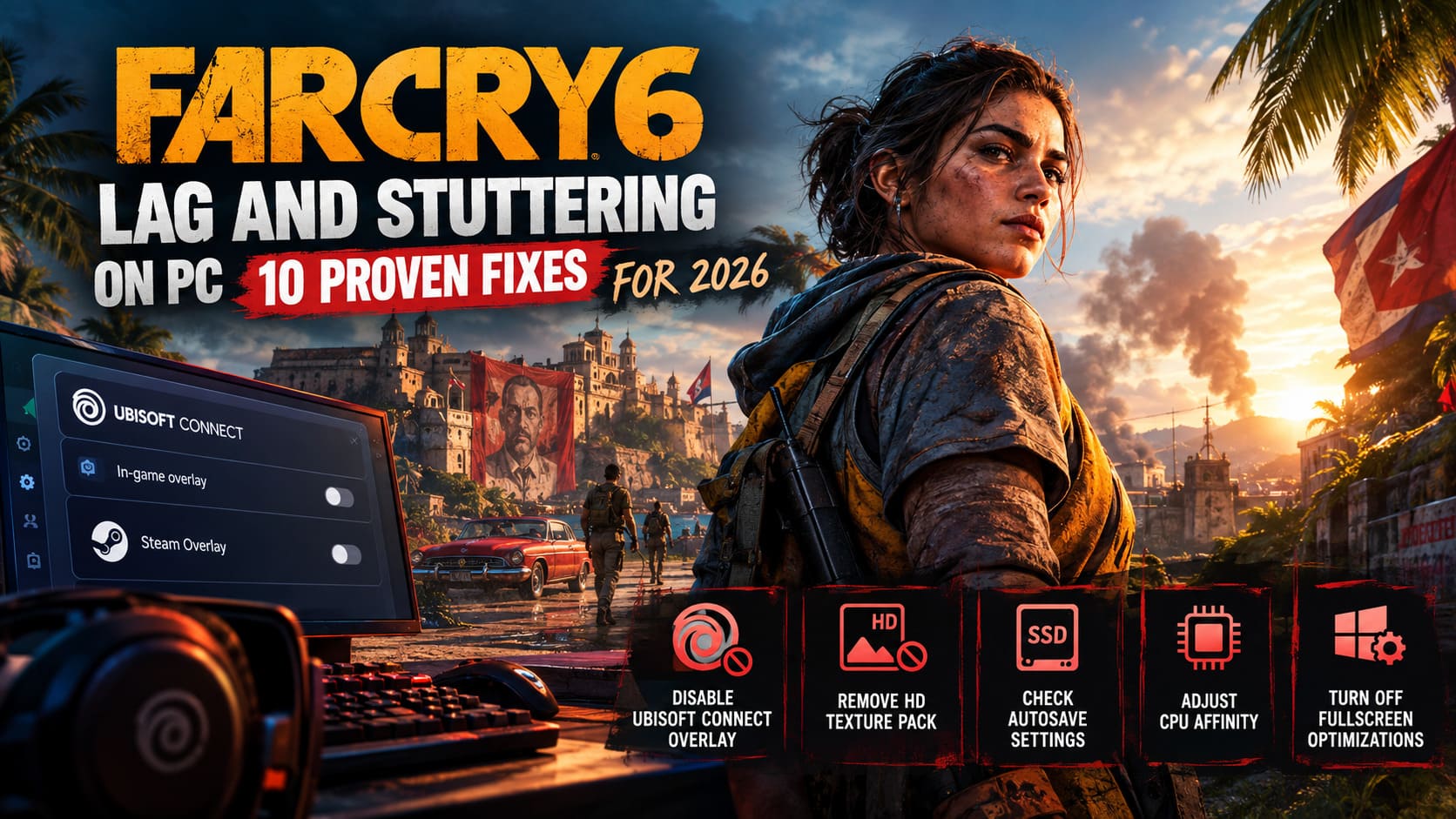
Enable in-game overlay for supported games
If you launch Far Cry 6 through Steam, I would also disable the Steam overlay temporarily. You don’t necessarily need to leave every overlay disabled forever, but it is a very easy troubleshooting step.
Personally, I like starting here because it takes less than a minute and doesn’t sacrifice any graphical quality.
2. Consider Removing the HD Texture Pack
This is another one that can make a surprisingly large difference depending on your GPU.
The Far Cry 6 HD Texture Pack is designed for higher-resolution textures, but those textures also demand considerably more VRAM. If your graphics card is already close to its VRAM limit, the game can become much less consistent when loading new areas.
This becomes particularly noticeable when driving quickly through Yara because the engine has to stream a lot of environmental data.
On Steam, go to:
Library → Far Cry 6 → Properties → DLC
Find the Far Cry 6 HD Texture Pack and disable it.
If you are using Ubisoft Connect, check the game’s DLC or owned-content section and remove the texture pack there.
I would especially test this if you have a GPU with limited VRAM and are playing at 1440p or 4K.
3. Investigate Autosave-Related Hitching
This is one of those Far Cry 6 problems that can be incredibly annoying because the game may otherwise run perfectly.
You loot something, pick up ammunition, cross an area, or trigger an autosave—and suddenly the game pauses for a moment.
One workaround worth testing is making sure your Ubisoft Connect installation and Far Cry 6 are located on the same fast SSD, particularly if the game is installed on an NVMe drive.
The idea is to reduce unnecessary delays when the game and launcher are accessing related files.
This isn’t something I would immediately recommend doing to everyone, especially if your installation is already behaving well. But if your stutters happen at very specific moments that appear connected to saving or loading, it is worth investigating.
4. Test CPU Affinity If Frame Times Are Extremely Uneven
Far Cry 6 can put considerable pressure on the CPU, and modern processors have a lot more cores and threads than the hardware many older games were originally designed around.
If your CPU utilization looks strange—for example, one thread is heavily loaded while other cores have plenty of headroom—testing processor affinity can sometimes reveal whether scheduling is contributing to the problem.
You can test this through Windows Task Manager:
- Launch Far Cry 6.
- Alt + Tab back to Windows.
- Open Task Manager.
- Go to Details.
- Find FarCry6.exe.
- Right-click it and select Set affinity.
- Test disabling Core 0 while leaving the other available cores enabled.
This is a testing technique rather than a universal recommendation. If it makes no difference, simply restore the original configuration.
AMD Ryzen users can also experiment with Ryzen Master’s gaming-oriented CPU configurations, while Intel users may test different threading configurations. I would avoid making permanent BIOS changes purely because of one game, though.
5. Disable Windows Fullscreen Optimizations
Windows has several presentation features designed to make modern games interact more smoothly with the desktop. Unfortunately, sometimes those layers don’t play nicely with older rendering behavior.
Find FarCry6.exe in the game’s installation directory.
Right-click the executable and choose:
Properties → Compatibility → Disable fullscreen optimizations
Apply the change and launch the game again.
I also recommend testing Windows Game Mode if you are experiencing unexplained frame-time spikes.
Go to:
Windows Settings → Gaming → Game Mode
Turn it off temporarily and compare the result.
There is no reason to blindly assume Game Mode is bad. It can help some games. The important thing here is testing it against your particular Far Cry 6 setup.
6. Let Your GPU Driver Handle V-Sync
The in-game V-Sync behavior is another setting I prefer to test externally.
For NVIDIA users, open NVIDIA Control Panel → Manage 3D Settings → Program Settings, then add Far Cry 6 if it isn’t already listed.
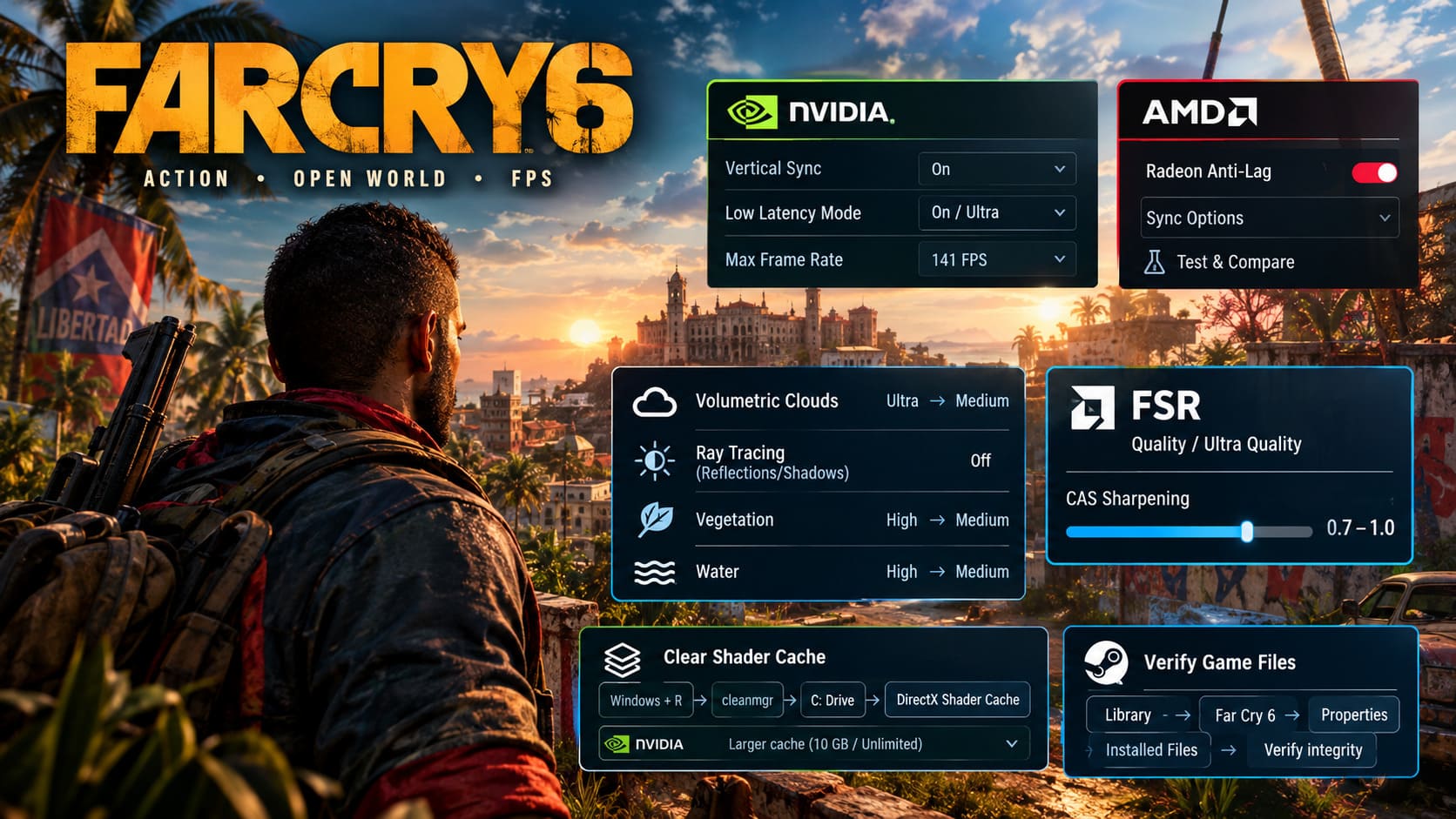
A sensible starting point is:
- Vertical Sync: On
- Low Latency Mode: On or Ultra
- Max Frame Rate: Slightly below your monitor’s maximum refresh rate
For a 144Hz display, for example, you could test a cap around 141 FPS.
If you use AMD hardware, open AMD Software: Adrenalin Edition and select Far Cry 6 under Gaming. Radeon Anti-Lag and the available synchronization options can then be tested individually.
The important word is test. Your monitor, VRR technology, GPU and target FPS all affect which combination feels best.
7. Stop Wasting GPU Power on Expensive Settings
This is where I think a lot of PC players make the wrong move.
When Far Cry 6 stutters, the instinct is often to lower the entire graphics preset. But you can keep the game looking excellent while reducing a few particularly expensive settings.
Start with Volumetric Clouds.
Try dropping them from Ultra to Medium. Clouds can consume a surprising amount of GPU resources, especially during weather changes.
Then look at ray tracing.
If you are using DXR Reflections or DXR Shadows, turn them off as a troubleshooting step. Ray tracing can significantly increase GPU and VRAM demands, and if your goal is consistent frame delivery rather than screenshots, these are among the first settings I would sacrifice.
I would also lower Vegetation and Water by one level below your main preset.
For example:
Ultra preset + High Vegetation + High Water
can often make more sense than running everything at Ultra.
8. Use FSR Instead of Destroying Your Resolution
If your GPU is struggling at native 1440p or 4K, don’t immediately slash the resolution scale.
Far Cry 6 includes FidelityFX Super Resolution, which can render internally at a lower resolution and reconstruct the final image.
Try:
FSR: Quality or Ultra Quality
Then experiment with FidelityFX CAS to recover some perceived sharpness.
A CAS sharpening value around 0.7–1.0 is a reasonable starting point, although I would adjust it according to your monitor and preferred image quality.
For me, this approach is much more appealing than making the whole game look noticeably softer just to gain a few extra frames.
9. Clear the Shader Cache
Shader-related stuttering is one of the most irritating problems because it can appear to come from nowhere.
If Far Cry 6 started hitching after a driver update, game update, or graphics-setting change, clearing the shader cache is worth trying.
NVIDIA users can also check NVIDIA Control Panel → Manage 3D Settings → Shader Cache Size and experiment with a larger allocation such as 10 GB or Unlimited, depending on the available options in their driver.
To clear the Windows DirectX shader cache:
Windows + R → cleanmgr → select your C: drive → DirectX Shader Cache
Clear it and restart the game.
The first launch afterward may not feel magically smoother. The game and driver need to rebuild the necessary shaders, so give it some time before deciding whether the change helped.
10. Verify Far Cry 6 Game Files
Finally, don’t overlook the boring solution.
If your stuttering appeared after a major update or the game suddenly started behaving differently, damaged or incomplete files can be responsible.
On Steam:
Library → Far Cry 6 → Properties → Installed Files → Verify integrity of game files
On Ubisoft Connect, open the game properties and use the Verify Files option.
Let the process finish completely before launching the game again.
It isn’t exciting, but sometimes the most effective PC troubleshooting step is simply letting the launcher repair what went wrong.
Far Cry 6 Amigos Guide: How to Get Chorizo and Unlock All Guapo Abilities
My Recommended Order for Fixing Far Cry 6 Stuttering
I wouldn’t apply all ten changes at once. That makes troubleshooting unnecessarily confusing.
If I were sitting down with a fresh Far Cry 6 installation today, my testing order would be:
- Disable Ubisoft Connect and Steam overlays
- Remove the HD Texture Pack if VRAM is limited
- Turn off DXR
- Lower Volumetric Clouds
- Test Windows Game Mode and Fullscreen Optimizations
- Configure driver-level V-Sync and FPS limiting
- Clear the shader cache
- Test FSR Quality
- Investigate CPU affinity
- Verify the game files
The biggest thing to remember is that high FPS does not automatically mean good performance. What you really feel while playing is frame-time consistency.
Far Cry 6 Multiplayer Connection Failed Fix: Solved for Ubisoft Connect (2026 Guide)
Far Cry 6 is still capable of looking fantastic on PC, and you don’t necessarily need to turn the whole game into a blurry Low-preset mess to make it playable. A few targeted changes can take a much more sensible approach: keep the settings that actually improve the image, remove the options that hammer your hardware, and eliminate background features that may interfere with the engine.
If your particular stuttering problem is happening mainly while driving, during autosaves, when opening menus, or when entering new areas, pay attention to when the hitch happens. That clue is often more useful than simply looking at your average FPS.
Yara doesn’t need to run at 200 FPS to feel good. It just needs to stop freezing every few seconds.