Far Cry 6 Multiplayer Connection Failed Fix: Solved for Ubisoft Connect (2026 Guide)
Far Cry 6 is at its best when you’re not fighting the revolution alone. Grab a friend, jump into Yara, start causing absolute chaos, and the game suddenly feels like a completely different sandbox. Unfortunately, getting two players into the same session can sometimes be harder than taking down an entire military checkpoint.
The dreaded “Multiplayer Connection Failed” message, Ubisoft Connect connection errors, endless loading screens, and codes such as Snowshoe or Trapper can completely kill a co-op session before it even starts. And yes, these problems can still appear in 2026.
What makes Far Cry 6 multiplayer troubleshooting particularly annoying is that the problem isn’t always your internet connection. The failure can sit somewhere between Windows, Ubisoft Connect, your network configuration, platform account linking, firewall permissions, DNS resolution, or the game’s local files. I’ve seen plenty of games where restarting the router magically fixes everything. Far Cry 6 can be a little more stubborn.
This guide breaks down the most useful fixes for Far Cry 6 multiplayer connection failed errors on PC, PS5, and Xbox Series X|S. The goal isn’t to throw twenty random “try this” fixes at you. We’re going after the common points of failure one by one, starting with the easy stuff and moving toward deeper network and file-system troubleshooting.
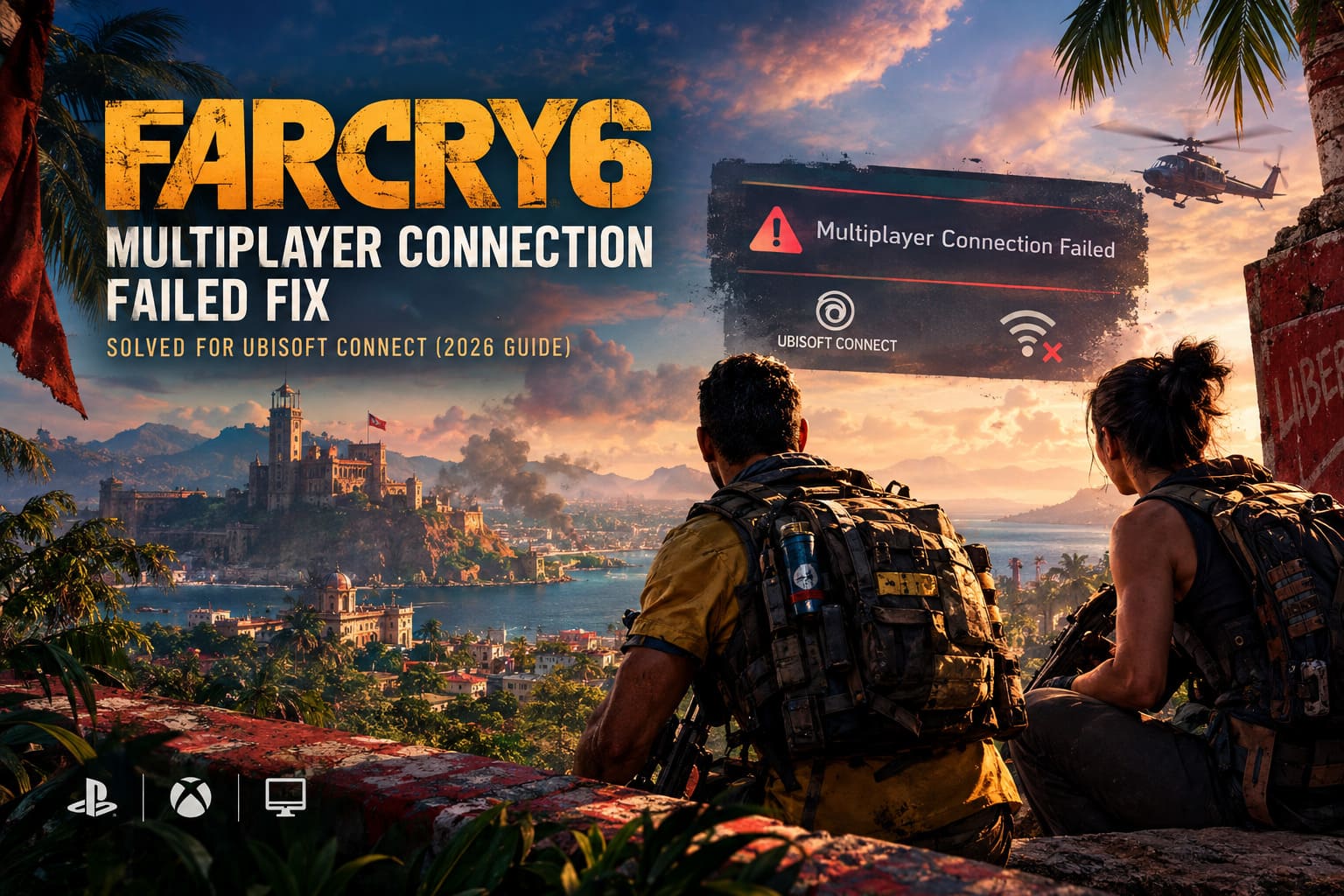
Why Does Far Cry 6 Say “Multiplayer Connection Failed”?
Far Cry 6 co-op depends on several services working together. Your game needs to communicate with Ubisoft Connect, authenticate your Ubisoft account, maintain the online session, and establish the necessary connection with the other player. If any part of that chain gets stuck, the game can throw a generic multiplayer error instead of telling you exactly what went wrong.
| Possible Cause | What It Can Break |
|---|---|
| Ubisoft Connect Cache | Authentication, launcher communication, session data |
| DNS Problems | Server resolution and Ubisoft service connections |
| Firewall Restrictions | Game and launcher network traffic |
| Corrupted Game Files | Launch, authentication, and multiplayer stability |
| Account Linking Issues | Platform authentication and co-op access |
| Router Configuration | NAT and peer-to-peer connectivity |
The good news is that most of these problems can be checked without reinstalling the entire game. Considering how large modern AAA installations have become, that is one troubleshooting step I’d happily avoid until absolutely necessary.
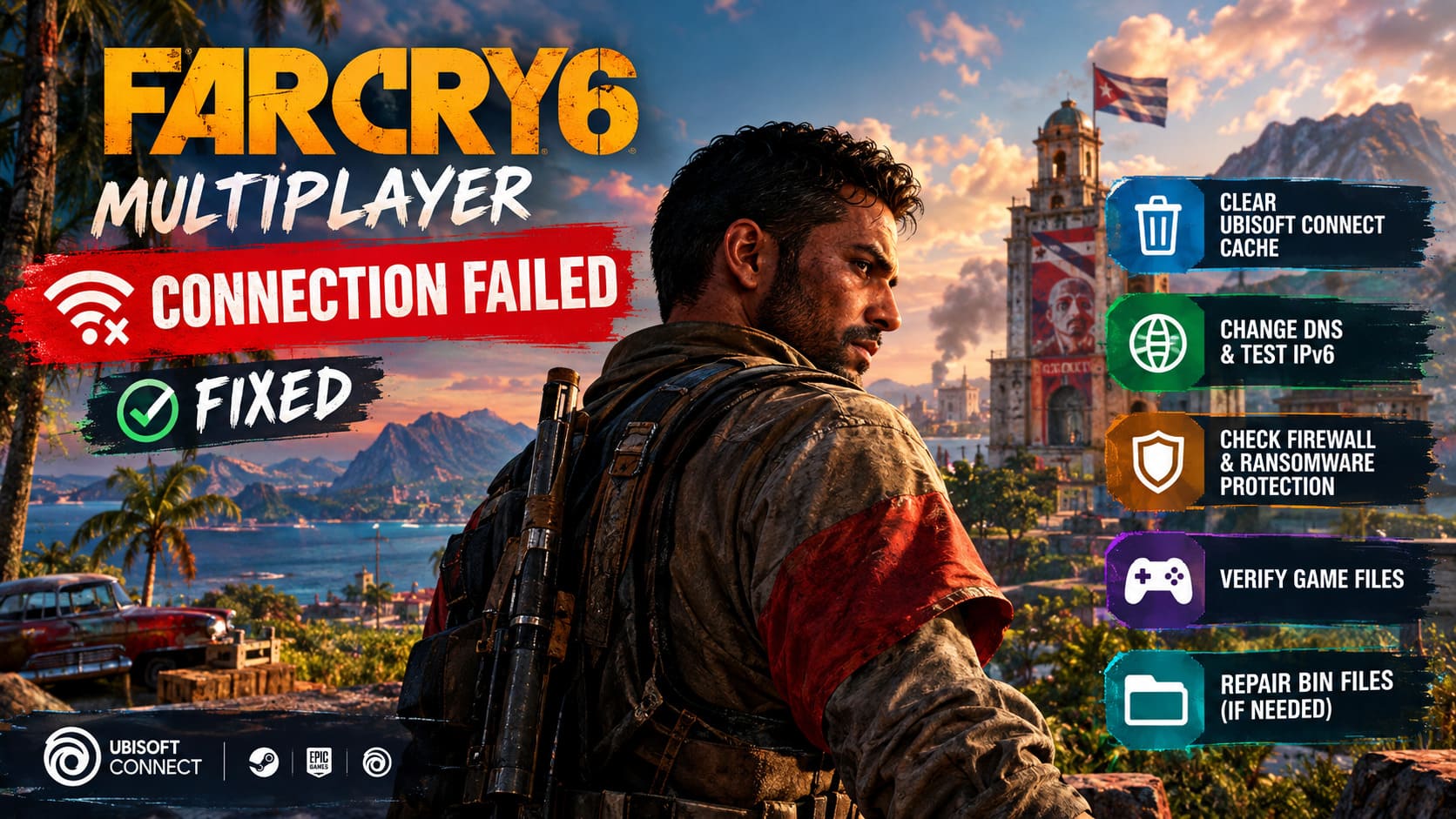
Fix 1: Clear the Ubisoft Connect Cache
If Far Cry 6 suddenly stopped connecting even though your internet works normally, Ubisoft Connect’s local cache is one of the first things worth checking. Old or damaged temporary data can interfere with authentication and communication between the launcher and Ubisoft’s online services.
Before touching anything, completely close Far Cry 6 and Ubisoft Connect. Don’t just click the X and assume the launcher disappeared. Ubisoft Connect can continue running background processes.
- Press Ctrl + Shift + Esc to open Task Manager.
- Look for Ubisoft Connect processes, including UbisoftConnect.exe and UbisoftConnectWebCore.exe.
- End the relevant Ubisoft Connect processes if they are still running.
- Open File Explorer and navigate to C:\Program Files (x86)\Ubisoft\Ubisoft Game Launcher.
- Find the folder named cache.
- Delete the cache folder, or move it somewhere else temporarily if you want a backup.
- Start Ubisoft Connect again and launch Far Cry 6.
Running Ubisoft Connect as administrator after clearing the cache can also help if Windows permissions are preventing the launcher from rebuilding local configuration data correctly.
Don’t delete random Ubisoft folders just because you’re already in the directory. The cache is the target here. There’s no prize for turning a simple troubleshooting session into a full launcher repair.
Fix 2: Change DNS and Test IPv6
DNS doesn’t magically make your internet faster, but it can affect how reliably your PC resolves online services. If your ISP’s DNS servers are having trouble reaching a particular service or routing requests correctly, changing DNS can sometimes get around the problem.
Windows also allows you to temporarily disable IPv6 as a troubleshooting step. This shouldn’t be treated as a universal Far Cry 6 requirement, but if you’re experiencing persistent routing or connection problems, it’s worth testing.
- Press Windows + R.
- Enter ncpa.cpl and press Enter.
- Right-click your active Ethernet or Wi-Fi adapter.
- Select Properties.
- Temporarily uncheck Internet Protocol Version 6 (TCP/IPv6).
- Select Internet Protocol Version 4 (TCP/IPv4) and open its properties.
- Choose Use the following DNS server addresses.
You can test Google DNS:
- Preferred DNS: 8.8.8.8
- Alternate DNS: 8.8.4.4
Or try Cloudflare:
- Preferred DNS: 1.1.1.1
- Alternate DNS: 1.0.0.1
After applying the changes, open Command Prompt as administrator and run:
ipconfig /flushdns
Then restart Far Cry 6 and test co-op again. If disabling IPv6 makes no difference, you can turn it back on. There is no reason to permanently change a working network configuration just because one troubleshooting experiment didn’t help.
Fix 3: Check Windows Firewall and Ransomware Protection
Windows security tools are great right up until they decide that your perfectly legitimate game executable looks suspicious. Far Cry 6 needs to communicate through the network, while Ubisoft Connect also needs permission to perform its launcher and authentication duties.
Start with Windows Security.
- Open the Windows Start menu and search for Windows Security.
- Open Virus & threat protection.
- Find Ransomware protection.
- Open Manage ransomware protection.
- If Controlled folder access is enabled, check whether Far Cry 6 is being blocked.
- Use Allow an app through Controlled folder access if necessary.
If Far Cry 6 cannot properly access its configuration or save-related directories, Controlled folder access can become an unexpected roadblock.
Next, check the firewall:
- Open Windows Security.
- Select Firewall & network protection.
- Choose Allow an app through firewall.
- Make sure Far Cry 6 and Ubisoft Connect are allowed on the appropriate network types.
If you are using a third-party antivirus or firewall, don’t forget that it may have its own application-blocking rules. Having Windows Firewall configured correctly doesn’t help if another security suite is silently blocking the game.
Fix 4: Verify Far Cry 6 Game Files
This is one of the least glamorous fixes, but it is also one of the easiest. If a patch was interrupted, a file became corrupted, or something went wrong during installation, multiplayer-related components may fail even though the game still launches.
Steam
Open your Steam Library, right-click Far Cry 6, select Properties, open Installed Files, and choose Verify integrity of game files.
Ubisoft Connect
Open your Ubisoft Connect library, select Far Cry 6, open the game’s menu using the three-dot button, and choose Verify files.
Epic Games Launcher
Find Far Cry 6 in your Epic Games Library, click the three-dot menu, select Manage, and choose Verify.
Let the process finish completely before launching the game. If files are repaired or redownloaded, restart the launcher before testing multiplayer again.
Fix 5: Repair the Bin Files If Far Cry 6 Loops or Crashes
This is a more unusual workaround and should be reserved for situations where Far Cry 6 is crashing, returning to the launcher, or getting stuck during the initial startup/authentication process.
Navigate to the main Far Cry 6 installation directory and look for the bin_plus folder. Copy the files contained inside it, then open the game’s bin folder and paste them there.
When Windows asks whether you want to replace existing files, confirm the overwrite operation.
Back up important files before manually replacing game directories. This isn’t the first thing I’d try for a simple multiplayer error. If the game launches normally and only co-op matchmaking is failing, start with the cache, network, firewall, and verification steps first.
PS5 and Xbox Series X|S Multiplayer Troubleshooting
Console players don’t have access to the same Windows-level fixes, but there are still several useful things to check if Far Cry 6 refuses to connect to a co-op session.
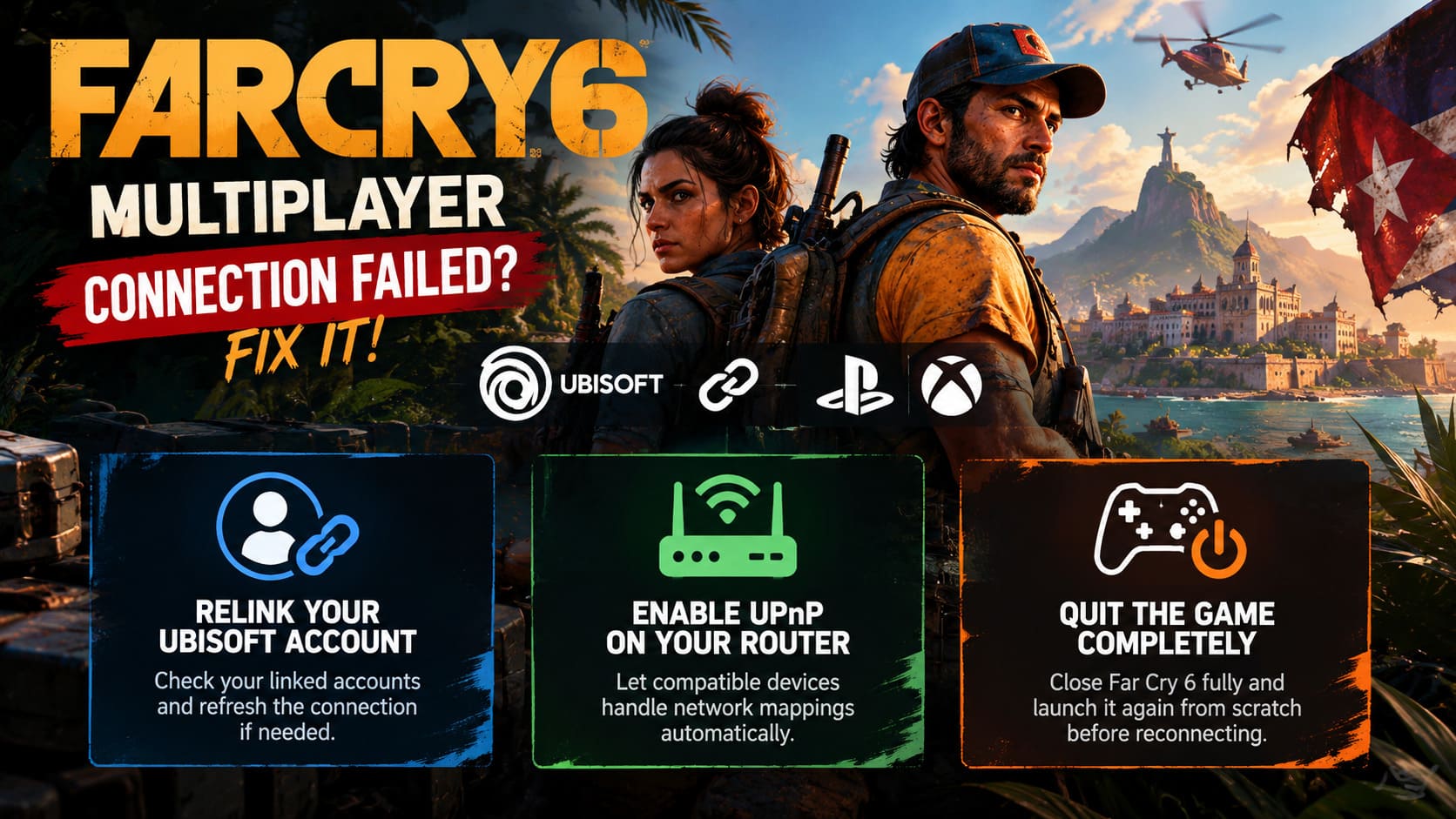
Relink Your Ubisoft Account
If your Ubisoft account has been connected to a console account for a long time or has passed through multiple platform generations, authentication problems can occasionally become complicated.
Sign into your Ubisoft account management page and check the Linked Accounts section. If you’re dealing with persistent authentication failures, reviewing the PlayStation Network or Xbox account connection and re-establishing the link can refresh the authentication process.
Be careful with unlinking accounts. Ubisoft account linking can affect access to platform-associated content and progression, so don’t blindly disconnect an account simply because multiplayer failed once.
Enable UPnP on Your Router
If your console is struggling with NAT-related co-op problems, check your router configuration. UPnP allows compatible devices to request the network mappings they need without manually configuring every port.
Router interfaces differ dramatically between manufacturers, but UPnP is commonly found under an Advanced Network, WAN, or similar section.
If you cannot find the setting, check your router manufacturer’s documentation rather than randomly changing advanced networking options. One wrong setting can create a second problem while you’re trying to fix the first.
Completely Quit Far Cry 6
This sounds almost insultingly simple, but it matters on modern consoles. Rest Mode and Xbox Quick Resume can preserve game states that aren’t ideal for live online sessions.
If Far Cry 6 has been sitting suspended for hours, completely quit the game from the console dashboard and launch it again from scratch. Then reconnect to Ubisoft’s services and try inviting your co-op partner again.
Far Cry 6 Best 2-Player Co-Op Builds: Synergy Guide (2026 Meta)
What to Try First When Nothing Seems to Work
Don’t change five network settings at once. That’s how troubleshooting turns into guesswork.
For a typical PC setup, I’d work through the problem in this order:
- Restart Far Cry 6 and Ubisoft Connect completely.
- Clear the Ubisoft Connect cache.
- Verify the game files.
- Check Windows Firewall and security permissions.
- Flush DNS and test another DNS provider.
- Test IPv6 as a troubleshooting variable.
- Check router/NAT behavior.
- Only then move toward deeper file or account repairs.
Also test another online game or service. If everything else is working perfectly but Far Cry 6 suddenly cannot connect, that tells you something. If your entire network is behaving strangely, changing Far Cry 6 files probably isn’t going to save the day.
Far Cry 6 Ending Explained: The Full Lore and Diego Castillo’s Tragic Fate
Final Thoughts
Far Cry 6 multiplayer connection errors are frustrating precisely because the message often tells you almost nothing. “Multiplayer Connection Failed” doesn’t distinguish between a broken launcher cache, firewall restriction, DNS problem, damaged game files, account authentication issue, or router configuration problem.
That means the best approach is controlled troubleshooting. Start with the Ubisoft Connect cache and game-file verification because they’re relatively simple. Move into DNS, firewall, and network configuration when the basic fixes don’t work. Console players should focus on fresh game sessions, account authentication, and router/NAT configuration.
And don’t immediately nuke your entire installation. A full reinstall is a giant hammer for a problem that may simply be sitting inside a small cache folder or a Windows networking setting.
Once the connection is finally stable, Far Cry 6 co-op goes right back to being the ridiculous guerrilla playground it was supposed to be. Two players, a ridiculous arsenal, a stolen vehicle, and a plan that will probably fall apart within thirty seconds — that’s the Yara experience.