Enshrouded Best Settings for Low End PC: Max FPS & Performance Guide
There are few things more annoying than finding a game you genuinely want to play, only to discover that your PC starts fighting you the moment you enter a busy area. Enshrouded is a perfect example. I have played plenty of survival games over the years, from lightweight indie projects to huge open-world games that make a GPU sweat, and Enshrouded sits firmly on the demanding side of that spectrum.
Keen Games has built something unusually ambitious here. The voxel world is not just decoration, because players can reshape large parts of Embervale, build enormous structures, explore underground areas, fight enemies, and move through environments filled with lighting effects and atmospheric fog. It looks great when everything is running smoothly, but on an older gaming PC, those same systems can turn into low FPS, sudden stutters, long frame-time spikes, and nasty drops in busy locations.
The good news is that you don’t necessarily need a new PC to make Enshrouded playable. After experimenting with graphics settings in demanding games, I’ve found that the trick is not simply putting everything on Low. Some settings have a surprisingly small impact on performance, while others can absolutely hammer your GPU or CPU. Here’s how I’d approach Enshrouded on a low-end or aging gaming PC.
Is There PvP in Enshrouded 1.0 The Definitive Guide for Survival Players
First, Be Realistic About Your Hardware
Before changing every graphics option, check where your PC actually stands. Enshrouded is not a particularly forgiving game when your hardware is already below its recommended baseline.
The officially listed minimum hardware includes an Intel Core i5-6400 or AMD Ryzen 5 1500X alongside a GTX 1060 6GB or Radeon RX 580. If your system is around that level, you should expect to make compromises. And if you’re running an older quad-core processor, limited VRAM, or a graphics card below that class, don’t be surprised when crowded bases, forests, caves, or Shroud areas expose the weaknesses of the machine.
The voxel technology is a major reason. Enshrouded isn’t simply rendering a conventional static environment. The world can be modified, destroyed, and rebuilt, which means there is considerably more going on behind the scenes than in many standard open-world games.
That is why CPU performance matters just as much as GPU performance in certain situations. If lowering resolution barely changes your FPS, you may be CPU-limited rather than GPU-limited.
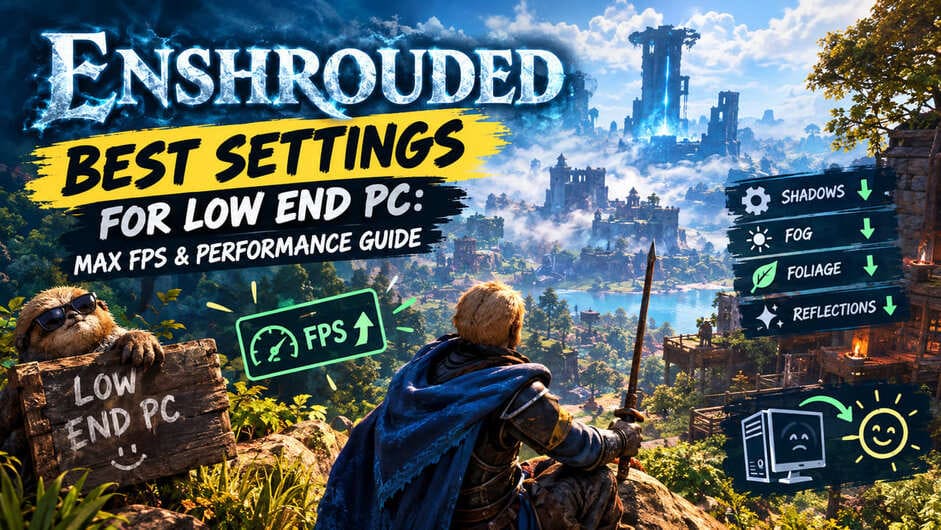
My Recommended Low-End PC Settings for Enshrouded
I wouldn’t immediately throw every setting to its lowest possible value. The goal is to find the options that actually cost performance while keeping the game looking decent.
| Setting | Low-End Recommendation | Why |
|---|---|---|
| Display Mode | Fullscreen | Helps maintain consistent performance |
| Resolution | Native | Keeps the interface and image sharp |
| Upscaling | DLSS / FSR 2 | One of the biggest performance tools |
| Texture Quality | Balanced | Depends heavily on VRAM |
| Shadow Quality | Performance | Major FPS cost |
| Contact Shadows | Off | Easy performance win |
| Indirect Lighting | Performance | Reduces lighting workload |
| Reflections | Performance / Off | Saves GPU resources |
| Fog Quality | Low | Particularly useful in Shroud areas |
| Volumetric Shadows | Low / Off | Reduces atmospheric lighting cost |
| SSAO | Low / Balanced | Keeps some depth without excessive cost |
| Distance Objects | Performance | Reduces distant rendering |
| Voxel Detail Models | Performance | Useful for CPU-limited systems |
| Small Foliage | Performance | Helps in dense vegetation |
| Tessellation | Balanced / Off | Optional visual sacrifice |
| Point Light Shadows | Off | Helps reduce lighting-related stutters |
Fullscreen First, Then Deal With Resolution
I generally start with Fullscreen mode. Borderless windowed mode is convenient, but when I’m troubleshooting an older PC, I prefer to remove as many unnecessary variables as possible.
For resolution, I’d keep your monitor’s native resolution initially. If you’re playing at 1920×1080, don’t immediately switch the entire game to 1280×720 just because the FPS is low. The image becomes softer, UI elements suffer, and you can often get a better result by using an upscaler instead.
This is particularly important in Enshrouded because the world contains lots of foliage, terrain detail, and small objects. A badly reduced resolution can make the environment look significantly worse without necessarily solving every performance problem.
DLSS and FSR Are Your Best Friends
If I had to choose one area to experiment with first, it would be upscaling.
RTX owners should try DLSS, with Quality or Balanced being my starting points. Performance mode can produce a bigger FPS increase, but on a 1080p monitor it can also make distant details look noticeably soft. For me, Balanced is usually the point where the performance improvement starts to feel worthwhile without making the game look like it is being rendered through fog.
If you’re using an AMD card, Intel GPU, or an older Nvidia card that doesn’t support DLSS, FSR 2 is the obvious alternative where available.
I’d test Balanced first. If you’re still struggling, Performance mode can be worth trying. I would only use more aggressive settings when the alternative is an unstable frame rate, because a consistent 45 FPS can feel much better than a game constantly jumping between 30 and 60.
Shadows Are One of the First Things I’d Lower
Shadows are notorious performance killers in modern games, and Enshrouded is no exception.
You can have a relatively powerful-looking scene on screen, but dynamic shadows add another layer of rendering work that your GPU has to deal with. Moving Shadow Quality to Performance is therefore one of the easiest changes to make when chasing FPS.
I wouldn’t spend too much time trying to preserve ultra-quality shadows on a budget machine. They are nice when you have the hardware for them, but I’d rather have smoother combat and exploration than prettier shadows.
Turn Contact Shadows Off
This is another setting I would sacrifice almost immediately.
Contact shadows add small details around objects where they meet the environment. They can make scenes look more grounded, but they’re hardly the feature that makes Enshrouded special.
If you’re trying to squeeze additional frames from an older GPU, Contact Shadows: Off is a very sensible trade.
Fog Is a Big Deal in the Shroud
This one feels especially appropriate for Enshrouded because the game literally builds much of its atmosphere around the Shroud.
Volumetric fog can look fantastic, but atmospheric effects are expensive. When you’re already dealing with combat, particles, enemies, terrain, lighting, and destructible geometry, heavy fog effects can push an older GPU over the edge.
I’d set Fog Quality to Low on a genuinely low-end machine. You lose some atmosphere, sure, but I’d personally take that trade if it prevents major frame-time spikes when entering Shroud-covered areas.
Volumetric Shadow Quality should also be reduced as far as you’re comfortable with. There is no reason to spend precious GPU resources calculating elaborate shadows inside dense atmospheric effects when your main goal is stable gameplay.
Don’t Ignore Indirect Lighting
Indirect lighting is one of those options that players sometimes leave untouched because it doesn’t sound as important as shadows or resolution. In practice, it can matter quite a bit on weaker hardware.
Enshrouded’s environments benefit heavily from its lighting system, especially caves, structures, and areas where light interacts with terrain. Reducing Indirect Lighting to Performance can take some pressure away from the renderer.
The visual difference isn’t always dramatic enough to justify keeping the setting high on a budget machine. I’d rather spend those resources on maintaining a stable frame rate.
Reflections and SSAO Can Be Reduced
Reflections are another easy target.
If your PC is struggling, set Reflections to Performance or Off. Water and shiny surfaces won’t look quite as impressive, but this is one of those changes I barely notice once I’m actually playing.
SSAO is a little different. I like having some ambient occlusion because completely flat-looking corners and objects can make a scene feel strange. Therefore, I’d try Low or Balanced rather than disabling it immediately.
That gives you some depth without asking the GPU to work unnecessarily hard.
Distance Objects and Voxel Detail Matter More Than You Might Expect
This is where Enshrouded differs from a lot of conventional games.
The world is based heavily around voxels, so Voxel Detail Models deserve attention if your CPU is older. Put this setting on Performance if you’re dealing with CPU limitations, particularly when large player-built areas or heavily modified terrain cause FPS drops.
I’d also lower Distance Objects to Performance. Rendering distant buildings, environmental objects, terrain features, and other geometry adds up. You don’t need every object on the other side of Embervale rendered at maximum quality when you’re busy fighting an enemy ten meters away.
This is especially useful for people who notice FPS dropping around large bases. Player construction can create surprisingly complicated scenes, and those areas are often much more demanding than simply wandering through an empty field.
Small Foliage Is an Easy Sacrifice
Grass, weeds, tiny shrubs, and other vegetation can add a lot of objects to a scene.
Set Small Foliage to Performance. On paper, losing some grass doesn’t sound like a big deal, but dense outdoor environments are exactly where these small optimizations start adding together.
If you’re trying to reach a stable 60 FPS, you want several modest improvements rather than relying on one magical setting.
Tessellation and Point Light Shadows
Tessellation adds additional surface detail and can be nice when your GPU has room to spare. On a low-end system, however, I would use Balanced or turn it off entirely if you’re still struggling.
Point Light Shadows are an even easier decision for me: turn them off.
Think about a large player base with torches, lamps, campfires, and other light sources. Having all those lights calculating shadows can create unnecessary work. If you’ve ever noticed a game becoming strangely choppy when walking into a heavily decorated base, dynamic lighting is one of the first things I’d investigate.
Windows Tweaks Worth Trying
Graphics settings aren’t the entire story. I also recommend checking a few Windows options before blaming Enshrouded itself.
- Enable Windows Game Mode so background system activity is less likely to interfere with gameplay.
- Check Hardware-Accelerated GPU Scheduling under Windows graphics settings and test whether it improves frame pacing on your system.
- Update your Nvidia, AMD, or Intel graphics driver rather than relying on a very old driver.
- Close unnecessary browser tabs and background applications, particularly anything consuming CPU, RAM, or GPU resources.
- If you use overlays from multiple applications, disable the ones you don’t actually need.
I would also avoid blindly installing every supposed “FPS booster” you find online. PC gaming is full of miracle optimization guides that change dozens of registry entries without explaining what they’re actually doing. Start with measurable changes and compare your frame rate and frame times after each adjustment.
What About Frame Generation?
If your system supports suitable frame-generation technology, it can make the game appear substantially smoother. Third-party solutions such as Lossless Scaling have also become popular among PC players trying to improve perceived smoothness.
There is a catch, though: frame generation does not magically create the performance of a faster CPU or GPU. If your base frame rate is extremely low, generated frames won’t fix the underlying latency or stuttering.
I’d therefore treat frame generation as the final layer rather than the first solution. Get the game’s native performance as stable as possible, then experiment with additional frame-generation options.
My Final Low-End Enshrouded Setup
If I were setting up Enshrouded on an older 1080p gaming PC today, I’d start with native 1080p, Fullscreen, FSR 2 Balanced where supported, Performance-level shadows, Low fog, disabled contact shadows, Performance indirect lighting, reduced reflections, Low SSAO, Performance distance objects, Performance voxel detail, and disabled point light shadows.
The exact result will obviously depend on your hardware. A GTX 1060 with a decent CPU is going to behave differently from an older four-core processor paired with a weaker GPU, and a PC with only 4GB of VRAM has different problems from one with 8GB or more.
The biggest mistake is chasing a pretty settings screenshot instead of chasing stable frame times. I’d much rather play Enshrouded with slightly reduced shadows, fog, foliage, and reflections while maintaining a consistent frame rate than crank everything upward and deal with constant stuttering.
Enshrouded is one of those games where the technology behind the world is also part of what makes it interesting. You don’t need maximum graphics settings to appreciate the building, exploration, combat, and freedom to reshape Embervale. With a sensible combination of upscaling and carefully chosen Performance settings, even an older PC can have a much more comfortable time running the game.