How to Fix Valheim Crossplay Disconnected from Server Error (Xbox & PC Game Pass 2026 Guide)
Valheim is one of those games that is simply better with friends. Exploring a dangerous biome, building a ridiculous Viking fortress together, sailing across the ocean, or getting wiped out by something you absolutely should have been able to defeat is part of the fun. Unfortunately, that fun can disappear pretty quickly when crossplay decides it does not want to cooperate.
The “Disconnected from Server” and “Failed to Connect” errors can be especially annoying when Xbox players are trying to join friends on PC, or when a Steam player is attempting to connect to someone using Xbox or PC Game Pass. The game may see the server perfectly, display the correct information, and then throw you back to the menu the moment you try to join.
I have always found these errors more frustrating than ordinary crashes because they often give you no useful explanation. Your internet can be working perfectly, other multiplayer games can run without problems, and yet Valheim suddenly behaves as if the server is on another planet.
The good news is that most crossplay connection problems have a reason. In 2026, the biggest things to investigate are PlayFab connectivity, NAT restrictions, VPNs, server configuration, connection throttling, hanging sessions, and version mismatches. Here is the troubleshooting route I would personally follow instead of randomly changing ten router settings at once.
Why Does Valheim Crossplay Keep Disconnecting?
Valheim multiplayer behaves differently depending on which platforms are involved. A normal Steam-to-Steam session can use Steam’s networking infrastructure, while crossplay requires additional services to connect players across Xbox, Microsoft Store, PC Game Pass, and Steam.
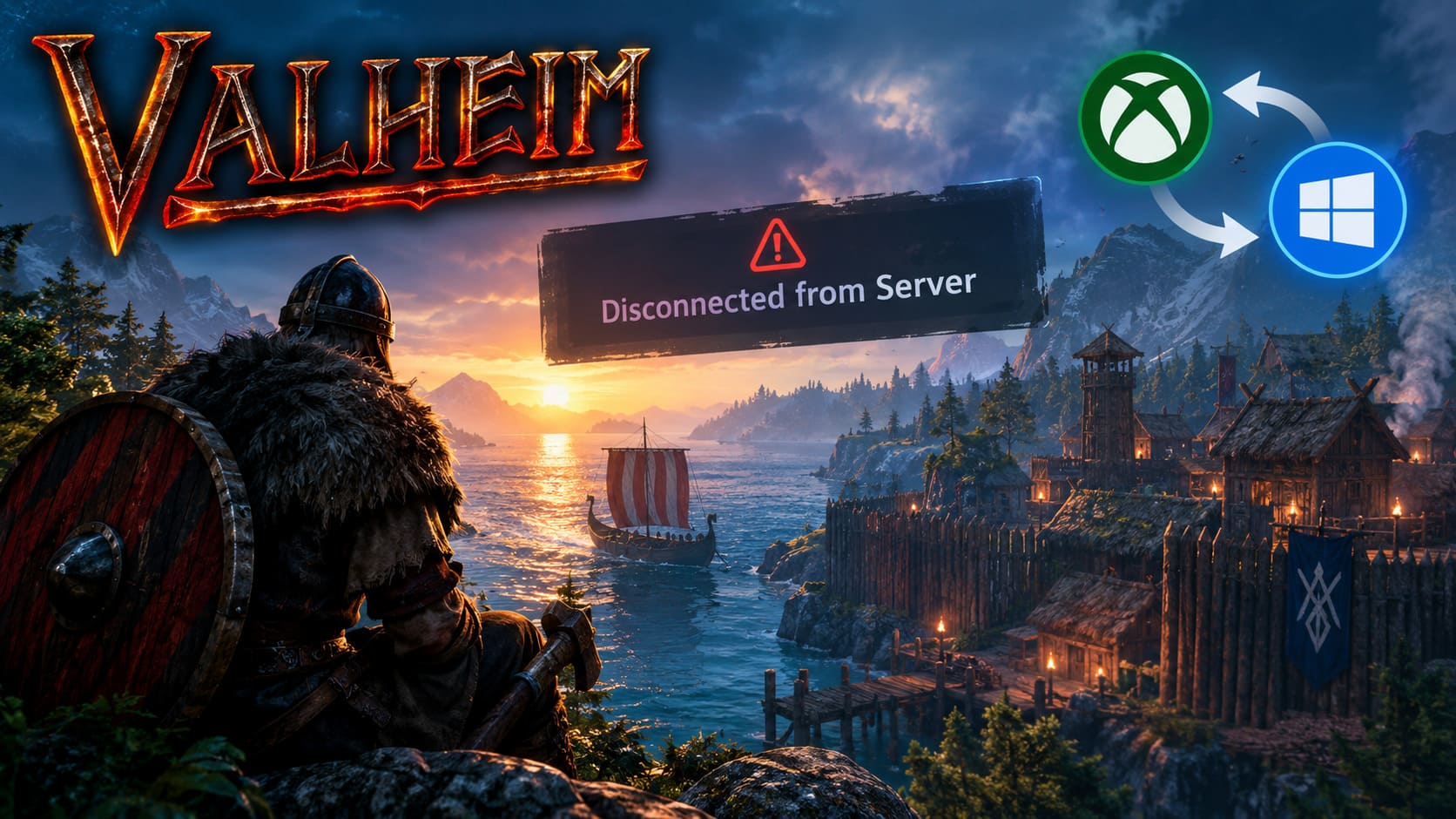
That extra layer is where things can become complicated. When crossplay is enabled, the server needs to communicate through PlayFab-backed networking services. If something interferes with that handshake, you can end up with a server that appears online but refuses to let a player enter.
Several problems can produce almost identical symptoms:
- NAT restrictions or double NAT can interfere with multiplayer traffic.
- VPNs and network optimization software can interfere with the connection.
- Corrupted or stuck PlayFab session data may prevent a player from reconnecting normally.
- Different game versions can make cross-platform connections fail.
- Server browser activity can occasionally make connection attempts unreliable.
- Incorrect dedicated-server settings can prevent crossplay from working correctly.
The important thing is not to assume that your internet connection is automatically the culprit. In many cases, the problem is somewhere between the game client, the server and the crossplay backend.
Quick Valheim Crossplay Troubleshooting Checklist
| Problem | What I Would Check First | Possible Solution |
|---|---|---|
| Xbox cannot join PC server | NAT type and crossplay configuration | Check NAT, disable VPNs, verify -crossplay |
| Server appears but instantly disconnects | PlayFab/session data | Reset the relevant account/session data and reconnect |
| Join Code does not work | Recent server-browser activity | Wait before reconnecting and generate a fresh code |
| Dedicated server disconnects players | Server startup parameters | Confirm crossplay is enabled and restart the server |
| Only one platform cannot connect | Game version | Update both clients and compare version numbers |
Fix 1: Reset the PlayFab Connection on Xbox
If the Xbox player can see the server but gets disconnected immediately after trying to join, I would start here. Sometimes the problem is not the world or the host at all. The player’s crossplay session information can become stuck or corrupted, creating a situation where Valheim repeatedly tries to establish the same failed handshake.
Before doing anything more complicated, clean up your saved server entries and reset the relevant PlayFab connection data.
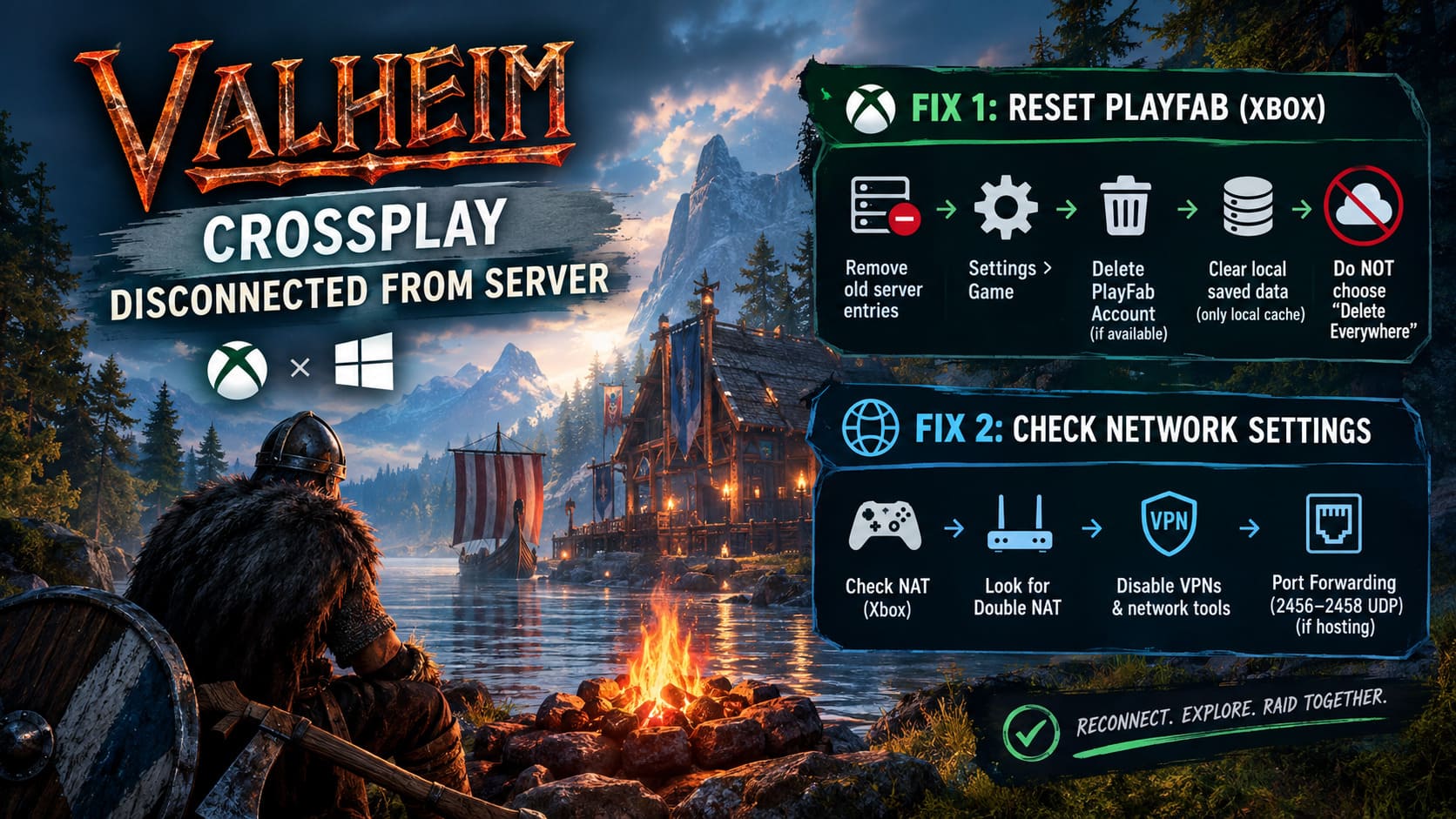
- Start Valheim on Xbox.
- Open your Favorite Servers list and remove old saved entries.
- Return to the main menu.
- Open Settings > Game.
- Look for the Delete PlayFab Account option if it is available in your version.
- Close Valheim completely.
- From the Xbox Dashboard, open Valheim’s Manage Game and Add-ons menu.
- Check the local saved-data options and remove only the console-local cache when appropriate.
- Do not choose “Delete Everywhere” unless you fully understand what data you are removing.
- Launch Valheim again and allow cloud data to synchronize.
- Sign back into the required services and try joining with a newly generated Join Code.
This is one of those fixes that sounds scarier than it actually is. The important distinction is between clearing local information and deliberately deleting cloud progress. Never rush through the Xbox save-data menu. If the wording on your console is different, stop and verify exactly what the option removes before confirming it.
Fix 2: Check NAT, Double NAT and VPN Problems
This is probably the first thing I would investigate if several players are having trouble connecting. You can have excellent download speeds and still have a multiplayer connection that is terrible for crossplay.
On Xbox, go to Settings > General > Network Settings and run the available NAT test. A Strict or problematic NAT configuration can make multiplayer connections much less reliable. Double NAT is another common headache, especially when you have an ISP router connected to your own gaming router.
PC players should also check for software that modifies network traffic. VPNs, virtual LAN applications, corporate VPN clients and aggressive network optimization utilities can all complicate a crossplay connection.
If you are troubleshooting Valheim, I recommend temporarily disabling these services rather than assuming they cannot possibly be involved. You can always turn them back on afterward.
What About Port Forwarding?
If you are hosting the server yourself, router configuration may also matter. Valheim servers commonly use the 2456-2458 UDP port range. If you decide to configure port forwarding, make sure the rules point to the correct local IP address of the host machine.
However, I would not immediately start forwarding ports just because Valheim refuses to connect. If crossplay is involved, first confirm that the server is actually configured for crossplay and that simpler network problems have been ruled out.
Fix 3: Stop Hammering the Server Browser
This is one of the less obvious things I would try, especially if you are repeatedly clicking through the Join Game interface while troubleshooting.
When players constantly switch between Community, Friends and Favorites, the client may perform a large number of server queries. If you are already dealing with an unstable network or backend connection, repeatedly refreshing and searching can make the situation feel even worse.
My preferred approach is simple: stop clicking everything.
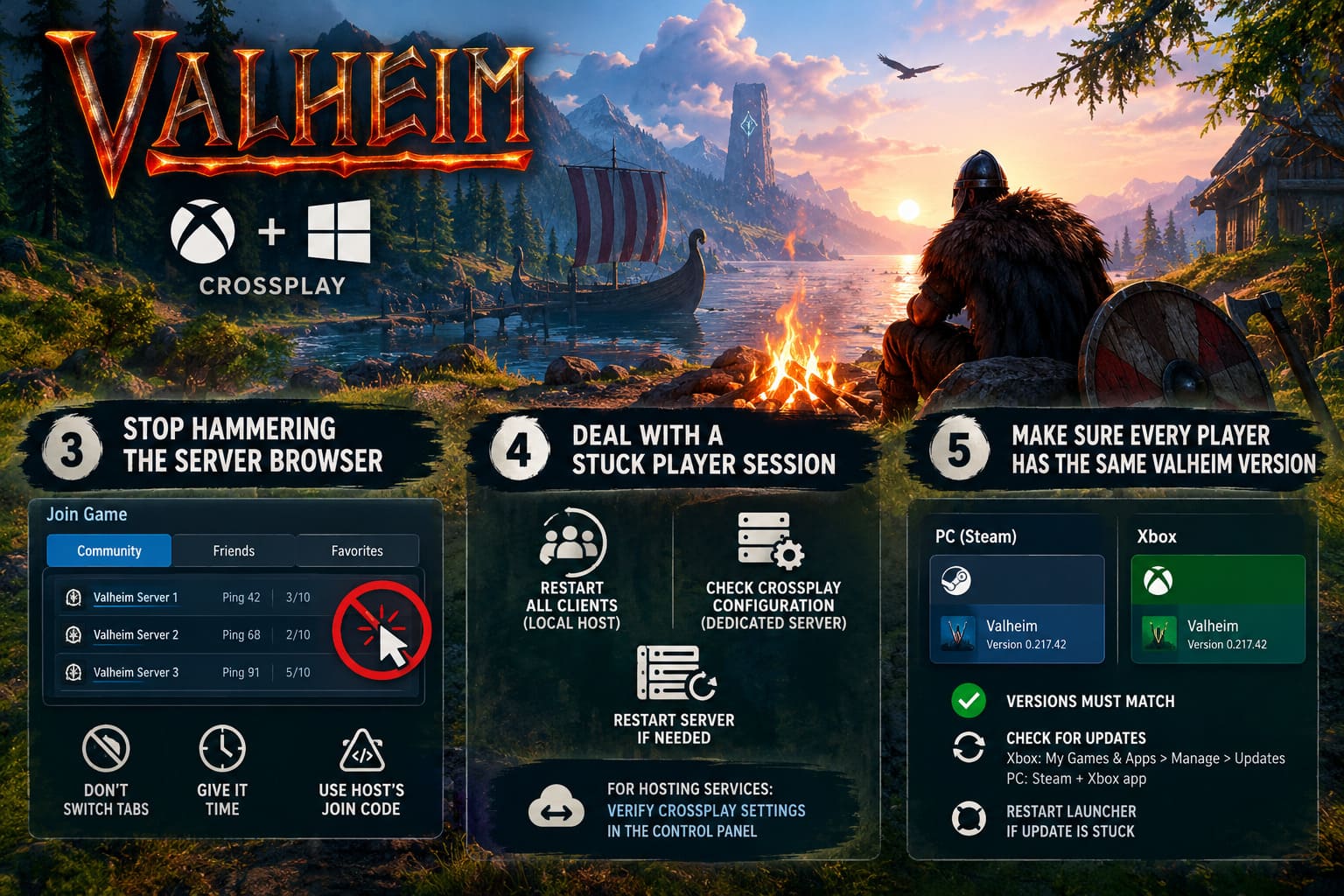
- Launch Valheim.
- Select your character.
- Open the multiplayer or Join Game section.
- Stop switching between server-browser tabs.
- Give the interface some time to settle.
- Use the host’s fresh Join Code when possible.
If the first attempt fails, do not immediately click Join twenty more times. Close the connection attempt, wait for a short period, and try again. It sounds almost too simple, but when troubleshooting multiplayer games, avoiding a flood of repeated connection attempts can save a surprising amount of time.
Fix 4: Deal With a Stuck Player Session
Another frustrating scenario happens when someone disconnects unexpectedly from a dedicated server. The player leaves the game, but the server can temporarily behave as though that player is still connected.
The result is particularly annoying: you reconnect, see the server, attempt to enter the world and immediately get kicked again.
If you are hosting locally, the easiest approach is usually to have everyone completely restart their clients and generate a fresh Join Code. For a dedicated server, the administrator should verify that the server was started with the correct crossplay configuration.
Sometimes a full server restart is necessary. If a session appears to be genuinely stuck, shutting down the server completely and allowing the relevant backend session information to clear before starting it again can help.
If you rent a server from a hosting company, check its startup configuration rather than randomly editing files. The exact control panel and configuration method depends on the host, but the important thing is that the server must actually launch with crossplay enabled.
Fix 5: Make Sure Every Player Has the Same Valheim Version
This is boring advice, but it is also advice I would never skip. Crossplay cannot magically solve a version mismatch.
PC platforms can sometimes receive updates at different times, while console updates may go through additional certification and deployment steps. That can create a short period where one platform is running a different build.
Look at the version information shown on the Valheim main menu on both machines. The versions should match.
If the Xbox version looks outdated, check My Games & Apps > Manage > Updates and make sure there is not a pending Valheim update.
On PC, Steam and the Xbox app should also be checked for pending downloads. Restarting the launcher can be worthwhile if an update appears to be stuck.
Be Careful With Mods When Playing Crossplay
Mods are one of the best parts of the Valheim community, but they can also turn multiplayer troubleshooting into detective work.
If your PC installation is heavily modded and the Xbox player cannot connect, I would temporarily remove the mods from the equation. A completely vanilla server gives you a much cleaner test environment.
Client-side modifications can sometimes be harmless, but anything that changes server behavior, networking, world data or gameplay logic can potentially create compatibility problems. If you want to prove that crossplay itself works, test with a vanilla server first.
Valheim Ashlands Base Defense Guide: How to Build Unbreakable Bases Against Late-Game Raids (2026)
My Recommended Order for Fixing Valheim Crossplay
If I were sitting down to fix this problem with friends, I would not start by changing every router setting I could find. That makes it almost impossible to know what actually fixed the problem.
I would work through the problem in this order:
- Check the game versions on every platform.
- Disable VPNs and network optimization software.
- Check Xbox NAT status and investigate Double NAT.
- Confirm the server is running with crossplay enabled.
- Generate a fresh Join Code.
- Stop repeatedly refreshing the server browser.
- Restart both the client and server if a connection appears stuck.
- Only then move toward more advanced router configuration or account/session troubleshooting.
Valheim Deep North Base Building Guide: Snow Collapse Mechanics & Ideas (1.0 Release)
Final Thoughts
Valheim crossplay problems are frustrating because the game often makes a complicated networking problem look like a simple “Disconnected from Server” message. That tells you almost nothing about what actually went wrong.
In my experience, the best approach is to treat the problem like a checklist instead of immediately blaming your internet connection. Version mismatches, NAT restrictions, VPN software, server configuration and stale crossplay sessions are all worth investigating before you start rebuilding your entire home network.
If an Xbox player can see a PC-hosted Valheim server but cannot enter it, I would start with the basics: make sure everyone is updated, remove VPNs from the equation, check NAT, verify -crossplay, restart the server and generate a new Join Code. If the problem persists, then move on to the deeper PlayFab/session troubleshooting.
The good thing about Valheim is that once crossplay finally behaves, it tends to become invisible again. You can get back to what actually matters: sailing into unexplored waters, building something far too large for your resources, and wondering why your friend decided that fighting a troll with a wooden club was a reasonable strategy.