Endless Legend 2 Steam Deck Best Graphics Settings for 40 FPS Performance
Endless Legend 2 is exactly the kind of strategy game I enjoy playing on a handheld, at least in theory. It has a huge fantasy world, distinctive factions, beautiful environments, and enough systems to make every campaign feel different. The problem is that a game this ambitious can be surprisingly demanding on Steam Deck, especially once a small empire turns into a sprawling civilization with dozens of cities, armies, effects, and calculations happening at the same time.
After spending plenty of time with strategy games on handheld hardware, I’ve learned that chasing a perfect 60 FPS is not always the smartest goal. For Endless Legend 2 on Steam Deck, I would much rather have a consistent 40 FPS than an unstable 50-60 FPS that suddenly collapses whenever the camera moves across a busy region. The good news is that with a few sensible changes, the Deck can deliver a very comfortable experience while still making Saiadha look like the impressive fantasy world it is supposed to be.
Endless Legend 2 Crash on Startup: How to Fix Launching, Black Screen, and Freezing Issues
Why Endless Legend 2 Gets Harder to Run Later in a Campaign
The first few dozen turns can give you a slightly misleading impression of performance. When your empire consists of a handful of units and a couple of settlements, the Steam Deck has relatively little work to do. You can often move around the map smoothly and enjoy surprisingly high frame rates without touching many graphics options.
Things change considerably as the campaign develops. More factions become active, cities expand, armies become larger, and the world contains substantially more visual information. Large battles, detailed settlements, environmental effects, fog, water, and other graphical elements can all contribute to performance drops. At the same time, the CPU has to deal with the strategic simulation itself, which is particularly important in a 4X game.
This is why I wouldn’t judge Endless Legend 2 Steam Deck performance purely by what you see during the opening turns. A configuration that feels fantastic for the first hour may become noticeably less comfortable after turn 100. The goal should therefore be balanced settings that leave some performance headroom for the late game rather than settings designed around an empty map.
My Recommended Steam Deck Performance Target
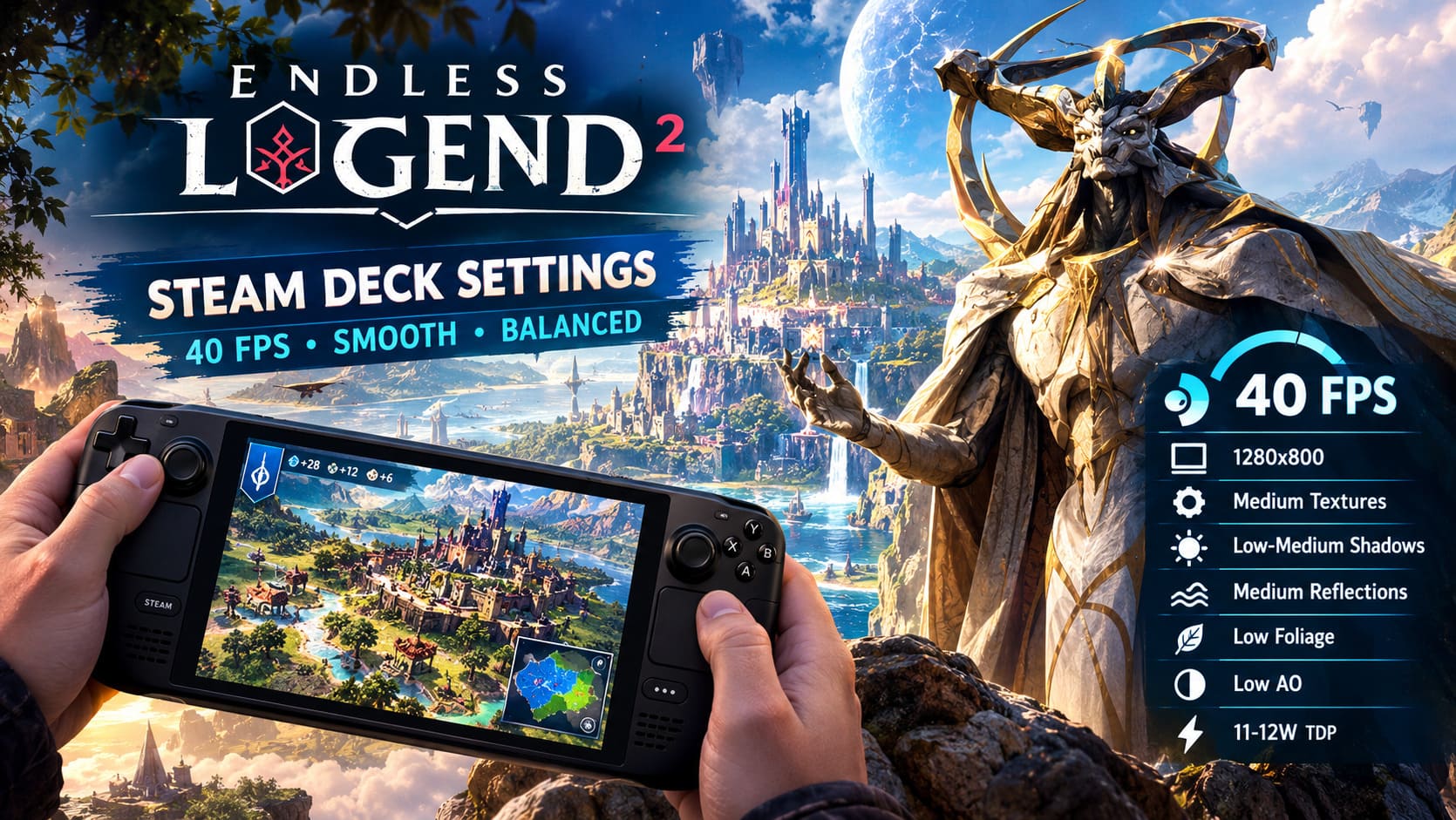
For this particular game, 40 FPS at 40Hz is the sweet spot I would recommend to most Steam Deck players. Strategy games don’t need the same responsiveness as competitive shooters, but 40 FPS still feels considerably more fluid than 30 FPS when you’re moving around the map, selecting units, opening menus, and scrolling through your empire.
It also makes more sense from a power-consumption perspective. Running the hardware flat-out for an unlocked frame rate doesn’t provide much benefit in a game where you’re spending a lot of time thinking, reading tooltips, managing production, and waiting for other factions to finish their turns.
Steam Deck Quick Access Settings
| Setting | Recommended Value | Why |
|---|---|---|
| Frame Rate Limit | 40 FPS | Good balance between smoothness and power usage |
| Refresh Rate | 40Hz | Keeps frame delivery consistent |
| TDP Limit | 11-12W | Useful for reducing power consumption |
| Scaling Filter | Linear or FSR | Maintains a clean image at lower rendering loads |
| Half-Rate Shading | Off | Protects text and UI clarity |
If you’re playing on a Steam Deck OLED, the same basic philosophy applies. I would still start with the 40 FPS target rather than immediately trying to squeeze every possible frame from the hardware. If you notice that late-game turn processing or particularly busy scenes are taking too long, you can remove the TDP restriction and allow the system to use its normal power budget.
Best Endless Legend 2 Graphics Settings for Steam Deck
Once the Steam Deck itself is configured, it’s time to deal with the game’s graphics options. I generally prefer using a Custom preset for demanding PC games because the standard presets often make compromises in the wrong places. A few settings can be surprisingly expensive while providing very little visual improvement on a seven-inch screen.
Display Settings
Start with 1280×800, which is the Steam Deck’s native 16:10 resolution. There is little reason to render the game above this resolution when playing handheld, and using a higher resolution can quickly turn a manageable workload into an unnecessary GPU burden. If you’re connected to an external monitor, I would treat that as a separate configuration rather than simply carrying the handheld settings over unchanged.
- Display Mode: Fullscreen
- Resolution: 1280×800
- V-Sync: Off
- Frame Rate: Controlled through the Steam Deck’s limiter
I prefer leaving V-Sync disabled when using the SteamOS frame limiter because it avoids stacking multiple frame-pacing systems on top of each other. If you encounter unusual tearing or inconsistent frame delivery, you can experiment with V-Sync, but it isn’t where I would start.
Textures and Anti-Aliasing
Texture Quality should be set to Medium for the best overall compromise. On a handheld screen, the difference between Medium and High textures is often much less noticeable than it sounds on paper. Meanwhile, unnecessarily high texture settings can increase memory pressure and potentially contribute to streaming problems during long sessions.
For anti-aliasing, I recommend FXAA or a Low SMAA setting, depending on which option gives you the cleaner image in your particular build. Heavy anti-aliasing can make the strategic map look softer than necessary, especially when you’re constantly zooming between different levels of the map. For a strategy game filled with small interface elements, I would rather preserve crisp text than spend performance on expensive edge smoothing.
Environment Settings That Matter Most
This is where the biggest performance gains can usually be found. Shadows, environmental detail, lighting, and water effects can consume a surprising amount of GPU resources, yet lowering them doesn’t necessarily ruin the visual presentation. In fact, on Steam Deck I think the game often looks better when these options are balanced rather than simply maxed out.
| Graphics Option | Recommended Setting | Reason |
|---|---|---|
| Shadow Quality | Low-Medium | One of the easier ways to recover GPU performance |
| Ocean Reflections | Medium | Keeps water attractive without excessive rendering cost |
| Terrain Detail | Medium | Preserves the character of the map |
| Foliage/Decoration | Low | Reduces visual clutter and GPU workload |
| Volumetric Lighting/Fog | Low | Helps during demanding atmospheric scenes |
| Ambient Occlusion | Low or Off | Reduces additional screen-space rendering |
| Motion Blur | Off | Little benefit in a turn-based strategy game |
Shadows are one of the first settings I would lower. They can become expensive when the camera is looking at detailed settlements and complex terrain. Medium is a good starting point if you care about presentation, but Low is worth trying if you’re struggling to hold the target frame rate.
I would keep Ocean Reflections at Medium. The water and coastal environments are an important part of the game’s visual identity, and dropping reflections too aggressively can make the world feel flatter. Medium gives you a nice middle ground without treating the water system as if you’re playing on a high-end desktop GPU.
For terrain, Medium is another easy recommendation. Going too low can make the map lose some of its visual character, while increasing the setting provides diminishing returns on the Steam Deck’s relatively small display. Foliage and decorative objects are much easier to sacrifice, so I keep those on Low.
Post-Processing: Turn Off the Effects You Don’t Need
Post-processing is another area where I prefer practicality over screenshots. Motion Blur should be disabled immediately in my opinion. There is no meaningful advantage to having additional blur in a turn-based strategy game, and it can make the map feel less clear when you’re rapidly moving the camera.
Volumetric lighting and fog should be set to Low. Atmospheric effects can look fantastic on a powerful desktop, but they’re not something I want consuming a large chunk of the Steam Deck’s rendering budget. Ambient Occlusion can also be reduced to Low or turned off completely if you’re still struggling with demanding city views.
The important thing is not to disable every visual feature blindly. Keep the effects that noticeably contribute to the game’s atmosphere and remove the ones that you barely notice during normal gameplay. That’s generally how I approach optimizing any strategy game on a handheld.
Don’t Forget the UI and Controls
Graphics are only half of the Steam Deck experience. Endless Legend 2 is packed with information, and reading that information comfortably is arguably more important than gaining a few extra frames per second. I recommend increasing the UI scale to around 110% or 120% if the default interface feels too small.
That small adjustment can make a surprisingly big difference when you’re reading faction abilities, technology descriptions, diplomacy options, production information, and tooltips. The Steam Deck display is sharp, but it is still much smaller than a desktop monitor, so sacrificing a little screen space for readability is absolutely worth it.
The trackpads are also extremely useful here. If you are comfortable with mouse-style controls, configure the right trackpad to behave like a mouse and consider assigning one of the rear buttons to a frequently used function. This makes navigating dense menus and hovering over tooltips significantly easier than trying to do everything through traditional controller inputs.
What Performance Should You Actually Expect?
With these settings, I would expect the early and mid-game to feel very comfortable around the 40 FPS target. Smaller battles and relatively empty sections of the map should generally feel smooth, while the Deck doesn’t need to operate at maximum power constantly.
The late game is where expectations need to be realistic. Once the map is packed with factions, cities, units, effects, and simulation activity, you may see the frame rate move into the 30-40 FPS range. That’s not necessarily a problem. In a game like this, I would take a stable low-30s experience during a particularly demanding moment over an aggressive configuration that constantly jumps between 25 and 50 FPS.
| Campaign Stage | Expected Experience |
|---|---|
| Early Game | Very stable 40 FPS in most situations |
| Mid Game | Generally smooth with occasional dips |
| Late Game | Approximately 30-40 FPS in demanding scenes |
| Large Battles | Potential temporary performance drops |
| Heavy City Views | More demanding than normal map navigation |
Battery life will naturally depend on brightness, audio, networking, TDP settings, game build, and how hard the hardware is working. Lowering the power limit can extend playtime, but I wouldn’t sacrifice too much performance simply to hit an arbitrary battery target. For longer sessions, a slightly lower brightness and sensible TDP limit can usually make more sense than destroying image quality.
My Final Steam Deck Configuration
If I were setting up Endless Legend 2 on a Steam Deck from scratch, I would start with 1280×800 resolution, a 40 FPS target, Medium textures, Low-to-Medium shadows, Medium terrain, Medium ocean reflections, Low foliage, Low volumetric effects, and Ambient Occlusion on Low or Off. I would also disable Motion Blur and Half-Rate Shading because neither gives me enough benefit to justify the drawbacks.
The most important lesson is that you shouldn’t optimize this game around the first few turns. The late game is the real test. A beautiful 60 FPS opening is nice, but it doesn’t mean much if your empire becomes a slideshow after you’ve spent 30 hours building it.
Is Endless Legend 2 Good on Steam Deck?
With reasonable expectations, yes. I wouldn’t describe it as the kind of game that should automatically be played at maximum settings on a handheld, but that’s not really a criticism. Modern 4X games are complicated pieces of software, and their performance naturally becomes more difficult to maintain as the simulation grows.
What makes the Steam Deck version appealing is that you can find a very comfortable middle ground. 40 FPS is enough for the game’s pace, 1280×800 keeps the image sharp, and carefully chosen Medium and Low settings preserve most of the fantasy atmosphere. More importantly, the game remains readable, which matters far more to me than having every shadow and reflection pushed to the maximum.
So, if you’re planning a long campaign of Endless Legend 2 on Steam Deck, don’t simply select a preset and forget about it. Spend a few minutes tuning the graphics, test the configuration during both exploration and large battles, and then judge it again once your empire becomes busy. That approach will give you a much more consistent experience and, in my opinion, makes the Deck a surprisingly good home for this kind of huge fantasy strategy game.