Endless Legend 2 Crash on Startup: How to Fix Launching, Black Screen, and Freezing Issues
Endless Legend 2 is exactly the kind of strategy game that can make you lose track of time. One minute you’re planning your next expansion, and the next you’re staring at the map wondering how an apparently harmless decision turned into a war on three fronts. Amplitude Studios has built a fascinating follow-up around the world of Saiadah, combining asymmetric factions, tactical combat, exploration, and the constantly changing conditions created by Tidefall events.
Unfortunately, getting into the game isn’t always as smooth as conquering a rival faction. Some PC players have run into Endless Legend 2 crashes on startup, freezes on the developer logo, black screens, or a game that simply stops responding before reaching the main menu. In more frustrating cases, players have even reported severe system freezes that require a full Windows reboot.
Having spent plenty of time troubleshooting PC games over the years, I always recommend starting with the boring fixes before jumping into complicated launch commands or driver experiments. A surprisingly large number of launch problems come down to corrupted files, overlays, GPU selection, or another application interfering with the game. Here are the fixes I’d work through, starting with the simplest ones.
Best City District Layout in Endless Legend 2: The Ultimate Urban Planning Guide
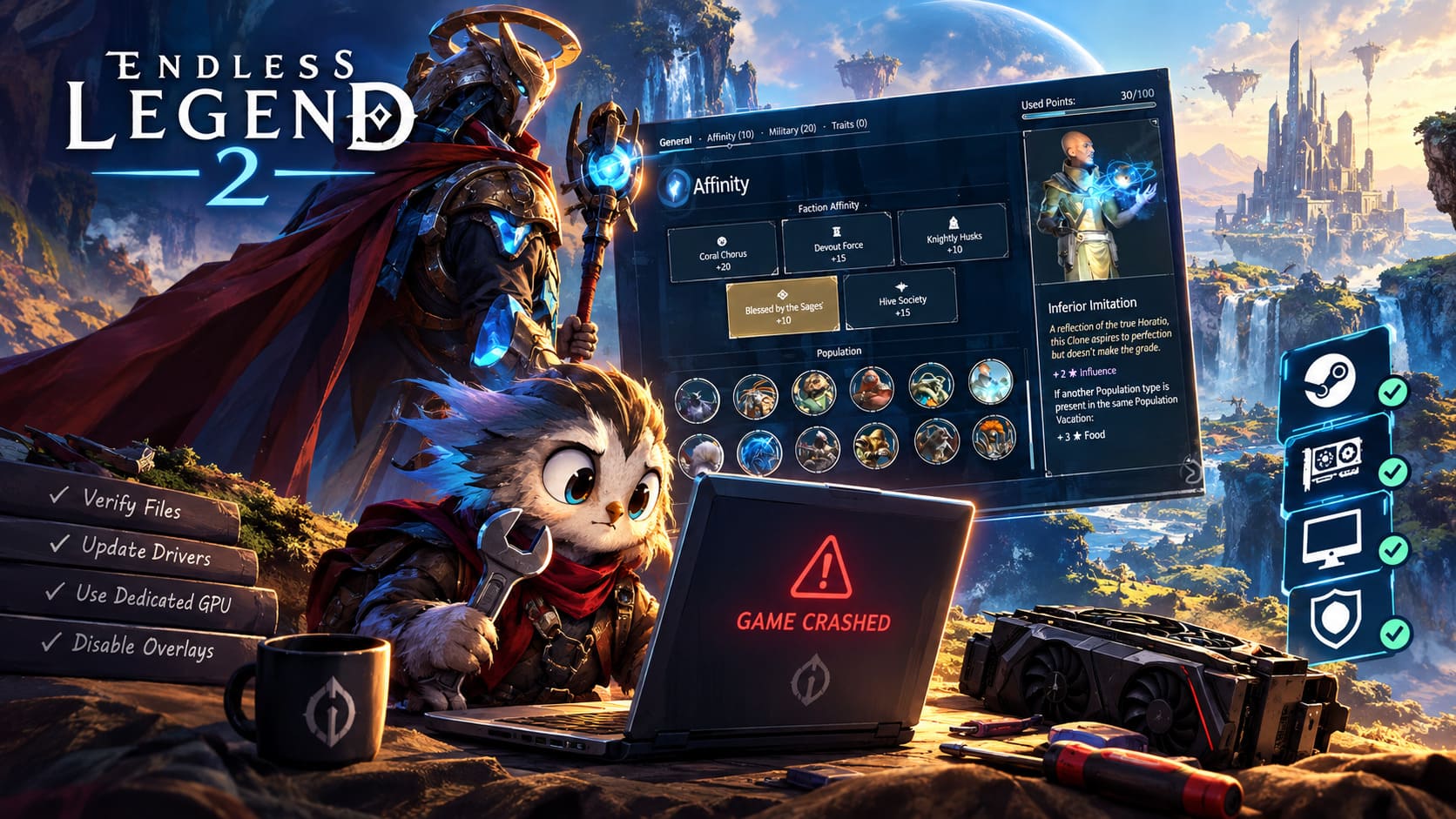
1. Verify the Endless Legend 2 Game Files
If Endless Legend 2 crashes immediately after pressing Play, checking the installation should be your first move. Large games can occasionally end up with damaged or missing files after an update, especially when a major patch arrives shortly after launch. Steam’s verification tool can compare your installation against the expected files and replace anything that is broken.
Open Steam and go to your Library, then right-click ENDLESS Legend 2 and select Properties. Open Installed Files and choose Verify integrity of game files. Let Steam finish the entire process, even if it appears to pause for a while.
If Steam discovers a problem, it should automatically download the necessary replacement files. Once the process finishes, restart Steam and launch the game again. This is not the most exciting fix, but in my experience it is one of the first things worth trying after a large game update.
2. Make Sure Windows Is Using Your Dedicated GPU
This one is particularly important for gaming laptops and PCs equipped with both integrated and dedicated graphics. Windows can occasionally assign a game to the integrated Intel or AMD GPU instead of the much more powerful NVIDIA or AMD graphics card. The result can be poor performance, initialization problems, or a crash before the game properly reaches the menu.
To check this, open the Windows Start menu and search for Graphics settings. Under the app options, select the desktop application option and browse to the Endless Legend 2 executable inside your Steam installation directory. Add the executable to the list, select it, choose Options, and set it to High Performance.
Save the setting and try launching the game again. If you’re on a laptop, also make sure the system is connected to its power adapter. Some power-saving profiles aggressively limit GPU performance, and strategy games can be surprisingly demanding once large maps and numerous units are being processed.
3. Close Background Programs Before Launching
Modern gaming PCs tend to have an absurd number of applications running at the same time. Discord, Chrome, streaming software, hardware monitoring tools, RGB utilities, recording applications, launchers, and countless little background processes can all interact with a game. Usually that’s harmless, but a newly released title can expose conflicts that you would never encounter elsewhere.
If you’re dealing with an Endless Legend 2 black screen or startup freeze, temporarily close unnecessary applications before launching the game. Press Ctrl + Shift + Esc to open Task Manager and look through both running applications and background processes.
I’d pay particular attention to applications with overlays or hardware hooks. MSI Afterburner and RivaTuner Statistics Server are useful tools, but their overlays can occasionally interfere with games during startup. Discord, browser windows with hardware acceleration enabled, streaming software, and other game launchers are also worth closing during testing.
You don’t necessarily need to uninstall anything. The goal here is simply to establish whether another program is causing the problem. If the game suddenly launches normally after you’ve closed everything, you can start reopening applications one by one to find the culprit.
4. Update Your GPU Driver and Disable Overlays
Graphics drivers are another obvious suspect when a game freezes during its opening logo or crashes while creating the rendering environment. A driver doesn’t have to be ancient to cause trouble either. Sometimes a particular driver version simply doesn’t play nicely with a new game or rendering configuration.
Install the latest stable driver available for your NVIDIA or AMD graphics card. After updating, reboot Windows rather than immediately launching the game. A clean restart gives the driver and related services a chance to initialize properly.
While testing, I’d also disable overlays. Steam, Discord, NVIDIA’s overlay, AMD’s overlay, and third-party monitoring tools can all place additional layers between the game and Windows. In Steam, open the game’s Properties and disable the Steam Overlay. Then temporarily disable other overlays as well.
| Problem | First Thing I’d Try | Why |
|---|---|---|
| Immediate crash | Verify game files | Rules out damaged or missing installation data |
| Black screen | Disable overlays | Overlays can interfere with initialization |
| Game uses wrong GPU | Set High Performance GPU | Forces Windows to use the dedicated graphics card |
| Freeze at logo | Update graphics driver | Can resolve rendering and compatibility problems |
| Launch works after closing apps | Find conflicting background software | Identifies overlay or monitoring conflicts |
5. Check Windows Security and Antivirus Restrictions
Security software is another possible source of mysterious startup crashes. Windows Defender and third-party antivirus programs don’t usually interfere with legitimate games, but newly released software can sometimes trigger more aggressive behavior from security systems. A game may need to create configuration files, caches, logs, or save data during its first launch, and a security restriction can prevent that process.
If you’ve tried the usual fixes and the game still closes immediately, check Windows Security. Open Virus & threat protection, enter the relevant settings, and review the exclusions section. If you are certain the game installation is legitimate, you can consider adding the game’s installation folder as an exclusion.
Be careful with this option, though. I wouldn’t recommend blindly excluding your entire Steam library or disabling antivirus protection permanently just because a game refuses to launch. It’s better to use exclusions temporarily for troubleshooting and remove them later if they don’t make a difference.
6. Experiment With Steam Launch Options
This is where things get a little more interesting. If the standard fixes don’t solve the problem, Steam launch options can sometimes help bypass a rendering or initialization issue. They shouldn’t be the first thing you try, but they’re useful when the game crashes before you can access its graphics settings.
Right-click ENDLESS Legend 2 in your Steam Library, open Properties, and find the Launch Options field. Test potential commands one at a time rather than throwing several variables into the box simultaneously. That makes it much easier to determine which setting actually changes the behavior.
- force-d3d11 — useful for testing whether a DirectX 11 rendering path behaves better than the default configuration.
- useembedded — can be worth testing when the problem appears related to external launch or shell behavior.
- useshellexecute — another launch-related option that may alter how Windows handles the game’s execution process.
The important part is experimentation. If one option makes the game worse, remove it before trying another. Launch arguments aren’t universal magic fixes, and a command that helps one PC can have absolutely no effect on another.
7. Don’t Ignore a Full Windows System Freeze
A game crash and a complete PC lockup are two very different problems. If Endless Legend 2 simply closes to the desktop, the game itself is the obvious suspect. If your entire Windows installation freezes, the screen becomes unresponsive, audio loops, or you are forced to hold the power button, I’d start looking beyond the game.
Check your GPU driver, Windows installation, system temperatures, RAM stability, and power-related behavior. Hardware monitoring software can help determine whether the system is overheating or experiencing unusual GPU or CPU behavior. If you’re seeing repeated Kernel-Power 41 entries after hard resets, remember that this event generally indicates an unexpected shutdown rather than automatically identifying the original cause.
I’d also install pending Windows updates and reboot afterward. If other demanding games are crashing or freezing in exactly the same way, that’s a major clue that the issue probably isn’t exclusive to Endless Legend 2.
8. Try a Clean Launch Before Changing Everything
One mistake I see constantly in PC troubleshooting is changing ten settings at once. If the game starts working afterward, you have no idea which change actually fixed it. Worse, you can accidentally introduce another problem while trying to solve the original one.
Instead, approach the problem like a diagnostic test. First verify the game files, then restart Windows and test. Next disable overlays, test again, then check the GPU assignment, drivers, and background applications. Change one major variable at a time and keep track of what happened.
This method might take slightly longer, but it saves an enormous amount of frustration. It also gives you useful information if you eventually need to report the problem to the developer, because you’ll be able to explain exactly what you tested instead of simply saying that the game doesn’t work.
Final Thoughts: Getting Endless Legend 2 Running Again
There’s nothing more annoying than finally sitting down for a long 4X strategy session only to watch the game disappear during startup. With a title as complex as Endless Legend 2, launch problems can involve anything from corrupted files and GPU selection to driver conflicts, overlays, antivirus restrictions, or wider Windows stability issues.
My recommendation is to work through the fixes in order rather than immediately reaching for complicated commands. Verify the game files, update your graphics driver, disable overlays, make sure the dedicated GPU is being used, and close unnecessary background applications. Those steps solve a surprisingly large percentage of PC launch problems without requiring anything drastic.
If the game continues to freeze your entire computer even after those checks, treat that as a system stability problem rather than an ordinary game crash. At that point, investigating Windows updates, GPU drivers, RAM stability, temperatures, and other demanding games becomes much more useful than repeatedly reinstalling Endless Legend 2.
The good news is that launch issues are often temporary, especially around major releases and large patches. As hotfixes arrive and drivers mature, some problems can disappear without any action on your side. Until then, a methodical troubleshooting approach is your best weapon—and once you finally reach Saiadah without staring at a black screen, you’ll be ready to worry about the much more important problem: figuring out which faction is going to ruin your carefully planned campaign first.