How to Fix Halloween: The Game Black Screen on Launch – Troubleshooting Guide 2026
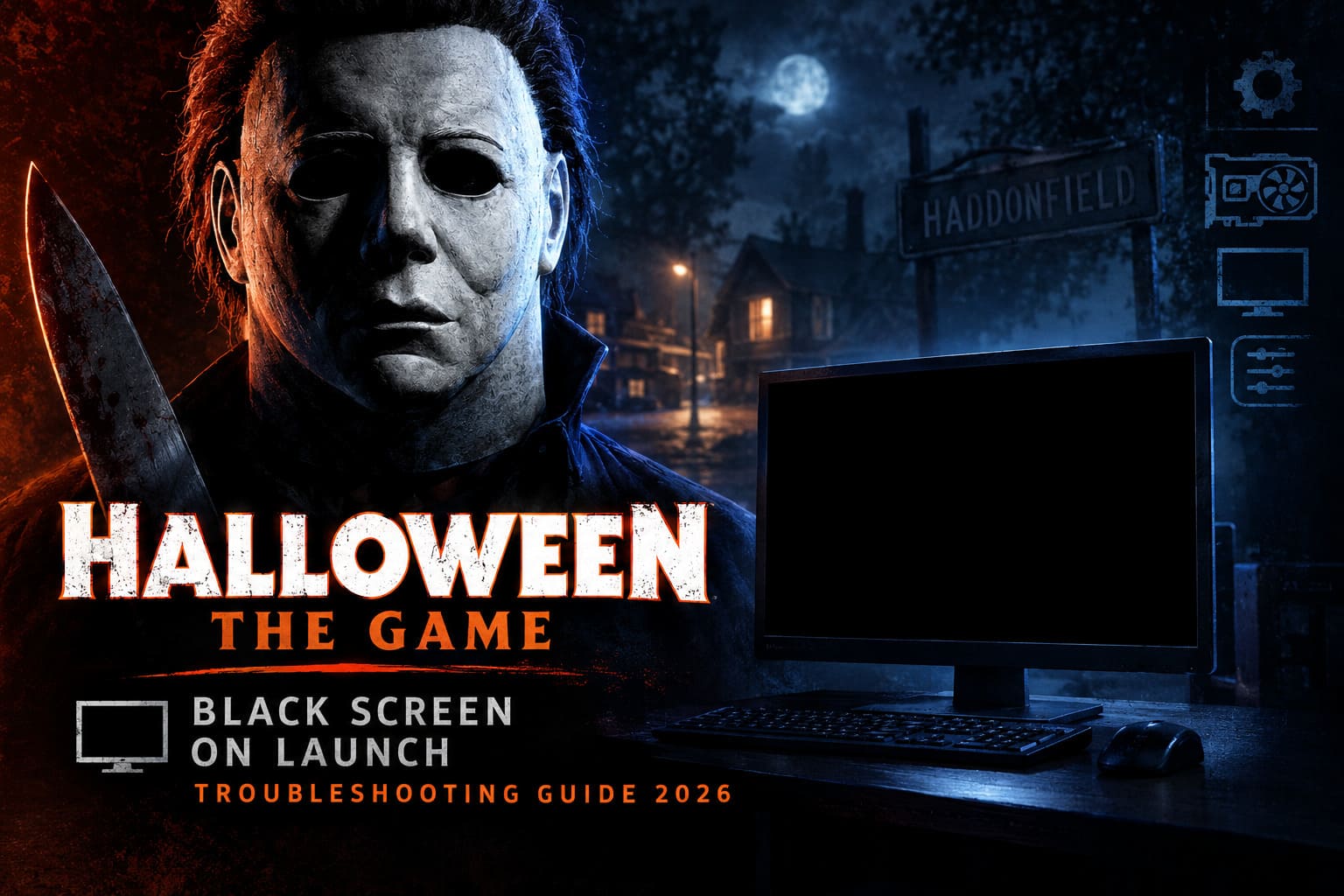
There is nothing quite as annoying as launching a horror game and getting the least interesting horror experience imaginable: a completely black monitor.
Halloween: The Game has all the ingredients for a proper nightmare. Michael Myers. Haddonfield. Dark streets. Unpredictable multiplayer encounters. The kind of atmosphere where you already know something horrible is about to happen. But if the game refuses to display anything beyond a black screen, none of that matters.
The problem can appear in several different ways. You might hear menu audio while staring at a blank display. The game might sit there doing absolutely nothing. It can also freeze during the first startup sequence and eventually crash to the desktop. In some cases, the game appears to be running normally in Task Manager while your monitor receives no usable image.
That last situation is especially frustrating because it often means the game itself has not actually crashed.
After dealing with enough PC launch disasters over the years, I’ve learned one thing: don’t immediately reinstall the game. A black screen is often caused by display-mode settings, shader caches, graphics drivers, overlays, or an API conflict. Those are much easier to fix.
Work through the solutions below from top to bottom. Start with the quick fixes. Save the heavy-duty driver cleanup for later.
1. Try Alt + Enter Before Doing Anything Complicated
This is the first trick I would try. It takes two seconds, costs nothing, and has rescued plenty of PC games from bizarre fullscreen problems.
Sometimes a game launches using a fullscreen configuration that your monitor simply doesn’t like. This can happen with 144Hz, 240Hz, or 360Hz displays, ultrawide monitors, HDR configurations, unusual resolutions, or even a refresh-rate mismatch between Windows and the game.
Halloween: The Game may still be running in the background, but the display handshake fails. You get audio, perhaps some system activity, but no picture.
Try this:
- Start Halloween: The Game normally through Steam.
- Wait until the black screen appears.
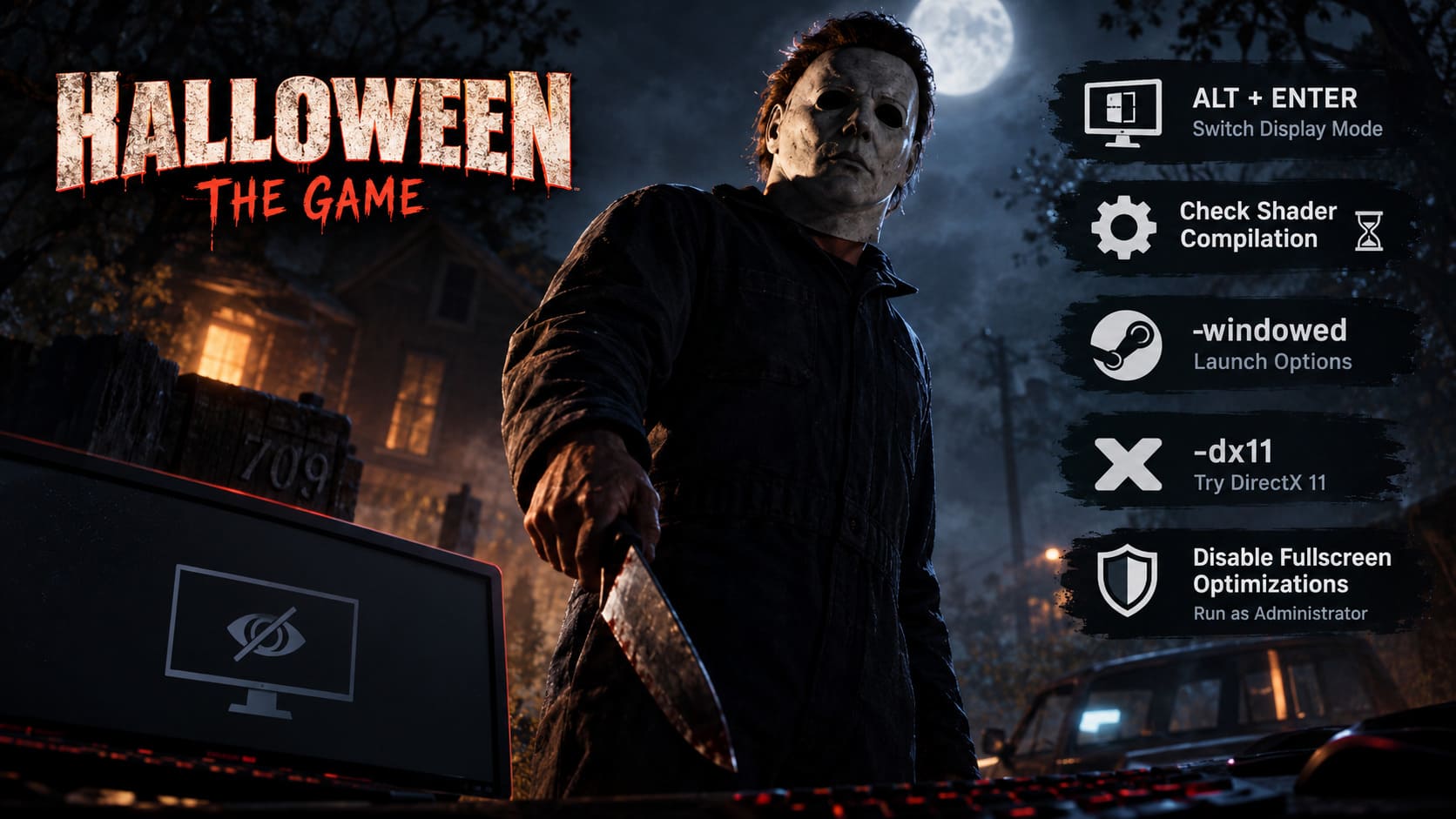
- Press Alt + Enter together.
- Give the game a few seconds to switch display modes.
- If the picture appears, immediately open the graphics settings.
- Switch from exclusive Fullscreen to Borderless Windowed.
- Set the resolution to your monitor’s native resolution.
I personally prefer borderless mode for troubleshooting because it removes one more variable from the equation. Once the game is stable, you can experiment with fullscreen again if you really want it.
2. Don’t Kill the Game Too Quickly: Check for Shader Compilation
This one catches people constantly.
Modern games can perform a surprising amount of work during their first launch. Shaders, rendering data, textures, lighting information, and other assets may need to be processed before the game reaches the main menu.
If Halloween: The Game appears black but your CPU or GPU is working hard, the game may not actually be frozen.
Press Ctrl + Shift + Esc to open Windows Task Manager. Find the game process and watch its CPU activity.
If you see the processor usage moving around, the system may still be processing startup data. Give it some time. On slower CPUs or older storage devices, this can take several minutes.
A reasonable troubleshooting window is around 5 to 15 minutes. I know that sounds ridiculous when you’re sitting there staring at a black screen, but forcing the game closed while it is building or updating shader data can create another problem on the next launch.
If you have waited roughly 20 minutes and CPU/GPU activity has completely flattened out, with absolutely no progress or display output, it’s time to move on.
3. Force Halloween: The Game Into Windowed Mode
If Alt + Enter does nothing, don’t keep hammering the keyboard like you’re trying to unlock a secret Michael Myers ending. Force the display mode through Steam instead.
Steam allows you to add launch arguments that tell the game how to start before its normal configuration is loaded.
- Open Steam.
- Go to your Library.
- Right-click Halloween: The Game.
- Select Properties.
- Stay on the General tab.
- Find the Launch Options field.
- Enter -windowed.
- Close the Properties window and launch the game again.
This is particularly useful when the game’s saved resolution or fullscreen configuration is the thing causing the problem.
If the game finally appears, head straight into its graphics settings and configure a sensible resolution and borderless mode. Then remove the launch argument and test a normal startup.
4. Test DirectX 11 Instead of DirectX 12
Here’s where things get a little more technical.
Modern PC games increasingly depend on DirectX 12. That’s great when everything behaves. When something doesn’t, however, graphics API initialization can become a genuine headache.
A DX12 startup problem can be caused by outdated GPU drivers, damaged system components, unusual hardware configurations, or compatibility issues. A black screen immediately after launching is one possible symptom.
Try forcing a DirectX 11 startup through Steam.
- Right-click Halloween: The Game in your Steam Library.
- Open Properties.
- Find Launch Options.
- Enter -dx11.
- Launch the game.
If that does not work, you can also test:
-force-d3d11
Do not stack every possible launch command you find online. That’s a great way to turn troubleshooting into another troubleshooting problem. Test one configuration at a time so you actually know which change helped.
5. Disable Fullscreen Optimizations and Test Administrator Access
Windows has its own fullscreen behavior that is supposed to make games work better. Sometimes it does. Sometimes it decides to become the final boss.
If Halloween: The Game crashes or stays black during startup, testing the executable’s compatibility settings is worthwhile.
- Open Steam and find Halloween: The Game.
- Right-click the game and choose Manage.
- Select Browse local files.
- Locate the game’s main executable.
- Right-click the .exe file and select Properties.
- Open the Compatibility tab.
- Enable Disable fullscreen optimizations.
- Test Run this program as an administrator.
- Click Apply and then OK.
Launch the game again and check the result.
Administrator mode isn’t something I recommend blindly enabling for every game forever. Think of it as a troubleshooting switch. If it fixes the problem, you’ve learned that Windows permissions or access to a required directory may have been involved.
6. Make Sure the Game Uses Your Dedicated GPU
This fix matters most for gaming laptops and systems with multiple graphics adapters.
A machine might have an integrated Intel or AMD GPU alongside a dedicated NVIDIA GeForce or AMD Radeon card. Windows normally makes the correct decision, but “normally” isn’t good enough when you’re staring at a black screen.
If the game accidentally starts using the integrated GPU, performance can become terrible or the application can fail during initialization.
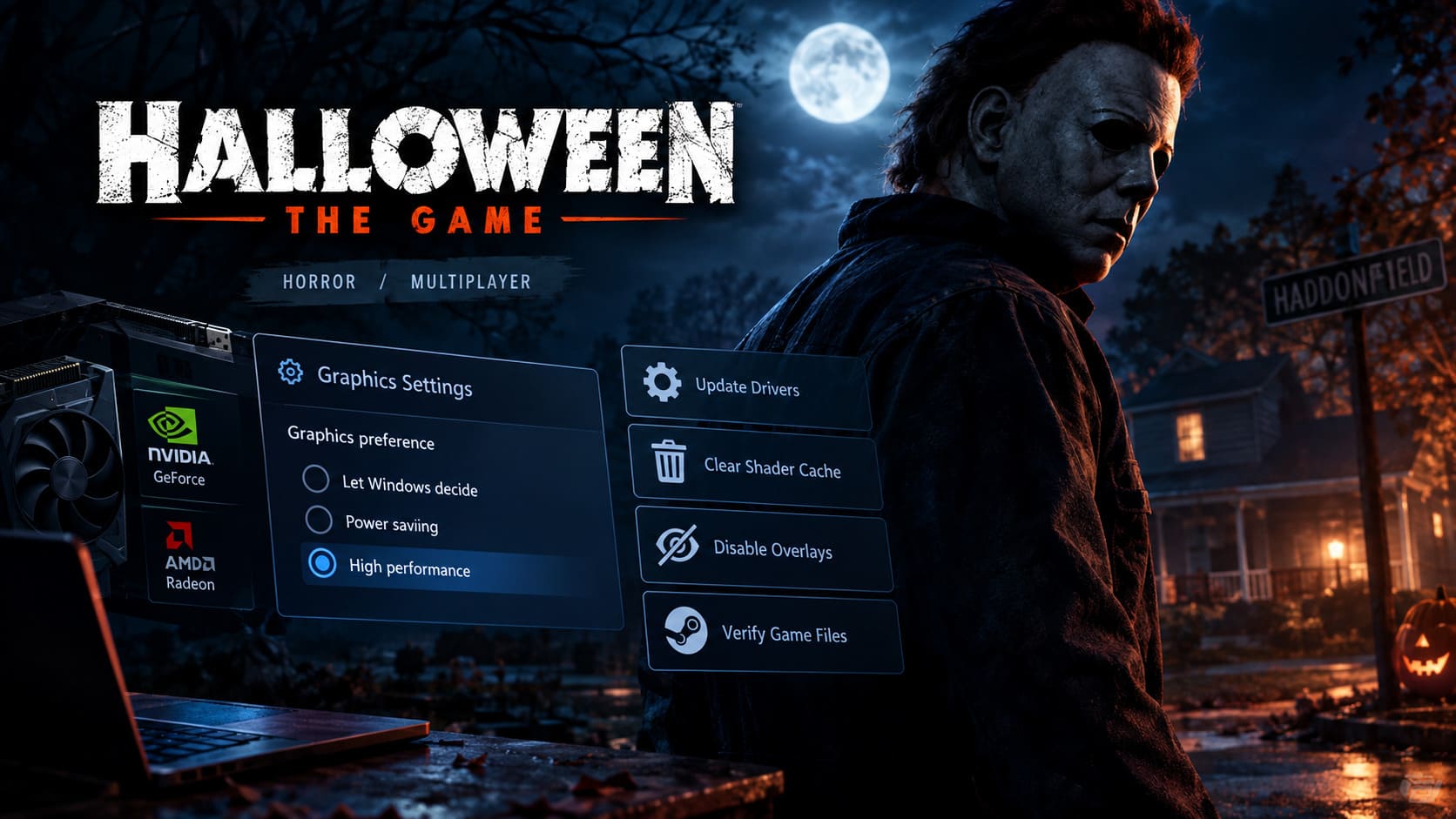
- Open Windows Search.
- Type Graphics Settings.
- Open the Windows graphics settings page.
- Choose the option to add a desktop application.
- Browse to the Halloween: The Game executable.
- Add it to the application list.
- Select the game and choose Options.
- Select High Performance.
- Save the setting.
- Restart the game.
On a laptop, also make sure you’re testing while connected to AC power. Some power-saving profiles aggressively restrict GPU performance, which is the last thing you need while troubleshooting a demanding game.
7. Perform a Clean GPU Driver Installation
If none of the display-mode tricks work, I’d start looking hard at the graphics driver.
A normal driver update doesn’t always remove every leftover component from an older installation. Driver conflicts can become especially nasty after major GPU updates or when you’ve changed graphics hardware.
For a proper cleanup, many PC enthusiasts use Display Driver Uninstaller (DDU).
The general process is:
- Download the latest official driver for your NVIDIA, AMD, or Intel GPU.
- Do not install it yet.
- Download DDU from a reputable source.
- Restart Windows into Safe Mode.
- Run DDU.
- Select your graphics manufacturer.
- Use the option to Clean and restart.
- After Windows starts normally, install the fresh graphics driver.
- Restart the PC again.
- Test Halloween: The Game.
This is more work than clicking “Update Driver,” but that’s the point. You’re trying to eliminate old driver remnants from the equation instead of layering another installation on top of them.
8. Clear the DirectX Shader Cache
If Halloween: The Game launched once, crashed, or was forcibly closed during startup, a corrupted shader cache is another possibility.
Windows provides a simple way to clear the DirectX Shader Cache.
- Open Windows Search.
- Type Disk Cleanup.
- Launch the utility.
- Select your Windows drive, usually C:.
- Find DirectX Shader Cache.
- Select it and remove the cached data.
The next launch may take longer because the cache has to be rebuilt. Don’t panic if the first startup after clearing it feels slower.
This is one of those fixes that sounds almost too simple, but corrupted cached rendering data can cause some genuinely weird behavior.
9. Turn Off Every Overlay You Can Find
Overlays are convenient. They are also capable of causing absolute chaos when a game is having trouble initializing.
If you’re desperate to get past a black screen, temporarily disable anything that injects itself into the game.
| Overlay / Software | What to Do |
|---|---|
| Steam Overlay | Disable the in-game Steam Overlay in Steam settings. |
| Discord Overlay | Turn off the in-game overlay through Discord settings. |
| NVIDIA Overlay | Disable the NVIDIA in-game overlay. |
| MSI Afterburner | Close the application completely. |
| RivaTuner Statistics Server | Exit it from the system tray. |
| OBS Studio | Close it while testing the game. |
Don’t just minimize these programs. Close them. Some continue running background components even when the main window disappears.
Once the game works, re-enable your tools one at a time. If the black screen returns after enabling a specific overlay, you’ve found the culprit.
10. Verify Halloween: The Game’s Files Through Steam
Before resorting to a complete reinstall, use Steam’s built-in file verification system.
A failed update, interrupted download, disk issue, or antivirus intervention can leave you with damaged or missing files. The result may be a game that looks perfectly installed but cannot actually complete its startup sequence.
- Open your Steam Library.
- Right-click Halloween: The Game.
- Select Properties.
- Open Installed Files.
- Choose Verify integrity of game files.
- Wait for Steam to finish checking the installation.
If Steam finds damaged or missing data, it should download replacement files automatically.
This is absolutely worth trying before deleting the entire installation. A full reinstall can take ages, especially if your internet connection isn’t exactly built for downloading giant modern games.
How to Fix Halloween The Game Matchmaking Issues and Long Queue Times (2026 Guide)
Final Halloween: The Game Black Screen Checklist
If you’ve gone through every major fix above and Michael Myers is still apparently guarding a completely black monitor, check the hardware side of the equation.
- Update your motherboard BIOS if you’re running an older firmware version and your hardware has known compatibility issues.
- Disable unstable XMP or EXPO memory profiles temporarily. An unstable RAM overclock can cause seemingly unrelated crashes and freezes.
- Install the game on an internal SSD rather than an external hard drive whenever possible.
- Check Windows updates and make sure your operating system is not missing important graphics components.
- Remove unnecessary overclocks from the CPU or GPU while troubleshooting.
Storage is easy to overlook. Modern games stream a ridiculous amount of data, and an aging external drive can introduce bottlenecks or loading failures that simply don’t happen on a decent internal SSD.
Halloween The Game 2026: How to Call Police Patrols and Escape Haddonfield
Which Fix Should You Try First?
| Problem | Best First Fix | Difficulty |
|---|---|---|
| Black screen with game audio | Alt + Enter | Very Easy |
| Black screen during first launch | Wait for shader compilation | Very Easy |
| Fullscreen startup failure | -windowed | Easy |
| Possible DX12 issue | Test -dx11 | Easy |
| Laptop using wrong GPU | Set High Performance GPU | Easy |
| Driver-related startup crash | Clean driver installation | Advanced |
| Corrupted rendering cache | Clear DirectX Shader Cache | Easy |
| Overlay-related black screen | Disable overlays | Easy |
| Damaged game installation | Verify Steam files | Easy |
Don’t Let a Black Screen End Your Haddonfield Night
A launch failure can make a brand-new game feel completely broken, but don’t assume the worst just because Halloween: The Game refuses to show an image.
Start with Alt + Enter. Force windowed mode if necessary. Give the first shader compilation enough time to finish. Then work through DX11, GPU selection, driver cleanup, cache removal, overlay disabling, and Steam file verification.
The important thing is to change one thing at a time. If you throw ten fixes at the game simultaneously, you won’t know what actually solved the problem.
And honestly, that’s the most annoying part of PC gaming. The game itself can be incredible, but one broken display setting can stand between you and the entire experience.
So don’t reinstall Windows. Don’t immediately wipe the game. Don’t start blaming Michael Myers for your GPU drivers.
Work through the checklist, find the failure point, and get back into Haddonfield.