How to Fix Controller Look Direction Bug in Soulbound: Online (2026 Guide)
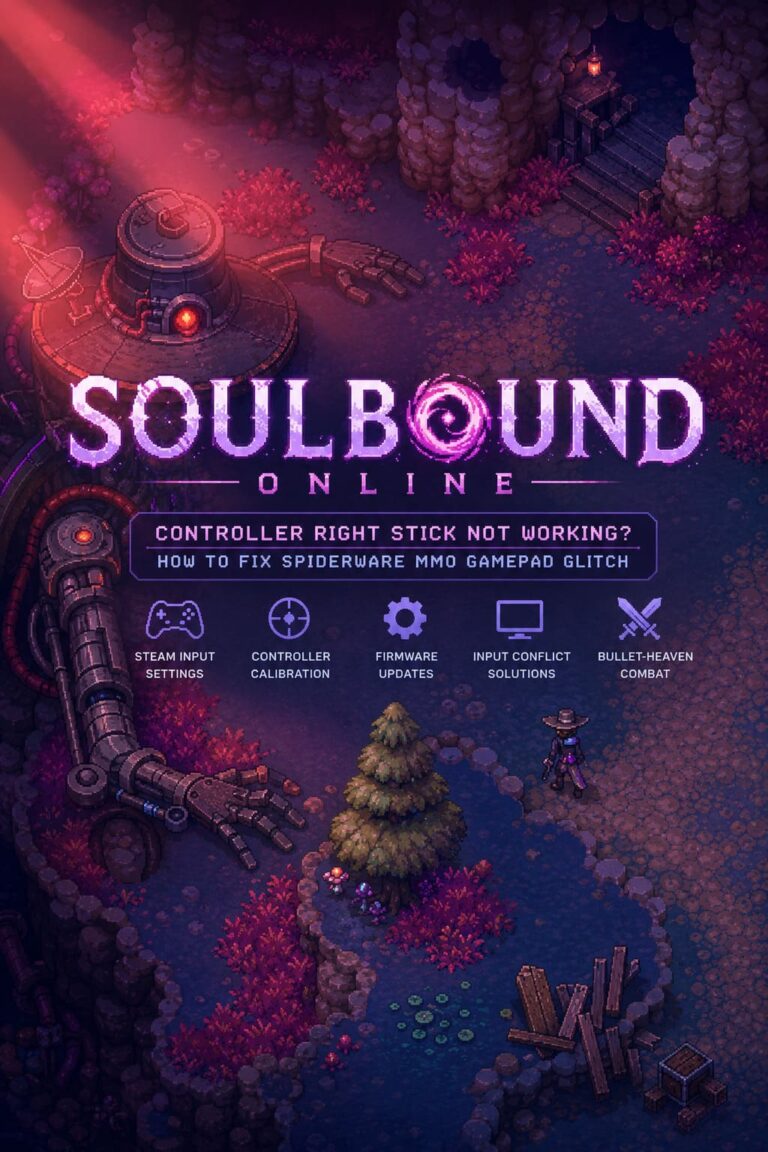
Soulbound: Online Controller Look Direction Bug Fix Guide — Learn how to repair broken right stick aiming, camera movement, and attack direction using Steam Input, controller emulation, and community workarounds.
When I first jumped into Soulbound: Online with a controller, I expected a smooth couch-style experience. After playing dozens of action RPGs, roguelikes, and online games with gamepads, I assumed the basics would work without any problems: the left stick for movement, buttons for abilities, and the right stick for aiming and changing direction. Unfortunately, that last part is where one of the most frustrating launch issues appears.
The controller look direction bug in Soulbound: Online can completely ruin the experience. Your character moves correctly, buttons respond, and menus usually work, but the right analog stick refuses to properly control attacks, aiming, or look orientation. For a game where positioning and quick reactions are important, this makes playing with a controller feel almost impossible.
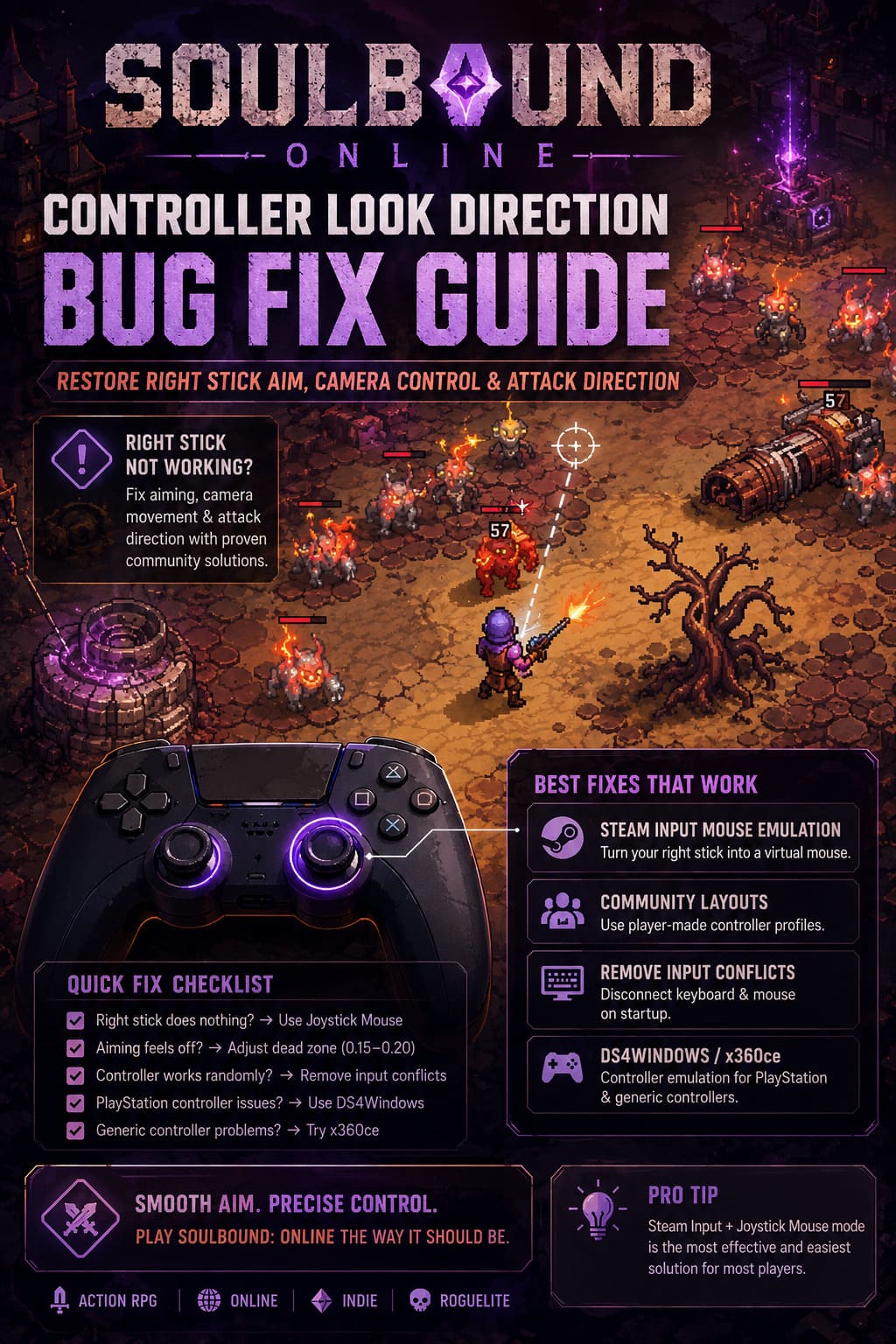
The good news is that the problem is not caused by your controller being damaged. After testing different setups and checking solutions shared by players across Steam discussions, Discord communities, and technical forums, there are several reliable methods that can restore proper controller functionality while waiting for an official patch.
This guide covers the best fixes for the Soulbound: Online right stick not working issue, including Steam Input configuration, mouse emulation, DS4Windows, x360ce, and solutions for controller input conflicts.
How to Fix Soulbound Online Fatal Error Update Graphics Driver (2026 Guide)
Why the Controller Look Direction Bug Happens in Soulbound: Online
Before trying random fixes, it helps to understand what is actually happening behind the scenes. Unlike many modern action games that read the right stick as a simple directional input, Soulbound: Online appears to depend heavily on mouse-style aiming logic.
The game expects an absolute screen position, similar to where a mouse cursor would be located, instead of receiving a traditional joystick direction. This creates a strange situation where movement works perfectly, but aiming and looking fail because the game is waiting for a virtual cursor position that the default controller profile does not provide.
The main problems usually look like this:
- Left stick works normally because movement uses standard controller inputs.
- Right stick does nothing because the game expects mouse-based movement.
- Attacks point in the wrong direction or remain locked in one position.
- Cursor-based interactions and dialogue selection become difficult or impossible.
From my experience with similar indie online releases, this type of issue usually happens when developers create gameplay around keyboard and mouse first and add controller support afterward. The controller option may exist in the settings, but important input translations can still be missing.
The fixes below solve the problem by creating a connection between your controller and the game. Instead of sending a normal right-stick signal, they convert your joystick movement into mouse movement that Soulbound: Online can understand.
Fix 1: Enable Steam Input Mouse Emulation (Recommended Solution)
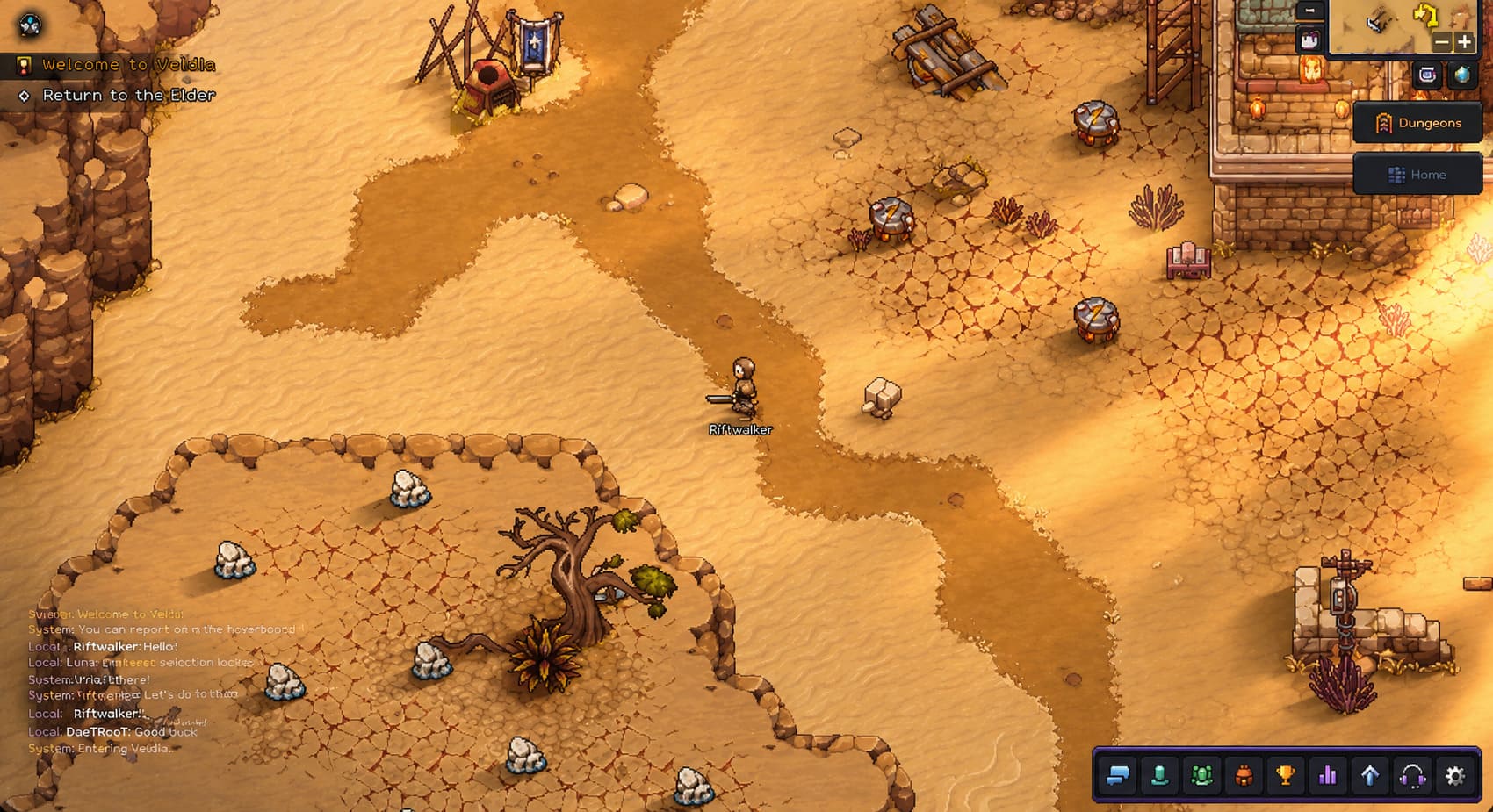
For most players, the easiest and most effective fix is using Steam Input. This method turns your right analog stick into a virtual mouse, allowing the game to correctly detect aiming and directional movement.
I recommend trying this method first because it does not require additional programs and works with most Xbox, PlayStation, and third-party controllers.
Steam Input Setup Steps
- Open your Steam Library.
- Find Soulbound: Online.
- Right-click the game and select Properties.
- Open the Controller section.
- Change the controller override option to Enable Steam Input.
- Return to the game page in your Steam library.
- Open the controller configuration menu.
- Select the Right Joystick settings.
- Change the input style from Joystick Move to Joystick Mouse.
- Assign RS Click as a left mouse button for easier menu navigation.
- Adjust sensitivity and dead zone settings until aiming feels comfortable.
For the dead zone, I found that values between 0.15 and 0.20 usually provide the best balance. A lower setting can create unwanted cursor movement, while a higher value can make aiming feel slow and heavy.
After applying the changes, start Soulbound: Online again. Your right stick should now move a hidden virtual cursor around your character, restoring proper attack direction and interaction controls.
Fix 2: Use Community Steam Controller Layouts
If you do not want to manually configure every button, Steam community layouts can save a lot of time. Other players who experienced the same problem have already created controller profiles designed specifically around mouse-based aiming.
This option is especially useful if you simply want to start playing without spending time adjusting every individual setting.
How to Apply a Community Layout
- Open Steam Big Picture Mode.
- Go to the Soulbound: Online game page.
- Open Controller Settings.
- Select the current controller layout.
- Browse the Community Layouts section.
- Search for profiles mentioning:
- Soulbound Right Stick Fix
- Joystick Mouse
- Controller Mouse Emulation
- DS4 Mouse Fix
- Select the layout and apply it.
- Launch the game and test the controls.
Community layouts are not always perfect because everyone has different sensitivity preferences, but they are an excellent starting point. Personally, I usually prefer modifying an existing community profile instead of creating one completely from scratch.
Fix 3: Remove Keyboard and Mouse Input Conflicts
Another unusual but surprisingly effective workaround is forcing Soulbound: Online to detect only your controller during startup. Some games struggle when multiple input devices are connected at the same time.
The engine may prioritize your physical mouse and keyboard, causing controller aiming commands to be ignored. This can create situations where the game technically sees your controller but refuses to use the right stick correctly.
DirectInput Unplug Method
- Completely close Soulbound: Online.
- Disconnect your controller.
- Unplug your keyboard and mouse from USB ports.
- Connect only your controller.
- Launch the game through Steam Big Picture Mode.
If you are playing on a handheld device such as Steam Deck, ASUS ROG Ally, or Lenovo Legion Go, use the built-in controls to start the game.
Once you enter the game and confirm the controller works, you can reconnect your keyboard and mouse. This method may sound strange, but input initialization problems are common in smaller PC releases.
Fix 4: Use DS4Windows or x360ce for PlayStation and Generic Controllers
Steam Input solves the issue for many players, but some DualShock 4, DualSense, and generic controllers may still have problems communicating with Soulbound: Online.
In those situations, controller emulation software can help by making your device appear as a standard Xbox controller or converting joystick movement into mouse commands.
DS4Windows Setup
- Install and open DS4Windows.
- Connect your controller through USB or Bluetooth.
- Create or edit your active controller profile.
- Open axis mapping options.
- Convert right stick movement into mouse movement.
- Save the profile.
- Enable Hide DS4 Controller.
The last step is extremely important. Without hiding the physical controller, Soulbound: Online may detect both the real device and the virtual controller at the same time, causing additional input problems.
x360ce Setup
- Download and install x360ce.
- Place it inside the Soulbound: Online installation folder.
- Run the program as administrator.
- Allow automatic controller detection.
- Check the Right Stick configuration.
- Manually assign X and Y axes if necessary.
- Save settings and keep x360ce running.
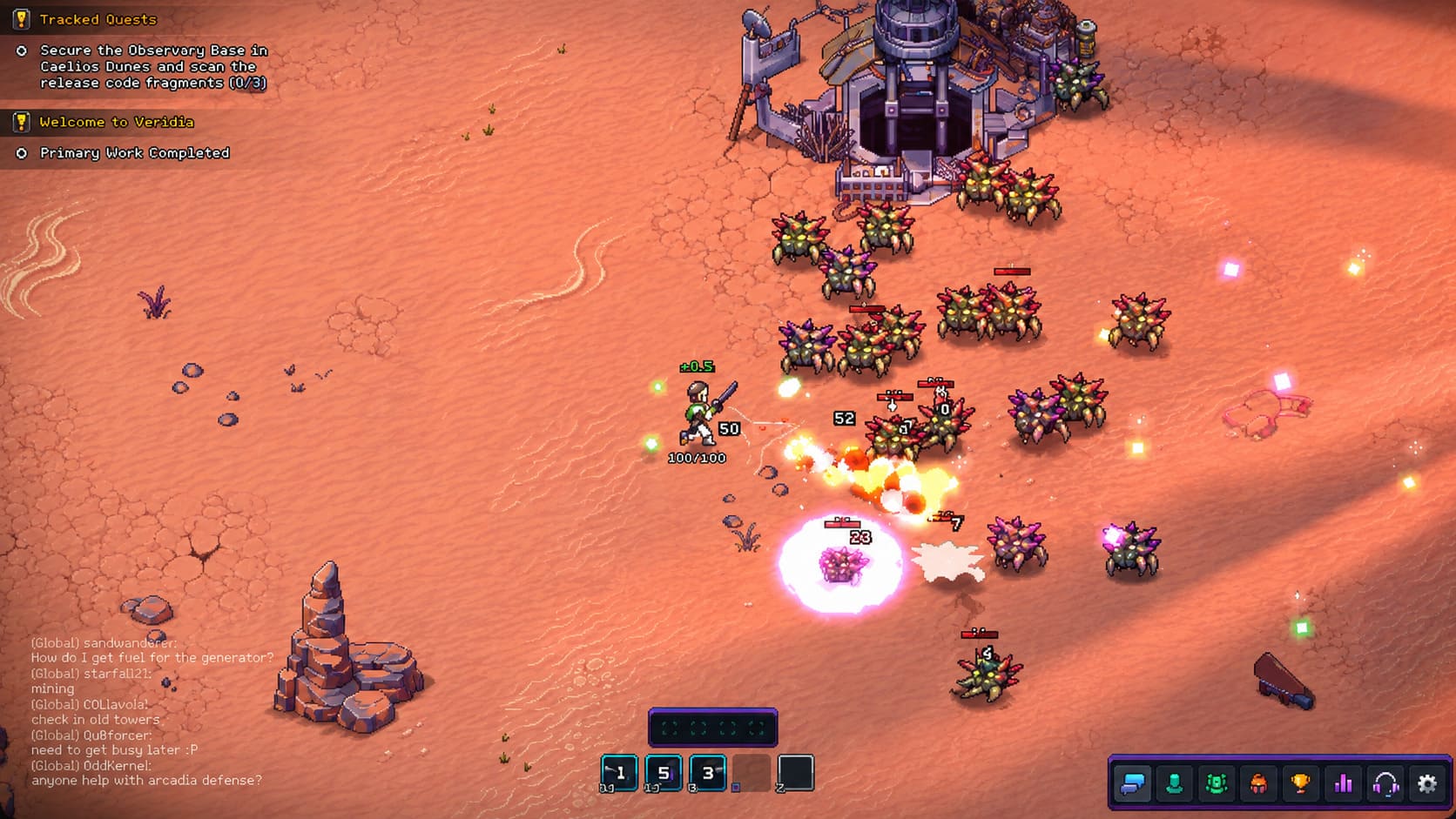
This solution is not as simple as Steam Input, but it can help players using older or unsupported controllers that the game refuses to recognize properly.
Soulbound: Online Controller Bug Quick Troubleshooting Checklist
| Problem | Recommended Solution |
|---|---|
| Right stick does nothing | Enable Steam Input and use Joystick Mouse |
| Character aims incorrectly | Increase controller dead zone settings |
| Controller works randomly | Remove keyboard and mouse conflicts |
| PlayStation controller issues | Use DS4Windows |
| Generic controller problems | Try x360ce |
| Cursor moves automatically | Increase inner dead zone |
Final Thoughts: Is Fixing the Controller Bug Worth It?
After testing different controller setups, I think the biggest problem with Soulbound: Online is not the controller support itself. The real issue is the missing connection between joystick input and the game’s mouse-based aiming system.
Once the right stick works correctly, the game feels completely different. Combat becomes faster, movement feels natural, and the overall experience finally matches what you expect from an action-focused online game.
Until SpiderWare releases a permanent solution, Steam Input with Joystick Mouse mode remains the best fix for most players. It only takes a few minutes to configure and removes the biggest obstacle preventing controller users from enjoying the game.
If you are waiting for an official update, these community solutions are more than enough to keep playing without switching back to keyboard and mouse.