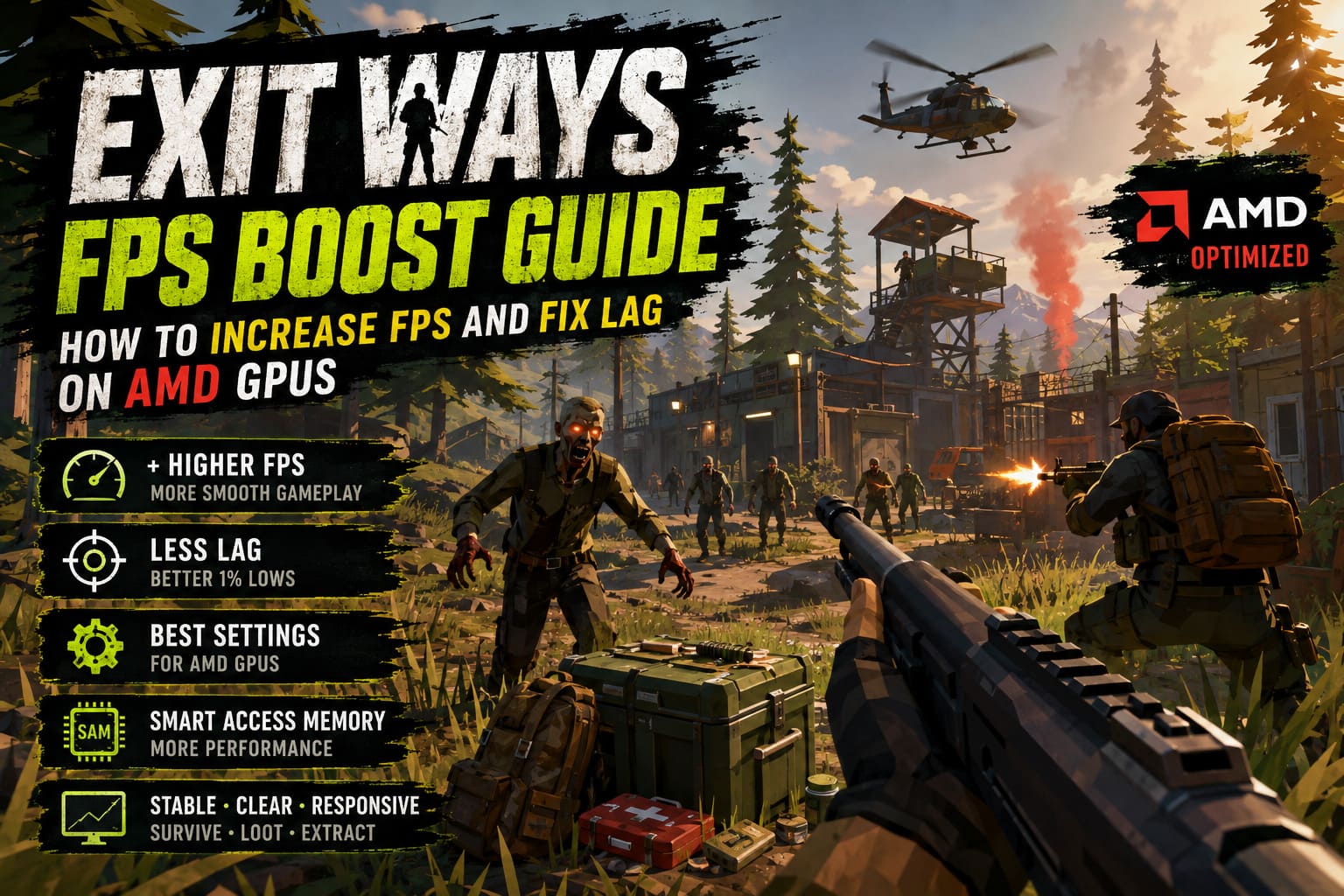
Exit Ways FPS Boost Guide: How to Increase FPS and Fix Lag on AMD GPUs
If there is one thing I have learned from playing a lot of extraction shooters, it is that performance is not just about making a game look pretty. In a normal single-player game, losing 10 or 15 FPS might be something you barely notice. In a PvEvP extraction shooter like Exit Ways, however, a sudden stutter at the wrong moment can be the difference between getting out with a backpack full of loot and watching your character hit the floor while another player takes everything you worked for.
Exit Ways from ASKES throws quite a lot at your hardware. You have zombies, other players, large environments, base-building systems, loot, particle effects, and plenty of things happening simultaneously. Since the game is still an Early Access release, performance can also vary considerably depending on your hardware, drivers, and the area you are currently exploring.
AMD Radeon owners may notice this particularly during crowded encounters. I have spent enough time tweaking PC games to know that blindly dropping every graphics option to Low is rarely the best solution. You can often gain a surprising amount of FPS while keeping the game looking good, provided you target the settings that actually matter.
So, if you are trying to improve Exit Ways FPS on an AMD GPU, reduce stuttering, or get more consistent frame times during firefights and zombie encounters, these are the changes I would start with.
Exit Ways Reclaimers Faction Rewards: Ultimate Extraction Guide and Loot Tier List
Why Exit Ways Can Be Demanding on AMD Hardware
The first thing to understand is that not every FPS problem is caused by the graphics card. Extraction shooters can be particularly demanding on the CPU because the game has to keep track of AI, players, physics, world objects, and other systems at the same time.
This becomes more obvious when you enter an area filled with enemies or other players. Your average FPS might look perfectly acceptable, but the important number is often the 1% low FPS. If your average is 100 FPS but the game repeatedly drops into the 30s or 40s for a fraction of a second, the experience will still feel awful.
Texture streaming can also become an issue when moving quickly through the world. If your Radeon card has limited VRAM, aggressive texture settings can cause additional hitching as new areas and assets are loaded.
From my experience with PC games, I would rather have a stable 80 FPS than a fluctuating 120 FPS that constantly dips and stutters. Consistency matters enormously in a game where quick reactions are part of the gameplay.
The Best Exit Ways Graphics Settings for AMD
Before touching AMD Adrenalin or Windows, start with the game’s own graphics menu. There is no point spending 30 minutes changing driver settings if your biggest performance problem is simply an unnecessarily high shadow or post-processing setting.
Here is the configuration I would use as a starting point:
| Setting | Recommended Value | Performance Impact |
|---|---|---|
| Display Mode | Fullscreen | Low |
| Resolution | Native | Medium |
| Texture Quality | High / Medium | Medium |
| Shadow Quality | Low / Medium | High |
| View Distance | Medium | High |
| Post-Processing | Low | Medium-High |
| Anti-Aliasing | Low / Medium | Medium |
| FSR | Quality / Balanced | High |
| V-Sync | Off | Low |
| Motion Blur | Off | Low |
Keep Your Native Resolution
I would not immediately lower your resolution just to chase higher numbers. Native resolution usually gives you a much cleaner image, and that matters when you are trying to identify another player hiding in a dark area.
If you are playing at 1440p and your GPU is struggling, try AMD FSR before dropping the actual resolution. FSR can provide a substantial performance improvement while retaining considerably more image quality than simply switching to a lower resolution.
For 1440p, FSR Quality is where I would begin. If performance is still poor, Balanced can be worth trying.
Lower Shadows Before Textures
Shadows are one of those settings that I almost always reduce in competitive games. They can be surprisingly expensive, while the visual difference between High and Medium is often difficult to notice once you are actually fighting for your life.
Textures are a different story. Assuming your graphics card has enough VRAM, you can generally keep them relatively high without destroying your frame rate.
If you have 8GB or more of VRAM, High textures are a reasonable starting point. With a 4GB or 6GB card, Medium may be the safer choice, especially if you experience texture streaming problems.
Turn Off Unnecessary Effects
Motion blur is one of the first things I disable in practically every shooter. It may look cinematic in screenshots, but during actual gameplay it makes fast camera movement less clear.
I would also keep post-processing relatively low. Heavy ambient effects, depth of field, and similar cinematic effects can cost performance without helping you see enemies.
For an extraction shooter, I would always prioritize clarity and responsiveness over cinematic presentation.
AMD Adrenalin Settings for Exit Ways
Once the in-game settings are under control, move over to AMD Software: Adrenalin Edition.
Open the software and find Exit Ways in the Gaming section. If the game is not listed, you can add its executable manually and create a dedicated profile.
These are the settings I would test first:
- Radeon Anti-Lag: Enabled
- Radeon Chill: Disabled
- Radeon Boost: Disabled initially
- Texture Filtering Quality: Performance
- Surface Format Optimization: Enabled
- Wait for Vertical Refresh: Always Off
- Image Sharpening: Optional, around 20–40%
- Tessellation: Leave application controlled unless you have a specific reason to override it
Radeon Anti-Lag is particularly interesting for a game like Exit Ways. It is not going to magically increase your FPS, but reducing the delay between your input and the rendered response can make the game feel much more responsive.
That distinction is important. Higher FPS and lower input latency are related, but they are not the same thing.
I am also not a huge fan of Radeon Boost for a game where spotting enemies at distance matters. Dynamic resolution can help weaker hardware, but the sudden image-quality changes during fast movement can be distracting. I would only enable it if you have already tried the normal optimization steps and still need additional performance.
Radeon Chill Is Not What You Want for Maximum FPS
Radeon Chill is useful if your priority is reducing power consumption and temperatures. It dynamically adjusts the frame rate based on player movement.
That can be great for quieter gaming and lower energy usage, but it is not what I would choose when trying to squeeze every possible frame out of Exit Ways.
For a competitive extraction shooter, I prefer the GPU to have the freedom to render as many frames as the hardware can reasonably produce.
Try AMD Image Sharpening With FSR
There is one combination worth experimenting with if you use FSR: sharpening.
Upscaling can sometimes make distant objects look softer than native rendering. A moderate amount of Radeon Image Sharpening can compensate for that without making the entire image look excessively processed.
I would start around 20–30% rather than immediately pushing it to maximum. Too much sharpening can introduce ugly halos around objects and make foliage look noisy.
This is one of those settings where personal preference matters more than a universal recommendation.
Enable Smart Access Memory If Your Hardware Supports It
If you have a Ryzen processor paired with a compatible Radeon graphics card, check whether AMD Smart Access Memory (SAM) is available.
SAM allows the CPU to access a larger portion of the GPU’s memory rather than relying on the traditional smaller address window. In supported games and hardware configurations, this can improve performance.
The exact benefit varies enormously between games, so I would not promise a specific FPS increase. Still, if your motherboard, CPU, and GPU support it, there is little reason not to check that it is enabled.
Depending on your motherboard, the relevant BIOS options are usually:
- Enable Above 4G Decoding.
- Enable Re-Size BAR Support.
- Save your BIOS changes and restart.
- Check AMD Adrenalin to confirm that Smart Access Memory is active.
BIOS menus differ between manufacturers, so don’t worry if the options are named slightly differently on your motherboard.
Windows Settings That Can Help
Windows itself can also affect gaming performance. I would keep these changes fairly conservative rather than following some of the extreme ‘gaming optimization’ guides you can find online.
Enable Game Mode
Windows Game Mode is worth leaving enabled. It is designed to prioritize gaming workloads and reduce interference from certain background activities.
Disable Background Recording
If you never use Xbox Game Bar or background game recording, disabling those features can remove another source of unnecessary background activity.
Recording software can be particularly noticeable when a game is already pushing both the CPU and GPU.
Hardware-Accelerated GPU Scheduling
HAGS is another setting worth testing. On compatible systems, it can improve scheduling behavior and frame consistency.
However, I would not treat it as a guaranteed FPS boost. PC hardware is complicated, and two systems with the same graphics card can behave differently because of their CPUs, Windows versions, drivers, RAM configurations, and background software.
If enabling HAGS makes Exit Ways feel worse on your machine, simply test the opposite setting.
Reset the AMD Shader Cache After Driver or Game Updates
Shader compilation is one of the biggest potential sources of annoying stutters in modern games.
If Exit Ways was running smoothly and suddenly starts hitching after a major game update or AMD driver installation, resetting the shader cache is something I would consider.
In AMD Adrenalin, look through the Graphics settings for the shader-cache reset option. After clearing it, restart the system and launch the game again.
Don’t panic if the first session still has some small stutters. The game may need to rebuild shaders as you visit areas and encounter effects for the first time.
In fact, this is one reason I would avoid judging performance after only five minutes of testing. Give the game enough time to rebuild its caches and settle down.
Manual AMD GPU Tuning: Be Careful
Adrenalin also offers manual performance tuning, including power limits, fan controls, clocks, voltage settings, and other options.
If you know what you are doing, increasing the power limit slightly can sometimes help a GPU maintain higher boost clocks under sustained loads. But I would not recommend randomly changing voltage or clock values just because an optimization video told you to.
A stable GPU running slightly slower is much better than an unstable GPU that crashes in the middle of an extraction.
If temperatures are already high, deal with cooling first. Check whether the case has adequate airflow, clean accumulated dust, and make sure the GPU fans are functioning correctly.
What I Would Change First
If I installed Exit Ways on an AMD gaming PC today, I would not change 30 settings simultaneously. That makes troubleshooting almost impossible because you have no idea which change actually helped.
My order would be:
- Lower shadows and post-processing.
- Set textures according to available VRAM.
- Use FSR Quality at 1440p if native performance is insufficient.
- Disable V-Sync and unnecessary motion effects.
- Enable Radeon Anti-Lag.
- Check Smart Access Memory.
- Disable unnecessary background recording.
- Test HAGS.
- Reset shader cache if stuttering appeared after an update.
- Only then experiment with GPU tuning.
The most important part is testing one major change at a time. Run the same type of scenario after each adjustment and pay attention to both average FPS and 1% lows.
Final Thoughts
The biggest mistake I see with PC optimization is treating FPS as the only number that matters. After playing enough competitive and extraction-style games, I have come to value frame consistency much more than a giant FPS counter that looks impressive for a screenshot.
Exit Ways is exactly the kind of game where stable performance can genuinely improve the experience. When zombies are closing in, another player is shooting from an unexpected angle, and you are carrying valuable loot, you don’t want your screen freezing for half a second because your GPU suddenly ran out of breathing room.
For AMD users, I would start with the simple stuff: reduce shadows, keep textures within your VRAM limit, use FSR intelligently, turn off unnecessary effects, and configure Adrenalin for responsiveness rather than power saving. Then check SAM, Windows settings, and shader caching if problems remain.
There is no single Exit Ways FPS boost setting that will transform every PC. Your CPU, Radeon model, VRAM capacity, RAM, resolution, cooling, drivers, and even the specific area of the game can all affect performance. But with a little testing, you should be able to find a much better balance between image quality and smooth gameplay—and in an extraction shooter, that balance is absolutely worth chasing.