How to Fix Onimusha: Way of the Sword Black Screen on Launch and Crashing Issues
There are few things more annoying than buying a game you’ve been waiting years for, hitting Play, and being rewarded with a completely black screen.
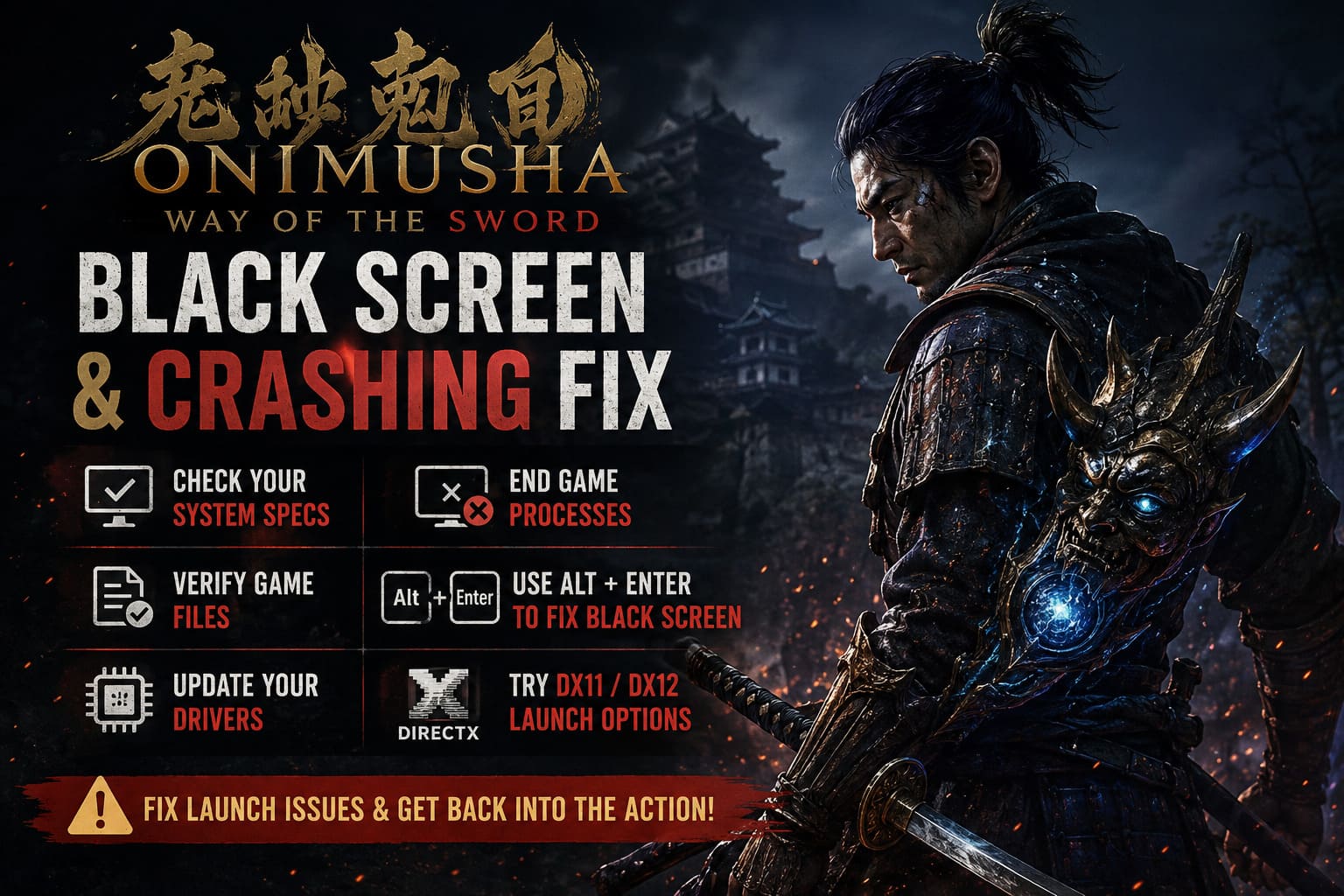
That is especially painful with Onimusha: Way of the Sword. After such a long wait for Capcom to bring the series back, the last thing I want to do is spend my first evening fighting Windows instead of Genma.
Unfortunately, black screens, startup crashes, freezes, and games that appear to launch without actually displaying anything are all problems PC players can run into with a major release. The good news is that these problems are often caused by something surprisingly ordinary: corrupted files, a graphics driver conflict, fullscreen settings, overlays, or Windows choosing the wrong GPU.
I’ve put together the troubleshooting order I’d personally use. Don’t jump straight to reinstalling the entire game. Start with the quick fixes, then move into the more specific solutions if the problem survives.
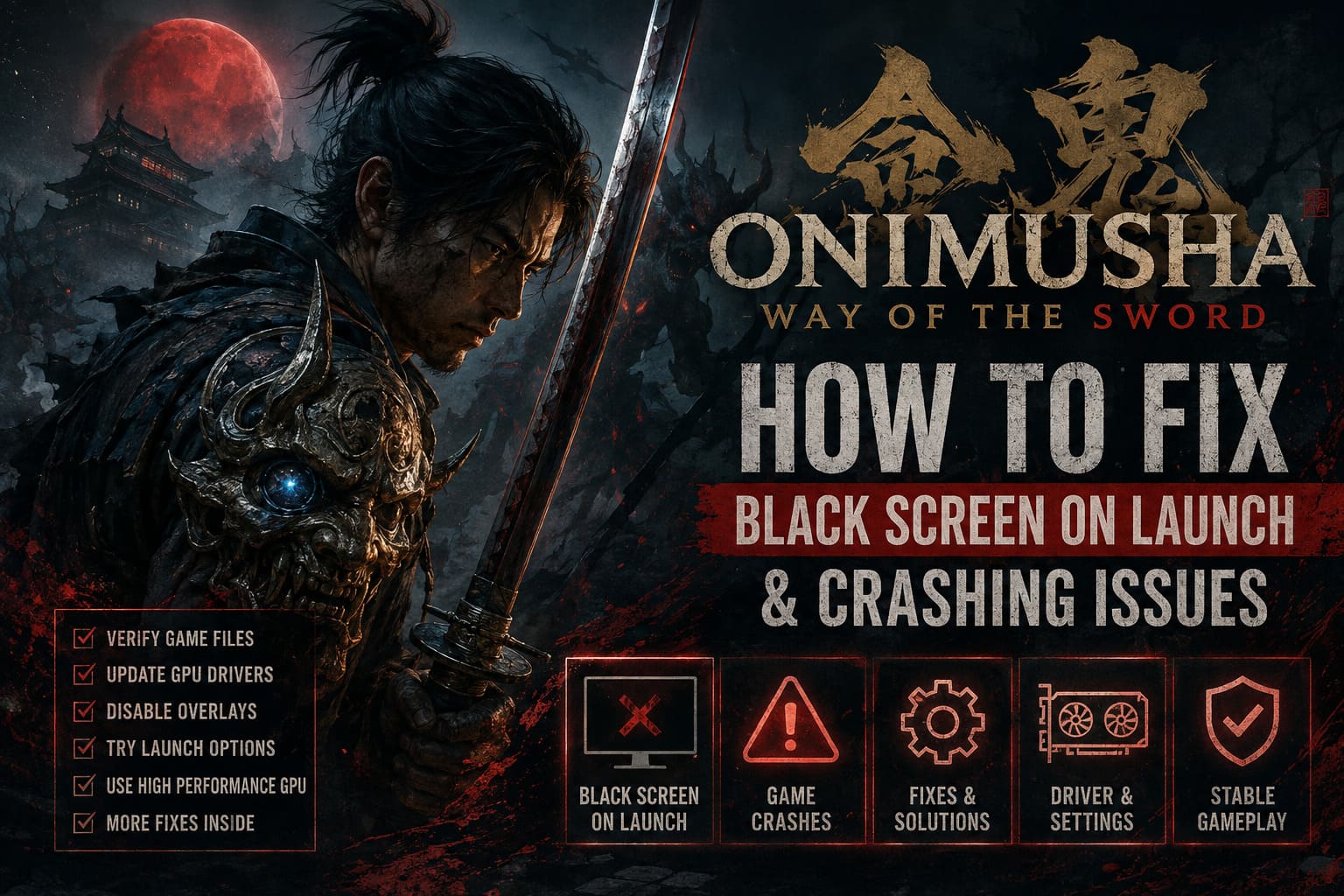
Quick Look: What I’d Try First
Before getting into the details, here’s my preferred order:
| Fix | What It Can Solve | Difficulty |
|---|---|---|
| Restart PC and close stuck processes | Frozen or failed launches | Easy |
| Verify game files | Corrupted or missing files | Easy |
| Update GPU drivers | Driver-related crashes | Easy |
| Try Alt + Enter | Fullscreen/display problems | Easy |
| Disable overlays | Software conflicts | Easy |
| Try different launch options | Graphics API startup issues | Medium |
| Force High Performance GPU | Wrong GPU being selected | Medium |
| Move the game to an SSD | Slow asset loading | Medium |
My advice: start at the top and work downward. There is no prize for making the troubleshooting process more complicated than it needs to be.
1. Make Sure Your PC Can Actually Run the Game
This sounds obvious, but it is the first thing I’d check before blaming the game.
Modern PC releases can be surprisingly demanding, particularly when you’re dealing with large environments, advanced lighting, effects, and fast asset streaming. If your system is right around the minimum specification, instability can show up as more than just low FPS.
Your first check should be the game’s published system requirements and your own hardware.
| Component | Minimum Target | Recommended Target |
|---|---|---|
| OS | Windows 10/11 64-bit | Windows 11 64-bit |
| CPU | Core i5-8400 / Ryzen 5 2600 | Core i7-11700K / Ryzen 7 5800X |
| RAM | 16 GB | 16–32 GB |
| GPU | GTX 1070 / RX 590 / Arc A380 | RTX 3070 / RX 6700 XT or better |
| API | DirectX 12 | DirectX 12 |
| Storage | 70 GB | 70 GB SSD/NVMe |
If you’re using an older HDD, I’d also consider moving the game to an SSD.
This isn’t necessarily a magic black-screen fix, but modern games can rely heavily on fast asset streaming. If you’re still using a mechanical drive, an SSD is one of the upgrades that can make the overall experience feel dramatically better.
2. Kill the Game Completely Before Trying Again
This is one of those boring fixes that I actually recommend because it takes about 30 seconds.
Sometimes a crashed game doesn’t really disappear. Windows can leave the executable running in the background while Steam thinks the game is still active.
Press:
Ctrl + Shift + Esc
to open Task Manager.
Look through the running processes for Onimusha: Way of the Sword or its game executable. If you find it still running after a failed launch, right-click it and choose End Task.
I’d also close the launcher completely and restart it.
Then try again.
It sounds ridiculously simple, but I’ve lost count of how many PC problems I’ve fixed by killing a stuck process and launching the game fresh.
3. Verify the Game Files
If Onimusha suddenly started crashing after an update, failed to launch after installation, or gives you a black screen every time, file verification is one of the first serious fixes I’d use.
A single damaged or missing file can prevent a game from initializing correctly.
Steam
Go to:
Steam Library → Onimusha: Way of the Sword → Properties → Installed Files
Then select:
Verify integrity of game files
Let Steam finish the scan completely. If it finds damaged or missing files, it should download replacements automatically.
Epic Games Store
Open your Epic Games Library, find the game, open its menu, choose Manage, and select Verify.
After the process finishes, restart the launcher before testing the game again.
Don’t skip this step just because the game downloaded successfully. A completed download doesn’t guarantee that every file is healthy.
4. Try Alt + Enter When You Get the Black Screen
This is probably my favorite quick trick on the entire list.
If the game launches but you’re looking at nothing except black, press:
Alt + Enter
Windows uses this shortcut to switch between fullscreen and windowed presentation in many applications.
If the problem is related to fullscreen initialization, resolution, refresh rate, or HDR, this can sometimes bring the image back.
If you suddenly get a working window, head into the graphics settings and start conservatively.
I’d personally test:
- Borderless Windowed
- Native desktop resolution
- Your monitor’s normal refresh rate
- HDR disabled temporarily
- V-Sync according to your normal setup
Once the game is stable, you can start turning features back on.
5. Experiment With DirectX Launch Options
This one is more of a troubleshooting experiment than a guaranteed solution.
If the game is failing while initializing its graphics API, trying an alternative launch parameter can sometimes reveal whether DirectX is involved.
On Steam, open:
Properties → General → Launch Options
You can test:
-dx11
If that doesn’t help, remove it and test:
-dx12
Don’t leave both commands in there at the same time.
Also, keep in mind that launch parameters are not universal fixes. A game may officially expect a particular graphics API, and an unsupported argument may simply do nothing.
That’s why I would test this after file verification and driver updates rather than starting here.
6. Update Your Graphics Driver
If I get a black screen immediately after launching a new PC game, the GPU driver is near the top of my suspect list.
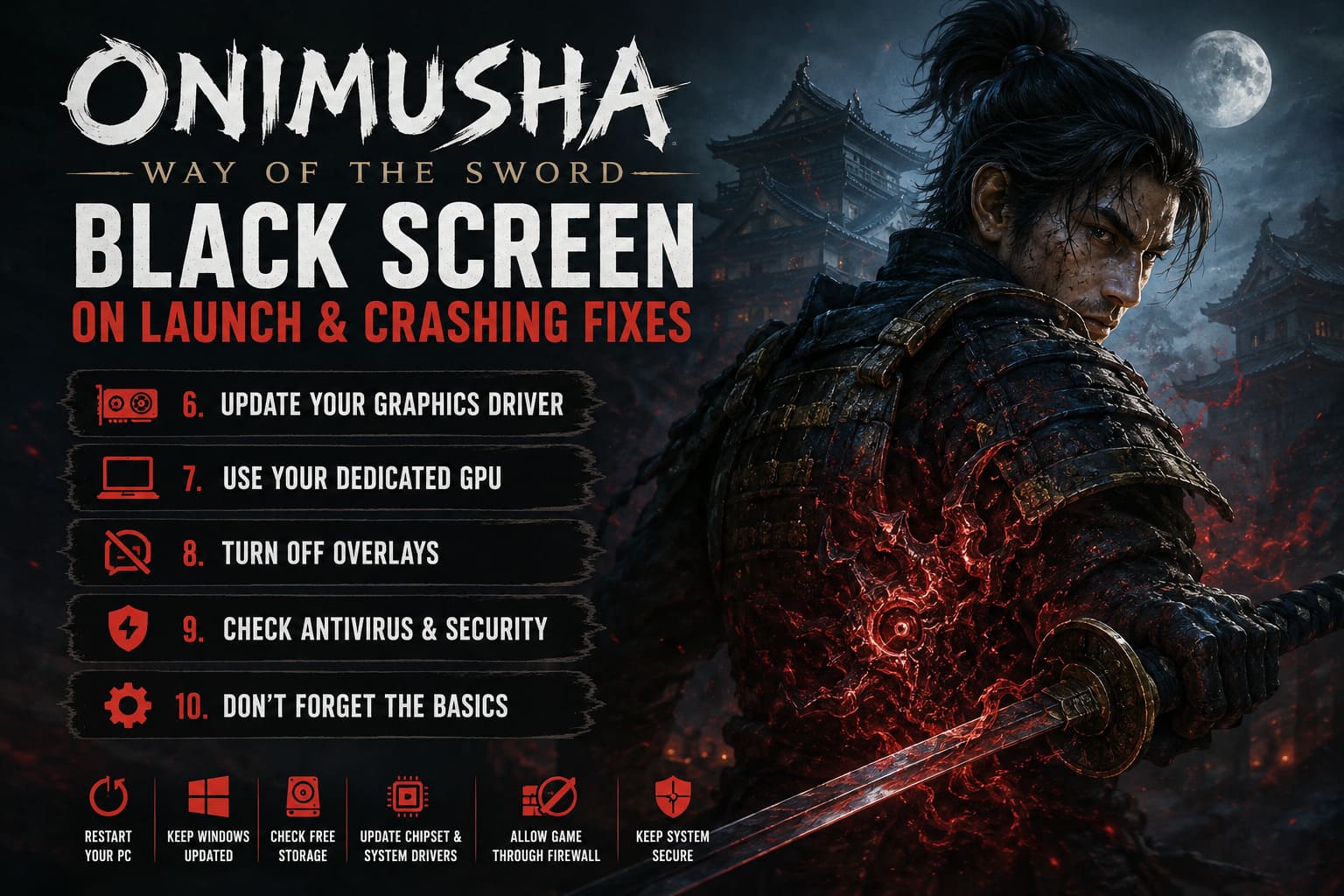
NVIDIA, AMD, and Intel regularly release drivers that improve compatibility with new games. A driver that works perfectly with everything else in your library can still behave badly with a brand-new release.
Check the driver software for your graphics card and install the newest stable gaming driver available for your hardware.
If you’re already on the latest driver but the problem appeared immediately after a driver update, there is another possibility: the new driver itself may be the problem.
In that situation, trying a previous stable driver can be worth testing.
After changing GPU drivers, restart Windows. Don’t just close the installer and immediately launch the game.
7. Make Sure Windows Uses Your Dedicated GPU
Laptop users should pay particular attention to this.
If your system has integrated graphics alongside an NVIDIA, AMD, or Intel discrete GPU, Windows sometimes needs a little encouragement to use the correct hardware.
Open Windows Settings and search for:
Graphics Settings
Add the Onimusha executable to the list of desktop applications.
Then open its Options and choose:
High Performance
Save the setting and launch the game again.
On a desktop PC with only one GPU, this probably isn’t going to magically fix anything. But on a laptop or hybrid-graphics machine, it’s absolutely worth checking.
8. Turn Off Overlays
Personally, I love overlays when they work.
Steam notifications, Discord chat, FPS counters, recording software and hardware monitoring are useful. The problem is that they all add another layer between the game and the operating system.
When troubleshooting a black screen, I want as few variables as possible.
Temporarily disable:
- Steam Overlay
- Discord Overlay
- NVIDIA/AMD recording overlays
- MSI Afterburner/RTSS overlays
- OBS or other capture software
- Game booster applications
- Performance monitoring tools
You don’t necessarily need to uninstall anything.
Just close the applications and test the game with a clean background.
If Onimusha suddenly works, start enabling your software one application at a time until you discover the culprit.
That’s much better than permanently disabling everything and never finding out what actually caused the problem.
9. Check Windows Security and Antivirus
Security software can occasionally interfere with game files.
If Windows Defender or another antivirus program has quarantined an executable or blocked access to a game folder, the result may be anything from an immediate crash to a game that simply refuses to start correctly.
Check your antivirus history and Windows Security protection history.
If you discover that a legitimate game file has been blocked, follow your security software’s normal process for restoring or allowing it.
I would not recommend blindly disabling your antivirus. It’s safer to identify the specific blocked file or application first.
10. Don’t Forget the Simple Windows Stuff
Before reaching for more aggressive fixes, make sure Windows itself is reasonably up to date.
I’d check:
- Windows Update
- GPU drivers
- DirectX-related components
- Motherboard/chipset drivers where appropriate
- Available free storage
- Background applications
And, yes, restart the PC.
A proper reboot can clear driver states, stuck processes, memory issues, and other temporary problems that survive closing a game.
It isn’t glamorous, but PC troubleshooting has taught me one thing: never underestimate the boring fixes.
Onimusha Way of the Sword Plot Explained: The Full Story of Miyamoto Musashi’s Demonic War
What I’d Do If Nothing Worked
If I’ve reached this point and Onimusha is still giving me a black screen, I’d stop randomly changing settings.
Instead, I’d troubleshoot systematically.
First, I’d verify the game files again and make sure the GPU driver is behaving normally. Then I’d test the game with overlays disabled and the display configured for native resolution and standard refresh rate.
After that, I’d test the game with a clean Windows environment — as few background applications as possible.
If the game works in that condition, re-enable your software one by one.
If it still refuses to launch on a system that comfortably meets the requirements, I’d start looking for a game-specific patch or support information rather than endlessly tweaking Windows.
Onimusha: Way of the Sword Price Comparison – Standard vs Deluxe vs Premium Deluxe Edition
Final Thoughts
A black screen at launch makes a game look completely broken, but it doesn’t necessarily mean there’s something seriously wrong with your PC.
In my experience, these problems are often caused by the interaction between several fairly ordinary things: GPU drivers, fullscreen modes, overlays, corrupted files, Windows graphics selection, and launch configuration.
That’s why I wouldn’t recommend immediately reinstalling Onimusha: Way of the Sword.
Start with the easy stuff:
restart → kill stuck processes → verify files → update drivers → try Alt + Enter → disable overlays → check GPU selection.
Only then move into more experimental options such as DirectX launch parameters.
And if you’re like me and just want to get back to the swordplay as quickly as possible, remember the most important troubleshooting rule of all: change one thing at a time. If you change ten settings simultaneously and the game suddenly works, you’ll never know which fix actually solved the problem.
Hopefully, you won’t need most of this guide. But if your first encounter with Onimusha: Way of the Sword is currently a black monitor instead of a samurai duel, these are the steps I’d work through before giving up on the game.
Now let’s get that screen lit up and get back to Kyoto.