How to Fix Bodycam Audio Reverb and Sound Propagation Issues After Patch v0.8
If you have launched Bodycam after the v0.8 update and immediately thought, “Why does everything sound like it’s happening inside a metal pipe?”, trust me, you are not the only one.
I love what Bodycam is trying to do with its sound design. In a tactical shooter where you rely on footsteps, distant gunfire, reload sounds, and positional audio, good audio can be just as important as good graphics. The problem is that after Patch v0.8, the soundscape can sometimes become way too realistic for its own good. Gunshots develop huge echo tails, footsteps become difficult to locate, and certain outdoor areas can sound as if you are standing inside a concrete bunker.
For me, the most annoying part isn’t even the loud reverb. It’s the loss of reliable positional audio. In a game like Bodycam, hearing an enemy slightly to your left or above you can be the difference between winning a fight and staring at the kill screen.
Patch v0.8 appears to have pushed the game’s environmental audio simulation much harder, with dynamic reverb, sound propagation and improved occlusion playing a larger role. That’s a cool idea on paper. In practice, however, some PC setups seem to amplify the problems.
So, if your Bodycam audio is echoing, crackling, delayed, distorted, or simply impossible to position correctly after v0.8, these are the things I’d try first.
What Changed With Bodycam’s v0.8 Audio?
The big thing to understand is that this doesn’t necessarily mean your headset suddenly broke.
The updated audio system is designed to react to the environment around your character. Sounds can behave differently depending on walls, rooms, corridors, staircases and other geometry. That’s exactly the sort of technology I want in a tactical shooter.
Unfortunately, more complicated audio processing also means more opportunities for conflicts.
The main areas that seem to cause trouble are:
- Environmental reverb, which can make gunshots and footsteps sound excessively reflective.
- Sound propagation, which can make audio travel through openings and around structures differently than expected.
- Occlusion and vertical positioning, which can make it harder to determine whether a sound is coming from above, below or behind you.
- Windows audio processing, especially when spatial sound and additional enhancements are already enabled.
- Performance-related stuttering, which can make audio effects arrive late or become distorted.
I wouldn’t immediately blame the game for every audio problem, though. Windows can stack several layers of processing on top of what the game is already doing. That’s where things get messy.
1. Start With Plain Stereo
This is probably the first thing I’d test.
If you normally use Windows Sonic, Dolby Atmos, DTS, 5.1, 7.1 or another virtual surround solution, temporarily turn all of that off.
Bodycam already has its own positional and environmental audio processing. Adding another virtual surround layer can produce some seriously strange results.
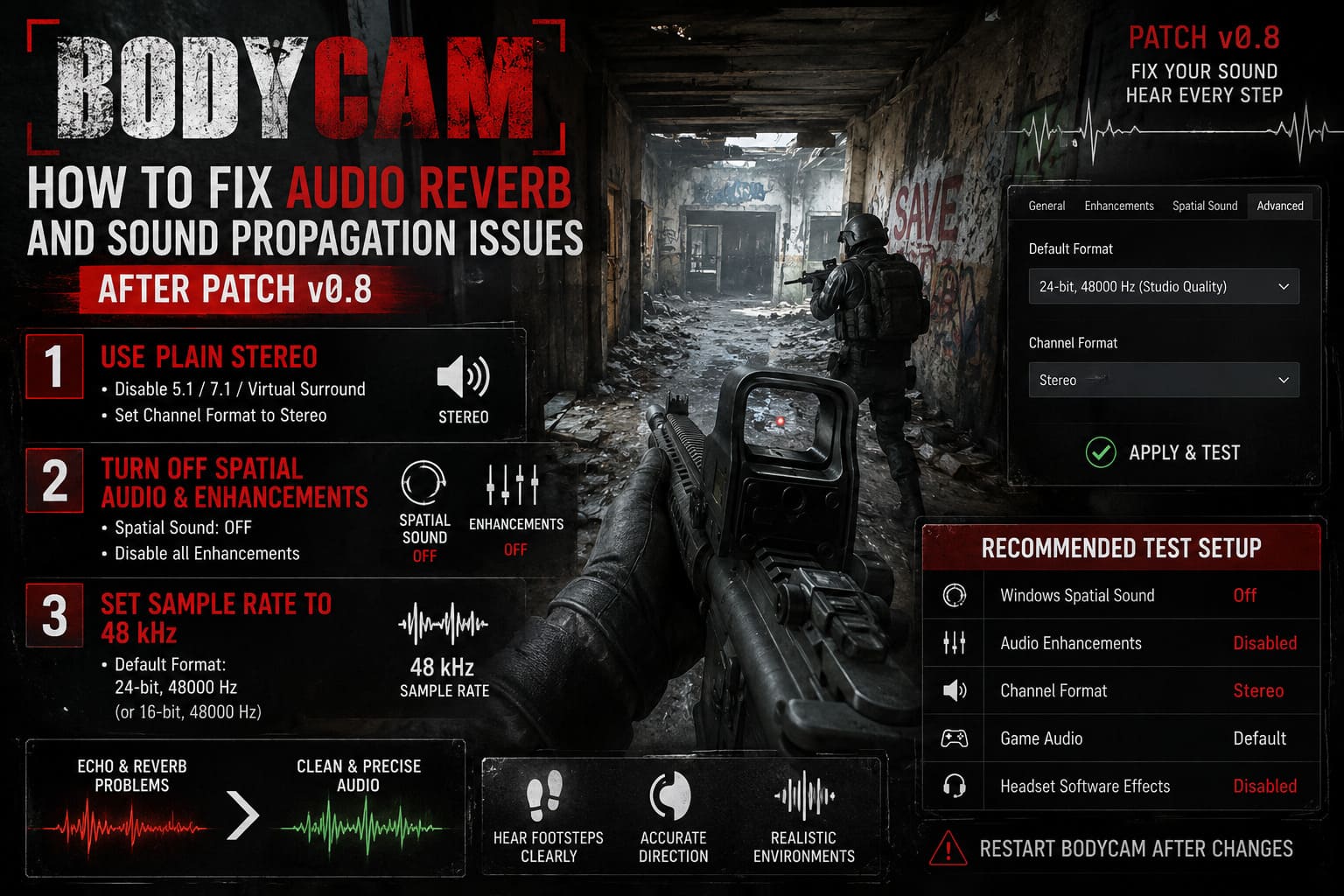
Try this:
- Right-click the speaker icon in the Windows taskbar.
- Open Sound Settings and then More Sound Settings.
- Go to the Playback tab.
- Select the headset or speakers you actually use.
- Choose Configure.
- Select Stereo if that option is available.
- Apply the configuration and launch Bodycam again.
I know switching from surround to stereo sounds like a downgrade. In this particular situation, I’d rather have clean and predictable positional audio than an impressive-sounding mess.
If the echo suddenly becomes much more manageable, you’ve probably found a configuration conflict.
2. Turn Off Windows Spatial Audio and Enhancements
This is another setting I would check even if stereo didn’t completely solve the problem.
Windows can apply its own audio effects before the sound reaches your headset. Bodycam can then apply its environmental processing afterward. In some setups, that combination doesn’t play nicely.
Go back to your active playback device and open its Properties.
Depending on your audio driver, you may see an Enhancements tab. If you do, try selecting Disable all enhancements.
Then check the Spatial Sound tab.
Set Spatial sound to Off for testing.
Don’t worry about making this permanent immediately. Play a few rounds and compare the results. If Bodycam suddenly sounds clearer and footsteps are easier to place, you’ve identified a likely source of the problem.
My Preferred Test Setup
| Setting | Recommended Test |
|---|---|
| Windows Spatial Sound | Off |
| Audio Enhancements | Disabled |
| Channel Format | Stereo |
| Game Audio | Default |
| Headset Software Effects | Disabled |
Once the game is behaving properly, you can experiment with individual features again.
3. Set Your Headset to 48 kHz
This is one of those Windows settings that most players never touch.
If your headset is running at an unusually high sample rate such as 96 kHz or 192 kHz, try bringing it down to 48 kHz. It’s a sensible baseline for gaming and can eliminate unnecessary resampling in some configurations.
Open your playback device’s Properties, then go to Advanced.
Look for Default Format and try:
24-bit, 48000 Hz
If that isn’t available, 16-bit, 48000 Hz is also worth testing.
You don’t need an expensive studio configuration just because you own an expensive gaming headset. In fact, I’ve found that keeping gaming audio relatively simple often produces fewer weird problems.
After changing the format, restart Bodycam. If you’re still hearing crackling or strange echo behavior, a full Windows restart is also worth doing.
4. Check Bodycam’s Microphone and Voice Settings
This one is easy to overlook because the problem sounds like an output issue.
Bodycam’s multiplayer communication can interact with the overall audio experience, and an aggressively configured microphone can introduce additional noise into the mix.
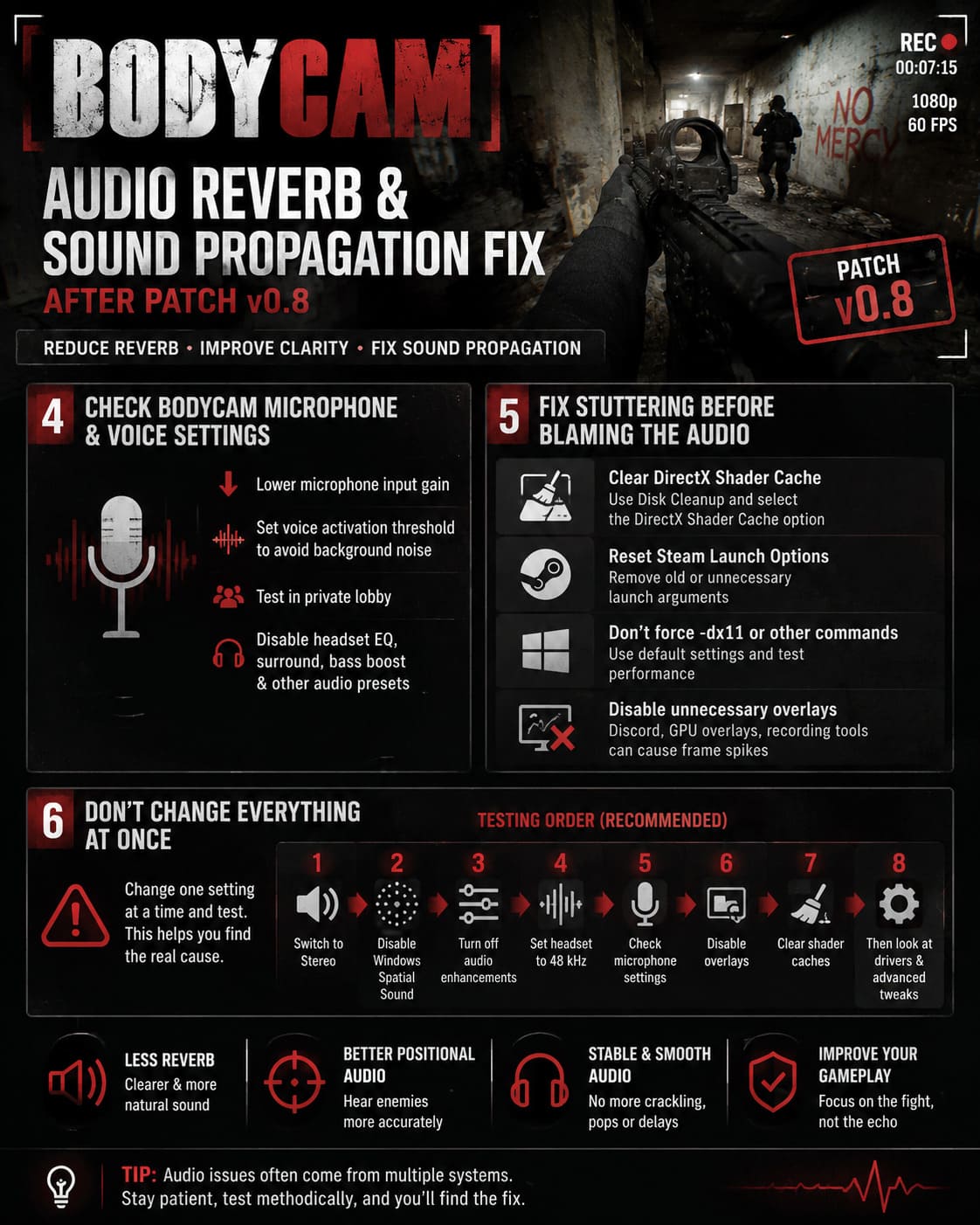
Go into the game’s audio settings and check your microphone input gain.
If you’ve pushed the microphone level extremely high, bring it down.
I’d also check the voice activation or microphone detection threshold. You don’t want your microphone constantly picking up keyboard noise, fans, desk vibrations and other background sounds.
If you’re playing with friends, make a quick test in a private lobby or match. Sometimes the easiest way to diagnose an audio problem is simply to remove as many variables as possible.
And don’t forget the obvious stuff: if your headset has its own EQ, surround mode, bass boost or environmental presets, turn them off temporarily.
5. Deal With Stuttering Before Blaming the Audio
This is the fix I’d recommend if the audio isn’t just echoing but is also crackling, popping, delaying or falling out of sync.
Bodycam is an extremely demanding game. When the game is struggling to maintain consistent performance, you can end up with audio problems that feel completely unrelated to FPS.
Start by clearing your DirectX Shader Cache.
Use Windows Search to find Disk Cleanup, select your system drive, and look for the DirectX Shader Cache option.
You should also take a look at your Steam launch options. If you’ve been experimenting with old commands, remove unnecessary launch arguments and test the game using its normal configuration.
I wouldn’t blindly throw random -dx11 commands at the game, either. If a launch parameter isn’t specifically helping your current setup, remove it and compare performance. Sometimes troubleshooting guides create as many problems as they solve.
Finally, close unnecessary overlays.
Discord, GPU software overlays and other background recording tools can occasionally contribute to frame-time spikes. You don’t necessarily have to uninstall anything. Just disable the overlays temporarily and see whether Bodycam becomes smoother.
6. Don’t Change Everything at Once
This is probably my biggest piece of advice.
It’s tempting to open Windows settings, change the sample rate, disable surround sound, reinstall drivers, delete caches and modify launch options all within five minutes.
Don’t.
Change one thing at a time.
Bodycam’s audio issues can be particularly difficult to diagnose because several different systems are involved. If you change six settings simultaneously and the problem disappears, you won’t know which setting actually fixed it.
My testing order would be:
- Switch to Stereo.
- Disable Windows Spatial Sound.
- Disable audio enhancements.
- Set the headset to 48 kHz.
- Check Bodycam’s microphone settings.
- Disable overlays.
- Clear shader caches.
- Only then start looking at drivers or more advanced performance tweaks.
That takes a little longer, but it gives you a much clearer picture of what’s happening.
Bodycam Game 2026: Guide to Explosive FPV Drones and RC Vehicles
What If None of These Fixes Work?
At that point, I’d stop assuming the problem is entirely on your PC.
If you’ve tested clean stereo output, disabled Windows processing, matched the sample rate, removed overlays and confirmed that your game isn’t constantly stuttering, but Bodycam still sounds like it’s being played inside a giant washing machine, the issue may simply be related to the game’s current audio implementation.
That’s especially likely if the problem appeared immediately after Patch v0.8.
The frustrating thing about modern games is that developers can introduce technically impressive systems that aren’t quite ready for every environment. Dynamic sound propagation is fantastic when it works. When it doesn’t, it can completely destroy the information you’re supposed to get from audio.
And in Bodycam, that’s not a minor annoyance.
Bodycam Locked and Loaded Update Changelog: Patch v0.8 Breakdown
Final Thoughts
I genuinely like the direction Bodycam’s audio technology is heading. A tactical shooter built around a body-camera aesthetic should have an audio system that reacts convincingly to its surroundings. Hearing a gunshot change as it travels through a building could add another layer of immersion and strategy.
But realism isn’t automatically better if the player can’t understand what they’re hearing.
For now, I’d keep your audio setup simple. Stereo output, no unnecessary Windows spatial processing, a 48 kHz sample rate, sensible microphone settings and as few background overlays as possible make a good starting point.
If you’re experiencing the post-v0.8 Bodycam audio reverb problem, don’t immediately assume you need a new headset or a complete Windows reinstall. There are several settings worth testing first.
Personally, I’d rather have slightly less dramatic echo and be able to accurately hear an enemy climbing the stairs behind me. In a game where half a second of audio information can decide a firefight, clear positional sound beats fancy processing every time.
And hopefully, future hotfixes can bring the new propagation system closer to what it was clearly designed to achieve: immersive audio that helps you play better instead of making you question whether you’ve accidentally entered an underground parking garage.