How to Fix The Blood of Dawnwalker Low FPS and Shader Compilation Stutter on PC
There are few things more frustrating than finally getting into a game you’ve been waiting for, only to have the experience interrupted by tiny freezes every time you enter a new area. Unfortunately, that’s exactly the kind of problem some players are running into with The Blood of Dawnwalker.
I really like what Rebel Wolves is trying to do with this game. The vampire atmosphere, the lighting, the huge environments, and the way the world changes depending on what you’re doing all look fantastic. But there’s a catch: this is also a very demanding PC game. Even a machine that handles most modern releases comfortably can run into ugly frametime spikes here.
The important thing I’ve found is that average FPS doesn’t tell the whole story. You can see 60 or 70 FPS on the counter and still feel the game hitch when moving through a settlement, turning the camera quickly, loading a new section of the world, or triggering an effect for the first time.
That’s why I wouldn’t approach The Blood of Dawnwalker performance problems by simply lowering every setting to Low. Some settings barely matter, while others can have a surprisingly large impact on frame pacing. Below is the approach I’d use myself to get the game running as smoothly as possible without turning its impressive visuals into a muddy mess.
Why The Blood of Dawnwalker Stutters on PC
Before changing anything, it’s worth understanding what we’re actually fighting. The game uses a heavily customized version of Unreal Engine 5, and that brings some familiar PC performance headaches with it.
The biggest annoyance is shader compilation. Instead of everything being prepared before you start playing, some visual effects can be compiled or prepared as you encounter them. That means you might walk into a new location, meet a different enemy, trigger a vampire ability, or encounter a new lighting effect and suddenly see a nasty frametime spike.
Personally, these are the stutters I find most distracting. A temporary drop from 80 to 65 FPS isn’t a big deal. A sudden half-second hitch while I’m turning a corner is much more noticeable because it breaks the feeling of movement.
There’s also the asset-streaming problem. The game constantly needs to load textures, geometry, effects, and other world data as you explore. That’s where your CPU, RAM, GPU VRAM, and storage drive all start working together. If one part of the system becomes a bottleneck, the result can be hitching even when your GPU isn’t sitting at 99% usage.
My First Recommendation: Don’t Chase Average FPS
If you’re troubleshooting The Blood of Dawnwalker, I’d pay more attention to frametime consistency than the biggest number you can get in an FPS counter.
For example, I’d much rather play at a relatively stable 60 FPS than constantly bounce between 85, 45, 72, and 50 FPS. A stable frame delivery makes the game feel significantly better, especially during exploration and combat.
| Problem | What You May Notice | Likely Area to Check |
|---|---|---|
| Shader Stutter | Short freezes in new areas or during new effects | Shader cache, drivers, game patches |
| Asset Streaming | Hitches while moving quickly through the world | SSD, CPU, RAM, storage usage |
| VRAM Pressure | Sudden drops or texture-related hitching | Texture quality and VRAM usage |
| GPU Bottleneck | GPU stays near 100% during demanding scenes | Upscaling, shadows, volumetrics |
| CPU Bottleneck | FPS drops in busy areas despite low GPU usage | Background apps and CPU-heavy settings |
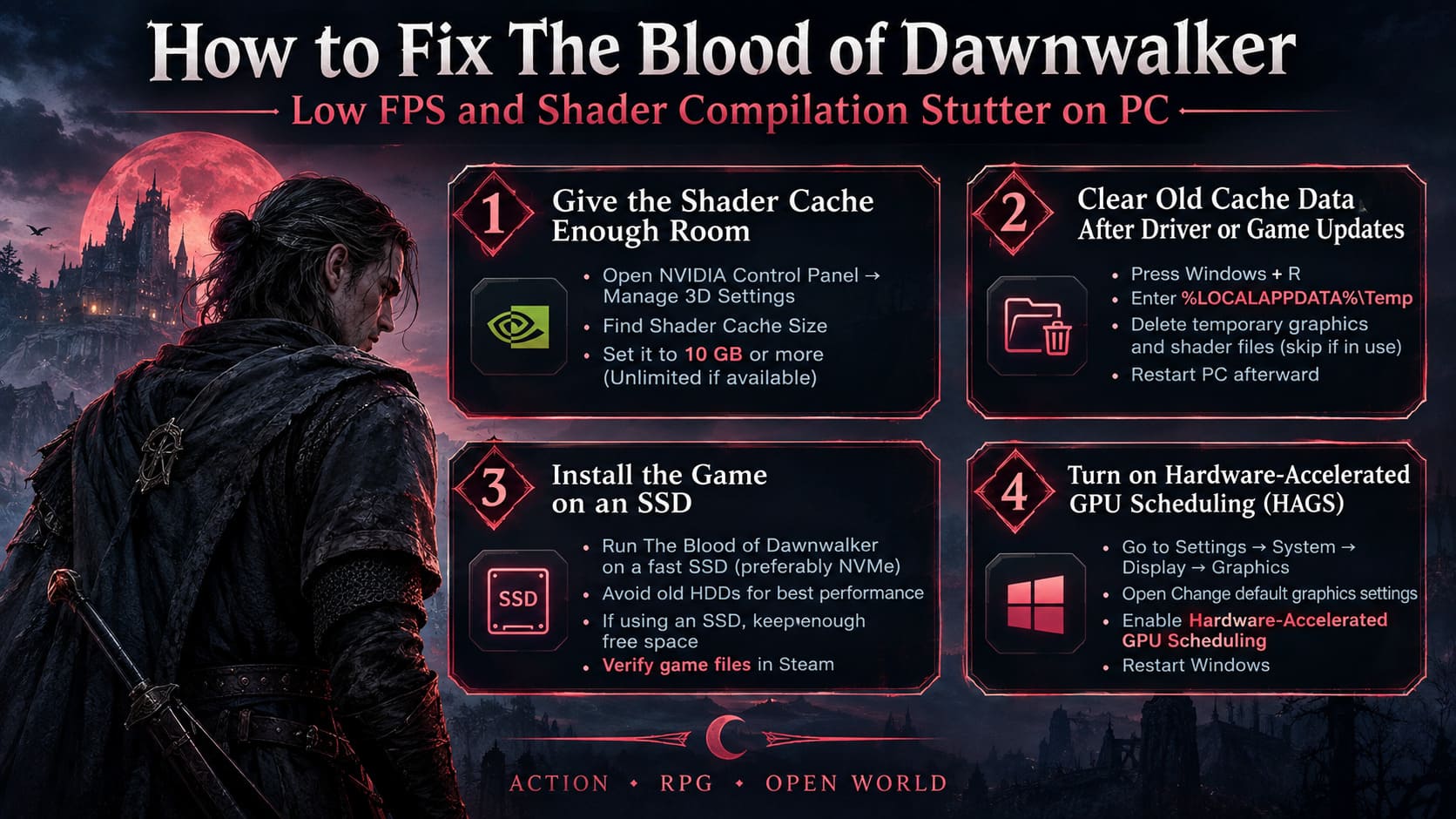
1. Give the Shader Cache Enough Room
If you’re using an NVIDIA GPU, one of the first things I’d check is the Shader Cache Size in the NVIDIA Control Panel.
Open NVIDIA Control Panel, go to Manage 3D Settings, and find Shader Cache Size. If your driver provides the option, I recommend giving it substantially more space than the default. 10 GB is a sensible starting point, while systems with plenty of free storage can use a larger or Unlimited setting if available.
The idea isn’t to magically make shaders compile faster. Instead, you’re trying to avoid constantly throwing useful cached data away and having the system rebuild it later.
For AMD users, the exact interface is different. Open AMD Software: Adrenalin Edition and check the graphics and shader-cache related options available for your driver version. I wouldn’t repeatedly reset the shader cache unless you’re troubleshooting a specific problem, though. A cache reset can temporarily make things worse because the game has to rebuild data again.
2. Clear Old Cache Data After Driver or Game Updates
This is one of those boring fixes that I wouldn’t skip if your stuttering suddenly became worse after an update.
Press Windows + R, enter %LOCALAPPDATA%\Temp, and inspect the temporary files and folders associated with graphics workloads. Don’t worry if Windows refuses to delete certain files. If something is currently being used, simply skip it.
I’d also restart the PC after cleaning up temporary shader-related data. The goal is to give Windows and your graphics driver a clean starting point instead of carrying around fragments from an older driver or game build.
One warning: don’t start randomly deleting system folders just because someone online tells you that they’re “cache files.” If you aren’t sure what a folder is, leave it alone.
3. Install the Game on an SSD
This one is not optional in my opinion. The Blood of Dawnwalker should be installed on a fast SSD, preferably an internal NVMe drive if you have one available.
An old mechanical HDD is simply not where I’d want a modern open-world Unreal Engine 5 game living. The constant movement of assets and high-resolution textures can expose the limitations of slower storage very quickly.
If you’re already using an SSD and still experiencing streaming problems, make sure the drive isn’t almost completely full. SSD performance can suffer when there’s very little free space remaining.
I’d also verify your game files through Steam. Right-click the game in your library, open Properties → Installed Files, and select Verify integrity of game files. It’s a simple step, but corrupted or incomplete files aren’t something worth troubleshooting around.
4. Turn on Hardware-Accelerated GPU Scheduling
Hardware-Accelerated GPU Scheduling (HAGS) is another Windows setting I’d test for this game, particularly if you’re already dealing with inconsistent frame pacing.
On Windows 11, go to:
- Settings
- System → Display → Graphics
- Open Change default graphics settings
- Enable Hardware-Accelerated GPU Scheduling
Restart Windows afterward.
I wouldn’t describe HAGS as a universal FPS booster. That’s not really the point. Think of it as another variable that can influence how Windows schedules GPU-related workloads. If your system feels smoother with it enabled, keep it on. If you notice instability after enabling it, test the opposite setting rather than assuming it must be beneficial.
5. The Graphics Settings I’d Actually Use
This is where I think a lot of performance guides go wrong. Turning everything down isn’t necessarily the best answer.
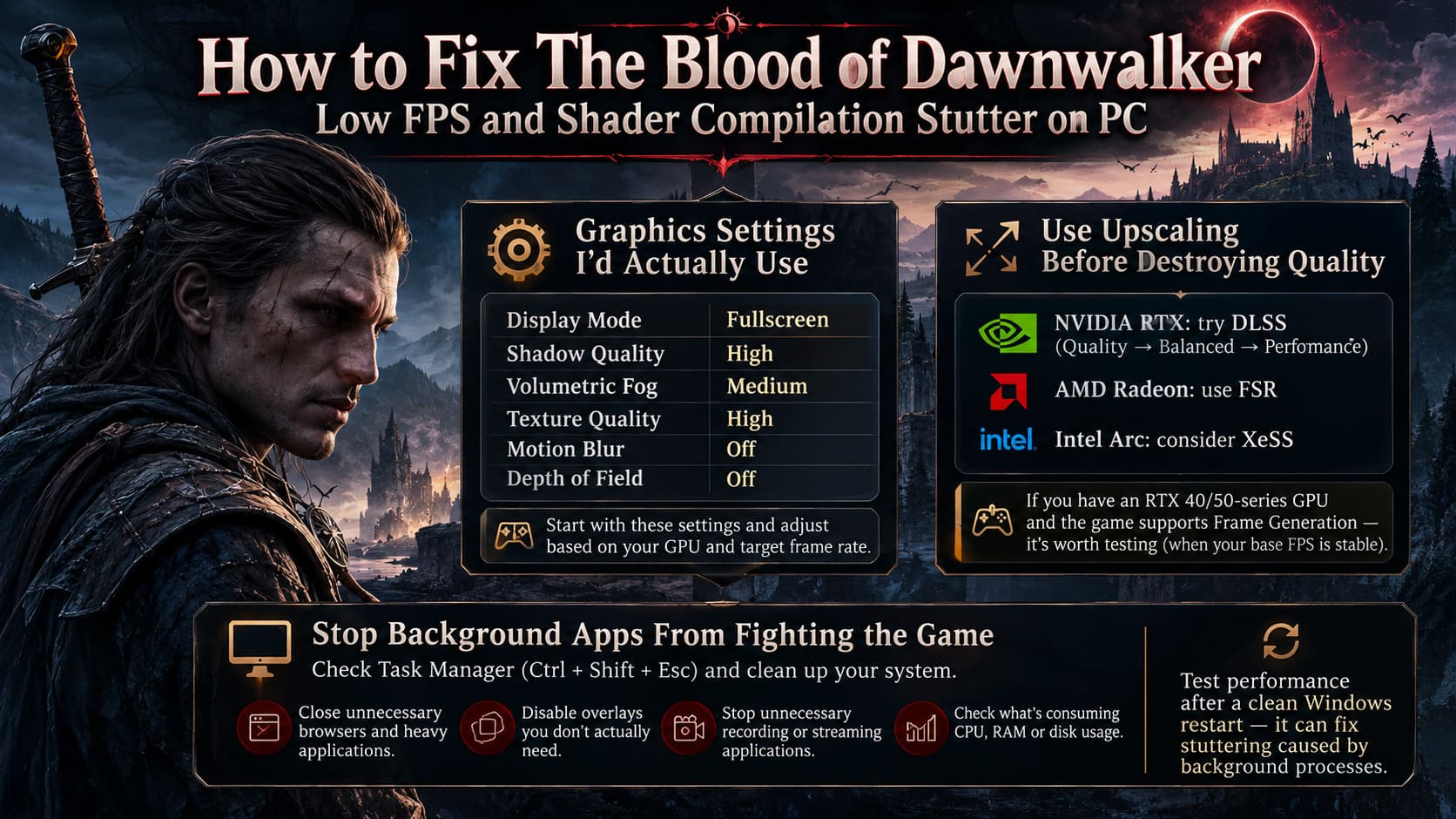
For The Blood of Dawnwalker, I’d start with the settings below and then adjust based on your GPU and target frame rate.
| Setting | My Starting Point | Why |
|---|---|---|
| Display Mode | Fullscreen | Good starting point for consistent presentation |
| Shadow Quality | High | Excellent place to recover performance |
| Volumetric Fog | Medium | Can be expensive in atmospheric scenes |
| Texture Quality | High | Balance image quality against VRAM |
| Motion Blur | Off | Cleaner image and easier motion clarity |
| Depth of Field | Off | Optional visual effect I can live without |
Texture quality deserves special attention. Don’t automatically set it to Ultra because your GPU is technically capable of rendering the game. VRAM usage matters, particularly in a large world with lots of high-resolution assets.
If you’re using an 8 GB graphics card, I’d start with High rather than immediately pushing everything to Ultra. With 12 GB or more, you have considerably more breathing room, although that still doesn’t mean every setting should automatically be maxed out.
6. Use Upscaling Before Destroying Image Quality
This is probably my favorite way to gain performance in demanding games: use the upscaler intelligently instead of massacring the graphics settings.
NVIDIA RTX users should experiment with DLSS. I’d start with Quality if the native performance is already reasonably close to your target. If you’re struggling badly, Balanced is the next setting I’d test. Performance mode is useful when you simply need more frames, but I wouldn’t jump there immediately because the reduction in image quality can become noticeable.
AMD Radeon users can use FSR, while Intel Arc owners should consider XeSS where supported by their configuration.
If you’re using an RTX 40 or RTX 50-series GPU and the game provides compatible Frame Generation, that’s another option worth testing. Just remember that Frame Generation works best when the underlying game is already running at a reasonably stable frame rate. It shouldn’t be used as a magic cure for an extremely low base FPS.
7. Stop Background Apps From Fighting the Game
This sounds obvious, but I’ve seen plenty of gaming PCs where the browser has 30 tabs open, Discord is running, multiple launchers are active, recording software is capturing footage, and several overlays are sitting on top of the game.
Before blaming The Blood of Dawnwalker, press Ctrl + Shift + Esc and check Task Manager.
- Close unnecessary browsers and heavy applications.
- Disable overlays you don’t actually need.
- Stop unnecessary recording or streaming applications.
- Check whether another program is consuming large amounts of CPU, RAM, or disk usage.
I’d also test the game’s performance after a clean Windows restart. If the stuttering suddenly improves, you know you probably have a background-process problem rather than purely a graphics-settings problem.
Should You Use High Performance Power Mode?
Windows power plans are another setting I would test, but I wouldn’t expect miracles.
Go to Control Panel → Power Options and compare your current Balanced profile against High Performance if it’s available. On some desktop systems, the difference may be negligible. On other configurations, particularly when CPU clocks are fluctuating aggressively, a performance-oriented power plan can help maintain more consistent behavior.
Again, this is about consistency rather than magically adding 30 FPS.
The Blood of Dawnwalker: Can You Save Coen’s Family in 30 Days? Time Mechanic Guide
My Recommended Troubleshooting Order
If I had just installed The Blood of Dawnwalker and was experiencing horrible stuttering, I wouldn’t change twenty settings at once. I’d work through the problem in this order:
- Make sure the game is installed on an SSD.
- Update the GPU driver and restart the PC.
- Verify the game files.
- Give the shader cache enough storage.
- Test HAGS.
- Reduce shadows and volumetric effects.
- Use DLSS, FSR, or XeSS instead of destroying every visual setting.
- Close unnecessary background applications and overlays.
I strongly recommend changing one or two things at a time. Otherwise, if performance suddenly improves, you won’t know which change actually fixed the problem.
Don’t Expect Every Shader Hitch to Disappear
There’s one important reality check here: not every stutter is something you can fix locally.
If the game is compiling a shader for the first time or streaming a completely new asset, there may still be an occasional hitch. No amount of Windows tweaking can completely rewrite how the game engine handles that workload.
This is especially important because I don’t want people wasting hours reinstalling Windows, editing obscure registry keys, or downloading questionable “FPS boost” programs from random websites. If the underlying problem is an engine-side streaming or shader-compilation issue, those tricks aren’t going to solve it.
The Blood of Dawnwalker All Bosses Guide: Strategies, Mechanics, and Lore
Final Thoughts
The Blood of Dawnwalker is the kind of PC game where smooth frame pacing matters just as much as raw FPS. Its atmosphere depends heavily on exploration, lighting, environmental detail, and fluid combat, so those little interruptions are particularly noticeable.
If I were optimizing it on my own PC, I would focus first on the fundamentals: a fast SSD, a clean driver/cache state, sensible texture settings for the amount of VRAM available, reduced shadows and volumetrics, and a good upscaling mode. From there, I’d deal with Windows settings and background applications.
Most importantly, don’t judge your setup purely by the FPS counter. If you’re sitting around a stable 60–70 FPS with consistent frametimes, that can feel considerably better than a supposedly “optimized” setup bouncing between 90 and 45 FPS.
And honestly, that’s the goal I’d chase with The Blood of Dawnwalker. Keep the atmosphere, keep the lighting, keep the visual identity of the game — just get rid of the unnecessary interruptions. With the right balance of settings, a demanding Unreal Engine 5 RPG like this can still look fantastic without making every trip through the world feel like a fight against your own PC.