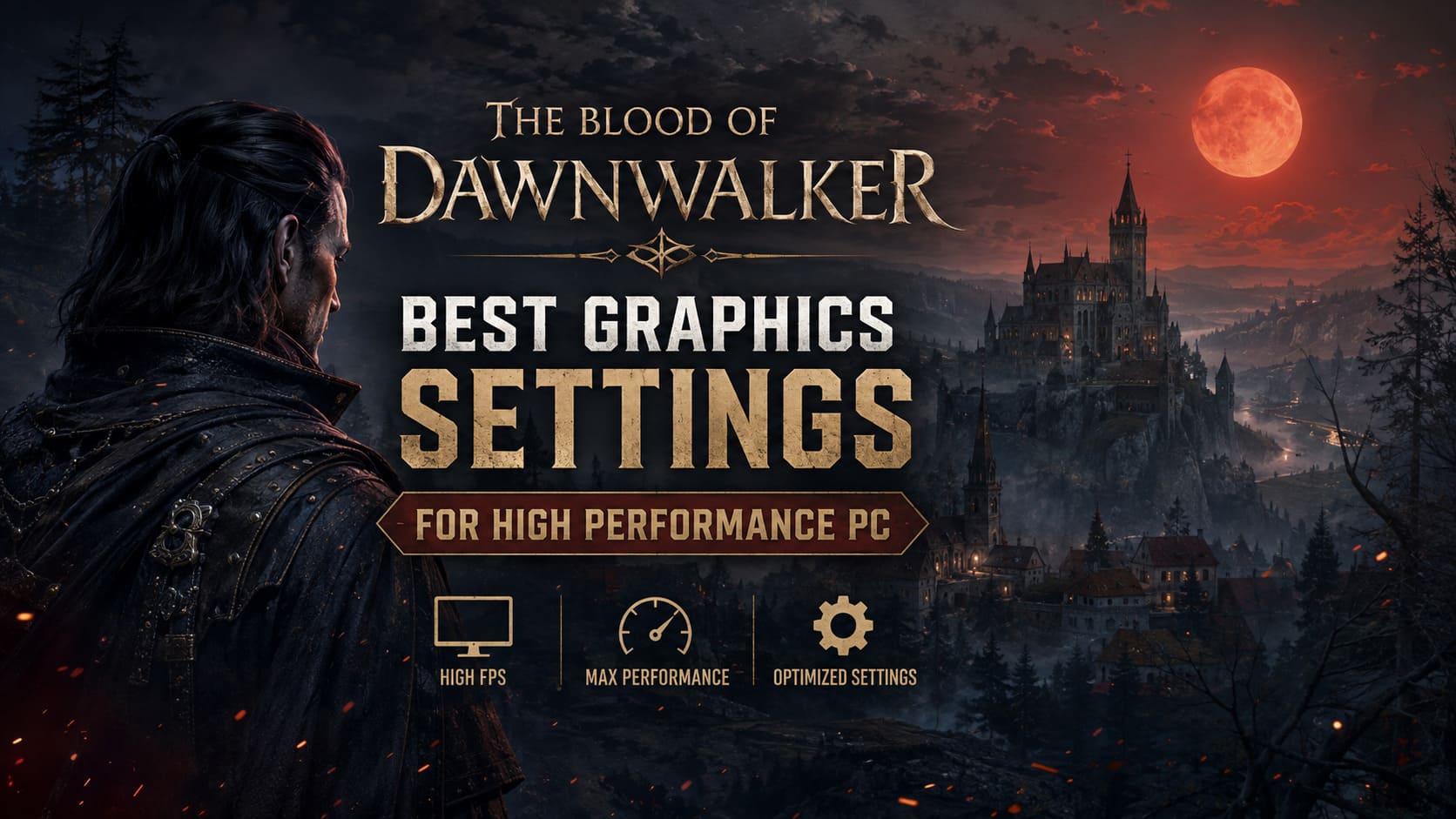
The Blood of Dawnwalker Best Graphics Settings for High Performance PC
The Blood of Dawnwalker is shaping up to be one of those games where screenshots simply do not do the world justice. Rebel Wolves has gone all-in on dark fantasy atmosphere, and the result is a gorgeous 14th-century European setting packed with dense forests, dramatic lighting, detailed architecture, fog, shadows, and some seriously impressive environmental detail.
There is just one problem: Unreal Engine 5 does not exactly hand out free frames.
With Lumen-powered dynamic lighting, Nanite geometry, dense foliage, and a huge open-world environment to stream, The Blood of Dawnwalker can put a surprisingly brutal load on modern PC hardware. Even GPUs that I would normally consider comfortably high-end can struggle when everything is cranked to Ultra at native resolution.
The NVIDIA GeForce RTX 4070 Ti and AMD Radeon RX 9070 GRE, for example, can have trouble holding a perfectly stable 60 FPS at native 1080p with maximum settings. That tells you something important right away: blindly selecting Ultra is not necessarily the best way to play this game.
The good news is that most of the performance loss comes from a handful of particularly expensive settings. Tune those correctly and you can claw back a substantial amount of performance without turning Vale Sangora into a blurry, lifeless mess.
This guide focuses on the best Blood of Dawnwalker graphics settings for high-performance PCs, with an emphasis on maintaining the game’s cinematic dark-fantasy presentation while eliminating unnecessary GPU overhead.
Why The Blood of Dawnwalker Is So Demanding on PC
The visual workload here is not coming from one single feature.
Unreal Engine 5 combines several demanding technologies, and The Blood of Dawnwalker makes aggressive use of them. Lumen dynamic lighting is responsible for much of the game’s dramatic illumination and bounced light, while Nanite allows developers to display extremely detailed geometry across the environment.
Then there is the sheer amount of vegetation, environmental clutter, atmospheric effects, shadows, and streaming data being pushed around in an open-world setting.
That combination creates an important distinction between looking spectacular and running efficiently.
Ultra settings are designed to show off the game. They are not automatically the smartest choice for everyday gameplay.
For a high-end gaming PC, I would much rather run a carefully tuned High/Ultra mixture at a stable frame rate than stare at an Ultra preset that randomly tanks performance whenever I enter a dense forest or heavily populated area.
The Blood of Dawnwalker PC System Requirements
Before changing anything, it is worth understanding what hardware the game’s official performance targets are built around.
The requirements also highlight something that PC players need to keep in mind: upscaling is a major part of the intended performance equation. Native rendering can be significantly more demanding.
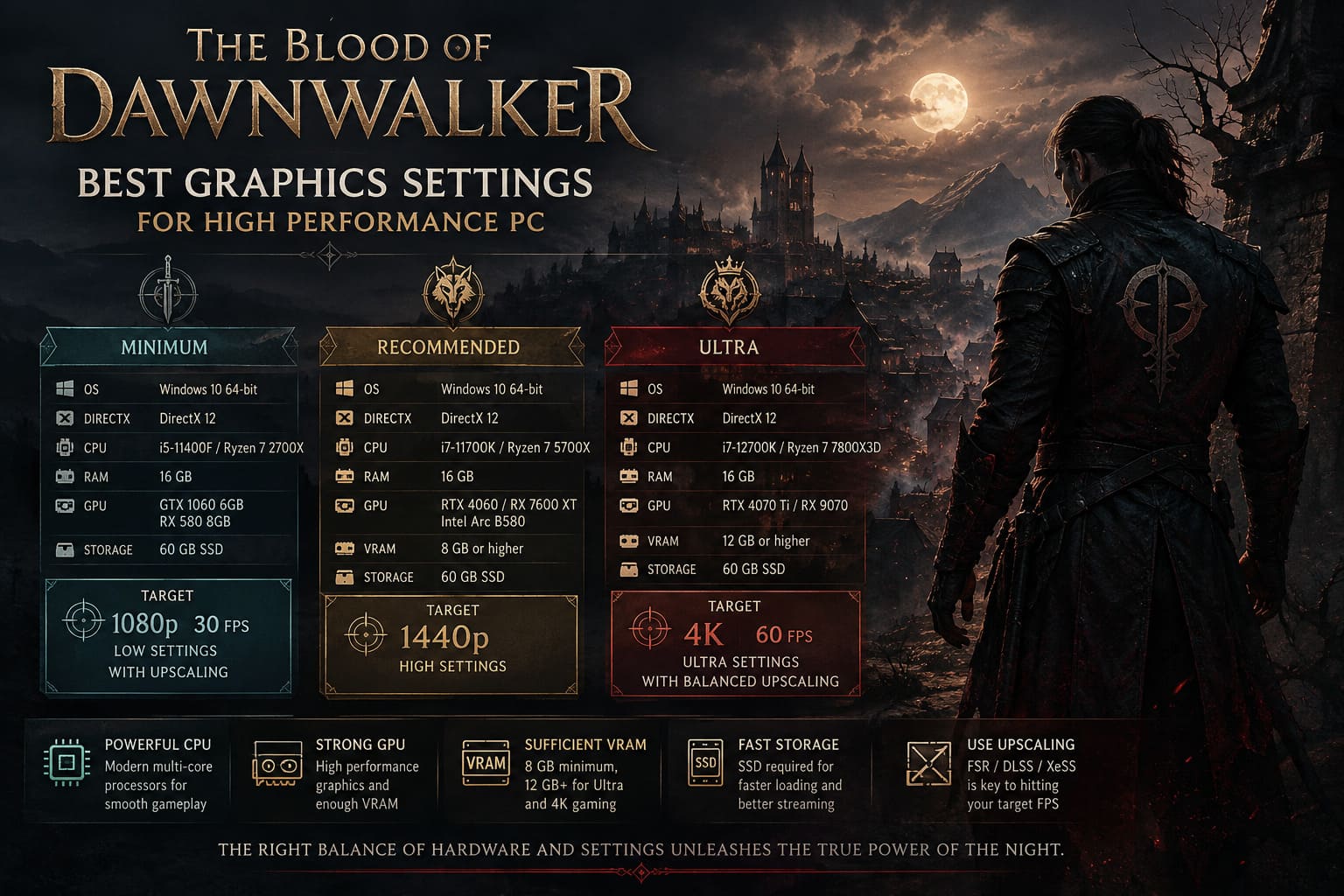
Minimum PC Requirements
| Component | Minimum Requirement |
|---|---|
| Operating System | Windows 10 or later, 64-bit |
| DirectX | DirectX 12 |
| CPU | Intel Core i5-11400F / AMD Ryzen 7 2700X |
| RAM | 16 GB |
| GPU | NVIDIA GeForce GTX 1060 6GB / AMD Radeon RX 580 8GB |
| Storage | 60 GB SSD |
| Target | 1080p, 30 FPS, Low with Upscaling |
Recommended PC Requirements
| Component | Recommended Requirement |
|---|---|
| CPU | Intel Core i7-11700K / AMD Ryzen 7 5700X |
| RAM | 16 GB |
| GPU | NVIDIA GeForce RTX 4060 / AMD Radeon RX 7600 XT / Intel Arc B580 |
| VRAM | 8 GB or higher |
| Storage | 60 GB SSD |
| Target | 1440p / High Settings |
Ultra PC Requirements
| Component | Ultra Requirement |
|---|---|
| CPU | Intel Core i7-12700K / AMD Ryzen 7 7800X3D |
| RAM | 16 GB |
| GPU | NVIDIA GeForce RTX 4070 Ti / AMD Radeon RX 9070 |
| VRAM | 12 GB or higher |
| Storage | 60 GB SSD |
| Target | 4K, 60 FPS, Ultra with Balanced Upscaling |
The takeaway is pretty straightforward: a powerful GPU alone is not enough. You also need sufficient VRAM, a capable CPU, fast storage, and sensible upscaling settings.
Best Graphics Settings for High-End PCs
If you have a modern performance-oriented PC and want The Blood of Dawnwalker to look fantastic without wasting frames, this is the configuration I recommend starting with.
Display Settings
- Display Mode: Fullscreen
- Resolution: Native monitor resolution
- V-Sync: Off
- Frame Rate Limit: Match your monitor’s refresh rate
For a 1440p monitor, stick with native 2560×1440 unless you’re specifically targeting extremely high refresh rates.
For 4K, things become considerably more demanding, so upscaling becomes much more valuable.
I generally prefer leaving V-Sync disabled and using G-Sync or FreeSync through the GPU/display configuration. It gives you better control over latency and frame pacing on a modern gaming monitor.
The Most Important Graphics Settings Explained
Not every slider deserves equal attention. Some settings barely move the performance needle, while others can absolutely hammer your GPU.
Knowing which is which is where the real optimization starts.
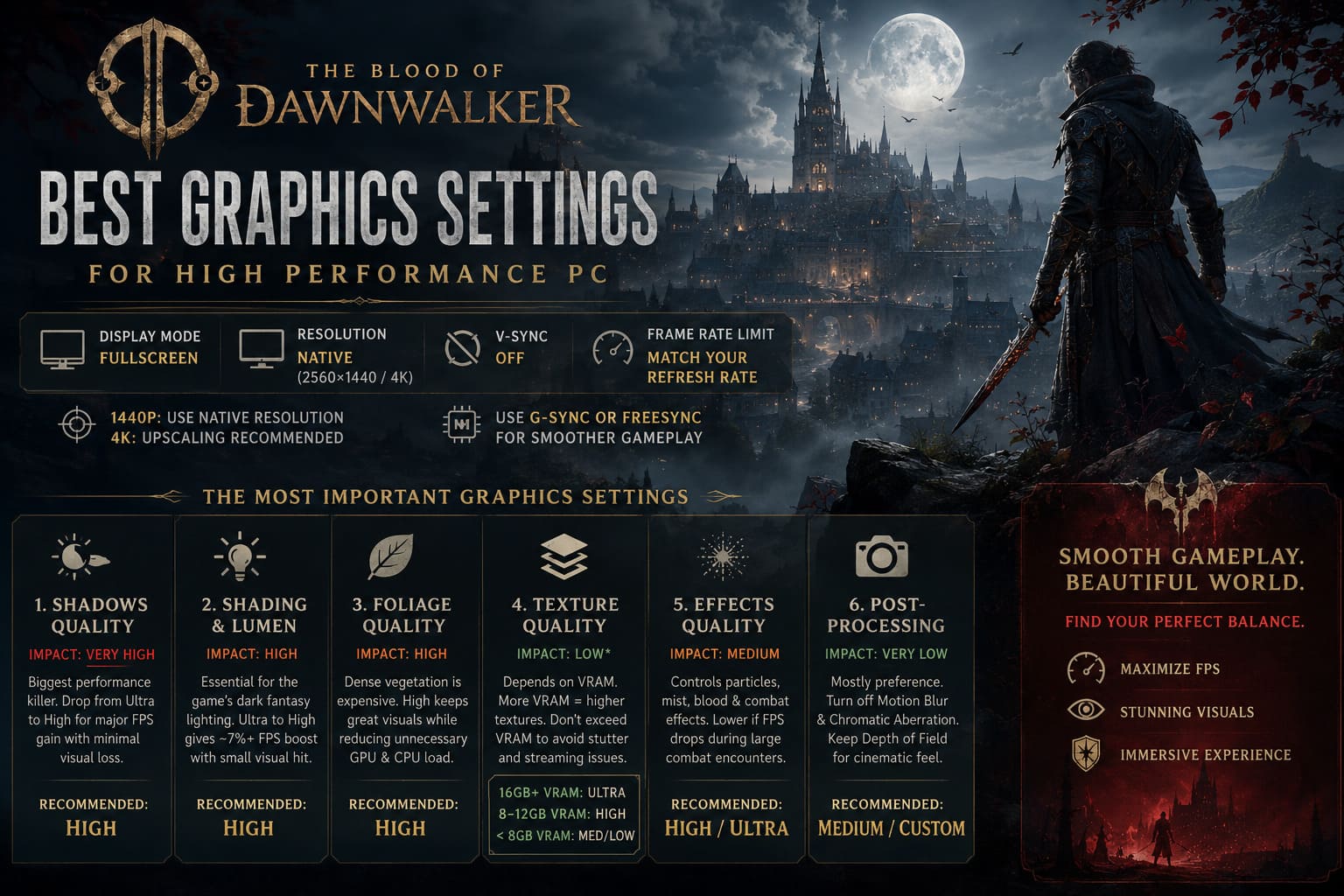
1. Shadows Quality — The Big Performance Killer
Performance Impact: Very High
Recommended: High
Shadows are one of the first settings I would touch when optimizing The Blood of Dawnwalker.
Unreal Engine 5 can make dynamic shadow rendering extremely expensive, particularly when you’re dealing with forests, foliage, environmental objects, and complex lighting conditions.
Dropping Shadows from Ultra to High is an excellent compromise. You retain most of the game’s visual depth while reducing the amount of GPU work required.
Going all the way down to Low can produce a much larger visual downgrade. Small objects, vegetation, grass, and environmental details can lose their subtle shadows, making scenes look flatter.
In practical terms, moving from Ultra to Medium can recover roughly 10–15% performance, depending on the scene and hardware.
For a high-end PC, I would stay at High unless you desperately need additional FPS.
2. Shading Quality and Lumen — Keep This High
Performance Impact: High
Recommended: High
This is another setting where chasing Ultra can be a questionable trade.
Shading quality influences the precision of dynamic lighting and the way light interacts with the environment. Because The Blood of Dawnwalker relies heavily on its dark fantasy lighting, lowering this setting too aggressively can hurt the game’s atmosphere.
Moving from Ultra to High can provide approximately a 7.4% frame-rate improvement while keeping the visual difference relatively small.
Dropping further to Medium or Low doesn’t necessarily provide enough additional performance to justify what you lose visually.
And honestly, this is a game where lighting matters.
The whole vampire-inspired aesthetic depends on deep shadows, atmospheric interiors, moonlight, firelight, and dynamic environmental illumination. I would rather sacrifice a little shadow quality than make the world look flat.
High is the sweet spot.
3. Foliage Quality — High Is the Smart Choice
Performance Impact: High
Recommended: High
The wilderness areas of Vale Sangora are absolutely packed with vegetation.
That looks great, but dense foliage is expensive. Rendering huge amounts of grass, leaves, trees, and environmental clutter can create substantial GPU and CPU workload.
Ultra foliage can look impressive in screenshots, but High generally preserves most of the visual density while reducing unnecessary overhead.
If you’re experiencing FPS drops while running through forests or open fields, this is one of the settings worth lowering before touching textures.
High is my recommended setting for almost every high-performance PC.
4. Texture Quality — VRAM Determines the Answer
Performance Impact: Low, assuming you have enough VRAM
Recommended: High or Ultra
Textures are slightly different from most other graphics settings.
If your GPU has enough VRAM, increasing texture quality generally has a relatively small direct impact on frame rate.
The problem starts when you exceed your available VRAM.
Once the system starts struggling with texture memory, you can encounter hitching, sudden frame-time spikes, asset streaming problems, and ugly performance drops.
Use this simple rule:
- 16 GB VRAM or more: Ultra
- 8–12 GB VRAM: High
- Below 8 GB VRAM: Medium or Low
There is very little point in forcing Ultra textures onto a GPU that cannot comfortably hold them.
If your VRAM usage is constantly sitting on the edge, dropping textures one step can actually make the entire game feel dramatically smoother.
5. Effects Quality — Keep It High
Performance Impact: Medium
Recommended: High or Ultra
Effects quality controls things such as particles, mist, blood effects, combat effects, and other visual phenomena.
This setting can become more important during chaotic combat sequences involving multiple enemies and lots of simultaneous effects.
For a powerful gaming PC, High or Ultra should be perfectly reasonable.
If your frame rate normally looks good but suddenly collapses during large fights, try reducing Effects Quality before making major changes elsewhere.
6. Post-Processing — Mostly Personal Preference
Performance Impact: Very Low
Recommended: Medium / Custom
Post-processing includes effects such as:
- Motion Blur
- Bloom
- Depth of Field
- Chromatic Aberration
These settings are nowhere near as important for performance as shadows, lighting, or foliage.
Personally, I recommend turning Motion Blur Off. Fast camera movement looks much cleaner without it, especially when playing at higher frame rates.
Chromatic Aberration is also something I would happily disable. It can add a cinematic effect, but it rarely improves actual gameplay clarity.
Depth of Field is different. It can contribute nicely to cinematic scenes and cutscenes, so I recommend leaving it On if you enjoy the game’s presentation.
Bloom is optional. Turn it off if you want every last frame, but don’t expect a miracle performance boost.
Recommended High-Performance PC Configuration
Here is the complete setup I would use as a starting point for a modern high-end system.
| Setting | Recommended Value |
|---|---|
| Display Mode | Fullscreen |
| Resolution | Native |
| V-Sync | Off |
| Frame Rate Limit | Monitor Refresh Rate |
| Graphics Preset | Custom |
| Shadows | High |
| Shading | High |
| Foliage | High |
| Textures | High / Ultra |
| Effects | High |
| Post-Processing | Medium |
| View Distance | High |
| Motion Blur | Off |
| Bloom | Off |
| Chromatic Aberration | Off |
| Depth of Field | On |
This setup is deliberately conservative.
I’m not trying to win a screenshot benchmark. I’m trying to make the game look expensive while actually feeling smooth.
That’s a much better target for an open-world action RPG.
DLSS, FSR and XeSS: Don’t Ignore Upscaling
If you’re targeting high refresh rates, upscaling is arguably one of the most useful tools available.
Use the technology that matches your hardware:
- NVIDIA GeForce: DLSS
- AMD Radeon: FSR
- Intel Arc: XeSS
For 1440p, start with Quality.
It generally provides a good balance between native-like image clarity and improved performance.
For 4K, Balanced becomes much more attractive because rendering every frame at native 3840×2160 can be brutally expensive.
If you are struggling to maintain your target FPS, moving from Quality to Balanced can be a much smarter move than gutting every major graphics setting.
Should You Use Frame Generation?
If your GPU supports it, Frame Generation can be extremely useful for high-refresh gameplay.
RTX 40-series and RTX 50-series hardware, along with compatible AMD hardware, can use frame-generation technology to substantially increase the displayed frame rate.
It is particularly useful when your underlying rendering performance is already reasonably strong.
For example, I would much rather start from a solid 60–70 FPS baseline and use Frame Generation to push the perceived output considerably higher than enable it while the game is struggling to render 30 FPS.
Remember that generated frames do not magically make the underlying game simulation faster. They are primarily about increasing perceived smoothness and display output.
Windows and GPU Tweaks for Better Performance
Graphics settings are only half of the equation.
Update Your GPU Driver
Make sure your NVIDIA or AMD driver is current before troubleshooting performance.
New Unreal Engine 5 games can benefit significantly from driver-side optimizations, especially during the early weeks after launch.
For the game-specific profile, you can consider:
- Power Management Mode: Prefer Maximum Performance
- Low Latency Mode / Anti-Lag: On or Ultra
- Texture Filtering Quality: High Performance
Don’t blindly change every driver setting globally. If possible, create a profile specifically for The Blood of Dawnwalker.
Install the Game on an SSD
This one isn’t optional in my book.
The game requires an SSD, and that’s for good reason.
Open-world UE5 games constantly stream assets, textures, geometry, and environmental data. An old mechanical hard drive can turn those streaming demands into nasty stutters and delayed asset loading.
If you have multiple drives, install the game on your fastest SSD.
It won’t magically double your FPS, but it can contribute to smoother asset streaming and fewer storage-related interruptions.
How to Fix The Blood of Dawnwalker Black Screen on Launch and Startup Crashes
Close Background Applications
Before blaming Unreal Engine 5 for every hitch, take a look at what Windows is doing in the background.
Open Task Manager with Ctrl + Shift + Esc and check for applications eating CPU, RAM, disk, or GPU resources.
Browsers with dozens of tabs, recording software, unnecessary launchers, RGB utilities, overlays, and other background applications can all compete for system resources.
You don’t need to turn your PC into a sterile gaming machine with every Windows process disabled. Just eliminate obvious resource hogs.
The Blood of Dawnwalker: How to Unlock Secret Vampire Skills & Hidden Powers
My Final Blood of Dawnwalker PC Optimization Verdict
The biggest mistake you can make with The Blood of Dawnwalker is treating the Ultra preset as sacred.
It isn’t.
Shadows, Lumen-related shading, and foliage are where I would look first when performance starts falling apart. Those settings can consume serious GPU resources, while reducing them slightly often produces a much smaller visual downgrade than expected.
Textures are different. Keep them high when your VRAM allows it, because they offer one of the better visual upgrades for comparatively modest performance cost.
For most powerful PCs, the ideal combination is essentially:
High shadows + High shading + High foliage + High/Ultra textures + High effects + sensible upscaling.
Then disable the post-processing effects you don’t personally care about.
The result should still look like The Blood of Dawnwalker — dark, dense, atmospheric, and beautifully lit — without forcing your graphics card to burn through every available watt just to maintain an Ultra preset.
And that’s really the goal here. Don’t optimize for a settings menu. Optimize for the actual game.
A stable frame time while exploring Vale Sangora, fighting through a chaotic encounter, or moving through a dense forest is far more valuable than a handful of extra Ultra-quality shadows that you probably won’t notice while you’re busy trying not to get killed.
For a high-performance gaming PC in 2026, this tuned configuration is the kind of setup I would start with before experimenting further. Once you have a stable baseline, you can push individual settings upward and see exactly where your particular hardware starts to buckle.