How to Fix STAR WARS Zero Company Crashing on Startup on PC (Windows 10 & 11)
There are few things more frustrating than waiting for a new STAR WARS game to launch, getting through the splash screen, and then watching it disappear back to the desktop like nothing happened.
That is exactly the kind of problem some PC players are running into with STAR WARS Zero Company. Sometimes the game crashes immediately after clicking Play. Sometimes you get a black screen. In other cases, the splash logo appears for a few seconds and then — boom — straight back to Windows with no useful error message.
I know how annoying this is because startup crashes are one of the worst PC gaming problems to troubleshoot. If a game crashes after an hour, at least you can usually figure out what was happening. When it refuses to reach the main menu, you’re basically troubleshooting blind.
The good news is that there are several things worth trying before you start reinstalling Windows or blaming your GPU.
Based on the most common PC troubleshooting patterns for modern games, here is how I would approach STAR WARS Zero Company crashing on startup on Windows 10 or Windows 11.
1. Start With the Boring Fix: Verify the Game Files
I know, “verify your files” is probably the most overused piece of PC gaming advice ever.
But there is a reason everyone keeps recommending it.
A failed update, interrupted download, or damaged file can be enough to make a game crash before the main menu even appears. You don’t necessarily need a massive corrupted installation — one important file can be all it takes.
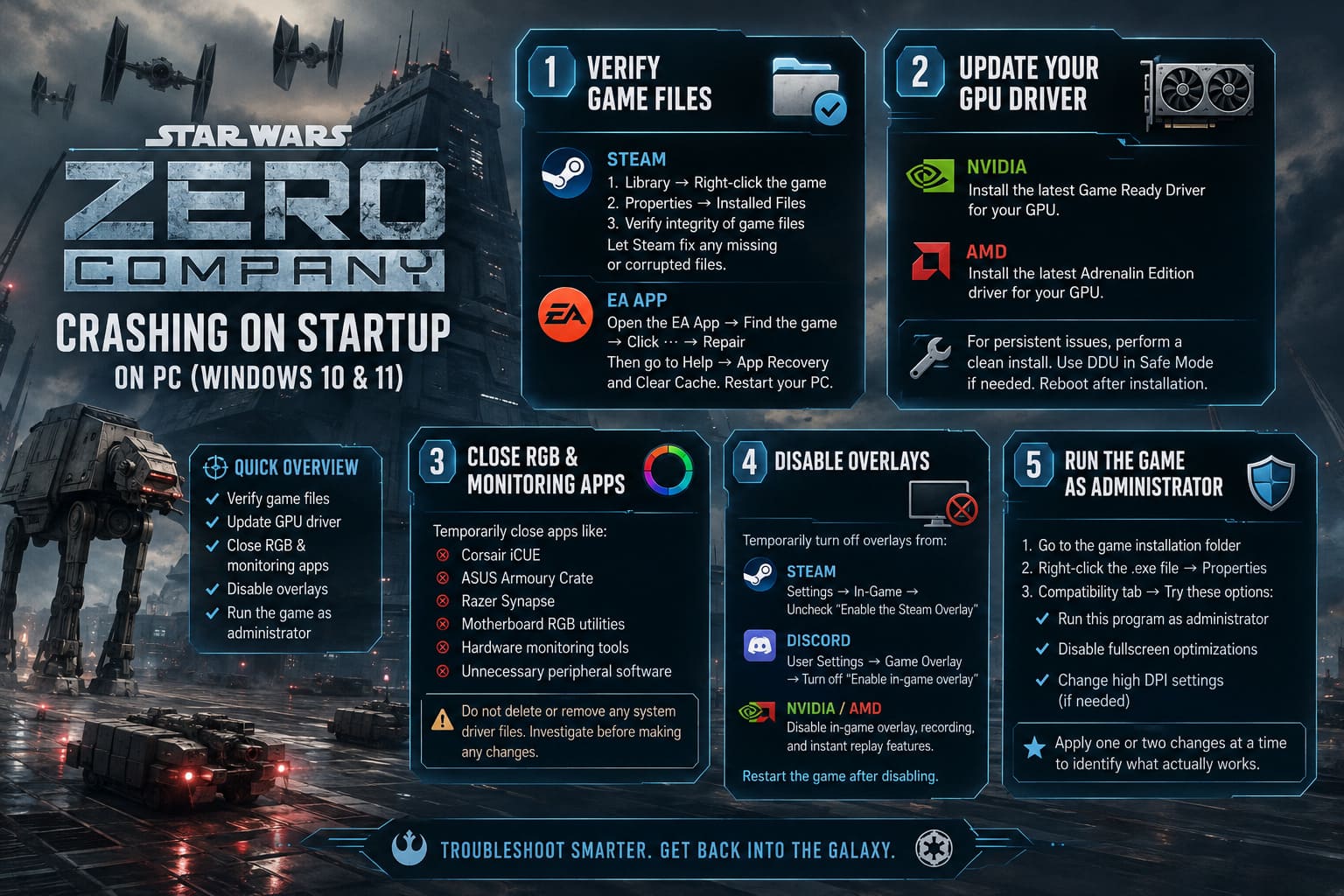
If you’re playing through Steam
- Open Steam and go to your Library.
- Right-click STAR WARS Zero Company.
- Select Properties.
- Open Installed Files.
- Click Verify integrity of game files.
- Let Steam finish checking the installation.
If Steam downloads replacement files afterward, restart the game and test it again.
If you’re using the EA App
Open your library, find the game, click the three-dot menu and choose Repair.
I’d also clear the EA App cache afterward. In the EA App, open the menu in the upper-left corner, go to Help → App Recovery, and choose Clear Cache.
Then restart the PC.
It sounds simple, but I’d absolutely do this before touching more complicated Windows settings.
2. Update Your GPU Driver — But Consider a Clean Installation
If there is one thing I would never ignore when a brand-new PC game is crashing, it’s the graphics driver.
A driver can technically be “up to date” and still have leftover components from previous installations causing problems. This becomes particularly annoying when you regularly update drivers without performing a clean installation.
For NVIDIA cards, install the latest Game Ready Driver available for your GPU.
For AMD cards, make sure you’re running a current Adrenalin Edition driver appropriate for your hardware.
If you’ve already updated several times and Zero Company still crashes instantly, I’d consider doing a clean installation rather than simply installing the newest package over the old one.
For stubborn cases, Display Driver Uninstaller (DDU) can be used from Windows Safe Mode to remove existing display-driver components before installing the new driver.
I wouldn’t jump straight to DDU if this is the first time the game has crashed. Try a normal driver update first. If several games are also behaving strangely, that’s when a clean driver reinstall starts making much more sense.
Don’t forget to reboot after installing the driver. It sounds obvious, but it’s surprisingly easy to skip.
3. Temporarily Shut Down RGB and Hardware Monitoring Software
This is one of those fixes that feels ridiculous until it actually works.
Modern gaming PCs can have a ridiculous number of background applications running. RGB controllers, motherboard utilities, fan-control software, hardware monitoring tools, peripheral managers and overclocking utilities can all hook into Windows or interact with running games.
That means your shiny RGB setup could theoretically be part of the problem.
Before launching STAR WARS Zero Company, temporarily close programs such as:
- Corsair iCUE
- ASUS Armoury Crate
- Razer Synapse
- Motherboard RGB utilities
- Third-party hardware monitoring tools
- Unnecessary peripheral software
I’d start by simply closing them rather than deleting anything.
If the game suddenly launches normally, you’ve found a very useful clue.
A quick warning
I would not randomly delete or rename system driver files just because someone online says they are associated with RGB software.
If a crash dump specifically identifies a driver such as inpoutx64.sys, investigate which application installed it first. Removing a kernel-level driver without knowing what depends on it can create a completely different Windows problem.
When troubleshooting Windows, “delete the suspicious file” should be a last resort, not step one.
4. Disable Every Overlay You Don’t Need
Overlays are convenient, but when a game is crashing during initialization, I prefer removing as many variables as possible.
Steam, EA, Discord, NVIDIA and AMD software can all add overlays or background hooks.
Temporarily disable them and launch the game again.
For Steam, look under the application’s In-Game settings and disable the Steam Overlay.
For Discord, open User Settings → Game Overlay and turn off the in-game overlay.
If you’re using NVIDIA or AMD software, temporarily disable features such as recording, instant replay and their gaming overlays as well.
You don’t have to live without these features forever.
The goal is simply to determine whether one of them is interfering with the game.
And honestly, this is one of the first things I test whenever a newly released PC game refuses to start.
5. Try Running the Game as Administrator
Windows security can occasionally get in the way of games trying to access their configuration folders, shader caches or other files during the first launch.
Find the game’s executable by browsing the local installation directory.
Right-click the .exe file, select Properties, then open the Compatibility tab.
From there, you can test:
- Run this program as an administrator
- Disable fullscreen optimizations
- High-DPI scaling override if you’re experiencing display-related startup problems
I wouldn’t permanently change every compatibility option at once.
Try one or two changes, launch the game, and see what happens. Changing ten settings simultaneously makes troubleshooting much harder because you won’t know which one actually solved the problem.
6. Force STAR WARS Zero Company Into Windowed Mode
A black screen followed by a crash often makes me suspicious of the game’s initial display configuration.
Sometimes a game tries to start using a resolution, refresh rate or fullscreen mode that doesn’t play nicely with the current Windows display configuration.
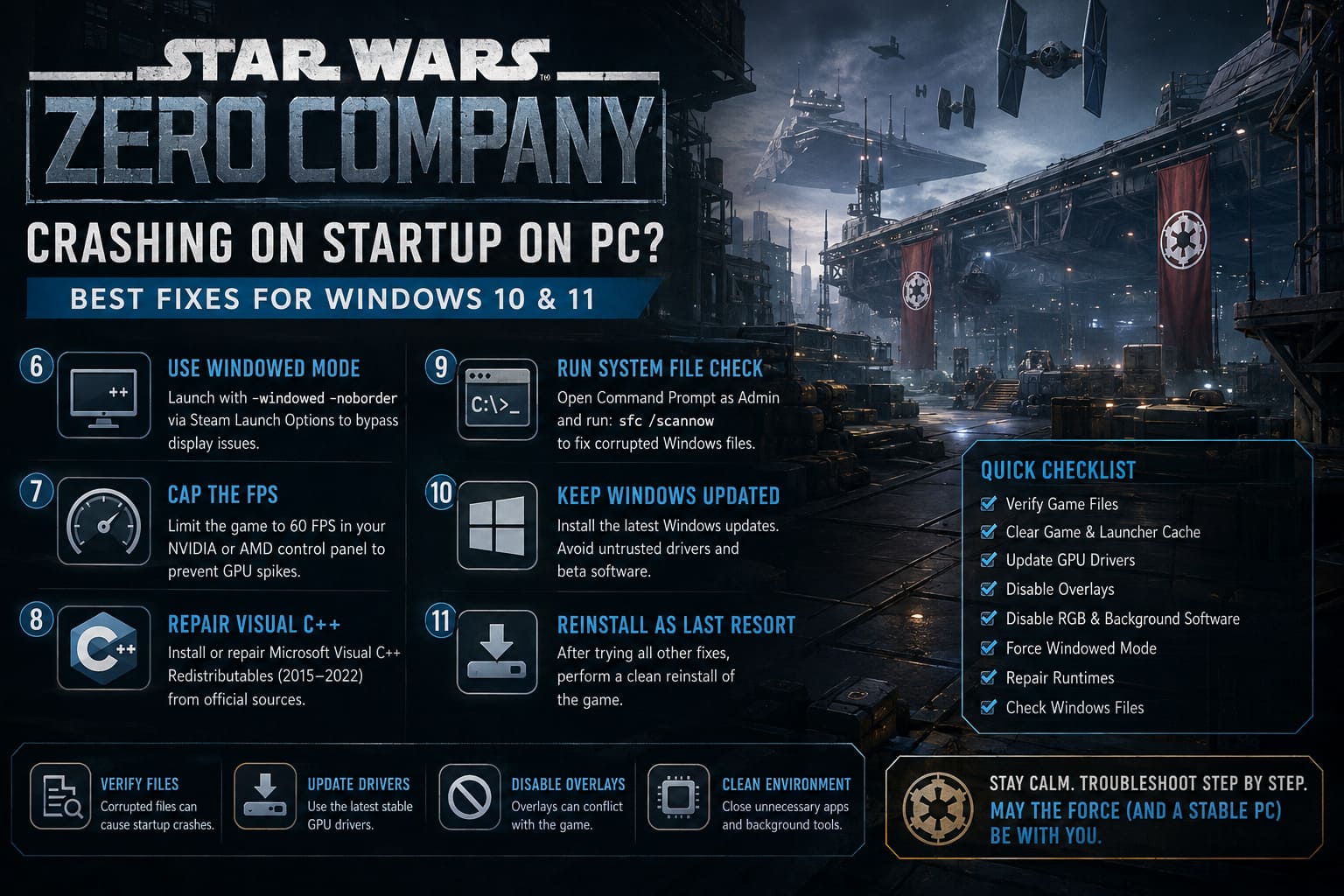
If you’re using Steam, open:
Library → Right-click the game → Properties → General → Launch Options
You can try:
-windowed -noborderThe idea is simple: force the game to start without immediately taking exclusive control of the display.
If it finally reaches the main menu, go into the graphics settings and choose your monitor’s native resolution and preferred display mode.
After that, remove the launch option and test a normal startup.
If this fixes the problem, the original issue was likely related to the game’s saved display configuration rather than your entire installation.
7. Put a Sensible FPS Cap on the Game
This is not the first thing I’d try for a crash before the menu, but it’s worth testing if the game launches inconsistently or crashes during loading.
Some games can produce extremely high frame rates in menus and loading screens. Your GPU may suddenly jump to maximum utilization before you’ve even entered the game.
Open your NVIDIA Control Panel or AMD graphics software and create a profile specifically for STAR WARS Zero Company.
Set a reasonable maximum frame rate such as 60 FPS.
If your monitor runs at 120 Hz or 144 Hz, you can experiment with a higher limit later.
The goal here isn’t to sacrifice performance. It’s simply to prevent unnecessary GPU spikes while you’re diagnosing the startup problem.
Once the game is stable, you can raise the limit.
8. Repair Microsoft Visual C++ Components
A surprising number of PC games rely on Microsoft runtime components that most players never think about.
If the Visual C++ Redistributables are damaged or incomplete, a game can fail during startup without giving you a particularly helpful explanation.
Install or repair the current Microsoft Visual C++ Redistributable packages, particularly the 2015–2022 versions.
If they’re already installed, use the Repair option where available.
I’d also avoid downloading random “all-in-one DLL packs” from unofficial websites. If Windows is missing a runtime component, get it from Microsoft rather than trusting some suspicious download site.
This is one of those situations where the boring official solution is also the safest one.
9. Let Windows Check Its Own System Files
If STAR WARS Zero Company isn’t the only game crashing, I’d stop blaming the game for a moment and check Windows itself.
Open Command Prompt as Administrator and run:
sfc /scannowWindows will scan protected system files and attempt to repair corrupted components.
Depending on your system, the process can take a while.
Once it finishes, restart the PC and test the game again.
If SFC reports problems that it couldn’t repair, that’s when I’d move on to deeper Windows troubleshooting rather than repeatedly reinstalling the game.
10. Don’t Ignore Windows Updates — But Don’t Blindly Install Every Driver Either
Windows 10 and Windows 11 are constantly changing, and a new cumulative update can sometimes alter how applications interact with drivers and security features.
Make sure Windows itself isn’t sitting on a half-installed update.
At the same time, I wouldn’t immediately start installing optional beta drivers, unofficial patches or registry tweaks just because someone posted them in a forum.
Stable troubleshooting beats random troubleshooting.
If the game worked yesterday and stopped launching immediately after a Windows update, that’s useful information. Check whether other players are reporting the same issue and whether a reliable workaround or official fix exists.
11. The Nuclear Option: Reinstall the Game
I deliberately put this near the end.
Reinstalling a large modern game can take a long time, and if the actual problem is your GPU driver, overlay software or Windows environment, you’ll just download the same problem again.
Before reinstalling, make sure you’ve already tried:
- File verification
- Launcher cache clearing
- GPU driver update
- Overlay removal
- RGB/software shutdown
- Windowed launch
- Runtime repair
If all of those fail, then a clean reinstall becomes much more reasonable.
If possible, also remove leftover configuration files only after backing up anything important. A corrupted configuration can sometimes survive a standard uninstall and reinstall, which means you can end up right back where you started.
Star Wars Zero Company Beginner Guide: Best Classes, Combat Tips, and Den Strategy
My Recommended Order of Attack
If I were sitting at my own PC staring at a STAR WARS Zero Company crash-to-desktop problem, I wouldn’t randomly try all eleven solutions.
I’d work through them in this order:
| Priority | Fix | Why I’d Try It |
|---|---|---|
| 1 | Verify Game Files | Fast and harmless |
| 2 | Clear EA/Launcher Cache | Fixes corrupted local launcher data |
| 3 | Disable Overlays | Easy way to eliminate software conflicts |
| 4 | Update GPU Driver | Essential for a new PC release |
| 5 | Close RGB Utilities | Removes potential kernel/background conflicts |
| 6 | Force Windowed Mode | Useful for black-screen/display crashes |
| 7 | Run as Administrator | Tests Windows permission issues |
| 8 | Repair Visual C++ | Fixes missing runtime dependencies |
| 9 | SFC Scan | Checks Windows itself |
| 10 | FPS Cap | Useful for GPU/load-related instability |
| 11 | Reinstall | Last resort |
Is Star Wars Zero Company Worth Buying on Day One? Launch Day Review and Performance Analysis
Final Thoughts
The biggest mistake with PC troubleshooting is assuming there must be one magical fix.
Sometimes STAR WARS Zero Company crashing on startup really is caused by corrupted files. Other times it’s a graphics driver, overlay, RGB utility, display configuration or Windows component quietly getting in the way.
That’s why I prefer a methodical approach.
Start with the fixes that are quick and reversible. Verify the installation, clear the launcher cache, update your GPU driver and disable overlays. Then move toward compatibility settings, windowed launch parameters and Windows repair tools.
And if RGB software is involved, don’t immediately start deleting kernel drivers. Find out what installed the component first.
The good news is that most startup crashes are not signs that your PC suddenly can’t handle the game. More often, there’s simply something sitting between the game executable and the clean startup it expects.
Once you’ve removed those conflicts, the splash screen should hopefully turn into the thing we actually wanted to see in the first place: the STAR WARS Zero Company main menu.
And honestly, after spending half an hour fighting Windows instead of fighting in the Star Wars universe, getting past that menu feels like a victory of its own.