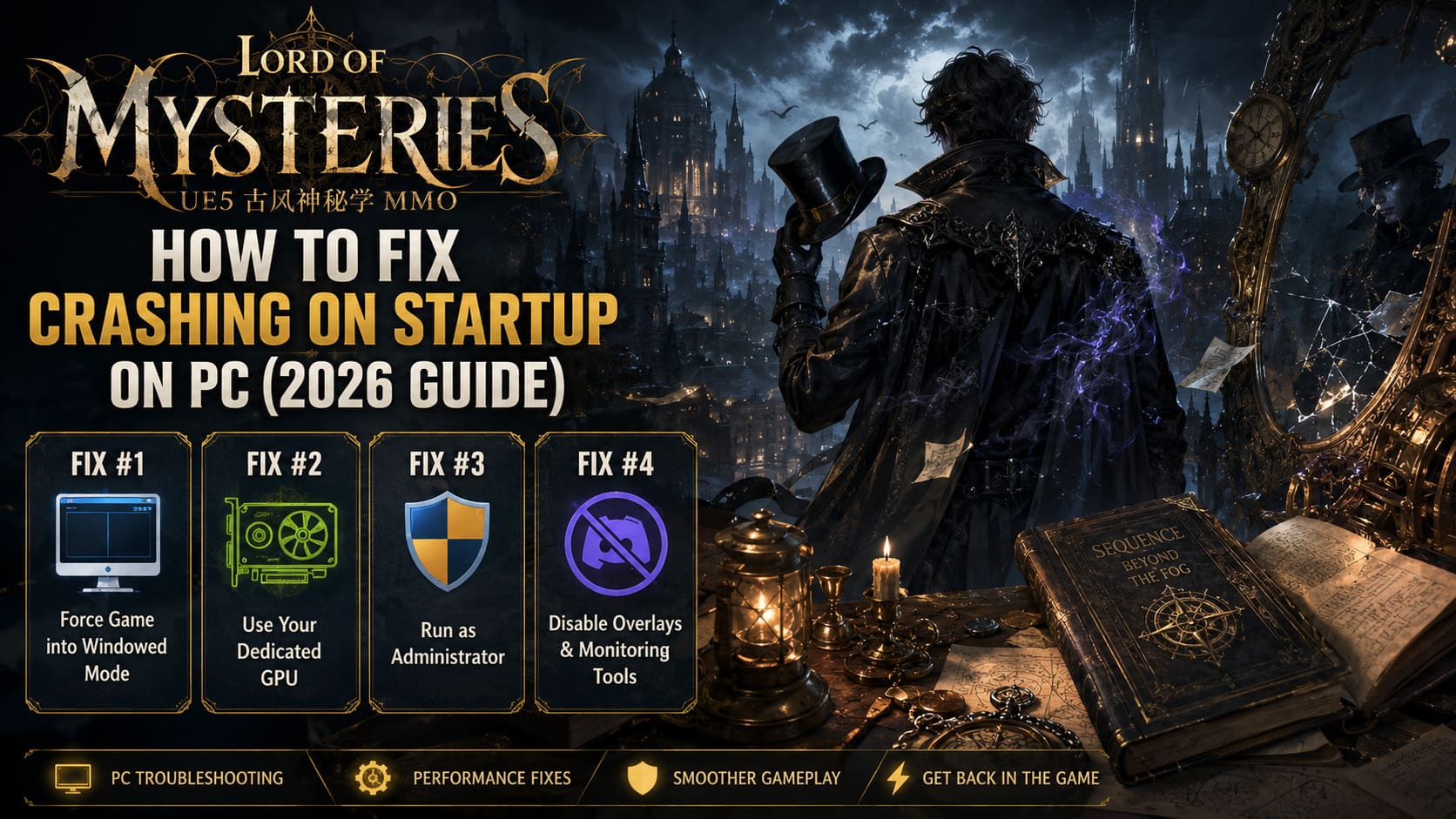
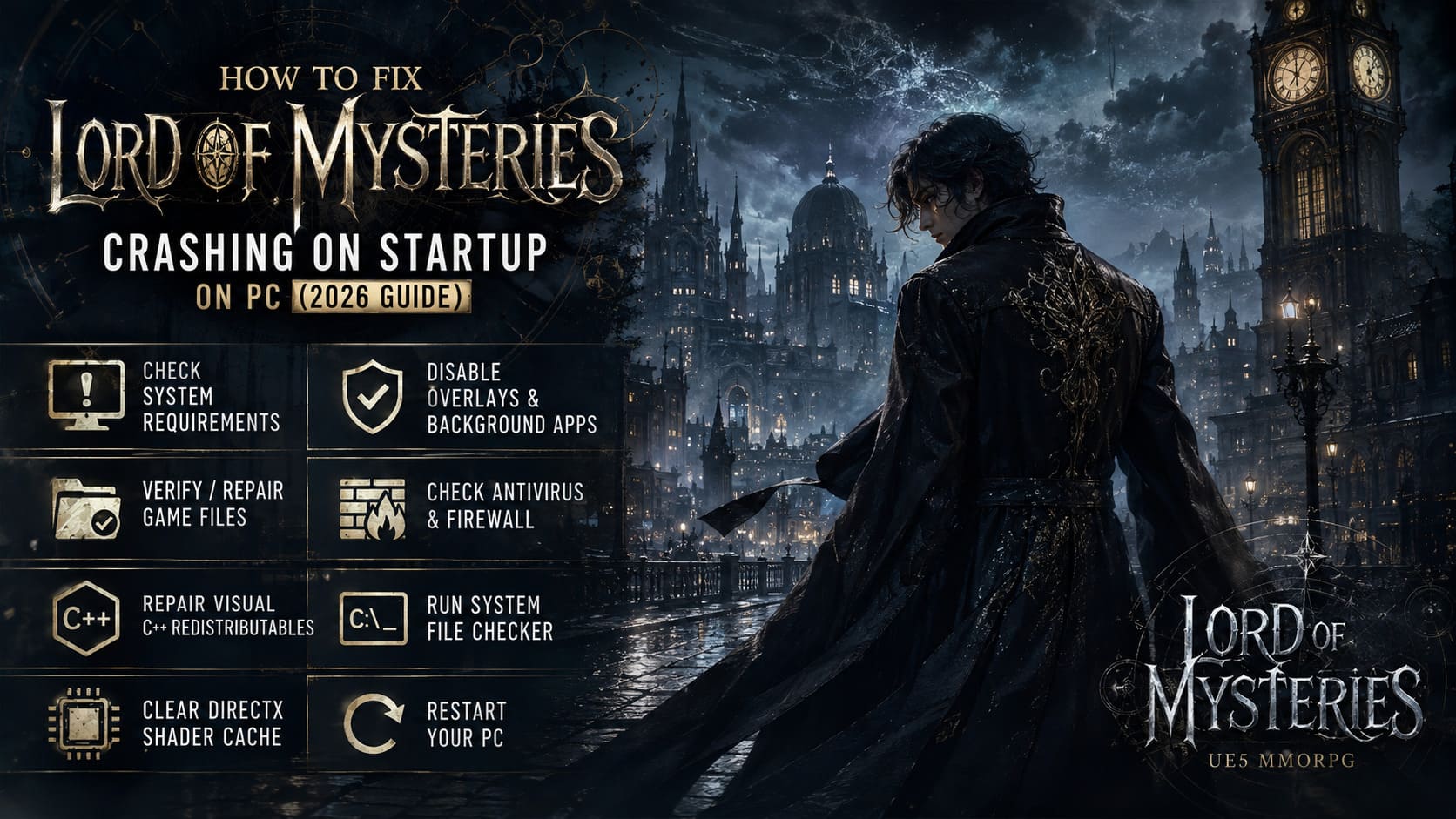
How to Fix Lord of Mysteries Crashing on Startup on PC (2026 Guide)
There’s a particular kind of PC gaming frustration I know too well: you finally have time to play, hit Play, watch the launcher disappear, and then… nothing. Desktop. Black screen. Maybe a frozen loading window if you’re lucky.
That seems to be the experience some players are having with Lord of Mysteries on PC. The game has a lot going for it. Its dark fantasy setting, Victorian-inspired atmosphere, steampunk technology, and cosmic horror influences make it one of those releases I really want to see running properly. But Unreal Engine 5 games can be surprisingly temperamental, especially during launch.
If Lord of Mysteries crashes before reaching the main menu, I wouldn’t immediately start reinstalling Windows or blaming your GPU. There are several much simpler things worth checking first.
I’ve put together the fixes I’d personally work through, starting with the easy stuff and moving toward the more technical solutions.
First, Make Sure Your PC Can Actually Handle Lord of Mysteries
Before changing configuration files or blaming Easy Anti-Cheat, check the basics.
Lord of Mysteries is built around Unreal Engine 5, so it expects reasonably modern hardware and a current Windows environment. Meeting the minimum requirements doesn’t guarantee perfect performance, but falling below them can absolutely turn a startup problem into a crash.
| Component | Minimum | Recommended |
|---|---|---|
| OS | Windows 10 64-bit 21H2+ | Windows 11 64-bit |
| CPU | Intel Core i5-8400 / Ryzen 5 2600 | Intel Core i7-10700K / Ryzen 7 3700X |
| RAM | 16 GB | 16–32 GB |
| GPU | GTX 1060 6GB / RX 580 | RTX 3070 / RX 6700 XT |
| DirectX | DirectX 12 | DirectX 12 |
| Storage | 70 GB SSD | 70 GB NVMe SSD |
One thing I would not ignore is the storage drive.
If you installed the game on an old HDD, move it to an SSD if possible. Unreal Engine 5 titles constantly stream assets and compile shaders, and a slow mechanical drive can make loading dramatically worse. It isn’t automatically the cause of every crash, but if you’re fighting endless loading or freezing during initialization, an SSD is one of the first upgrades I’d consider.
Fix #1: Force Lord of Mysteries Into Windowed Mode
This is probably my first serious troubleshooting step if the game crashes immediately after launch.
Sometimes the game doesn’t agree with the display configuration Windows is giving it. Resolution changes, fullscreen modes, ultrawide monitors, unusual DPI scaling, or multi-monitor setups can all complicate the first rendering handshake.
If the game created its configuration files before crashing, look for something similar to:
C:\Users\YOUR_USERNAME\AppData\Local\LordOfMysteries\Saved\Config\Windows\
The exact folder can differ depending on the launcher and build, so don’t worry if the directory isn’t identical on your machine.
Look for Settings.ini, GameUserSettings.ini, Engine.ini, or another configuration file containing display settings.
If you find a fullscreen parameter, temporarily switch it to windowed mode. For example:
Fullscreen=true
can potentially become:
Fullscreen=false
Likewise, an Unreal Engine fullscreen setting such as:
r.FullScreenMode=1
can be changed to:
r.FullScreenMode=0
Save the file and launch the game again.
If it suddenly works, great. You can return to fullscreen once you’re inside the game and have control over the resolution settings.
Important: Don’t randomly delete or modify unrelated lines in .ini files. I’ve seen plenty of PC guides turn a small configuration problem into a much bigger one.
Fix #2: Tell Windows to Use Your Dedicated GPU
This one matters most for gaming laptops and PCs with integrated graphics.
Windows sometimes makes questionable GPU decisions. If Lord of Mysteries launches using the integrated Intel or AMD graphics instead of your NVIDIA or AMD dedicated GPU, the result can be poor performance, rendering errors, or even a crash before the menu appears.
Go to:
Windows Settings → System → Display → Graphics
Add the game’s main executable manually if it isn’t already listed.
Then select the game, open Options, and choose:
High Performance
Save the setting and restart the game.
I’d especially try this if you have a laptop with both integrated and discrete graphics, or if the crash started after a Windows or GPU driver update.
Fix #3: Run the Launcher and Game as Administrator
This isn’t the most exciting solution, but sometimes boring fixes are the ones that work.
Lord of Mysteries may need to create shader caches, configuration files, temporary data, or communicate with security and launcher components during startup. If Windows permissions get in the way, the game can fail before you ever see an error message.
Find the launcher executable and the main game executable.
Right-click each one and select:
Properties → Compatibility → Run this program as an administrator
Apply the change and try launching again.
I wouldn’t permanently run every game as administrator without a reason. But as a troubleshooting step, it’s worth testing.
If administrator mode makes the game launch, you’ve learned something useful: the problem is probably connected to permissions or access to one of the folders the game needs.
Fix #4: Turn Off Overlays and Monitoring Software
This is one of those PC problems that can be incredibly annoying because the game itself may be perfectly fine.
Third-party software can inject overlays or monitoring hooks into a game. Most of the time this works without any drama. Sometimes it doesn’t.
For Lord of Mysteries, I’d temporarily close:
- Discord Overlay
- MSI Afterburner
- RivaTuner Statistics Server
- OBS and other recording tools
- GPU monitoring utilities
- RGB/control software with game overlays
- aggressive overclocking or undervolting utilities
You don’t necessarily have to uninstall anything.
Just close the programs completely, including their system-tray processes, and try launching the game again.
If the crash disappears, start enabling your background applications one at a time until you find the offender.
Don’t Forget Overclocking
If you’ve recently overclocked your CPU or GPU, I’d also return everything to stock settings.
A system can look completely stable in normal Windows use and still crash during shader compilation or a sudden graphics workload.
So if you’ve been experimenting with aggressive voltage curves, memory overclocks, or custom profiles, restore the default settings temporarily.
It isn’t glamorous, but stability comes before squeezing another 5% out of your GPU.
Fix #5: Check Your Antivirus and Firewall
Security software can occasionally interfere with game launchers, especially when a game relies on online authentication or anti-cheat components.
I recommend adding the Lord of Mysteries installation folder as an antivirus exclusion only if you’re confident the files came from the legitimate game launcher.
In Windows Security, look under:
Virus & threat protection → Manage settings → Exclusions
From there, you can add the game’s installation folder.
You should also check Windows Firewall and make sure the launcher and game are not being blocked from communicating with the required servers.
I wouldn’t disable your antivirus or firewall permanently just to get one game running. That’s a terrible trade-off.
Fix #6: Clear the DirectX Shader Cache
This is another fix I like because it’s relatively safe and can solve strange graphics-related launch problems.
Windows stores shader cache data to avoid recompiling the same shaders repeatedly. That’s normally useful. But after a driver update or game patch, old cached data can sometimes become problematic.
Use Windows’ Disk Cleanup utility and select your system drive.
Look for:
DirectX Shader Cache
Clear it and restart your PC.
The first launch afterward may take a little longer because the game has to rebuild shader data. That’s normal.
NVIDIA Users
I’d also make sure your NVIDIA driver is current. If the problem began immediately after a driver update, however, don’t assume newer automatically means better. In some cases, testing another driver version can be worthwhile.
AMD Users
AMD Software: Adrenalin Edition includes a shader cache reset option. Use that if you’re experiencing repeated graphics initialization problems after a game or driver update.
Fix #7: Repair the Game Files Before Reinstalling
If Lord of Mysteries suddenly started crashing after an update, I would verify or repair the installation before downloading the entire game again.
Look through your launcher for an option such as:
Settings → Repair / Verify / Check Files
The exact wording depends on the version of the launcher.
The repair process should compare your local files against the expected server version and replace anything damaged or missing.
This is especially useful if:
- the launcher crashed during an update;
- your PC shut down while patching;
- the game suddenly stopped launching after an update;
- you’re getting unexplained crashes with no useful error message.
A complete reinstall should be the last resort, not the first.
Fix #8: Repair Microsoft Visual C++ Redistributables
Another easy thing to overlook is the Microsoft Visual C++ runtime.
Modern PC games depend on several system components that aren’t always obvious to the player. If a runtime installation is damaged or missing, a game can simply fail during startup.
Install or repair the current Microsoft Visual C++ Redistributable for x64.
If the installer detects an existing installation, use Repair when available.
Restart Windows afterward.
It’s a small step, but I’ve personally seen runtime problems cause games to refuse to start with almost no useful explanation.
Fix #9: Run Windows System File Checker
If several games are crashing, not just Lord of Mysteries, I’d start looking beyond the game itself.
Open Command Prompt as Administrator and run:
sfc /scannow
Let Windows finish the scan.
If corrupted system files are found, Windows will attempt to repair them. Restart afterward and test the game again.
I’d especially try this if you’ve recently experienced Windows update failures, strange application crashes, or other system instability.
How to Play VHOLUME with Friends: 2026 Online Multiplayer Guide
What I’d Try First
I wouldn’t perform every fix at random. That makes troubleshooting much harder because you don’t know which change actually solved the problem.
My personal order would be:
- Check system requirements and make sure the game is installed on an SSD.
- Force windowed mode.
- Set the game to use the high-performance GPU.
- Disable Discord, RTSS, Afterburner, OBS, and other overlays.
- Reset overclocking/undervolting profiles.
- Clear the DirectX shader cache.
- Repair the game files.
- Repair Visual C++ Redistributables.
- Run
sfc /scannowif other Windows applications are also behaving strangely.
That sequence keeps the simple, reversible fixes near the top and leaves the more system-level troubleshooting for later.
Final Thoughts
I really don’t like the modern PC gaming ritual of reinstalling a 70 GB game every time it refuses to boot. Most startup crashes don’t deserve that treatment.
With Lord of Mysteries, I’d pay particular attention to fullscreen configuration, GPU selection, overlays, shader caches, anti-cheat conflicts, and damaged installation files. Those areas are much more interesting suspects than immediately assuming your hardware is dying.
And if you recently changed your GPU driver, Windows build, monitor setup, or overclocking profile, think about what changed immediately before the crashes started. That’s often the biggest clue.
Hopefully, one of these fixes gets you past the launcher and into the Gray Fog instead of staring at your Windows desktop.