How to Fix Aliens Fireteam Elite 2 High CPU Usage on Intel and Ryzen
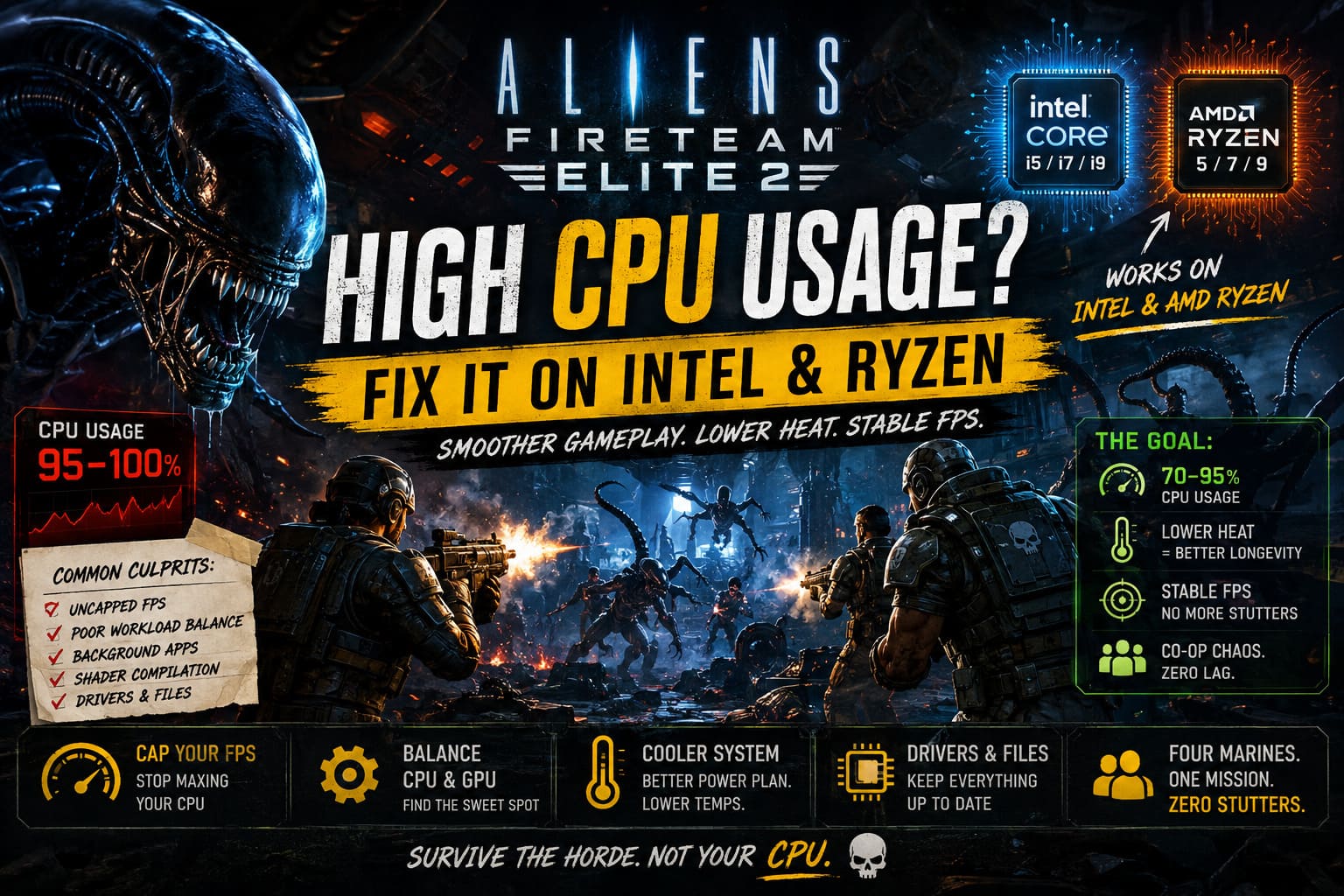
If there is one thing a co-op shooter should never do, it is make your CPU feel like it is about to launch into orbit. Aliens Fireteam Elite 2 is built around exactly the kind of action that can hammer a PC: four players moving through chaotic environments, enemies coming from every direction, explosions going off constantly, and Xenomorphs piling onto the screen in numbers that would make even a veteran Colonial Marine nervous. The problem is that some PC players are seeing CPU usage climb to 90–100%, followed by stuttering, sudden FPS drops, high temperatures, and inconsistent frame pacing.
What makes this particularly annoying is that the problem isn’t limited to one generation of hardware. Both Intel Core and AMD Ryzen processors can experience unusually high CPU usage, even when the rest of the system looks perfectly capable of running the game. I’ve seen plenty of games where simply lowering everything to Low magically fixes performance, but this is one of those situations where blindly destroying your graphics settings isn’t necessarily the best approach. The goal is to find out what is actually loading the processor and then balance the workload between the CPU and GPU.
How to Fix Aliens: Fireteam Elite 2 Unreal Engine Crash on Launch
Why Is Aliens Fireteam Elite 2 Using So Much CPU?
Before changing twenty settings at once, it helps to understand what is happening. A CPU doesn’t only handle graphics; it is also responsible for game logic, AI, physics, world simulation, asset streaming, player input, networking, and preparing frames for the GPU. A game filled with aggressive enemies can put considerably more pressure on the processor than a quiet scene with only a couple of characters on screen.
The first thing I’d check is GPU utilization versus CPU utilization. If your CPU is sitting around 95–100% while your GPU is strangely relaxed, you’re probably dealing with a CPU bottleneck. On the other hand, if both are close to maximum usage, the situation may simply be that the game is pushing your hardware hard rather than suffering from a specific CPU bug.
| Symptom | Most Likely Cause | What to Try |
|---|---|---|
| CPU stays at 95–100% | CPU bottleneck or uncapped FPS | Cap your FPS |
| High CPU + low GPU usage | Poor workload balance | Adjust graphics and resolution |
| Stutters when entering new areas | Shader compilation or asset streaming | Give shaders time to compile |
| High temperatures | Aggressive boost behavior | Check Windows power settings |
| Random CPU spikes | Background applications or overlays | Close unnecessary programs |
| Persistent stuttering | Driver or game-file issue | Update drivers and verify files |
Start by Capping Your FPS
This is probably the first fix I’d try because it takes less than a minute and can make a surprisingly big difference. An uncapped framerate tells your processor to keep preparing frames as quickly as possible, even when your monitor cannot display all of them. If your PC is already CPU-limited, chasing extremely high FPS can simply turn the processor into a space heater.
If you’re using a 60Hz monitor, start with a 60 FPS cap. For 120Hz or 144Hz displays, try 120 or 144 FPS, depending on what your system can maintain consistently. You can usually do this through the game’s settings, but the NVIDIA Control Panel or AMD Software can also be used if the in-game limiter doesn’t behave properly.
I personally prefer a stable frame rate over a wildly fluctuating one. I’d rather play a shooter at a locked 90 FPS than watch the counter jump between 70 and 150 while the CPU constantly hits its ceiling. In a game with hordes of enemies, consistent frame pacing matters just as much as the highest number you see in an FPS counter.
Don’t Automatically Turn Every Graphics Setting to Low
This sounds strange, but lowering every setting can sometimes make a CPU bottleneck worse. If your GPU has plenty of unused performance available while your processor is completely overloaded, reducing graphical quality can allow the system to generate frames even faster, which puts more pressure on the CPU.
Start by lowering settings that have a noticeable effect on CPU-side workload, such as view distance, shadows, reflections, and certain world-detail options. Don’t necessarily destroy texture quality unless your VRAM is actually struggling. Textures are generally more dependent on GPU memory than raw CPU performance.
If your GPU is sitting at 60–70% while the CPU is constantly at 100%, you can even experiment with increasing resolution or GPU-heavy visual settings. It sounds backwards, but shifting some workload toward the graphics card can create a healthier balance. The trick is finding the point where the GPU becomes properly utilized without turning the entire game into a slideshow.
Check Your Windows Power Plan
Windows power management can have a surprisingly large effect on gaming behavior. An aggressive power configuration can encourage the processor to boost harder and stay at high clocks, which may increase temperatures and power consumption without giving you a meaningful FPS improvement.
For AMD Ryzen users, I’d start with the Windows Balanced power plan rather than immediately selecting a high-performance profile. Ryzen processors are already very good at dynamically managing clocks, and forcing maximum performance all the time isn’t automatically better.
Intel systems can benefit from the same approach. If you’re using a modern Intel CPU with Performance and Efficient cores, Windows needs to distribute workloads intelligently. A sensible power configuration gives the operating system more flexibility instead of forcing the processor to behave as if every second of gameplay is a benchmark run.
Try Limiting Maximum Processor State
If your CPU temperature shoots upward whenever Aliens Fireteam Elite 2 starts, there’s another experiment worth trying. Open Control Panel > Power Options > Change plan settings > Advanced power settings, then find Processor power management.
You can test lowering the Maximum processor state from 100% to 99% or even 95%. Don’t treat this as a universal fix, because processor behavior differs between systems, but reducing the maximum state can prevent unnecessarily aggressive boosting and lower temperatures.
The interesting part is that you may lose little or no noticeable FPS while gaining much more stable temperatures. If your CPU was repeatedly hitting thermal limits and reducing its clock speed, a slightly lower maximum state can sometimes produce smoother performance rather than worse performance.
Test DirectX Options If Available
Graphics API behavior can also influence CPU overhead. If your version of the game provides a way to switch between DirectX 11 and DirectX 12, testing both is worthwhile.
DirectX 12 can make better use of modern multi-core processors, but that doesn’t automatically mean it will perform better on every PC. Shader compilation, driver behavior, and the way a particular game handles its rendering workload can produce completely different results between two systems with similar hardware.
If the game stutters heavily whenever you enter a new area, encounter a new enemy type, or trigger a large visual effect, shader compilation may be part of the problem. After installing a fresh driver or game update, give the game some time to build its shader cache before judging performance from the first few minutes of gameplay.
Update Your Chipset Drivers
Graphics drivers get most of the attention, but chipset drivers matter too, especially when you’re dealing with unusual CPU scheduling behavior.
Intel and AMD both provide chipset-related driver packages for their platforms. Keeping these components updated helps Windows communicate properly with the motherboard and processor. This becomes especially relevant on newer CPUs with hybrid architectures, multiple CPU chiplets, or complex core layouts.
For Ryzen systems in particular, don’t assume that Windows Update always has everything you need. Check the support page for your motherboard and the official AMD driver resources. Intel users should similarly check their motherboard manufacturer and Intel’s official support resources rather than relying entirely on whatever Windows installed automatically.

Close Background Applications Before Launching
Sometimes the game isn’t entirely responsible for that frightening 100% CPU reading.
Open Task Manager and check what else is consuming processor time. A browser with dozens of tabs, Discord, RGB utilities, hardware-monitoring programs, recording software, launchers, and other background applications can collectively consume enough CPU resources to turn a manageable gaming load into a constant bottleneck.
Overlays deserve special attention. Steam, Discord, NVIDIA, AMD, Xbox Game Bar, and recording applications can all add another layer of background activity. You don’t necessarily need to disable everything permanently, but if you’re troubleshooting severe CPU usage, temporarily shutting down unnecessary overlays is an easy way to eliminate variables.
Verify the Game Files
If performance suddenly became terrible after an update, don’t overlook corrupted or incomplete files. A damaged asset or problematic installation can potentially create strange behavior that isn’t fixed by changing graphical settings.
For the Steam version, open your Steam Library, right-click Aliens Fireteam Elite 2, select Properties, then open Installed Files and choose Verify integrity of game files. Steam will scan the installation and replace missing or damaged files.
It’s not the most exciting troubleshooting step in the world, but I’ve fixed plenty of strange PC-game problems this way. When a game starts behaving differently after an update, verifying the installation is one of those basic checks that costs almost nothing and can save a lot of unnecessary tweaking.
Clear Out Unnecessary Cache Data
Cache problems can also create weird stuttering behavior, particularly after driver updates or major game patches. Shader caches are designed to improve performance, but occasionally an old cache can conflict with newer drivers or game files.
If you’ve recently updated your GPU driver and Aliens Fireteam Elite 2 suddenly became much worse, consider clearing the relevant shader cache through your graphics driver software or Windows, then allow the game to rebuild what it needs. The first run afterward may actually stutter more while shaders are being regenerated, so don’t immediately assume the fix failed.
Give the game several minutes and test the same area more than once. Consistency is important when diagnosing this kind of problem.
Watch Temperatures, Not Just CPU Percentage
One mistake I see constantly in PC troubleshooting is treating 100% CPU usage as automatically dangerous. It isn’t. A processor can run at full utilization safely if temperatures, clocks, voltage, and cooling are under control.
The real problem is when 100% utilization comes with thermal throttling, clock-speed drops, severe frame-time spikes, or system instability. Use a monitoring application to check CPU temperature and effective clock speed while playing. If temperatures are extremely high and clocks repeatedly fall, cooling or power behavior may be the real problem rather than CPU usage itself.
Also remember that different CPUs have different thermal characteristics. A Ryzen 7000 chip and an older Intel processor won’t necessarily behave the same way at similar temperatures or workloads. Don’t compare one CPU’s temperature directly with another and assume the hotter-looking number automatically means something is broken.
My Recommended Order of Fixes
Rather than changing everything simultaneously, I’d troubleshoot Aliens Fireteam Elite 2 high CPU usage in this order:
- Cap the FPS to a sensible target.
- Check CPU and GPU utilization during an actual combat encounter.
- Lower CPU-heavy settings such as view distance and shadows.
- Test slightly higher resolution or GPU-heavy settings if GPU usage is low.
- Switch to the Windows Balanced power plan.
- Experiment with a 99% or 95% maximum processor state if temperatures are excessive.
- Update GPU and chipset drivers.
- Disable unnecessary overlays and background programs.
- Verify the game files through Steam.
- Rebuild shader caches if the problem started after a driver or game update.
The important part is to change one or two things at a time. If you change fifteen settings simultaneously and performance improves, you won’t know which setting actually solved the problem. Worse, you might accidentally make another part of the system perform worse.
The Bottom Line
High CPU usage in Aliens Fireteam Elite 2 doesn’t necessarily mean that your Intel or Ryzen processor isn’t powerful enough. In many cases, the problem is a combination of uncapped FPS, aggressive CPU boosting, background applications, shader compilation, driver issues, or an imbalance between CPU and GPU workloads.
I’d start with the simple stuff: cap your FPS, check utilization, use a sensible power plan, and close unnecessary background applications. Then move on to chipset updates, game-file verification, shader troubleshooting, and more advanced power-management tweaks.
The goal isn’t to make your CPU usage number look pretty. If your processor is running at 90–100% but the game maintains a stable frame rate, reasonable temperatures, and smooth frame pacing, there may be nothing wrong at all. What you actually want is a system that can survive a screen full of Xenomorphs without turning every firefight into a slideshow.