How to Fix Gallipoli Game Black Screen: Ultimate 2026 Troubleshooting Guide for PC and Xbox
Gallipoli is exactly the kind of shooter that can make you forget how much time has passed. The slow movement, brutal firefights, cramped trenches, and general feeling that one bad decision can end your match give it a very different rhythm from the usual arcade-style multiplayer FPS. That is why a Gallipoli black screen is especially annoying: you finally get everything ready for a session, launch the game, and instead of a battlefield you get nothing but a blank display.
I have run into black-screen problems in plenty of PC games over the years, and the frustrating part is that there is rarely one universal cause. Sometimes the game is actually running and only the video output has failed. Other times Windows, the GPU driver, an overlay, corrupted game files, or an incompatible display setting is responsible. On Xbox, the problem can be connected to Quick Resume, cached data, or a display handshake.
The good news is that most of these problems are worth troubleshooting before you start reinstalling the entire game. Below are the fixes I would try myself, starting with the quickest options and moving toward the more involved ones.
How to Fix Gallipoli Game Crashing on Launch: Complete Troubleshooting Guide
What Causes the Gallipoli Black Screen?
Before changing a dozen settings at random, it helps to understand what might actually be going wrong. A black screen can happen during startup, immediately after loading into a map, when switching resolutions, or even while the game continues running in the background.
The most common possibilities include:
| Possible Cause | Typical Symptom | Recommended Fix |
|---|---|---|
| GPU driver problem | Black screen with audio still playing | Reset or reinstall the graphics driver |
| Resolution conflict | Black screen immediately after launch | Force windowed mode |
| Fullscreen optimization conflict | Game launches inconsistently | Disable fullscreen optimizations |
| Corrupted files | Crashes or missing visuals | Verify game files |
| Overlay conflict | Black screen after menus or loading | Disable overlays |
| Xbox cache or Quick Resume | Game refuses to display correctly | Quit the game and power cycle |
Personally, I would not start by blaming the game itself. Modern Windows gaming setups can have a ridiculous number of things sitting between the executable and your monitor. Steam, Discord, GPU software, recording tools, HDR, VRR, high refresh rates, Windows display settings, and driver-level features can all potentially complicate the process.
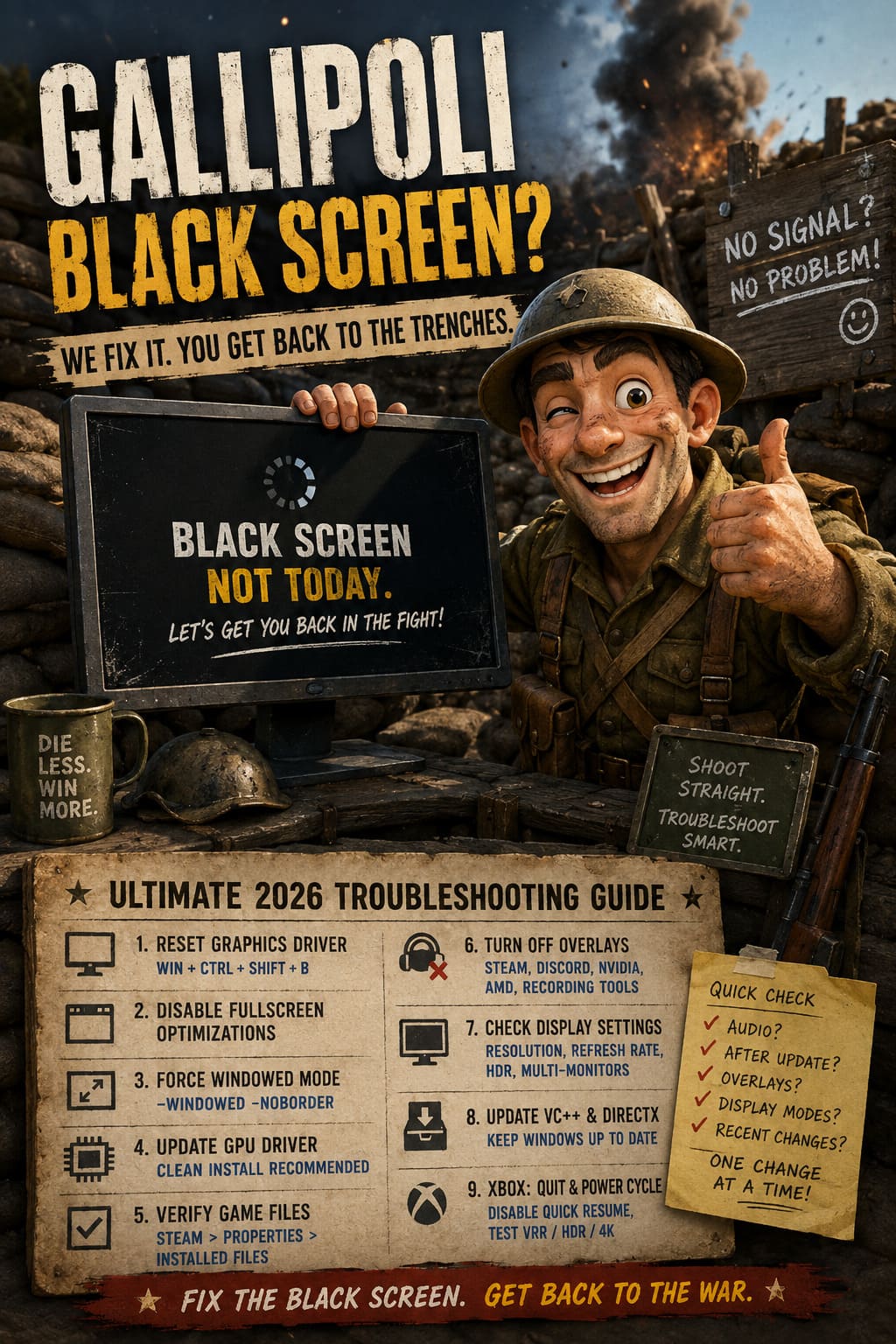
Fix 1: Reset the Windows Graphics Driver
If Gallipoli suddenly turns black but you can still hear explosions, footsteps, menu sounds, or background music, this is the first trick I would try.
Press Windows + Ctrl + Shift + B.
Windows will restart the graphics subsystem. You may hear a short beep and see the monitor flicker for a moment. The game should remain open, assuming the application itself has not crashed.
This shortcut is surprisingly useful. I have used it with games that appeared completely frozen visually while the underlying application was still running normally. It does not repair a broken installation, but it can recover the display output when the GPU driver has temporarily stopped responding.
If Gallipoli comes back immediately after this, that is a strong indication that the problem is somewhere in the Windows graphics stack rather than the game files.
Fix 2: Disable Fullscreen Optimizations
Windows fullscreen behavior can be strange, especially with games that switch between fullscreen, borderless, and windowed modes during startup. If Gallipoli works on one launch but gives you a black screen on another, I would definitely test this option.
First, open Steam and find Gallipoli in your library. Right-click the game, select Manage, and choose Browse local files. Locate the game’s main executable, right-click it, and open Properties.
Go to the Compatibility tab and enable Disable fullscreen optimizations. Then open Change high DPI settings, enable the option to override high DPI scaling behavior, and select Application from the menu.
Click OK, then Apply, and launch the game again through Steam.
This isn’t a setting I recommend blindly changing for every game. But when a title is having trouble transitioning between display modes, it is absolutely worth testing.
Fix 3: Force Gallipoli Into Windowed Mode
A resolution or refresh-rate mismatch is another classic cause of a black screen. This can happen if the game remembers a display configuration that your current monitor setup doesn’t like.
Steam gives you a relatively easy way to test this.
Open the Gallipoli properties in Steam and look for Launch Options. Enter:
-windowed -noborder
Then start the game.
The idea here is simple: instead of allowing the game to immediately take control of the entire display, you are forcing it to start in a safer windowed configuration. If you reach the main menu, go into the graphics settings and select a resolution and refresh rate that you know your monitor supports.
Once everything works, you can remove the launch options and test fullscreen or borderless mode again.
Why This Fix Is Worth Trying
This is one of my favorite troubleshooting methods because it is fast and doesn’t involve deleting anything. If a game suddenly starts working in windowed mode, you have learned something useful: the problem is probably connected to the display configuration rather than the entire game installation.
Fix 4: Reinstall or Reset Your GPU Driver
Graphics drivers are responsible for an enormous amount of strange PC gaming behavior. A normal driver update can sometimes solve a problem, but if the existing installation is corrupted, simply installing a newer version over the top may not be enough.
If Gallipoli repeatedly produces a black screen during loading, especially after a GPU driver update, consider performing a clean driver installation.
A typical troubleshooting process looks like this:
- Download the correct current driver for your NVIDIA, AMD, or Intel GPU.
- If the problem persists, use a reputable driver-cleaning utility such as DDU.
- Restart Windows and perform the cleanup according to the utility’s instructions.
- Install a stable graphics driver for your hardware.
- Restart the computer.
- Test Gallipoli before enabling additional GPU features or overlays.
I would avoid immediately changing ten different driver settings. First establish whether the clean driver installation itself fixed the problem. If it did, you can gradually restore your preferred settings afterward.
Fix 5: Verify Gallipoli’s Game Files
This is one of the easiest solutions and should probably be near the top of your list.
In Steam, right-click Gallipoli and open Properties. Find Installed Files and select Verify integrity of game files.
Steam will compare the files on your PC against the expected installation and replace files that are missing or corrupted.
A damaged texture, executable component, shader-related file, or other asset can potentially cause problems while the game is loading. You won’t necessarily get a useful error message telling you exactly which file is broken, which is why verification is such a convenient first step.
It is also worth restarting the PC after the verification finishes, particularly if Steam had to replace several files.
Fix 6: Turn Off Steam, Discord, and GPU Overlays
Overlays are useful, but when troubleshooting a black screen, I prefer to remove as many variables as possible.
Steam Overlay, Discord Overlay, NVIDIA’s in-game overlay, AMD’s overlay, recording applications, performance monitors, and similar utilities can interact with games at the rendering level. Most of the time they work perfectly. Occasionally, they don’t.
Temporarily disable:
- Steam Overlay
- Discord Game Overlay
- NVIDIA or AMD in-game overlay
- OBS or other capture software
- Xbox Game Bar recording features
- Third-party FPS and hardware monitoring overlays
Then restart Gallipoli.
If the black screen disappears, turn these features back on one at a time. That makes it much easier to identify which application is responsible instead of randomly changing settings and hoping for the best.
Fix 7: Check Windows Display Settings
Don’t overlook the monitor itself.
If you are using a high-refresh-rate display, ultrawide monitor, multiple-monitor setup, HDR, or unusual resolution, temporarily simplify the configuration. Set Windows to the monitor’s normal native resolution and use a standard refresh rate.
I would also temporarily test the game with HDR disabled if you are experiencing a black screen specifically when entering fullscreen. If you have multiple monitors connected, try launching Gallipoli with only the primary gaming display active.
This sounds basic, but display handshakes can become surprisingly complicated. A game doesn’t necessarily know that the monitor you used yesterday has been replaced, moved to another DisplayPort connection, or configured differently in Windows.

Fix 8: Update Microsoft Visual C++ and DirectX Components
Some games rely on Windows components that aren’t always in perfect condition after years of updates, driver changes, and software installations.
Make sure your Windows installation is fully updated and that the appropriate Microsoft Visual C++ Redistributable components are installed correctly. If a Microsoft runtime package offers a repair option, repairing it can be preferable to immediately uninstalling everything.
The same principle applies to DirectX-related components. Avoid downloading mysterious DLL files from random websites just because a forum post tells you that a particular file is missing. That can create bigger problems than the original black screen.
Fix 9: Troubleshoot Gallipoli on Xbox Series X|S
PC players have more settings to experiment with, but Xbox users can also encounter display problems. On Xbox Series X|S, one of the first things I would check is Quick Resume.
Completely quit Gallipoli instead of leaving it suspended. Highlight the game on the Xbox dashboard, press the Menu button, and choose Quit. Then launch it again from scratch.
If that doesn’t work, perform a full power cycle. Shut down the Xbox completely, disconnect the power for a short period, reconnect it, and start the console again.
This clears temporary system state and can solve situations where a game resumes in a broken rendering state.
Fix 10: Temporarily Test VRR, 4K, and HDR
If the Xbox black screen appears specifically when the game starts or changes display modes, test the console with some advanced display features disabled temporarily.
Open Xbox Settings, go to General, then TV & display options. Under the video settings, temporarily test configurations with features such as Variable Refresh Rate, HDR, or 4K output disabled.
You don’t need to leave these features disabled permanently. The goal is simply to determine whether one of them is responsible for the display problem.
If Gallipoli suddenly works after changing one setting, restore the features individually until you identify the exact combination causing the problem.
The Order I Would Personally Try These Fixes
If I were sitting at my PC and Gallipoli suddenly displayed a black screen, I wouldn’t work through every method above immediately. I’d go from the least invasive fix to the most involved one.
My troubleshooting order would be:
- Press Windows + Ctrl + Shift + B.
- Restart Gallipoli.
- Disable overlays.
- Force -windowed -noborder.
- Verify the game files.
- Check Windows resolution, refresh rate, HDR, and monitor configuration.
- Update or clean-install the GPU driver.
- Repair system dependencies if the problem continues.
For Xbox, I would start with Quit, restart the game, perform a full power cycle, and then test VRR/HDR/4K settings.
That order matters because there is no reason to spend an hour reinstalling drivers if a five-second graphics reset solves the issue.
What If Nothing Works?
If Gallipoli still gives you a black screen after all of these steps, start looking for a pattern rather than repeating the same fixes. Note exactly when the screen disappears: immediately after launch, when loading a particular map, after changing resolution, after joining multiplayer, or only after playing for a while.
Also pay attention to whether audio continues. Black screen with active audio points toward a different class of problem than a complete application crash where the game closes or Windows becomes unresponsive.
At that stage, checking current community reports and official support channels becomes much more useful because a newly introduced game-specific bug may require a developer-side fix rather than another Windows tweak.
Quick Gallipoli Black Screen Checklist
- Black screen with audio: Try the Windows graphics reset first.
- Black screen immediately after launching: Test windowed mode.
- Problem started after a GPU update: Consider a clean driver installation.
- Only happens with overlays enabled: Disable Steam, Discord, and GPU overlays.
- Game crashes during loading: Verify the installation files.
- Xbox version stuck after Quick Resume: Quit the game completely and relaunch.
- Black screen during display switching: Test VRR, HDR, 4K, and refresh-rate settings.
The important thing is not to treat the Gallipoli black screen problem as one single bug with one magic solution. In my experience with PC games, display issues are often a chain reaction between the game, Windows, the GPU driver, and whatever extra software happens to be running in the background.
Start with the quick fixes, change one thing at a time, and don’t reinstall your entire system unless you have exhausted the sensible options. If the game is still running behind that black screen, there is a good chance you can recover the display without losing your session. And when you’re finally back in the trenches, the last thing you want is another hour spent staring at a black monitor instead of worrying about where the next shot is coming from.