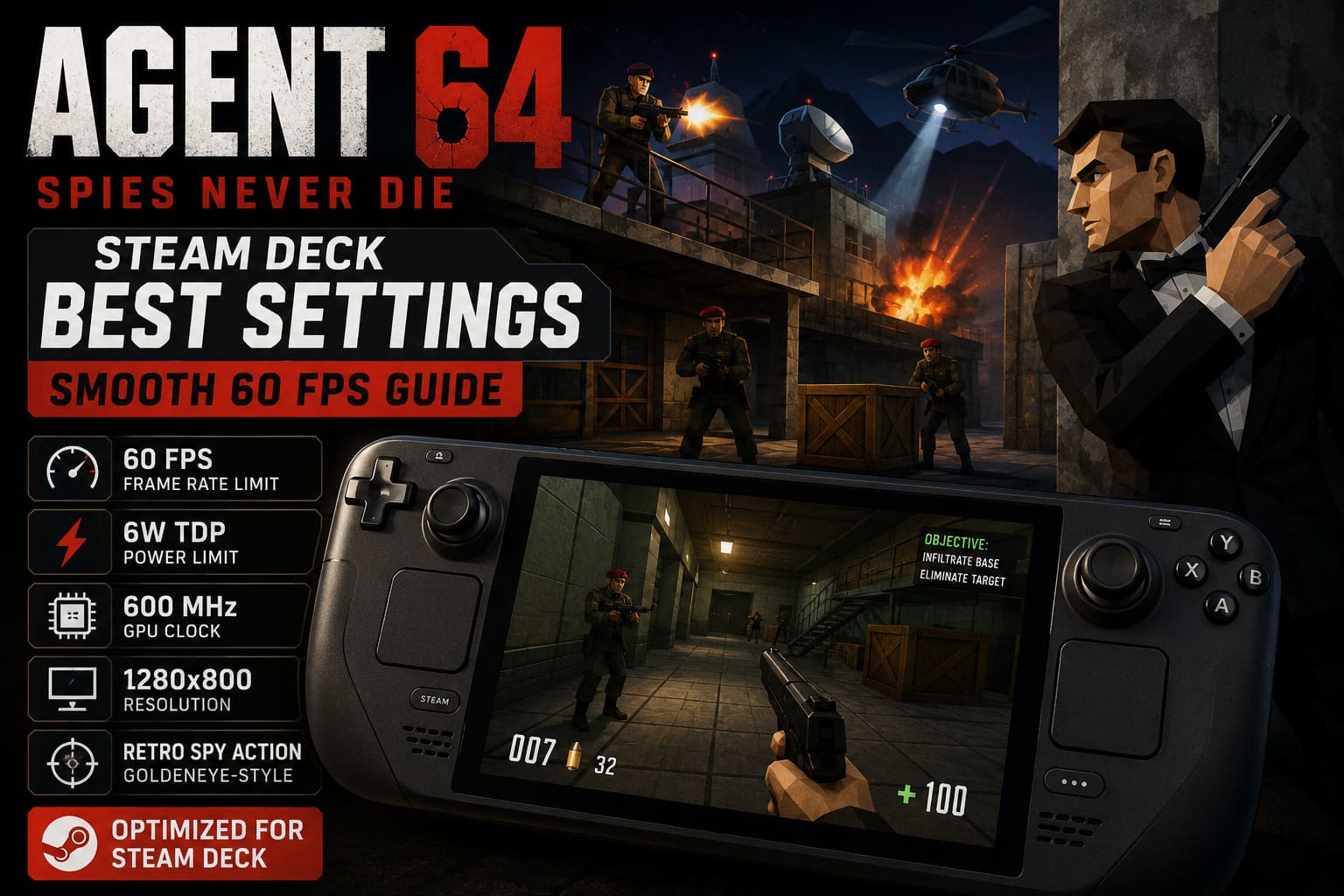
Agent 64 Spies Never Die Steam Deck Best Settings: Smooth 60 FPS Guide
Agent 64: Spies Never Die is exactly the kind of game that feels like it was built for the Steam Deck. It has that unmistakable late-90s shooter DNA, chunky low-poly environments, secret-agent missions, armed guards around every corner, and gunplay that clearly wants you to remember the days of GoldenEye 007 and Perfect Dark. The difference is that Agent 64 does not need to run like an actual Nintendo 64 game. If you are playing it on Valve’s handheld, there is no reason to settle for a sluggish retro experience.
After spending a ridiculous amount of time tweaking Steam Deck profiles for lightweight shooters and indie games, I found that Agent 64 is one of those titles where you can get a very clean 60 FPS experience without making the machine work nearly as hard as it does in modern AAA releases. In fact, the game is so undemanding that running everything at maximum power is mostly just throwing battery life into the furnace.
The real goal here is not simply “make Agent 64 run at 60 FPS.” The game can obviously do that. The interesting part is finding the sweet spot where the frame rate stays stable, input feels immediate, the fan does not scream at you, and the Steam Deck battery does not disappear before you finish a mission.
This guide focuses on that sweet spot. The recommended profile targets 60 FPS at 1280×800, while reducing unnecessary power consumption through SteamOS-level controls. I have also included separate advice for OLED and LCD models, longer battery-focused sessions, and playing Agent 64 on an external 1080p display.
Why 60 FPS Makes Such a Difference in Agent 64
At first glance, you might think frame rate is not particularly important in a retro-inspired shooter. After all, the entire visual identity of Agent 64 is built around old-school technology. That would be a mistake.
The visuals may be deliberately primitive, but the controls are much more modern. Agent 64 gives you a more responsive manual aiming experience than the classic console shooters that inspired it. Once you start relying on precise shots instead of simply pointing in the general direction of an enemy and letting auto-aim do the dirty work, frame pacing becomes much more noticeable.
Imagine pushing through a narrow corridor with several guards coming from different directions. You need to snap toward one target, fire, turn, reload, and immediately pick up another enemy before they get the chance to shred your health. At 30 FPS, that kind of sequence feels noticeably less responsive. At a stable 60 FPS, the entire game suddenly feels sharper.
That is why I would take a locked 60 FPS profile over unnecessarily high graphical settings every single time. Agent 64 is a fast, twitchy little shooter. Smooth camera movement and predictable input matter more than squeezing every last graphical option to its highest setting.
Best Steam Deck Settings for Agent 64: Spies Never Die
Here is the setup I would start with if you simply want to install Agent 64, launch it, and get straight into the action without spending an hour staring at performance graphs.
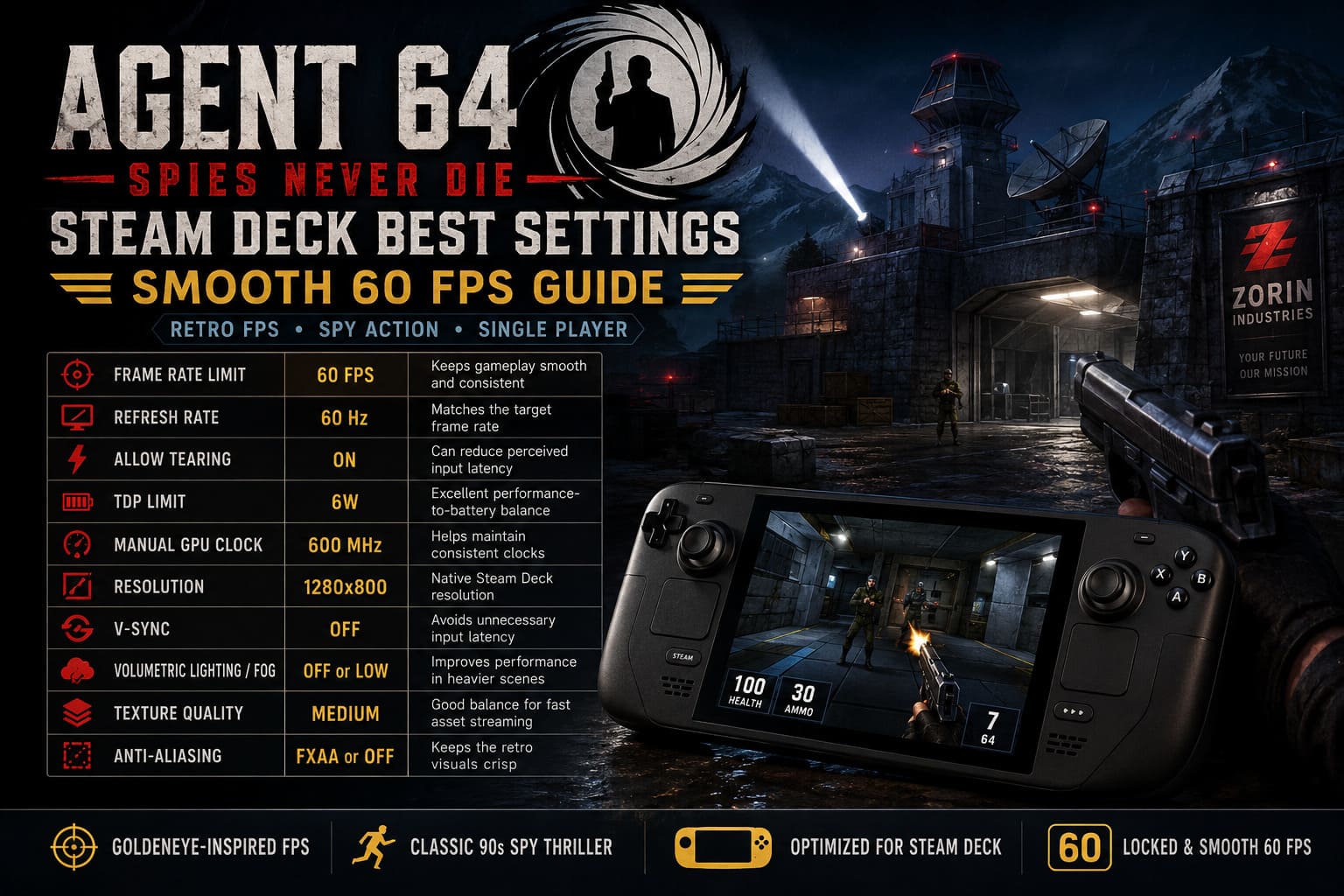
| Setting | Recommended Value | Why It Matters |
|---|---|---|
| Frame Rate Limit | 60 FPS | Keeps gameplay smooth and consistent |
| Refresh Rate | 60 Hz | Matches the target frame rate |
| Allow Tearing | On | Can reduce perceived input latency |
| TDP Limit | 6W | Excellent performance-to-battery balance |
| Manual GPU Clock | 600 MHz | Helps maintain consistent clocks |
| Resolution | 1280×800 | Native Steam Deck resolution |
| V-Sync | Off | Avoids unnecessary input latency |
| Volumetric Lighting/Fog | Off or Low | Improves performance in heavier scenes |
| Texture Quality | Medium | Good balance for fast asset streaming |
| Anti-Aliasing | FXAA or Off | Keeps the retro visuals crisp |
SteamOS Performance Settings You Should Change First
Before messing around with the in-game graphics menu, hit the three-dot Quick Access button on the Steam Deck. This is where the most important optimization work happens.
Set the Frame Rate Limit to 60 FPS
Start with a 60 FPS cap. There is simply no reason to let Agent 64 run hundreds of frames per second on the Steam Deck screen. The extra frames are not helping you, but they are making the hardware work harder.
For the LCD model, a 60 FPS target lines up naturally with the display’s 60Hz refresh rate. OLED owners can also use 60 FPS as the target, giving the game a consistent frame delivery pattern without wasting power on unnecessary rendering.
Use a 60Hz Refresh Rate
Set the display refresh rate to 60Hz when using this profile. Matching the refresh rate to the game’s frame-rate target gives you a straightforward 1:1 presentation and avoids introducing unnecessary frame pacing complications.
Turn on Allow Tearing
This is one of those Steam Deck options that some players immediately turn off because the name sounds scary. For Agent 64, I recommend experimenting with Allow Tearing enabled.
The benefit is reduced synchronization latency. In a slower RPG, I would not care nearly as much. In a shooter where you are constantly swinging the camera and lining up shots, that extra responsiveness is worth having.
If you personally notice visible tearing and it bothers you, disable it. There is no reason to sacrifice visual comfort just to chase theoretical latency improvements. For me, though, Agent 64 is exactly the type of game where the snappier controls feel worthwhile.
Set the TDP Limit to 6W
This is the big one.
Set the Steam Deck TDP limit to 6W. Agent 64 simply does not need the full power envelope of the Steam Deck to deliver a good experience. Leaving the system completely unrestricted means the hardware can consume considerably more power than necessary for a game with such a lightweight visual workload.
A 6W limit gives you a much more attractive performance-to-battery ratio. It also reduces heat output and can keep the cooling fan considerably quieter during gameplay.
For a retro-style shooter, this is exactly the kind of optimization I love. You are not making the game look worse in any meaningful way. You are simply refusing to waste power.
Lock the GPU Clock Around 600 MHz
If you want to push the profile further, enable Manual GPU Clock Frequency and try a 600 MHz GPU clock.
The idea here is consistency rather than raw performance. Agent 64 has a relatively light GPU workload, so there is little reason to let the GPU constantly chase higher clocks when the game does not need them.
A 600 MHz target works as a useful starting point for a low-power profile. If you encounter a stubborn frame-time spike in a particular scene, disable the manual clock or increase the available power instead of blindly forcing the same number.
Best In-Game Graphics Settings
Once SteamOS is configured, head into Agent 64’s own graphics settings. This part is thankfully much easier than optimizing some modern PC games with fifty different sliders and three separate shader menus.
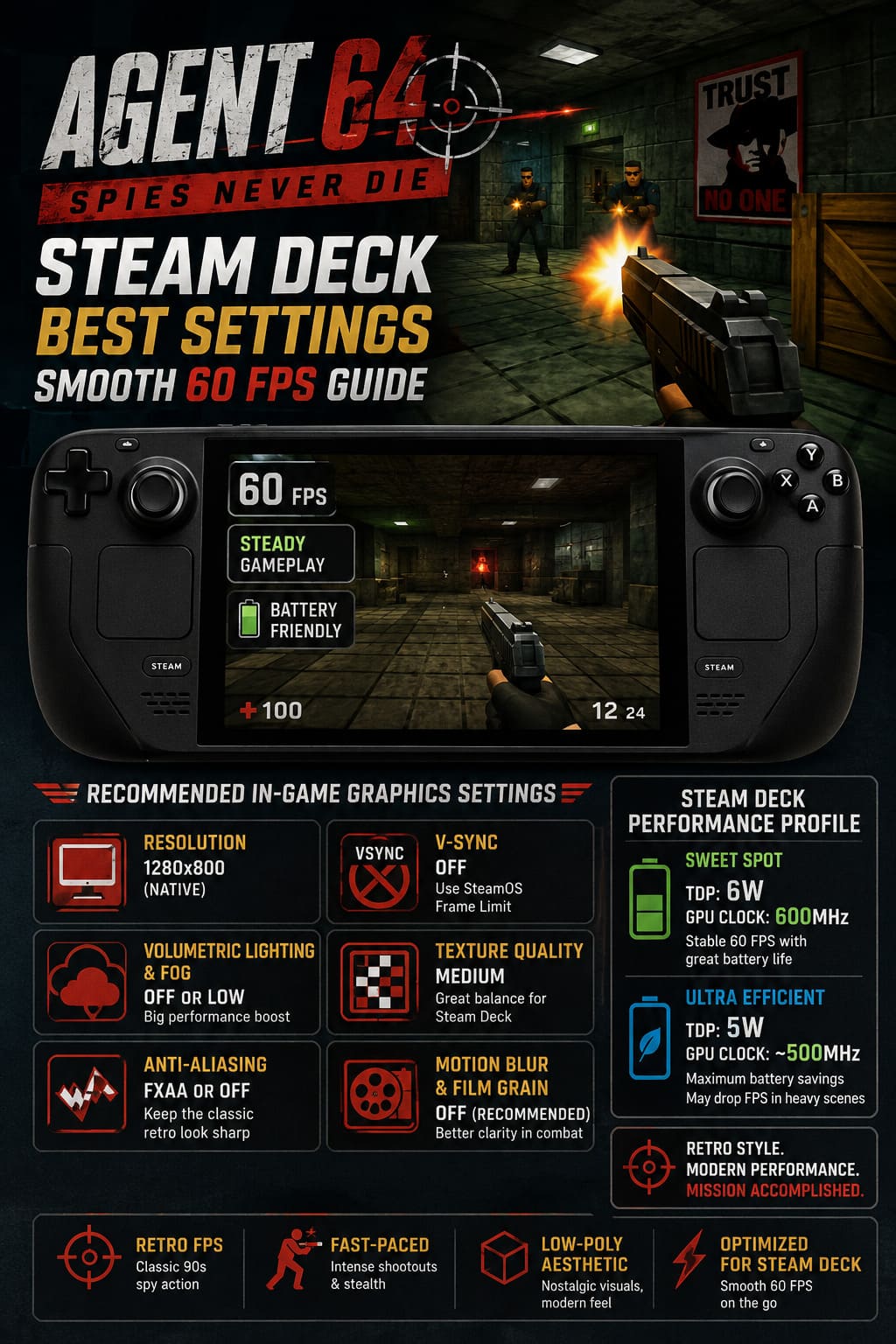
Resolution: 1280×800
Use the Steam Deck’s native 1280×800 resolution in handheld mode. There is no real reason to render Agent 64 at 1080p on the built-in display.
The game’s retro visual style does not suddenly become dramatically better because you force a higher internal resolution. You are simply asking the hardware to push more pixels than the screen can display natively.
V-Sync: Off
Turn V-Sync off in the game if you are already using the SteamOS frame-rate controls described above.
For this particular setup, in-game V-Sync is unnecessary. More importantly, it can make the aiming feel heavier. When I am playing a shooter on a handheld, I would rather have the controls feel immediate than chase perfect synchronization at the cost of responsiveness.
Volumetric Lighting and Fog: Off or Low
This is the setting I would sacrifice first if you are seeing performance drops.
Agent 64’s atmospheric lighting and fog effects can make certain environments look moodier, particularly underground areas and smoky combat zones. But those effects can also create a disproportionately large performance hit compared with how much they actually improve the image.
Set volumetric lighting or fog to Off or Low. The retro art direction still comes through beautifully, and the reduction in GPU workload gives you more headroom during explosions and busy firefights.
Texture Quality: Medium
Medium textures are more than enough for the Steam Deck.
Agent 64 is deliberately designed around chunky retro textures. You are not looking at enormous 4K texture packs that require a modern desktop GPU. Medium provides a sensible balance and can help avoid unnecessary texture-memory pressure during rapid movement through different rooms.
Personally, this is one of the settings I would not obsess over. If you have plenty of performance headroom, feel free to experiment with higher textures. The difference is nowhere near as important as stable frame delivery.
Anti-Aliasing: FXAA or Off
For the cleanest retro presentation, I prefer FXAA or no anti-aliasing.
Agent 64’s low-poly geometry is part of the charm. Overly aggressive anti-aliasing can soften the image and make those intentionally chunky edges look muddy. FXAA is a reasonable compromise if shimmering bothers you, while disabling anti-aliasing produces the sharpest old-school presentation.
Motion Blur and Film Grain: Your Call
These two options come down to taste.
If you want Agent 64 to look like it crawled directly out of a late-90s console, leave them enabled. If you are playing seriously and want maximum clarity when enemies start filling the screen, turn them off.
I strongly prefer both disabled. When several guards are shooting at you, I want clean targets and readable movement, not artificial blur washing over the screen.
Battery-Friendly Steam Deck Profile
If you are heading out on a long trip, the 6W/600 MHz setup is already a great starting point. But you can go even more aggressive with power savings.
Try dropping the TDP to 5W and the GPU clock to approximately 500 MHz. Agent 64 is light enough that this can potentially provide a surprisingly efficient experience.
The catch is obvious: you are reducing your performance headroom. If the game begins dropping frames during explosions, dense particle effects, or more complicated environmental scenes, do not fight the hardware. Move back to the 6W TDP and 600 MHz GPU profile.
That is the configuration I consider the real sweet spot. The extra watt gives the Deck breathing room while still keeping the power consumption far below what you would expect from a typical modern 3D game.
Playing Agent 64 on a TV or External Monitor
The situation changes when you dock the Steam Deck.
If you are connecting the handheld to a television or external monitor, 1920×1080 is a much more sensible target. The Steam Deck has to render considerably more pixels than it does at 1280×800, so the aggressive handheld power profile is no longer the best choice.
For a docked setup, I recommend disabling the TDP limit and turning off the Manual GPU Clock setting. Let the Steam Deck use its full available power envelope when necessary.
At 1080p, you want the hardware to have enough room to maintain a consistent 60 FPS, especially if you are using additional visual effects. There is little point in saving a few watts when the device is plugged into a dock and connected to a television.
How to Fix Common Agent 64 Steam Deck Performance Problems
Micro-Stutters When Entering New Areas
If you get a tiny freeze when opening doors or loading a larger section of a level, check where the game is installed.
The internal SSD is the preferred option. A slower or lower-quality microSD card can introduce additional asset-streaming delays, particularly when a game rapidly loads new rooms and textures.
Agent 64 is not a massive game by modern standards, but fast storage can still make the overall experience feel more consistent.
Controls Feel Sluggish
First, verify that in-game V-Sync is disabled. Then check your SteamOS display settings and experiment with Allow Tearing enabled.
If you are using a Bluetooth controller rather than the Steam Deck’s built-in controls, temporarily switch to a wired connection. Bluetooth interference is easy to overlook, and eliminating it gives you a quick way to determine whether the problem is actually the game or your controller setup.
The Game Uses the Wrong Resolution
After the first launch, check the graphics menu manually. If Agent 64 starts with a desktop-oriented resolution, switch it back to 1280×800 for handheld play.
This is a simple fix, but it is worth checking before you start changing performance settings. There is no point tuning a 6W profile if the game is secretly rendering at a resolution it was never meant to use on the Deck’s built-in display.
How to Fix Agent 64 Spies Never Die Co-Op Connection Error (2026 Guide)
My Recommended Agent 64 Steam Deck Profile
If you do not want to spend time experimenting with every individual setting, this is the profile I would personally use for handheld gaming:
- 60 FPS frame-rate cap
- 60Hz display refresh rate
- Allow Tearing: On
- TDP: 6W
- GPU Clock: 600 MHz
- 1280×800 resolution
- V-Sync: Off
- Volumetric Lighting/Fog: Off or Low
- Textures: Medium
- FXAA or Off
- Motion Blur: Off
- Film Grain: Off
This is the kind of profile that makes sense for Agent 64 because you are not fighting the game’s hardware requirements. You are taking advantage of them. The title is already lightweight, so the Steam Deck has plenty of room to deliver a smooth experience without sitting at maximum power the entire time.
Agent 64 Spies Never Die Split Screen Guide: Local Co-Op Setup & Dynamic Display Options
Final Verdict: Agent 64 Is Practically Made for Steam Deck
Agent 64: Spies Never Die feels fantastic on Steam Deck, and that is not just because the game looks like a lost N64 classic. The combination of compact levels, quick missions, old-school gunplay, and low hardware requirements makes it an almost perfect handheld shooter.
The biggest mistake would be treating the Steam Deck like it needs to run every game at maximum power. It does not. Agent 64 is an excellent example of why sensible power tuning matters. A 6W TDP, 600 MHz GPU clock, 1280×800 resolution, and 60 FPS target give you an excellent foundation without turning the handheld into a portable space heater.
And honestly, this is exactly how I want to play a game like this. I do not need ray tracing, ultra textures, or a GPU running flat-out. Give me a stable 60 FPS, responsive aiming, clean retro visuals, and enough battery to finish several missions before reaching for the charger.
If you want the short version, start at 6W/600 MHz, lock the game to 60 FPS, use native 1280×800, kill V-Sync, lower volumetric effects, and see how it feels. From there, you can experiment with 5W/500 MHz if battery life is your priority.
For a retro spy shooter, Agent 64 does not need much horsepower. It just needs the Steam Deck to give it a clean runway. Set it up properly, grab your weapon, and go cause some beautifully low-poly international incidents.