Fix Tom Clancy’s Ghost Recon Wildlands Infinite Loading Screen When Joining Friends (2026 Guide)
There are few things more annoying in Tom Clancy’s Ghost Recon Wildlands than finally getting your squad together, sending the invite, and then watching the game sit on the loading screen forever.
No crash. No useful error message. No explanation.
Just that miserable loading animation while your friend is already waiting in Bolivia wondering whether you disappeared.
I’ve run into enough multiplayer connection problems in older Ubisoft games to know that this kind of issue is rarely as simple as “your PC is too slow.” Ghost Recon Wildlands infinite loading when joining friends is usually a networking, session, cache, or Ubisoft Connect synchronization problem. The good news is that you have quite a few things you can try before resorting to reinstalling the entire game.
This guide collects the fixes I’d actually work through in 2026, starting with the quick tricks that take a couple of minutes and ending with router and Windows networking changes.
The important part: don’t start changing ten things at once. Try one fix, test the connection, and only move to the next one if Wildlands is still refusing to cooperate.
Why Does Ghost Recon Wildlands Get Stuck When Joining Friends?
Before messing around with your router, it helps to understand what is actually going wrong.
Wildlands multiplayer depends on a combination of Ubisoft services, your game client, your friend’s client, and peer-to-peer networking. When those pieces don’t agree on the current multiplayer session, the game can get stuck during the transition into the friend’s lobby.
From my experience with this kind of older multiplayer architecture, the most common troublemakers are:
- Strict or incompatible NAT types
- Corrupted Ubisoft Connect cache data
- A stale multiplayer session
- Ubisoft Connect overlay or friend-list synchronization problems
- VPN or DNS routing issues
- Conflicts between IPv4 and IPv6 networking
- A problem with the current host rather than the player trying to join
- Temporary Ubisoft service or matchmaking problems
And that’s why one player can join everyone else perfectly while another player gets trapped on an endless loading screen.
The hardware itself is usually not the culprit.
If Wildlands runs normally in single-player but refuses to load when you join a friend, treat it as a multiplayer connection problem first.
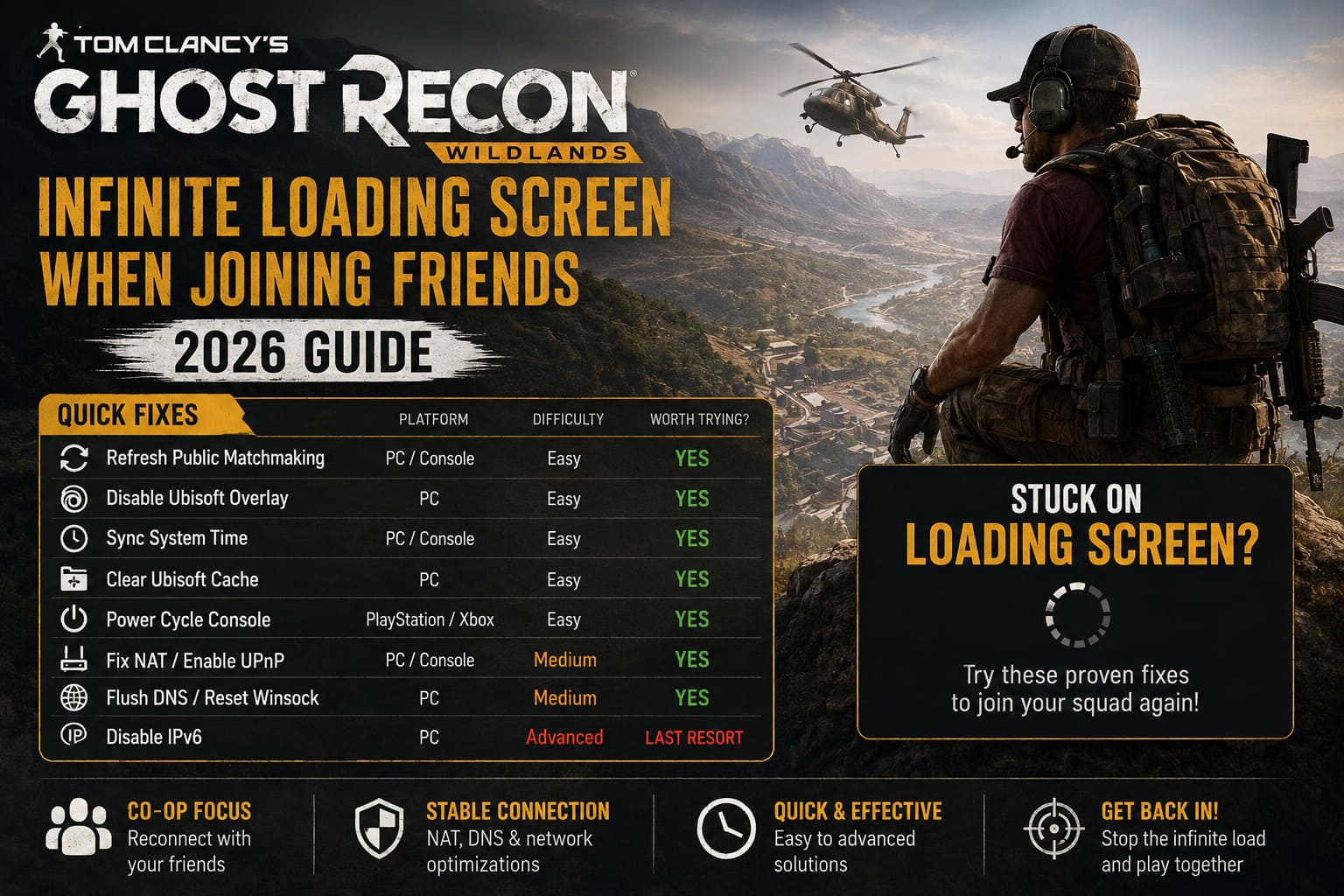
Quick Fixes at a Glance
| Fix | Platform | Difficulty | Worth Trying? |
|---|---|---|---|
| Refresh Public Matchmaking | PC / Console | Easy | Yes |
| Disable Ubisoft Overlay | PC | Easy | Yes |
| Sync System Time | PC / Console | Easy | Yes |
| Clear Ubisoft Cache | PC | Easy | Yes |
| Power Cycle Console | PlayStation / Xbox | Easy | Yes |
| Fix NAT / Enable UPnP | PC / Console | Medium | Yes |
| Flush DNS / Reset Winsock | PC | Medium | Yes |
| Disable IPv6 | PC | Advanced | Last Resort |
Fix 1: Refresh the Lobby Through Public Matchmaking
This is the first trick I would try because it takes almost no effort and doesn’t require touching Windows, your router, or anything else.
The idea is simple: force Wildlands to create a fresh matchmaking session before you attempt to connect to your friend.
Try this:
- Launch Ghost Recon Wildlands normally.
- Enter your own single-player campaign instead of trying to accept your friend’s invitation immediately.
- Open the pause menu.
- Go to the Lobby section.
- Change your privacy setting to Open to Public.
- Back out of the menu and open the map.
- Select Public Matchmaking.
- Let the matchmaking process run for several seconds.
- Once the game begins searching for or initializing a multiplayer session, cancel matchmaking.
- Return to your lobby settings.
- Change the privacy option back to Friends Only or your preferred setting.
- Try joining your friend’s session again.
Why does this sometimes work?
It effectively forces the game to refresh its current multiplayer state instead of continuing to use a stale session. In older online games, these weird little session-refresh tricks can be surprisingly effective.
If your game is stuck every single time you join the same friend, try having your friend perform the same process before inviting you.
Fix 2: Disable the Ubisoft Connect Overlay
PC players should absolutely test this one.
The Ubisoft Connect overlay can be useful, but when an older game and a modern launcher start arguing about overlays, friend invitations, and session information, things can get ugly.
If your Wildlands loading screen appears immediately after accepting a Ubisoft or Steam invitation, I’d test the game with the overlay disabled.
Here’s what to do:
- Completely close Ghost Recon Wildlands.
- Open Ubisoft Connect.
- Open the menu in the upper-left corner.
- Select Settings.
- Find the General section.
- Disable Enable in-game overlay for supported games.
- Check your Ubisoft friend list.
- Make sure both players appear Online.
- Avoid using an external overlay invitation for the next test.
- Launch Wildlands.
- Enter your campaign first.
- Use the game’s own Lobby system to invite or join your friend.
I’d also avoid having one person appear offline while the other player is online. It sounds trivial, but Ubisoft’s older social systems have never been what I’d call bulletproof.
Fix 3: Synchronize Your Windows Time
This one sounds ridiculous until it works.
Online games frequently rely on authentication and session tokens that have expiration times. If your system clock is significantly out of sync, authentication can behave strangely.
You don’t need to manually configure anything complicated.
On Windows:
- Press Windows + I.
- Open Time & Language.
- Select Date & Time.
- Make sure Set time automatically is enabled.
- Toggle it off and back on if it was already enabled.
- Use Sync now to force a fresh synchronization.
- Check that your time zone is correct.
- Restart Wildlands.
For console players, make sure automatic date and time synchronization is enabled.
If your console has been sitting disconnected from the internet for a while, restart it after reconnecting.
It’s a two-minute fix, so there’s really no reason not to test it.
Fix 4: Clear Ubisoft Connect Cache
This is another fix I consider low-risk and worth trying before you start messing with router settings.
A corrupted launcher cache can cause strange behavior with authentication, friend lists, game services, and Ubisoft Connect itself.
PC cache reset
- Close Ghost Recon Wildlands.
- Exit Ubisoft Connect completely.
- Check the Windows system tray and make sure Ubisoft Connect isn’t still running.
- Open File Explorer.
- Navigate to your Ubisoft Connect installation directory.
A common location is:
C:\Program Files (x86)\Ubisoft\Ubisoft Game Launcher
- Find the cache folder.
- Delete the contents of that folder.
- Start Ubisoft Connect again.
- Launch Wildlands.
- Test the multiplayer connection.
Don’t start deleting random folders inside your Documents directory.
Your save files are more important than this troubleshooting session, so make sure you are removing only temporary/cache data and not your campaign saves.
If you use cloud synchronization, give Ubisoft Connect time to finish syncing before launching the game again.
Fix 5: Power Cycle Your Xbox or PlayStation
Console players don’t have access to the same cache folders as PC users, but you can still perform a proper cache reset.
And no, putting the console into Rest Mode isn’t the same thing.
Do a complete power cycle:
- Close Wildlands.
- Shut down the console completely.
- Do not leave it in Rest Mode or Sleep Mode.
- Disconnect the power cable.
- Wait around two minutes.
- Reconnect the power cable.
- Start the console.
- Reconnect to the internet.
- Launch Wildlands.
- Test the friend’s lobby again.
This won’t magically repair a bad router configuration, but it can clear temporary system state that may be interfering with the multiplayer connection.
Fix 6: Check Your NAT Type
If the easy fixes didn’t work, this is where I’d start paying serious attention.
NAT is one of the biggest factors in peer-to-peer multiplayer.
If your connection is behind a restrictive NAT, your system may have trouble establishing a direct connection with another player.
Ideally, you want an Open NAT.
Depending on the platform, the terminology can differ:
- PlayStation commonly reports NAT Type 1, 2, or 3.
- Xbox uses Open, Moderate, and Strict terminology.
- PC users may encounter NAT restrictions through their router or ISP.
If one player has a restrictive NAT and the other player doesn’t, swapping the host can sometimes immediately reveal the problem.
Try UPnP Before Port Forwarding
If your router supports UPnP, enabling it is usually the first thing I’d test.
UPnP allows compatible applications and games to request the network ports they need automatically.
For a lot of players, that’s enough.
You generally don’t need to start manually forwarding a dozen ports unless UPnP isn’t working or you specifically need a static configuration.
If you do decide to use port forwarding, make sure you understand your router’s interface first. A bad configuration can create more problems than it solves.
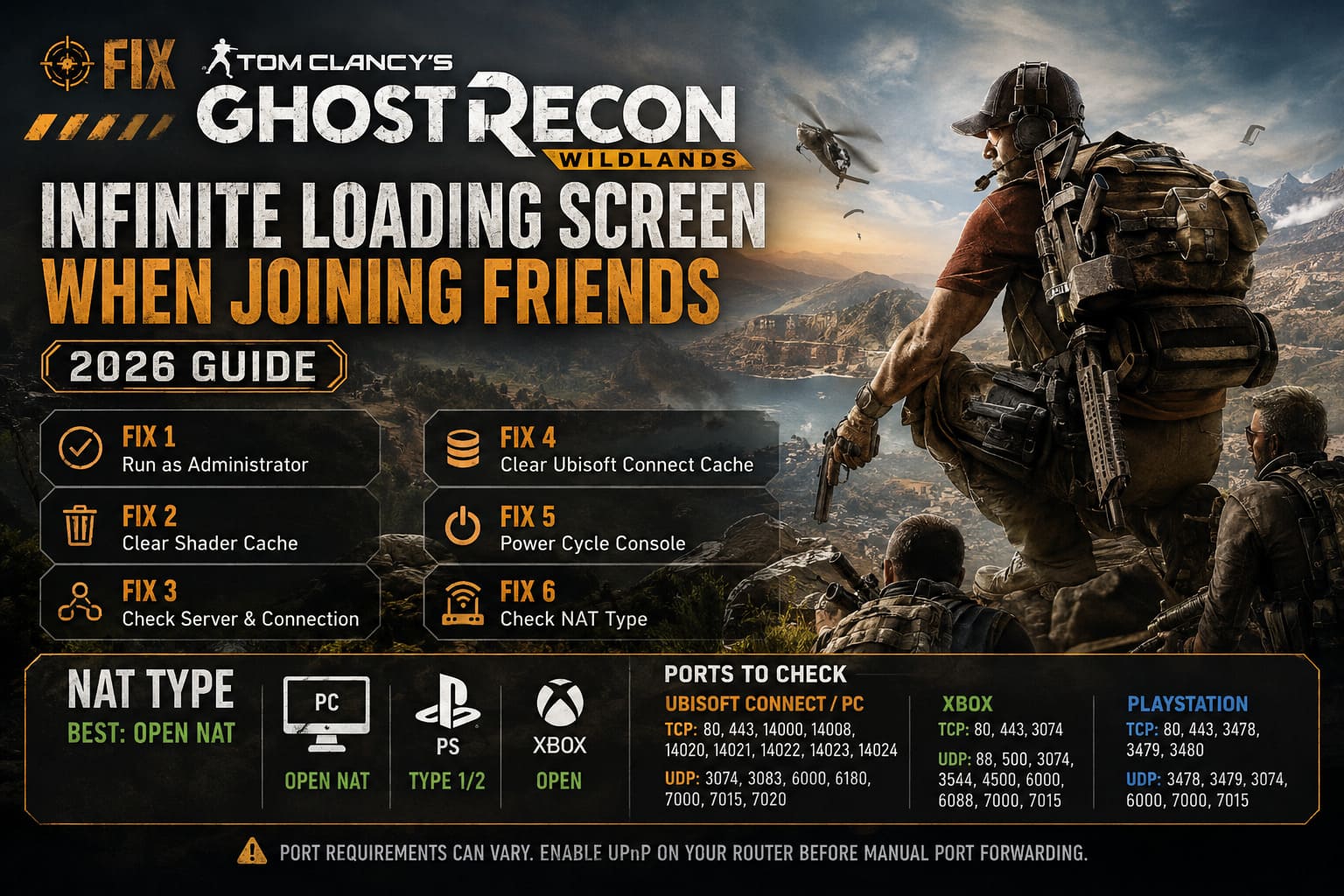
Ghost Recon Wildlands Ports to Check
For players who want to troubleshoot their network manually, these are the ports listed in the original troubleshooting configuration for Ubisoft Connect and the major console platforms.
Ubisoft Connect / PC
TCP: 80, 443, 14000, 14008, 14020, 14021, 14022, 14023, 14024
UDP: 3074, 3083, 6000, 6180, 7000, 7015, 7020
Xbox
TCP: 80, 443, 3074
UDP: 88, 500, 3074, 3544, 4500, 6000, 6088, 7000, 7015
PlayStation
TCP: 80, 443, 3478, 3479, 3480
UDP: 3478, 3479, 3074, 6000, 7000, 7015
Important: port-forwarding requirements can vary depending on your router, platform, ISP, and network configuration. If you aren’t comfortable changing router settings, try UPnP first rather than blindly entering a huge list of rules.
Fix 7: Flush DNS and Reset Windows Networking
If your ISP’s DNS or local Windows networking stack is behaving badly, Wildlands may have trouble reaching the services it needs.
This is one of those fixes that looks intimidating but is actually pretty painless.
Open Command Prompt as Administrator
Search for Command Prompt, right-click it, and select Run as administrator.
Run these commands individually:
ipconfig /flushdns
ipconfig /registerdns
ipconfig /release
ipconfig /renew
netsh winsock reset
Let each command finish before running the next one.
When you’re done, restart your PC.
Then launch Ubisoft Connect, start Wildlands, enter your campaign, and try the lobby again.
I wouldn’t keep repeating these commands every time the game has a bad day. They’re a troubleshooting tool, not a multiplayer ritual.
Fix 8: Test IPv6 by Disabling It
This is the advanced option, and I’d leave it toward the end of the troubleshooting process.
Modern networks often use IPv6 alongside IPv4. Older multiplayer systems, however, can behave differently depending on how your router and ISP handle both protocols.
If everything else has failed, testing the connection with IPv6 disabled can help determine whether the problem is related to your network stack.
On Windows:
- Open Control Panel.
- Select Network and Sharing Center.
- Choose Change adapter settings.
- Right-click your active Ethernet or Wi-Fi connection.
- Select Properties.
- Find Internet Protocol Version 6 (TCP/IPv6).
- Temporarily uncheck it.
- Leave Internet Protocol Version 4 (TCP/IPv4) enabled.
- Click OK.
- Restart Windows.
- Launch Wildlands and test multiplayer.
If disabling IPv6 doesn’t change anything, turn it back on.
I wouldn’t permanently disable IPv6 just because one old game is acting weird. Treat this as a diagnostic test rather than a universal gaming optimization.
Try Swapping the Host
Here’s one of my favorite troubleshooting tricks because it takes almost zero effort.
If Player A can’t join Player B, have Player B join Player A instead.
Wildlands’ peer-to-peer behavior means that changing the host can completely change how the connection is established.
For example:
Player A hosts → Player B gets infinite loading
Try:
Player B hosts → Player A joins successfully
If that works, you’ve learned something useful.
The problem probably isn’t the game installation itself. It may be related to the original host’s NAT, router, ISP routing, or network configuration.
This is also why I’d test both players rather than immediately assuming the person seeing the loading screen is the one with the broken connection.
Don’t Use VPNs Blindly
VPNs can either save the day or make multiplayer networking considerably worse.
If you currently have a VPN enabled, turn it off and test Wildlands again.
A VPN changes your route to Ubisoft services and can introduce additional latency, NAT complications, or blocked ports.
On the other hand, if your normal ISP route is particularly bad, testing a reputable VPN endpoint in the same general region as your friend can sometimes produce a different result.
Don’t treat this as a guaranteed fix.
It’s simply a useful diagnostic experiment:
VPN enabled → test
VPN disabled → test
Whichever configuration produces the stable connection tells you something about the routing path between the two players.
The Fastest Troubleshooting Order
If you’re sitting in Discord with your friend right now and neither of you wants to spend an hour changing router settings, this is the order I’d personally use:
- Both players restart Wildlands.
- Enter the campaign individually.
- Refresh the lobby using Public Matchmaking.
- Return the lobby to Friends Only.
- Try the in-game invitation system.
- Swap the host.
- Disable the Ubisoft Connect overlay on PC.
- Restart both systems.
- Check NAT types.
- Enable UPnP if necessary.
- Clear Ubisoft Connect cache on PC.
- Flush DNS and reset Winsock.
- Test with VPN disabled.
- Try disabling IPv6 as a final Windows networking test.
That sequence starts with fixes that are practically harmless and moves toward changes that can affect your network configuration.
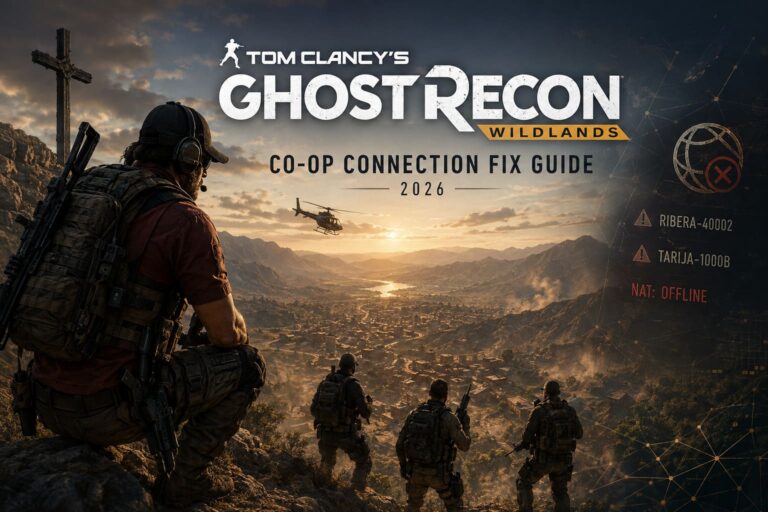
Tom Clancy’s Ghost Recon Wildlands Co-Op Connection Error Fix (2026 Guide)
Ghost Recon Wildlands Infinite Loading Screen Checklist
If you just want the short version, save this checklist:
- Enter the campaign before joining your friend.
- Refresh the session through Public Matchmaking.
- Use the in-game Lobby rather than relying exclusively on external invitations.
- Make sure both Ubisoft accounts show as Online.
- Disable the Ubisoft Connect overlay on PC.
- Synchronize Windows or console time automatically.
- Clear the Ubisoft Connect cache.
- Fully power cycle consoles.
- Check NAT type.
- Enable UPnP if your router supports it.
- Try switching the multiplayer host.
- Flush DNS and reset Winsock on Windows.
- Test the game without a VPN.
- Try disabling IPv6 temporarily if nothing else works.
Final Thoughts
The Ghost Recon Wildlands infinite loading screen when joining friends is exactly the sort of old multiplayer problem that can make you question whether the entire game has suddenly fallen apart.
Usually, it hasn’t.
Wildlands can still run perfectly well in single-player while its multiplayer handshake completely falls over. That’s why reinstalling the game should not be your first instinct. If the game launches, your campaign works, and the loading screen only appears when connecting to another player, your investigation should start with the network and multiplayer session.
The Public Matchmaking refresh trick is the first thing I’d try. It’s fast, doesn’t require technical knowledge, and can sometimes kick the multiplayer session back into shape. After that, I’d check the Ubisoft Connect overlay, clear the launcher cache, swap the host, and investigate NAT.
Only after those basics fail would I start touching DNS, Winsock, IPv6, or router port rules.
And honestly, that’s the biggest lesson with older co-op games: don’t change everything at once. Find the smallest fix that gets your squad back into the game and leave the rest of the network alone.
Because the goal isn’t to become a network engineer.
It’s to get back to Bolivia, grab your squad, and start causing problems.