Tom Clancy’s Ghost Recon Wildlands Co-Op Connection Error Fix (2026 Guide)
Ghost Recon Wildlands is one of those games I can return to years later and still have a ridiculous amount of fun with friends. Bolivia is huge, the missions give you plenty of freedom, and a good four-player squad can turn a routine outpost attack into absolute chaos in seconds. The frustrating part is that getting everyone into the same session can sometimes feel harder than clearing a cartel stronghold.
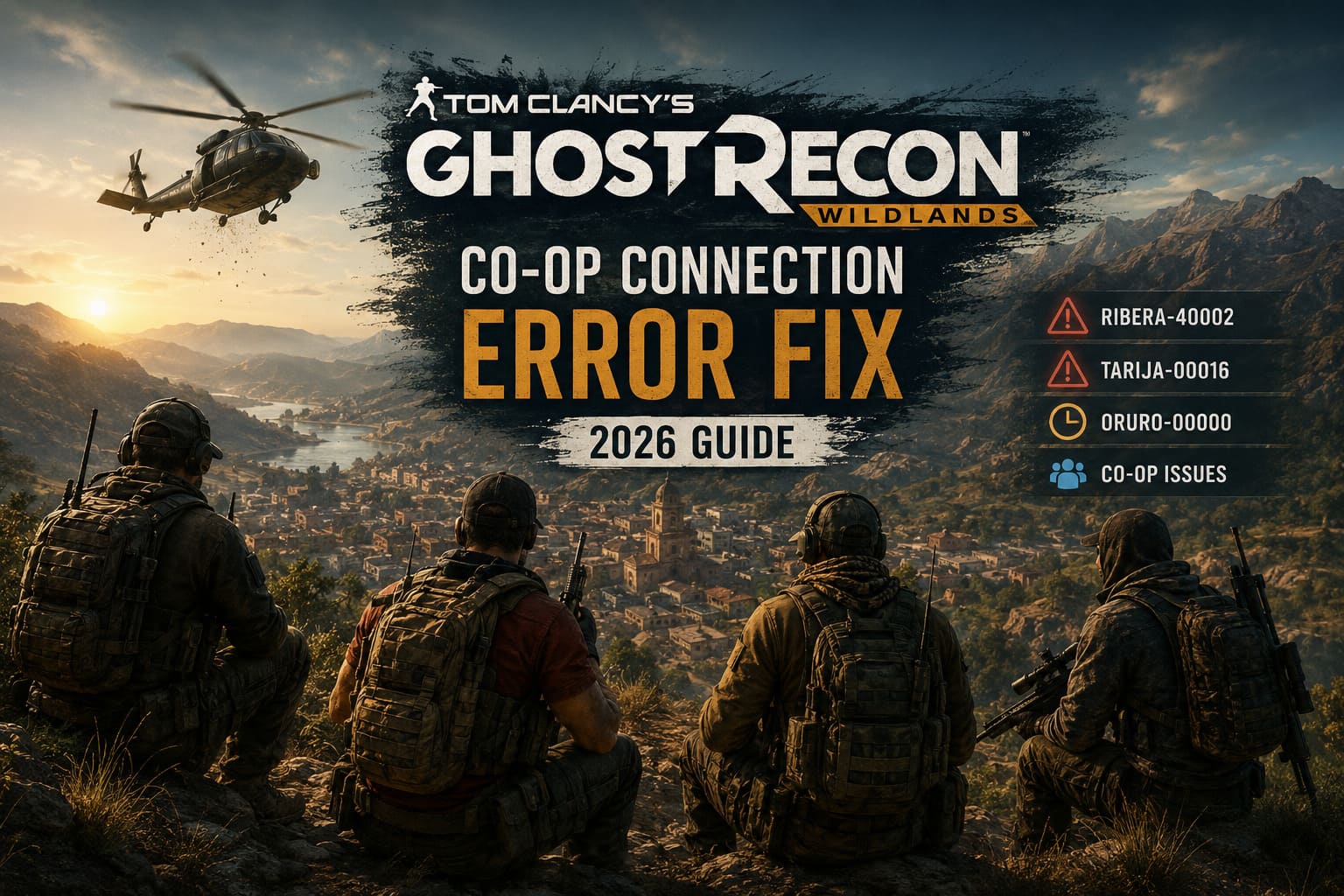
In 2026, players are still running into NAT Type Offline, failed invitations, matchmaking problems, and errors such as Ribera-40002, Tarija-00016, and Oruro-00000. Some of these problems are caused by local network settings, while others appear to come from the way an older game communicates with modern systems and Ubisoft’s online infrastructure.
I’ve spent enough time troubleshooting multiplayer games to know that there is rarely one magical fix. The trick is to start with the simple stuff, give the game enough time to establish its connection, and only then move toward Windows, DNS, router, or VPN changes.
So, if your squad is ready to deploy but Wildlands refuses to cooperate, here is the troubleshooting route I would personally follow.
Why Ghost Recon Wildlands Co-Op Can Still Break in 2026
The strange thing about Wildlands multiplayer issues is that your internet connection can be perfectly fine while the game insists that something is wrong. You might be browsing normally, watching videos, talking on Discord, and playing other online games without a problem. Then Wildlands launches and suddenly your NAT Type says Offline.
That does not automatically mean your internet is broken.
Older multiplayer games can be particularly sensitive to matchmaking handshakes, account authentication, NAT traversal, background launchers, and cached network information. A connection can therefore fail somewhere between your PC, router, platform services, Ubisoft authentication, and the game itself.
That is why I recommend working through the fixes below in order rather than immediately changing ten Windows settings at once.
| Problem | Best First Fix | When To Try Something Else |
|---|---|---|
| NAT Type Offline | Wait in the lobby and refresh Squad Privacy | Check router, DNS, or ISP restrictions |
| Ribera-40002 | Restart the game and force lobby synchronization | Check files and network configuration |
| Tarija-00016 | Flush DNS and restart networking | Test another network or VPN |
| Oruro-00000 | Give the client time to reconnect | Verify game installation and account status |
| Friends Cannot Join | Check privacy and platform launcher | Test invites after a clean restart |
1. Try the Surprisingly Effective Lobby Wait
This is probably the first thing I would try because it costs nothing and does not involve messing with Windows or your router.
After launching Ghost Recon Wildlands, don’t immediately start sending invitations. Instead, sit on the main squad or lobby screen for several minutes. Give the game time to complete its background connection and account synchronization.
I know five minutes of doing absolutely nothing sounds ridiculous in a game that is supposed to let you jump straight into the action. But with older online games, sometimes patience is genuinely part of the troubleshooting process.
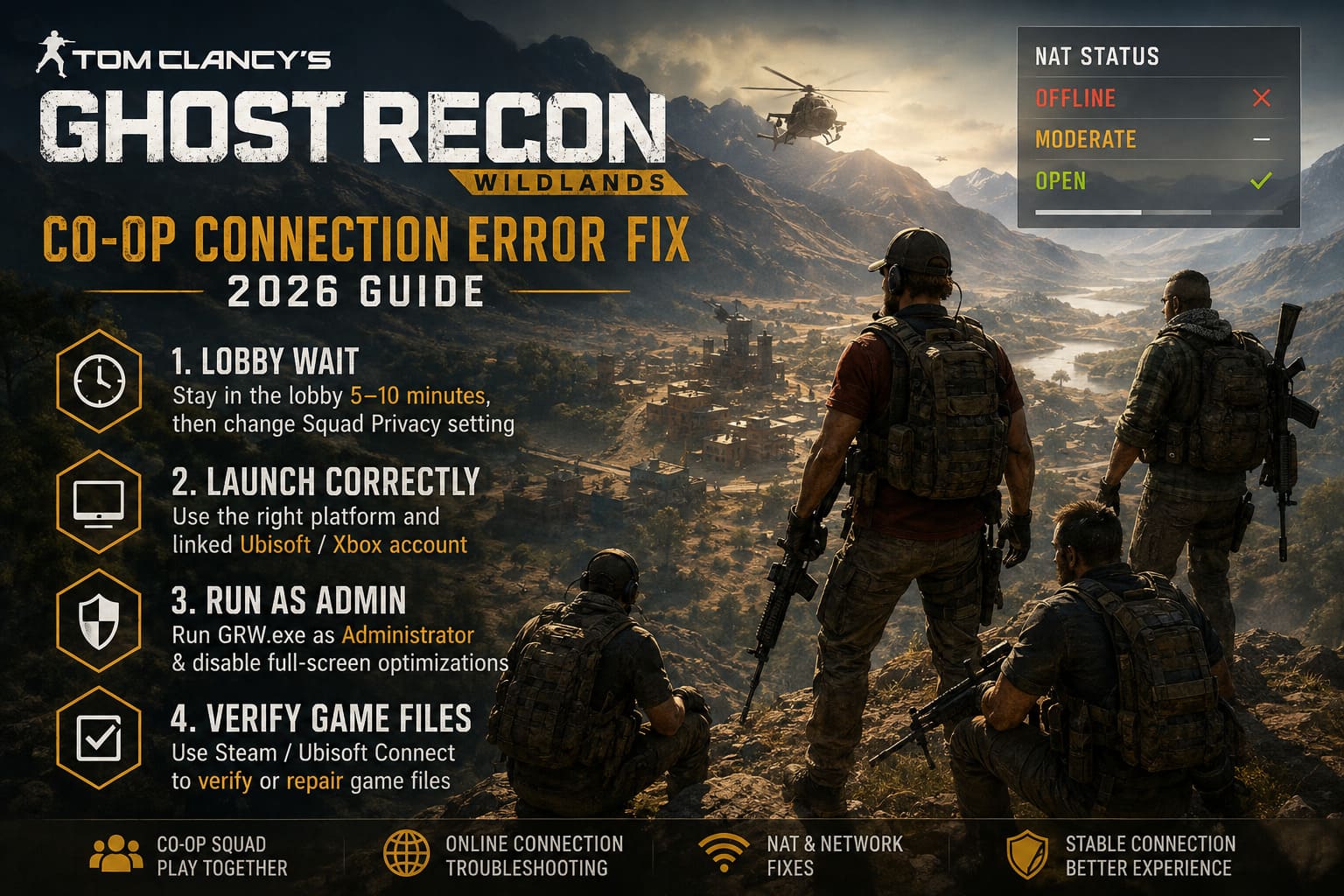
- Launch Wildlands normally.
- Load your campaign or reach the squad lobby.
- Leave the game untouched for roughly 5–10 minutes.
- Open the Squad Privacy settings.
- Switch the privacy option to another setting, such as Open to Friends or Public.
- Wait a moment and check whether the NAT status and friends list update.
The important part is not just changing the privacy option. The combination of waiting and then changing the setting can force the client to refresh information that did not synchronize correctly during startup.
If your NAT status suddenly changes from Offline to Moderate or Open, don’t touch anything. Try inviting your squad immediately.
2. Launch the Game Through the Correct Platform
PC players can have an additional layer of confusion because Wildlands may interact with more than one launcher or account service. This becomes especially relevant when playing through Xbox Game Pass for PC or another platform where account entitlement has to be passed between services.
If your copy is associated with the Xbox app, make sure the correct Xbox account is connected to the corresponding Ubisoft account. Then launch the game through the platform where you own or access it instead of experimenting with random desktop shortcuts.
Personally, I prefer removing as many variables as possible. If the game was installed through one launcher, start it through that launcher. Don’t create a complicated chain of shortcuts and manually open Ubisoft Connect beforehand unless the platform requires it.
A clean launch can make a surprising difference when the problem is authentication rather than your actual internet connection.
3. Run GRW.exe With Administrator Rights
Windows has changed considerably since Wildlands first launched. Security features, permissions, compatibility settings, overlays, and background applications can all interact with older games in ways that were never an issue on the original hardware and software environment.
One simple test is to give the main executable administrator privileges.
- Open your Wildlands installation folder.
- Find GRW.exe.
- Right-click the executable and select Properties.
- Open the Compatibility tab.
- Enable Run this program as an administrator.
- Consider enabling Disable full-screen optimizations as another compatibility test.
- Click Apply and restart the game.
I wouldn’t treat administrator mode as some guaranteed multiplayer fix. It isn’t. But when an older PC game behaves strangely under modern Windows, it is a quick troubleshooting step worth testing.
4. Verify the Game Files Before Going Down the Rabbit Hole
Before changing DNS settings or installing a VPN, make sure your installation itself isn’t damaged.
Steam and Ubisoft Connect both provide tools for checking installed game files. Use the verification option available for your version of Wildlands and let the process finish completely.
If your installation contains an EasyAntiCheat folder, you can also check whether its setup utility provides a repair option. The exact files and available options can vary depending on the current installation, so don’t worry if your folder structure looks slightly different.
After repairing or verifying the game, perform a full restart before testing co-op again. I know it sounds basic, but restarting after a repair prevents you from testing an old process that is still running in the background.
5. Flush Your DNS Cache
If Wildlands repeatedly fails to establish a connection, refreshing your local DNS cache is another low-risk step.
On Windows, open Command Prompt as Administrator and run:
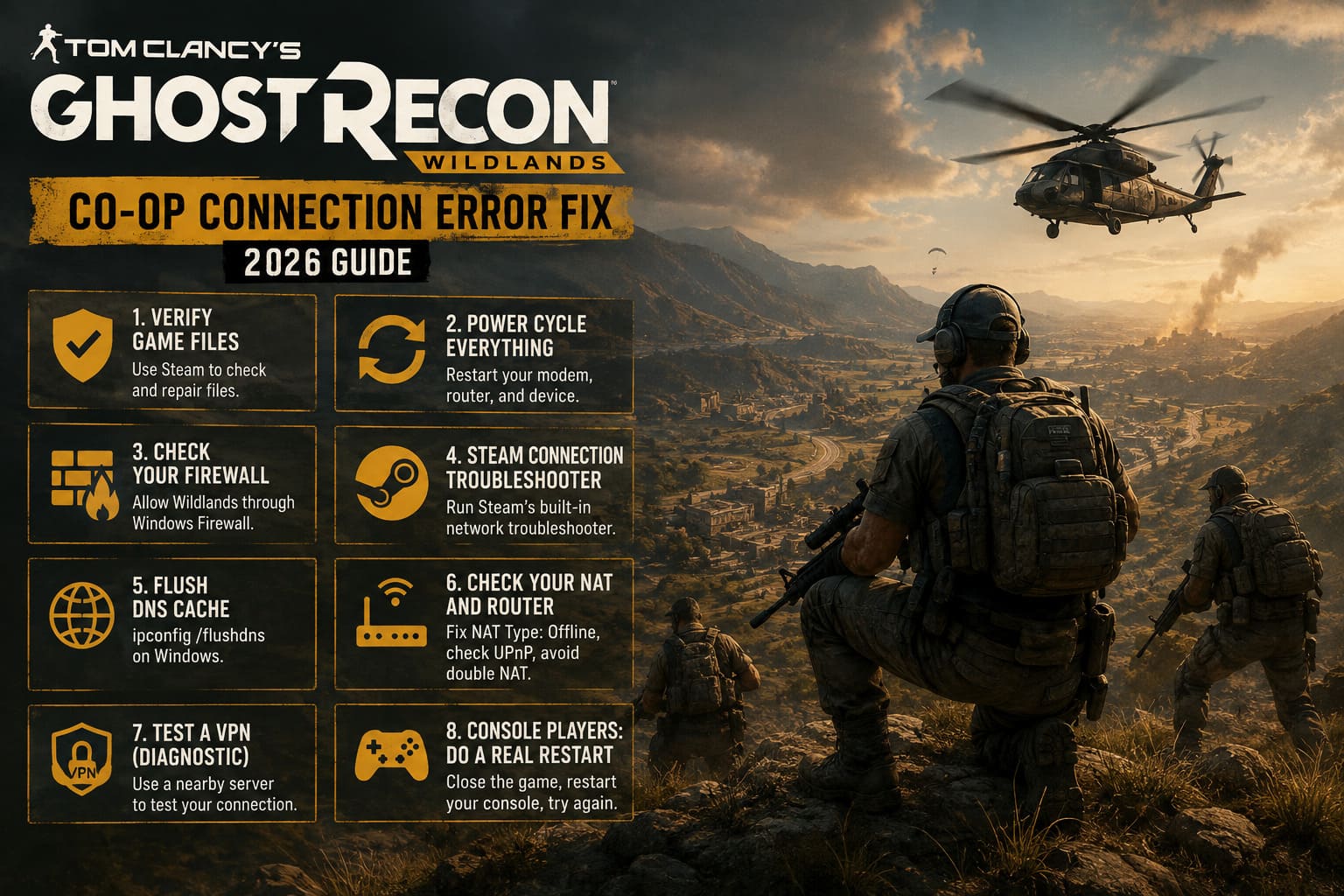
ipconfig /flushdns
You should receive a confirmation that the DNS resolver cache was successfully cleared.
For players who continue experiencing connection problems, testing a public DNS service can also be useful. Google DNS uses 8.8.8.8 and 8.8.4.4.
However, I would not change DNS and assume the problem must be solved immediately. DNS mainly affects how names are resolved; it does not magically repair every NAT or matchmaking problem. Think of it as a sensible network troubleshooting step rather than a guaranteed Wildlands-specific solution.
6. Check Your NAT and Router Situation
This is where things can get more complicated.
If Wildlands consistently reports NAT Type Offline, your router or ISP may be interfering with the kind of connectivity the game expects. Carrier-grade NAT, restrictive firewall rules, double NAT, or certain router configurations can make peer-to-peer matchmaking considerably less reliable.
If you use both a modem/router from your ISP and a second personal router, check whether you’re dealing with double NAT. That setup can cause problems in some multiplayer games.
For a more permanent solution, players with access to their router can investigate UPnP, NAT configuration, and firewall rules. I would avoid blindly forwarding random ports from old forum posts, though. Wildlands has been around for a long time, and outdated networking advice is everywhere.
7. Test a VPN Only as a Diagnostic Tool
A VPN is one of the more interesting troubleshooting options because it can help determine whether your normal ISP route is part of the problem.
If your ISP uses CGNAT or your normal route to the relevant services is problematic, testing Wildlands through a VPN may produce a different result. Choose a server geographically close to you rather than jumping halfway across the world.
But there is a catch: a VPN can also make gaming worse. Extra routing distance means extra latency, and some VPN configurations are not friendly to multiplayer traffic.
So I would use a VPN as a test first. If Wildlands suddenly works when connected through the VPN, you’ve learned something useful: your normal network path may be contributing to the issue.
Don’t keep switching VPN regions during an active session, either. Pick one nearby location, launch the game cleanly, and test the connection.
8. Xbox and PlayStation Players: Do a Real Restart
Console players have fewer Windows settings to worry about, but that doesn’t mean they’re immune to connection problems.
On Xbox, suspended game states can occasionally cause trouble with online games that expect a fresh authentication session. If Wildlands has been sitting in a suspended state for a long time and suddenly refuses to connect, completely close the game instead of resuming it.
Then restart the console and launch Wildlands from scratch.
On PlayStation, the same basic principle applies: close the application completely, restart the console if necessary, and establish a fresh connection before testing multiplayer again.
When troubleshooting online games, a clean session is always preferable to repeatedly trying to recover a broken one.
My Recommended Order of Attack
If I were sitting on Discord with three friends waiting to start a Wildlands session, I wouldn’t spend an hour changing every setting I could find. I’d go from easiest to most invasive.
- Restart Wildlands completely.
- Wait 5–10 minutes in the lobby.
- Change Squad Privacy and check NAT status.
- Make sure everyone is using the correct platform and account.
- Verify the game files.
- Restart the PC or console.
- Flush DNS and test the network again.
- Investigate router/NAT issues.
- Use a VPN as a diagnostic test if necessary.
This order saves time because you don’t want to spend twenty minutes modifying network settings when the actual problem was simply that Wildlands hadn’t synchronized correctly after startup.
Is Tom Clancy’s Ghost Recon Wildlands Still on Xbox Game Pass in 2026? Full Guide for US Players
Final Thoughts: Don’t Let NAT Type Ruin Wildlands
Ghost Recon Wildlands is still one of my favorite co-op open-world shooters, and that makes connection problems particularly annoying. The game itself hasn’t suddenly become bad. Quite the opposite. When four players coordinate a stealth approach, tag enemies, sync shots, call in vehicles, and then completely destroy the plan because someone starts shooting too early, Wildlands is still incredibly entertaining.
The online infrastructure is simply showing its age.
If you’re seeing Ribera-40002, Tarija-00016, Oruro-00000, or NAT Type Offline, don’t immediately assume the game is permanently broken. Start with the lobby synchronization trick, restart the game cleanly, verify your installation, and then work outward toward DNS, router, ISP, and VPN troubleshooting.
And if one particular fix works for your entire squad, stick with it. With older multiplayer games, consistency is often more valuable than finding the most complicated solution imaginable.
The good news is that once Wildlands finally decides to cooperate, the frustration usually disappears within seconds. Your friends are in the lobby, the map opens, the helicopters are waiting, and suddenly you’re back in Bolivia doing exactly what this game does best.