How to Fix Beast of Reincarnation Crash on Launch, Black Screen, and Freezing on PC
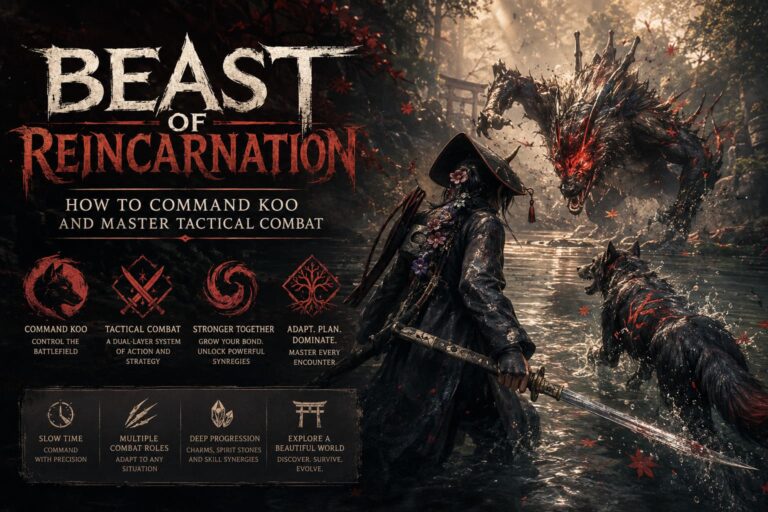
The launch of Beast of Reincarnation has been one I’ve been looking forward to for months. Game Freak took a completely different direction with this project, and after spending years making Pokémon, seeing the studio tackle a dark action RPG immediately caught my attention. The world feels brutal, the combat has weight, and traveling through ruined Japan with Emma and Koo creates a surprisingly memorable atmosphere.
Unfortunately, my excitement lasted about five minutes.
Instead of exploring the game, I was staring at a black screen. Then came a crash. Then another freeze before the main menu even appeared. Judging by Steam Discussions, Reddit posts, and Discord servers, I quickly realized I wasn’t the only one dealing with this.
The good news? Most of these problems aren’t permanent. After trying multiple fixes—and reading through dozens of community reports—I managed to get the game running consistently. If Beast of Reincarnation crashes on launch, freezes during loading, or gets stuck on a black screen, these are the solutions actually worth trying.
Why Does Beast of Reincarnation Crash?
Because the game is built with Unreal Engine 5, it pushes modern hardware fairly hard. UE5 games often experience similar launch problems during release week, especially before developers release optimization patches.
The most common reasons include:
- DirectX 12 compatibility problems
- Corrupted game files
- Outdated GPU drivers
- Windows permission issues
- Display resolution conflicts
- Missing Visual C++ runtimes
- Overlay software interfering with the game
- Low virtual memory allocation
Some PCs experience only one of these issues, while others suffer from several at the same time.
Quick Troubleshooting Overview
| Problem | Most Likely Fix | Difficulty |
|---|---|---|
| Crash immediately after pressing Play | Force DirectX 11 | Easy |
| Black screen before menu | Reset resolution settings | Easy |
| Freezing during loading | Verify game files | Easy |
| Random crashes after startup | Clean GPU driver install | Medium |
| Instant desktop crash without error | Install Visual C++ packages | Easy |
| Crashes after several minutes | Increase Virtual Memory | Medium |
1. Force the Game to Use DirectX 11
This was the very first fix that worked for me.
UE5 titles sometimes have unstable DirectX 12 implementations during launch week. Switching back to DirectX 11 sacrifices very little visually while dramatically improving stability.
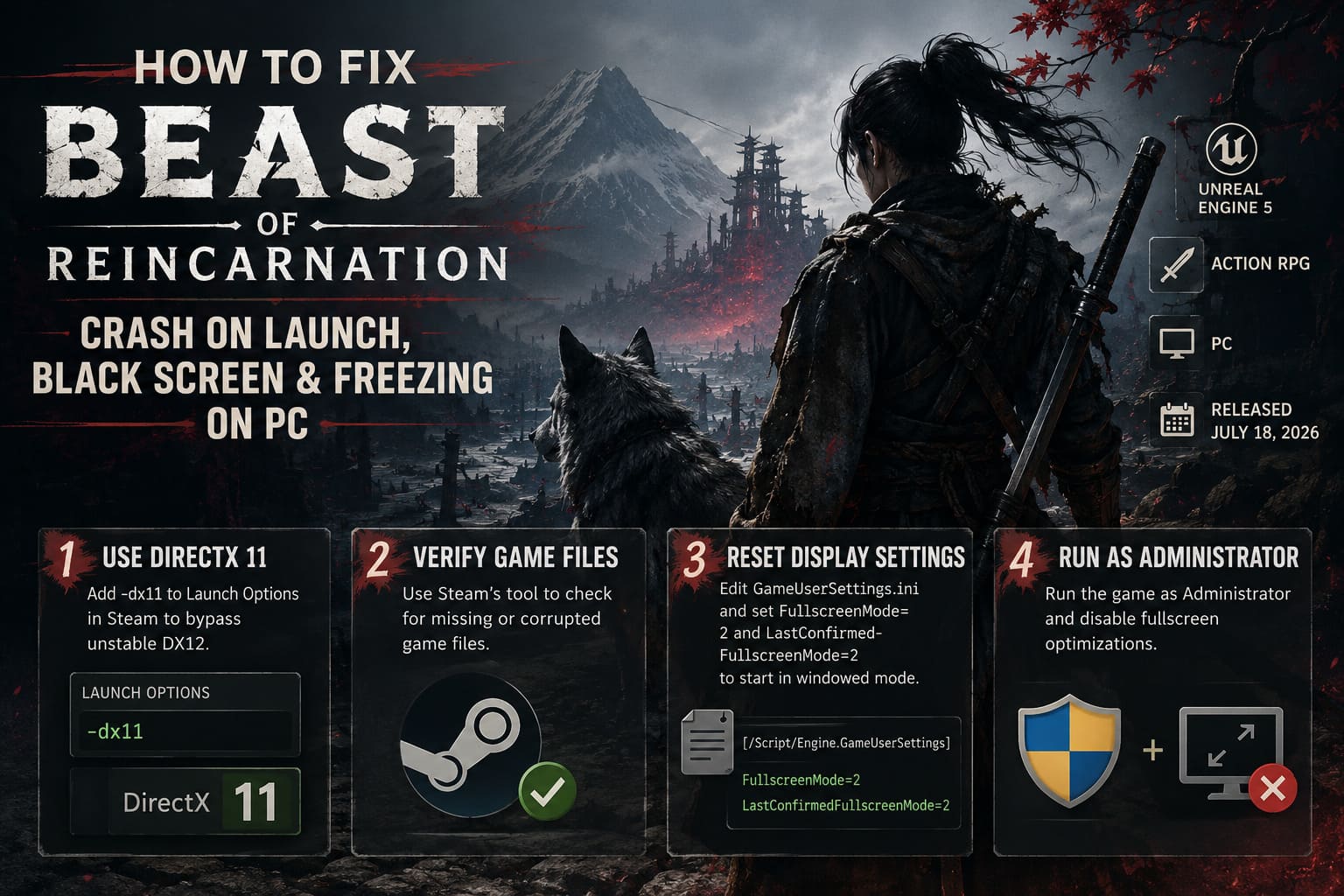
Here’s how:
- Open Steam.
- Right-click Beast of Reincarnation.
- Choose Properties.
- Under Launch Options, enter:
-dx11Launch the game again.
If the problem is related to DX12 initialization, the game often boots immediately afterward.
2. Verify Game Files
This might sound obvious, but it’s amazing how many launch issues are caused by damaged or incomplete downloads.
Steam’s verification tool compares every installed file against the official version and replaces anything that’s corrupted.
Steps:
- Open Steam Library.
- Right-click the game.
- Open Properties.
- Select Installed Files.
- Click Verify integrity of game files.
If Steam downloads replacement files afterward, restart Steam before launching again.
3. Fix the Black Screen by Resetting Display Settings
One issue I noticed repeatedly across community discussions involves the game attempting to launch using an unsupported fullscreen configuration.
Instead of reinstalling everything, simply reset the configuration file.
Go to:
%localappdata%Then navigate to:
BeastOfReincarnation
Saved
Config
WindowsNoEditor
Open:
GameUserSettings.iniFind these entries:
FullscreenMode=
LastConfirmedFullscreenMode=
Change both values to:
2This forces the game to start in Windowed Mode, which often bypasses the black screen entirely.
Once the game opens, you can switch back to fullscreen inside the graphics settings.
4. Run the Game as Administrator
Windows security sometimes creates unnecessary headaches for new releases.
Giving the executable administrator privileges removes several permission-related issues.
I also recommend disabling Windows fullscreen optimizations while you’re there.
Steps:
- Browse local files from Steam.
- Right-click the game’s EXE.
- Open Properties.
- Select Compatibility.
- Enable:
- Run this program as Administrator
- Disable Fullscreen Optimizations
Apply the changes and try launching again.
5. Install a Completely Fresh Graphics Driver
Updating drivers isn’t always enough.
Old shader caches and leftover registry entries can continue causing crashes even after installing newer versions.
If you’ve had multiple GPU driver updates over the past year, consider doing a clean installation.
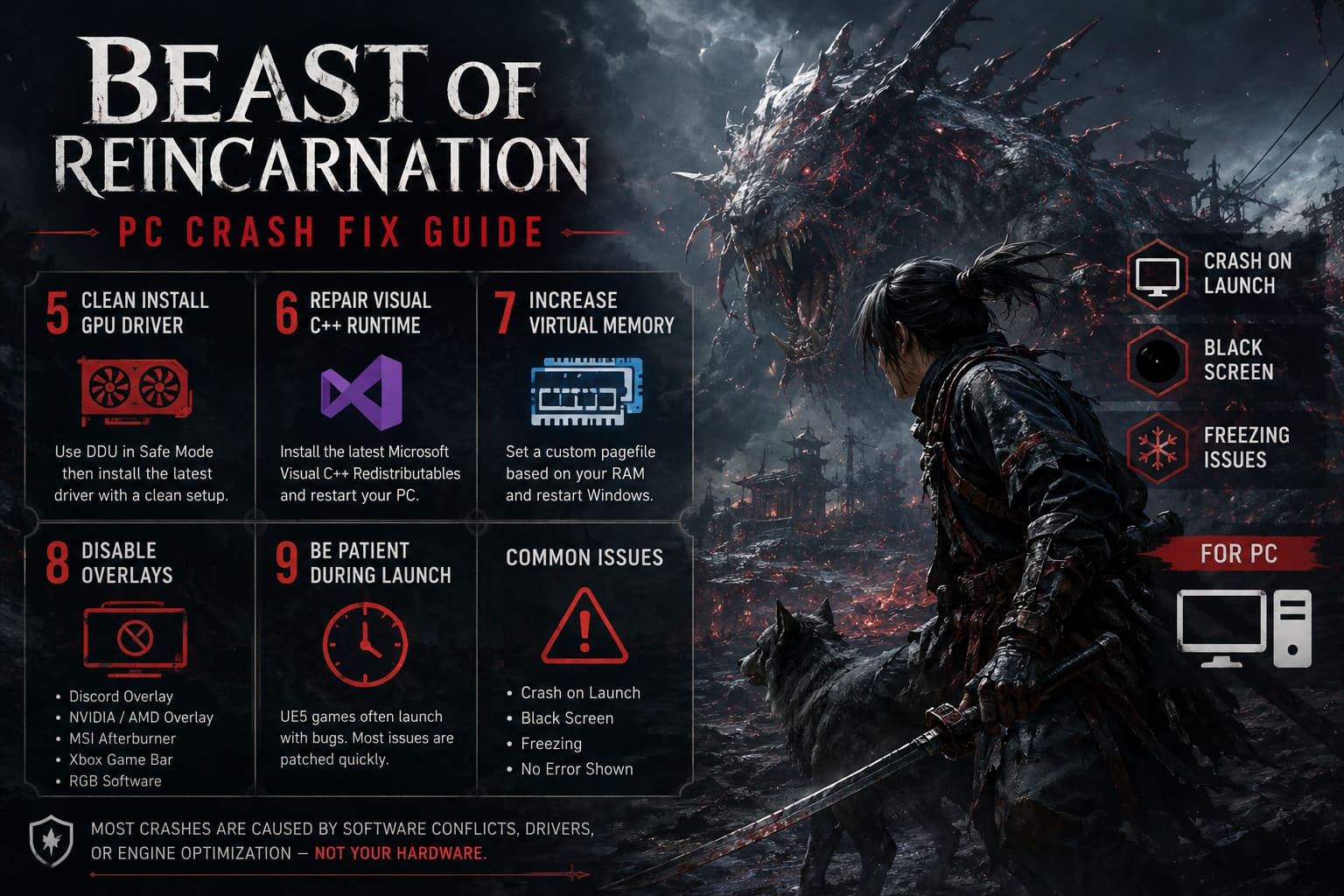
My preferred process is:
- Remove old drivers using DDU (Display Driver Uninstaller) in Safe Mode.
- Restart Windows.
- Install the newest driver for your GPU.
- Choose Clean Installation (NVIDIA) or Factory Reset (AMD).
It takes longer than a regular update, but it eliminates a surprising number of weird Unreal Engine problems.
6. Repair Microsoft Visual C++ Components
One thing many players overlook is that games depend heavily on Microsoft’s runtime libraries.
If those files become corrupted—or certain versions are missing—the game may close instantly without displaying any error message.
Installing the latest Visual C++ Redistributables usually takes only a few minutes.
After installation:
- Restart Windows.
- Launch Steam again.
- Test the game before trying more complicated fixes.
It’s one of the easiest solutions on this list.
7. Increase Windows Virtual Memory
Modern Unreal Engine games can easily consume over 16 GB of memory while compiling shaders and loading large environments.
If Windows doesn’t have enough paging space available, it may terminate the process before the game finishes loading.
To increase Virtual Memory:
- Search for Advanced System Settings.
- Open Performance Settings.
- Select Advanced.
- Open Virtual Memory.
- Disable automatic management.
- Set a custom pagefile.
A good rule is:
| Installed RAM | Recommended Pagefile |
|---|---|
| 8 GB | 12288 MB |
| 16 GB | 24576 MB |
| 32 GB | 49152 MB |
Restart the PC afterward.
8. Disable Background Overlays
This isn’t always the cause, but I’ve personally seen overlays create crashes in several UE5 games over the past couple of years.
Try temporarily disabling:
- Discord Overlay
- NVIDIA Overlay
- AMD Overlay
- MSI Afterburner + RivaTuner
- Xbox Game Bar
- RGB control software
If the game suddenly launches normally, you can re-enable programs one at a time to identify the culprit.
9. Keep Expectations Realistic During Launch Week
This is probably the only “fix” that isn’t really a fix.
Every major Unreal Engine 5 release seems to launch with a handful of hardware-specific bugs. Some players have zero issues, while others can’t even reach the title screen.
From what I’ve seen so far, Beast of Reincarnation falls somewhere in the middle.
The encouraging part is that most crashes don’t appear to be caused by faulty hardware. They’re usually software conflicts, driver problems, or engine optimization issues that developers patch fairly quickly.
If none of the methods above work, there’s a good chance the problem is on the game’s side rather than yours.
Does Beast of Reincarnation Have Multiplayer Co-Op? Full Online Mode Guide
Additional Tips Worth Trying
If you’re still stuck, these smaller tweaks have helped some players:
- Update Windows completely.
- Close unnecessary startup applications before launching.
- Install the game on an SSD rather than an HDD.
- Remove any GPU or CPU overclocks temporarily.
- Ensure your antivirus isn’t quarantining game files.
- Restart Steam after making configuration changes.
None of these are guaranteed solutions individually, but together they eliminate many common causes of startup instability.
Does Beast of Reincarnation Have Controller Support on Steam? Full Guide
Final Thoughts
After testing nearly every workaround floating around community forums, I’d start with DirectX 11, Steam file verification, and resetting the game’s display configuration. Those three fixes seem to solve the majority of launch problems without requiring advanced troubleshooting.
If the crashes continue, a clean graphics driver installation combined with updated Visual C++ runtimes is the next step I’d recommend. It takes a little more time, but it’s also the point where many stubborn startup issues finally disappear.
Despite the rough launch, I genuinely think Beast of Reincarnation has a lot going for it. Once I finally got past the crashes, it became much easier to appreciate its combat, atmosphere, and surprisingly rewarding exploration. Hopefully, the first few official patches smooth out the remaining technical issues so more players can spend time fighting monsters instead of fighting Windows.