How to Fix ReStory Chill Electronics Repairs Black Screen on Startup
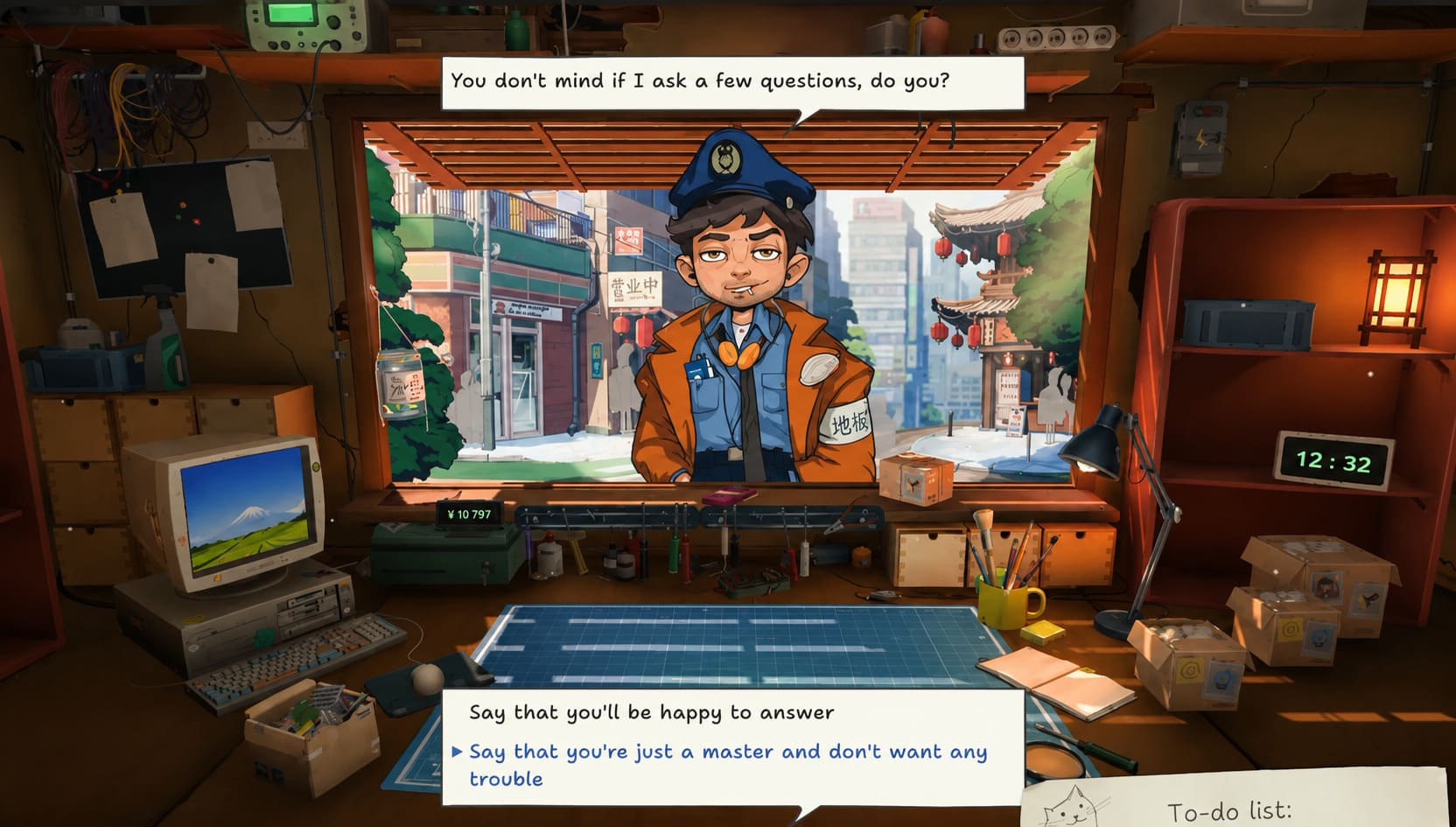
There are cozy games that immediately pull you into their world, and ReStory: Chill Electronics Repairs is definitely one of them. The idea of restoring retro electronics in a nostalgic early-2000s Tokyo is surprisingly relaxing, and after spending time with demos and following the game’s development, I was looking forward to jumping into the full experience.
Unfortunately, my first launch didn’t go as planned. Instead of a cozy repair shop, I was staring at a black screen while the game seemed to be running in the background. The music played, Windows showed the application as active, but nothing ever appeared on the monitor.
After digging through community discussions and trying several different solutions, I finally got everything working. If you’re facing the same issue, these are the fixes that actually helped—not just random suggestions copied from every troubleshooting website.
ReStory Chill Electronics Repairs System Requirements & Gameplay Guide
Why Does ReStory Show a Black Screen?
From what I’ve seen, this problem usually isn’t caused by one single bug. Instead, it’s often a combination of graphics initialization issues, outdated drivers, corrupted cache files, Steam overlays, or connected USB devices confusing the game during startup.
The good news is that most players don’t need to reinstall Windows or perform any complicated fixes. A handful of simple adjustments usually solve the problem within a few minutes.
Here are the methods I’d try first.
Launch the Game in Windowed Mode
This ended up being the solution that worked on my PC. Sometimes the game attempts to start in a fullscreen resolution or refresh rate that doesn’t cooperate with your monitor. Instead of displaying the opening screen, it simply stays black.
How to Force Windowed Mode
- Open your Steam Library.
- Right-click ReStory: Chill Electronics Repairs.
- Select Properties.
- Find the Launch Options field.
- Enter the following command:
-windowedLaunch the game again. If it opens successfully, immediately head into the graphics settings and manually choose your monitor’s native resolution before switching back to fullscreen if you want.
In my experience, this is one of the quickest fixes worth trying before anything else.
Disconnect Extra Controllers
This one surprised me. During early builds, several players noticed that ReStory could become confused if multiple USB gaming devices were connected before launch. Gamepads, racing wheels, HOTAS systems, and even some generic controllers have been linked to startup problems.
What to Do
- Close the game completely.
- Disconnect every unnecessary USB controller.
- Leave only your keyboard and mouse connected.
- Restart Steam.
- Launch the game again.
If everything loads correctly, reconnect your controller afterward. It sounds strange, but this trick has solved startup issues for quite a few players.
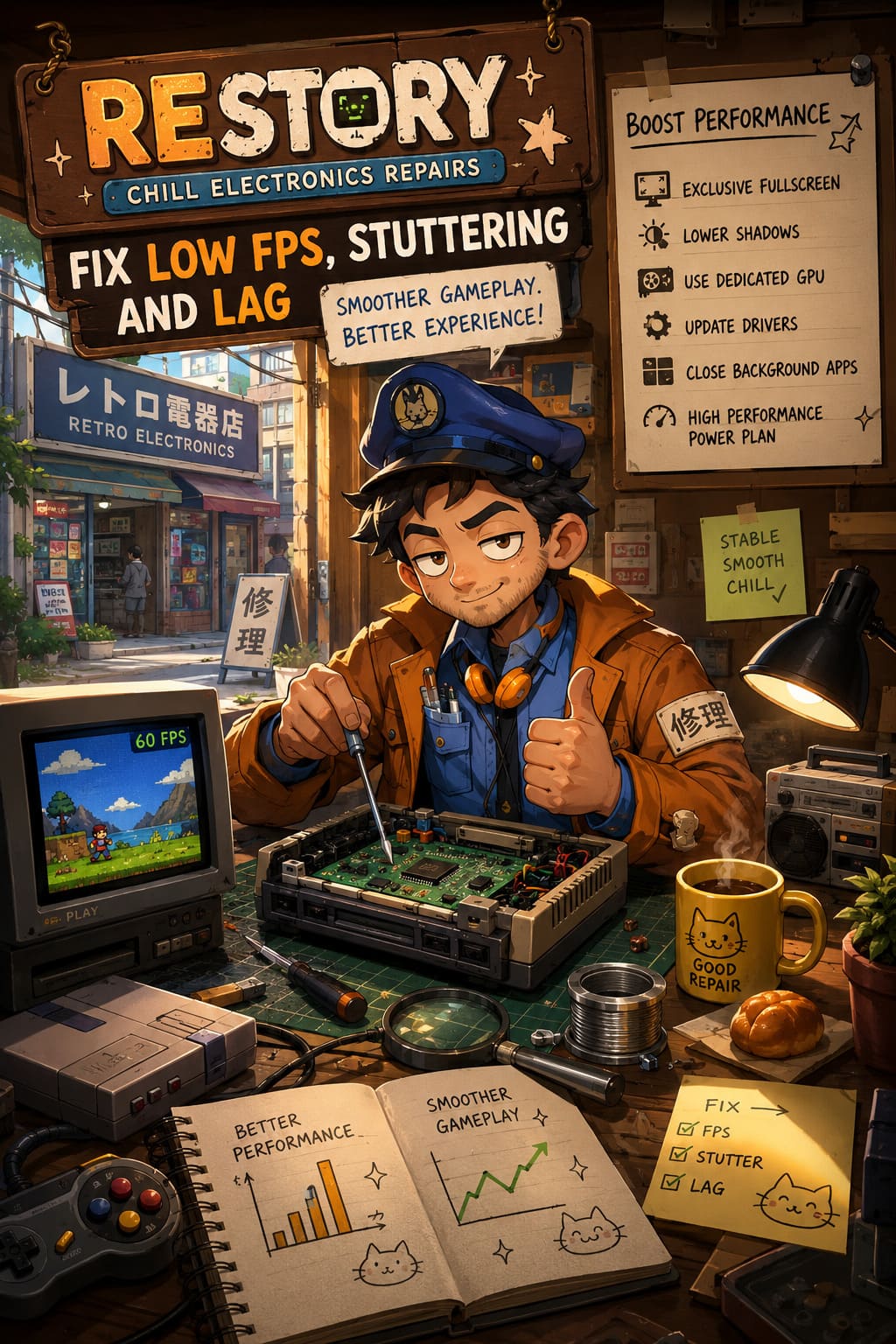
Refresh Your Graphics Drivers
Graphics drivers are responsible for far more than just frame rates. Modern indie games often rely on newer rendering features that older driver versions don’t always handle correctly. Even if your GPU works perfectly in other games, ReStory may expose hidden driver issues.
| Task | Why It Helps |
|---|---|
| Install the newest GPU driver | Fixes compatibility problems with newer game builds. |
| Choose Clean Installation | Removes corrupted graphics settings and old driver remnants. |
| Restart your PC | Ensures all driver changes are properly applied. |
Whether you’re using NVIDIA, AMD, or Intel graphics, performing a clean installation is often more effective than simply updating over an older driver. If you’ve skipped driver updates for several months, this should definitely be on your checklist.
Clear the Shader Cache
Shader cache corruption doesn’t happen often, but when it does, it can cause some very strange behavior. Common symptoms include black screens, freezing during launch, infinite loading screens, graphical glitches, and unexpected crashes.
- Black screen on startup
- Infinite loading
- Random crashes
- Visual artifacts
- Game freezing during launch
Both NVIDIA and AMD include built-in options for resetting shader caches through their control software. After clearing the cache, restart your computer before launching ReStory again.
I’ve seen this fix resolve similar problems in several Unreal Engine and Unity games over the past few years, so it’s always worth trying.
Repair Microsoft Visual C++ and DirectX
This is one of those fixes that many people overlook because the required software is already installed on most gaming PCs. However, installation files can become damaged over time.
Repairing Microsoft Visual C++ Redistributables together with DirectX Runtime only takes a few minutes and can eliminate launch problems caused by missing runtime libraries.
Recommended Steps
- Install or repair the latest Visual C++ Redistributables.
- Update DirectX Runtime components.
- Restart Windows.
- Launch the game again.
Even if these aren’t the cause of your black screen, repairing them certainly won’t hurt and often fixes other hidden issues as well.
Verify the Game Files
Downloads don’t always finish perfectly. Power interruptions, antivirus software, or storage errors can leave a few game files damaged without Steam warning you immediately.
Thankfully, Steam includes an easy verification tool that compares your local installation against the official files stored on Steam servers.
How to Verify Files
- Open your Steam Library.
- Right-click the game.
- Select Properties.
- Open Installed Files.
- Click Verify integrity of game files.
Steam will automatically replace anything that’s missing or corrupted. This has rescued more game installations for me than I can count.
Turn Off Steam Overlay and Other Overlays
I’ve learned over the years that overlays are responsible for more gaming issues than most people realize. While they usually work perfectly, they can occasionally interfere with the graphics initialization process.
Temporarily Disable
- Steam Overlay
- Discord Overlay
- NVIDIA GeForce Experience Overlay
- MSI Afterburner / RivaTuner
- Xbox Game Bar
Once everything is closed, launch ReStory again. If the game starts normally, you can re-enable each overlay one by one until you discover which application was causing the conflict.
Double-Check Your Hardware
Although ReStory isn’t a demanding game, your PC still needs to meet the minimum system requirements. Running below these specifications may result in crashes, freezes, or startup issues.
| Component | Minimum Requirement |
|---|---|
| Operating System | Windows 10 64-bit |
| Processor | Dual-core / 4-thread CPU |
| Memory | 4 GB RAM |
| Recommended Memory | 8 GB RAM |
| Graphics Card | NVIDIA GTX 750 Ti or AMD equivalent |
| Storage | 1 GB available space |
A Few Extra Things I’d Try
If none of the major fixes solve the issue, there are still a few smaller tricks worth testing before assuming the game itself is broken.
- Run the game as Administrator.
- Temporarily disable your antivirus software.
- Close unnecessary background applications.
- Completely restart Steam instead of only restarting the game.
These tricks don’t always fix the problem, but they’re quick to test and have helped me solve launch issues in several other PC games over the years.
Final Thoughts
I’ve run into plenty of launch issues throughout my years of PC gaming, and ReStory: Chill Electronics Repairs isn’t unique in that regard. New releases—especially indie games—sometimes have rough edges during their first weeks, but the good news is that the black screen problem is usually fixable without drastic measures.
If I had to recommend an order, I’d start with windowed mode, then disconnect extra controllers, verify the game files, perform a clean graphics driver installation, clear the shader cache, and finally repair the Visual C++ and DirectX runtimes. Those steps solve the vast majority of startup issues I’ve encountered, not only in ReStory but across many modern PC titles.
Hopefully one of these solutions gets you past the black screen so you can stop troubleshooting and finally enjoy the relaxing experience of repairing retro electronics in one of the coziest simulation games released this year.