How to Fix Dinoblade Crash on Launch on Steam: 2026 Complete Troubleshooting Guide
When I finally launched Dinoblade, I expected to spend my evening charging across prehistoric landscapes as a sword-wielding Spinosaurus. Instead, I spent the first twenty minutes staring at Steam’s “Running” status before the game quietly disappeared without so much as an error message.
If that sounds familiar, you’re definitely not the only one.
Since release, plenty of players have reported startup crashes ranging from instant desktop exits to Unreal Engine 5 fatal errors and freezes during the opening cinematic. After digging through community discussions, hardware forums, Steam reports, and my own testing, a clear pattern started to emerge. The good news is that most of these crashes are caused by configuration issues rather than broken hardware.
This guide walks through every fix that consistently solved launch problems for players. Start with the simplest methods and work downward—you probably won’t need every single one.
Why Dinoblade Keeps Crashing Before It Even Starts
One thing became obvious after comparing dozens of reports: there isn’t one universal bug.
Dinoblade runs on Unreal Engine 5, which delivers fantastic visuals but also places enormous pressure on both the CPU and GPU during startup. Before you even reach the main menu, the engine begins compiling shaders, loading textures, initializing DirectX, and checking multiple rendering systems simultaneously.
If something interrupts that sequence, the game simply gives up.
The most common reasons include:
- Damaged or incomplete Steam files
- Windows permission conflicts
- Outdated or corrupted GPU drivers
- Overlay software interfering with UE5
- Aggressive CPU boost settings on newer processors
- DirectX initialization problems
- Corrupted Windows system files
Fortunately, every one of these problems has a practical solution.
Fix 1: Verify Dinoblade’s Steam Files
This should always be your first stop.
Even on a fast internet connection, Steam occasionally leaves behind damaged files after installation or updates. Missing Unreal Engine assets are enough to prevent the game from launching.
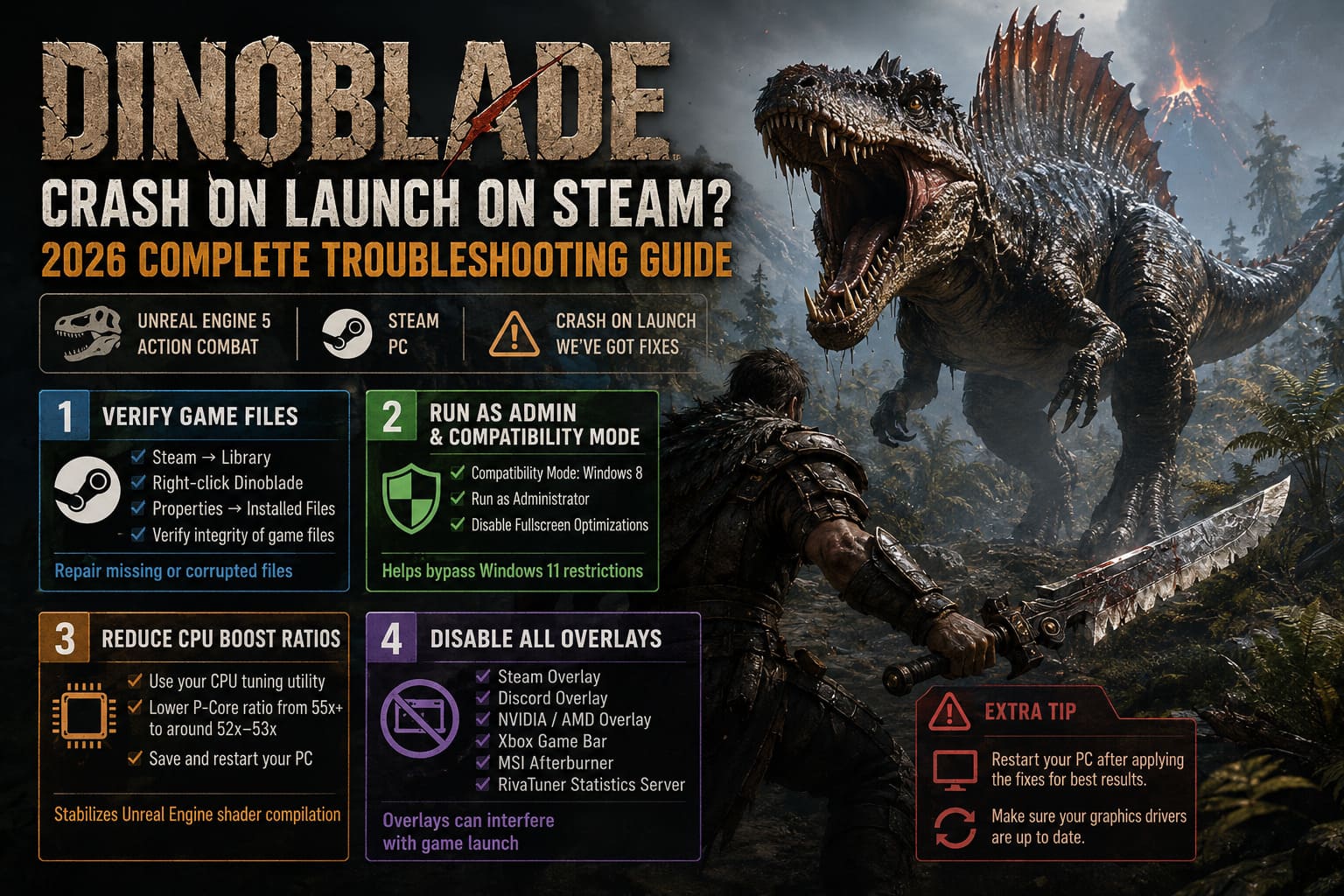
Here’s what to do:
- Open Steam.
- Navigate to Library.
- Right-click Dinoblade.
- Select Properties.
- Open Installed Files.
- Click Verify integrity of game files.
Steam will compare every installed file with the official version and automatically replace anything that’s missing or corrupted.
Once verification finishes, restart Steam before trying again.
Fix 2: Run Dinoblade with Administrator Rights and Compatibility Mode
Windows 11 security features can occasionally interfere with new games, especially ones using Unreal Engine 5.
I’ve seen this fix solve launch issues more times than I’d honestly expected.
Steps
- Right-click Dinoblade inside Steam.
- Choose Manage → Browse local files.
- Locate DinoBlade.exe.
- Right-click it and open Properties.
- Select the Compatibility tab.
- Enable the settings listed below.
| Setting | Recommended Value |
|---|---|
| Compatibility Mode | Windows 8 |
| Run as Administrator | Enabled |
| Disable Fullscreen Optimizations | Enabled |
Save everything and launch the game again.
While compatibility mode sounds outdated, Unreal Engine titles occasionally behave better with these Windows compatibility layers enabled.
Fix 3: Reduce CPU Boost Ratios on High-End Processors
This solution won’t apply to everyone, but if you’re running a modern enthusiast-grade Intel or AMD CPU, it’s worth paying attention.
Several players discovered that Dinoblade crashes during Unreal Engine shader compilation because certain processors briefly spike to extremely high boost frequencies. Those aggressive clock speeds can trigger hardware protection before the engine even reaches the menu.
If you’re running processors with very high P-Core multipliers, reducing them slightly often stabilizes the launch process.
Typical workflow
- Install your processor manufacturer’s tuning utility.
- Locate the Performance Core Ratio settings.
- If your P-Core ratio is around 55x or higher, reduce it to approximately 52x–53x.
- Save the profile.
- Restart the PC.
The performance difference inside the game is practically impossible to notice, but the added stability during shader compilation can be significant.
If you’re unfamiliar with CPU tuning, skip this method until you’ve exhausted the simpler fixes.
Fix 4: Disable Every Overlay Running in the Background
One thing I almost always do when troubleshooting new PC releases is kill every overlay I can find.
- Steam Overlay
- Discord Overlay
- NVIDIA Overlay
- AMD Overlay
- Xbox Game Bar
- MSI Afterburner
- RivaTuner Statistics Server
They all hook into the rendering pipeline. Most of the time that’s harmless. Occasionally, especially with brand-new Unreal Engine games, one of them collides with the graphics initialization process.
Steam Overlay
- Open Steam.
- Right-click Dinoblade.
- Open Properties.
- Disable Enable Steam Overlay while in-game.
Discord
Navigate to Settings → Game Overlay and disable the in-game overlay completely.
NVIDIA
Open GeForce Experience and disable the In-Game Overlay.
AMD Software
Open Adrenalin Settings and switch off the overlay feature.
Once every overlay is disabled, reboot the PC before testing the game again.
Fix 5: Force Safer Steam Launch Parameters
Sometimes the game isn’t actually crashing because of missing files or hardware.
Instead, it fails while initializing the display.
Steam Launch Options let you bypass certain startup routines.
Open Steam → Library → Dinoblade → Properties → Launch Options.
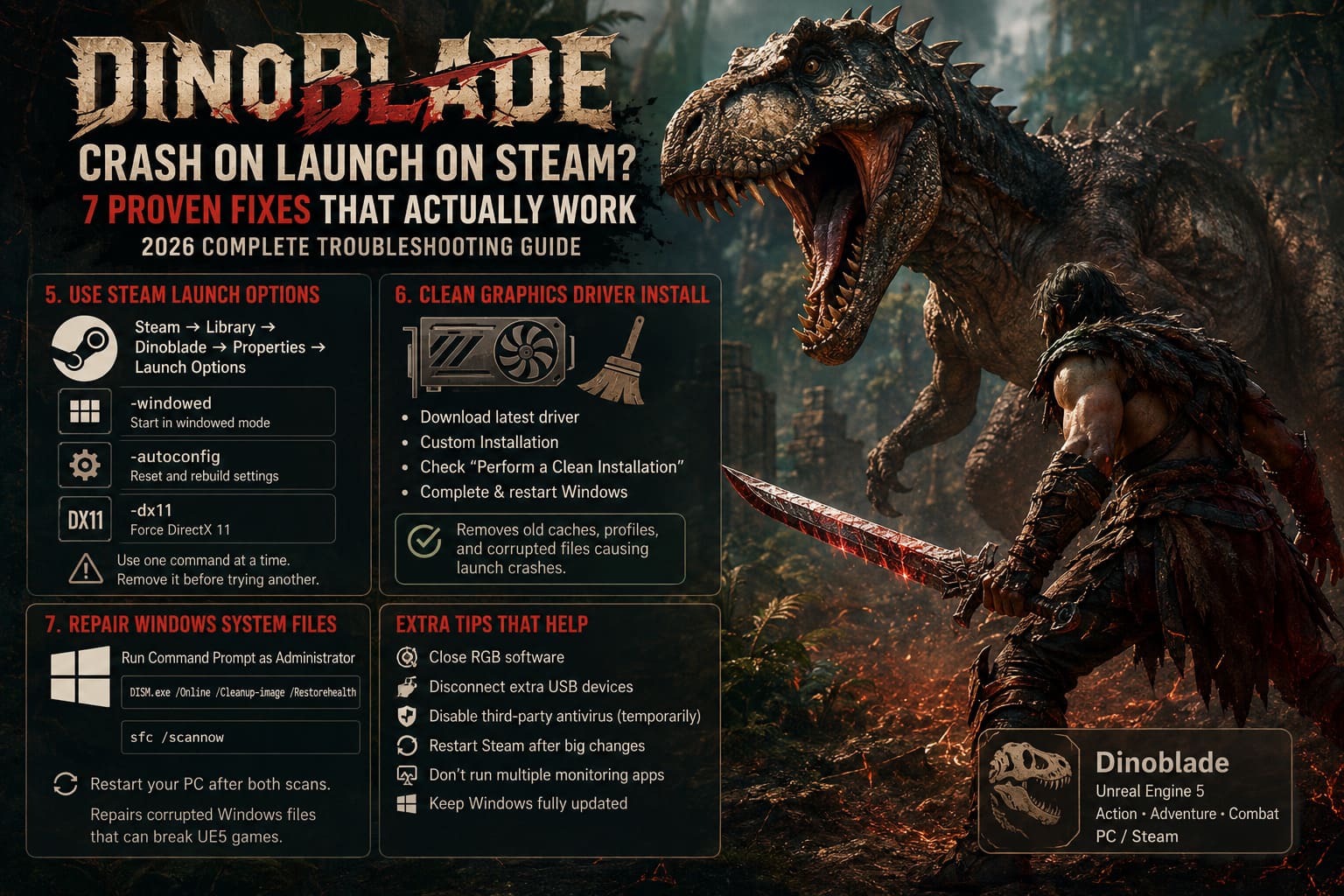
Try these one at a time.
Windowed Mode
-windowedThis avoids fullscreen initialization issues.
Auto Configuration
-autoconfigUseful if corrupted graphics settings are preventing startup.
Force DirectX 11
-dx11Older graphics cards sometimes behave much better under DirectX 11 than DirectX 12.
Only test one launch command at a time.
If one doesn’t help, remove it before trying another.
Fix 6: Perform a Completely Clean Graphics Driver Installation
Updating drivers isn’t always enough.
Driver corruption can survive standard updates because old shader caches, registry entries, and profile settings remain untouched.
A clean installation wipes those leftovers.
Recommended process
- Download the newest driver for your graphics card.
- Launch the installer.
- Choose Custom Installation.
- Enable Perform a Clean Installation.
- Complete installation.
- Restart Windows.
After rebooting, allow Windows a few minutes to finish background hardware detection before launching Steam.
Many Unreal Engine 5 launch issues disappear after a proper driver reset.
Fix 7: Repair Windows System Files
If none of the previous fixes worked, Windows itself may be the culprit.
Damaged system libraries or DirectX components can stop UE5 games from loading correctly.
Open Command Prompt as Administrator.
Run the following command:
DISM.exe /Online /Cleanup-image /RestorehealthAllow the repair process to finish.
Next, run:
sfc /scannowThis command checks every protected Windows system file and replaces corrupted versions automatically.
Restart your PC once both scans complete.
It takes a little time, but I’ve seen these two commands rescue games that seemed completely broken.
Extra Tips Worth Trying
These aren’t guaranteed fixes, but they’re surprisingly effective in stubborn cases.
- Close RGB control software before launching.
- Disconnect unnecessary USB peripherals.
- Temporarily disable third-party antivirus.
- Restart Steam after every major change.
- Avoid running multiple hardware monitoring applications simultaneously.
- Make sure Windows is fully updated before troubleshooting further.
Sometimes two minor conflicts combine into one major startup problem.
Dinoblade Guide: Best Buster Sword Combo Strings and Advanced Combat Tactics (Team Spino LLC)
Troubleshooting Summary
| Problem | Recommended Solution |
|---|---|
| Silent crash after pressing Play | Verify Steam files |
| Unreal Engine 5 fatal error | Update GPU driver and repair Windows |
| Freeze on intro movie | Launch with -windowed |
| Crash during shader compilation | Reduce CPU boost ratios if applicable |
| Instant desktop exit | Disable overlays and run as administrator |
| Random launch failures | Perform clean graphics driver installation |
Dinoblade Parry Guide: How to Master Deflections and Beat Every Boss (Team Spino LLC)
Final Thoughts
As frustrating as launch crashes can be, Dinoblade doesn’t appear to suffer from one catastrophic engine flaw. Most startup failures are tied to the same handful of Windows, driver, or hardware configuration issues that frequently affect fresh Unreal Engine 5 releases.
From my own experience, the combination that solved the problem most often was surprisingly simple: verify the game files, disable every overlay, perform a clean GPU driver installation, and launch the game as administrator. Those four steps alone resolved the majority of reported startup crashes.
Players with high-end Intel and AMD systems should also keep an eye on CPU boost behavior. Unreal Engine’s initial shader compilation can push modern processors unusually hard, and dialing back aggressive boost ratios slightly has proven to be a reliable workaround until further optimization patches arrive.
If none of these methods solve the issue, don’t assume your hardware is at fault. New releases almost always receive several post-launch hotfixes as developers collect crash telemetry from thousands of different PC configurations. Keeping your drivers updated and watching official Dinoblade Steam announcements for patches is often the final piece of the puzzle.
With a little patience and systematic troubleshooting, there’s an excellent chance you’ll be slicing through dinosaurs instead of staring at your desktop. And honestly, Dinoblade is worth the effort once it finally gets past that launch screen.