How to Fix Super Battle Golf Crashing on Launch: 2026 PC Troubleshooting Guide
If you’ve been excited to jump into Super Battle Golf only to watch it crash before the main menu even appears, you’re definitely not the only one. Over the past few weeks I’ve seen more and more players reporting the exact same problem—click Play on Steam, the game starts for a few seconds, shows a black screen (or sometimes a Unity error), and then closes without any useful explanation.
I ran into this myself while helping friends get our multiplayer sessions working, and after digging through community discussions, testing different fixes, and comparing what actually solved the issue for different PC setups, I found that most launch crashes come from only a handful of causes.
The good news is that you usually don’t need to reinstall Windows, replace drivers, or perform complicated system tweaks. In most cases, one of the solutions below gets the game running again.
This guide collects the fixes that consistently work in 2026, starting with the most effective ones.
Why Does Super Battle Golf Crash on Startup?
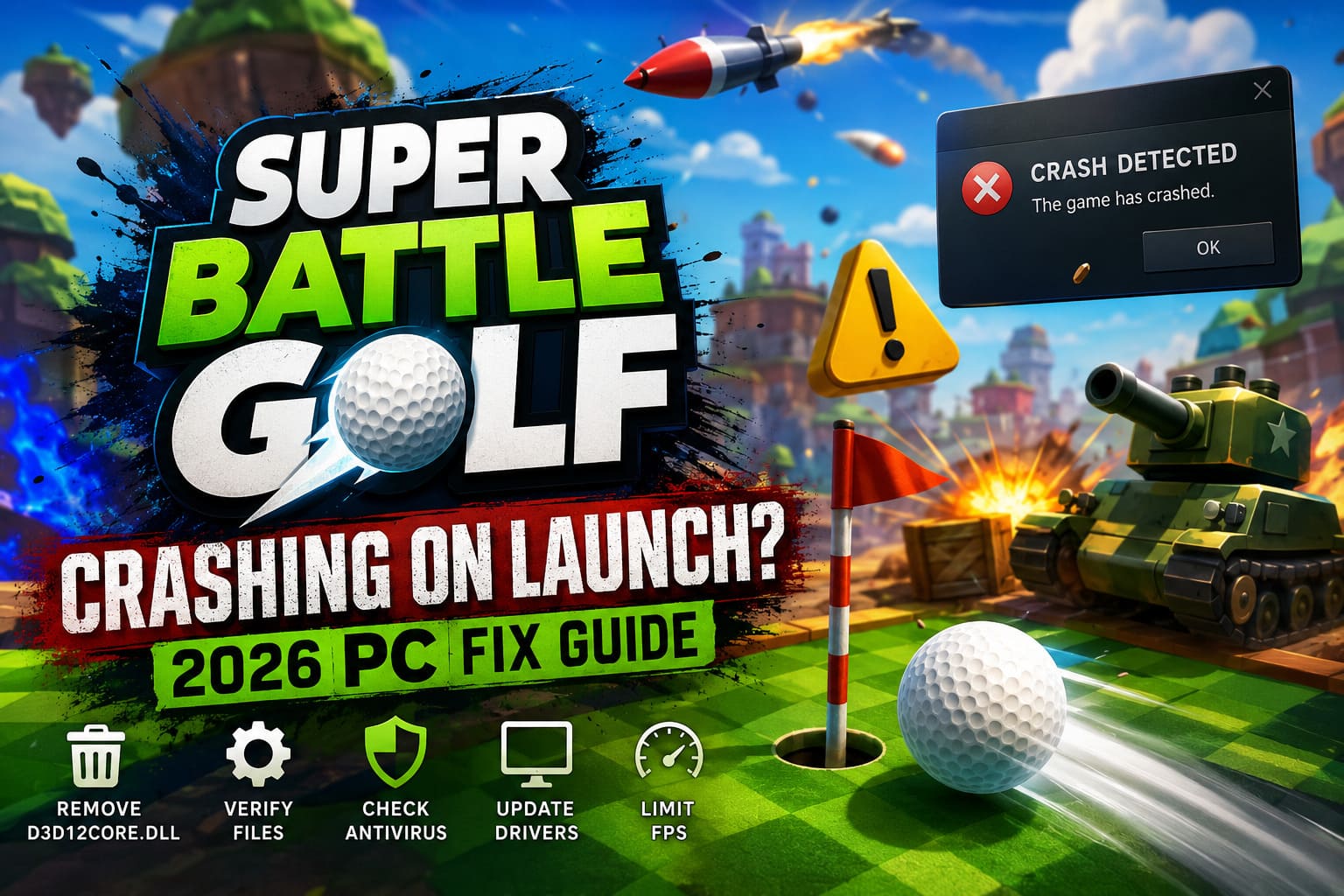
Despite being a surprisingly polished multiplayer experience, the current PC version still has a few launch-related issues. Depending on your hardware, Windows version, and graphics configuration, you may experience:
- Instant crash after pressing Play in Steam
- Black screen before reaching the main menu
- Unity engine error
- Game closes after a few seconds
- Crash while loading the first match
- Freeze during startup
From what I’ve seen, the majority of these problems are connected to DirectX initialization, damaged game files, Windows compatibility settings, or security software interfering with the executable.
Fortunately, these are all things you can troubleshoot yourself.
1. Remove the D3D12Core.dll File First
If I had to recommend only one fix, this would be it.
Many players discovered that deleting the D3D12Core.dll file inside the game’s installation folder immediately stopped the startup crashes. This appears to resolve a DirectX 12 conflict affecting certain Windows builds.
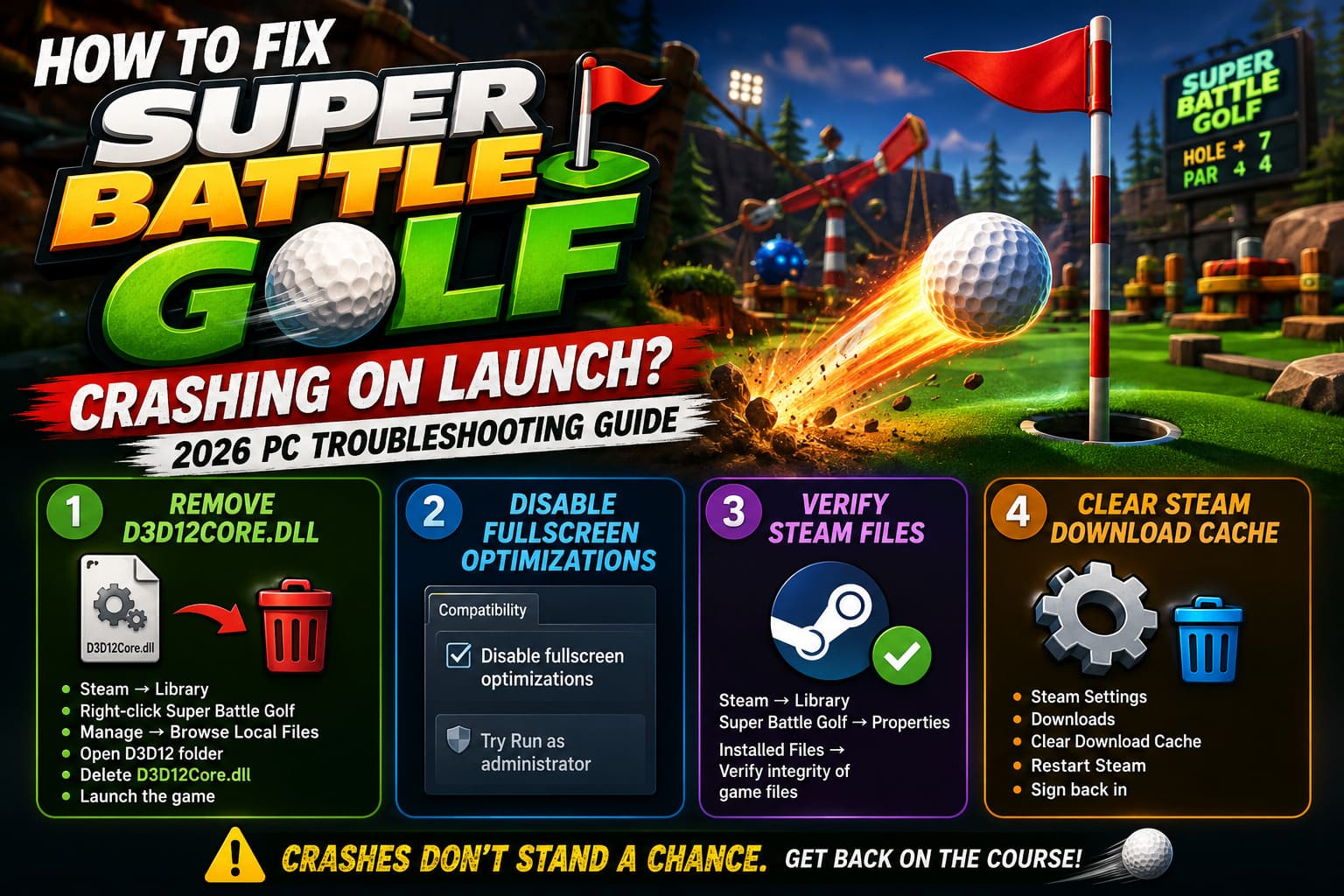
Follow these steps:
- Open Steam.
- Go to your Library.
- Right-click Super Battle Golf.
- Choose Manage → Browse Local Files.
- Open the D3D12 folder.
- Find D3D12Core.dll.
- Delete the file (or move it somewhere else as a backup).
- Launch the game again.
This is easily the solution with the highest success rate I’ve seen from the community.
2. Disable Fullscreen Optimizations
Windows’ Fullscreen Optimizations feature generally improves performance, but some Unity games simply don’t get along with it.
Disabling it only takes a minute.
- Browse to the game’s installation folder.
- Right-click Super Battle Golf.exe.
- Select Properties.
- Open the Compatibility tab.
- Enable Disable fullscreen optimizations.
- Click Apply and OK.
You can also experiment with Run as administrator, although results vary depending on individual systems.
3. Verify Steam Files
One interrupted update is enough to leave a corrupted file behind, and Unity titles don’t always recover gracefully.
Verifying the installation should always be one of your first troubleshooting steps.
Open Steam → Library → Super Battle Golf → Properties → Installed Files → Verify integrity of game files.
Steam will automatically compare your installation against the official version and replace anything that’s missing or damaged.
It isn’t the most exciting fix, but it’s surprisingly effective after patches.
4. Clear Steam’s Download Cache
If crashes started immediately after updating the game, clearing Steam’s download cache is worth trying.
Here’s how:
- Open Steam Settings
- Select Downloads
- Choose Clear Download Cache
- Restart Steam
- Sign back into your account
This removes leftover update data that occasionally causes launch issues.
5. Repair Windows System Files
Sometimes the game isn’t actually the problem.
Windows itself may have corrupted system libraries that prevent modern games from launching correctly.
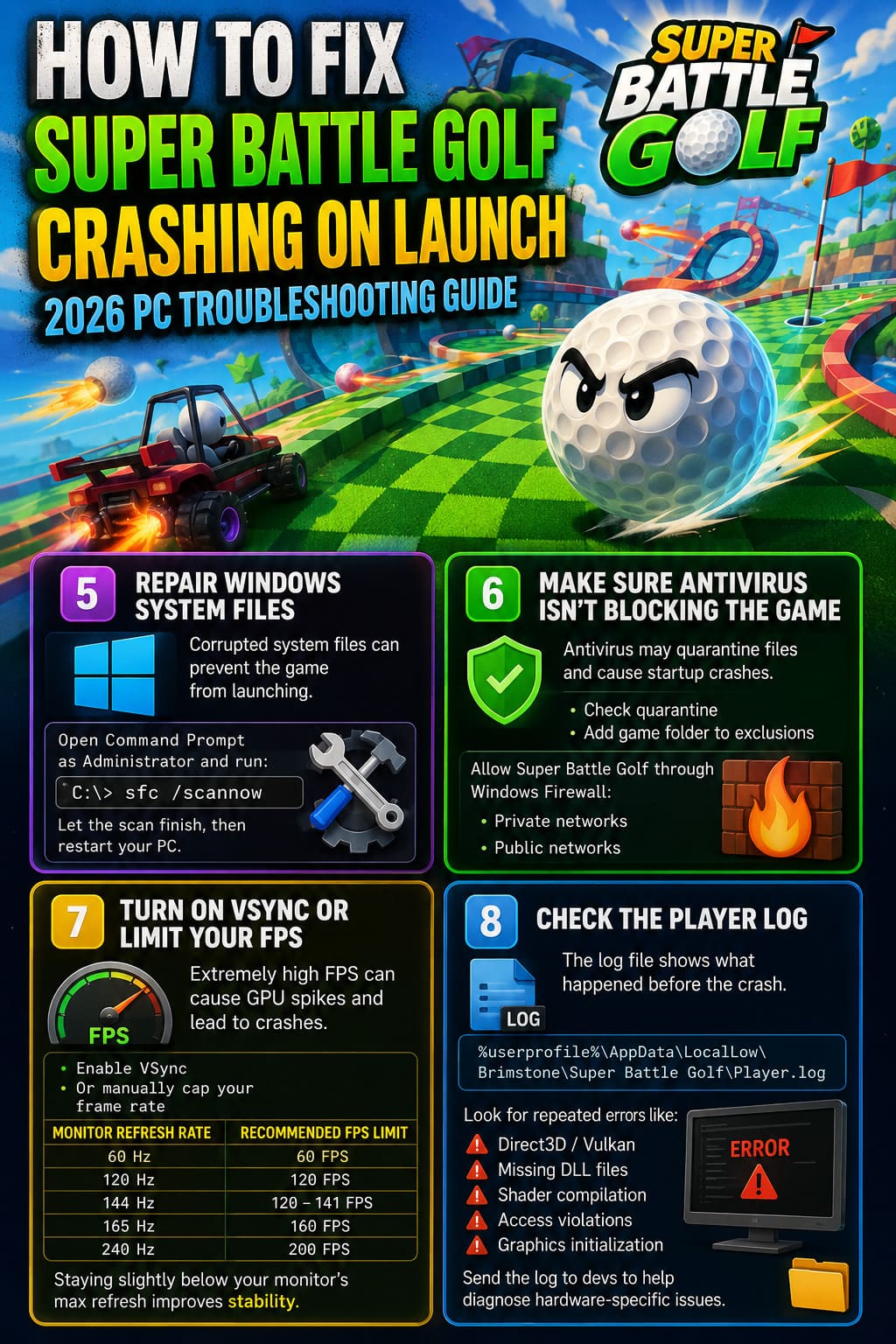
Open Command Prompt as Administrator and run:
sfc /scannowAllow the scan to finish completely.
If Windows repairs damaged files, reboot your PC before testing the game again.
6. Make Sure Antivirus Isn’t Blocking the Game
Security software can be a little overprotective with newly released multiplayer games.
If Windows Defender or another antivirus quarantines one of the game’s files, startup crashes become almost inevitable.
Check your antivirus quarantine and add the game’s installation folder to your exclusion list.
You should also make sure Windows Firewall allows Super Battle Golf through both:
- Private networks
- Public networks
This is especially important if crashes happen when connecting to online matches.
7. Turn On VSync or Limit Your FPS
One issue I didn’t expect was crashes caused by extremely high frame rates.
On powerful graphics cards, menu screens can render hundreds of frames per second, causing sudden GPU load spikes.
If you can reach the graphics settings before the crash:
- Enable VSync
- Or manually cap your frame rate
Some stable examples include:
| Monitor Refresh Rate | Recommended FPS Limit |
|---|---|
| 60 Hz | 60 FPS |
| 120 Hz | 120 FPS |
| 144 Hz | 120–141 FPS |
| 165 Hz | 160 FPS |
| 240 Hz | 200 FPS |
Keeping frame rates slightly below your monitor’s maximum refresh often improves overall stability.
8. Check the Player Log
If nothing works, the game’s log file usually tells the real story.
Open the Windows Run dialog (Win + R) and enter:
%userprofile%\AppData\LocalLow\Brimstone\Super Battle GolfInside you’ll find the Player.log file.
This log records exactly what happened before the crash.
Look for repeated errors involving:
- Direct3D
- Vulkan
- Missing DLL files
- Shader compilation
- Access violations
- Graphics initialization
Even if you don’t understand every line, sending this log to the developers makes diagnosing hardware-specific crashes much easier.
Extra Things Worth Trying
While the methods above solve most startup problems, I’ve also seen players fix crashes by trying a few additional tweaks.
Some of the most common include:
- Updating GPU drivers
- Installing the latest Windows updates
- Disabling unnecessary overlays (Discord, MSI Afterburner, GeForce Experience, RivaTuner)
- Disconnecting unused USB controllers
- Closing RGB control software
- Restarting the PC before launching the game
None of these are guaranteed, but they’re quick enough to test if you’ve already gone through the primary fixes.
Super Battle Golf Physics Guide: Advanced Mechanics and Shot Optimization
Quick Troubleshooting Checklist
If you’re short on time, work through this list in order:
- Delete D3D12Core.dll
- Disable Fullscreen Optimizations
- Verify Steam files
- Clear Steam Download Cache
- Run SFC
- Whitelist the game in your antivirus
- Enable VSync or cap FPS
- Review Player.log
Following these steps covers nearly every commonly reported launch issue.
Super Battle Golf Item Tier List 2026: Strategy Guide For Team Mode
Final Thoughts
I genuinely think Super Battle Golf is one of those multiplayer games that’s far more entertaining than it first looks. Once everyone gets into the rhythm, matches quickly become hilarious combinations of precision shots, physics chaos, and complete sabotage. That’s exactly why launch crashes are so frustrating—they stop you before the fun even starts.
Thankfully, the majority of PC startup problems aren’t permanent. In my experience, the DirectX DLL fix alone solved the issue on multiple systems, while Steam file verification and disabling Fullscreen Optimizations handled most of the remaining cases.
If your game still refuses to launch after trying everything here, don’t ignore the Player.log file. It’s often the fastest way to identify whether the problem comes from your hardware, graphics drivers, or a bug that the developers still need to patch.
Hopefully, one of these fixes gets you back onto the course without another unexpected trip to the desktop.