How to Fix ZeroSpace Black Screen After Faction Select Bug (2026 Guide)
When I first launched ZeroSpace, I was hooked almost immediately. The game captures that classic RTS feeling while adding enough modern mechanics to make every match feel fresh. The factions are unique, the maps are well designed, and the overall presentation feels like a love letter to strategy fans.
Unfortunately, my excitement lasted right up until I selected my first faction.
Instead of loading into the battlefield, the screen simply turned black.
The mouse cursor was still visible. Sometimes I could hear menu sounds or ambient audio in the background. Other times everything completely froze until I force-closed the game through Task Manager. At first I assumed it was a server issue, but after spending several hours testing different fixes and reading discussions from other players, I realized the problem can happen for several different reasons.
The good news is that, in most cases, this bug is fixable.
This guide combines the solutions that actually made a difference for me along with several additional fixes that have helped many other PC players in 2026.
Why Does ZeroSpace Freeze After Faction Selection?
From what I’ve experienced, the game performs one of its heaviest loading operations immediately after you confirm your faction.
At that moment, ZeroSpace suddenly has to:
- Load faction-specific textures and models
- Compile graphics shaders
- Initialize the match
- Synchronize with online services
- Allocate a large amount of GPU memory
If even one of these steps fails, the engine sometimes doesn’t generate an error message. Instead, it simply displays a black screen forever.
That makes the bug frustrating because it feels like the game has completely crashed when it’s actually stuck somewhere during the loading pipeline.
Fix #1 — Try Alt + Enter Immediately
This was the very first thing that actually worked for me.
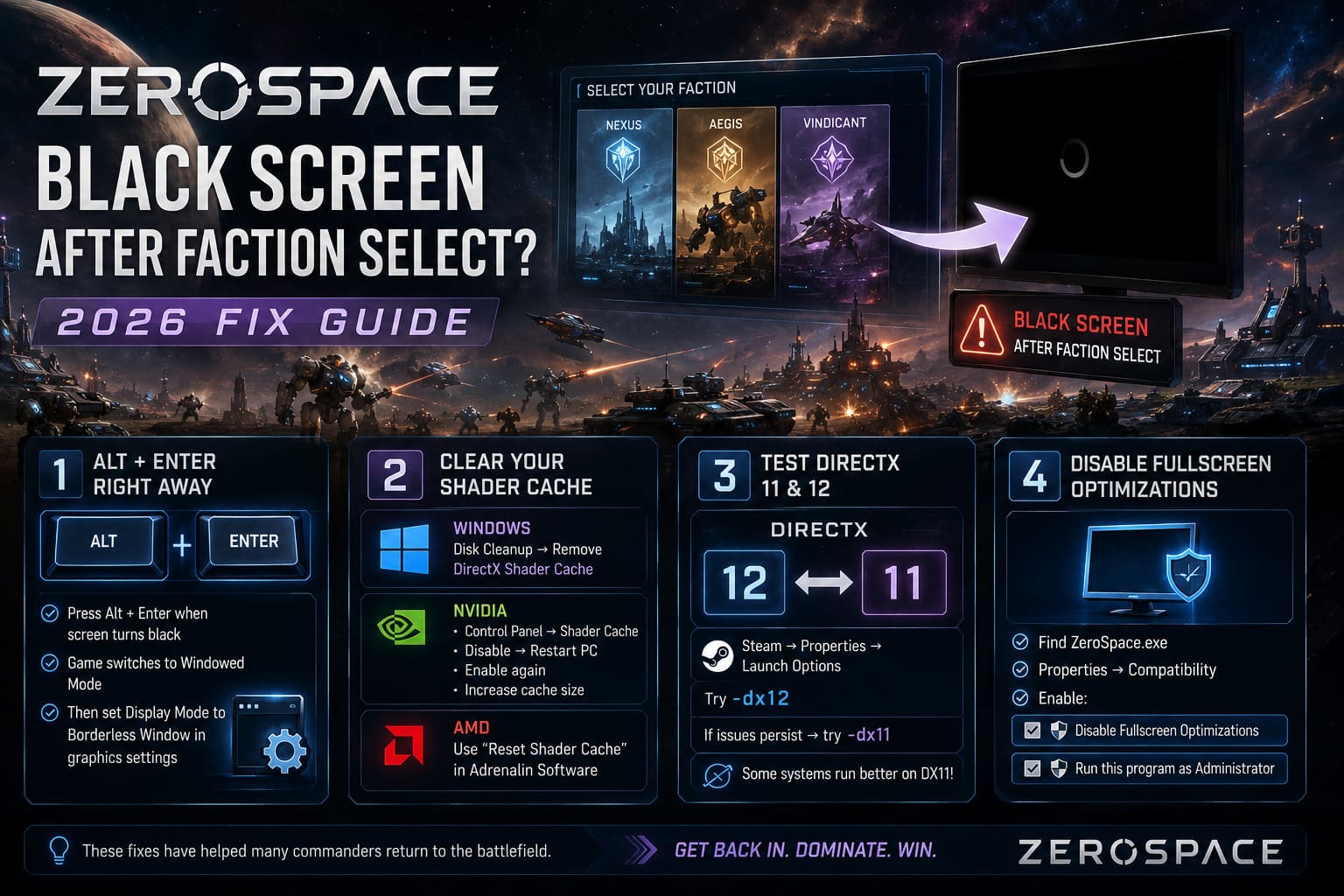
As soon as the screen turned black, I pressed Alt + Enter.
Windows immediately forced the game into Windowed Mode.
To my surprise, the game appeared after only a few seconds.
If this works for you:
- Open Graphics Settings.
- Change Display Mode to Borderless Window.
- Save the settings.
- Restart the game.
Since switching away from Exclusive Fullscreen, I haven’t experienced the issue nearly as often.
Fix #2 — Clear Your Shader Cache
Modern games rely heavily on shader compilation.
If those cached files become corrupted—or simply don’t match your newest graphics driver—you can experience black screens before gameplay even begins.
I recommend clearing both Windows and your GPU shader cache.
Windows
Open Disk Cleanup, select your system drive, and remove:
- DirectX Shader Cache
Nothing else needs to be selected unless you want to clean additional temporary files.
NVIDIA
If you’re using an NVIDIA card:
- Open NVIDIA Control Panel
- Find Shader Cache settings
- Disable it temporarily
- Restart Windows
- Enable it again
I also recommend increasing the cache size if your drive has enough free space.
AMD
AMD users can simply use the Reset Shader Cache option inside Adrenalin Software.
It only takes a few seconds and has solved loading issues for quite a few players.
Fix #3 — Test DirectX 11 and DirectX 12
ZeroSpace generally prefers DirectX 12.
That doesn’t necessarily mean your PC does.
Older graphics cards—or even some newer driver versions—may behave better using DirectX 11.
Steam makes testing easy.
Open Steam → Properties → Launch Options.
Try:
-dx12If nothing changes, replace it with:
-dx11I know several players who couldn’t load a single match under DX12 but had zero issues after switching to DX11.
Fix #4 — Disable Fullscreen Optimizations
Windows tries to “help” games with its Fullscreen Optimization feature.
Ironically, that optimization occasionally causes rendering problems.
Find ZeroSpace.exe.
Open Properties → Compatibility.
Enable:
- Disable Fullscreen Optimizations
- Run this program as Administrator
This takes less than a minute and removes another possible source of conflicts.
Fix #5 — Verify Game Files
It sounds obvious, but it should never be skipped.
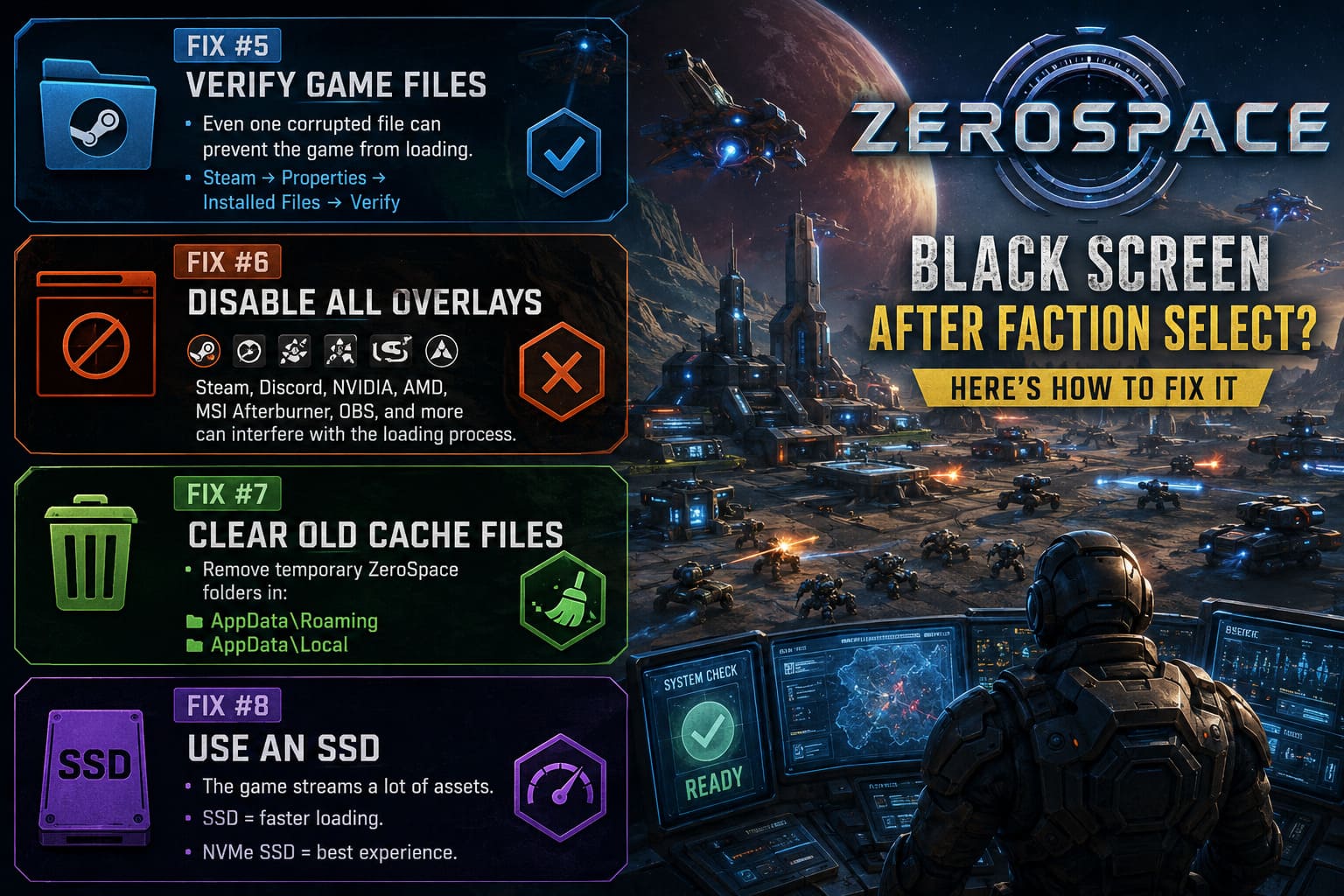
Even one damaged asset can stop an entire level from loading.
Inside Steam:
Properties → Installed Files → Verify Integrity of Game Files
Steam compares every file with its online version and automatically replaces anything that’s damaged or missing.
I’ve had this solve problems in several Unreal Engine games over the last few years.
Fix #6 — Turn Off Every Overlay
This ended up being the biggest surprise for me.
I didn’t realize how many applications inject themselves into games.
Things like:
- Steam Overlay
- Discord Overlay
- NVIDIA ShadowPlay
- AMD Overlay
- MSI Afterburner
- RTSS
- OBS
- RGB control software
Normally these applications work perfectly.
But during the exact moment ZeroSpace transitions from menus into gameplay, they can interfere with the rendering process.
For troubleshooting, disable everything and launch the game with the cleanest possible Windows environment.
If the game starts working, you can enable the overlays one at a time until you discover the culprit.
Fix #7 — Remove Old Cache Files
If you’ve played earlier builds, beta versions, or preview releases, leftover cache folders can sometimes create unexpected conflicts.
I removed every temporary ZeroSpace folder inside both:
- AppData\Roaming
- AppData\Local
I didn’t delete my save files, only cache and temporary data.
The next launch took slightly longer because the game rebuilt everything, but it also felt noticeably more stable.
Fix #8 — Install the Game on an SSD
This probably won’t matter for every system.
However, if you’re still running games from a traditional HDD, you’re making things much harder for modern RTS titles.
ZeroSpace constantly streams assets while loading a match.
An SSD dramatically reduces waiting times.
An NVMe drive is even better.
Personally, I moved the game from an older SATA drive to my NVMe SSD, and loading became noticeably smoother.
Don’t Ignore Hardware Stability
Sometimes the game isn’t actually the problem.
If your PC is already running close to its limits, the heavy loading sequence after faction selection can expose existing stability issues.
Here’s what I’d check before blaming the game itself.
| Component | Recommendation |
|---|---|
| System RAM | At least 16 GB available while gaming |
| GPU VRAM | 6 GB minimum, 8 GB or more recommended |
| Storage | SSD strongly recommended |
| CPU Temperature | Keep below sustained thermal throttling levels |
| GPU Temperature | Avoid overheating during shader compilation |
| Windows | Fully updated Windows 10 or Windows 11 |
If your GPU suddenly spikes above safe temperatures during loading, Windows may reset the graphics driver, which often looks exactly like a permanent black screen.
Monitoring temperatures for five minutes can save hours of unnecessary troubleshooting.
How to Fix ZeroSpace (Starlance Studios) Crashing on Launch on Steam (2026 Guide)
A Few Things That Helped Me Personally
After spending an evening experimenting, these are the changes I decided to keep permanently:
- Borderless Window instead of Exclusive Fullscreen
- Fresh shader cache after every major GPU driver update
- No unnecessary overlays while playing
- Game installed on an NVMe SSD
- Verified game files after every large patch
Since making those changes, I haven’t encountered another black screen after selecting a faction.
Could future updates fix the problem completely? Absolutely.
But until then, these adjustments have made the game much more reliable on my system.
ZeroSpace Faction Tier List 2026: Best Main Factions Ranked (Early Access Meta Guide)
Final Thoughts
As annoying as the ZeroSpace black screen after faction select bug is, I don’t think it’s a sign that the game is fundamentally broken. It feels more like one of those launch-period PC issues where several small factors—graphics drivers, shader caches, overlays, storage speed, and Windows settings—can combine to create the same frustrating symptom.
The important thing is to avoid changing ten things at once. Start with the simplest fixes like Alt + Enter, verifying the game files, and clearing your shader cache. If those don’t help, move on to DirectX launch options, disabling overlays, and checking your storage and hardware stability.
In my experience, most players won’t need to reinstall Windows or replace hardware. A clean graphics configuration and a little patience are usually enough to get ZeroSpace loading normally again.
Once the issue is gone, the game reminds you why everyone has been talking about it. The tactical depth, varied factions, and satisfying RTS gameplay make it well worth the effort. Hopefully future patches eliminate this bug entirely, but until then, these fixes should give you the best chance of getting back onto the battlefield instead of staring at another black screen.