How to Fix Avatar World Stuck on Loading Screen: Comprehensive Guide
If you’ve ever opened Avatar World, excited to decorate your house or visit a new location — only to get stuck staring at a loading bar forever — welcome to the club.
I’ve personally run into the 90% freeze, the 98% loading trap, and even the dreaded black screen of silence after big updates. And judging by player discussions across gaming communities, this issue hits thousands of players after almost every major expansion.
The good news? Most loading problems are fixable in minutes — without losing your progress.
Below is a fully reworked, player-tested guide based on real experience, community tricks, and practical troubleshooting that actually works.
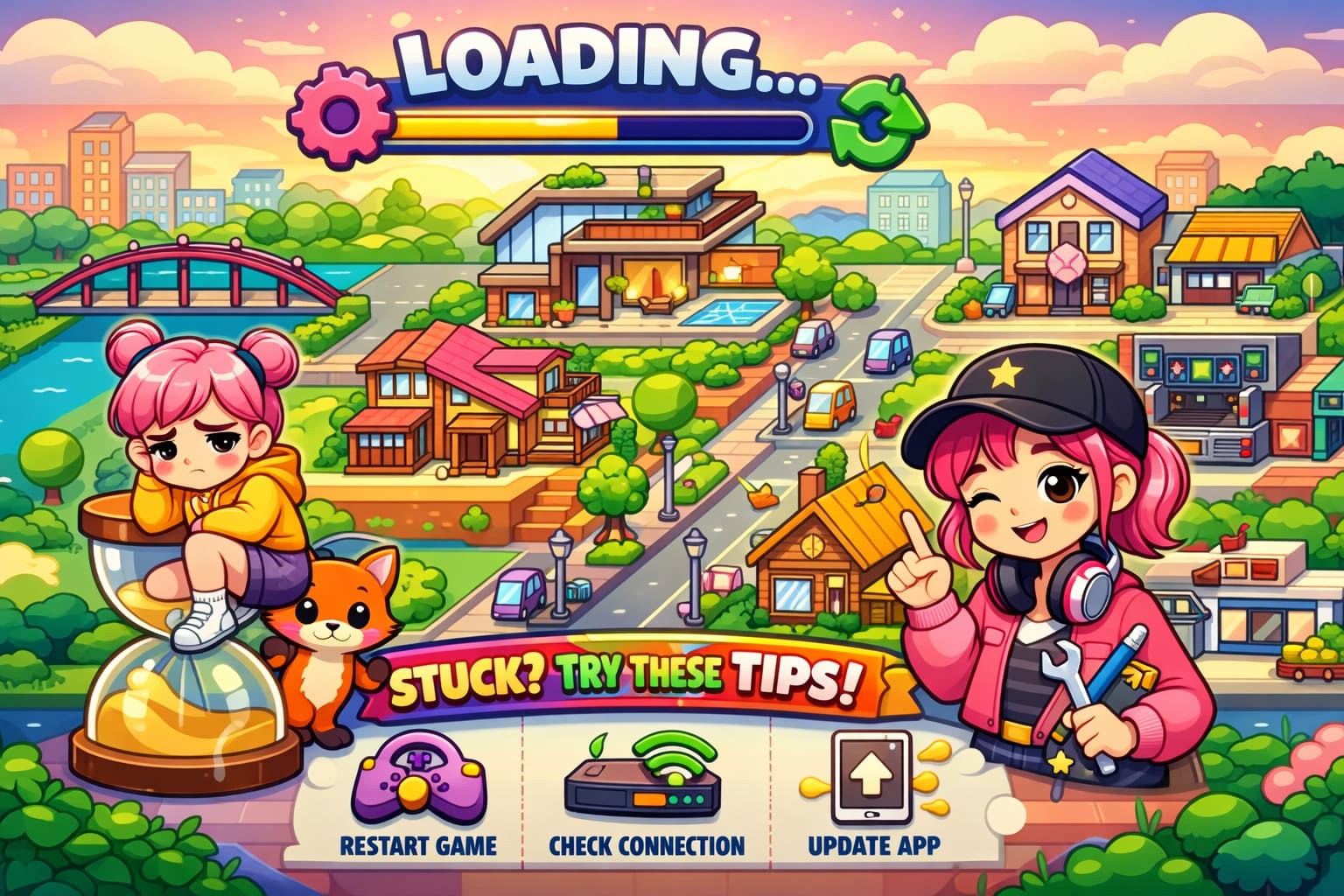
Why Avatar World Gets Stuck Loading
From a gamer’s perspective, this usually isn’t your fault. Mobile games constantly sync new assets, furniture packs, and locations — and sometimes things break during that process.
The most common reasons include:
- Broken cache files after updates
- Account sync delays with game servers
- Low device storage
- OS compatibility bugs
- Background apps interrupting loading
After large updates, especially new houses or schools, the game basically rebuilds parts of your world — and that’s where loading loops appear.
How to Get More Avatars in Avatar World 2026, Promo Codes (February 2026)
Quick Fix #1 — The Lock Screen Trick (Yes, Seriously)
This sounds ridiculous, but it works surprisingly often.
What to do:
- Launch the game normally.
- When loading freezes around 90–98%, lock your phone.
- Wait about 5 seconds.
- Unlock your device again.
Why this works: Locking forces the app to refresh background processes and reconnect to servers. Think of it like waking the game up.
Best for: Minor freezes
Risk level: None
Quick Fix #2 — Clean Cache Without Losing Progress
Corrupted temporary files are probably the #1 reason Avatar World refuses to load.
Android Users
Go to Settings → Apps → Avatar World → Storage → Clear Cache.
Important: Avoid pressing Clear Data unless your progress is saved online.
iPhone / iPad Users
Use the safer Apple method:
Settings → General → iPhone Storage → Avatar World → Offload App.
This removes the app but keeps saved data intact.
Quick Fix #3 — Check for Hidden Updates
Many players miss this step.
After big releases, developers often push silent hotfix patches within days.
Open Google Play Store or Apple App Store and search for Avatar World manually.
If you see Update instead of Open, install it immediately — even tiny patches can fix loading errors.
Quick Fix #4 — Refresh Your Game Account Login
Sometimes the loading screen waits endlessly for authentication.
Try reconnecting your account:
iOS: Settings → Game Center → Sign Out → Sign In again.
Android: Open Google Play Games, log out, then restart Avatar World.
This forces a fresh server sync.
Toca Boca World 2026: The Ultimate Guide to Secret Items, Crumpet Recipes, and Main Character Gear
Quick Fix #5 — Reset Bugged Locations
Ever notice the game loads fine until entering one specific building? That location may be corrupted.
If you can access the world map:
- Tap the purple arrow
- Find the Reset icon
- Reset only the broken house or shop
Your overall progress stays safe, but furniture inside that location resets.
Playing on PC? Emulator Users Fix
If you play through emulators, loading issues happen even more often.
Try the following:
- Clear browser cache if using cloud platforms
- Run emulator as Administrator
- Restart emulator after updates
PC setups sometimes block resource access needed for asset downloads.
Fast Overview of Working Solutions
| Fix Method | When To Use | Difficulty | Risk |
|---|---|---|---|
| Lock / Unlock | Freeze at 90–98% | Easy | None |
| Clear Cache | Infinite loading | Easy | Safe |
| Update Game | After new update | Easy | Recommended |
| Reset Location | One area broken | Medium | Room reset |
| Reinstall App | Total failure | Medium | Backup needed |
My Personal Recommendation (From Experience)
After testing nearly every solution, this order works fastest:
- Lock or unlock device
- Check updates
- Clear cache or offload app
- Re-login account
- Reinstall only as last resort
Most players fix the issue before step three.
Extra Tips to Prevent Future Loading Bugs
- Keep at least 1.5–2 GB free storage
- Avoid switching apps during loading
- Use stable Wi-Fi instead of mobile data
- Restart device after large updates
Mobile sandbox games constantly load assets, and interruptions easily cause loops.
Final Thoughts
Avatar World remains one of the most relaxing creative games out there, but like many live-service mobile titles, updates sometimes introduce unexpected bugs.
The important thing to remember: a frozen loading screen usually doesn’t mean lost progress.
In most cases, it’s just a syncing issue that needs a small push to resolve.
If your game freezes again after future updates, don’t panic. Now you’ve got a real gamer’s troubleshooting playbook ready.