How to Fix SpiritVale Out of Video Memory Error: 7 Easy Solutions
I have played plenty of indie MMORPGs and Early Access RPGs over the years, and one thing always stays the same: even the most promising games can stumble when optimization has not fully caught up with the ambition of the project. SpiritVale is a perfect example. The class-based MMORPG from Baikun Interactive has a lot going for it, with fast combat, colorful environments, and a classic action RPG feel that reminds me of older online adventures. But like many fresh PC releases, it has one annoying problem that can completely ruin the experience — the infamous “Out of video memory trying to allocate a rendering resource” crash.
Since its July 2026 Early Access launch, many players have reported sudden crashes during intense moments. Some are losing connection while entering crowded zones, others crash during dungeon runs with friends, and some cannot even survive long sessions without restarting the game. The strange part is that this issue does not only affect budget gaming PCs. Players with powerful GPUs like Nvidia RTX 40-series cards and AMD Radeon RX 7000-series graphics cards have also experienced the same problem.
After testing countless games with similar PC memory issues, I know this type of crash is rarely caused by the graphics card itself. In many cases, the game engine simply fails to manage resources correctly. The good news is that there are several practical fixes that can make SpiritVale much more stable while waiting for official optimization updates.
SpiritVale Low End PC Optimization Guide Ultimate FPS Boost & Fix Lag
Why Does SpiritVale Show an Out of Video Memory Error?
At first glance, SpiritVale does not look like a game that should destroy your VRAM. The visual style is not trying to compete with massive AAA open-world titles, but the engine is still handling a surprising amount of information in real time.
The game constantly loads environmental assets, player equipment models, monster animations, lighting effects, shadows, and multiplayer data. When several systems work together — especially during large battles or co-op activities — memory usage can suddenly spike.
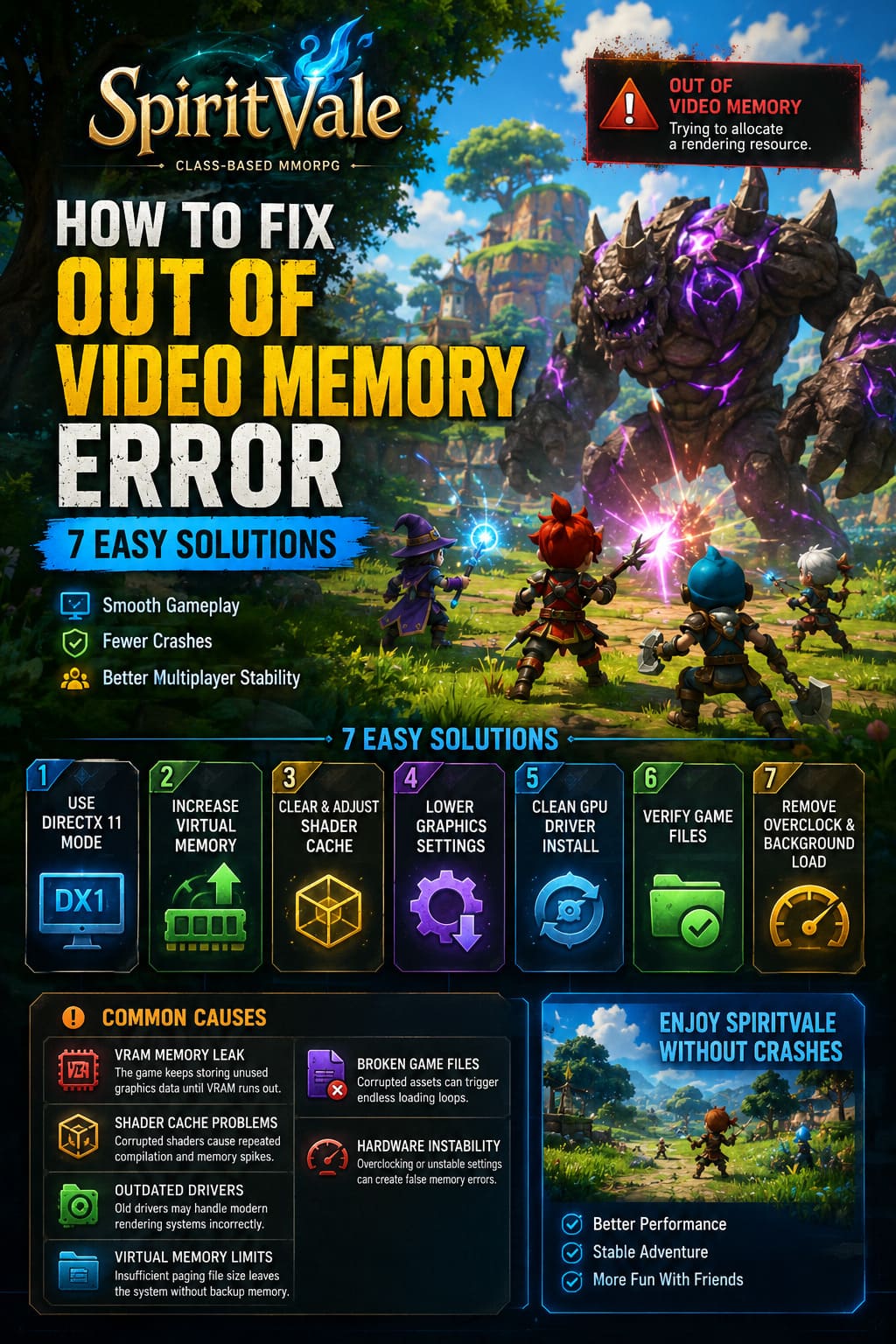
The most common reasons behind the SpiritVale video memory crash include:
| Possible Cause | How It Affects The Game |
|---|---|
| VRAM Memory Leak | The game keeps storing unused graphics data until the GPU runs out of available memory. |
| Shader Cache Problems | Corrupted shaders can force repeated asset compilation during gameplay. |
| Outdated GPU Drivers | Old drivers may handle modern rendering systems incorrectly. |
| Windows Virtual Memory Limits | The system has no backup memory space when VRAM becomes full. |
| Broken Game Files | Missing textures or corrupted assets can trigger endless loading loops. |
| Hardware Instability | CPU or GPU overclocking can create false memory errors. |
The frustrating part is that two players with almost identical computers can have completely different experiences. One person may play for hours without problems, while another crashes after entering the first crowded area.
1. Force SpiritVale to Run in DirectX 11 Mode
This is the first solution I would personally try. Early Access games often launch with newer graphics APIs enabled by default, but those newer systems can sometimes create unstable memory behavior.
Switching SpiritVale to DirectX 11 gives the game a more mature rendering path and has helped many players reduce crashes. In my experience with unfinished PC games, older rendering modes are often surprisingly effective because developers usually optimize newer APIs later, while DirectX 11 remains the reliable fallback.
Follow these steps:
- Open your Steam Library.
- Right-click SpiritVale.
- Select Properties.
- Find the Launch Options box.
- Enter -dx11 or -d3d11.
- Close the menu and restart the game.
2. Increase Windows Virtual Memory Paging File Size
Your graphics card is not the only memory source your PC can use. Windows also relies on a paging file that works as additional temporary memory.
When SpiritVale reaches its VRAM limit, the system may attempt to move some workload into regular RAM and storage. If your paging file is too small, the game can instantly crash because Windows has nowhere to place temporary rendering data.
Here is how to increase it:
- Press Windows Key + R.
- Type sysdm.cpl and press Enter.
- Open the Advanced tab.
- Under Performance, click Settings.
- Open Advanced again.
- Select Change under Virtual Memory.
- Disable Automatically manage paging file size.
- Choose your fastest SSD.
- Set a custom size.
| Installed RAM | Initial Size | Maximum Size |
|---|---|---|
| 16GB RAM | 24576 MB | 49152 MB |
| 32GB RAM | 49152 MB | 98304 MB |
| 64GB RAM | 98304 MB | 196608 MB |
Restart your computer after applying the changes. This simple adjustment has solved many memory-related crashes in demanding PC games.
3. Clear and Adjust Your GPU Shader Cache
Shader cache problems are one of those issues that many players ignore. However, modern games depend heavily on shaders, and a damaged cache can create huge performance spikes, random freezes, and memory allocation failures.
Nvidia Users
- Open Nvidia Control Panel.
- Go to Manage 3D Settings.
- Find Shader Cache Size.
- Change it from Unlimited to 5GB or 10GB.
AMD Users
- Open AMD Software Adrenalin Edition.
- Go to the Gaming section.
- Open Graphics settings.
- Select Reset Shader Cache.
After clearing shaders, the first SpiritVale launch may take longer because the system rebuilds the cache. That is completely normal.
4. Lower Memory-Heavy Graphics Settings
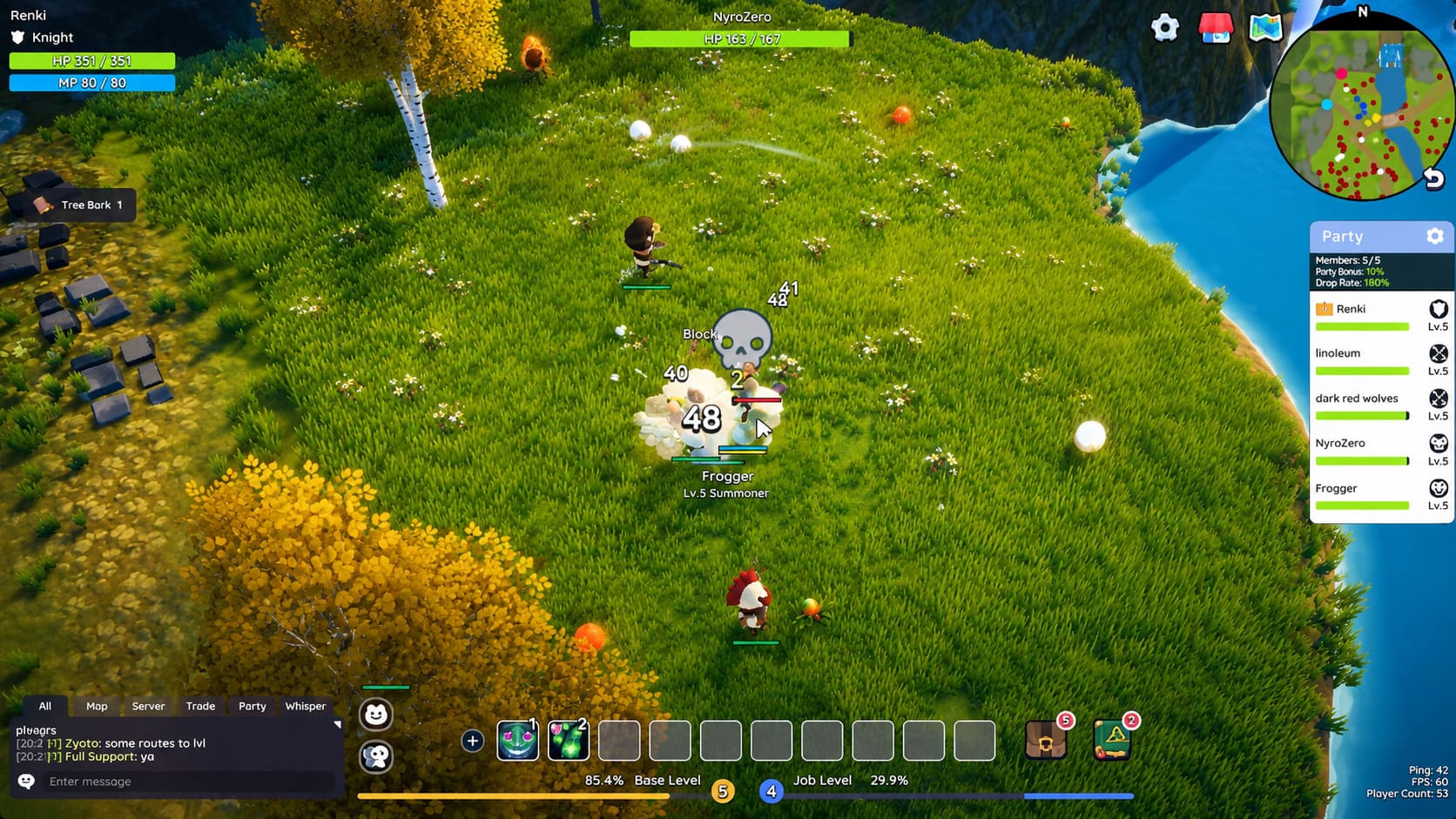
If you can enter SpiritVale’s settings before the crash happens, reduce the options that consume the most VRAM. Not every graphical feature impacts performance equally, and some settings can create massive memory spikes.
The biggest offenders are usually textures, vegetation, and advanced visual effects.
- Set Texture Quality from High/Epic to Medium.
- Disable Motion Blur.
- Disable TAA Anti-Aliasing.
- Turn off heavy vegetation effects.
- Reduce resolution from 1440p or 4K to 1080p.
The vegetation setting deserves special attention. Dense grass may look great, but it forces the engine to constantly calculate physics, shadows, and environmental movement. In poorly optimized games, small visual features can create surprisingly large memory problems.
5. Perform a Clean GPU Driver Installation With DDU
Sometimes Windows updates or previous driver versions leave behind conflicting files. Installing a new driver over old files does not always solve the problem, especially when dealing with memory leaks or corrupted profiles.
A completely clean installation is usually the better option.
- Download Display Driver Uninstaller (DDU).
- Restart Windows into Safe Mode.
- Remove all Nvidia or AMD display drivers.
- Restart normally.
- Install the newest GPU drivers from the official manufacturer website.
This removes old settings and registry leftovers that might interfere with SpiritVale’s rendering system.

6. Verify SpiritVale Game Files Through Steam
A damaged game file can easily create an endless rendering problem. If SpiritVale tries loading a corrupted texture, monster model, or map asset repeatedly, memory usage can climb until the game crashes.
To check your files:
- Open Steam.
- Right-click SpiritVale.
- Choose Properties.
- Open Installed Files.
- Click Verify integrity of game files.
Steam will scan the installation and automatically replace missing or damaged files. This is one of the easiest fixes and should always be attempted before reinstalling the entire game.
7. Remove Overclocking and Background Resource Usage
Many players forget that unstable hardware settings can create misleading errors. A crash message about video memory does not always mean the GPU is actually full.
CPU overclocking, GPU undervolting, and aggressive motherboard performance profiles can become unstable when SpiritVale compiles assets or loads new areas.
- Return CPU and GPU settings to default.
- Disable GPU overclocking tools.
- Close Discord overlays.
- Disable Nvidia GeForce overlays.
- Close unnecessary RGB control software.
- Disconnect extra monitors temporarily.
Reducing background VRAM usage can sometimes be enough to prevent crashes during longer gaming sessions.
Final Thoughts: Is SpiritVale’s Memory Error Fixable?
SpiritVale is still a fresh Early Access MMORPG, and problems like this are common during the early stages of development. From my experience with unfinished PC games, optimization usually improves dramatically once developers receive enough player feedback and crash reports.
The most effective solutions right now are forcing DirectX 11 mode, increasing Windows virtual memory, clearing shader cache, and lowering VRAM-heavy graphics settings. These fixes will not replace official patches, but they can make the game much more enjoyable while Baikun Interactive continues improving stability.
If you want to keep playing SpiritVale without constant crashes, start with the simple fixes first. A few changes in your settings can often turn an unstable Early Access experience into a much smoother adventure.