How to Fix Crimson Moon Friend Invitation Lobby Error (2026 Guide)
Crimson Moon has finally landed, and after spending time exploring the ruined streets of Gildenarch, there is one thing that becomes painfully obvious: this is a game that is simply more fun when you have a friend fighting beside you.
The gothic action-adventure RPG does a fantastic job of mixing brutal Nephilim combat, dark fantasy exploration, and online co-op. Unfortunately, getting into the same lobby isn’t always as smooth as actually surviving the monsters.
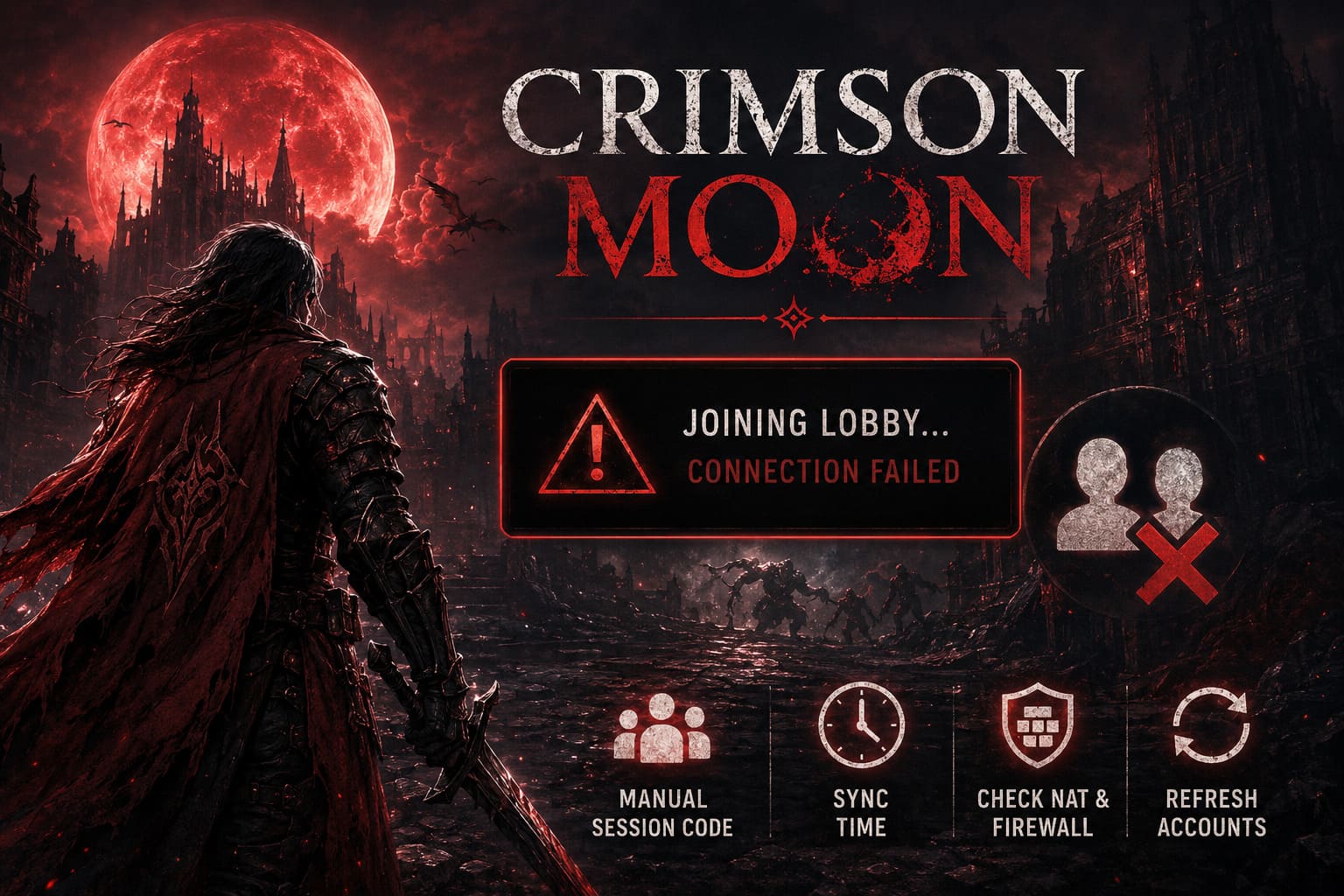
A growing number of players on PC, PlayStation 5, and Xbox Series X|S are running into the same multiplayer headache. Friend invitations disappear, joining requests fail without a useful explanation, and sometimes the game just sits there on “Joining Lobby” until you eventually give up.
I’ve dealt with enough broken multiplayer systems over the years to know that repeatedly clicking the invite button usually isn’t the solution. When a game’s social layer starts misbehaving, you need to work around the problem rather than hammer the same button twenty times.
The good news is that there are several practical fixes worth trying.
This Crimson Moon multiplayer troubleshooting guide walks through the most useful methods, starting with the workaround I would personally try first.
Crimson Moon Friend Invite Error: Quick Fixes
| Problem | Best Fix To Try |
|---|---|
| Friend invite never arrives | Use a manual Session Code |
| “Joining Lobby” never finishes | Restart the game and clear matchmaking cache |
| Invite expires immediately | Synchronize system time |
| Cannot connect to friend’s lobby | Check NAT and firewall settings |
| Steam/Epic crossplay fails | Refresh linked accounts |
| Console multiplayer breaks after sleep | Perform a full power cycle |
1. Use a Manual Session Code Instead of the Friend Invite
If there is one workaround I would try before doing anything complicated, this is it.
The standard friend invitation system can be surprisingly temperamental. Platform-level social overlays have to communicate with the game, the game’s multiplayer service, and the appropriate account system. When one part of that chain gets out of sync, your friend can appear online but still be completely unreachable.
Instead of relying on the normal invite notification, use Crimson Moon’s native session code system.
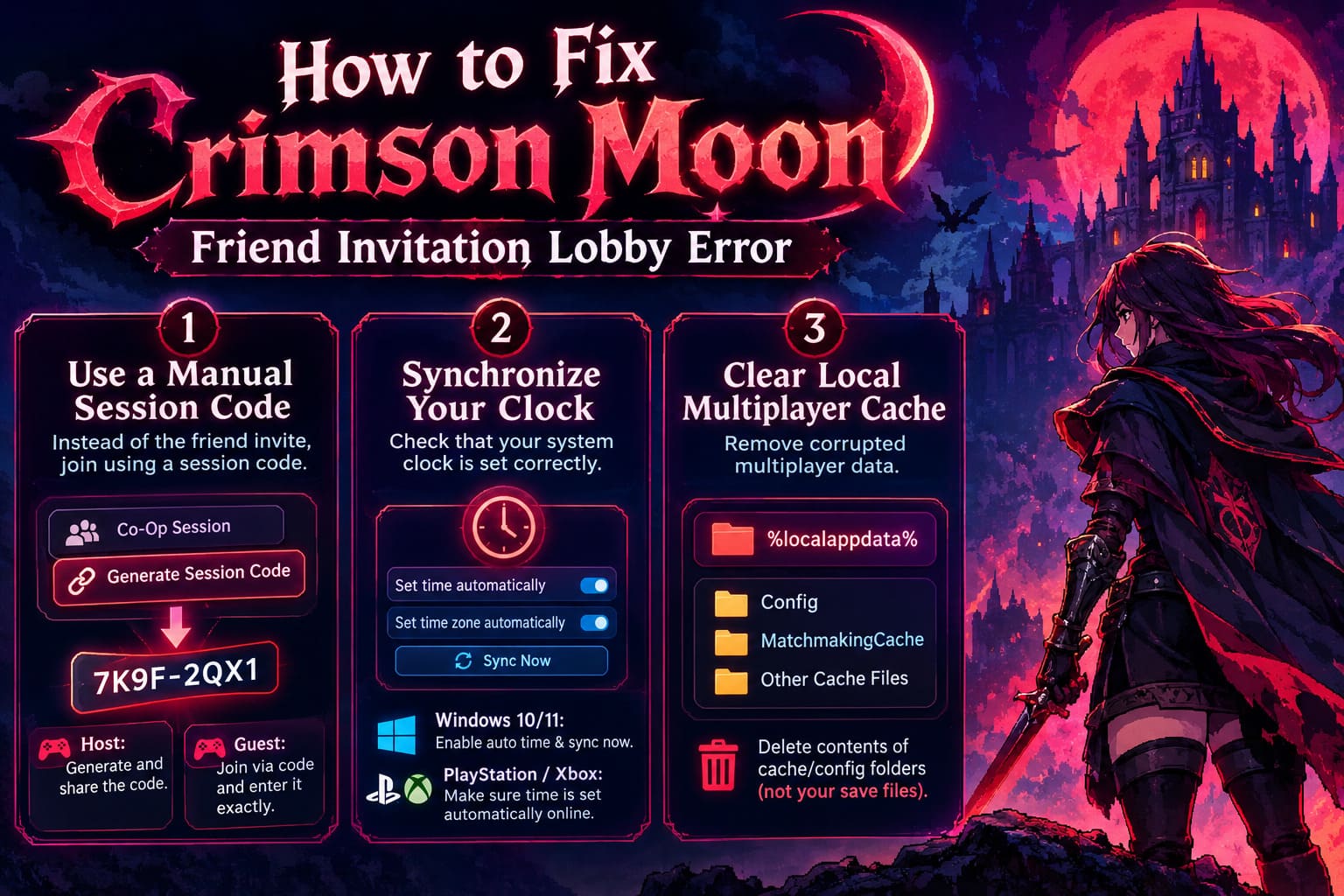
For the Host
Start from the main menu and enter Co-Op Session.
Set the session privacy to Private or Invite Only, depending on which option is available to you. From there, select Generate Session Code.
The game should provide a unique alphanumeric code for the current lobby.
Send that code directly to your friend through your usual chat app.
For the Guest
Don’t wait for a Steam, Epic, PlayStation, or Xbox invitation to appear.
Open the multiplayer menu and choose Join Session via Code. Enter the host’s code exactly as shown.
This is important because even a small typo can result in what looks like another connection failure.
Once the guest successfully enters the lobby, the two players can continue setting up the session normally.
Why do I prefer this method? It cuts out one of the most annoying parts of the multiplayer chain: the platform’s social invitation layer. If normal friend invites are disappearing, the manual code gives you a much cleaner route into the same session.
2. Synchronize Your PC or Console Clock
This sounds almost too simple, but don’t skip it.
Online games use time-sensitive authentication and session information. If your system clock is significantly out of sync, authentication tokens can become invalid or multiplayer services can reject requests that would otherwise work.
If your friend receives an invitation but it immediately says “Invite Expired”, checking the clock is absolutely worth doing.
Windows 11 and Windows 10
Completely close Crimson Moon first.
Then:
- Right-click the clock on the Windows taskbar.
- Select Adjust date and time.
- Turn on Set time automatically.
- Turn on Set time zone automatically.
- Use the Sync Now option to force Windows to update the system time.
- Restart Crimson Moon.
After that, attempt to create a completely new co-op session rather than reusing the previous failed lobby.
If you’re troubleshooting with a friend, have both players synchronize their clocks. There’s little point fixing one machine if the other player is still using an incorrect system time.
PlayStation 5 and Xbox Series X|S
Open the console’s date and time settings and make sure the system is configured to obtain the correct time automatically through the internet.
Also make sure both players are using compatible regional settings and network configurations.
You don’t need to start changing random region settings just because a lobby fails, though. Don’t turn a simple multiplayer problem into a second problem. Check the basics first.
3. Clear Crimson Moon’s Local Multiplayer Cache
This is one of those fixes that rarely gets the spotlight until you’ve already tried everything else.
Games constantly create temporary configuration and matchmaking data. Following an update, hotfix, crash, or failed connection, some of that local data can become corrupted.
The result can be especially annoying because the game itself may launch perfectly. You can play single-player content, navigate menus, and load your character normally, yet every multiplayer invitation falls apart.
On Windows, close Crimson Moon completely before touching its local files.
Press:
Windows Key + R
Enter:
%localappdata%
and press Enter.
Look for a folder associated with Crimson Moon or ProbablyMonsters. Depending on the current build, you may find a Saved directory containing configuration or temporary matchmaking data.
Look for folders such as:
- Config
- MatchmakingCache
- Other clearly temporary network/cache directories
Delete the contents of the relevant cache/configuration folder rather than blindly deleting the entire game directory.
Do not delete your actual save files.
If you’re unsure whether a folder contains your progression, leave it alone. Your goal here is to force Crimson Moon to regenerate temporary multiplayer data, not to wipe your character.
After clearing the cache, reboot the game and create a fresh lobby.
4. Check Windows Firewall and Your NAT Type
Here’s where multiplayer troubleshooting gets a little more technical.
Crimson Moon’s co-op connection can be affected by the way your PC, router, and platform handle incoming and outgoing traffic. A firewall rule or restrictive NAT configuration can prevent players from establishing a reliable session.
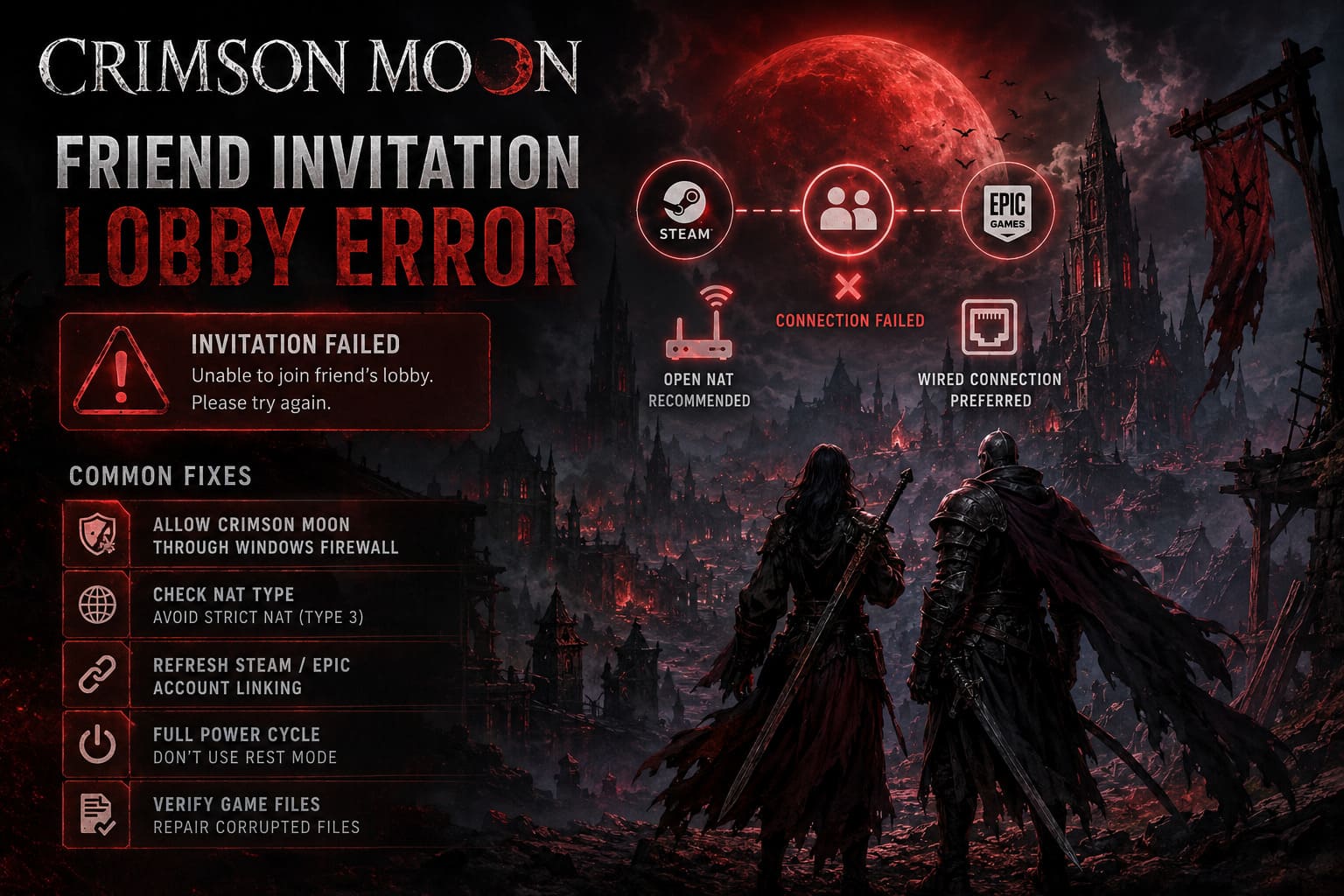
Allow Crimson Moon Through Windows Firewall
Search Windows for:
Allow an app through Windows Firewall
Open the result and select Change Settings.
Find Crimson Moon or its associated executable in the list.
Make sure the appropriate Private and Public network permissions are enabled.
If Crimson Moon isn’t listed, you may need to manually add its executable through the firewall’s allowed-app controls.
Don’t randomly disable Windows Firewall altogether just because multiplayer isn’t working. That’s the classic “fix” that creates a much bigger security problem than the original game bug.
Check NAT
Your platform’s network test should show your current NAT status.
A Strict / Type 3 NAT can make peer-to-peer or session-based multiplayer significantly more difficult.
If you have two players trying to connect and one has a more open NAT configuration, try having that player create the lobby.
A stable wired Ethernet connection is also preferable to Wi-Fi whenever possible.
If your router supports it, enabling UPnP can allow compatible applications to negotiate the necessary network mappings automatically.
The important thing here is to test methodically. Change one networking setting, try the lobby again, and then move on if nothing changes.
5. Refresh Steam and Epic Account Linking for Crossplay
Cross-platform multiplayer adds another potential failure point.
If you’re playing Crimson Moon through Steam while your friend is using the Epic Games Store, the game has to correctly identify both accounts and establish the appropriate connection between them.
When that account bridge gets stuck, you can end up with a particularly irritating situation: both players appear online, yet neither can successfully join the other’s session.
If you’ve already tried the normal invite system and manual session codes aren’t working, refreshing the account connection is worth considering.
Log into your relevant account through the official Steam or Epic account management pages.
Check the Apps and Accounts / Linked Accounts area.
If the secondary platform connection appears to be corrupted or incorrectly linked, follow the platform’s official unlinking and relinking procedure.
Then launch Crimson Moon again.
Open the game’s social or account section and allow the linking process to authenticate your accounts again.
The goal is to force a fresh authentication relationship rather than continuing to use an old session token that may no longer be valid.
One warning: don’t unlink accounts casually if you aren’t sure how the particular account relationship works. Account linking can affect other services, and this is not a fix I’d use before trying the simpler solutions above.
6. Stop Using Rest Mode and Perform a Full Console Power Cycle
PlayStation 5 and Xbox Series X|S players have another possible culprit: suspended game sessions.
Modern consoles are fantastic at letting you jump back into a game almost instantly. The downside is that an online multiplayer session doesn’t necessarily survive that suspension as cleanly as the game interface makes it appear.
You wake the console, Crimson Moon is still sitting exactly where you left it, and everything looks normal.
Then you try to invite your friend.
Nothing.
The lobby spins.
The connection fails.
You try again.
Still nothing.
If that sounds familiar, completely close Crimson Moon rather than simply suspending it.
If multiplayer remains broken, perform a full power cycle:
- Close Crimson Moon.
- Shut down the console completely.
- Disconnect its power source.
- Leave it disconnected for roughly 60 seconds.
- Reconnect the power.
- Start the console again.
- Launch Crimson Moon from a clean boot.
- Create a brand-new co-op session.
This clears out a stale session state and gives the game a chance to establish a completely new multiplayer connection.
It isn’t glamorous, but sometimes the ancient art of “turn it off and back on again” remains undefeated.
7. Verify Your Crimson Moon Game Files
If you’ve reached this point and nothing has worked, make sure your installation itself isn’t damaged.
A failed update or corrupted file can cause multiplayer problems even when the rest of the game appears functional.
On Steam, open your Crimson Moon library entry and go to:
Properties → Installed Files → Verify integrity of game files
Let Steam complete the process.
If damaged or missing files are discovered, Steam will replace them automatically.
Epic Games Store players should use the equivalent Verify option available through the Epic Games Launcher.
Once verification finishes, restart the launcher and Crimson Moon before testing multiplayer again.
This is especially worth doing if the lobby error appeared immediately after a major patch.
The Best Order to Try These Fixes
Don’t go through every setting at random. That makes troubleshooting unnecessarily painful and makes it difficult to figure out what actually solved the problem.
My recommended order is:
- Close and relaunch Crimson Moon.
- Use a manual Session Code instead of a platform invite.
- Synchronize the system clocks on both devices.
- Verify the game files.
- Clear temporary matchmaking/cache data on PC.
- Check firewall permissions and NAT.
- Refresh cross-platform account linking if you’re using Steam/Epic crossplay.
- Perform a full power cycle on consoles.
The first four are quick and low-risk. Start there.
Crimson Moon Best Nephilim Builds: Day 1 Launch Guide for Gildenarch
What If Crimson Moon Still Says “Joining Lobby”?
If the game remains stuck on “Joining Lobby” after you’ve gone through these steps, don’t immediately assume your PC or console is broken.
Multiplayer failures can also originate on the service side. During a major launch, thousands of players hammer the same authentication, matchmaking, and social infrastructure at once. A problem affecting the backend can look exactly like a local networking problem.
Try creating a session at a different time and test whether both players can connect to other multiplayer services normally.
Also check for current developer announcements, maintenance notices, or hotfixes before spending an hour changing router settings.
There’s nothing worse than rebuilding your entire network configuration only to discover that the game’s servers were having a bad afternoon.
Crimson Moon vs Remnant 2 Melee Combat Comparison: Soulslike Mechanics vs Gun-Fu Synergy
Final Verdict
The Crimson Moon Friend Invitation Lobby Error is frustrating because it often gives you very little useful information. An invitation disappears, a connection expires, or the game sits indefinitely on a loading screen without telling you what actually went wrong.
Fortunately, you don’t have to throw your controller across the room.
The manual Session Code workaround is the first thing I’d try, especially when normal Steam, Epic, PlayStation, or Xbox invitations aren’t behaving. After that, synchronize both players’ clocks, clear corrupted local matchmaking data on PC, verify the game installation, and investigate firewall or NAT restrictions.
For crossplay problems, refreshing the Steam/Epic account connection can help. On consoles, a complete shutdown and power cycle is worth trying if the game has been sitting in Rest Mode or Instant-On for a long time.
The key is to troubleshoot in a sensible order rather than changing ten settings simultaneously. One fix at a time, one fresh lobby at a time.
Once the connection finally works, get back to Gildenarch and enjoy the part that actually matters: smashing through the gothic nightmare with a friend instead of staring at “Joining Lobby” for five minutes.