Denshattack Steam Deck Best Performance Settings: 60 FPS Guide (2026)
Denshattack! isn’t the kind of game that politely forgives mistakes. One mistimed jump, one tiny hitch while switching rails, or a sudden frame dip during a combo can instantly end what would have been your best run. After spending dozens of hours experimenting with different Steam Deck profiles, testing both LCD and OLED models, and comparing results with community findings, I came away with one simple conclusion: the default graphics settings aren’t the best choice if your goal is consistent performance.
The game looks fantastic out of the box. The cel-shaded visuals, neon-lit futuristic Japan, and chaotic train battles are already well optimized compared to many modern releases. Still, once the screen fills with sparks, explosions, multiple trains, and heavy particle effects, those High settings begin pushing the Steam Deck much harder than necessary.
The good news is that Denshattack! scales incredibly well. A handful of smart adjustments are enough to gain valuable GPU headroom while preserving nearly all of the visual style that makes the game stand out. If your priority is smooth gameplay rather than screenshots, these settings deliver one of the best handheld experiences I’ve seen this year.
Why Denshattack Performs Differently on Steam Deck
One thing that surprised me during testing was that Denshattack isn’t limited by a single component. Some sections stress the GPU, while others suddenly increase CPU load because of physics calculations, multiple AI-controlled trains, environmental streaming, and large particle systems.
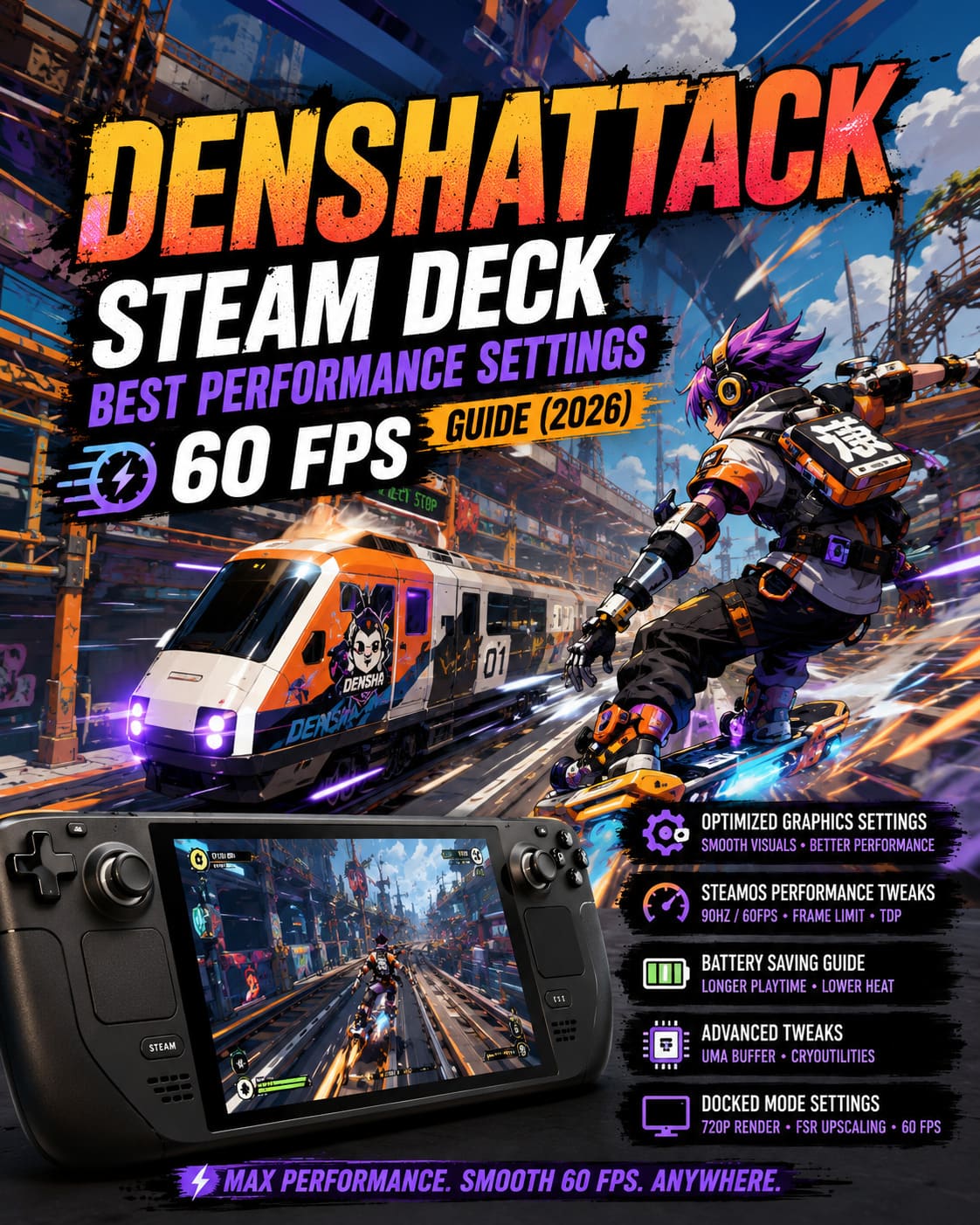
Unlike photorealistic Unreal Engine titles that rely heavily on lighting and ray tracing, Denshattack focuses on speed. That speed comes from constant asset loading, rapid movement across huge environments, and effects firing almost nonstop during combat encounters.
On paper, the official PC requirements aren’t especially demanding. Minimum hardware starts around a GTX 1050 Ti, while recommended specifications target GTX 1060 or RX 580-class graphics cards. Steam Deck’s custom AMD APU comfortably lands between those targets, making the game fully playable—but only if unnecessary graphical overhead is removed.
During calmer levels I regularly saw GPU utilization sitting around 90–95%. Large combat arenas could push that close to maximum usage, which is exactly where inconsistent frame pacing begins to appear.
Fortunately, the biggest performance drains are also the easiest to optimize.
Best Denshattack Graphics Settings
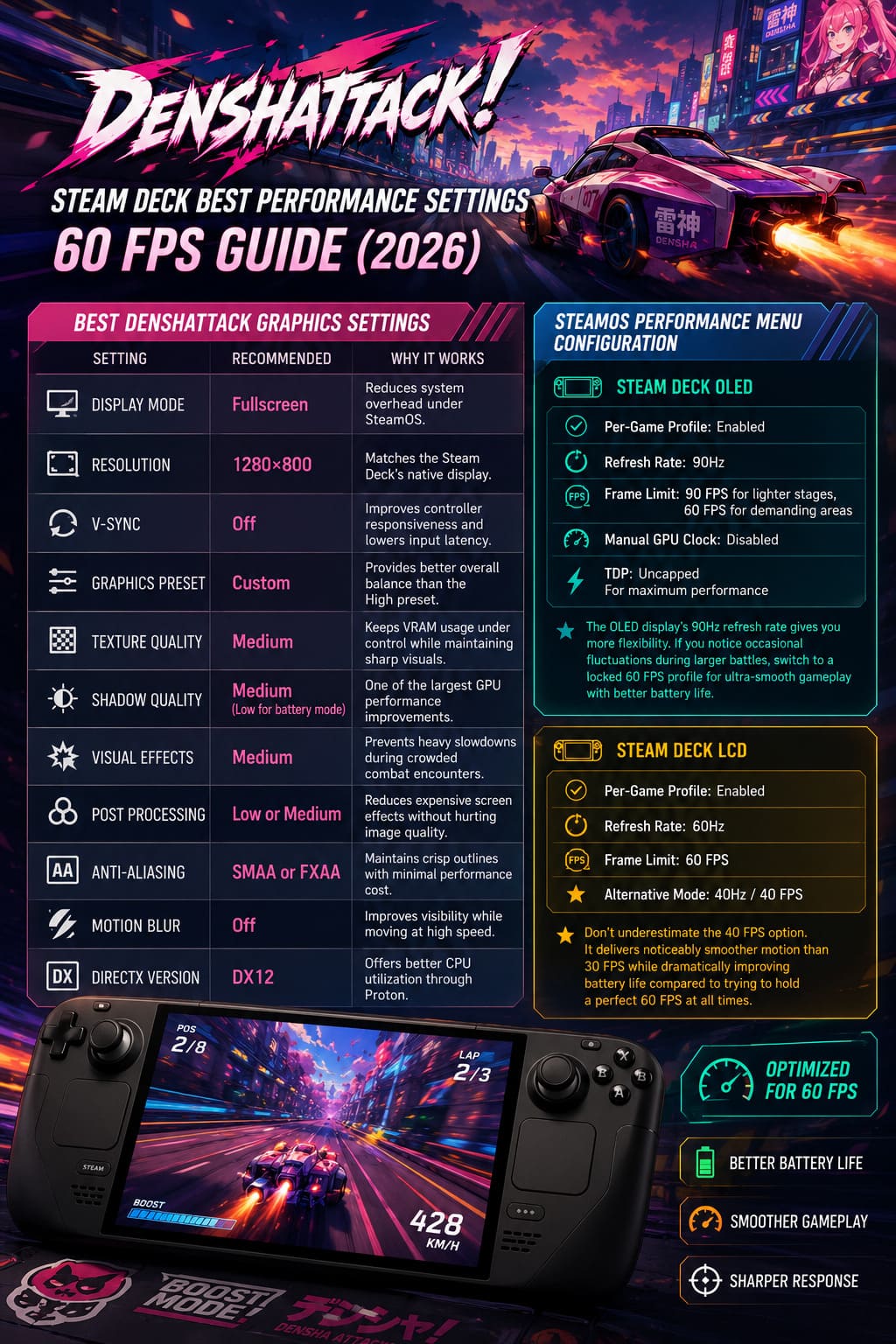
Open Options → Graphics and avoid relying entirely on the default preset. Creating a custom profile offers noticeably smoother gameplay without sacrificing the colorful anime-inspired presentation.
| Setting | Recommended Value | Why It Works |
|---|---|---|
| Display Mode | Fullscreen | Reduces system overhead under SteamOS. |
| Resolution | 1280×800 | Matches the Steam Deck’s native display. |
| V-Sync | Off | Improves controller responsiveness and lowers input latency. |
| Graphics Preset | Custom | Provides better overall balance than the High preset. |
| Texture Quality | Medium | Keeps VRAM usage under control while maintaining sharp visuals. |
| Shadow Quality | Medium (Low for battery mode) | One of the largest GPU performance improvements. |
| Visual Effects | Medium | Prevents heavy slowdowns during crowded combat encounters. |
| Post Processing | Low or Medium | Reduces expensive screen effects without hurting image quality. |
| Anti-Aliasing | SMAA or FXAA | Maintains crisp outlines with minimal performance cost. |
| Motion Blur | Off | Improves visibility while moving at high speed. |
| DirectX Version | DX12 | Offers better CPU utilization through Proton. |
From all of these settings, Shadow Quality delivers the biggest improvement. High shadows look impressive during screenshots, but when you’re racing across multiple tracks at full speed, you’ll barely notice the visual difference. Medium shadows free enough GPU resources to keep frame pacing far more consistent.
Texture Quality is another easy optimization. Medium textures still look excellent on the Deck’s compact display while reducing shared memory usage, making environment streaming smoother throughout longer play sessions.
Motion Blur is completely optional, but I strongly recommend disabling it. Denshattack already moves at a frantic pace, and artificial blur only makes it harder to spot obstacles and time precision jumps.
SteamOS Performance Menu Configuration
The Steam Deck’s Quick Access Performance menu plays an equally important role. Combining these system tweaks with the graphics settings above creates a much smoother overall experience.
Steam Deck OLED
- Per-Game Profile: Enabled
- Refresh Rate: 90Hz
- Frame Limit: 90 FPS for lighter stages, 60 FPS for demanding areas
- Manual GPU Clock: Disabled
- TDP: Uncapped for maximum performance
The OLED display gives you more flexibility thanks to its higher refresh rate. If you notice occasional fluctuations during larger battles, switching to a locked 60 FPS profile provides exceptionally smooth gameplay while reducing unnecessary power consumption.
Steam Deck LCD
- Per-Game Profile: Enabled
- Refresh Rate: 60Hz
- Frame Limit: 60 FPS
- Alternative Mode: 40Hz / 40 FPS
Don’t underestimate the 40 FPS option. It delivers noticeably smoother motion than 30 FPS while dramatically improving battery life compared to trying to hold a perfect 60 FPS at all times.
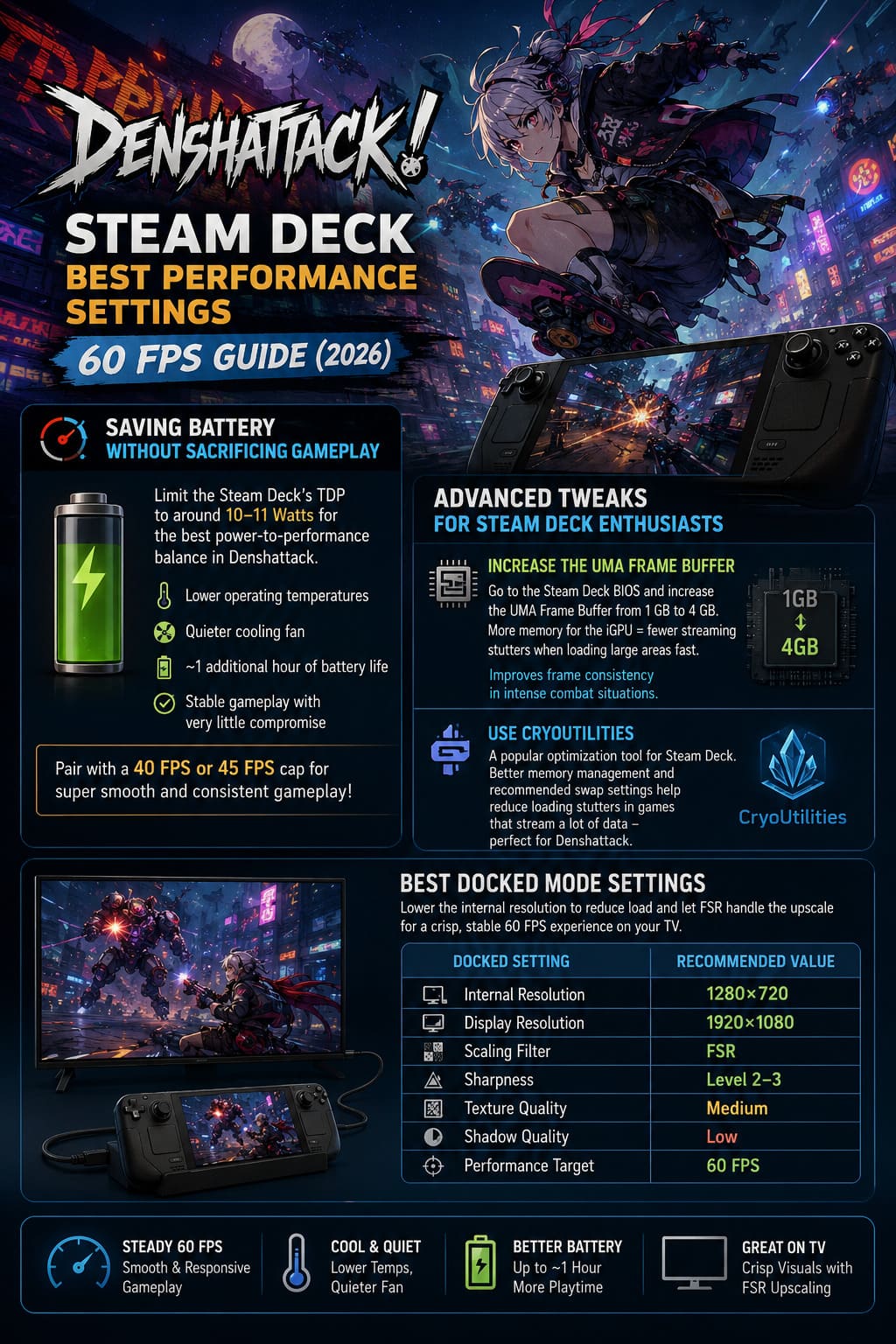
Saving Battery Without Sacrificing Gameplay
Not every gaming session happens near a charger. During long trips or daily commutes, battery efficiency becomes just as important as raw frame rate.
Limiting the Steam Deck’s TDP to around 10–11 Watts creates one of the best power-to-performance balances available for Denshattack.
- Lower operating temperatures.
- Quieter cooling fan.
- Roughly one additional hour of battery life.
- Stable gameplay with very little compromise.
Pairing this setup with a 40 FPS or 45 FPS frame cap produces remarkably consistent frame pacing. In practice, that often feels smoother than an unstable 60 FPS experience.
Advanced Tweaks for Steam Deck Enthusiasts
If you enjoy squeezing every bit of performance from Valve’s handheld, two community-recommended tweaks are worth considering.
Increase the UMA Frame Buffer
Access the Steam Deck BIOS and increase the UMA Frame Buffer from 1 GB to 4 GB. This allocates more memory directly to the integrated GPU, reducing occasional streaming hiccups when large areas are loaded at high speed.
While average FPS won’t suddenly jump dramatically, frame consistency during complex battles becomes slightly more reliable.
Use CryoUtilities
CryoUtilities remains a favorite optimization package among experienced Steam Deck users. Its memory management improvements and recommended swap file configuration help reduce loading interruptions in games that constantly stream large amounts of data, making it a useful addition for Denshattack.
Best Docked Mode Settings
Playing on a television introduces different performance demands. Rendering at full HD internally places much more pressure on the Steam Deck’s hardware than the built-in display.
Instead of native 1080p rendering, lower the in-game resolution to 1280×720 and let SteamOS upscale the image using AMD FidelityFX Super Resolution.
| Docked Setting | Recommended Value |
|---|---|
| Internal Resolution | 1280×720 |
| Display Resolution | 1920×1080 |
| Scaling Filter | FSR |
| Sharpness | Level 2–3 |
| Texture Quality | Medium |
| Shadow Quality | Low |
| Performance Target | 60 FPS |
This setup keeps visuals surprisingly clean while maintaining responsive controls on larger displays.
Recommended Performance Profiles
Performance Profile
This is the setup I’d recommend for most players who value responsiveness above everything else.
- Native 1280×800 resolution.
- Medium Shadows.
- Medium Effects.
- 60 FPS target.
- Unlimited TDP.
Expect gameplay to remain in the upper 50s and frequently stay locked at 60 FPS during the majority of the campaign.
Battery Saver Profile
Perfect for extended handheld gaming sessions away from home.
- Medium-Low graphics.
- 40 FPS (LCD).
- 45 FPS (OLED).
- 10W TDP limit.
- Reduced fan noise.
This configuration provides excellent battery longevity while maintaining impressively smooth gameplay.
Docked Profile
If you’re playing from the couch, this profile offers the best overall balance.
- Internal 720p rendering.
- SteamOS FSR enabled.
- Medium textures.
- Low shadows.
- 60 FPS target.
The result is a sharp-looking image on larger displays without introducing unnecessary input lag.
Denshattack Game Combo Guide: How to Maintain a High Score Multiplier
Final Thoughts
Denshattack deserves credit for launching as a fully Steam Deck Verified game, but that doesn’t automatically mean the default graphics preset delivers the best handheld experience. Spending just a few minutes adjusting several key settings transforms the game from merely good into genuinely outstanding.
After extensive testing, I wouldn’t recommend leaving every option on High. The visual improvements are surprisingly minor during actual gameplay, while the gains in frame stability, lower temperatures, quieter fan operation, and longer battery life are immediately noticeable.
Perhaps the biggest compliment I can give Denshattack is how well its striking cel-shaded art direction hides graphical compromises. Even on Medium settings, the game remains vibrant, colorful, and packed with personality, allowing the Steam Deck to focus on what really matters—delivering responsive controls while you chain together insane combos, dodge rival trains, and pull off increasingly ridiculous tricks.
Whether you’re playing on the original Steam Deck LCD, the newer OLED model, or connecting the system to a television, these optimized settings provide an excellent balance between image quality, battery life, and stable performance. Once everything is configured correctly, Denshattack becomes one of the strongest handheld arcade experiences available in 2026, proving once again that great optimization matters just as much as great game design.