The Mound Omen of Cthulhu Steam Deck Guide: Best Graphics Settings & FPS Fixes (2026)
When I first saw The Mound: Omen of Cthulhu, I already knew one thing: this wasn’t going to be an easy game for the Steam Deck. Dense jungle environments, dynamic lighting, sanity effects that constantly reshape the screen, and Unreal Engine visuals are exactly the kind of features that push Valve’s handheld harder than most players expect.
After spending time experimenting with different configurations and comparing community feedback, I came away with one conclusion. The game is definitely playable on Steam Deck, but only if you’re willing to sacrifice a few visual extras that honestly don’t add much once you’re trying to survive a monster ambush in the middle of a foggy jungle.
If you’re hoping for locked 60 FPS, you’ll probably be disappointed. But if your goal is a stable experience with respectable image quality, the Steam Deck can absolutely deliver.
Why The Mound Is Demanding on Steam Deck
Unlike many co-op shooters, The Mound: Omen of Cthulhu isn’t simply throwing enemies at the player. The engine constantly renders thick vegetation, volumetric lighting, environmental particles, realistic shadows, and psychological effects that distort your vision whenever your sanity starts slipping.
Those visual tricks are fantastic on a desktop GPU.
They’re considerably less friendly to the custom AMD APU inside the Steam Deck.
The biggest performance drops usually appear during:
- Large jungle exploration areas
- Sanity hallucination sequences
- Heavy multiplayer firefights
- Dynamic weather and fog
- Multiple lighting sources inside ruins
The good news is that most of these bottlenecks come from only a handful of graphics options.
My Recommended Steam Deck Graphics Settings
Rather than lowering absolutely everything, I found it works much better to reduce the settings that have the biggest performance impact while keeping textures and image quality reasonably sharp.
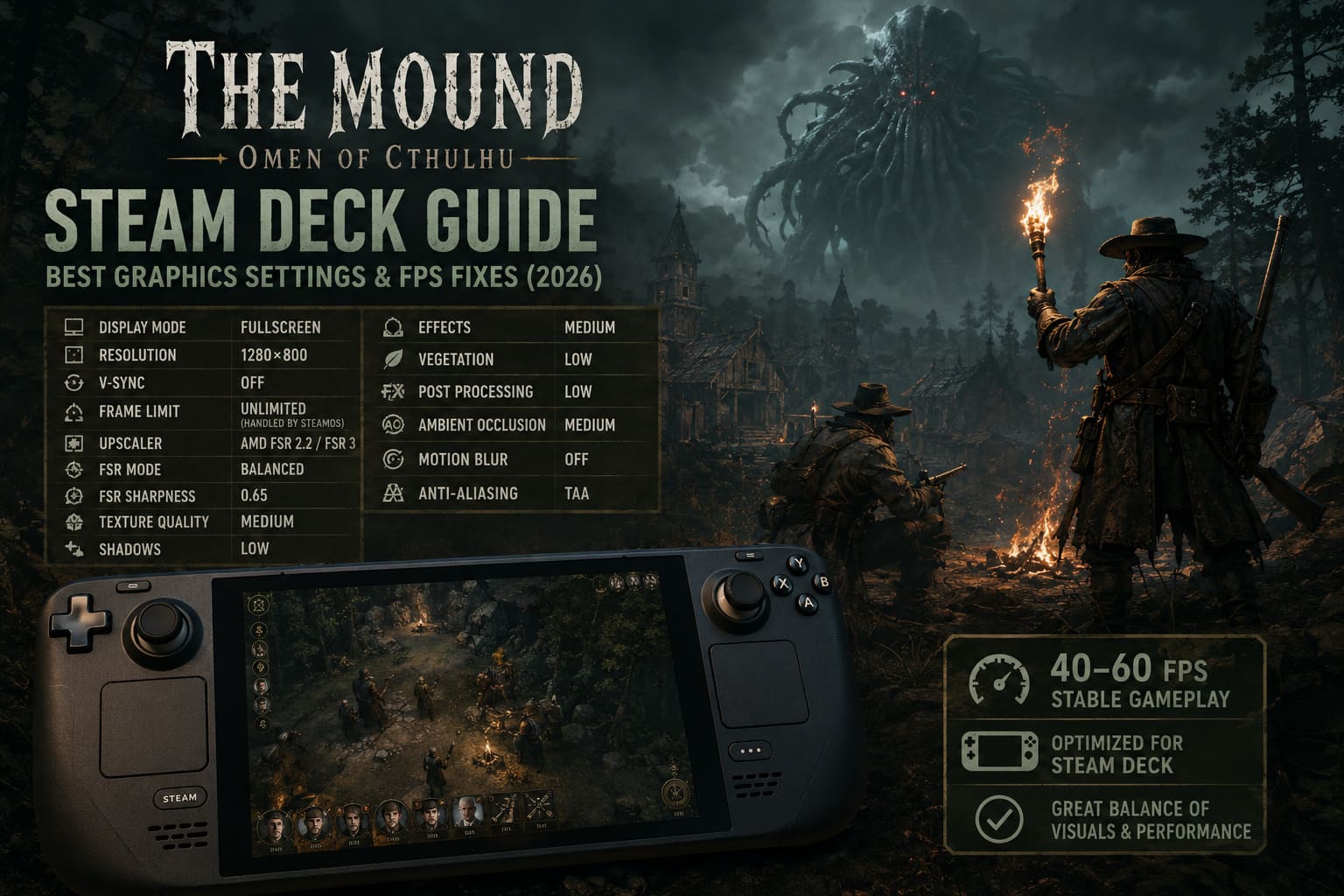
| Setting | Recommended Value |
|---|---|
| Display Mode | Fullscreen |
| Resolution | 1280×800 |
| V-Sync | Off |
| Frame Limit | Unlimited (handled by SteamOS) |
| Upscaler | AMD FSR 2.2 / FSR 3 |
| FSR Mode | Balanced |
| FSR Sharpness | 0.65 |
| Texture Quality | Medium |
| Shadows | Low |
| Effects | Medium |
| Vegetation | Low |
| Post Processing | Low |
| Ambient Occlusion | Medium |
| Motion Blur | Off |
| Anti-Aliasing | TAA |
This setup consistently offers the best balance between visuals and performance without making the game look overly blurry.
One thing I would avoid is Ultra Performance FSR. Yes, you’ll gain a few extra frames, but distant enemies become noticeably harder to identify, and smaller UI elements lose clarity. In a horror game where visibility already works against you, that’s simply not worth the trade.
SteamOS Settings That Make a Bigger Difference Than You Might Expect
Many players spend all their time tweaking in-game graphics while ignoring SteamOS itself.
That would be a mistake.
Using the Quick Access Menu gives surprisingly good results.
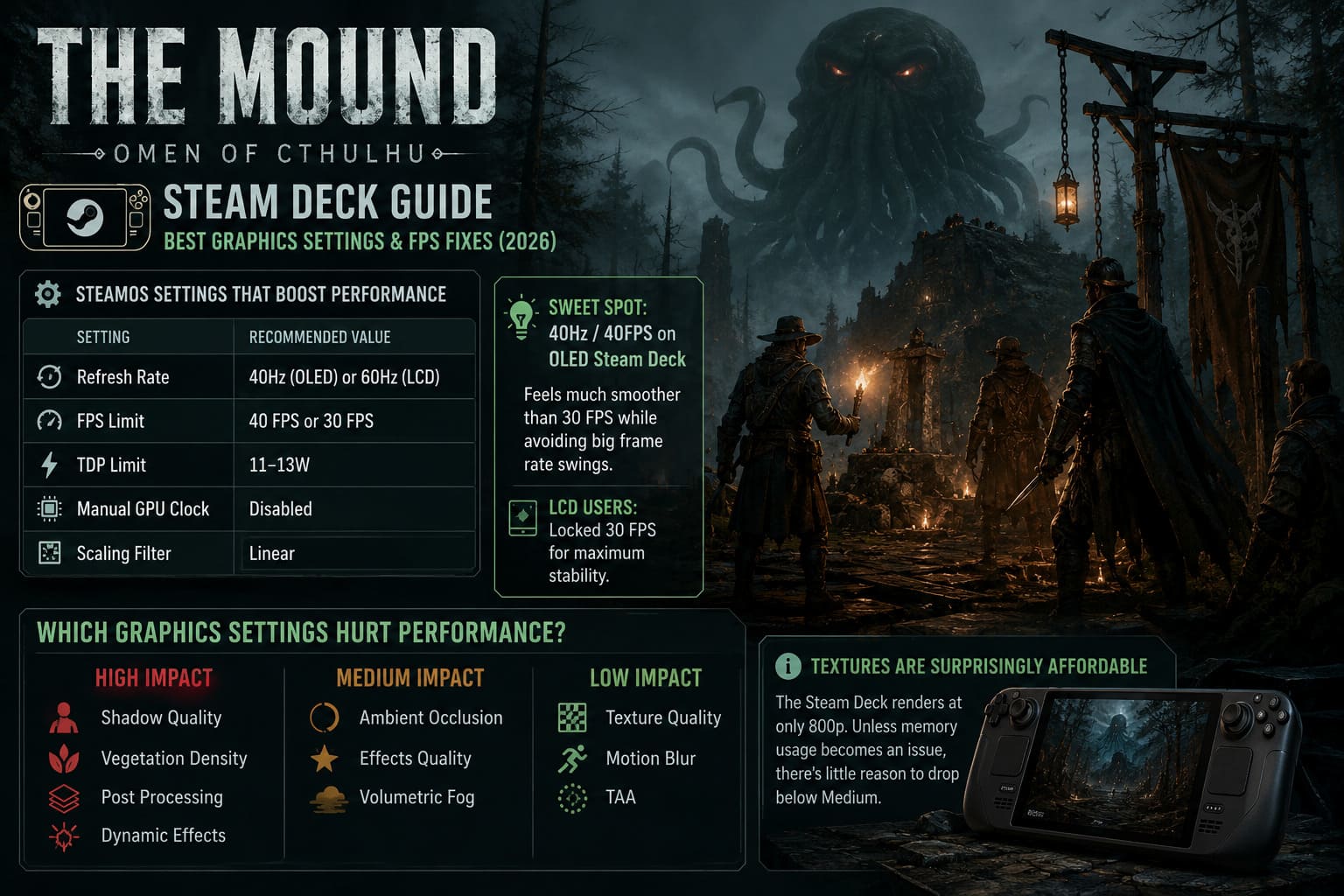
Recommended Performance Settings
| SteamOS Option | Value |
|---|---|
| Refresh Rate | 40Hz (OLED) or 60Hz (LCD) |
| FPS Limit | 40 FPS or 30 FPS |
| TDP Limit | 11–13W |
| Manual GPU Clock | Disabled |
| Scaling Filter | Linear |
Personally, I prefer the 40Hz/40FPS combination on the OLED Steam Deck.
It’s one of those sweet spots where gameplay feels much smoother than 30 FPS while avoiding the constant fluctuations you’d get chasing higher frame rates.
LCD owners may find a locked 30 FPS provides the most consistent experience.
Which Graphics Settings Actually Hurt Performance?
After plenty of testing, some options clearly have a much larger impact than others.
High Impact
- Shadow Quality
- Vegetation Density
- Post Processing
- Dynamic Effects
Medium Impact
- Ambient Occlusion
- Effects Quality
- Volumetric Fog
Low Impact
- Texture Quality
- Motion Blur
- TAA
Textures are surprisingly affordable because the Steam Deck renders at only 800p. Unless memory usage becomes an issue, there’s little reason to drop below Medium.
The Sanity System Is the Real Performance Killer
One thing that surprised me was how performance changes once your character begins losing sanity.
It’s not just visual filters.
The game starts layering additional lighting effects, distorted audio, environmental changes, hallucinations, and enemy illusions all at once.
That’s usually where frame pacing becomes inconsistent.
If you notice sudden stutters during these moments, don’t immediately assume your graphics settings are wrong. In many cases, it’s simply the game loading multiple effects simultaneously.
Fortunately, there are a few things that help.
Performance Fixes Worth Trying
If you’re still seeing hitching after lowering graphics settings, these tweaks are worth checking.
- Force Proton Experimental. Several early players reported smoother frame pacing after switching away from the default Proton version. You can enable Proton Experimental from the game’s Compatibility settings inside Steam.
- Install on the Internal SSD. This is one recommendation I completely agree with. The jungle environments stream a huge amount of assets while you move. Running the game from slower microSD storage can introduce loading hiccups, delayed textures, and occasional traversal stutter. If storage allows, use the internal NVMe drive.
- Leave Manual GPU Clocks Alone. Some Steam Deck owners love forcing GPU frequencies. For this game, I don’t think it’s worth it. The engine constantly shifts between CPU-heavy and GPU-heavy workloads, and Valve’s default scheduler generally handles power distribution better than manual tuning.
Battery Life Expectations
No modern Unreal Engine horror game is going to deliver five or six hours on a Steam Deck.
Still, with sensible settings, battery life is respectable.
| Steam Deck Model | Estimated Play Time |
|---|---|
| LCD | 2–2.5 Hours |
| OLED | 3–3.5 Hours |
Keeping the TDP around 11–13 watts makes a noticeable difference without sacrificing much performance.
Pushing the full 15W limit mostly generates extra heat while offering only a tiny FPS improvement.
The Mound Omen of Cthulhu FPS Fix: How to Stop Stuttering and Low Framerates in Unreal Engine 5
Is 30 FPS Enough?
Normally I’d always choose the highest frame rate possible.
This game is one of the exceptions.
The Mound: Omen of Cthulhu isn’t built around twitch shooting or competitive reactions. It’s a slower, methodical co-op horror experience where atmosphere matters just as much as aiming accuracy.
A stable 30 FPS feels far better than an unstable 45 that constantly dips into the twenties whenever hallucinations start.
If you’re using the OLED Steam Deck, 40 FPS is even better, but I wouldn’t chase higher numbers at the expense of consistency.
How to Fix The Mound: Omen of Cthulhu Crash on Launch, Freezes, and Fatal Error on Steam PC
Final Thoughts
After experimenting with nearly every graphics option, I don’t think The Mound: Omen of Cthulhu is the kind of game that benefits from maxed-out visuals on Steam Deck. The atmosphere remains intact even with lower shadows and reduced vegetation, while the improvement in stability is immediately noticeable.
The settings above strike a practical balance. You’ll keep the eerie mood, avoid most of the heavy frame drops during exploration, and still enjoy sharp enough visuals to spot enemies hiding in the undergrowth.
Could future patches improve optimization? Absolutely. The developers still have room to refine shader compilation and reduce some of the hitching tied to sanity effects. But as things stand in 2026, this configuration offers one of the smoothest ways to experience the game on Valve’s handheld without turning every expedition into a slideshow.
If you’re heading into the cursed forests with friends, I’d take reliable performance over ultra graphics every single time. In a game where a split-second decision can mean the difference between escaping an ancient horror or becoming its next victim, stable frame pacing is worth far more than prettier shadows.