How to Fix John Carpenter’s Toxic Commando Controller Input Lag: 2026 Guide
When John Carpenter’s Toxic Commando launched, it immediately hooked me. The synth-heavy soundtrack, absurdly huge zombie swarms, and that chaotic co-op energy feel like a playable 80s action movie. It’s the kind of game where your squad is screaming over voice chat while you unload magazines into a tidal wave of undead.
But there’s one issue that a lot of players (myself included) ran into pretty quickly: controller input lag.
At first I thought it was just the game’s movement style. But after a few hours, something felt… off. Shots fired a split second too late. Camera turns overshooting targets. Vehicles feeling like they were driving through mud.
If you’re experiencing the same thing, don’t worry. After digging through community discussions, experimenting with settings, and tweaking my setup, I’ve put together a straightforward gamer-to-gamer guide on how to reduce or eliminate controller lag in Toxic Commando.
Is It Input Lag or Just Game Design?
Before you start changing every setting you see, there’s something important to understand.
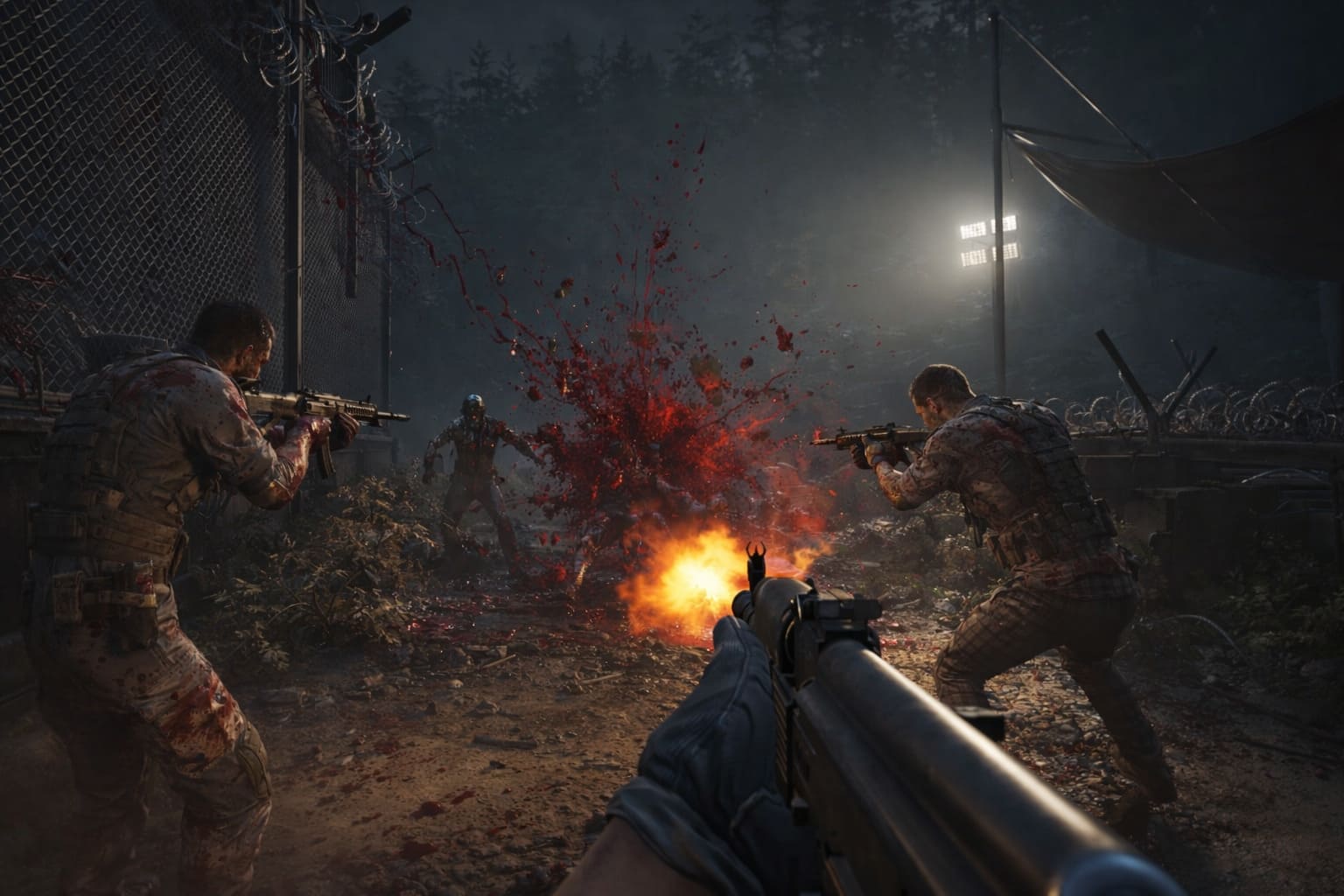
The developers at Saber Interactive built Toxic Commando on their proprietary Swarm Engine — the same tech famous for handling massive zombie hordes.
Because of this, characters have intentional weight and momentum.
That means:
- Turning instantly like in Call of Duty isn’t the goal.
- Characters accelerate gradually.
- Vehicles have heavier steering.
However, true input lag feels different.
Signs you’re dealing with real latency:
- Pressing fire → muzzle flash appears late
- Camera continues moving after releasing the stick
- Aim adjustments feel “delayed” or floaty
- Inputs sometimes feel inconsistent
If that sounds familiar, the fixes below should help.
John Carpenter’s Toxic Commando DX12 vs Vulkan Performance: Which API is Best for Your PC?
The Biggest PC Culprit: Steam Input Conflicts
On PC, the most common cause of controller delay is actually Steam Input.
Normally Steam Input is great — it lets any controller work with almost any game. But in some titles it becomes an unnecessary extra layer between your controller and the game.
Think of it like this:
Controller → Steam Input → Game
Each step adds tiny delays.
How to Disable It
- Open Steam
- Go to Library
- Right-click John Carpenter’s Toxic Commando
- Select Properties
- Open the Controller tab
- Change Override to Disable Steam Input
Restart the game afterward.
If your controller suddenly stops working, try:
- Switching to a wired connection
- Using tools like DS4Windows for PlayStation controllers
In my case, disabling Steam Input immediately made aiming feel noticeably tighter.
John Carpenter’s Toxic Commando Combo Attacks Guide: How to Parry and Defeat Sludge-Mutants
Graphics Settings That Secretly Affect Input Lag
A lot of players assume input lag is purely controller related.
It’s not.
Often the real problem is display latency caused by low or unstable frame rates.
Here are the most important settings to adjust.
| Setting | Recommended Value | Why It Matters |
|---|---|---|
| V-Sync | OFF | Prevents frame buffering delays |
| Frame Rate Limit | Match monitor refresh rate or unlimited | Reduces frame timing inconsistencies |
| NVIDIA Reflex | On + Boost | Cuts down render queue latency |
| DLSS / FSR | Balanced or Performance | Higher FPS = faster response |
V-Sync is usually the biggest offender.
Turning it off can instantly remove 20–30ms of delay.
If screen tearing bothers you, use G-Sync or FreeSync instead.
Console Players: Easy Latency Wins
If you’re playing on PlayStation 5 or Xbox Series X / Series S, there are still a few important tweaks.
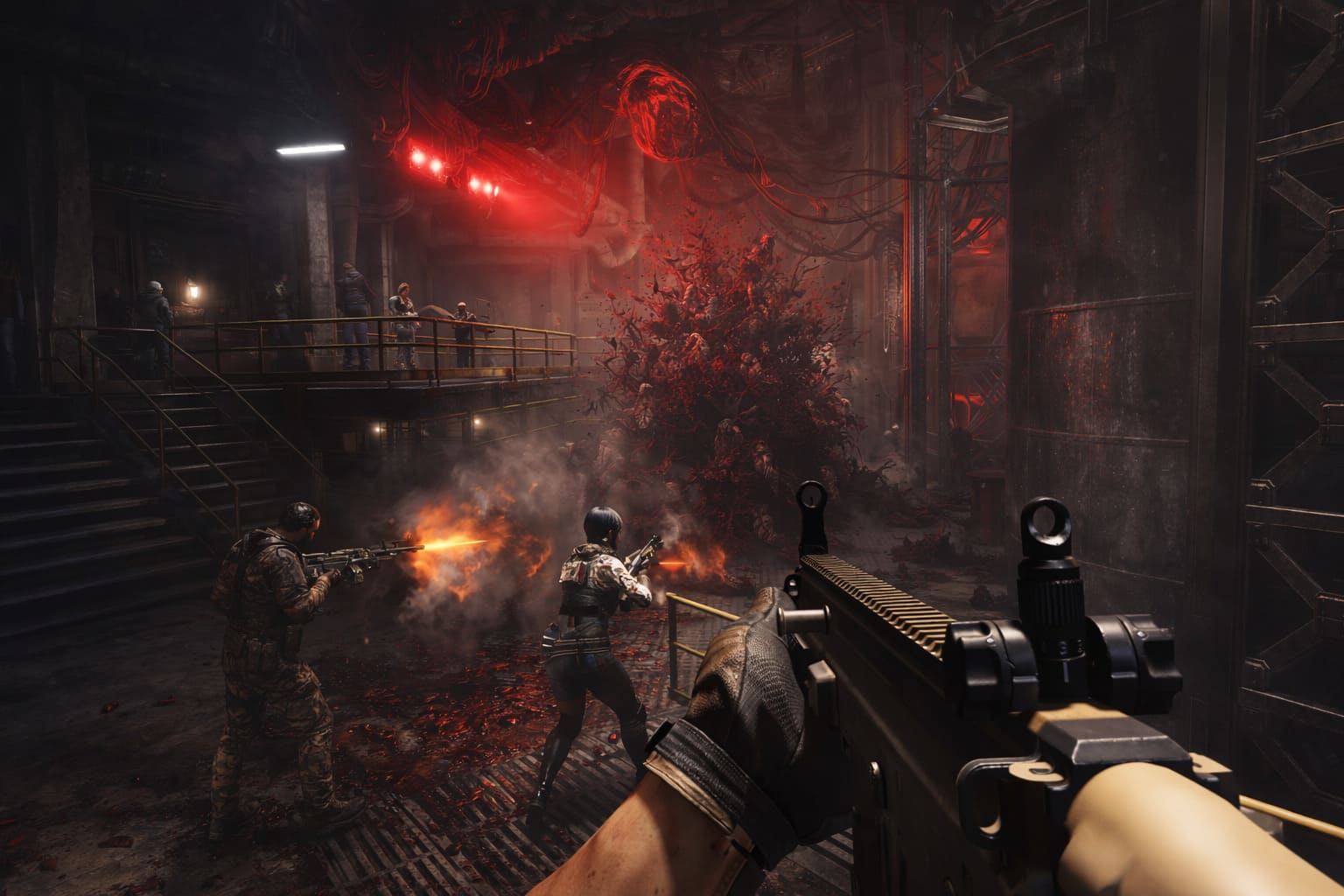
Switch to Performance Mode
Most modern games offer two options:
- Quality Mode – higher resolution, lower FPS
- Performance Mode – higher FPS, lower visual fidelity
Always choose Performance Mode.
Why?
| Mode | FPS | Estimated Input Lag |
|---|---|---|
| Quality | 30 FPS | High |
| Performance | 60 FPS | Much lower |
Doubling the frame rate dramatically improves controller responsiveness.
Turn On TV Game Mode
This one is huge and often overlooked.
Modern TVs apply heavy image processing such as motion smoothing, sharpening, color filters, and frame interpolation. All of that adds up to 100ms of latency.
Switching your TV to Game Mode disables these effects and prioritizes responsiveness.
Try a Wired Controller
Wireless controllers are convenient but can introduce small delays or interference.
If possible:
- connect your controller via USB
- disable Bluetooth communication in settings
Competitive players almost always prefer wired connections for this reason.
Deadzones: The Setting That Feels Like Lag
Sometimes the issue isn’t technical at all.
It’s just controller deadzone settings.
Deadzone determines how far you must move a joystick before the game detects movement.
Too high → the game feels slow to react.
Recommended Deadzone Setup
| Setting | Suggested Range |
|---|---|
| Inner Deadzone | 0.05 – 0.10 |
| Outer Deadzone | Default |
| Response Curve | Linear or Standard |
Lowering the inner deadzone gives your aim a more immediate feel.
If you notice stick drift afterward, increase it slightly until the drift stops.
Advanced PC Trick: Increase Controller Polling Rate
If you really want to squeeze every millisecond out of your setup, there’s a more technical trick.
Controllers communicate with your PC at a certain polling rate.
Typical defaults:
| Controller | Default Polling Rate |
|---|---|
| DualSense | 250 Hz |
| Xbox Controller | 250 Hz |
That means your input updates every 4 milliseconds.
Using community tools like HIDUSBF, you can increase that to 1000 Hz.
This reduces input intervals to 1 millisecond.
It’s a niche tweak, but competitive players swear by it.
The Long Session Problem
Another issue some players noticed in 2026 is performance degradation after extended play sessions.
After 2–3 hours, the game can start to feel slightly less responsive.
Possible cause: memory buildup inside the engine.
Quick Fix
Simply restart the game.
It clears system RAM, GPU memory, and cached resources.
It’s not glamorous, but it works.
Quick Lag-Reduction Checklist
If you want the short version, here’s the fastest way to improve responsiveness.
Do these first:
- Disable Steam Input
- Turn V-Sync OFF
- Use Performance Mode
- Lower controller deadzones
- Enable TV Game Mode
- Play wired if possible
Those steps alone solve the majority of controller lag complaints.
Final Thoughts
At its best, John Carpenter’s Toxic Commando is chaotic, loud, and ridiculously fun. When everything clicks — your squad working together, zombies flooding the map, synth music blasting — it’s one of the most satisfying co-op shooters around.
But input lag can absolutely ruin that flow.
Fortunately, most of the fixes are simple once you know where to look. With a few tweaks to your controller setup and graphics settings, the game becomes far more responsive and enjoyable.
And once the controls feel right, mowing down thousands of zombies with your friends feels exactly how it should: fast, frantic, and awesome.