How to Fix Dune Awakening Update 1.5 Crash on Launch: Complete PC Troubleshooting Guide
Dune: Awakening Update 1.5 is a huge turning point for Funcom’s survival MMO. The patch brings major structural changes to Arrakis, including console cross-play integration, a standalone single-player offline mode, rewritten combat systems, and a completely reworked overland progression system. That sounds fantastic on paper. The problem is that some PC players are discovering that they cannot even reach the desert.
Since the 1.5.3 update and its follow-up hotfixes, reports of Dune: Awakening crashing on launch have started appearing across Steam discussions, Reddit, and community forums. Some players get an instant desktop crash. Others are stuck forever on shader compilation. Some are kicked into a bug-report window before the main menu even appears, while the nastiest cases involve a full system crash or BSOD.
I’ve spent enough time fighting Unreal Engine games to know that the first instinct is usually to start reinstalling everything in sight. Don’t do that yet. A launch crash after a major update is often caused by old configuration data, shader caches, anti-cheat services, driver conflicts, or hardware settings that were perfectly fine before the patch.
This guide focuses specifically on the problems that can appear after the Update 1.5 cycle. Work through the fixes in order, testing the game after each major change. In many cases, you won’t need to touch every step.
Why Is Dune: Awakening Crashing After Update 1.5?
A major MMO update can change much more than the visible content. Under the hood, the game may replace configuration structures, rebuild shaders, modify anti-cheat integration, and alter how Unreal Engine communicates with your hardware. That’s why a PC that ran Dune: Awakening perfectly yesterday can suddenly behave like it has forgotten how to launch a game.
| Possible Cause | Typical Symptom |
|---|---|
| Corrupted or outdated shader cache | Freeze or crash during shader compilation |
| BattlEye conflict | Instant crash, failed launch, or blank bug-report window |
| Old configuration files | Repeated startup crash or launch loop |
| Intel 13th/14th Gen instability | Crash, reboot, BSOD, or hardware-like failure |
| GPU driver conflict | Crash during initialization or loading |
| Renderer conflict | Immediate crash before reaching the menu |
The important thing is not to assume that every crash has the same cause. Dune: Awakening is running on Unreal Engine 5, and UE5 games can be particularly sensitive to stale shader data, driver leftovers, and aggressive CPU or GPU configurations.
Fix 1: Reset the Dune: Awakening Configuration Files
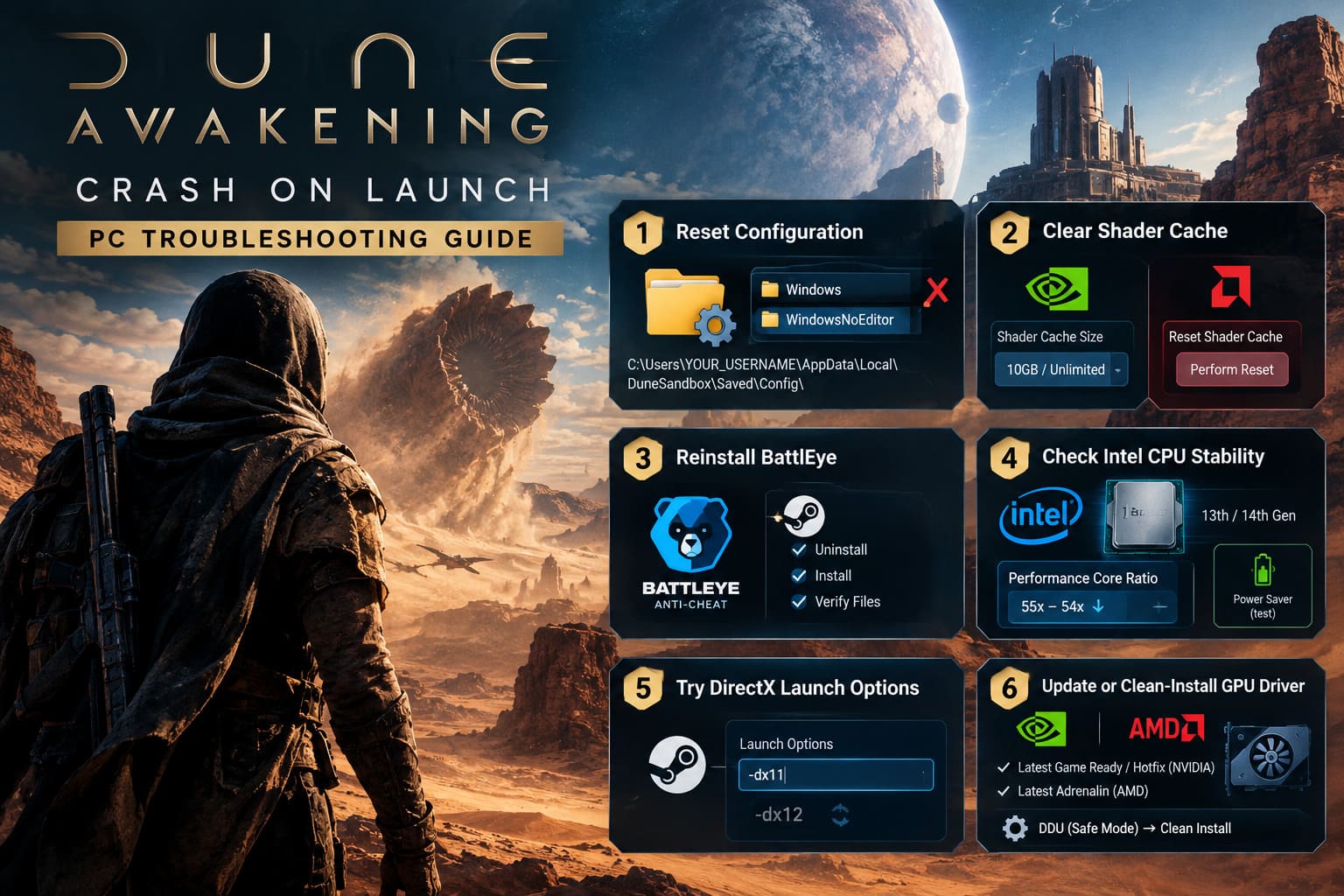
This is the first thing I’d try before doing anything drastic. Update 1.5 and its hotfixes changed parts of the game’s configuration structure. If your PC still has configuration files left over from an older build, the launcher can potentially stumble over them before the game properly initializes.
One of the important changes concerns legacy files such as GeneratedWindowsEngine.ini and the newer GeneratedEngine.ini structure. You don’t need to manually rebuild these files. The game can create clean versions when it launches again.
Here’s the cleanup process:
- Press Windows Key + E to open File Explorer.
- Go to your Windows user profile, normally located on the C: drive.
- Navigate to C:\Users\YOUR_USERNAME\AppData\Local\DuneSandbox\Saved\Config\.
- If you prefer the quick route, press Windows Key + R, enter %localappdata%, and press Enter. Find the DuneSandbox folder from there.
- Inside the Config directory, look for old folders named Windows or WindowsNoEditor.
- Delete those legacy folders if they are still present from an earlier installation or patch.
- Search the Config subfolders for GeneratedEngine.ini and remove it as well.
- Launch Dune: Awakening through Steam and allow the game to generate fresh configuration data.
Don’t panic about deleting GeneratedEngine.ini. The point of this procedure is to force the game to rebuild the configuration instead of continuing to use potentially corrupted leftovers.
Fix 2: Clear the GPU Shader Cache
If Dune: Awakening gets stuck on Compiling Shaders, crashes while compiling, or simply freezes before reaching the main menu, the shader cache deserves your attention. A major Unreal Engine update can invalidate a lot of previously generated shader data, and an old or corrupted cache can turn startup into a complete mess.
Nvidia GPU Users
- Open the Nvidia App or Nvidia Control Panel.
- Go to the global graphics or 3D settings.
- Find Shader Cache Size.
- Temporarily set it to Disabled.
- Apply the change and restart Windows.
- Press Windows Key + R, type cleanmgr, and press Enter.
- Select your system drive.
- Enable DirectX Shader Cache in Disk Cleanup.
- Run the cleanup.
- After rebooting, return to the Nvidia settings and set Shader Cache Size to 10GB or Unlimited.
The goal here is simple: wipe the old cache and give the game enough room to build fresh shader data for the updated version. If your crash happens specifically while the shader counter is moving across the screen, this is one of the fixes I’d prioritize.
AMD GPU Users
- Open AMD Software: Adrenalin Edition.
- Enter the Gaming section.
- Open Graphics.
- Scroll down to the advanced graphics options.
- Find Reset Shader Cache.
- Use Perform Reset.
- Restart the PC before launching Dune: Awakening again.
Fix 3: Reinstall BattlEye Completely
Anti-cheat software is another classic source of PC launch headaches. When a game receives a major executable update, the installed anti-cheat components can sometimes end up out of sync with the new build. The result can be an instant crash, failed startup, or a weird blank bug-report window that appears before you ever see the main menu.
Dune: Awakening uses BattlEye for its multiplayer environments, so reinstalling the service is worth trying if the game refuses to get past the initial startup sequence.
- Open Steam and go to your Library.
- Right-click Dune: Awakening.
- Select Manage > Browse local files.
- Open DuneSandbox > Binaries > Win64 > BattleEye.
- Find Uninstall_BattlEye.bat.
- Right-click it and select Run as administrator.
- Allow the uninstall process to finish.
- Find Install_BattlEye.bat in the same directory.
- Run it as administrator.
- Return to Steam.
- Open the game’s Properties.
- Go to Installed Files and select Verify integrity of game files.
Once Steam finishes checking the installation, restart the PC and try launching the game again. It’s a boring fix, but boring fixes are often the ones that get you back into the game.
Fix 4: Check Intel 13th and 14th Gen CPU Stability
If you’re running an Intel 13th or 14th Gen desktop processor and your Dune: Awakening crash is accompanied by a system reboot, BSOD, or complete shutdown, don’t treat it like an ordinary game crash. The CPU and motherboard configuration may be part of the problem.
High-end chips such as the Core i9-13900K, Core i7-13700K, and Core i9-14900K can be extremely demanding under heavy workloads. A sudden CPU load during Unreal Engine initialization and anti-cheat startup can expose instability that doesn’t appear during lighter desktop tasks.
One approach described by PC users is to slightly reduce the Performance Core Ratio using Intel Extreme Tuning Utility (XTU). If your processor is configured around a 57x or 58x P-Core ratio, reducing it to approximately 55x or 54x can lower peak demand.
The basic process is:
- Install Intel Extreme Tuning Utility from Intel’s official support resources.
- Open XTU.
- Locate Performance Core Ratio.
- Check your current value.
- If it is set aggressively around 57x or 58x, try lowering it to 55x or 54x.
- Apply the change.
- Test Dune: Awakening.
There is also a less technical workaround worth trying. Open Control Panel > Hardware and Sound > Power Options and temporarily change your Windows power profile from High Performance to Power Saver. Launch the game and see whether it can pass the initial shader and loading stages. If you reach character selection successfully, you can switch back to your normal power plan afterward.
Important: if your PC is experiencing repeated BSODs or spontaneous reboots, don’t keep hammering the launch button. A game shouldn’t be treated as a stress-test roulette wheel. Investigate system stability first.
Fix 5: Try Explicit DirectX Launch Options
Dune: Awakening’s renderer can also be part of the problem. Update 1.5 changes a lot of graphical behavior, and a driver or configuration conflict may cause the game to crash during renderer initialization.
Steam lets you force a specific DirectX mode through launch parameters.
- Open your Steam Library.
- Right-click Dune: Awakening.
- Select Properties.
- Stay on the General tab.
- Find the Launch Options field.
- Enter -dx11.
- Close the properties window and launch the game.
If -dx11 doesn’t help, remove it and test -dx12 instead. Don’t leave both parameters in the box at the same time. The point is to test the renderer explicitly and determine whether automatic graphics initialization is causing the crash.
This is one of those old-school PC troubleshooting tricks that still earns its place in the toolbox. You’re basically telling the game, “Stop guessing and use this renderer.”
Fix 6: Update or Clean-Install Your GPU Driver
A massive game update is a terrible time to discover that your graphics driver installation has accumulated years of leftovers. If Dune: Awakening worked before Update 1.5 and immediately started crashing afterward, the GPU driver is absolutely worth checking.
Nvidia users should install the latest appropriate GeForce Game Ready driver available for their GPU. The source material also points to GeForce Hotfix Driver 576.66 or newer for certain memory-allocation stability issues.
AMD users should open Adrenalin and check for the latest recommended or optional driver package available for their graphics card.
If a normal driver update doesn’t change anything, go one step further. Use Display Driver Uninstaller (DDU) from Windows Safe Mode to remove the existing graphics driver completely, then install the latest driver from scratch.
It’s more work, but a genuine clean driver installation can make a difference when a game suddenly begins crashing after an engine or graphics overhaul.
Final Dune: Awakening Update 1.5 PC Checklist
If you’ve worked through the major fixes and the game is still acting strange, run through the basics before assuming your installation is completely broken. These aren’t glamorous solutions, but they eliminate a surprising number of variables.
- Install the game on an SSD. Dune: Awakening’s streaming-heavy Unreal Engine 5 environment is far better suited to modern solid-state storage than a mechanical hard drive.
- Check your dedicated GPU. Laptop users should make sure Windows isn’t launching the game through integrated graphics instead of the Nvidia or AMD GPU.
- Disconnect unnecessary peripherals. Temporarily unplug flight sticks, steering wheels, extra USB hubs, and other unusual hardware.
- Remove unnecessary overlays. If you’re testing stability, keep Steam, Discord, Nvidia/AMD overlays, MSI Afterburner, and similar tools out of the equation where possible.
- Restart after major changes. Shader caches, drivers, anti-cheat services, and Windows graphics components don’t always behave correctly until after a full reboot.
Dune: Awakening Best Starting Class Guide for Beginners (2026)
Getting Back to Arrakis
The annoying thing about a major Dune: Awakening update is that the problem may have nothing to do with the new content itself. Your PC isn’t necessarily “too weak,” your GPU isn’t automatically dying, and you don’t need to immediately reinstall the entire game.
Start with the configuration reset, then clear the shader cache, reinstall BattlEye, check driver health, test the DirectX launch options, and finally investigate CPU stability if you’re dealing with reboots or BSODs. That order keeps the troubleshooting reasonably clean and avoids changing ten things at once.
The biggest rule is simple: change one major variable at a time. If you delete configs, reinstall drivers, change CPU ratios, and switch renderers simultaneously, you’ll have no idea which fix actually solved the problem.
For most ordinary launch crashes, the combination of fresh configuration files, a rebuilt shader cache, a clean BattlEye installation, and updated GPU drivers is where I’d spend my time first. If the machine itself crashes, move the investigation toward CPU and system stability rather than treating it as a normal game bug.
Arrakis is already trying to kill you with sandworms, dehydration, hostile players, and the occasional terrible decision involving a vehicle. Your PC shouldn’t be joining the enemy faction before you even reach the character screen.