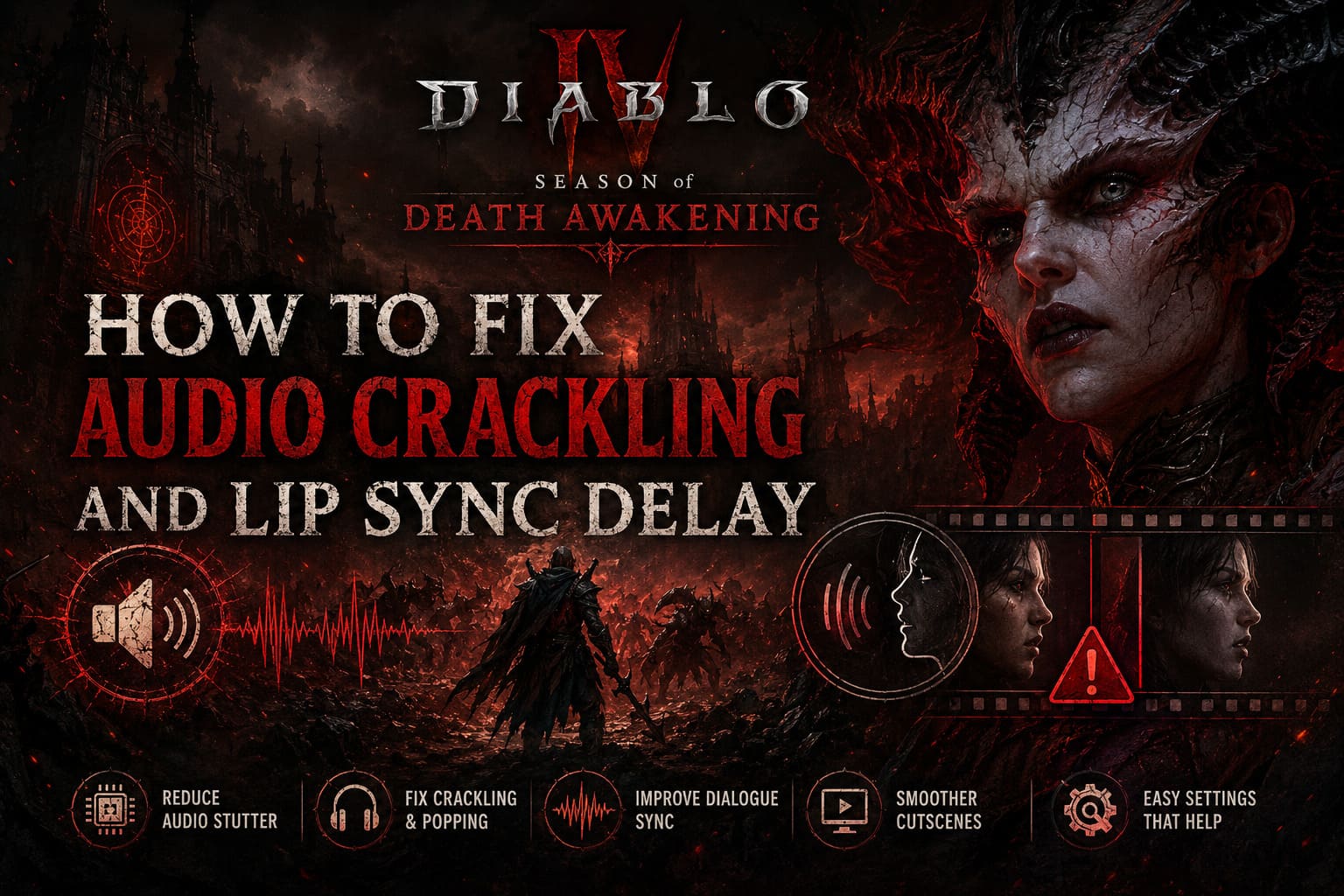
How to Fix Audio Crackling and Lip Sync Delay in Diablo 4: Season of Death Awakening
After spending countless hours in Diablo 4, grinding through nightmare dungeons, seasonal content, world bosses, and every chaotic screen-filling battle Sanctuary can throw at me, I can say one thing for sure: audio problems are some of the fastest ways to destroy immersion.
Diablo 4 lives and dies on atmosphere. The whispers in dark corridors, the heavy impact of weapons, the terrifying sounds of demons rushing from every direction — all of these details make the game feel alive. That is why the audio crackling, random popping, and broken dialogue timing appearing during Season 14: Season of Death Awakening have been incredibly annoying for many players.
The problem is not just a small sound glitch. For some players, the game starts producing static noises during intense fights, audio cuts out for a second, or character voices completely lose synchronization during cinematic scenes. Watching a dramatic story moment while a character’s mouth moves several seconds before the voice plays is the kind of bug that instantly breaks the mood.
I tested different fixes, checked player reports, compared settings, and collected the solutions that actually helped. Some fixes are simple, some are hidden deep inside Windows settings, but together they can make Diablo 4 feel stable again.
Here is the complete guide to fixing audio crackling, sound popping, and lip sync delay in Diablo 4 Season of Death Awakening.
Why Diablo 4 Season 14 Has Audio Problems
Before changing random settings, it helps to understand what is actually going wrong.
The Season of Death Awakening update pushes Diablo 4 harder than many previous seasons. The game constantly streams assets, loads large enemy groups, processes effects, and manages detailed environments. When the engine gets overloaded, the audio system can become one of the first things to suffer.
| Problem | Possible Cause | Common Result |
|---|---|---|
| Audio crackling | CPU overload, audio conflicts, high system load | Static, popping, distorted sounds |
| Random sound cuts | Windows audio processing conflicts | Missing effects or delayed sounds |
| Dialogue delay | Unstable frame timing during cinematics | Voice does not match animations |
| Cinematic stutter | VRAM pressure or texture streaming | Cutscenes become unsmooth |
The good news is that most of these problems can be reduced without waiting for a major patch.
Fix 1: Disable Battle.net Hardware Acceleration
This is one of the fixes that surprised me the most.
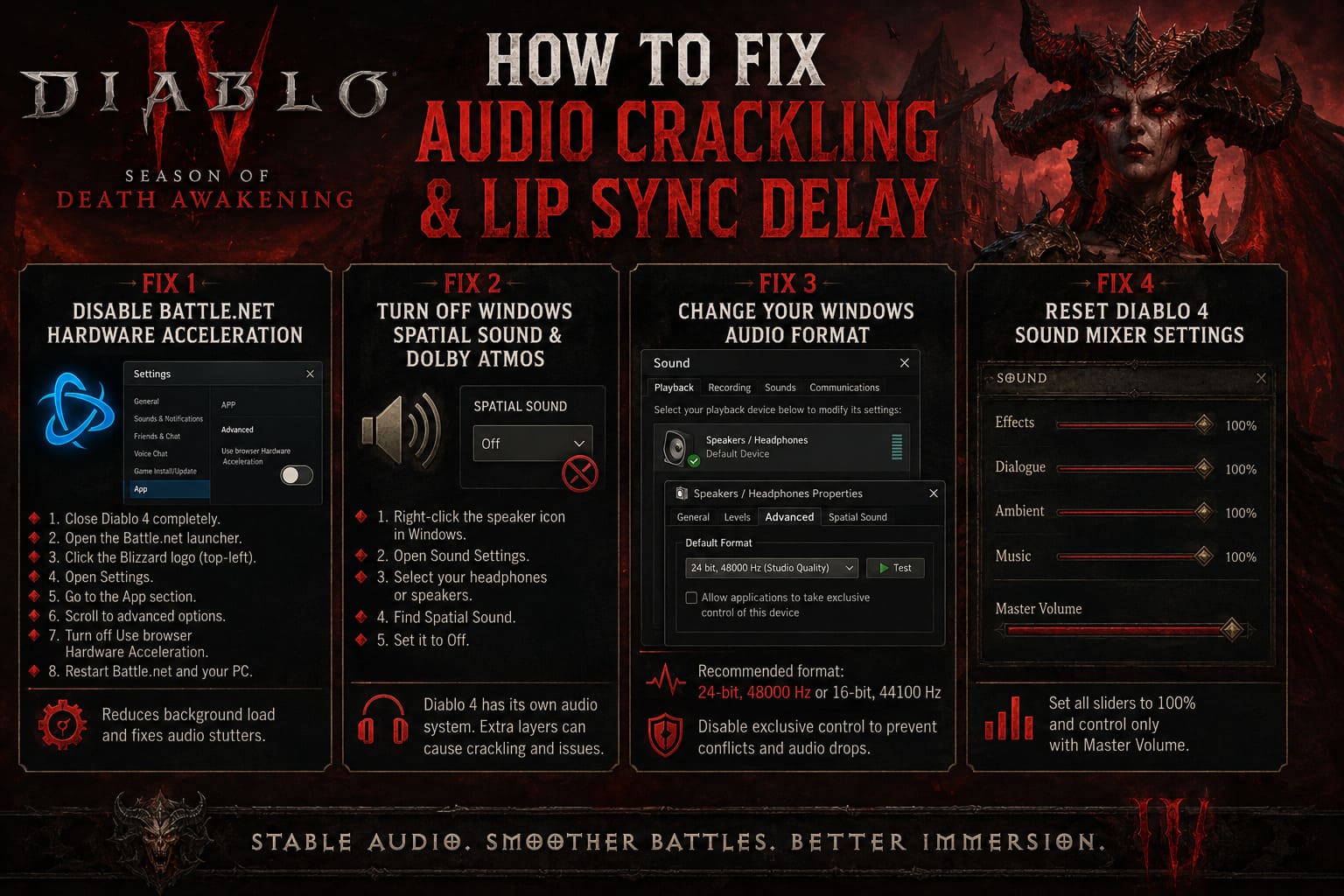
Many players focus only on Diablo 4 settings, but the Battle.net launcher itself can sometimes create background performance issues. The launcher uses embedded browser technology, and hardware acceleration can consume extra resources.
When Diablo 4 is already pushing your CPU and memory during huge fights, that small background load can become enough to cause audio interruptions.
To disable it:
- Close Diablo 4 completely.
- Open the Battle.net launcher.
- Click the Blizzard logo in the top-left corner.
- Open Settings.
- Find the App section.
- Scroll to advanced options.
- Turn off Use browser Hardware Acceleration.
- Restart Battle.net and your PC.
This simple change fixed audio stutters for many players because it reduces unnecessary background processing.
Fix 2: Turn Off Windows Spatial Sound and Dolby Atmos
Virtual surround sound is great when it works. The problem is that sometimes it does not play nicely with certain games.
Diablo 4 already has its own advanced audio positioning system. Adding another software layer like Windows Sonic or Dolby Atmos can create conflicts.
I personally recommend testing the game with plain stereo first. It might sound less fancy on paper, but stable audio beats fake surround sound that randomly breaks.
Follow these steps:
- Right-click the speaker icon in Windows.
- Open Sound Settings.
- Select your headphones or speakers.
- Find Spatial Sound.
- Set it to Off.
Launch Diablo 4 again and check if the crackling disappears.
Fix 3: Change Your Windows Audio Format
A lot of gamers never touch their Windows audio format, but this setting can affect game stability.
If your headset or sound card is running at a different sample rate than the game expects, you can get popping noises or short audio drops.
Try this:
- Open Control Panel.
- Go to Sound.
- Select your main playback device.
- Open Properties.
- Go to the Advanced tab.
- Change the format to 24-bit, 48000 Hz or 16-bit, 44100 Hz.
Also disable Allow applications to take exclusive control of this device.
This prevents Diablo 4 from fighting with other applications for control of your audio device.
Fix 4: Reset Diablo 4 Sound Mixer Settings
This fix sounds almost too simple, but sometimes Diablo 4’s own audio sliders can behave strangely after updates.
Some players noticed weird volume drops and inconsistent mixing when changing individual sliders.
Try this setup:
- Effects: 100%
- Dialogue: 100%
- Ambient: 100%
- Music: 100%
Then control the volume only with Master Volume.
This keeps the internal mixer from creating weird balance problems during huge battles.
How To Fix Diablo 4 Lip Sync Delay During Cutscenes
The dialogue delay problem is especially frustrating because it usually appears during the moments when you want the story to hit hardest.
The main reason is often frame timing.
Diablo 4’s real-time cinematics use the game engine instead of pre-rendered videos. If the game pushes too many frames, the animation can move faster than the audio system.
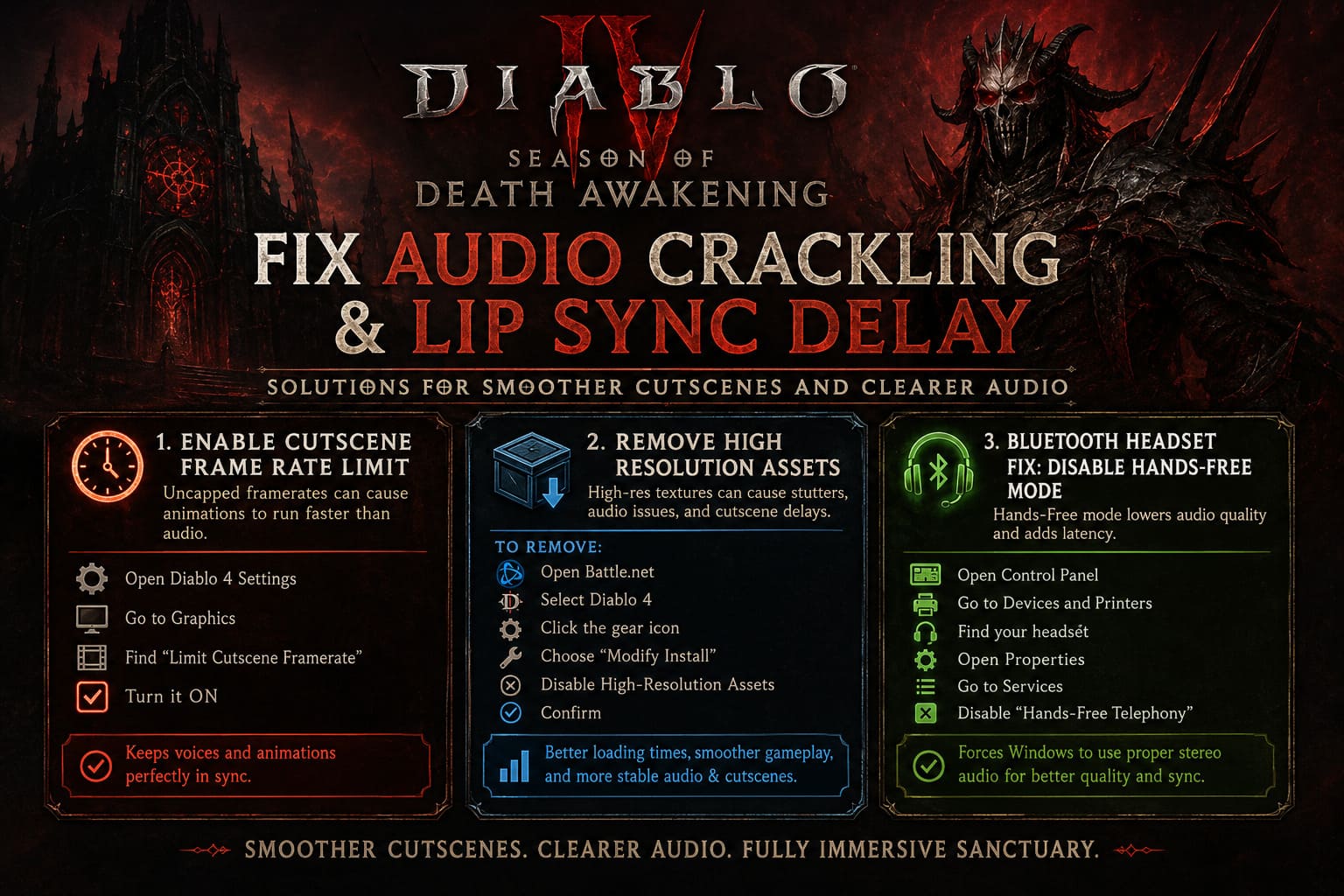
Enable Cutscene Frame Rate Limit
This is probably the most important fix for cinematic problems.
By default, Diablo 4 may try to run cutscenes at your monitor’s refresh rate. A 144Hz or 240Hz display can create timing issues.
To fix it:
- Open Diablo 4 settings.
- Go to Graphics.
- Find Limit Cutscene Framerate.
- Turn it on.
The game will run cinematics at a more stable frame rate, allowing voices and animations to stay synchronized.
For many players, this completely solved the weird “mouth moving before voice” problem.
Remove High Resolution Assets If Your PC Struggles
Diablo 4 looks incredible, but those ultra-quality textures require serious memory.
If you have 16GB RAM, limited VRAM, or frequent stuttering, then the High Resolution Asset Pack may actually hurt your experience.
Removing it can improve:
- Loading times
- Frame consistency
- Cutscene stability
- Audio timing
To remove it:
- Open Battle.net.
- Select Diablo 4.
- Click the gear icon.
- Choose Modify Install.
- Disable High-Resolution Assets.
- Confirm.
The game will still look good. The difference is usually much smaller than the performance improvement.
Bluetooth Headset Fix: Disable Hands-Free Mode
Wireless headset users have a special problem.
Windows sometimes switches Bluetooth headphones into a low-quality communication mode. When that happens, audio quality drops and latency increases.
To fix it:
- Open Control Panel.
- Go to Devices and Printers.
- Find your headset.
- Open Properties.
- Go to Services.
- Disable Hands-Free Telephony.
This forces Windows to use the proper stereo profile.
Diablo 4 Season 14 Surging Ruptures vs Colossal Ruptures: Endgame Difficulty Gap Guide
Console Fixes For Xbox and PlayStation Players
PC players have more settings to change, but console users are not helpless.
Xbox Series X/S
Try Settings → General → Volume & Audio Output.
Change your HDMI audio option to Stereo Uncompressed or Dolby Digital.
Avoid complicated audio formats if you experience crackling during world events or large fights.
PlayStation 5
Go to Settings → Sound → Audio Output.
Test different audio formats.
If Diablo 4 audio becomes broken after a long session:
- Close the game completely.
- Restart Diablo 4.
- Let the audio system reload.
Sometimes the issue appears after long play sessions.
How to Fix Diablo 4 Season 14 Crash on Launch on Proton Linux and Steam Deck
Final Thoughts: Can Blizzard Fix This Permanently?
I love Diablo 4, but technical issues like these are exactly the kind of problems that can hurt a great season launch. Season of Death Awakening brings exciting content, but nothing kills the atmosphere faster than fighting demons while your audio sounds like a broken headset.
The good news is that most players can fix the problem today.
The biggest improvements usually come from disabling Battle.net hardware acceleration, turning off spatial sound, limiting cutscene FPS, removing unnecessary high-resolution assets, and cleaning up Windows audio settings.
Until Blizzard releases deeper engine optimizations, these tweaks are the best way to keep Sanctuary sounding the way it should.
A dark fantasy game needs dark fantasy audio — not random static noises fighting for attention. Once the sound issues are gone, Diablo 4 Season 14 becomes much easier to enjoy the way it was meant to be played.