How Many Dudes PC Optimization Guide: Fix Lag, Stuttering, and Low FPS on Low End Systems
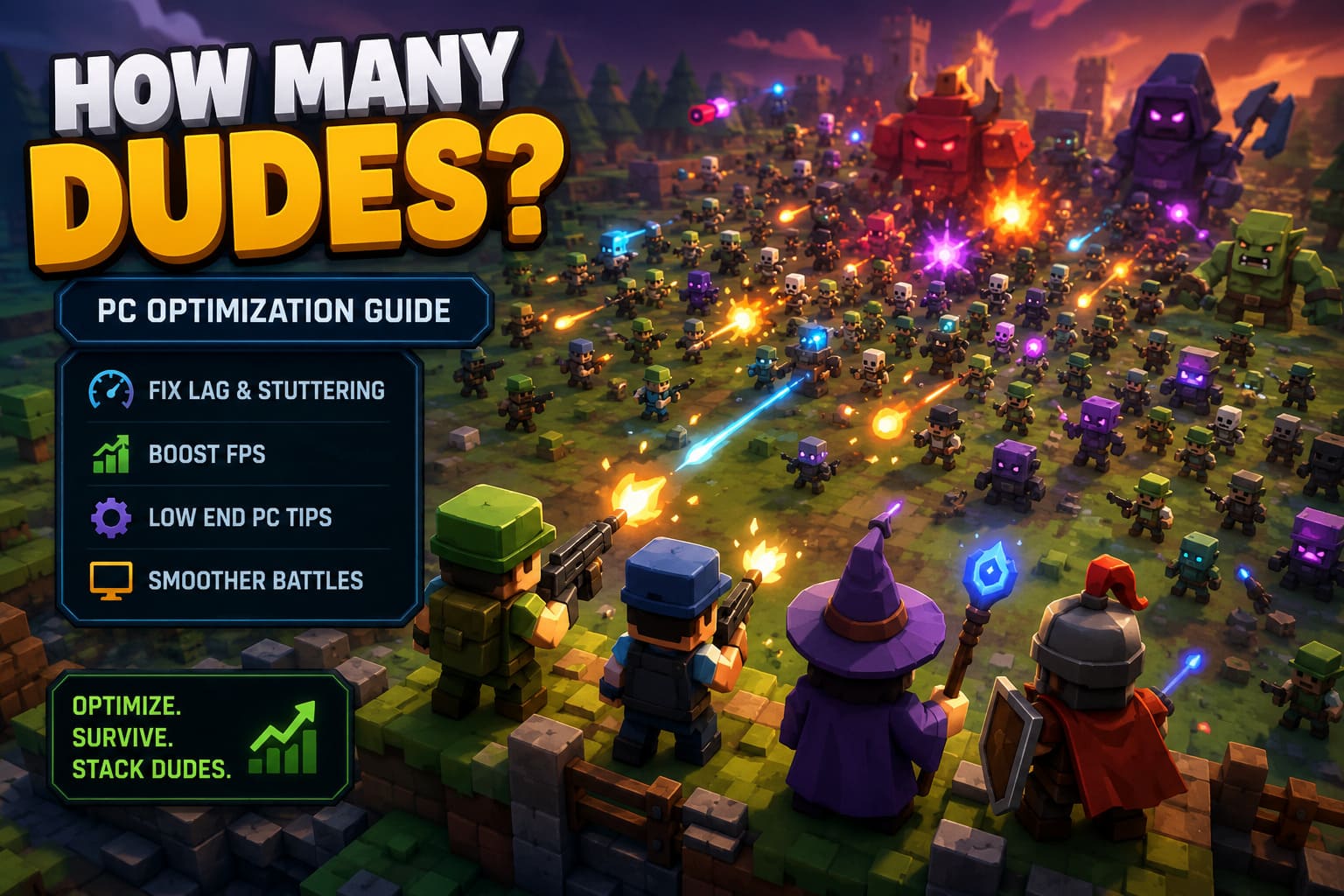
How Many Dudes? looks harmless when you first boot it up. You pick your Dudes, stack your upgrades, grab some ridiculous relics, and watch the battlefield turn into a glorious mess of projectiles, effects, enemies, and completely absurd combat interactions. Then the late-game waves arrive, the screen fills with hundreds of units, and suddenly your budget PC starts sounding like it is preparing for liftoff.
That is where things get interesting.
This isn’t the kind of game where low FPS is always caused by having a weak graphics card. In How Many Dudes?, enormous battles can put serious pressure on the CPU, RAM, GPU, and even storage system at the same time. Every Dude, projectile, status effect, enemy movement, and combat calculation adds another piece to the performance puzzle. You might start a run at a perfectly smooth 60 FPS and end up fighting through a slideshow once the battlefield becomes completely overloaded.
I’ve seen this kind of performance problem many times in roguelikes, autobattlers, and horde-based games. The funny thing is that reducing resolution doesn’t always magically fix everything. If the CPU is choking on hundreds of simultaneous calculations, dropping from 1080p to 720p won’t suddenly give you a miracle 100 FPS. You need to attack the problem from several directions.
That’s exactly what this guide is about.
Below, I’ll walk through the best How Many Dudes? PC settings for low-end systems, Windows optimizations, GPU driver tweaks, launch options, memory management, and the hardware limitations you need to understand before spending hours randomly changing settings.
Quick How Many Dudes? Optimization Checklist
| Setting | Recommended Low-End Configuration | Why It Helps |
|---|---|---|
| Display Mode | Exclusive Fullscreen or the most stable fullscreen mode | Can reduce desktop overhead and improve consistency |
| Resolution | Native resolution first; 1280×720 for weak GPUs | Lower GPU workload when rendering is the bottleneck |
| FPS Limit | 60 FPS, or a stable 30/45/50 FPS target | Reduces frame-time spikes and unnecessary GPU load |
| VSync | Off initially; test your preferred driver-level option | Can reduce latency, but tearing may require another solution |
| Shadows | Low or Off | Reduces rendering workload during massive battles |
| Particle Effects | Low | Helps when the battlefield becomes visually chaotic |
| Anti-Aliasing | Off or Low | Reduces GPU and VRAM usage |
| Motion Blur | Off | Improves clarity and removes unnecessary post-processing |
1. Start With the In-Game Graphics Settings
Before touching Windows, Steam launch parameters, or your graphics driver, start with the game itself. This is the easiest place to make meaningful changes, and it gives you a clean baseline for testing performance.
My biggest advice here is simple: don’t immediately turn every setting to minimum. That’s a lazy approach and doesn’t tell you what is actually causing the problem. Change one or two settings, run the same type of battle, and see what happens. You want to identify whether your PC is GPU-limited, CPU-limited, or suffering from inconsistent frame pacing.
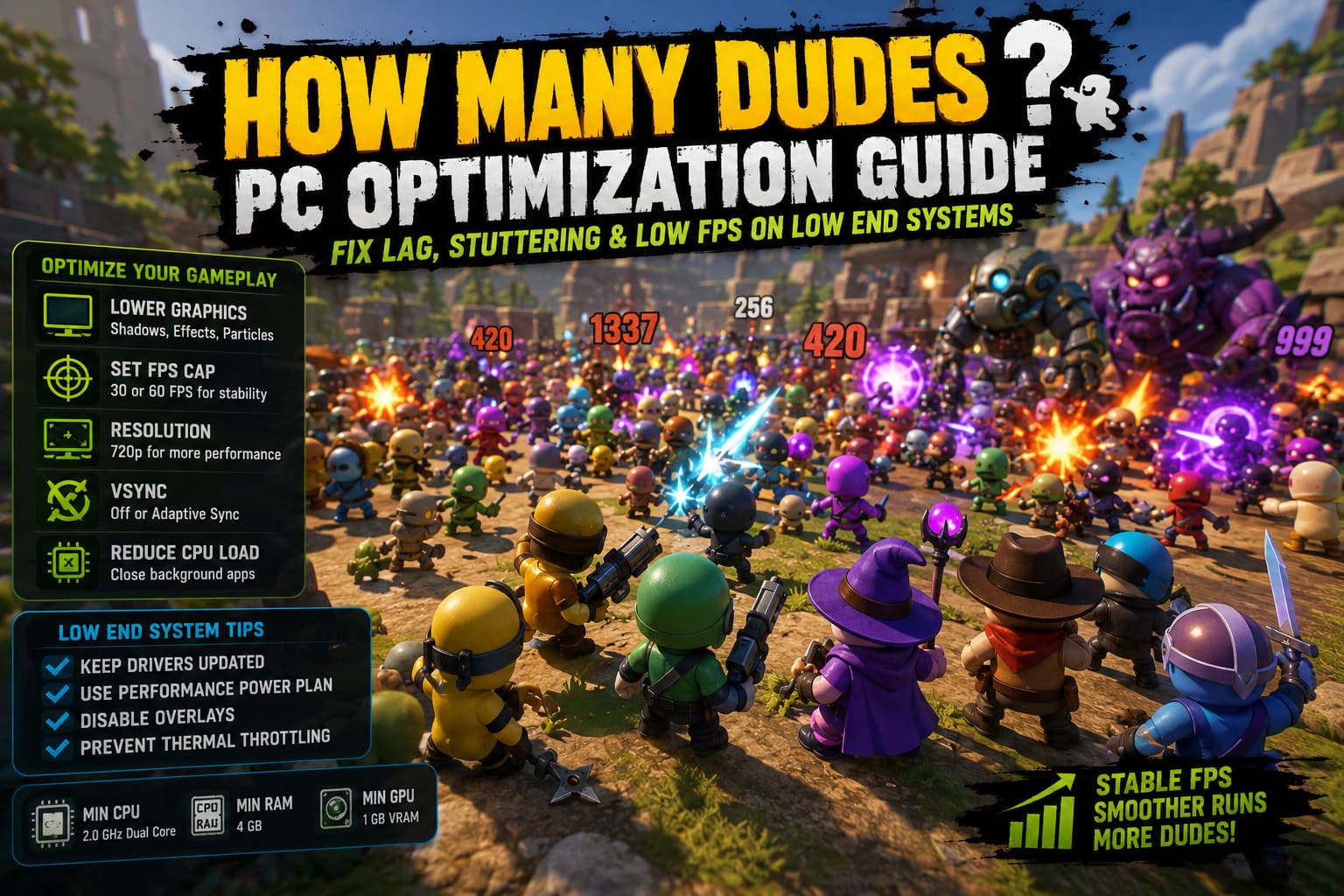
Display Mode
Start with Exclusive Fullscreen if the game provides it and it behaves correctly on your system. Fullscreen can sometimes reduce desktop-level overhead and deliver more consistent frame times compared with borderless modes.
That said, don’t treat Borderless Windowed as automatically terrible. Modern versions of Windows have improved their handling of windowed games considerably. If fullscreen introduces alt-tab problems, strange resolution behavior, or worse frame pacing, try borderless and compare the results. The best mode is the one that actually performs better on your PC.
Resolution
If your GPU is struggling, resolution is still one of the most powerful settings available. Start at your monitor’s native resolution if performance is acceptable. If you’re running a very old integrated GPU or a graphics card with limited VRAM, try 1280×720.
Keep in mind that resolution primarily helps when the GPU is the bottleneck. If your FPS collapses because the CPU is trying to process an enormous number of Dudes and enemies, the improvement may be surprisingly small.
That’s an important distinction. Don’t expect 720p to fix a CPU bottleneck.
Set a Realistic FPS Cap
Running completely uncapped isn’t always the smart choice, especially on low-end hardware. An unlocked frame rate can push your GPU and CPU harder than necessary, creating extra heat and potentially making thermal throttling worse during long sessions.
If your monitor is 60 Hz and your system can hold 60 FPS during normal combat, try a 60 FPS cap. If the game regularly drops into the 30s during huge waves, locking to a lower but stable target can feel much better than constantly bouncing between 60, 42, 35, and 27 FPS.
Stable 30 FPS is often more enjoyable than unstable 60 FPS. It isn’t glamorous, but consistent frame pacing makes a huge difference in games where the action becomes increasingly chaotic.
VSync
I’d start by testing VSync Off if you’re chasing lower input latency. However, this is one of those settings where personal preference and hardware matter. If screen tearing drives you crazy, experiment with driver-level synchronization options or your monitor’s adaptive sync technology if supported.
The goal isn’t to follow a universal rule. The goal is to find the combination that gives you the smoothest frame delivery without introducing annoying input delay.
Shadows, Particles, and Effects
This is where low-end systems can gain some breathing room.
Drop Shadows to Low or Off and reduce Particle Effects if the game allows it. During the early minutes of a run, the difference might be invisible. Once the screen is covered with attacks, explosions, status effects, and enemy hordes, the impact can become much more noticeable.
In a game like How Many Dudes?, visual chaos is part of the fun. Unfortunately, your GPU doesn’t care how funny the chaos is. Hundreds of overlapping effects can still translate into additional rendering work.
Anti-Aliasing and Motion Blur
Turn Motion Blur Off. Personally, I disable it in almost every fast-paced game anyway. It makes the action less readable and doesn’t do your low-end system any favors.
Anti-aliasing is worth testing at Low or Off if you’re desperate for additional GPU performance. If you’re already getting solid FPS, you can leave a lightweight anti-aliasing option enabled for a cleaner image.
2. Fix the Real Problem: CPU Bottlenecks During Massive Waves
This is the section I wish more optimization guides talked about.
If your FPS is excellent during the opening minutes but collapses once the battlefield fills with Dudes and enemies, your graphics settings may not be the main problem. The CPU could be struggling with the sheer number of active game objects.
Reducing resolution won’t necessarily fix that.
Watch your CPU and GPU usage with a monitoring tool. If your GPU usage falls dramatically while one or more CPU cores are heavily loaded during the worst moments, you’ve probably found the culprit.
In that situation, the best improvements usually come from:
- Reducing unnecessary background applications.
- Closing browser tabs that consume significant RAM or CPU resources.
- Using a sensible FPS cap instead of pushing unlimited frames.
- Keeping Windows and chipset drivers properly updated.
- Preventing thermal throttling by maintaining reasonable CPU temperatures.
This is also why the game’s listed minimum requirements shouldn’t be treated as a guarantee of smooth late-game performance. A PC might technically meet the minimum requirements and still struggle when hundreds of entities are active simultaneously.
3. Steam Launch Options: What Is Actually Worth Testing?
Steam launch options are popular in PC gaming because they look like secret cheat codes for performance. Sometimes they help. Sometimes they do absolutely nothing. And sometimes they’re copied from another game and don’t even apply to the engine you’re running.
For that reason, I would not blindly assume that every command found online works with How Many Dudes?.
If you’re testing launch options, change one variable at a time and measure the result. A command such as -dx11 may be useful if the game supports multiple rendering APIs and your system behaves better under DirectX 11, but it isn’t automatically beneficial if the game already uses a different API or doesn’t recognize the argument.
The same applies to commands such as -high, -USEALLAVAILABLECORES, and -malloc=system. These are frequently recommended in PC optimization communities, but their effectiveness depends heavily on the game’s engine and how it handles CPU scheduling and memory allocation.
My recommendation is to treat launch options as an advanced troubleshooting experiment, not a guaranteed FPS boost.
To access them:
- Open Steam.
- Go to your Library.
- Right-click How Many Dudes?.
- Open Properties.
- Find the Launch Options field.
- Test only documented or verified commands that apply to the game’s engine.
If a launch argument causes crashes, strange behavior, or no measurable improvement, remove it. More commands do not automatically equal more FPS.
4. Windows 10 and Windows 11 Performance Tweaks
Windows can quietly eat performance while you’re playing. OneDrive syncing, browser processes, game overlays, update services, RGB utilities, hardware monitoring software, and half a dozen launchers sitting in the background can all compete for resources.
On a modern gaming PC, you might never notice. On an older laptop with 8 GB of RAM, you absolutely can.
Hardware-Accelerated GPU Scheduling
HAGS is worth testing, but don’t assume it is universally faster. Open Windows Settings > System > Display > Graphics > Default Graphics Settings and check the Hardware-accelerated GPU scheduling option if it is available.
Enable it, restart Windows, and test the game. If frame pacing improves, keep it enabled. If you notice stutters or worse performance, turn it back off.
PC optimization is often about testing rather than blindly following a checklist.
Use a Performance-Oriented Power Plan
On desktops, especially older systems, a performance-focused Windows power plan can help prevent aggressive CPU frequency changes.
Press Windows Key + R, enter control powercfg.cpl, and check your available power plans. If your system offers High Performance, you can test it during gameplay.
For laptops, be careful. High-performance modes can dramatically increase heat and battery drain. If your laptop already runs hot, forcing maximum performance may actually make things worse because the CPU eventually throttles itself.
5. Don’t Ignore RAM and Background Memory Usage
Low-end PCs often struggle more because of memory pressure than people realize. If you’re running 8 GB of RAM, having a browser with dozens of tabs, Discord, Steam, recording software, and other applications open while playing can leave Windows with very little breathing room.
Before launching the game, close anything you don’t need.
I’d prioritize this before using aggressive memory-cleaning utilities. Windows generally manages memory intelligently, and manually purging standby memory isn’t a magical FPS button.
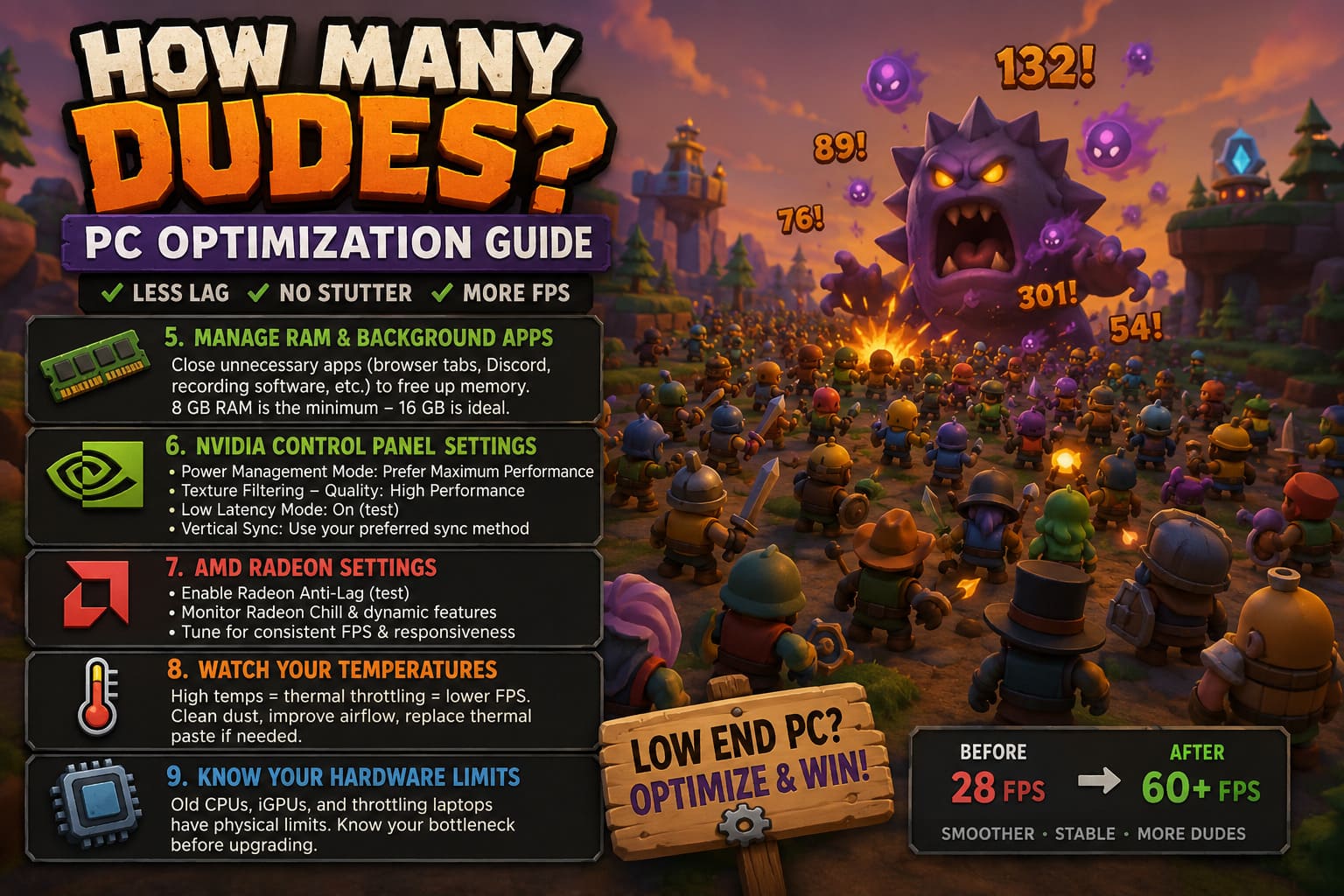
If you’re constantly hitting memory limits, upgrading from 8 GB to 16 GB of RAM can be a much more meaningful improvement than repeatedly clearing cached memory.
Utilities such as Intelligent Standby List Cleaner (ISLC) are sometimes used by enthusiasts to manage standby memory behavior, particularly when diagnosing specific stuttering problems. If you choose to experiment with one, download it only from a trusted source and understand that it isn’t guaranteed to improve How Many Dudes? performance.
I’d consider it a troubleshooting tool rather than a mandatory part of your setup.
6. NVIDIA Control Panel Settings for How Many Dudes?
If you’re using an NVIDIA GPU, create a dedicated profile for the game rather than changing global settings for your entire PC.
Open NVIDIA Control Panel > Manage 3D Settings > Program Settings and select the game’s executable if it appears in the list.
Settings worth testing include:
- Power Management Mode: Prefer Maximum Performance.
- Texture Filtering – Quality: High Performance if you need every last bit of GPU performance.
- Low Latency Mode: Test On if input response is a concern.
- Vertical Sync: Configure according to your preferred synchronization method.
Don’t expect these settings to transform a 25 FPS system into a 60 FPS machine. Driver settings are better at refining performance and consistency than performing miracles.
7. AMD Radeon Settings for Better Performance
AMD users can make similar adjustments through the Radeon Software gaming profile.
Radeon Anti-Lag can be worth testing if you’re primarily concerned with input responsiveness. Keep an eye on Radeon Chill and dynamic performance features if you’re trying to maintain a consistent frame rate, as aggressive power-saving or dynamic resolution behavior may not match your preferred experience.
Again, don’t change ten settings at once. Test, benchmark, and keep the configuration that actually feels better.
8. Check Your Temperatures Before Blaming the Game
This is one of my favorite troubleshooting steps because it gets ignored constantly.
If How Many Dudes? runs beautifully for 15 minutes and then progressively gets worse, check your temperatures.
A dusty laptop or desktop can start a session at full speed and then reduce CPU or GPU clocks once temperatures climb. That’s thermal throttling, and no graphics setting can completely fix it.
Check CPU and GPU temperatures while playing. If temperatures are unusually high, consider cleaning dust from your cooling system, improving airflow, replacing old thermal paste when appropriate, or using a more aggressive laptop cooling setup.
Sometimes the best optimization is simply letting your hardware breathe.
9. When Your Hardware Is Simply Too Old
There comes a point where optimization stops being optimization and starts becoming wishful thinking.
If you’re using an ancient dual-core CPU, integrated graphics from several generations ago, or a laptop that constantly thermal throttles, you may have reached the physical limits of your machine.
Before buying anything, though, identify your actual bottleneck.
| Symptom | Likely Bottleneck | Best First Move |
|---|---|---|
| GPU at 95-100% usage | Graphics card | Lower resolution, effects, shadows, and anti-aliasing |
| GPU usage low while FPS collapses | CPU or game simulation | Reduce background load and investigate CPU performance |
| RAM nearly full | System memory | Close background apps or upgrade RAM |
| Performance gets worse over time | Thermal throttling | Check temperatures and cooling |
| Constant micro-stutters | Frame pacing, drivers, storage, or background tasks | Test FPS caps, drivers, and background processes |
As for running a game through an Android emulator, I’d treat that as a last-resort experiment rather than a guaranteed optimization strategy. Unless How Many Dudes? officially has a compatible mobile version with cross-platform progression, emulation can introduce its own CPU overhead, compatibility problems, and input issues. It is not automatically a shortcut to better PC performance.
How Many Dudes Steam Deck Guide: Controller Support & Touchscreen Settings Explained
Final Verdict: How to Get the Smoothest How Many Dudes? Experience
How Many Dudes? is exactly the sort of game that can expose the weaknesses of an older PC. The opening minutes might be completely smooth, but once your army grows, enemy waves become ridiculous, and the screen turns into a fireworks display of projectiles and effects, the performance challenge becomes much more obvious.
My recommended approach is to start with the basics: cap your FPS, lower shadows and effects, disable motion blur, and test resolution scaling. Then monitor your CPU and GPU usage during the exact moment when performance collapses. That single piece of information can save you hours of pointless tweaking.
If your GPU is maxed out, lower graphical settings. If the GPU is barely working while one CPU core is getting hammered, stop chasing resolution tweaks and focus on CPU limitations. If everything starts smoothly and deteriorates after extended play, investigate temperatures. If RAM usage is constantly hitting the ceiling, clean up your background workload or consider a memory upgrade.
How Many Dudes Progression System Guide: Tutorial and Metaprogression Strategies (2026)
Most importantly, don’t fall into the trap of installing twenty “FPS booster” utilities and stacking every launch command you find on Reddit. I’ve spent enough time troubleshooting PC games to know that this usually creates more confusion than performance.
The best How Many Dudes? low-end PC optimization setup is the one that matches your actual bottleneck. A stable 30 or 60 FPS, depending on your hardware, is far better than chasing an unstable number that looks good in a counter but feels awful in the middle of a massive battle.
Get the frame pacing under control, keep your temperatures in check, eliminate unnecessary background load, and tune the settings that actually affect your hardware. Once that’s done, you can get back to the important stuff: building an absurd army of Dudes and watching the entire battlefield descend into glorious, completely ridiculous chaos.