How to Fix DOOM: The Dark Ages Stuttering on NVIDIA RTX 40-Series GPUs (RTX 4090, 4080, 4070)
I’ve spent hundreds of hours playing id Software shooters over the years, and one thing I’ve always admired is how incredibly polished their PC releases usually feel. That’s exactly why the launch of DOOM: The Dark Ages caught so many veteran players off guard. The game looks spectacular, the combat is unbelievably satisfying, and the new medieval-inspired setting gives the franchise a fresh identity. Yet even players running monster PCs with RTX 4090, RTX 4080, RTX 4070 Ti, and RTX 4070 graphics cards have been dealing with an annoying problem that shouldn’t exist on hardware this powerful.
The strange part isn’t low FPS. Many players report averages well above 120 FPS while the game still feels inconsistent. Fast camera turns suddenly hitch, heavy combat introduces tiny pauses, and frametime graphs look like a heartbeat monitor instead of a straight line. The experience feels rough despite numbers that suggest everything should be perfectly smooth.
After digging through community testing, technical discussions, hardware analysis, and countless hours of experimentation, several patterns have become very clear. Most of these stutters aren’t caused by weak hardware—they’re caused by how the game currently interacts with NVIDIA’s latest technologies and a handful of Windows features.
If your expensive RTX 40-series GPU isn’t delivering the silky gameplay you expected, these are the fixes that consistently produce the biggest improvements.
Why RTX 40-Series Cards Stutter in DOOM: The Dark Ages
One thing quickly became obvious: this isn’t a traditional optimization disaster. The id Tech engine is still one of the best-performing engines available. Instead, several modern technologies collide in unfortunate ways.
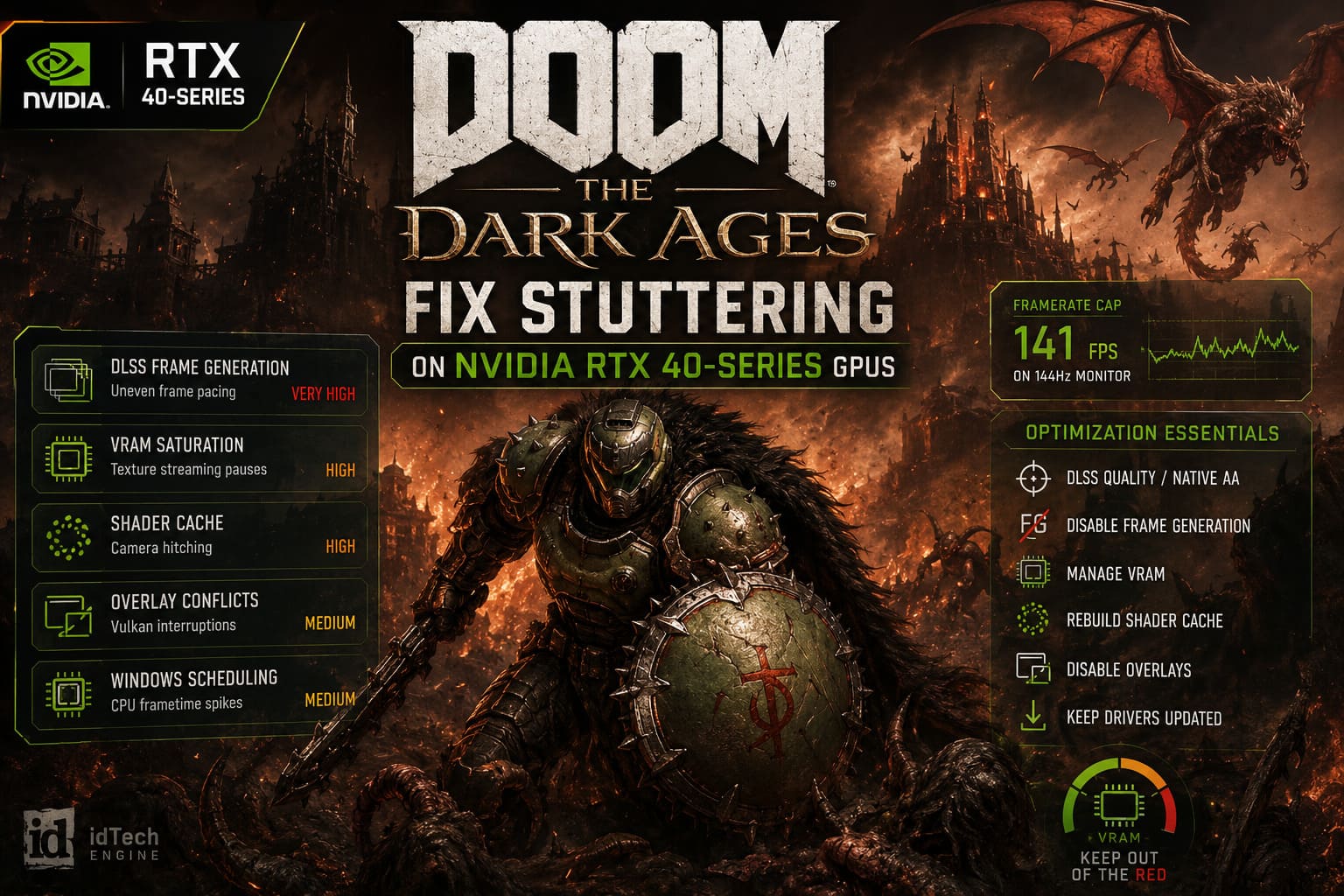
The biggest offenders are:
- DLSS Multi-Frame Generation synchronization
- VRAM streaming pressure
- Shader cache inconsistencies
- Windows scheduling behavior
- Background overlays and monitoring software
Individually they may not seem serious, but together they create exactly the kind of micro-stutter players have been describing across gaming communities.
| Problem | What Happens | Severity |
|---|---|---|
| DLSS Frame Generation | Uneven frame pacing despite high FPS | Very High |
| VRAM saturation | Texture streaming pauses | High |
| Corrupted shader cache | Camera hitching and traversal stutter | High |
| Overlay conflicts | Vulkan presentation interruptions | Medium |
| Windows scheduling | CPU frametime spikes | Medium |
DLSS Frame Generation Is Currently the Biggest Culprit
DLSS 3 Frame Generation is an incredible technology when everything works correctly. In plenty of modern games it nearly doubles perceived performance without ruining responsiveness.
DOOM: The Dark Ages isn’t always one of those games.
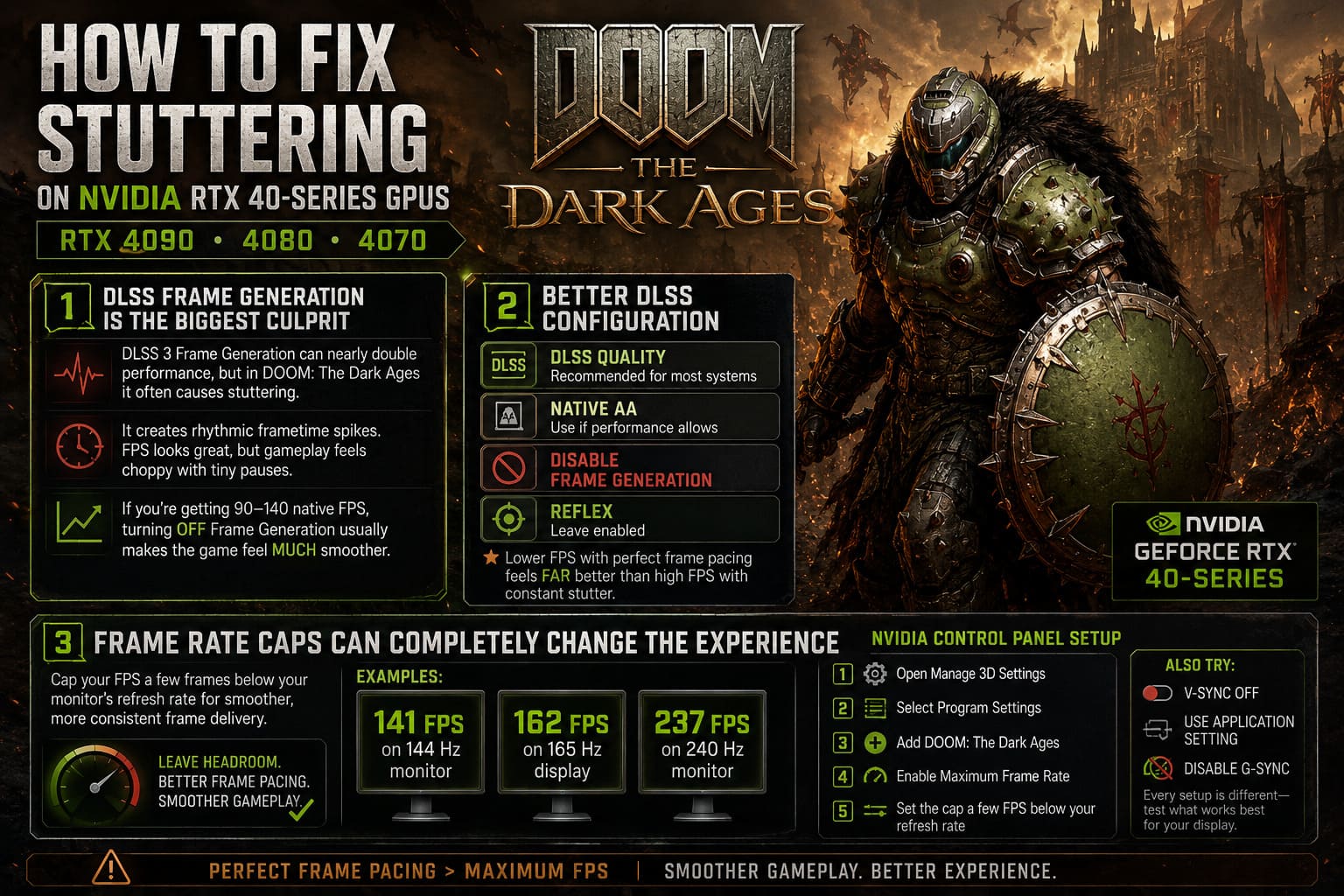
Many RTX 40 users discovered that enabling Frame Generation introduces rhythmic frametime spikes. The FPS counter continues reporting excellent performance, but gameplay tells a completely different story.
Instead of delivering frames at perfectly even intervals, generated frames occasionally arrive out of sync with the monitor refresh cycle. The result feels like tiny pauses every second or two.
If you’re already achieving 90–140 native FPS, disabling Frame Generation often makes the game feel dramatically smoother.
Better DLSS Configuration
For most systems:
- Use DLSS Quality
- Try Native AA if performance allows
- Disable Frame Generation
- Leave Reflex enabled
Surprisingly, lower FPS with perfect frame pacing usually feels far better than artificially inflated numbers with constant hitching.
Frame Rate Caps Can Completely Change the Experience
One of the most reliable community discoveries is also one of the simplest.
Instead of letting the GPU render unlimited frames, cap performance slightly below your monitor’s refresh rate.
Examples include:
- 141 FPS on a 144 Hz monitor
- 162 FPS on a 165 Hz display
- 237 FPS on a 240 Hz monitor
This gives the rendering pipeline a little breathing room and significantly improves frame delivery consistency.
Inside NVIDIA Control Panel:
- Open Manage 3D Settings.
- Select Program Settings.
- Add DOOM: The Dark Ages.
- Enable Maximum Frame Rate.
- Set the cap a few FPS below refresh rate.
While you’re there, it’s also worth experimenting with V-Sync Off, Use Application Setting, and temporarily disabling G-SYNC. Every display behaves differently, so testing multiple combinations is worthwhile.
VRAM Usage Matters More Than Many Players Think
One major misconception is assuming high FPS means your graphics settings are fine.
They might not be.
DOOM: The Dark Ages relies heavily on hardware ray tracing and aggressive texture streaming. Even powerful GPUs can experience sudden hitching if VRAM usage constantly sits at the limit.
This is especially noticeable when entering new arenas, triggering large explosions, multiple demons spawning simultaneously, or cinematic transitions loading.
The game begins swapping assets through system memory, and those transfers are much slower than dedicated VRAM.
Recommended Texture Pool Settings

| GPU | Suggested Texture Pool |
|---|---|
| RTX 4060 8GB | Medium |
| RTX 4060 Ti 8GB | Medium |
| RTX 4070 12GB | Ultra |
| RTX 4070 Ti | Ultra |
| RTX 4080 | Ultra Nightmare (if VRAM isn’t maxed) |
| RTX 4090 | Ultra Nightmare |
If the VRAM indicator in the graphics menu is sitting in the red zone, reduce the Texture Pool one level.
The visual difference is almost impossible to notice during combat, but the reduction in stuttering can be enormous.
Lowering Reflection Quality also saves a surprising amount of memory without dramatically hurting image quality.
Rebuild Your Shader Cache
Every major graphics driver update changes shader compilation behavior.
If old shader data remains behind, micro-stutters often appear during camera rotation, first-time ability usage, loading new environments, and entering combat arenas.
Cleaning the cache is one of the quickest maintenance tasks you can perform.
Delete:
- NVIDIA GLCache
- NVIDIA DXCache
- DirectX Shader Cache via Disk Cleanup
After rebooting, launch the game and allow shaders to rebuild naturally.
The first session may actually feel slightly slower, but later sessions usually become much smoother.
Also check NVIDIA Control Panel and increase Shader Cache Size to either 10 GB or Unlimited if your SSD has available space.
Overlays Cause More Problems Than Most Players Expect
Modern gaming PCs often have half a dozen applications injecting overlays into every game.
Individually they’re lightweight.
Collectively they aren’t.
DOOM’s Vulkan renderer appears especially sensitive to these hooks.
Before launching the game, consider disabling:
- Discord Overlay
- Steam Overlay
- Xbox Game Bar
- NVIDIA Overlay
- MSI Afterburner overlay
- RTSS overlay
If you absolutely need hardware monitoring, configure RTSS with a lower detection level instead of using its default aggressive settings.
A surprising number of players report smoother frametimes after doing nothing more than closing background utilities.
Intel Hybrid CPUs Can Introduce Additional Stutters
Owners of Intel’s newer hybrid processors occasionally run into another problem.
Windows may decide that certain game threads belong on Efficiency cores rather than Performance cores.
That isn’t ideal during massive battles where dozens of AI calculations and rendering tasks happen simultaneously.
If you’re using:
- Core i5-12600K
- Core i7-13700K
- Core i9-13900K
- Core i7-14700K
- Core i9-14900K
It may be worth checking CPU affinity through Task Manager.
Some advanced users have reported noticeably steadier frametimes after limiting the game to Performance cores.
This isn’t a universal fix, but it’s absolutely worth testing if GPU usage looks inconsistent while CPU utilization jumps unpredictably.
Extra Tweaks That Can Improve Stability
If you’re still experiencing occasional hitching, these additional optimizations are worth trying.
- Keep GPU drivers fully updated.
- Restart the PC after major driver installations.
- Install the game on an SSD rather than an HDD.
- Close unnecessary browser tabs before playing.
- Disable RGB control software running in the background.
- Avoid combining Frame Generation with aggressive frame limiters from multiple applications simultaneously.
Sometimes several tiny improvements combine into one noticeably smoother experience.
Is DOOM: The Dark Ages Revelations DLC Included in Xbox Game Pass Ultimate?
Is This Something the Developers Can Fix?
Absolutely.
Most of the issues appear related to software behavior rather than hardware limitations.
Future updates could improve DLSS Multi-Frame Generation synchronization, Vulkan frame pacing, VRAM allocation efficiency, shader compilation behavior, and Windows scheduling compatibility.
id Software has an excellent reputation for long-term support, so there’s good reason to expect further optimization patches.
How to Fix DOOM: The Dark Ages | Revelations Crash on Launch, Black Screen, and Freezing on PC
Final Thoughts
DOOM: The Dark Ages remains one of the most technically impressive shooters released in recent years. The combat is relentless, the environments are gorgeous, and the mandatory ray-tracing pipeline pushes modern GPUs harder than almost any previous id Software title.
The frustrating part is that many RTX 40-series owners aren’t limited by raw performance—they’re fighting inconsistent frame delivery instead. Watching an FPS counter sit comfortably above 120 while the game still feels choppy is enough to drive any PC enthusiast crazy.
Fortunately, the majority of these issues can be reduced—or eliminated entirely—with a handful of practical adjustments. Disabling or carefully tuning Frame Generation, capping your frame rate just below your monitor’s refresh rate, keeping VRAM usage under control, rebuilding shader caches, and removing overlay conflicts can transform the experience from uneven to exceptionally smooth.
If you’re running an RTX 4090, RTX 4080, RTX 4070 Ti, or RTX 4070, your hardware is more than capable of handling DOOM: The Dark Ages. It simply needs a little manual tuning until future patches refine the engine’s interaction with NVIDIA’s newest technologies. Once everything is dialed in, the frantic demon-slaying action finally feels exactly the way it was meant to—fast, fluid, and relentlessly satisfying.