How to Fix Limbus Company Infinite Loading Screen and Stuck on Connecting Error (2026 Guide)
Limbus Company isn’t exactly a game that likes to hold your hand. Brutal battles, layered storytelling, and Project Moon’s signature style are all part of the experience. Sitting on a “Now Loading…” screen for fifteen minutes, though? That’s not intentional difficulty—it’s just frustrating.
Over the last several updates, more players have reported getting trapped at the loading screen, freezing on the title menu, or watching the “Connecting” message spin forever without ever reaching the game. I’ve spent enough hours with the game (and digging through Steam discussions, Reddit threads, and community troubleshooting) to notice that these issues usually aren’t random. Most of them come down to a handful of technical problems that can actually be fixed.
This guide covers the solutions that consistently work for both Steam and mobile players, explains why they work, and avoids the usual “reinstall the game and hope for the best” advice.
Why Limbus Company Gets Stuck Loading
One thing quickly becomes obvious after comparing hundreds of player reports: the loading bug isn’t caused by a single issue.

Instead, there are several different bottlenecks that all produce almost identical symptoms.
| Problem | What Happens |
|---|---|
| Local cache bottleneck | Game hangs on “Now Loading…” for several minutes. |
| DNS or routing issues | Endless “Connecting” message. |
| Unity cache corruption | Black screen or frozen title menu. |
| Disk performance problems | Extremely long startup after updates. |
| Graphics memory overload | Freeze while entering menus or stages. |
Understanding which category matches your situation makes troubleshooting much faster.
Fix 1: Move Unity Cache to a Faster Drive (Steam)
This is easily one of the smartest community discoveries.
Many people install Limbus Company on a fast SSD but leave Windows installed on an older HDD. Unfortunately, Unity still stores a large amount of downloaded cache inside the AppData\LocalLow directory, meaning the game constantly accesses files on the slower system drive instead of the SSD where the game itself is installed.

How to do it
- Press Windows + R.
- Type
%userprofile%\AppData\LocalLow. - Locate the Unity and ProjectMoon folders.
- Move both folders to your fastest SSD, for example
D:\LimbusCache. - Launch Command Prompt as Administrator.
- Create symbolic junctions using the
mklink /Jcommand.
mklink /J "C:\Users\USERNAME\AppData\LocalLow\ProjectMoon" "D:\LimbusCache\ProjectMoon"Repeat the process for the Unity folder as well. Windows will continue looking in the original location while actually reading the files from your SSD, dramatically reducing loading times on many systems.
Fix 2: Force Windows to Reset Disk Activity
This workaround sounds strange, but countless players have reported success with it.
Some Windows systems completely max out disk usage while Limbus Company verifies its assets, causing Unity to become stuck during initialization.
- Open Task Manager.
- Play a YouTube video or another media stream in the background.
- Launch Limbus Company.
- If the background video freezes or the audio starts stuttering, immediately end the Limbus Company process.
- Launch the game again.
The theory is that Windows rebuilds active storage queues after the forced restart, allowing Unity to access files normally during the second launch.
Fix 3: Disable Compatibility Problems
Windows compatibility features occasionally interfere with Unity-based games.
Locate LimbusCompany.exe, open its properties, and switch to the Compatibility tab.
Enable the following options:
- Run this program as Administrator
- Disable Fullscreen Optimizations
After applying the changes, restart Steam.
While you’re already inside Steam, navigate to Settings → Storage and clear the download cache. Corrupted cache files sometimes prevent recently updated assets from verifying correctly.
Fix 4: Verify Game Files
Never overlook Steam’s built-in file verification.
- Right-click Limbus Company in your Steam Library.
- Select Properties.
- Open the Installed Files tab.
- Click Verify Integrity of Game Files.
If a game update was interrupted or corrupted, Steam usually replaces only the damaged files instead of downloading the entire game again.
Fix 5: Change Your DNS Servers
If the loading animation continues normally but the game remains stuck on “Connecting”, the issue may be related to your ISP’s DNS routing.
Google Public DNS
- Preferred DNS: 8.8.8.8
- Alternate DNS: 8.8.4.4
Cloudflare DNS
- Preferred DNS: 1.1.1.1
- Alternate DNS: 1.0.0.1
Public DNS providers often resolve Project Moon’s servers faster and avoid regional routing issues experienced by some internet providers.
Fix 6: Refresh the Network Handshake
This method has become one of the most recommended fixes for mobile players.
- Completely close the game.
- Disable Wi-Fi.
- Enable mobile data.
- Launch Limbus Company.
- Wait until loading begins.
- Reconnect to Wi-Fi.
- Continue loading.
Switching networks forces the game to request a fresh authentication session, which often resolves endless connection loops.
Android & iPhone Fixes
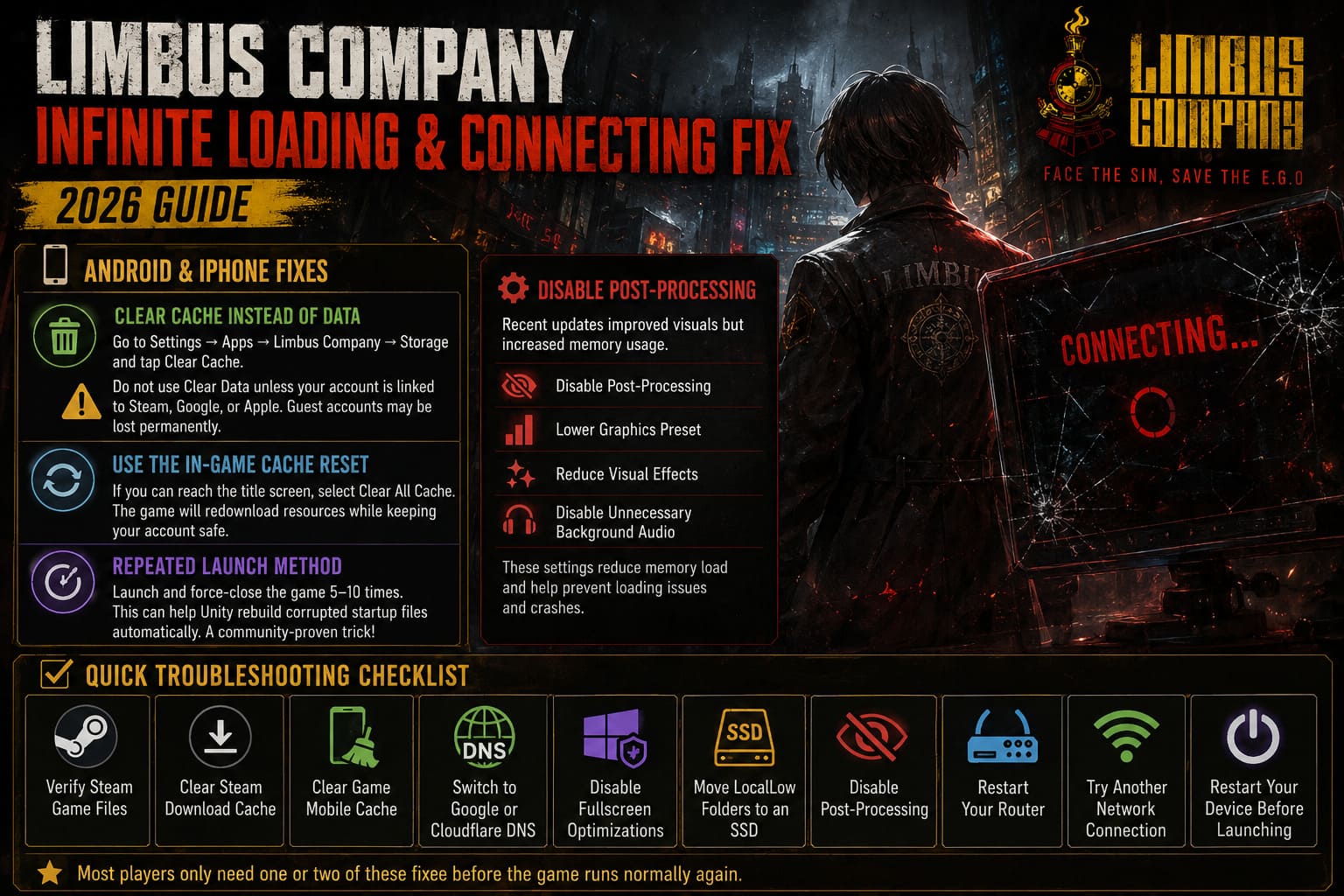
Clear Cache Instead of Data
Open Settings → Apps → Limbus Company → Storage and select Clear Cache.
Avoid using Clear Data unless your account has already been linked to Steam, Google, or Apple. Guest accounts can be permanently lost after deleting application data.
Use the In-Game Cache Reset
If you can reach the title screen, select Clear All Cache. The game will rebuild downloaded resources while preserving your account information.
Repeated Launch Method
Several experienced players discovered that repeatedly launching and force-closing the game between five and ten times occasionally allows Unity to rebuild damaged startup files automatically. Nobody outside Project Moon has officially explained why this works, but the method has become surprisingly reliable within the community.
Disable Post-Processing
Recent updates increased visual fidelity but also raised memory usage, especially on older hardware.
If you can open the graphics settings, disable Post-Processing, lower the graphics preset, reduce visual effects, and temporarily disable unnecessary background audio. These adjustments reduce memory pressure during loading and large area transitions.
Quick Troubleshooting Checklist
- Verify Steam game files.
- Clear the Steam download cache.
- Clear the game’s mobile cache.
- Switch to Google or Cloudflare DNS.
- Disable Fullscreen Optimizations.
- Move the LocalLow folders to an SSD.
- Disable Post-Processing.
- Restart your router.
- Try another network connection.
- Restart your device before launching again.
Most players only need one or two of these fixes before the game starts working normally again.
When Nothing Works
If every local solution fails, the problem may be related to regional server routing or an account-specific synchronization issue rather than your hardware.
When contacting Project Moon support, include as much information as possible.
| Information | Why It Matters |
|---|---|
| Platform | Confirms whether you’re using Steam, Android, or iOS. |
| Country | Helps identify regional routing problems. |
| Device Specifications | Allows support to check compatibility issues. |
| Error Screenshot | Provides visual confirmation of the problem. |
| Troubleshooting Already Tried | Prevents duplicate troubleshooting suggestions. |
Final Thoughts
Limbus Company has one of the most dedicated communities in modern gacha gaming, and many of the best fixes came directly from experienced players rather than official documentation. The symbolic link workaround remains one of the biggest improvements for PC users with multiple drives, while changing DNS servers and rebuilding Unity cache continue to solve countless mobile connection problems.
The best approach is to troubleshoot methodically instead of applying every possible fix at once. Start with the simplest solutions, move toward the advanced ones only if necessary, and always make sure your account is linked before deleting caches or application data. In most cases, one of these methods is enough to get you back into the City instead of staring at another endless loading screen.