STARSEEKER: Astroneer Expeditions Item IDs List & Console Spawn Codes (Complete Guide 2026)
When I first jumped into STARSEEKER: Astroneer Expeditions, I expected another relaxing space-survival experience similar to the original Astroneer. A few hours later, I found myself completely absorbed by massive terrain manipulation, resource logistics, and cooperative planetary expeditions that felt far more ambitious than I anticipated.
The progression system is satisfying, but let’s be honest: eventually every sandbox fan reaches the point where experimentation becomes more exciting than grinding. Whether you’re building absurd megabases, testing advanced production chains, or simply trying to understand how certain mechanics work, developer tools can completely transform the experience.
Over the past weeks I’ve spent plenty of time exploring community discussions, comparing findings from players, and testing various administrative functions myself. One thing became obvious very quickly: many players are actively searching for reliable information regarding STARSEEKER: Astroneer Expeditions item IDs, console commands, and spawn codes.
This guide covers exactly that.
Why Players Are Looking For Console Commands
Unlike many modern survival games that lock every advanced feature behind mods, STARSEEKER includes several backend systems intended for testing and sandbox experimentation.
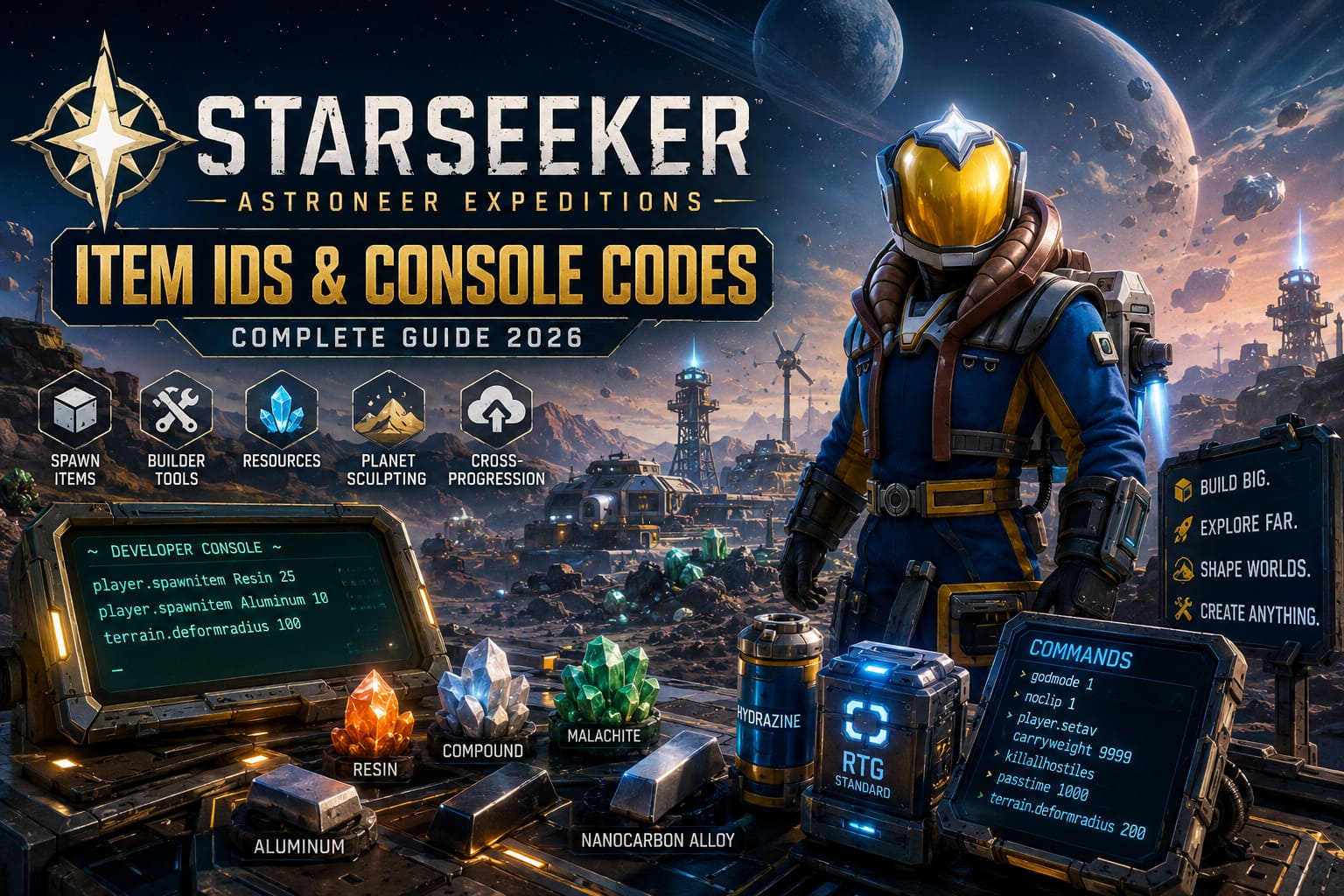
For creative builders, these tools offer several advantages:
- Rapid construction of large-scale bases.
- Testing endgame equipment without lengthy progression.
- Experimenting with planetary deformation mechanics.
- Learning advanced crafting chains.
- Creating custom cooperative scenarios with friends.
Of course, some players simply want unlimited resources, and that’s perfectly understandable too.
How To Enable The Developer Console
Accessing the command terminal on PC is surprisingly straightforward.
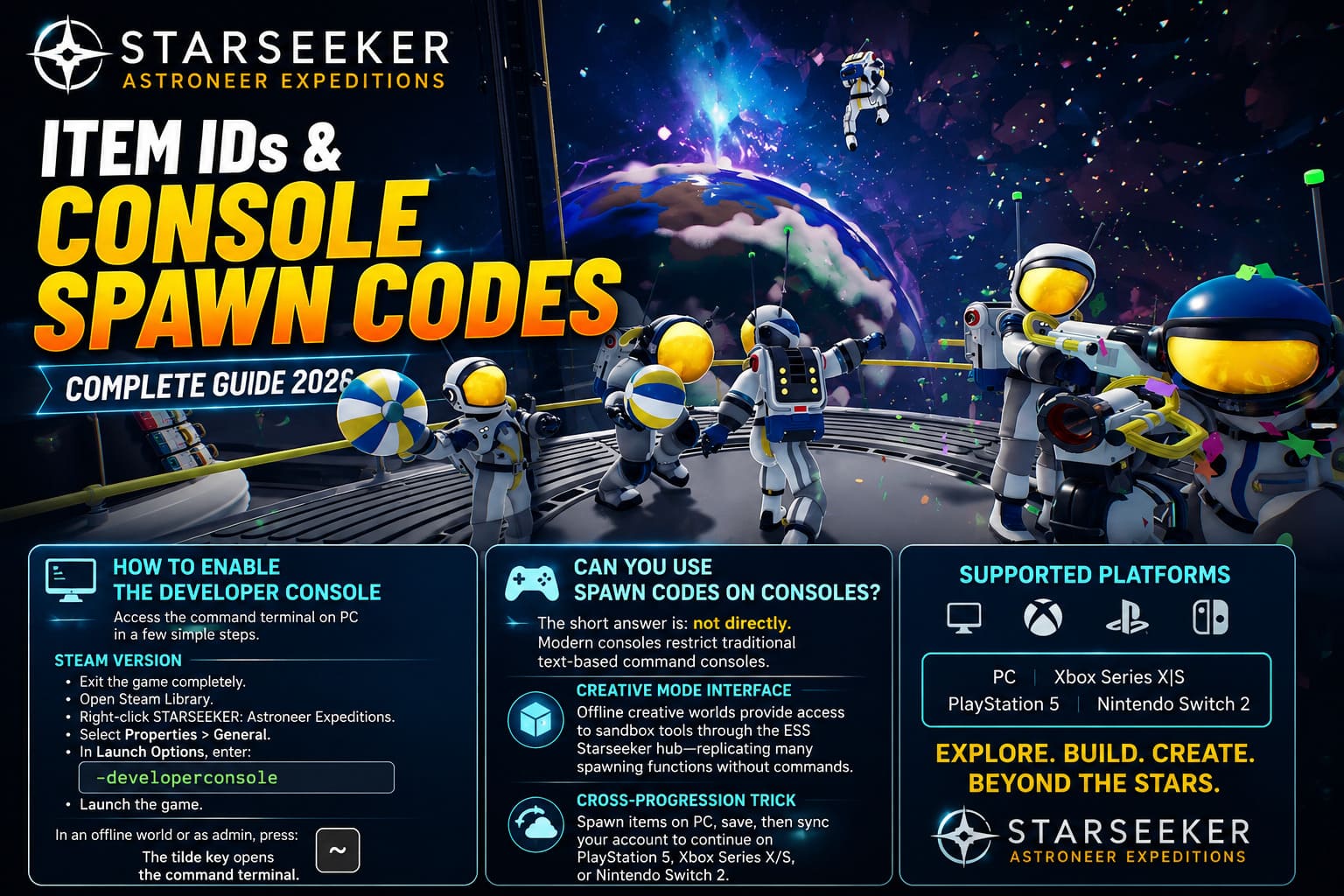
Steam Version
Follow these steps carefully:
- Exit the game completely.
- Open Steam Library.
- Locate STARSEEKER: Astroneer Expeditions.
- Right-click and select Properties.
- Open the General section.
- Find Launch Options.
- Enter:
-developerconsole- Launch the game.
Once inside an offline world or a session where you have administrator privileges, press:
~The tilde key opens the command terminal.
Xbox PC App Users
The process is similar but may require editing local configuration files or modifying launch parameters through shortcut properties.
Several players have reported success by editing Engine.ini files located within the local application data directories used by System Era’s save structure.
Can You Use Spawn Codes On Consoles?
This is one of the most frequently asked questions.
The short answer is: not directly.
Modern console platforms impose restrictions on traditional text-based command consoles.
However, there are still practical alternatives.
Creative Mode Interface
Offline creative worlds provide access to various sandbox-oriented tools through dedicated menus available inside the ESS Starseeker hub.
These interfaces effectively replicate many common spawning functions without requiring text commands.
Cross-Progression Trick
One particularly useful workaround involves cloud synchronization.
Because STARSEEKER supports cross-progression, players can:
- Spawn items on PC.
- Save progress.
- Synchronize the account.
- Continue playing on PlayStation 5, Xbox Series X/S, or Nintendo Switch 2.
For builders, this is arguably the easiest solution.
Core Spawn Command Syntax
The command structure itself is refreshingly simple.
The primary spawning format is:
player.spawnitem [Item_ID] [Quantity]Example:
player.spawnitem Compound 10This command spawns ten units of Compound.
The system is case-sensitive, so make sure every item identifier is entered exactly as written.
Most Useful Administrative Commands
These are the commands I found myself using most frequently while testing base designs and terrain systems.

| Command | Function | Example Use |
|---|---|---|
| godmode 1 | Invulnerability | Explore dangerous planets safely |
| noclip 1 | Disable collision | Fly through terrain |
| player.setav carryweight 9999 | Massive inventory capacity | Large construction projects |
| passtime [Value] | Advance planetary time | Skip nighttime cycles |
| killallhostiles | Remove nearby threats | Secure underground zones |
| terrain.deformradius [Value] | Increase terrain tool size | Massive excavation projects |
Among these, noclip 1 and terrain.deformradius are easily my favorites. The planet-shaping technology is one of STARSEEKER’s strongest features, and these commands let you fully appreciate how impressive the underlying system really is.
Complete Resource Item IDs
These resources form the backbone of every expedition.
Raw Planetary Resources
| Item ID |
|---|
| Resin |
| Compound |
| Organic |
| Clay |
| Quartz |
| Sphalerite |
| Laterite |
| Malachite |
| Wolframite |
| Hematite |
| Titanite |
| Lithia |
These materials are found naturally throughout planetary surfaces and underground cave systems.
For new players, Compound, Resin, and Organic remain the most important early-game resources.
Refined Materials IDs
After processing ore through industrial systems, you’ll gain access to these refined materials.
| Item ID |
|---|
| Ceramic |
| Aluminum |
| Copper |
| Tungsten |
| Iron |
| Titanium |
| Steel |
| Carbon |
| Silicone |
| Glass |
| Rubber |
I personally found Aluminum and Copper to be among the most commonly used components throughout progression, particularly when expanding medium-scale infrastructure.
Advanced Alloy Item IDs
This is where STARSEEKER’s manufacturing chain becomes truly interesting.
| Item ID |
|---|
| AluminumAlloy |
| TungstenCarbide |
| TitaniumAlloy |
| NanoCarbonAlloy |
If you’re planning megabase projects, expect to use NanoCarbonAlloy constantly.
Many high-tier structures depend on it.
Atmospheric Gas IDs
Gas extraction is a major progression milestone and becomes increasingly important during late-game development.
| Item ID |
|---|
| Hydrogen |
| Helium |
| Hydrazine |
| Nitrogen |
| Oxygen |
| Argon |
| Methane |
| Sulfur |
Hydrazine remains one of the most valuable resources due to its connection with advanced mobility systems and rocket technologies.
Power Generation Item IDs
Reliable energy networks are absolutely essential.
Here are the most useful power-related item identifiers:
| Item ID |
|---|
| SolarPanelSmall |
| SolarPanelMedium |
| SolarPanelLarge |
| WindVaneSmall |
| WindTurbineMedium |
| WindTurbineLarge |
| GeneratorSmall |
| GeneratorMedium |
| RTGSmall |
| RTGStandard |
| BatterySmall |
| BatteryMedium |
If I had to recommend one item for testing purposes, it would be:
RTGStandardInfinite power dramatically simplifies experimentation.
Exploration & Survival Item IDs
Some of the game’s most useful utility modules belong to this category.
| Item ID |
|---|
| OxygenTank |
| PortableOxygenator |
| TetherPack |
| BeaconMarker |
| WorkLight |
| JetpackHydrazine |
| JumpThrustSolid |
| DrillModTier1 |
| DrillModTier2 |
| DrillModTier3 |
| BoostMod |
| WideMod |
The combination of:
PortableOxygenatorand
JetpackHydrazineturns exploration into an entirely different experience.
Once you’ve used those together, it’s difficult to go back.
Example Spawn Commands
Here are several commonly used examples.
Spawn 25 Resin:
player.spawnitem Resin 25Spawn 10 Aluminum:
player.spawnitem Aluminum 10Spawn 5 NanoCarbonAlloy:
player.spawnitem NanoCarbonAlloy 5Spawn a Portable Oxygenator:
player.spawnitem PortableOxygenator 1Spawn an RTG power source:
player.spawnitem RTGStandard 1Important Warnings Before Using Cheats
Even if you’re mainly interested in creative experimentation, there are a few things worth remembering.
Backup Your Saves
Large item-spawning sessions can sometimes stress the physics simulation.
Before testing hundreds of objects at once:
- Create a backup.
- Store it separately.
- Verify the copy works.
It only takes a minute and can save hours of lost progress.
Achievement Restrictions
Like many sandbox games, modified saves may lose eligibility for achievements and trophies.
I strongly recommend maintaining:
- One legitimate progression save.
- One experimental sandbox save.
This keeps both playstyles available.
Starseeker Astroneer Expeditions Crossplay Multiplayer Setup: 2026 Complete Guide
Co-Op Synchronization Issues
Occasionally, spawned objects may not immediately appear for connected players.
The simplest fix is:
- Have the client disconnect.
- Rejoin the session.
- Allow the world to synchronize again.
In most cases this resolves missing-object problems instantly.
Final Thoughts
After spending considerable time with STARSEEKER: Astroneer Expeditions, I genuinely believe the game shines brightest when players are allowed to experiment. The survival progression is enjoyable, but the real magic appears when you start bending planetary landscapes, designing absurd industrial complexes, and testing systems that would normally take dozens of hours to unlock.
The console commands and item IDs listed above provide exactly that freedom.
Whether you’re spawning stacks of NanoCarbonAlloy, constructing giant automated facilities powered by RTGStandard, or using noclip 1 to explore the deepest parts of an alien world, these tools unlock a side of STARSEEKER that many players never fully experience.
For builders, engineers, and sandbox enthusiasts, they’re worth learning.