Star Wars Galactic Racer PC Settings Guide: My Real DLSS 4.5 Setup for Smooth Gameplay and Sharp Visuals
I’ve spent a lot of time tweaking graphics settings across different racing games—from arcade chaos to sim-heavy titles—and Star Wars Galactic Racer instantly felt like one of those games where settings actually matter.
Not in a “pixel peeping” way, but in a “if this stutters, you lose the race” kind of situation.
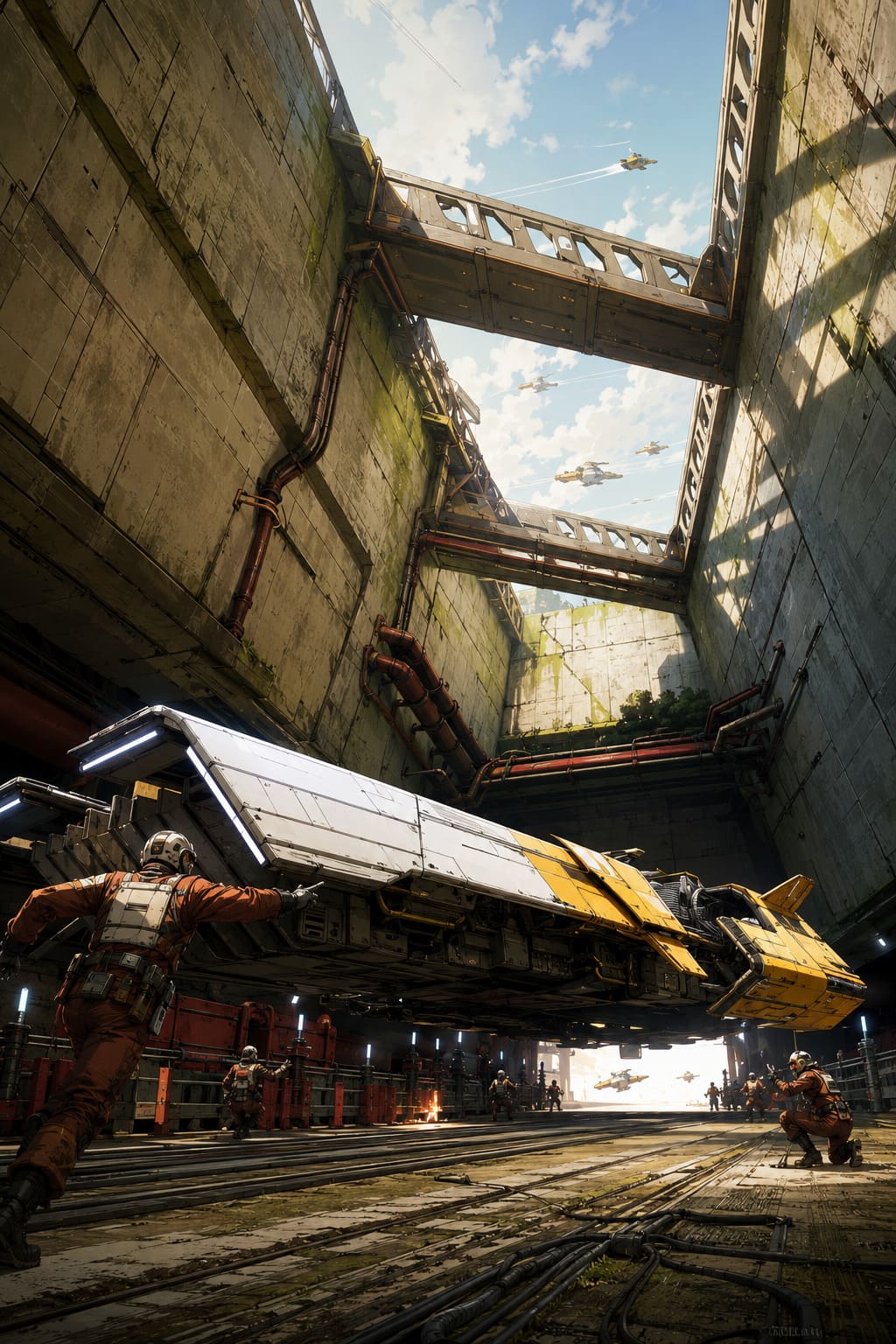
This game is fast. Ridiculously fast. And when you’re flying through sandstorms or lava-lit tracks, even small visual inconsistencies or frame drops can throw you off.
After testing DLSS 4.5 across multiple setups, I’ve landed on a few configurations that genuinely improve both performance and clarity—without turning the game into a blurry mess.
Let’s break it down like a real player would—not just specs, but what actually feels right in-game.
Why DLSS 4.5 Actually Matters Here
I’ll be honest: I’ve been skeptical about DLSS in the past. Earlier versions sometimes felt like trading sharpness for FPS. But DLSS 4.5 is the first time I’ve felt like I’m not really compromising anymore.
What surprised me most is how stable everything feels during motion.Motion clarity is finally consistent, particles don’t turn into mush, and high-speed camera shifts don’t break the image like older versions used to.
In a game like this, that’s everything because you’re not admiring scenery—you’re reacting to it in real time.
Preset M vs Preset L — My Honest Take
This is where most people get stuck. I tested both extensively, switching mid-race and replaying tracks under different lighting conditions to really feel the difference instead of just reading numbers.
Preset M (My personal favorite on high-end GPUs)
This one feels like the sharp and aggressive option. It delivers crisp detail even at insane speeds and handles thin structures like cables, pipes, and track edges much better than older presets. Ghosting during boosts is also noticeably reduced.
The downside is that it can sometimes look a bit too sharp in static scenes, almost artificially crisp. It also comes with a slight performance cost, but nothing major if your GPU has headroom.
For high-end hardware like RTX 4080 or RTX 4090-class systems, this is the preset that feels the most “locked in” and responsive.
Preset L (The safer, smoother choice)
Preset L is more balanced and cinematic. It smooths out the overall image and fits well with Unreal Engine 5 lighting, especially in environments with heavy fog, dust, or vegetation.
However, fine details can get slightly soft during extreme speed moments, and you might notice minor shimmering in very detailed textures at distance.
This is still the better option for mid-range GPUs or 1440p setups where stability matters more than razor-sharp detail.
My Recommended Settings by GPU Tier
After a lot of testing, these are the configurations that actually feel good in real gameplay rather than just looking good on paper.
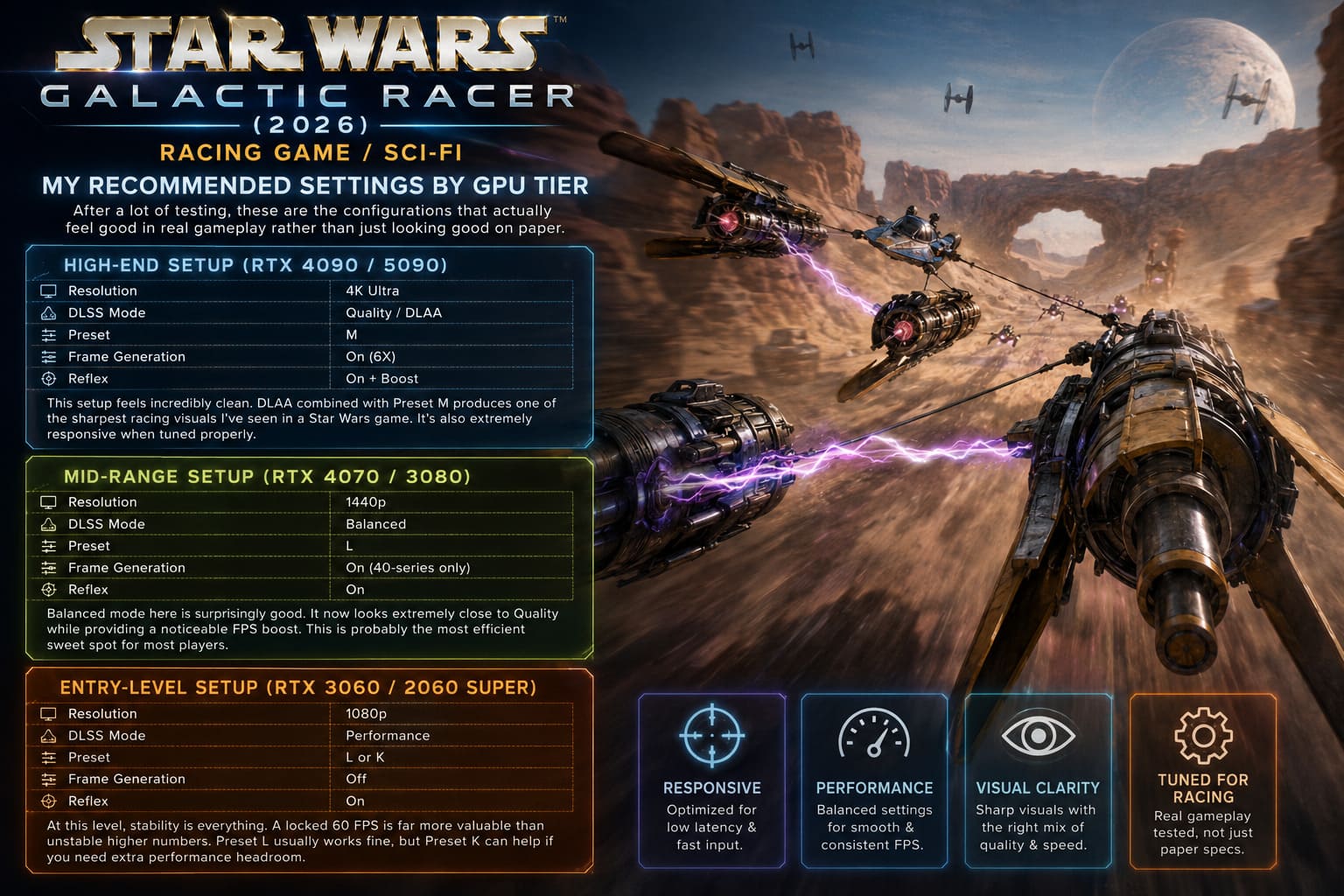
High-End Setup (RTX 4090 / 5090)
| Resolution | 4K Ultra |
| DLSS Mode | Quality / DLAA |
| Preset | M |
| Frame Generation | On (6X) |
| Reflex | On + Boost |
This setup feels incredibly clean. DLAA combined with Preset M produces one of the sharpest racing visuals I’ve seen in a Star Wars game. It’s also extremely responsive when tuned properly.
Mid-Range Setup (RTX 4070 / 3080)
| Resolution | 1440p |
| DLSS Mode | Balanced |
| Preset | L |
| Frame Generation | On (40-series only) |
| Reflex | On |
Balanced mode here is surprisingly good. It now looks extremely close to Quality while providing a noticeable FPS boost. This is probably the most efficient sweet spot for most players.
Entry-Level Setup (RTX 3060 / 2060 Super)
| Resolution | 1080p |
| DLSS Mode | Performance |
| Preset | L or K |
| Frame Generation | Off |
| Reflex | On |
At this level, stability is everything. A locked 60 FPS is far more valuable than unstable higher numbers. Preset L usually works fine, but Preset K can help if you need extra performance headroom.
The Hidden Trick — DLDSR + DLSS Combo
This is something I didn’t expect to enjoy as much as I did. The idea is simple but powerful: increase resolution using DLDSR and then use DLSS to bring it back down for reconstruction.
The result is a noticeably cleaner image with reduced shimmering and improved long-distance stability. It does require GPU headroom, but when it works, it looks extremely stable even in chaotic racing scenes like desert storms or lava tracks.
Small Tweaks That Make a Big Difference
1. Lower in-game sharpening
DLSS already includes sharpening logic, so keeping in-game sharpening too high often creates unnecessary noise. A range of 10–20% usually looks the cleanest.
2. Enable Ray Reconstruction (if using ray tracing)
This improves lighting stability and reduces flickering in reflective or neon-heavy environments. It also helps clean up temporal artifacts during fast motion.
3. Match refresh rate properly
Make sure Windows and your monitor are set to the highest refresh rate available. Frame Generation performs significantly better when paired with a high refresh ceiling.
4. Always enable NVIDIA Reflex
This is not optional in a racing game like this. Reflex reduces input latency and makes high-speed directional changes feel significantly more responsive.
What Actually Feels Best While Playing
After all the testing, the conclusion is pretty clear: this game completely changes depending on your DLSS setup. It’s not just about FPS—it’s about readability and control.
If you want competitive performance, go with Preset L and Balanced DLSS. If you want maximum visual clarity, Preset M with DLAA is the way to go. And if you want the best overall experience, Balanced DLSS with carefully tuned sharpening is the most practical choice.
Once everything is dialed in properly, the game stops feeling chaotic in a bad way and starts feeling controlled, readable, and surprisingly precise at high speeds.
Final Thoughts
Star Wars Galactic Racer is one of those rare racing games where technology and gameplay are tightly connected. DLSS 4.5 isn’t just a performance feature here—it directly affects how the game feels moment to moment.
When your settings are right, motion becomes readable, reactions feel instant, and the game stops fighting your inputs. That’s when it really clicks.
If you’re still tuning your setup, start simple: pick the right preset for your GPU, lower sharpening, and enable Reflex. Then adjust from there based on how it feels during actual races, not just menus.