Enshrouded Low FPS Fix After 1.0 Update: Ultimate Optimization Guide
Enshrouded 1.0 is finally here, and after spending a lot of time with survival games, crafting sandboxes, and demanding open-world titles, I was expecting the full release to feel like the polished version of everything Keen Games had been building toward. Instead, some PC players have opened the game and immediately run into low FPS, stuttering, strange frame-time spikes, and massive drops in areas that previously ran perfectly well. The annoying part is that this isn’t limited to weak gaming PCs. Even owners of GPUs such as the RTX 4070 and RTX 4080 have reported situations where performance can fall from a comfortable 80-90 FPS range to 20-30 FPS or even single digits.
The problem becomes particularly obvious when moving through dense forests, heavily modified voxel terrain, large player-built bases, or areas packed with effects and Shroud fog. I have played enough PC games to know that simply saying ‘lower everything to Low’ isn’t always the answer. Enshrouded has several settings that behave very differently from one another, and lowering the right options can make a much bigger difference than destroying the visual quality across the board.
So if your Enshrouded FPS suddenly became terrible after the 1.0 update, this is the approach I would take. Some fixes are simple in-game changes, while others involve your GPU driver, shader cache, Windows, or storage drive. Not every solution will work for every PC, but these are the areas I would investigate before blaming the hardware or reinstalling the entire game.
How to Fix Enshrouded Crashing on Startup PC: Full Troubleshooting Guide (Version 1.0)
Why Enshrouded 1.0 Can Run Worse Than Early Access
One of the reasons Enshrouded can be surprisingly demanding is the nature of its world. This isn’t just a pretty survival game where you walk through static scenery. The environment can be heavily modified, buildings can become enormous, and the voxel-based world has to react to what players do. The 1.0 release also brings visual improvements, denser vegetation, changes to lighting, additional environmental detail, and larger areas that have to be streamed while you move around.
That combination creates some interesting performance situations. You might have 90 FPS while standing in an open field and then watch the counter collapse as you enter a forest or approach a huge base. Your GPU may not even be running at maximum utilization during the worst drops, which makes the problem particularly confusing. In my experience with PC games, low GPU utilization combined with awful frame times usually deserves a closer look at CPU workload, asset streaming, shaders, or frame-pacing settings rather than simply demanding a more powerful graphics card.
There are three areas I would check first:
- Shader compilation and cache behavior can cause severe stutters while new areas and effects are being rendered.
- V-Sync and frame-rate limiting can create ugly frame pacing when several systems try to control FPS simultaneously.
- Voxel detail and foliage rendering can become extremely expensive in modified terrain and vegetation-heavy locations.
Start With the Enshrouded Graphics Settings
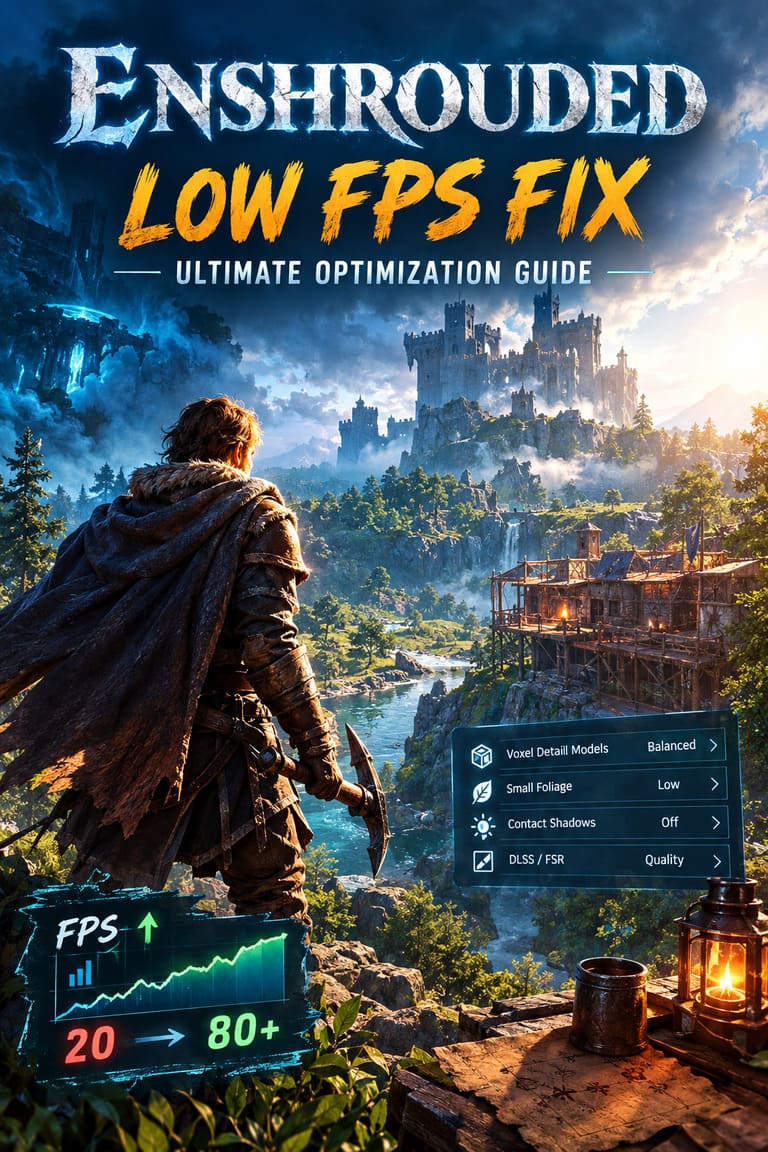
The easiest place to begin is obviously the Display menu. I wouldn’t recommend immediately putting every option on Low because Enshrouded can still look excellent with a carefully chosen mixture of settings. Instead, target the settings that have the biggest performance impact while leaving less expensive visual features alone.
Lower Voxel Detail Models
If I had to pick one setting to experiment with first, it would be Voxel Detail Models. Enshrouded’s terrain system is a major part of the game’s identity, and detailed voxel environments can become expensive when you’re surrounded by altered terrain, giant bases, underground structures, or complicated player construction.
Try Balanced first rather than immediately choosing the lowest option. The difference in image quality is usually much less noticeable than the difference between a smooth game and one that suddenly feels like it’s running in slow motion. If Balanced still doesn’t solve the problem, Performance is worth testing, particularly on CPUs that are already struggling.
Reduce Small Foliage
Dense vegetation is another obvious troublemaker. Forest environments can contain a ridiculous amount of grass, leaves, small plants, and ground clutter, and the 1.0 version pushes visual density considerably further in some areas. Small Foliage on Balanced or Low is therefore one of the first changes I’d make when dealing with forest-related FPS drops.
The nice thing about this setting is that you don’t have to make the whole game look ugly. You’re mostly reducing the amount of small environmental detail, while the larger trees, structures, terrain, and atmosphere can still retain much of their visual character. For me, that’s exactly the kind of optimization worth making.
Disable Small Contact Shadows
Small Contact Shadows are another setting I’d happily sacrifice for smoother performance. They can add subtle depth to objects and vegetation, but the visual improvement isn’t dramatic enough to justify keeping them enabled when you’re fighting unstable frame rates. Some players have also encountered distracting flickering or jagged shadow behavior in heavily vegetated areas, so disabling the option can potentially help with both performance and image stability.
DLSS and FSR Can Make a Huge Difference
If you’re playing on compatible NVIDIA hardware, I would seriously consider using DLSS rather than insisting on native rendering. AMD users can similarly experiment with FSR 3. Upscaling has become so good in modern games that I would rather play at a sensible Quality or Balanced setting with stable frame pacing than chase native resolution while suffering from constant drops.
For a general starting point, try DLSS Quality on NVIDIA hardware. If performance remains poor, move to Balanced. AMD players can perform the same sort of test with FSR. If you’re experiencing an unusual performance problem after changing settings, switching between Quality and Balanced and restarting the game is also worth trying because it can force the rendering configuration to be recreated.
| Setting | Recommended Starting Point | Why I Would Change It |
|---|---|---|
| Voxel Detail Models | Balanced | Reduces CPU-heavy voxel workload |
| Small Foliage | Balanced / Low | Helps in dense forests and vegetation-heavy zones |
| Small Contact Shadows | Off | Reduces rendering overhead and possible flickering |
| DLSS / FSR | Quality / Balanced | Improves performance without destroying image quality |
| Background FPS Limit | Off | Useful when troubleshooting unusual frame behavior |
Turn Off Enshrouded’s V-Sync and Use One FPS Limiter
This is one of those PC optimization issues that can drive you absolutely crazy because your hardware appears to be powerful enough, yet the game feels terrible. If Enshrouded’s internal V-Sync is producing bad frame pacing on your particular setup, try disabling it and letting your graphics driver handle the frame limit instead.
First, turn V-Sync off inside Enshrouded. If you’re using NVIDIA Reflex or AMD Anti-Lag, temporarily disable those as well while testing. The goal here isn’t to permanently tell everyone to avoid these technologies; it’s to remove variables and find out whether the combination is responsible for your stutters.
For NVIDIA users, open the NVIDIA Control Panel or NVIDIA App and create a program-specific profile for Enshrouded. Under the frame-rate options, try setting Max Frame Rate to your monitor’s refresh rate or to a stable target such as 60 FPS. If your system cannot maintain your display’s full refresh rate, a lower but consistent cap can often feel substantially better than bouncing between wildly different frame rates.
I would also avoid stacking multiple frame-rate limiters while troubleshooting. If you’re using RivaTuner Statistics Server, test the game without its FPS cap and let the GPU driver handle the limit instead. When several different layers attempt to control frame pacing, figuring out which one is causing the problem becomes unnecessarily difficult.
Give the Shader Cache Some Attention
Shader compilation is another thing that can make a freshly updated game feel broken. When a major graphics overhaul arrives, the game may need to compile a significant number of new shaders. If that process is interrupted, the cache is corrupted, or the driver doesn’t have enough room to store compiled data, you can experience stutters when entering new areas or encountering new effects.
For NVIDIA users, check the Shader Cache Size option in the NVIDIA Control Panel. If you’re troubleshooting persistent shader-related stuttering, increasing the available cache size can be worth testing. Options such as 10 GB or Unlimited are reasonable choices if you have enough storage space.
AMD users have a similar troubleshooting option through AMD Software: Adrenalin Edition. Under the graphics settings, look for the option to Reset Shader Cache. After resetting it, restart Windows and launch Enshrouded again. The first session may behave differently while shaders are rebuilt, so don’t immediately assume that a temporary hitch means the fix failed.
Check Enshrouded’s Windows Process Priority
Another unusual thing worth checking is the game’s process priority. If Windows is treating enshrouded.exe differently than expected, you may see surprisingly low CPU or GPU utilization while the game still performs badly. This isn’t something I’d recommend blindly changing on every PC, but it’s an easy diagnostic test and can reveal whether Windows scheduling is contributing to the problem.
Launch the game and enter your world, then press Ctrl + Shift + Esc to open Task Manager. Go to Details, locate enshrouded.exe, right-click it, select Set Priority, and test Above Normal. If performance immediately improves, you’ve found an important clue. If absolutely nothing changes, put the priority back to Normal rather than leaving unnecessary tweaks enabled.
Install Enshrouded on an NVMe SSD
Storage speed matters more than it used to in large modern games. Enshrouded is constantly dealing with world data, terrain changes, environmental assets, and player-created structures, so asset streaming can become a factor during fast movement. Running it from an old mechanical hard drive is something I would avoid entirely, especially if you’re already experiencing traversal stutters.
A decent SATA SSD is still usable, but an NVMe M.2 SSD is the setup I’d prefer for a game like Enshrouded. If you have the option, move the installation to your fastest SSD and make sure Windows itself isn’t struggling because the system drive is almost completely full. Storage won’t magically fix every CPU or GPU bottleneck, but it can remove one more potential source of streaming-related hitching.
Be Careful With Community Performance Tools
You may also come across community-made scripts and tools designed to clear shader data or change configuration files. These can be useful, especially when a large update leaves behind old cache data, but I would treat them differently from ordinary in-game settings. A PowerShell command downloaded from an external repository is effectively asking Windows to execute somebody else’s code with your permissions, so verify the source and inspect the script before running it.
I wouldn’t copy a random command from a forum post simply because someone claims it gave them 30 extra FPS. Check the repository, read the script if you understand PowerShell, look at its recent activity, and make a backup of anything important before allowing it to modify your system. Personally, I would exhaust the normal game settings, driver controls, shader-cache reset, storage check, and Windows troubleshooting first.
My Practical Enshrouded 1.0 Optimization Order
If you don’t want to spend an entire evening changing fifty settings, here’s the order I’d personally follow. Start with the graphics options that are known to put pressure on voxel rendering and foliage. Then move to upscaling, V-Sync, FPS limiting, and shader cache before touching more unusual Windows or third-party solutions.
- Set Voxel Detail Models to Balanced.
- Lower Small Foliage to Balanced or Low.
- Disable Small Contact Shadows.
- Use DLSS or FSR on Quality, then test Balanced if necessary.
- Disable in-game V-Sync while troubleshooting.
- Use a single FPS limiter through the GPU driver.
- Reset or increase the shader cache if stuttering persists.
- Check Windows process priority as a diagnostic step.
- Move the game to an NVMe SSD if possible.
- Only then consider community scripts or more advanced tweaks.
Don’t Expect One Magic FPS Fix
The biggest mistake with PC optimization guides is pretending that every player has the same bottleneck. An RTX 4080 system running into CPU limitations around a massive player-built base is dealing with a completely different problem from an older GPU struggling to render dense foliage at native 1440p. Enshrouded’s voxel technology makes those differences especially noticeable because the amount of work being done can change dramatically depending on what you’re looking at.
For that reason, I would change one or two settings at a time and test the exact location where your FPS normally collapses. Don’t just stare at an empty field and assume everything is fixed. Walk through the forest, visit your biggest base, travel quickly through the world, and check whether the frame-time graph becomes smoother.
Enshrouded 1.0 doesn’t need to look bad to run better. That is the main takeaway I’d give another player. With the right balance of voxel detail, foliage, upscaling, frame limiting, shader-cache management, and sensible hardware configuration, you can often recover a substantial amount of performance without turning the game into a blurry low-detail survival simulator.
And if you’ve already tried all of this and your FPS is still collapsing into single digits, I’d stop endlessly changing settings and wait for further patches while reporting the exact hardware and location where the issue happens. Major releases can introduce engine-level problems that no amount of Windows tweaking can completely solve. Sometimes the best optimization trick is simply recognizing when the problem belongs to the game rather than your PC.