Diablo 4 Crossplay Voice Chat Not Working: Xbox & PC Fix (2026)
There is nothing more annoying in Diablo 4 than getting a full party together, jumping into a dungeon, and discovering that the voice chat has decided to disappear. One player can hear everyone. Another can only hear Xbox teammates. Someone else has a microphone icon that refuses to light up. Then you spend ten minutes asking, “Can you hear me?” while standing in the middle of Sanctuary like three people who have never used a headset before.
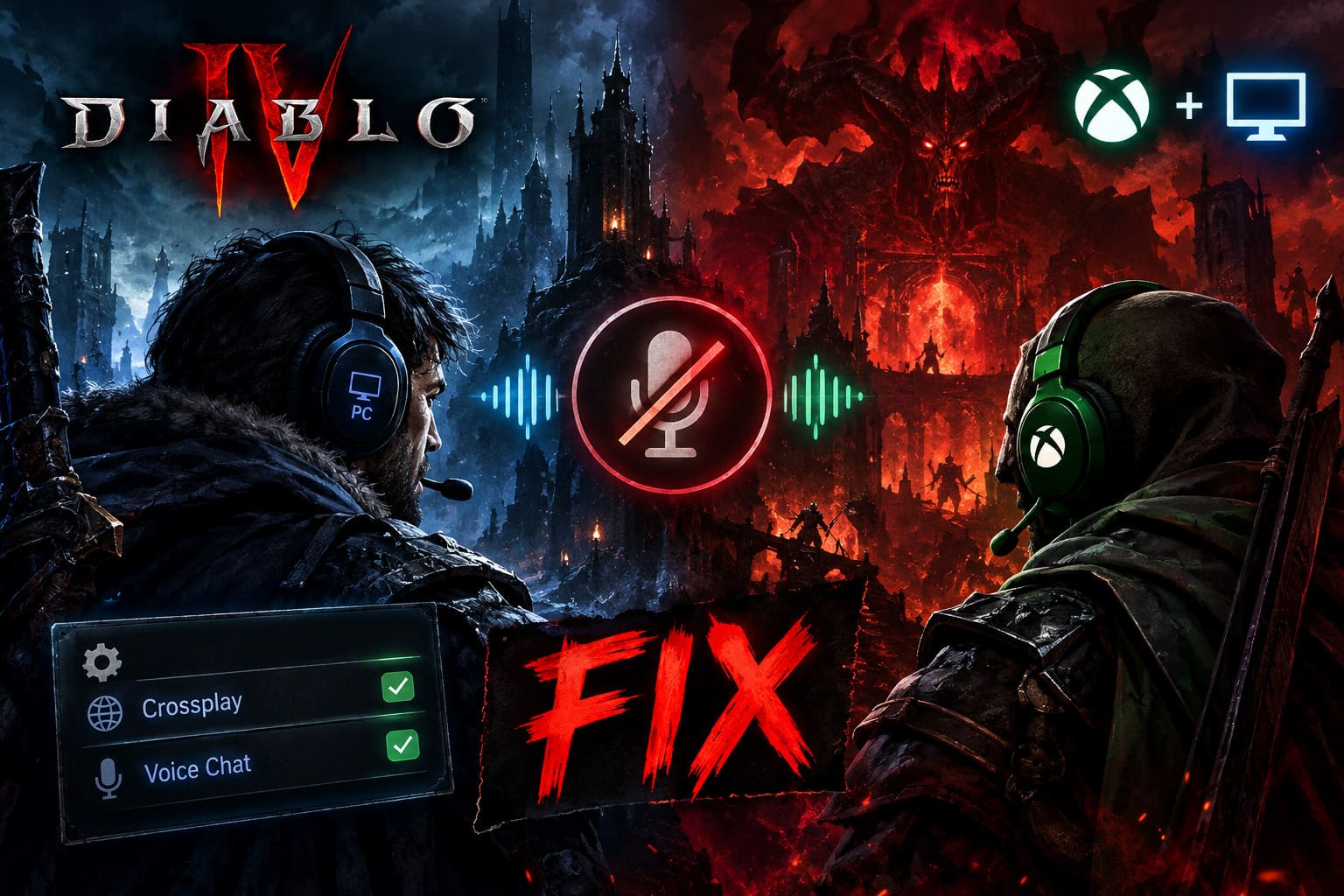
If you are dealing with Diablo 4 crossplay voice chat not working between Xbox and PC, the good news is that the problem usually comes down to settings, audio routing, communication permissions, or a stuck voice channel rather than your headset suddenly dying.
I have seen enough multiplayer games handle voice chat badly to know that the fastest solution is rarely “restart everything and hope.” Diablo 4 has several different layers involved in cross-platform communication: the game’s own voice settings, Xbox privacy controls, Windows audio devices, Game Bar, Battle.net or Xbox network integration, and the actual party channel. One wrong setting can break the whole chain.
This guide walks through the fixes I would try first, starting with the settings that cause the most confusion and ending with deeper Xbox and PC troubleshooting.
Diablo 4 Crossplay Voice Chat: What Usually Goes Wrong?
Before changing random settings, it helps to understand the symptoms. Diablo 4 crossplay voice chat problems are not always identical, and the correct fix depends on what is actually failing.
| Problem | Most Likely Cause | What To Check |
|---|---|---|
| PC hears Xbox, but Xbox cannot hear PC | Xbox privacy or PC microphone routing | Xbox communication permissions + Windows input |
| Nobody can hear you | Wrong input device or muted microphone | Voice settings + Windows recording device |
| You hear the party but cannot speak | Mic permissions or Push-to-Talk issue | Microphone input + Voice Chat Mode |
| Voice settings are grayed out | Network/social settings locked in gameplay | Return to Character Selection |
| Party members appear but voice is silent | Wrong voice channel | Manually join Party Voice Chat |
| Chat works until changing headsets | Audio device hot-swap problem | Connect headset before launching game |
| Crossplay chat suddenly stops | Cached network/session data | Restart console/PC and clear relevant cache |
The important thing is not to change twenty settings at once. Work through the fixes in order. That makes it much easier to identify what actually solved the problem.
1. Change Diablo 4 Cross-Network Settings From Character Selection
This is the first thing I would check because it is incredibly easy to miss.
Diablo 4 doesn’t expose every social and network option in the same way once you are already inside Sanctuary. If you are trying to change crossplay communication settings while actively playing, some options may be unavailable or may not behave correctly.
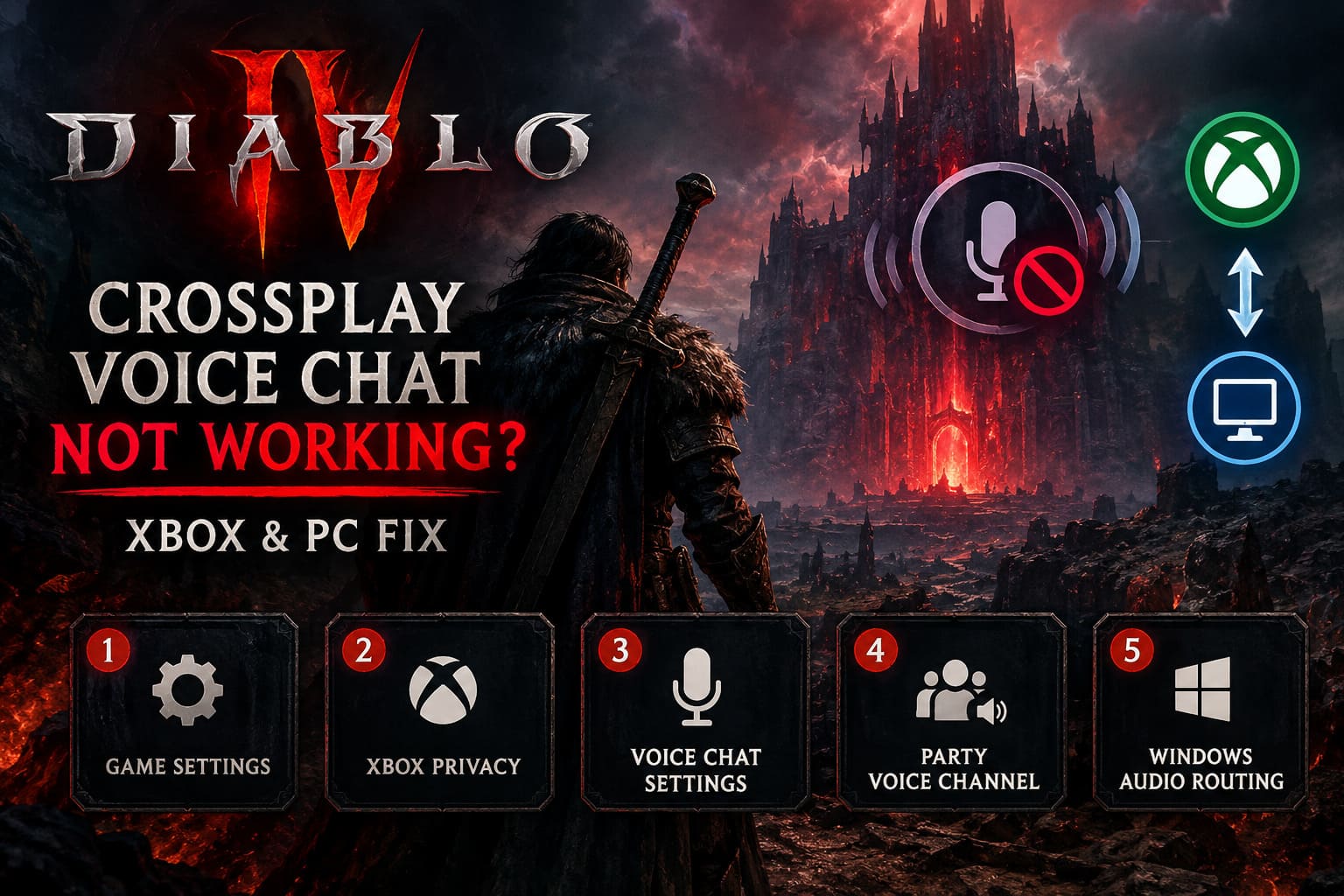
Return all the way to the Character Selection Screen, then:
- Open Options.
- Go to the Social section.
- Find Cross-Network Play.
- Make sure it is enabled.
- Check Cross-Network Communication.
- Enable that as well.
- Apply or save the changes.
- Enter the game again.
Do not skip the save/apply step. It sounds ridiculously basic, but social settings that were changed without properly applying them can send you straight back into the same broken voice-chat situation.
If both options are already enabled, leave them alone and move to the platform-specific troubleshooting.
2. Check Xbox Privacy Settings
For Xbox players, this is one of the biggest potential roadblocks.
Your Diablo 4 settings can be perfectly configured, but Xbox privacy and communication restrictions can still prevent cross-network voice communication. This is especially relevant when communicating with PC players through the wider Xbox/Battle.net ecosystem.
On Xbox:
Xbox button → Profile & system → Settings → Account → Privacy & online safety → Xbox privacy → View details & customize → Communication & multiplayer
Pay particular attention to these options:
- You can join cross-network play: Allow
- You can communicate outside of Xbox with voice & text: Everybody
That second setting is especially important. A restrictive Friends-only configuration may interfere with communication when Diablo 4 is dealing with players through different network ecosystems.
After changing the settings, I recommend doing a full console restart, not simply returning to the dashboard.
If the Xbox profile is managed through a family account, additional restrictions may also be applied at the account level. In that situation, changing Diablo 4’s own settings will not necessarily override the Xbox account permissions.
3. Check Diablo 4’s Voice Chat Settings
Once Xbox permissions are sorted, go back into Diablo 4 and inspect the actual voice configuration.
Open:
Options → Sound → Voice Chat
Then check the following.
Voice Chat Mode
If you are using Push-to-Talk, temporarily switch to Open Mic.
This is particularly useful when troubleshooting an Xbox controller, PC Game Pass installation, or a PC setup where multiple input devices are present.
You don’t have to keep Open Mic forever. It is simply a great diagnostic test. If your teammates suddenly hear you, you’ve confirmed that the problem is related to microphone activation rather than crossplay itself.
Voice Detect Sensitivity
If the microphone indicator never reacts when you speak, adjust the sensitivity.
You don’t want to crank it so high that every keyboard click becomes a transmission, but a slightly more responsive setting can reveal whether Diablo 4 is actually receiving microphone input.
Voice Chat Volume
Make sure the voice volume isn’t simply sitting at zero or being drowned out by other game audio.
Also verify that your selected Sound Output Device is your actual headset rather than a monitor, television, controller speaker, or another Windows audio device.
This particular issue can be incredibly misleading. The game may technically be receiving everyone’s voices while sending those voices to a device you aren’t wearing.
4. Manually Join the Party Voice Channel
This is the fix I would try when everyone’s names appear correctly but the party is still completely silent.
Sometimes the game appears to recognize the party without successfully putting you into the correct voice channel. In other words, the social connection exists, but the voice connection is stuck.
Open the Social/party interface and look for the voice-channel controls.
If the game gives you an option for voice chat, manually switch from:
None → Party Voice Chat
If you are currently in clan chat, you can also switch to another available channel and then return to Party Voice Chat.
That simple channel refresh can force Diablo 4 to establish the voice connection again.
Also check whether Auto-Join Voice Chat Channels is enabled. If the option is available in your current version, keeping it enabled makes party communication much less annoying because the game attempts to connect you automatically when joining a group.
5. Fix Windows Audio Routing on PC
This is where PC troubleshooting gets messy.
Windows is perfectly capable of deciding that your expensive gaming headset is no longer the important audio device and sending voice communication through your monitor instead. I have lost count of how many games have done something similar.
If you’re playing Diablo 4 on PC, especially through the Xbox ecosystem or PC Game Pass, check your Windows communication devices.
Open Control Panel → Hardware and Sound → Sound.
Under Playback:
- Find your actual headset.
- Right-click it.
- Select Set as Default Device.
- Select Set as Default Communication Device.
Then switch to Recording:
- Find your actual microphone.
- Right-click it.
- Set it as the Default Device.
- Set it as the Default Communication Device.
Click Apply, then OK.
The distinction between Default Device and Default Communication Device matters. Windows can use different devices for general game audio and communications, and that can create the classic situation where you hear Diablo 4 perfectly but party voice comes through somewhere else.
6. Check Xbox Game Bar on PC
If you’re using the PC Game Pass version, don’t ignore Xbox Game Bar.
Press:
Windows Key + G
while Diablo 4 is running.
Open the Audio widget and look at the voice settings.
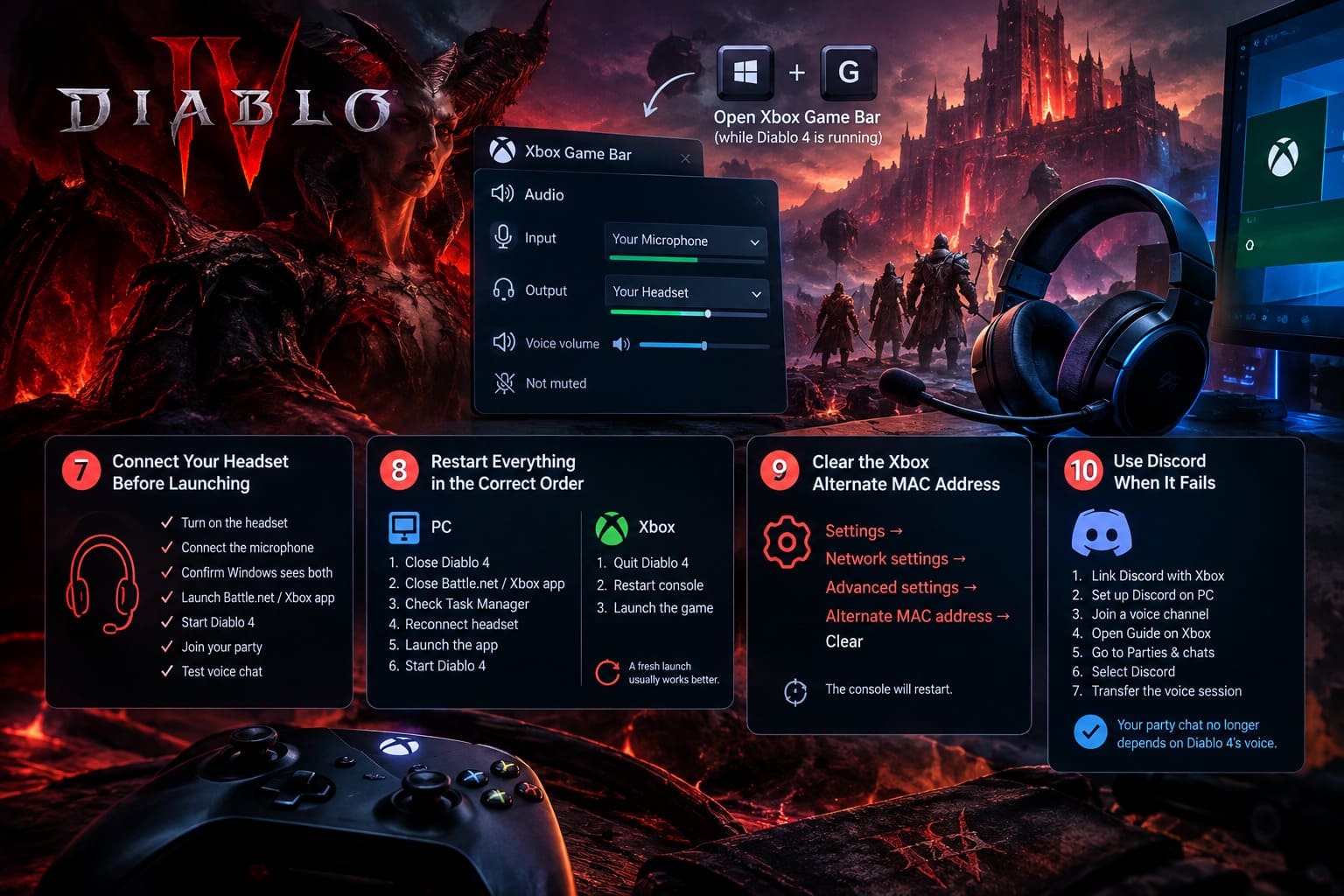
Confirm that:
- Input is your actual microphone.
- Output is your actual headset.
- Voice volume is audible.
- Nothing is muted.
- Windows isn’t using a disconnected or virtual device.
If Game Bar has selected a different microphone than Diablo 4 or Windows, you can end up with an especially frustrating partial failure where some communication features work while others don’t.
After changing these settings, close and relaunch Diablo 4.
7. Connect Your Headset Before Launching Diablo 4
This sounds like old-school PC troubleshooting, but it is worth doing.
Connect, pair, or power on your headset before launching the game.
Don’t launch Diablo 4 through Battle.net or the Xbox app, enter a character, and then decide to switch from your monitor speakers to a Bluetooth headset.
Some games handle audio hot-swapping beautifully. Diablo 4’s voice communication can be considerably less cooperative.
My preferred sequence is:
- Turn on the headset.
- Connect the microphone.
- Confirm Windows recognizes both devices.
- Launch Battle.net or the Xbox app.
- Start Diablo 4.
- Join your party.
- Test voice chat before starting a serious dungeon run.
If voice works immediately after a clean launch but stops working after changing devices, you’ve found a very useful clue.
8. Restart Everything in the Correct Order
When voice chat becomes completely unresponsive, stop endlessly changing sliders.
Perform a clean restart.
PC
Close Diablo 4 completely, then close Battle.net or the Xbox app. Confirm the game isn’t still running in the background through Task Manager. Reconnect your headset, launch the relevant platform app again, and start Diablo 4.
Xbox
Quit Diablo 4 completely rather than relying on Quick Resume. Restart the console and launch the game again after the console reconnects to the network.
Quick Resume can be convenient, but when a multiplayer game’s communication session gets stuck, a fresh launch is usually preferable.
9. Clear the Xbox Alternate MAC Address
If you’re still experiencing strange Xbox network behavior, clearing the Alternate MAC address is another troubleshooting step worth trying.
Go to:
Xbox Settings → Network settings → Advanced settings → Alternate MAC address → Clear
The console will request a restart.
This is primarily a network troubleshooting step rather than a dedicated Diablo 4 voice-chat fix, so I wouldn’t start here. But if multiplayer connectivity itself is behaving strangely alongside voice communication problems, clearing cached network information can be useful.
After the reboot, launch Diablo 4 normally and test the party channel again.
10. Use Discord When Diablo 4 Voice Chat Refuses to Cooperate
Sometimes you reach the point where the game’s voice system simply isn’t worth fighting anymore.
That’s when I would use Discord.
Xbox and PC can communicate through Discord without depending on Diablo 4’s own voice-chat system. That makes it a particularly useful workaround when the game itself is experiencing a temporary VOIP issue, channel bug, or platform mismatch.
The basic setup is:
- Link your Discord account with Xbox.
- Make sure your PC players have Discord configured.
- Join a Discord voice channel.
- On Xbox, open the Guide.
- Go to Parties & chats.
- Select Discord.
- Choose the option to transfer the Discord voice session to your Xbox.
The big advantage is obvious: your party communication no longer depends on Diablo 4’s internal voice channel.
For serious dungeon sessions, PvP, or long co-op runs, this can honestly be less hassle than repeatedly reopening the game’s Social menu.
Diablo 4 Codex of Power Guide: How to Extract, Upgrade, and Max Out Legendary Aspects (2026 Update)
Quick Diablo 4 Crossplay Voice Chat Checklist
Before you start tearing apart Windows settings, run through this list:
- Cross-Network Play: Enabled
- Cross-Network Communication: Enabled
- Xbox cross-network play: Allow
- Xbox outside-network voice/text: Everybody
- Diablo 4 Voice Chat Mode: Test with Open Mic
- Microphone: Correct input device
- Headset: Correct output device
- Party Voice Chat: Manually joined
- Auto-Join Voice Channels: Enabled where available
- Windows Default Communication Device: Correct headset
- Windows Recording Device: Correct microphone
- Xbox Game Bar: Correct input/output
- Headset connected before game launch: Yes
- Diablo 4 fully restarted: Yes
- Xbox restarted: If applicable
- Alternate MAC cleared: If network behavior remains abnormal
- Discord: Final workaround
Diablo 4 Salvage vs Sell Legendary Items: 2026 Endgame Guide
Final Thoughts
Crossplay is one of the best things about modern Diablo 4, especially when your group is split between Xbox and PC. The ability to jump into a dungeon with friends regardless of platform is exactly what a modern multiplayer ARPG should deliver.
The frustrating part is that voice communication has several different points of failure.
If I were troubleshooting this on my own setup, I would start with Cross-Network Communication, then immediately check Xbox privacy permissions, the game’s voice channel, and Windows’ default communication devices. Those checks cover the majority of the obvious configuration problems without wasting time.
If the microphone works but nobody can hear you, focus on input and communication permissions. If you can hear others but they cannot hear you, investigate the microphone and voice mode. If everyone appears connected but the channel is silent, manually switch to Party Voice Chat. And if the game continues acting possessed after every setting is correct, don’t spend an entire evening fighting it—Discord is the cleanest cross-platform fallback.
Diablo 4 already has enough demons to kill. Your voice chat shouldn’t be one of them.